

What the Intercom app does
The Intercom app creates or updates an Intercom user for each customer. It also adds a note to the user for each payment, refund, and dispute. The app has no map from a product to a tag and does not make companies.Before you start
- You are an owner or an admin of the Dodo Payments business.
- You have an Intercom workspace and an app in the Intercom Developer Hub with an access token.
Install, connect, and configure
1
Install the app
Open Apps, then Explore. Open Intercom (publisher Dodo Payments) and select Install app.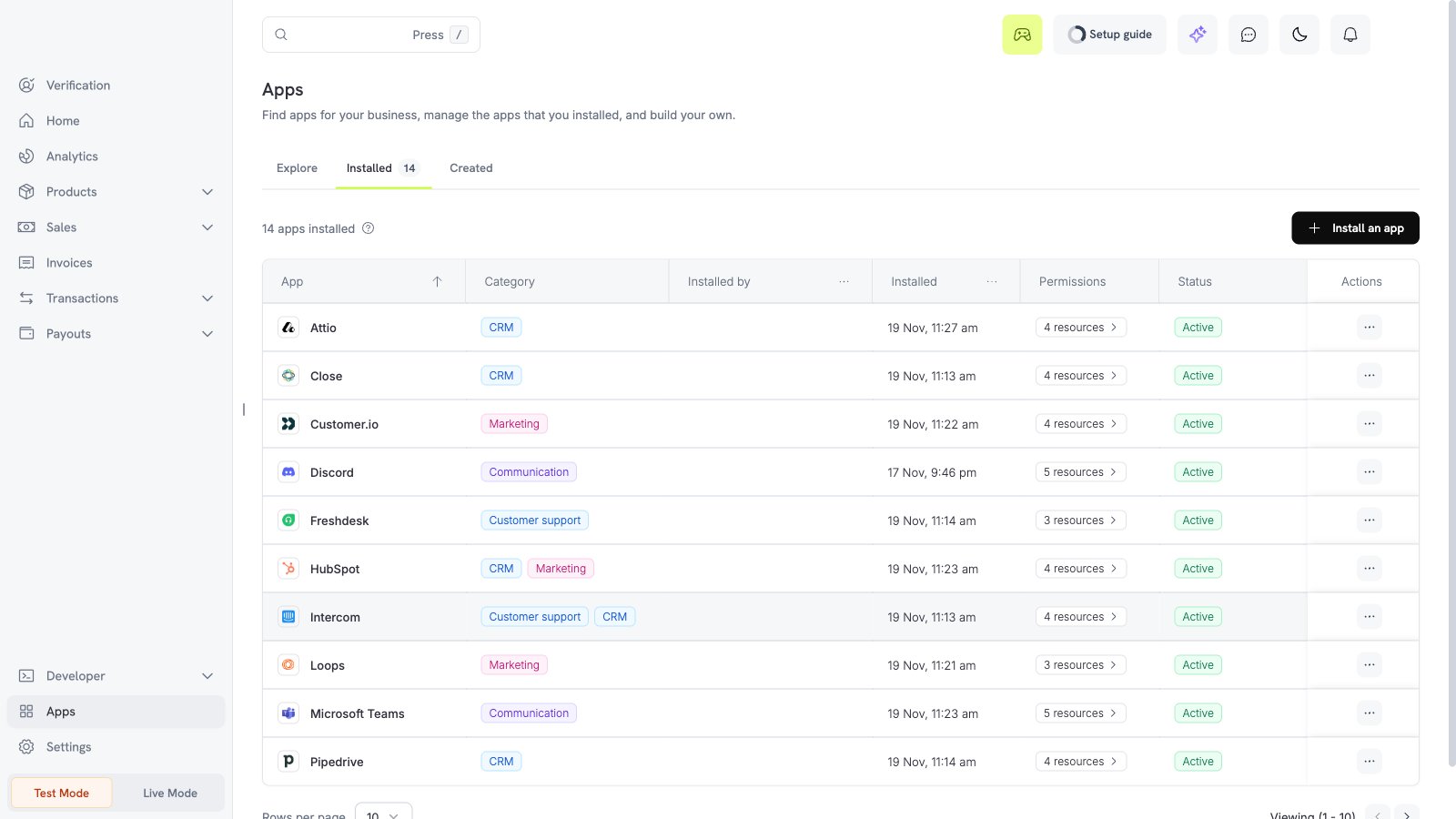
2
Connect Intercom
Select Connect. In the Intercom Developer Hub, open your app, then Authentication, and copy the access token. Paste it in the Access Token field. Pick the Region of your workspace: leave it empty for the US, or pick 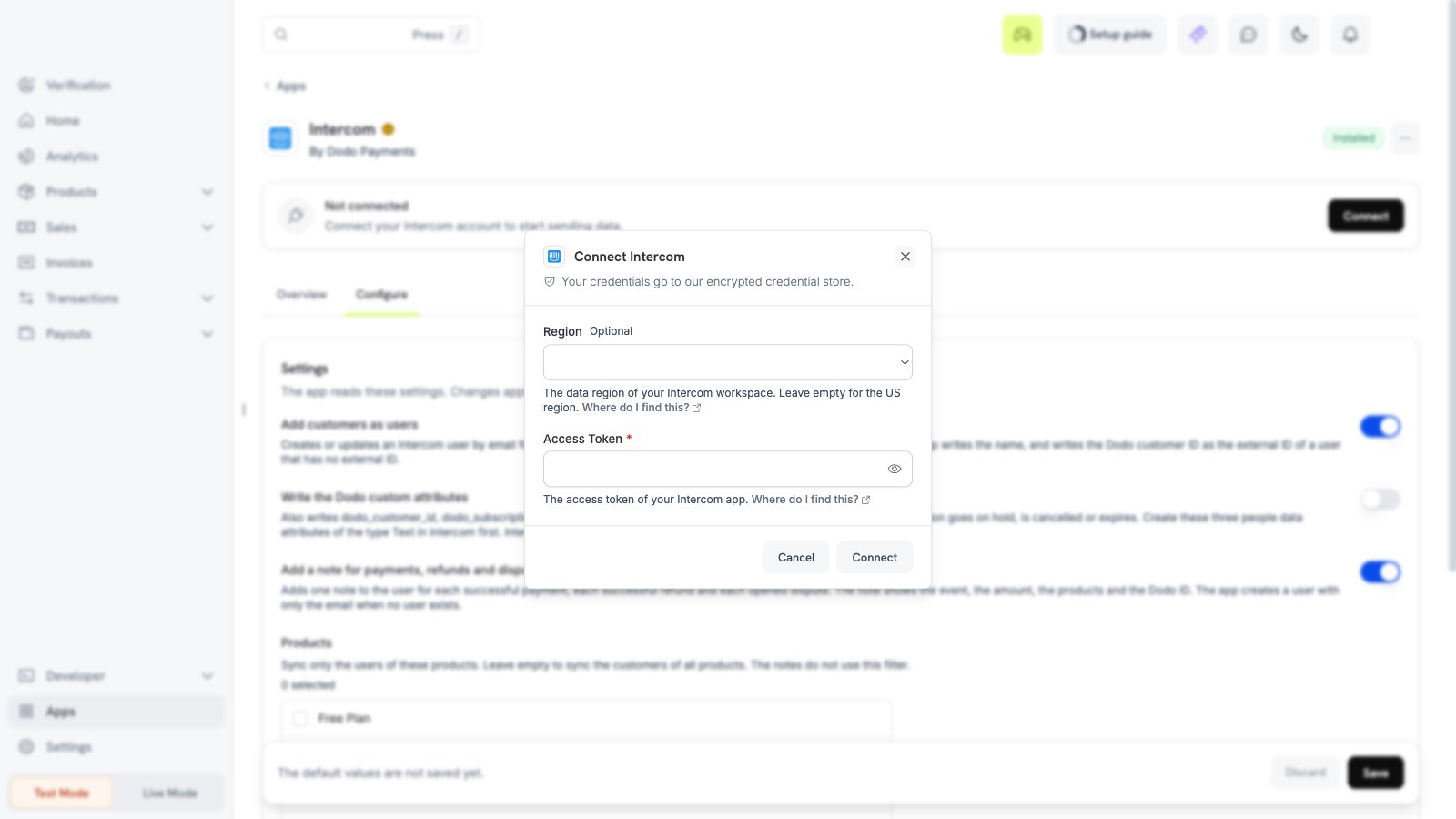
eu for Europe or au for Australia. Select Connect.3
Make the people data attributes (optional)
To use Write the Dodo custom attributes, open Settings, then Data, then People in Intercom. Make three people data attributes of the type Text:
dodo_customer_id, dodo_subscription_status, and dodo_status_updated_at. Intercom refuses an attribute that does not exist.4
Choose the settings
Open the Configure tab, set the options, and select Save.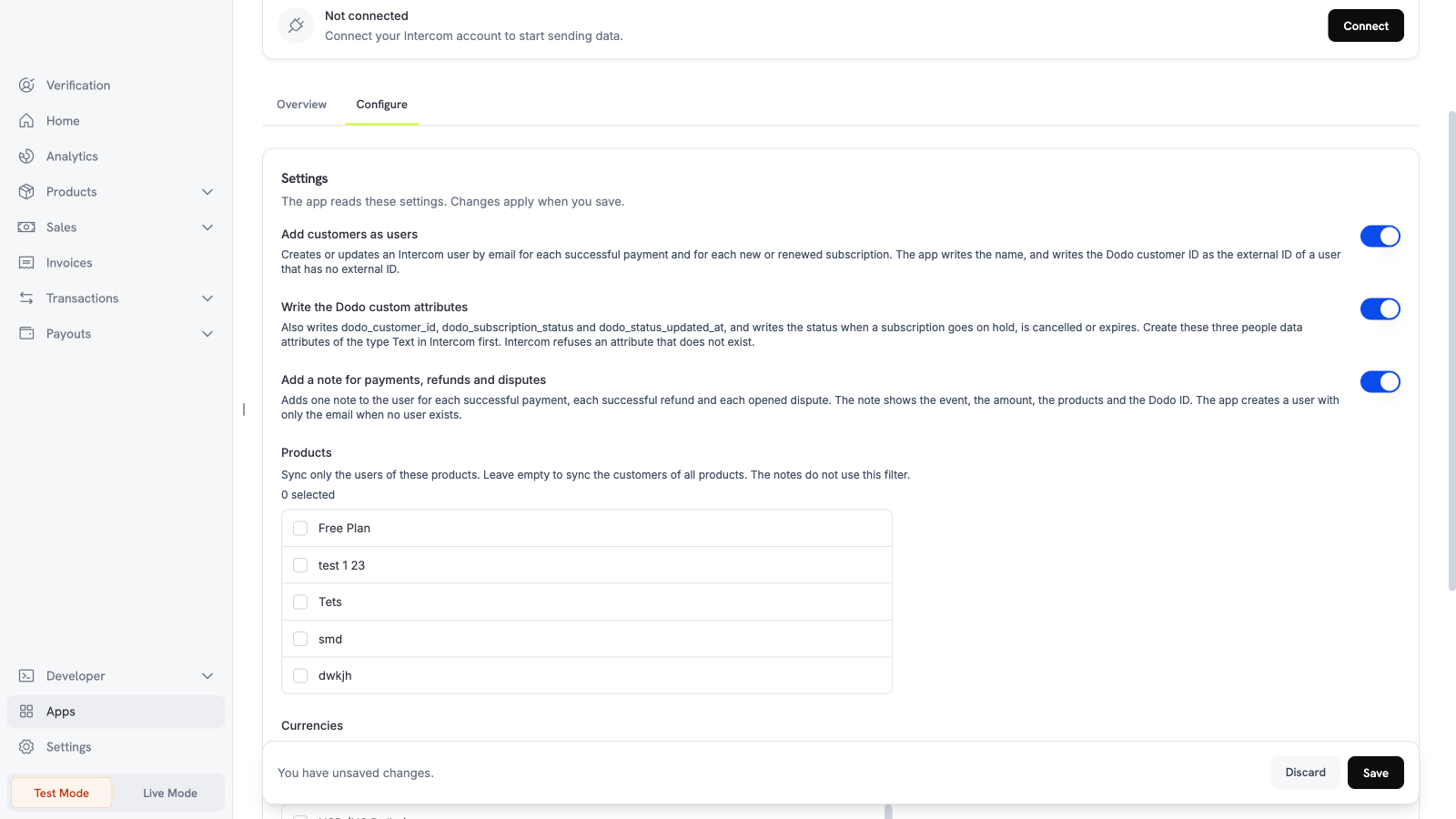
5
Pick the filters
Pick the products and currencies, then select Save.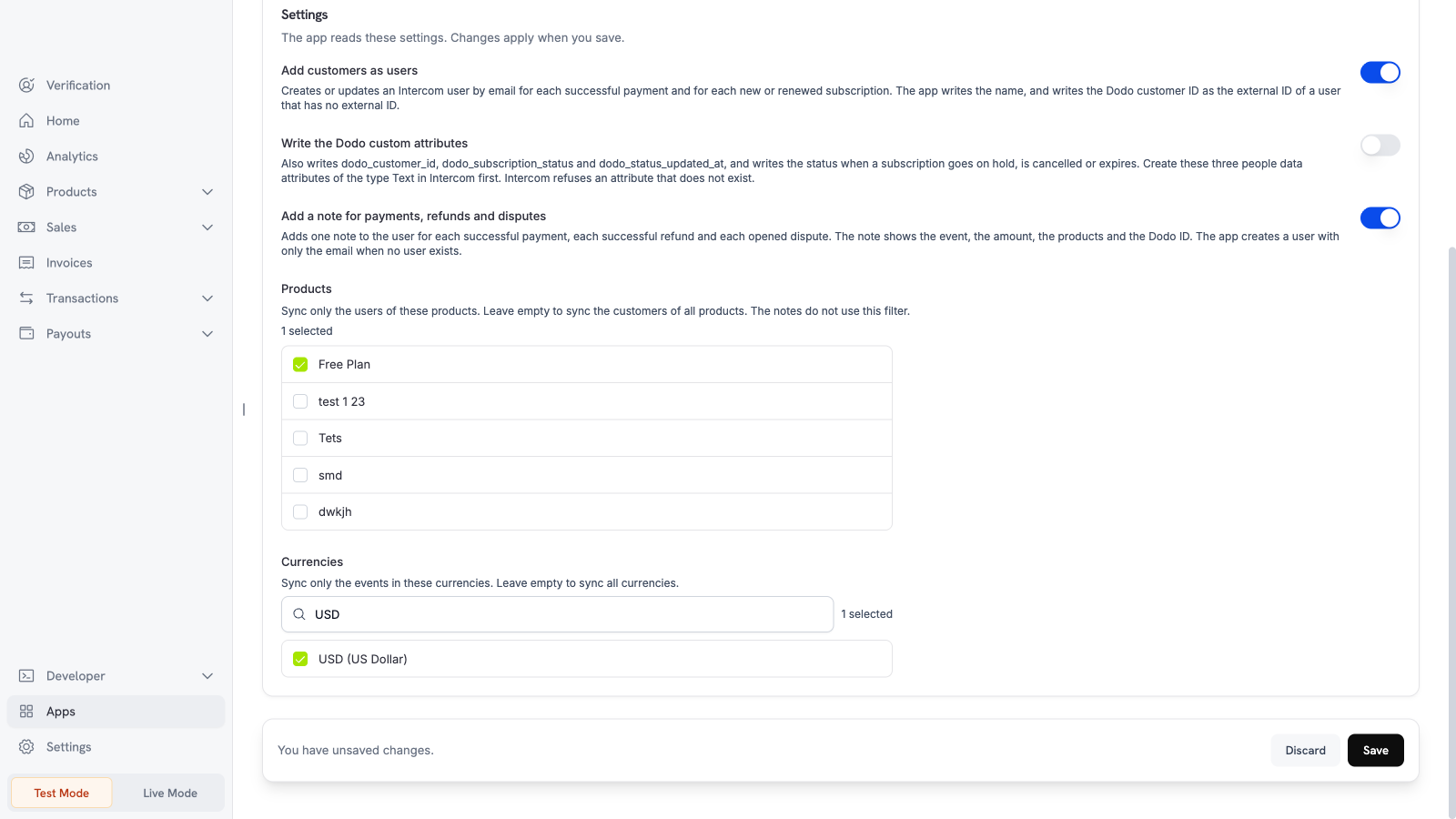
Settings
What is sent and when
Dodo Payments sends data after the Dodo Payments event happens. The app sends the email address, the name, and the Dodo customer ID of the customer. With Write the Dodo custom attributes on, it also sends the subscription status and the time. A note shows the event, the amount in the major unit with the currency code, the product names, and the Dodo ID. The app sends no card data and no address. When no user exists, the app creates a user with only the email for a note. The app updates the name of an existing user at each payment. A name that you changed in Intercom changes back to the name in Dodo Payments. The app writes the external ID only to a user that has no external ID. Two limits apply:- The Intercom search can show a new contact some minutes late. A status event for a user that the app made a few seconds before can fail.
- Before it adds a note, the app looks for an earlier note of the same Dodo ID. It does not find a note when the contact has more than 200 notes. In this case, a retry can add a second note.
Test the app
1
Use test mode
Install and connect the app in test mode.
2
Make a test payment
Create a test payment with a test customer email.
3
Check Intercom
Open Contacts in Intercom. The test customer appears. If notes are on, the user has a note for the payment.