> ## Documentation Index
> Fetch the complete documentation index at: https://docs.dodopayments.com/llms.txt
> Use this file to discover all available pages before exploring further.
# Overlay Checkout
> A modern TypeScript library for embedding Dodo Payments overlay checkout and listening to checkout events in real-time.
## Overview
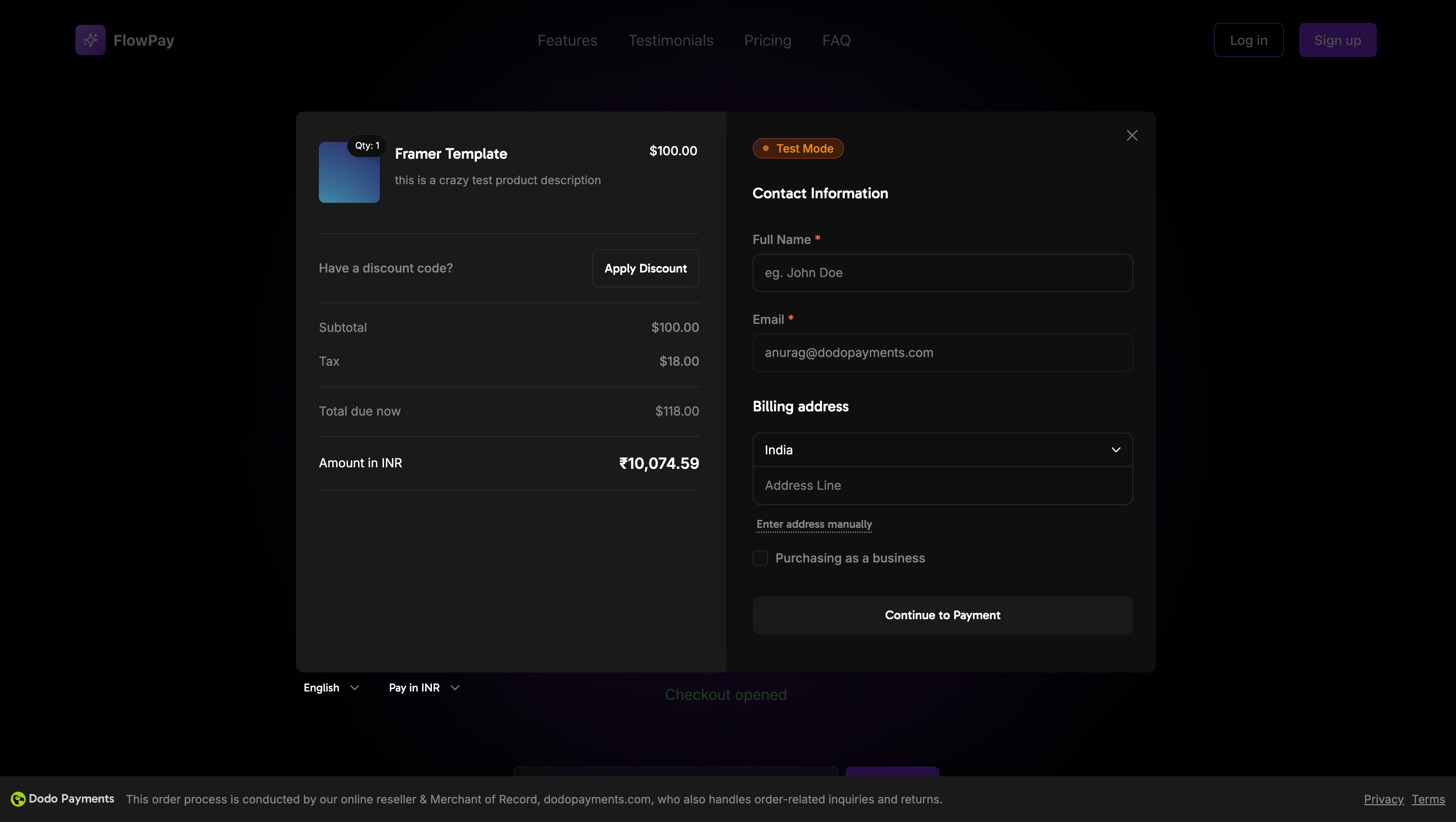
The Dodo Payments Checkout SDK provides a seamless way to integrate our payment overlay into your web application. Built with TypeScript and modern web standards, it offers a robust solution for handling payments with real-time event handling and customizable themes.
## Demo
See the overlay checkout in action with our live demo.
## Quick Start
Get started with the Dodo Payments Checkout SDK in just a few lines of code:
```typescript theme={null}
import { DodoPayments } from "dodopayments-checkout";
// Initialize the SDK
DodoPayments.Initialize({
mode: "test", // 'test' or 'live'
displayType: "overlay", // Optional: defaults to 'overlay' for overlay checkout
onEvent: (event) => {
console.log("Checkout event:", event);
},
});
// Open checkout
DodoPayments.Checkout.open({
checkoutUrl: "https://checkout.dodopayments.com/session/cks_123"
});
```
Get your checkout URL from the [create checkout session API](/api-reference/checkout-sessions/create).
## Step-by-Step Integration Guide
Install the Dodo Payments Checkout SDK using your preferred package manager:
```bash npm theme={null}
npm install dodopayments-checkout
```
```bash yarn theme={null}
yarn add dodopayments-checkout
```
```bash pnpm theme={null}
pnpm add dodopayments-checkout
```
Initialize the SDK in your application, typically in your main component or app entry point:
```typescript theme={null}
import { DodoPayments } from "dodopayments-checkout";
DodoPayments.Initialize({
mode: "test", // Change to 'live' for production
displayType: "overlay", // Optional: defaults to 'overlay' for overlay checkout
onEvent: (event) => {
console.log("Checkout event:", event);
// Handle different events
switch (event.event_type) {
case "checkout.opened":
// Checkout overlay has been opened
break;
case "checkout.closed":
// Checkout has been closed
break;
case "checkout.error":
// Handle errors
console.error("Checkout error:", event.data?.message);
break;
}
},
});
```
Always initialize the SDK before attempting to open the checkout. Initialization should happen once when your application loads.
Create a component that opens the checkout overlay:
```typescript theme={null}
// components/CheckoutButton.tsx
"use client";
import { Button } from "@/components/ui/button";
import { DodoPayments } from "dodopayments-checkout";
import { useEffect, useState } from "react";
export function CheckoutButton() {
const [isLoading, setIsLoading] = useState(false);
useEffect(() => {
// Initialize the SDK
DodoPayments.Initialize({
mode: "test",
displayType: "overlay",
onEvent: (event) => {
switch (event.event_type) {
case "checkout.opened":
setIsLoading(false);
break;
case "checkout.error":
setIsLoading(false);
console.error("Checkout error:", event.data?.message);
break;
}
},
});
}, []);
const handleCheckout = async () => {
try {
setIsLoading(true);
await DodoPayments.Checkout.open({
checkoutUrl: "https://checkout.dodopayments.com/session/cks_123"
});
} catch (error) {
console.error("Failed to open checkout:", error);
setIsLoading(false);
}
};
return (
);
}
```
Use the checkout button component in your application:
```typescript theme={null}
// app/page.tsx
import { CheckoutButton } from "@/components/CheckoutButton";
export default function Home() {
return (
Welcome to Our Store
);
}
```
Create pages to handle checkout redirects:
```typescript theme={null}
// app/success/page.tsx
export default function SuccessPage() {
return (
);
}
```
1. Start your development server:
```bash theme={null}
npm run dev
```
2. Test the checkout flow:
* Click the checkout button
* Verify the overlay appears
* Test the payment flow using test credentials
* Confirm redirects work correctly
You should see checkout events logged in your browser console.
When you're ready for production:
1. Change the mode to `'live'`:
```typescript theme={null}
DodoPayments.Initialize({
mode: "live",
displayType: "overlay",
onEvent: (event) => {
console.log("Checkout event:", event);
}
});
```
2. Update your checkout URLs to use live checkout sessions from your backend
3. Test the complete flow in production
4. Monitor events and errors
## API Reference
### Configuration
#### Initialize Options
```typescript theme={null}
interface InitializeOptions {
mode: "test" | "live";
displayType?: "overlay" | "inline";
onEvent: (event: CheckoutEvent) => void;
}
```
| Option | Type | Required | Description |
| ------------- | ----------------------- | -------- | ---------------------------------------------------------------------------------------- |
| `mode` | `"test" \| "live"` | Yes | Environment mode: `'test'` for development, `'live'` for production |
| `displayType` | `"overlay" \| "inline"` | No | Display type: `'overlay'` for modal checkout (default), `'inline'` for embedded checkout |
| `onEvent` | `function` | Yes | Callback function for handling checkout events |
#### Checkout Options
```typescript theme={null}
interface CheckoutOptions {
checkoutUrl: string;
options?: {
showTimer?: boolean;
showSecurityBadge?: boolean;
};
}
```
| Option | Type | Required | Description |
| --------------------------- | --------- | -------- | ------------------------------------------------------------------------------------------------------------------------------------------------ |
| `checkoutUrl` | `string` | Yes | Checkout session URL from the [create checkout session API](/api-reference/checkout-sessions/create) |
| `options.showTimer` | `boolean` | No | Show or hide the checkout timer. Defaults to `true`. When disabled, you will receive the `checkout.link_expired` event when the session expires. |
| `options.showSecurityBadge` | `boolean` | No | Show or hide the security badge. Defaults to `true`. |
### Methods
#### Open Checkout
Opens the checkout overlay with the specified checkout session URL.
```typescript theme={null}
DodoPayments.Checkout.open({
checkoutUrl: "https://checkout.dodopayments.com/session/cks_123"
});
```
You can also pass additional options to customize the checkout behavior:
```typescript theme={null}
DodoPayments.Checkout.open({
checkoutUrl: "https://checkout.dodopayments.com/session/cks_123",
options: {
showTimer: false,
showSecurityBadge: false,
},
});
```
#### Close Checkout
Programmatically closes the checkout overlay.
```typescript theme={null}
DodoPayments.Checkout.close();
```
#### Check Status
Returns whether the checkout overlay is currently open.
```typescript theme={null}
const isOpen = DodoPayments.Checkout.isOpen();
// Returns: boolean
```
### Events
The SDK provides real-time events that you can listen to through the `onEvent` callback:
```typescript theme={null}
DodoPayments.Initialize({
onEvent: (event: CheckoutEvent) => {
switch (event.event_type) {
case "checkout.opened":
// Checkout overlay has been opened
break;
case "checkout.form_ready":
// Checkout form is ready for user input
break;
case "checkout.payment_page_opened":
// Payment page has been displayed
break;
case "checkout.customer_details_submitted":
// Customer and billing details submitted
break;
case "checkout.closed":
// Checkout has been closed
break;
case "checkout.redirect":
// Checkout will perform a redirect
break;
case "checkout.error":
// An error occurred
console.error("Error:", event.data?.message);
break;
case "checkout.link_expired":
// Checkout session has expired (only when showTimer is false)
break;
}
}
});
```
| Event Type | Description |
| ------------------------------------- | ------------------------------------------------------------------------------------------ |
| `checkout.opened` | Checkout overlay has been opened |
| `checkout.form_ready` | Checkout form is ready to receive user input. Useful for hiding loading states. |
| `checkout.payment_page_opened` | Payment page has been displayed |
| `checkout.customer_details_submitted` | Customer and billing details have been submitted |
| `checkout.closed` | Checkout overlay has been closed |
| `checkout.redirect` | Checkout will perform a redirect |
| `checkout.error` | An error occurred during checkout |
| `checkout.link_expired` | Fired when the checkout session expires. Only received when `showTimer` is set to `false`. |
## Implementation Options
### Package Manager Installation
Install via npm, yarn, or pnpm as shown in the [Step-by-Step Integration Guide](#step-by-step-integration-guide).
### CDN Implementation
For quick integration without a build step, you can use our CDN:
```html theme={null}
Dodo Payments Checkout
```
### Theme Customization
You can customize the checkout appearance by passing a `themeConfig` object in the `options` parameter when opening checkout. The theme configuration supports both light and dark modes, allowing you to customize colors, borders, text, buttons, and border radius.
The client-side `themeConfig` option is **deprecated** and will be removed in the next major version of the Checkout SDK (v2.0.0). Passing it logs a deprecation warning in the browser console. Configure your theme when creating the checkout session via the API instead, using the `customization.theme_config` parameter — see [Checkout Theme Customization](/features/checkout#checkout-theme-customization) — or visually on the [Design page](/features/design) in the dashboard. Session-configured themes apply to overlay, inline, and hosted checkout alike.
This section covers the deprecated **client-side** theme configuration using the Checkout SDK. The recommended approach is to configure themes **server-side** when creating a checkout session via the API using the `theme_config` parameter. See [Checkout Theme Customization](/features/checkout#checkout-theme-customization) for API-level configuration, or use the [Design page](/features/design) in the dashboard to configure themes visually with live preview.
#### Basic Theme Configuration
```typescript theme={null}
DodoPayments.Checkout.open({
checkoutUrl: "https://checkout.dodopayments.com/session/cks_123",
options: {
themeConfig: {
light: {
bgPrimary: "#FFFFFF",
textPrimary: "#344054",
buttonPrimary: "#A6E500",
},
dark: {
bgPrimary: "#0D0D0D",
textPrimary: "#FFFFFF",
buttonPrimary: "#A6E500",
},
radius: "8px",
},
},
});
```
#### Complete Theme Configuration
All available theme properties:
```typescript theme={null}
DodoPayments.Checkout.open({
checkoutUrl: "https://checkout.dodopayments.com/session/cks_123",
options: {
themeConfig: {
light: {
// Background colors
bgPrimary: "#FFFFFF", // Primary background color
bgSecondary: "#F9FAFB", // Secondary background color (e.g., tabs)
// Border colors
borderPrimary: "#D0D5DD", // Primary border color
borderSecondary: "#6B7280", // Secondary border color
// Text colors
textPrimary: "#344054", // Primary text color
textSecondary: "#6B7280", // Secondary text color
textPlaceholder: "#667085", // Placeholder text color
textError: "#D92D20", // Error text color
textSuccess: "#10B981", // Success text color
// Button colors
buttonPrimary: "#A6E500", // Primary button background
buttonPrimaryHover: "#8CC500", // Primary button hover state
buttonTextPrimary: "#0D0D0D", // Primary button text color
buttonSecondary: "#F3F4F6", // Secondary button background
buttonSecondaryHover: "#E5E7EB", // Secondary button hover state
buttonTextSecondary: "#344054", // Secondary button text color
},
dark: {
// Background colors
bgPrimary: "#0D0D0D",
bgSecondary: "#1A1A1A",
// Border colors
borderPrimary: "#323232",
borderSecondary: "#D1D5DB",
// Text colors
textPrimary: "#FFFFFF",
textSecondary: "#909090",
textPlaceholder: "#9CA3AF",
textError: "#F97066",
textSuccess: "#34D399",
// Button colors
buttonPrimary: "#A6E500",
buttonPrimaryHover: "#8CC500",
buttonTextPrimary: "#0D0D0D",
buttonSecondary: "#2A2A2A",
buttonSecondaryHover: "#3A3A3A",
buttonTextSecondary: "#FFFFFF",
},
radius: "8px", // Border radius for inputs, buttons, and tabs
},
},
});
```
#### Light Mode Only
If you only want to customize the light theme:
```typescript theme={null}
DodoPayments.Checkout.open({
checkoutUrl: "https://checkout.dodopayments.com/session/cks_123",
options: {
themeConfig: {
light: {
bgPrimary: "#FFFFFF",
textPrimary: "#000000",
buttonPrimary: "#0070F3",
},
radius: "12px",
},
},
});
```
#### Dark Mode Only
If you only want to customize the dark theme:
```typescript theme={null}
DodoPayments.Checkout.open({
checkoutUrl: "https://checkout.dodopayments.com/session/cks_123",
options: {
themeConfig: {
dark: {
bgPrimary: "#000000",
textPrimary: "#FFFFFF",
buttonPrimary: "#0070F3",
},
radius: "12px",
},
},
});
```
#### Partial Theme Override
You can override only specific properties. The checkout will use default values for properties you don't specify:
```typescript theme={null}
DodoPayments.Checkout.open({
checkoutUrl: "https://checkout.dodopayments.com/session/cks_123",
options: {
themeConfig: {
light: {
buttonPrimary: "#FF6B6B", // Only override primary button color
},
radius: "16px", // Override border radius
},
},
});
```
#### Theme Configuration with Other Options
You can combine theme configuration with other checkout options:
```typescript theme={null}
DodoPayments.Checkout.open({
checkoutUrl: "https://checkout.dodopayments.com/session/cks_123",
options: {
showTimer: true,
showSecurityBadge: true,
themeConfig: {
light: {
bgPrimary: "#FFFFFF",
buttonPrimary: "#A6E500",
},
dark: {
bgPrimary: "#0D0D0D",
buttonPrimary: "#A6E500",
},
radius: "8px",
},
},
});
```
#### TypeScript Types
For TypeScript users, all theme configuration types are exported:
```typescript theme={null}
import { ThemeConfig, ThemeModeConfig } from "dodopayments-checkout";
const themeConfig: ThemeConfig = {
light: {
bgPrimary: "#FFFFFF",
// ... other properties
},
dark: {
bgPrimary: "#0D0D0D",
// ... other properties
},
radius: "8px",
};
```
## Error Handling
The SDK provides detailed error information through the event system. Always implement proper error handling in your `onEvent` callback:
```typescript theme={null}
DodoPayments.Initialize({
mode: "test",
displayType: "overlay",
onEvent: (event: CheckoutEvent) => {
if (event.event_type === "checkout.error") {
console.error("Checkout error:", event.data?.message);
// Handle error appropriately
// You may want to show a user-friendly error message
// or retry the checkout process
}
if (event.event_type === "checkout.link_expired") {
// Handle expired checkout session
console.warn("Checkout session has expired");
}
}
});
```
Always handle the `checkout.error` event to provide a good user experience when errors occur.
## Best Practices
1. **Initialize once**: Initialize the SDK once when your application loads, not on every checkout attempt
2. **Error handling**: Always implement proper error handling in your event callback
3. **Test mode**: Use `test` mode during development and switch to `live` only when ready for production
4. **Event handling**: Handle all relevant events for a complete user experience
5. **Valid URLs**: Always use valid checkout URLs from the create checkout session API
6. **TypeScript**: Use TypeScript for better type safety and developer experience
7. **Loading states**: Show loading states while the checkout is opening to improve UX
8. **Timer management**: Disable the timer (`showTimer: false`) if you want to handle session expiration manually
## Troubleshooting
**Possible causes:**
* SDK not initialized before calling `open()`
* Invalid checkout URL
* JavaScript errors in console
* Network connectivity issues
**Solutions:**
* Verify SDK initialization happens before opening checkout
* Check for console errors
* Ensure checkout URL is valid and from the create checkout session API
* Verify network connectivity
**Possible causes:**
* Event handler not properly set up
* JavaScript errors preventing event propagation
* SDK not initialized correctly
**Solutions:**
* Confirm event handler is properly configured in `Initialize()`
* Check browser console for JavaScript errors
* Verify SDK initialization completed successfully
* Test with a simple event handler first
**Possible causes:**
* CSS conflicts with your application styles
* Theme settings not applied correctly
* Responsive design issues
**Solutions:**
* Check for CSS conflicts in browser DevTools
* Verify theme settings are correct
* Test on different screen sizes
* Ensure no z-index conflicts with overlay
## Enabling Digital Wallets
For detailed information about setting up Google Pay and other digital wallets, see the Digital Wallets page.
Apple Pay is not yet supported in overlay checkout. Support for Apple Pay is coming soon.
## Browser Support
The Dodo Payments Checkout SDK supports the following browsers:
* Chrome (latest)
* Firefox (latest)
* Safari (latest)
* Edge (latest)
* IE11+
## Overlay vs Inline Checkout
Choose the right checkout type for your use case:
| Feature | Overlay Checkout | Inline Checkout |
| --------------------- | --------------------------------- | -------------------------------------------- |
| Integration depth | Modal on top of page | Fully embedded in page |
| Layout control | Limited | Full control |
| Branding | Separate from page | Seamless |
| Implementation effort | Lower | Higher |
| Best for | Quick integration, existing pages | Custom checkout pages, high-conversion flows |
Use **overlay checkout** for faster integration with minimal changes to your existing pages. Use **inline checkout** when you want maximum control over the checkout experience and seamless branding.
## Related Resources
Embed checkout directly into your page for fully integrated experiences.
Create checkout sessions to power your checkout experiences.
Handle payment events server-side with webhooks.
Complete guide to integrating Dodo Payments.
For more help, visit our [Discord community](https://discord.gg/bYqAp4ayYh) or contact our developer support team.
 ## Demo