> ## Documentation Index
> Fetch the complete documentation index at: https://docs.dodopayments.com/llms.txt
> Use this file to discover all available pages before exploring further.

# Inline Checkout

> Embed Dodo Payments checkout directly into your website for a seamless, branded payment experience.

## Overview

Inline checkout lets you create fully integrated checkout experiences that blend seamlessly with your website or application. Unlike the [overlay checkout](/developer-resources/overlay-checkout), which opens as a modal on top of your page, inline checkout embeds the payment form directly into your page layout.

Using inline checkout, you can:

* Create checkout experiences that are fully integrated with your app or website
* Let Dodo Payments securely capture customer and payment information in an optimized checkout frame
* Display items, totals, and other information from Dodo Payments on your page
* Use SDK methods and events to build advanced checkout experiences

<Frame>
  <img src="https://mintcdn.com/dodopayments/HpxJAc8zNlxzewa_/images/inline-checkout/cover.png?fit=max&auto=format&n=HpxJAc8zNlxzewa_&q=85&s=99c1a92ef01680248a421d3f057b02cd" alt="Inline Checkout Cover Image" style={{ maxHeight: '500px', width: 'auto' }} width="839" height="565" data-path="images/inline-checkout/cover.png" />
</Frame>

## How It Works

Inline checkout works by embedding a secure Dodo Payments frame into your website or app.

The checkout frame handles collecting customer information and capturing payment details. Your page displays the items list, totals, and options for changing what's on the checkout. The SDK lets your page and the checkout frame interact with each other.

Dodo Payments automatically creates a subscription when a checkout completes, ready for you to provision.
<Note>
  The inline checkout frame securely handles all sensitive payment information, ensuring PCI compliance without additional certification on your end.
</Note>

## What Makes a Good Inline Checkout?

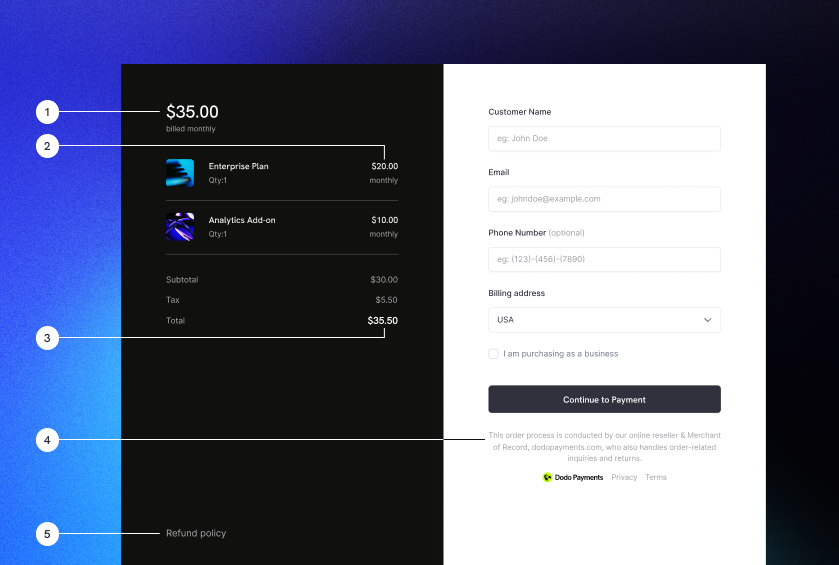
It's important that customers know who they're buying from, what they're buying, and how much they're paying.

To build an inline checkout that's compliant and optimized for conversion, your implementation must include:

<Frame caption="Example inline checkout layout showing required elements">
  <img src="https://mintcdn.com/dodopayments/HpxJAc8zNlxzewa_/images/inline-checkout/example.png?fit=max&auto=format&n=HpxJAc8zNlxzewa_&q=85&s=c7c00fb01b76f7fb3d9831fc922b9fe9" alt="Inline checkout example with required elements labeled" style={{ maxHeight: '500px', width: 'auto' }} width="839" height="565" data-path="images/inline-checkout/example.png" />
</Frame>

1. **Recurring information**: If recurring, how often it recurs and the total to pay on renewal. If a trial, how long the trial lasts.
2. **Item descriptions**: A description of what's being purchased.
3. **Transaction totals**: Transaction totals, including subtotal, total tax, and grand total. Be sure to include the currency too.
4. **Dodo Payments footer**: The full inline checkout frame, including the checkout footer that has information about Dodo Payments, our terms of sale, and our privacy policy.
5. **Refund policy**: A link to your refund policy, if it differs from the Dodo Payments standard refund policy.
<Warning>
  Always display the complete inline checkout frame, including the footer. Removing or hiding legal information violates compliance requirements.
</Warning>

## Customer Journey

The checkout flow is determined by your checkout session configuration. Depending on how you configure the checkout session, customers will experience a checkout that may present all information on a single page or across multiple steps.

<Steps>
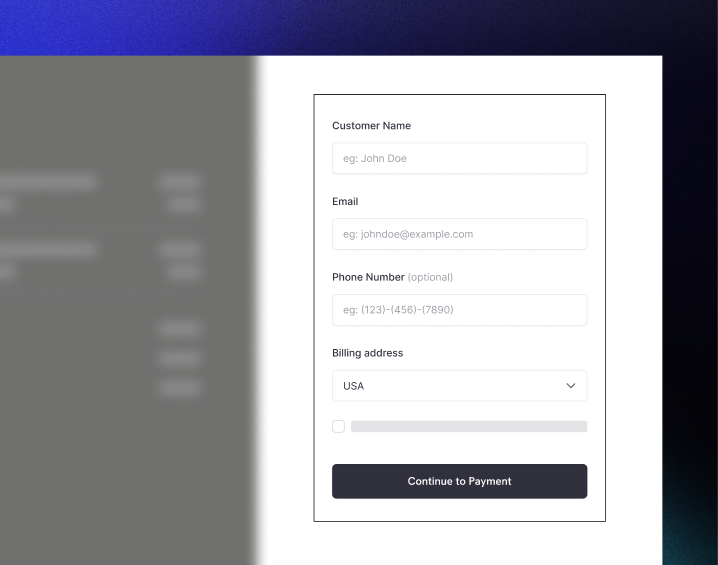
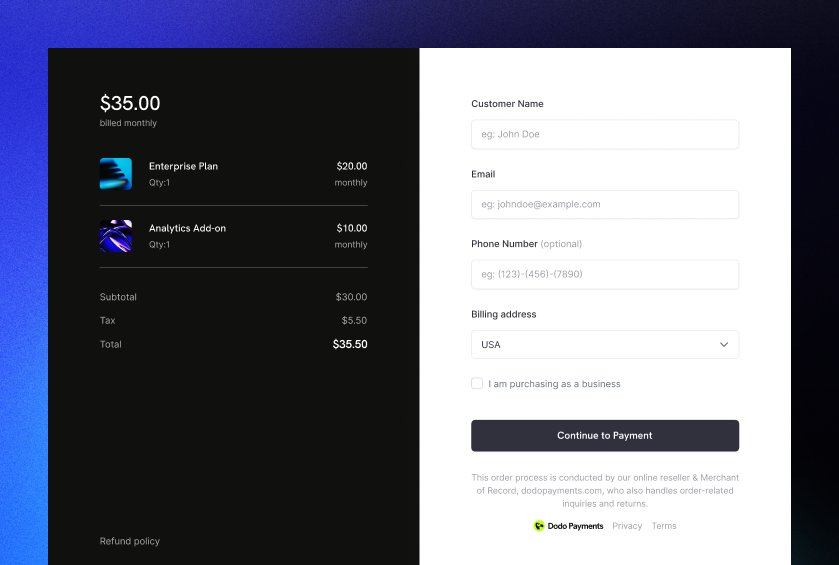
  <Step title="Customer opens checkout">
    You can open inline checkout by passing items or an existing transaction. Use the SDK to show and update on-page information, and SDK methods to update items based on customer interaction.

    <img src="https://mintcdn.com/dodopayments/HpxJAc8zNlxzewa_/images/inline-checkout/1.png?fit=max&auto=format&n=HpxJAc8zNlxzewa_&q=85&s=b3def4e750c3c487196d22519503ae2a" alt="Initial checkout page with items list and payment form" style={{ maxHeight: '500px', width: 'auto' }} width="718" height="565" data-path="images/inline-checkout/1.png" />
  </Step>

  <Step title="Customer enters their details">
    Inline checkout first asks customers to enter their email address, select their country, and (where required) enter their ZIP or postal code. This step gathers all necessary information to determine taxes and available payment options.

    You can prefill customer details and present saved addresses to streamline the experience.
  </Step>

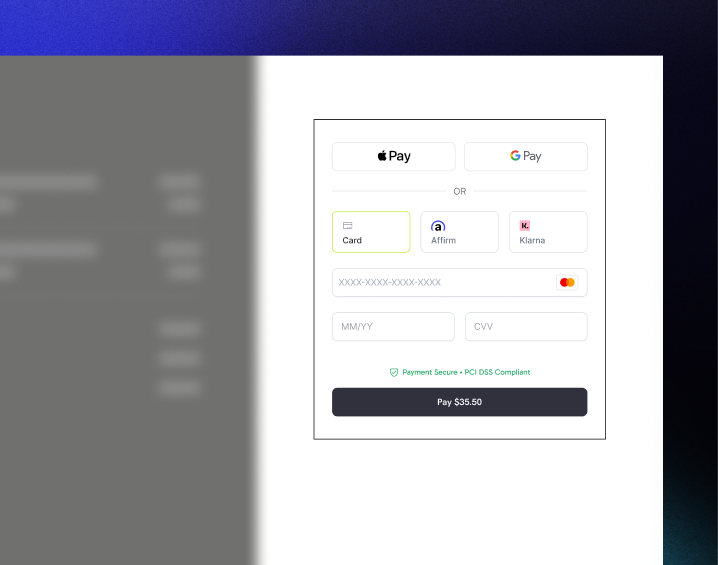
  <Step title="Customer selects payment method">
    After entering their details, customers are presented with available payment methods and the payment form. Options may include credit or debit card, PayPal, Apple Pay, Google Pay, and other local payment methods based on their location.

    Display saved payment methods if available to speed up checkout.

    <img src="https://mintcdn.com/dodopayments/HpxJAc8zNlxzewa_/images/inline-checkout/2.png?fit=max&auto=format&n=HpxJAc8zNlxzewa_&q=85&s=cbfa4958d0892feaa3aa474c4fe42c48" alt="Available payment methods and card details form" style={{ maxHeight: '500px', width: 'auto' }} width="718" height="565" data-path="images/inline-checkout/2.png" />
  </Step>

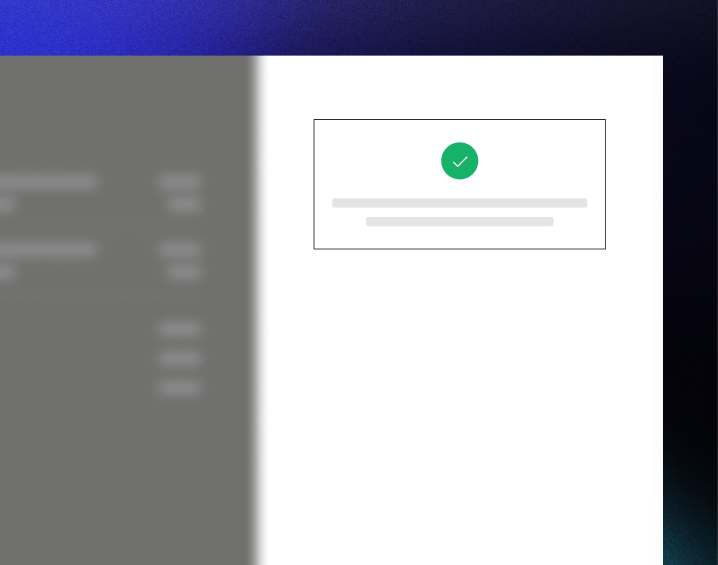
  <Step title="Checkout completed">
    Dodo Payments routes every payment to the best acquirer for that sale to get the best possible chance of success. Customers enter a success workflow that you can build.

    <img src="https://mintcdn.com/dodopayments/HpxJAc8zNlxzewa_/images/inline-checkout/3.png?fit=max&auto=format&n=HpxJAc8zNlxzewa_&q=85&s=b75ac3d25abf7dc18a226904af72641b" alt="Success screen with confirmation checkmark" style={{ maxHeight: '500px', width: 'auto' }} width="718" height="565" data-path="images/inline-checkout/3.png" />
  </Step>

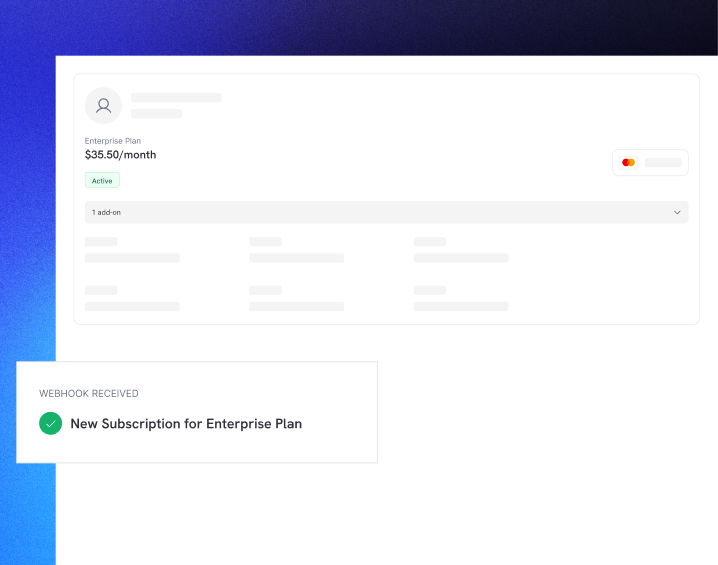
  <Step title="Dodo Payments creates subscription">
    Dodo Payments automatically creates a subscription for the customer, ready for you to provision. The payment method the customer used is held on file for renewals or subscription changes.

    <img src="https://mintcdn.com/dodopayments/HpxJAc8zNlxzewa_/images/inline-checkout/4.png?fit=max&auto=format&n=HpxJAc8zNlxzewa_&q=85&s=645d66da0aa02ac842384f85814c5922" alt="Subscription created with webhook notification" style={{ maxHeight: '500px', width: 'auto' }} width="718" height="565" data-path="images/inline-checkout/4.png" />
  </Step>
</Steps>

## Quick Start

Get started with the Dodo Payments Inline Checkout in just a few lines of code:

```typescript theme={null}
import { DodoPayments } from "dodopayments-checkout";

// Initialize the SDK for inline mode
DodoPayments.Initialize({
  mode: "test",
  displayType: "inline",
  onEvent: (event) => {
    console.log("Checkout event:", event);
  },
});

// Open checkout in a specific container
DodoPayments.Checkout.open({
  checkoutUrl: "https://test.dodopayments.com/session/cks_123",
  elementId: "dodo-inline-checkout" // ID of the container element
});
```

<Tip>
  Ensure you have a container element with the corresponding `id` on your page: `<div id="dodo-inline-checkout"></div>`.
</Tip>

## Step-by-Step Integration Guide

<Steps>
  <Step title="Install the SDK">
    Install the Dodo Payments Checkout SDK:

    <CodeGroup>
      ```bash npm theme={null}
      npm install dodopayments-checkout
      ```

      ```bash yarn theme={null}
      yarn add dodopayments-checkout
      ```

      ```bash pnpm theme={null}
      pnpm add dodopayments-checkout
      ```
    </CodeGroup>
  </Step>

  <Step title="Initialize the SDK for Inline Display">
    Initialize the SDK and specify `displayType: 'inline'`. You should also listen for the `checkout.breakdown` event to update your UI with real-time tax and total calculations.

    ```typescript theme={null}
    import { DodoPayments } from "dodopayments-checkout";

    DodoPayments.Initialize({
      mode: "test",
      displayType: "inline",
      onEvent: (event) => {
        if (event.event_type === "checkout.breakdown") {
          const breakdown = event.data?.message;
          // Update your UI with breakdown.subTotal, breakdown.tax, breakdown.total, etc.
        }
      },
    });
    ```
  </Step>

  <Step title="Create a Container Element">
    Add an element to your HTML where the checkout frame will be injected:

    ```html theme={null}
    <div id="dodo-inline-checkout"></div>
    ```
  </Step>

  <Step title="Open the Checkout">
    Call `DodoPayments.Checkout.open()` with the `checkoutUrl` and the `elementId` of your container:

    ```typescript theme={null}
    DodoPayments.Checkout.open({
      checkoutUrl: "https://test.dodopayments.com/session/cks_123",
      elementId: "dodo-inline-checkout"
    });
    ```
  </Step>

  <Step title="Test Your Integration">
    1. Start your development server:

    ```bash theme={null}
    npm run dev
    ```

    2. Test the checkout flow:
       * Enter your email and address details in the inline frame.
       * Verify that your custom order summary updates in real-time.
       * Test the payment flow using test credentials.
       * Confirm redirects work correctly.

    <Check>
      You should see `checkout.breakdown` events logged in your browser console if you added a console log in the `onEvent` callback.
    </Check>
  </Step>

  <Step title="Go Live">
    When you're ready for production:

    1. Change the mode to `'live'`:

    ```typescript theme={null}
    DodoPayments.Initialize({
      mode: "live",
      displayType: "inline",
      onEvent: (event) => {
        // Handle events
      }
    });
    ```

    2. Update your checkout URLs to use live checkout sessions from your backend.
    3. Test the complete flow in production.
  </Step>
</Steps>

## Complete React Example

This example demonstrates how to implement a custom order summary alongside the inline checkout, keeping them in sync using the `checkout.breakdown` event.

```tsx theme={null}
"use client";

import { useEffect, useState } from 'react';
import { DodoPayments, CheckoutBreakdownData } from 'dodopayments-checkout';

export default function CheckoutPage() {
  const [breakdown, setBreakdown] = useState<Partial<CheckoutBreakdownData>>({});

  useEffect(() => {
    // 1. Initialize the SDK
    DodoPayments.Initialize({
      mode: 'test',
      displayType: 'inline',
      onEvent: (event) => {
        // 2. Listen for the 'checkout.breakdown' event
        if (event.event_type === "checkout.breakdown") {
          const message = event.data?.message as CheckoutBreakdownData;
          if (message) setBreakdown(message);
        }
      }
    });

    // 3. Open the checkout in the specified container
    DodoPayments.Checkout.open({
      checkoutUrl: 'https://test.dodopayments.com/session/cks_123',
      elementId: 'dodo-inline-checkout'
    });

    return () => DodoPayments.Checkout.close();
  }, []);

  const format = (amt: number | null | undefined, curr: string | null | undefined) => 
    amt != null && curr ? `${curr} ${(amt/100).toFixed(2)}` : '0.00';

  const currency = breakdown.currency ?? breakdown.finalTotalCurrency ?? '';

  return (
    <div className="flex flex-col md:flex-row min-h-screen">
      {/* Left Side - Checkout Form */}
      <div className="w-full md:w-1/2 flex items-center">
        <div id="dodo-inline-checkout" className='w-full' />
      </div>

      {/* Right Side - Custom Order Summary */}
      <div className="w-full md:w-1/2 p-8 bg-gray-50">
        <h2 className="text-2xl font-bold mb-4">Order Summary</h2>
        <div className="space-y-2">
          {breakdown.subTotal && (
            <div className="flex justify-between">
              <span>Subtotal</span>
              <span>{format(breakdown.subTotal, currency)}</span>
            </div>
          )}
          {breakdown.discount && (
            <div className="flex justify-between">
              <span>Discount</span>
              <span>{format(breakdown.discount, currency)}</span>
            </div>
          )}
          {breakdown.tax != null && (
            <div className="flex justify-between">
              <span>Tax</span>
              <span>{format(breakdown.tax, currency)}</span>
            </div>
          )}
          <hr />
          {(breakdown.finalTotal ?? breakdown.total) && (
            <div className="flex justify-between font-bold text-xl">
              <span>Total</span>
              <span>{format(breakdown.finalTotal ?? breakdown.total, breakdown.finalTotalCurrency ?? currency)}</span>
            </div>
          )}
        </div>
      </div>
    </div>
  );
}

```

## API Reference

### Configuration

#### Initialize Options

```typescript theme={null}
interface InitializeOptions {
  mode: "test" | "live";
  displayType: "inline"; // Required for inline checkout
  onEvent: (event: CheckoutEvent) => void;
}
```

| Option        | Type                    | Required | Description                                      |
| ------------- | ----------------------- | -------- | ------------------------------------------------ |
| `mode`        | `"test" \| "live"`      | Yes      | Environment mode.                                |
| `displayType` | `"inline" \| "overlay"` | Yes      | Must be set to `"inline"` to embed the checkout. |
| `onEvent`     | `function`              | Yes      | Callback function for handling checkout events.  |

#### Checkout Options

```typescript theme={null}
export type FontSize = "xs" | "sm" | "md" | "lg" | "xl" | "2xl";
export type FontWeight = "normal" | "medium" | "bold" | "extraBold";

interface CheckoutOptions {
  checkoutUrl: string;
  elementId: string; // Required for inline checkout
  options?: {
    showTimer?: boolean;
    showSecurityBadge?: boolean;
    payButtonText?: string;
    fontSize?: FontSize;
    fontWeight?: FontWeight;
  };
}
```

| Option                      | Type         | Required | Description                                                                                                                                      |
| --------------------------- | ------------ | -------- | ------------------------------------------------------------------------------------------------------------------------------------------------ |
| `checkoutUrl`               | `string`     | Yes      | Checkout session URL.                                                                                                                            |
| `elementId`                 | `string`     | Yes      | The `id` of the DOM element where the checkout should be rendered.                                                                               |
| `options.showTimer`         | `boolean`    | No       | Show or hide the checkout timer. Defaults to `true`. When disabled, you will receive the `checkout.link_expired` event when the session expires. |
| `options.showSecurityBadge` | `boolean`    | No       | Show or hide the security badge. Defaults to `true`.                                                                                             |
| `options.payButtonText`     | `string`     | No       | Custom text to display on the pay button.                                                                                                        |
| `options.fontSize`          | `FontSize`   | No       | Global font size for the checkout.                                                                                                               |
| `options.fontWeight`        | `FontWeight` | No       | Global font weight for the checkout.                                                                                                             |

### Methods

#### Open Checkout

Opens the checkout frame in the specified container.

```typescript theme={null}
DodoPayments.Checkout.open({
  checkoutUrl: "https://test.dodopayments.com/session/cks_123",
  elementId: "dodo-inline-checkout"
});
```

You can also pass additional options to customize the checkout behavior:

```typescript theme={null}
DodoPayments.Checkout.open({
  checkoutUrl: "https://test.dodopayments.com/session/cks_123",
  elementId: "dodo-inline-checkout",
  options: {
    showTimer: false,
    showSecurityBadge: false,
    payButtonText: "Pay Now",
  },
});
```

#### Close Checkout

Programmatically removes the checkout frame and cleans up event listeners.

```typescript theme={null}
DodoPayments.Checkout.close();
```

#### Check Status

Returns whether the checkout frame is currently injected.

```typescript theme={null}
const isOpen = DodoPayments.Checkout.isOpen();
// Returns: boolean
```

### Events

The SDK provides real-time events through the `onEvent` callback. For inline checkout, `checkout.breakdown` is particularly useful for syncing your UI.

| Event Type                            | Description                                                                                                 |
| ------------------------------------- | ----------------------------------------------------------------------------------------------------------- |
| `checkout.opened`                     | Checkout frame has been loaded.                                                                             |
| `checkout.form_ready`                 | Checkout form is ready to receive user input. Useful for hiding loading states and showing the checkout UI. |
| `checkout.breakdown`                  | Fired when prices, taxes, or discounts are updated.                                                         |
| `checkout.customer_details_submitted` | Customer details have been submitted.                                                                       |
| `checkout.pay_button_clicked`         | Fired when the customer clicks the pay button. Useful for analytics and tracking conversion funnels.        |
| `checkout.redirect`                   | Checkout will perform a redirect (e.g., to a bank page).                                                    |
| `checkout.error`                      | An error occurred during checkout.                                                                          |
| `checkout.link_expired`               | Fired when the checkout session expires. Only received when `showTimer` is set to `false`.                  |

#### Checkout Breakdown Data

The `checkout.breakdown` event provides the following data:

```typescript theme={null}
interface CheckoutBreakdownData {
  subTotal?: number;          // Amount in cents
  discount?: number;         // Amount in cents
  tax?: number;              // Amount in cents
  total?: number;            // Amount in cents
  currency?: string;         // e.g., "USD"
  finalTotal?: number;       // Final amount including adjustments
  finalTotalCurrency?: string; // Currency for the final total
}
```

#### Understanding the Breakdown Event

The `checkout.breakdown` event is the primary way to keep your application's UI in sync with the Dodo Payments checkout state.

**When it fires:**

* **On initialization**: Immediately after the checkout frame is loaded and ready.
* **On address change**: Whenever the customer selects a country or enters a postal code that results in a tax recalculation.

**Field Details:**

| Field                | Description                                                                                                                                                                     |
| -------------------- | ------------------------------------------------------------------------------------------------------------------------------------------------------------------------------- |
| `subTotal`           | The sum of all line items in the session before any discounts or taxes are applied.                                                                                             |
| `discount`           | The total value of all applied discounts.                                                                                                                                       |
| `tax`                | The calculated tax amount. In `inline` mode, this updates dynamically as the user interacts with the address fields.                                                            |
| `total`              | The mathematical result of `subTotal - discount + tax` in the session's base currency.                                                                                          |
| `currency`           | The ISO currency code (e.g., `"USD"`) for the standard subtotal, discount, and tax values.                                                                                      |
| `finalTotal`         | The actual amount the customer is charged. This may include additional foreign exchange adjustments or local payment method fees that aren't part of the basic price breakdown. |
| `finalTotalCurrency` | The currency in which the customer is actually paying. This can differ from `currency` if purchasing power parity or local currency conversion is active.                       |

**Key Integration Tips:**

1. **Currency Formatting**: Prices are always returned as integers in the smallest currency unit (e.g., cents for USD, yen for JPY). To display them, divide by 100 (or the appropriate power of 10) or use a formatting library like `Intl.NumberFormat`.
2. **Handling Initial States**: When the checkout first loads, `tax` and `discount` may be `0` or `null` until the user provides their billing information or applies a code. Your UI should handle these states gracefully (e.g., showing a dash `—` or hiding the row).
3. **The "Final Total" vs "Total"**: While `total` gives you the standard price calculation, `finalTotal` is the source of truth for the transaction. If `finalTotal` is present, it reflects exactly what will be charged to the customer's card, including any dynamic adjustments.
4. **Real-time Feedback**: Use the `tax` field to show users that taxes are being calculated in real-time. This provides a "live" feel to your checkout page and reduces friction during the address entry step.

## Implementation Options

### Package Manager Installation

Install via npm, yarn, or pnpm as shown in the [Step-by-Step Integration Guide](#step-by-step-integration-guide).

### CDN Implementation

For quick integration without a build step, you can use our CDN:

```html theme={null}
<!DOCTYPE html>
<html lang="en">
<head>
    <meta charset="UTF-8">
    <meta name="viewport" content="width=device-width, initial-scale=1.0">
    <title>Dodo Payments Inline Checkout</title>
    
    <!-- Load DodoPayments -->
    <script src="https://cdn.jsdelivr.net/npm/dodopayments-checkout@latest/dist/index.js"></script>
    <script>
        // Initialize the SDK
        DodoPaymentsCheckout.DodoPayments.Initialize({
            mode: "test",
            displayType: "inline",
            onEvent: (event) => {
                console.log('Checkout event:', event);
            }
        });
    </script>
</head>
<body>
    <div id="dodo-inline-checkout"></div>

    <script>
        // Open the checkout
        DodoPaymentsCheckout.DodoPayments.Checkout.open({
            checkoutUrl: "https://test.dodopayments.com/session/cks_123",
            elementId: "dodo-inline-checkout"
        });
    </script>
</body>
</html>
```

## Update Payment Method

Inline checkout supports **payment method updates** for subscriptions. When a customer needs to update their payment method -- whether for an active subscription or to reactivate an on-hold subscription -- you can render the update flow directly within your page layout.

### How It Works

1. Call the [Update Payment Method API](/features/subscription#update-payment-method-for-active-subscription) to get a `payment_link`:

```typescript theme={null}
const response = await client.subscriptions.updatePaymentMethod('sub_123', {
  type: 'new',
  return_url: 'https://example.com/return'
});
```

2. Pass the returned `payment_link` as the `checkoutUrl` to open inline checkout:

```typescript theme={null}
DodoPayments.Checkout.open({
  checkoutUrl: response.payment_link,
  elementId: "dodo-inline-checkout"
});
```

The inline frame renders only the payment method collection form. Customers can enter new card details or select a saved payment method without leaving your page.

### For On-Hold Subscriptions

When updating the payment method for a subscription in `on_hold` status, Dodo Payments automatically creates a charge for any remaining dues. Monitor the `payment.succeeded` and `subscription.active` webhooks to confirm reactivation.

```typescript theme={null}
const response = await client.subscriptions.updatePaymentMethod('sub_123', {
  type: 'new',
  return_url: 'https://example.com/return'
});

if (response.payment_id) {
  // Charge created for remaining dues
  // Open inline checkout for payment collection
  DodoPayments.Checkout.open({
    checkoutUrl: response.payment_link,
    elementId: "dodo-inline-checkout"
  });
}
```

<Tip>
  You can also use an existing saved payment method instead of collecting new details by passing `type: 'existing'` with a `payment_method_id` to the Update Payment Method API.
</Tip>

## Error Handling

The SDK provides detailed error information through the event system. Always implement proper error handling in your `onEvent` callback:

```typescript theme={null}
DodoPayments.Initialize({
  mode: "test",
  displayType: "inline",
  onEvent: (event: CheckoutEvent) => {
    if (event.event_type === "checkout.error") {
      console.error("Checkout error:", event.data?.message);
      // Handle error appropriately
    }
  }
});
```

<Warning>
  Always handle the `checkout.error` event to provide a good user experience when issues occur.
</Warning>

## Best Practices

1. **Responsive Design**: Ensure your container element has enough width and height. The iframe will typically expand to fill its container.
2. **Synchronization**: Use the `checkout.breakdown` event to keep your custom order summary or pricing tables in sync with what the user sees in the checkout frame.
3. **Skeleton States**: Show a loading indicator in your container until the `checkout.opened` event fires.
4. **Cleanup**: Call `DodoPayments.Checkout.close()` when your component unmounts to clean up the iframe and event listeners.

<Info>
  For dark mode implementations, it's recommended to use `#0d0d0d` as the background color for optimal visual integration with the inline checkout frame.
</Info>

## Payment Status Validation

<Warning>
  Do not rely solely on inline checkout events to determine payment success or failure. Always implement server-side validation using webhooks and/or polling.
</Warning>

### Why Server-Side Validation is Essential

While inline checkout events provide real-time feedback, they should **not** be your only source of truth for payment status. Network issues, browser crashes, or users closing the page can cause events to be missed. To ensure reliable payment validation:

1. **Your server should listen to webhook events** - Dodo Payments sends webhooks for payment status changes
2. **Implement a polling mechanism** - Your frontend should poll your server for status updates
3. **Combine both approaches** - Use webhooks as the primary source and polling as a fallback

### Recommended Architecture

```mermaid theme={null}
flowchart TB
    subgraph Frontend["Your Frontend"]
        IC[Inline Checkout<br/>Dodo iframe]
        CP[Your Checkout Page]
        IC -->|events| CP
    end

    subgraph Server["Your Server"]
        WH[Webhook Handler]
        DB[(Database)]
        API[Status API]
        WH --> DB
        API --> DB
    end

    subgraph Dodo["Dodo Payments"]
        PP[Payment Processor]
    end

    CP -->|Poll for status| API
    PP -->|Webhooks| WH
    IC -.->|Payment request| PP
```

### Implementation Steps

**1. Listen for checkout events** - When the user clicks pay, start preparing to verify the status:

```typescript theme={null}
onEvent: (event) => {
  if (event.event_type === 'checkout.pay_button_clicked') {
    // Start polling your server for confirmed status
    startPolling();
  }
}
```

**2. Poll your server** - Create an endpoint that checks your database for the payment status (updated by webhooks):

```typescript theme={null}
// Poll every 2 seconds until status is confirmed
const interval = setInterval(async () => {
  const { status } = await fetch(`/api/payments/${paymentId}/status`).then(r => r.json());
  if (status === 'succeeded' || status === 'failed') {
    clearInterval(interval);
    handlePaymentResult(status);
  }
}, 2000);
```

**3. Handle webhooks server-side** - Update your database when Dodo sends `payment.succeeded` or `payment.failed` webhooks. See our [Webhooks documentation](/developer-resources/webhooks) for details.

## Troubleshooting

<AccordionGroup>
  <Accordion title="Checkout frame is not appearing">
    * Verify that `elementId` matches the `id` of a `div` that actually exists in the DOM.
    * Ensure `displayType: 'inline'` was passed to `Initialize`.
    * Check that the `checkoutUrl` is valid.
  </Accordion>

  <Accordion title="Taxes are not updating in my UI">
    * Ensure you are listening for the `checkout.breakdown` event.
    * Taxes are only calculated after the user enters a valid country and postal code in the checkout frame.
  </Accordion>
</AccordionGroup>

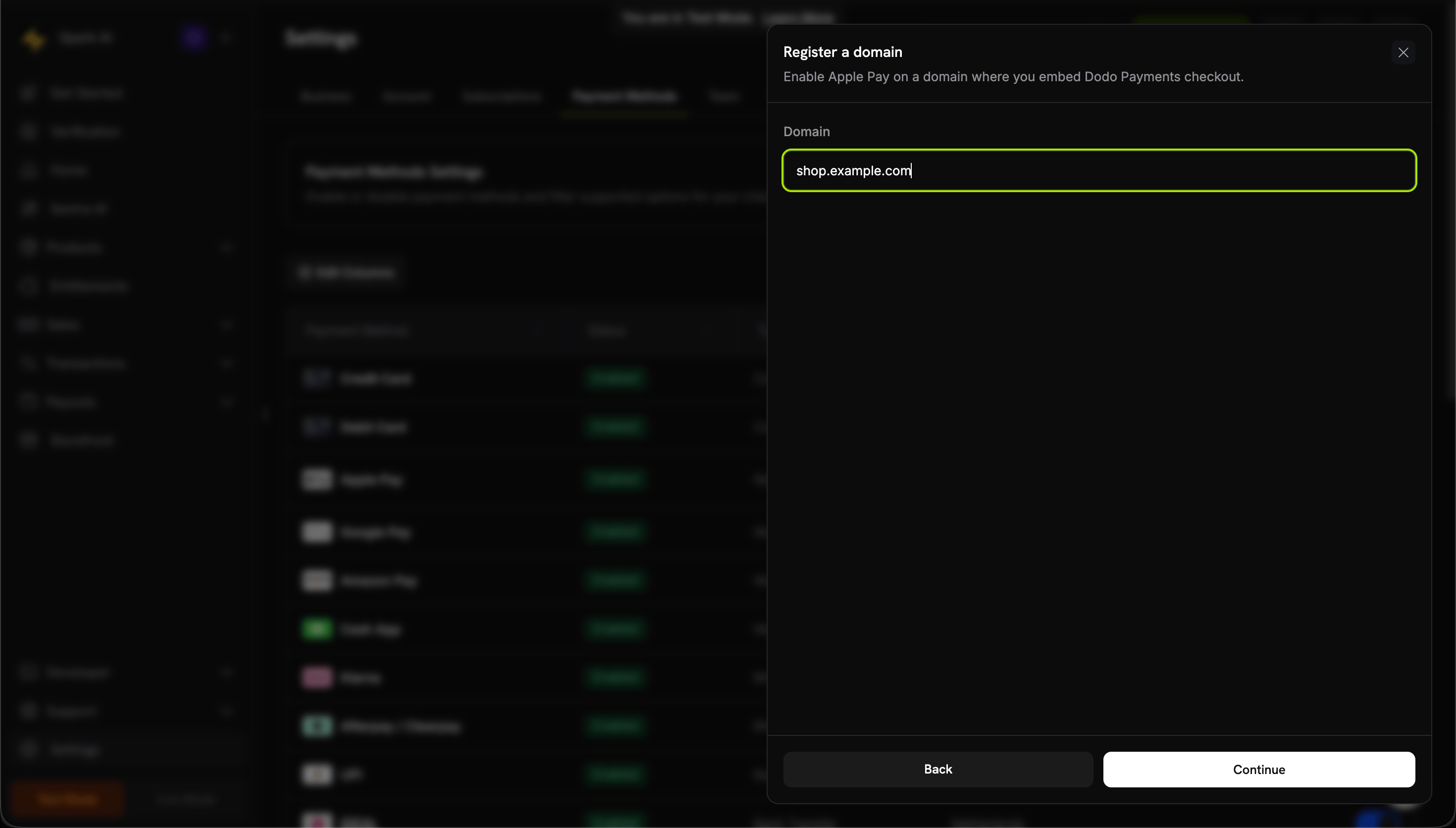
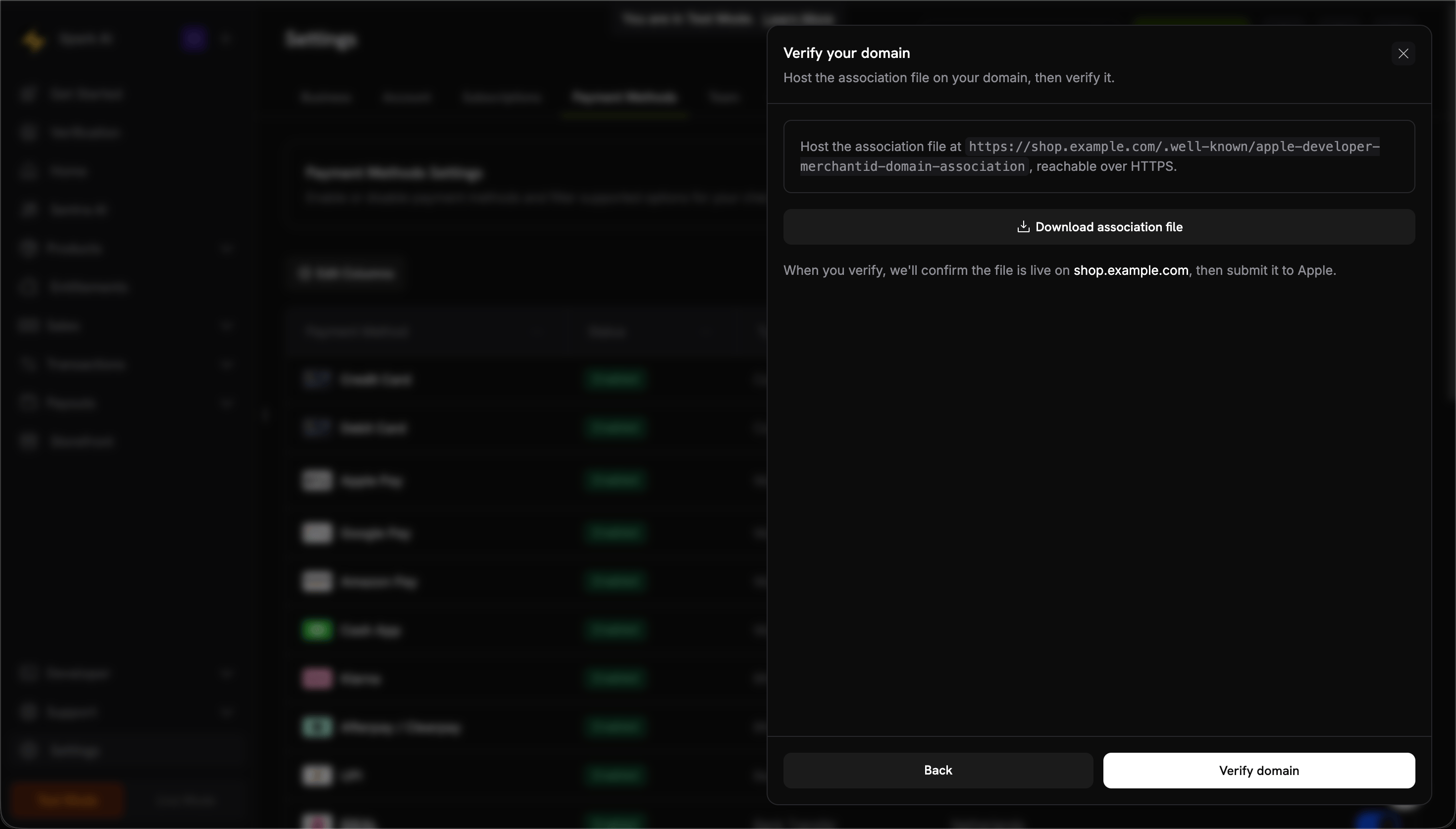
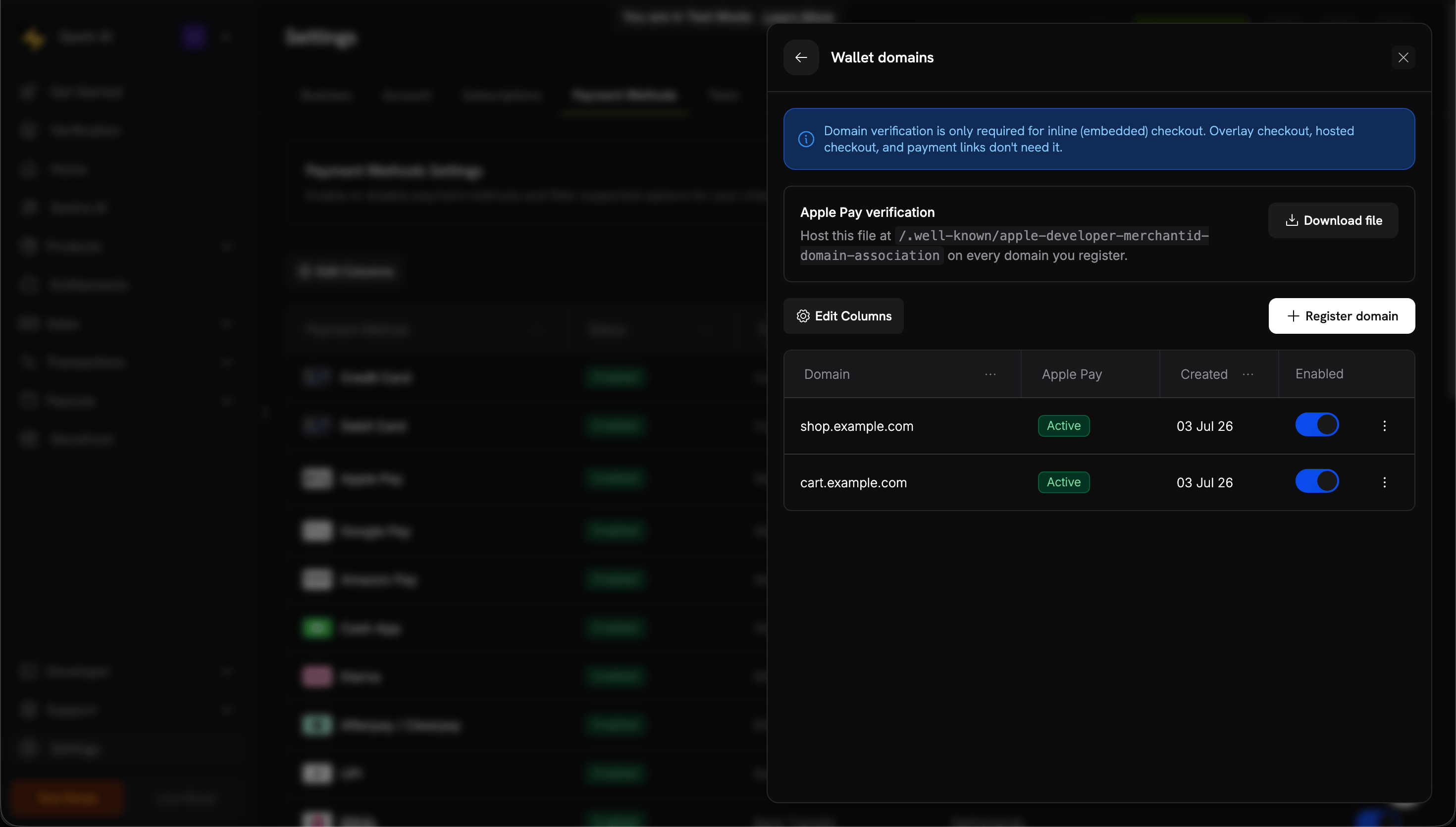
## Enabling Digital Wallets

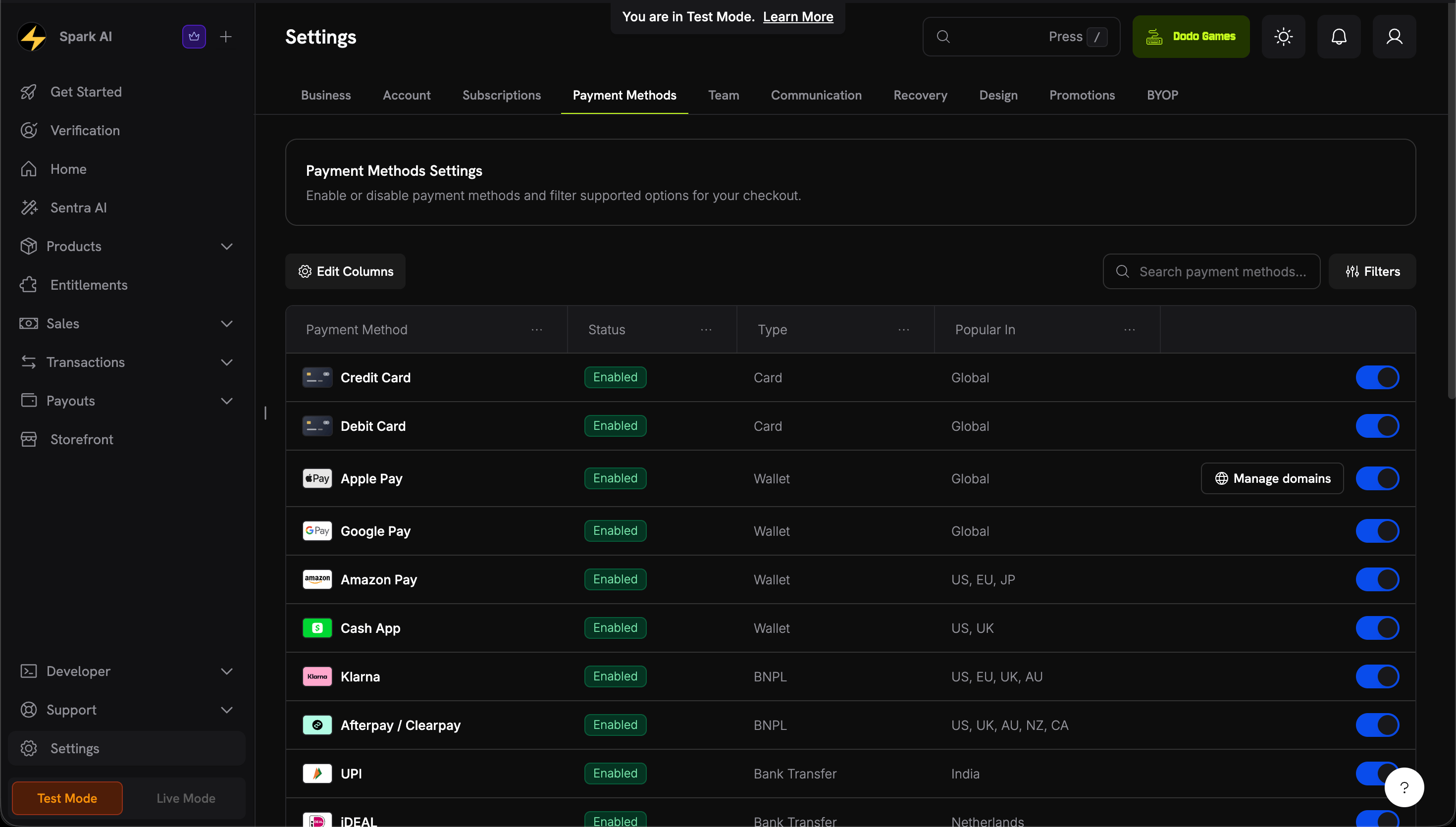
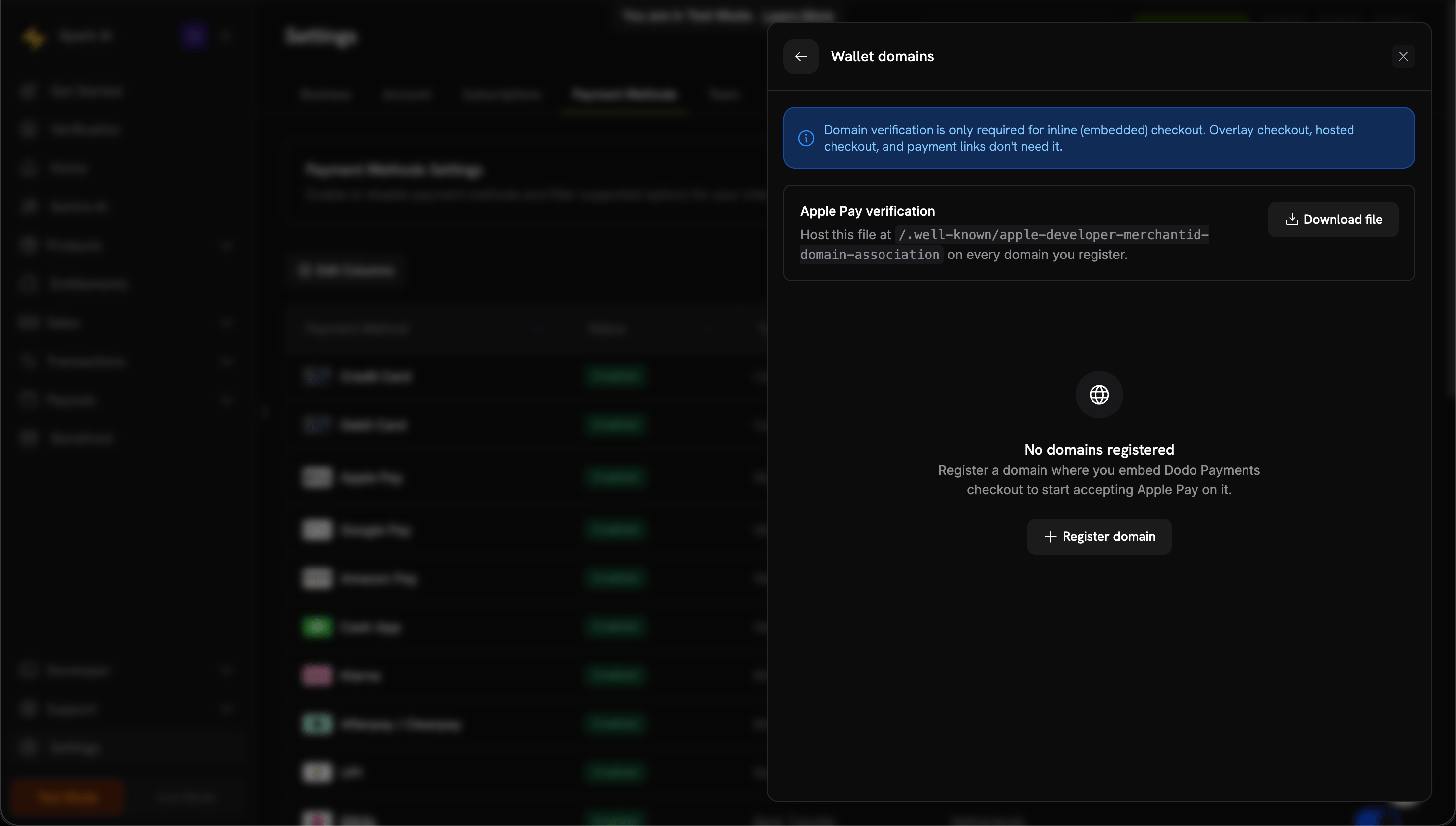
For detailed information about setting up Apple Pay, Google Pay, and other digital wallets, see the <a href="/features/payment-methods/digital-wallets">Digital Wallets</a> page.

### Quick Setup for Apple Pay

<Steps>
  <Step title="Download domain association file">
    Download the [Apple Pay domain association file](https://checkout.dodopayments.com/.well-known/apple-developer-merchantid-domain-association).
  </Step>

  <Step title="Request activation">
    Email **[support@dodopayments.com](mailto:support@dodopayments.com)** with your production domain URL and request Apple Pay activation.
  </Step>

  <Step title="Test after confirmation">
    Once confirmed, verify Apple Pay appears in checkout and test the complete flow.
  </Step>
</Steps>

<Warning>
  Apple Pay requires domain verification before it appears in production. Contact support before going live if you plan to offer Apple Pay.
</Warning>

## Browser Support

The Dodo Payments Checkout SDK supports the following browsers:

* Chrome (latest)
* Firefox (latest)
* Safari (latest)
* Edge (latest)
* IE11+

## Inline vs Overlay Checkout

Choose the right checkout type for your use case:

| Feature               | Inline Checkout                              | Overlay Checkout                  |
| --------------------- | -------------------------------------------- | --------------------------------- |
| Integration depth     | Fully embedded in page                       | Modal on top of page              |
| Layout control        | Full control                                 | Limited                           |
| Branding              | Seamless                                     | Separate from page                |
| Implementation effort | Higher                                       | Lower                             |
| Best for              | Custom checkout pages, high-conversion flows | Quick integration, existing pages |

<Tip>
  Use **inline checkout** when you want maximum control over the checkout experience and seamless branding. Use **overlay checkout** for faster integration with minimal changes to your existing pages.
</Tip>

## Related Resources

<CardGroup cols={2}>
  <Card title="Overlay Checkout" icon="layer-group" href="/developer-resources/overlay-checkout">
    Use the overlay checkout for quick modal-based integration.
  </Card>

  <Card title="Checkout Sessions API" icon="code" href="/api-reference/checkout-sessions/create">
    Create checkout sessions to power your checkout experiences.
  </Card>

  <Card title="Webhooks" icon="webhook" href="/developer-resources/webhooks">
    Handle payment events server-side with webhooks.
  </Card>

  <Card title="Integration Guide" icon="book" href="/developer-resources/integration-guide">
    Complete guide to integrating Dodo Payments.
  </Card>
</CardGroup>

For more help, visit our [Discord community](https://discord.gg/bYqAp4ayYh) or contact our developer support team.