> ## Documentation Index
> Fetch the complete documentation index at: https://docs.dodopayments.com/llms.txt
> Use this file to discover all available pages before exploring further.
# Product Collections
> Group related products together for unified checkout experiences, plan selection, and seamless upgrade/downgrade paths within the Customer Portal.
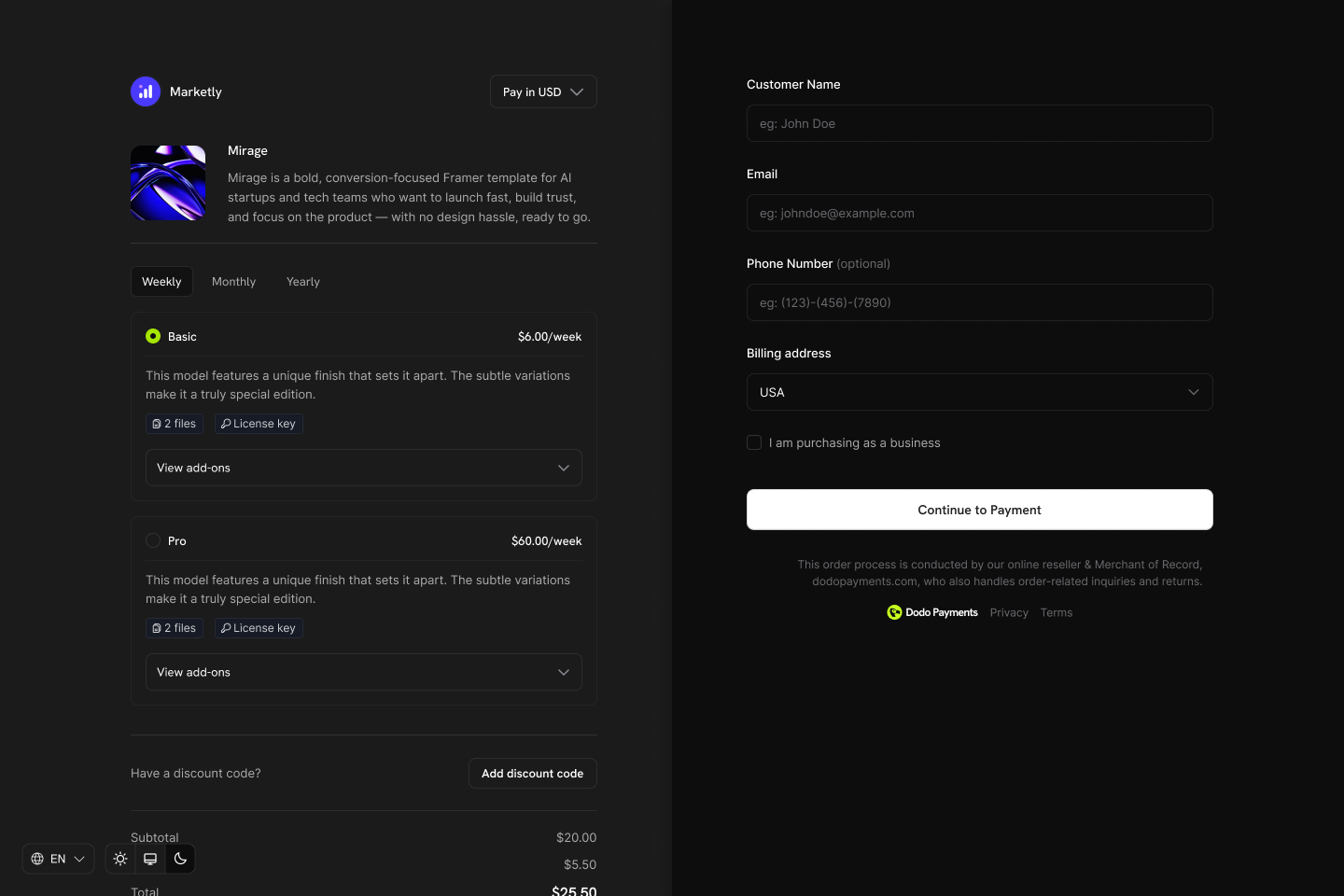
Product Collections let you group related products (e.g., Starter, Pro, Enterprise plans) under one umbrella. Display all options in a single checkout, define upgrade/downgrade paths, and give customers the flexibility to switch plans directly from the Customer Portal.
 ## Key Highlights
* **Collection-based structure**: Group related products (plans, tiers, pricing options) under a single collection for organized management.
* **One collection, many products**: Include multiple products like Starter, Pro, Lifetime, etc., each with its own pricing model.
* **Dynamic checkout experience**: Display all products from a collection in one checkout view, letting customers choose their preferred plan.
* **Merchant-level control**: Enable, disable, and reorder products within each collection. The first product is automatically pre-selected at checkout.
* **Lifecycle awareness**: Enable customers to upgrade or downgrade between products in the same collection via the Customer Portal.
## Creating a Product Collection
Product Collections are created and managed from the dashboard or via API. Each collection acts as a container for related products.
Define the collection with a name and optional description. Upload an image to visually represent the collection in checkout.
## Key Highlights
* **Collection-based structure**: Group related products (plans, tiers, pricing options) under a single collection for organized management.
* **One collection, many products**: Include multiple products like Starter, Pro, Lifetime, etc., each with its own pricing model.
* **Dynamic checkout experience**: Display all products from a collection in one checkout view, letting customers choose their preferred plan.
* **Merchant-level control**: Enable, disable, and reorder products within each collection. The first product is automatically pre-selected at checkout.
* **Lifecycle awareness**: Enable customers to upgrade or downgrade between products in the same collection via the Customer Portal.
## Creating a Product Collection
Product Collections are created and managed from the dashboard or via API. Each collection acts as a container for related products.
Define the collection with a name and optional description. Upload an image to visually represent the collection in checkout.
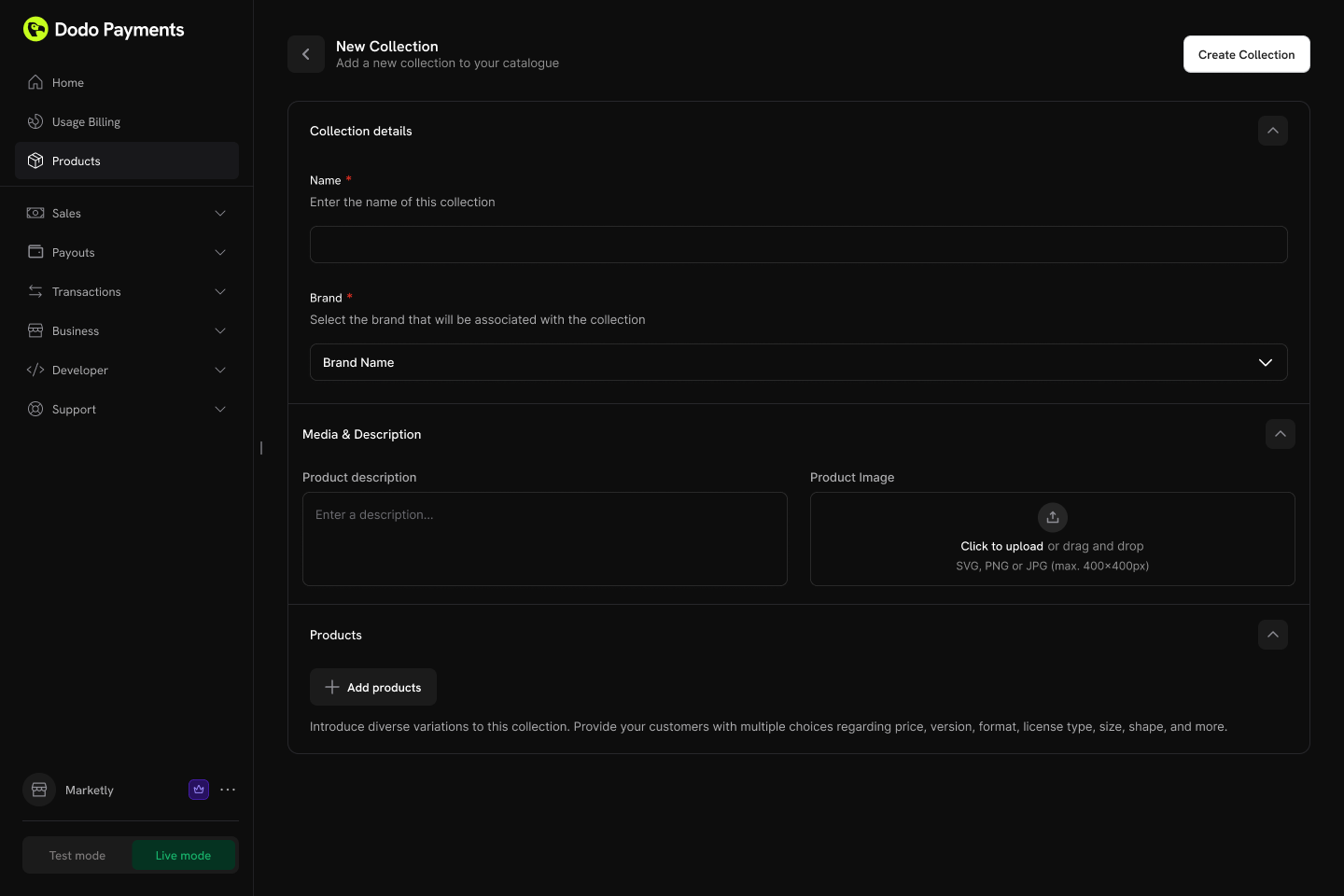 **Collection fields:**
* **Name** (required): Display name for the collection (e.g., "SaaS Plans", "License Tiers")
* **Description** (optional): Brief explanation shown in checkout
* **Image** (optional): Visual branding for the collection
Add existing products to your collection. Products can be organized into groups for better structure.
**Collection fields:**
* **Name** (required): Display name for the collection (e.g., "SaaS Plans", "License Tiers")
* **Description** (optional): Brief explanation shown in checkout
* **Image** (optional): Visual branding for the collection
Add existing products to your collection. Products can be organized into groups for better structure.
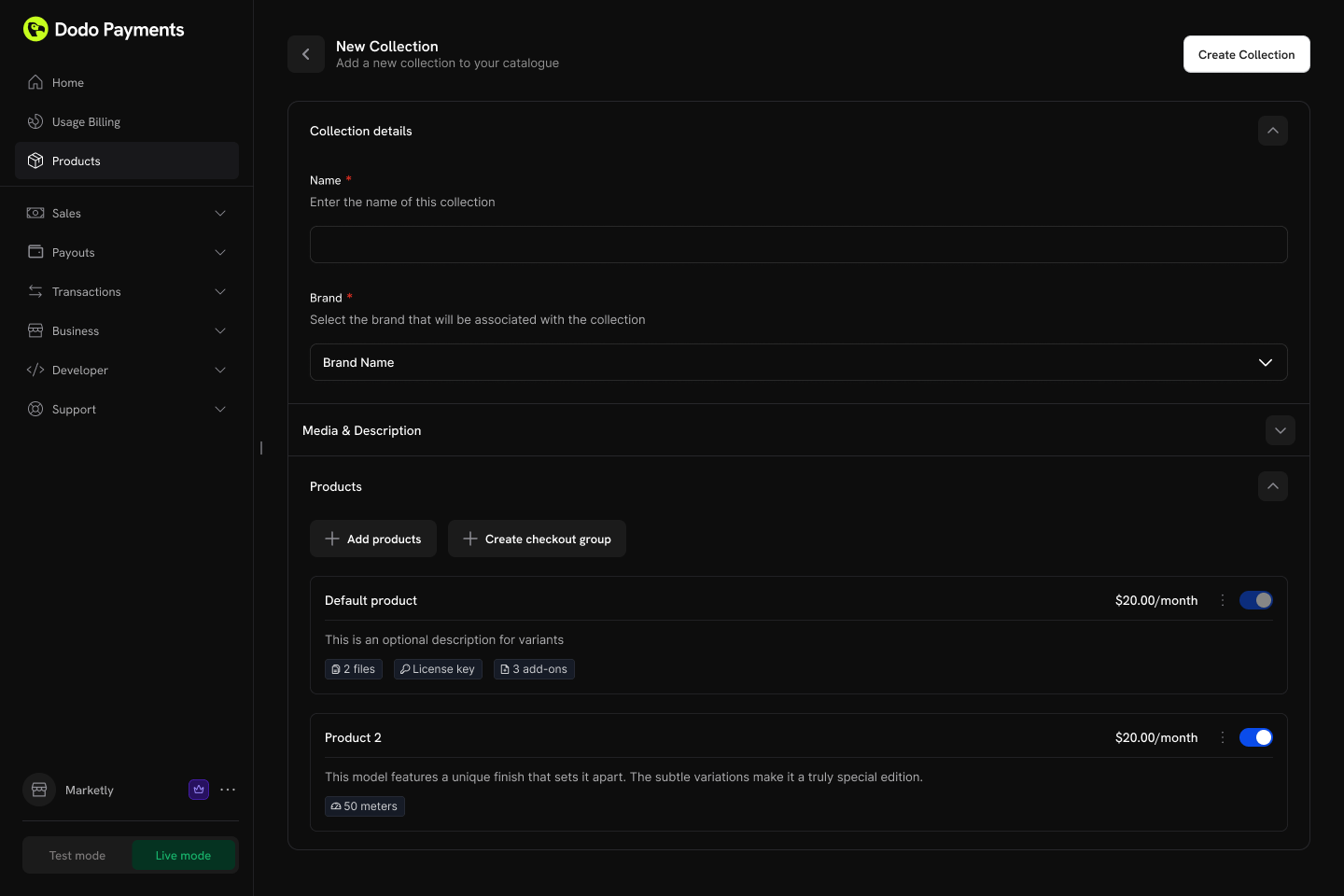 **Product organization:**
* **Groups**: Optionally organize products into named groups (e.g., "Monthly Plans", "Annual Plans")
* **Ungrouped products**: Products without a group appear at the collection level
* **Ordering**: Drag and drop to set the display order
Each product can only belong to one collection. If a product is already in another collection, you'll need to remove it first.
Control the display order and visibility of products within the collection.
**Configuration options:**
* **Product status**: Enable or disable individual products within the collection
* **Display order**: Drag and drop to set the sequence products appear in checkout
The first product in the collection is automatically pre-selected as the default at checkout. Reorder products to change which one is selected by default.
## Collection Checkout
Collections enable a unified checkout experience where customers can view and select from all available products in one place.
### Checkout Types
| Type | Description | Use Case |
| --------------------------- | ------------------------------------------------ | ------------------------------------------- |
| **Collection Checkout** | Displays all active products within a collection | Subscription plan selection, tiered pricing |
| **Single Product Checkout** | Displays only one specific product | Direct purchase, promotional links |
### Collection Checkout Experience
When using a collection checkout:
1. **All active products displayed**: Customers see every enabled product in the collection
2. **First product pre-selected**: The first product in the collection order is automatically selected
3. **Product details shown**: Each product displays its name, description, and pricing
4. **Single selection**: Customer selects one product to purchase
5. **Standard flow continues**: After selection, the checkout proceeds with the chosen product's pricing and billing settings
Collection checkout is ideal for subscription businesses where you want customers to compare plans side-by-side before purchasing.
### API Integration
Create a checkout session for a collection:
```typescript theme={null}
const session = await client.checkoutSessions.create({
product_collection_id: 'pdc_abc123',
product_cart: [], // Required: pass an empty array for collection checkout
return_url: 'https://yoursite.com/return'
});
// Redirect customer to the checkout
window.location.href = session.checkout_url;
```
When using `product_collection_id`, discount codes cannot be applied at session creation. Customers can still enter discount codes during checkout if enabled.
## Customer Portal Integration
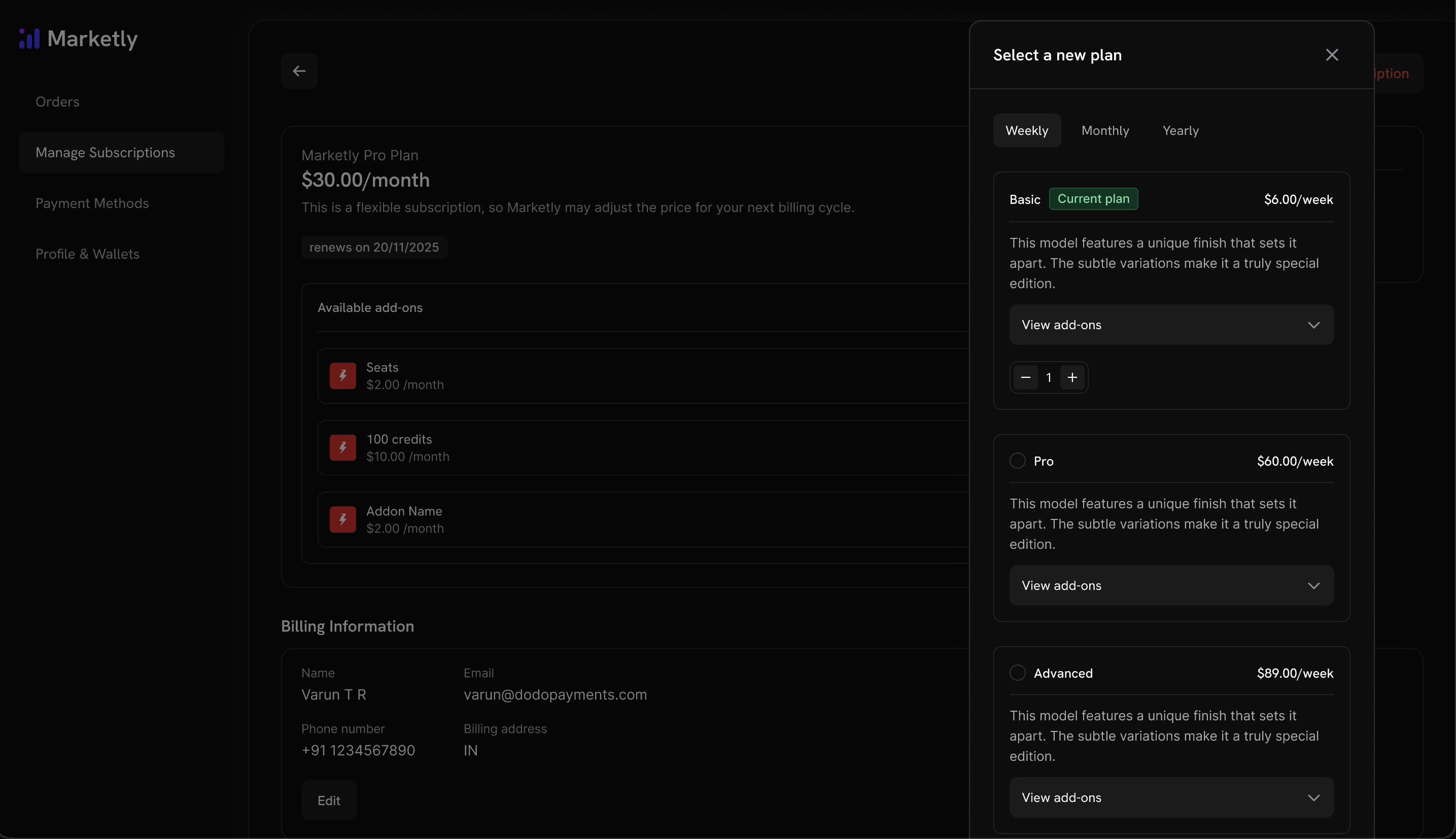
Customers can upgrade or downgrade between products within the same collection directly from the Customer Portal.
**Already have subscription products?** Simply add them to a Product Collection to enable upgrade/downgrade flows in the Customer Portal. No need to recreate your products.
### Plan Management Actions
| Action | Description | Merchant Control |
| --------------------- | ----------------------------------------------------- | ------------------------------- |
| **View Current Plan** | Display current product name, price, and renewal date | Always available |
| **Upgrade Plan** | Move to a higher-tier product in the same collection | Configurable (default: allowed) |
| **Downgrade Plan** | Move to a lower-tier product in the same collection | Configurable (default: allowed) |
| **Cancel** | Cancel the subscription entirely | Always available |
**Product organization:**
* **Groups**: Optionally organize products into named groups (e.g., "Monthly Plans", "Annual Plans")
* **Ungrouped products**: Products without a group appear at the collection level
* **Ordering**: Drag and drop to set the display order
Each product can only belong to one collection. If a product is already in another collection, you'll need to remove it first.
Control the display order and visibility of products within the collection.
**Configuration options:**
* **Product status**: Enable or disable individual products within the collection
* **Display order**: Drag and drop to set the sequence products appear in checkout
The first product in the collection is automatically pre-selected as the default at checkout. Reorder products to change which one is selected by default.
## Collection Checkout
Collections enable a unified checkout experience where customers can view and select from all available products in one place.
### Checkout Types
| Type | Description | Use Case |
| --------------------------- | ------------------------------------------------ | ------------------------------------------- |
| **Collection Checkout** | Displays all active products within a collection | Subscription plan selection, tiered pricing |
| **Single Product Checkout** | Displays only one specific product | Direct purchase, promotional links |
### Collection Checkout Experience
When using a collection checkout:
1. **All active products displayed**: Customers see every enabled product in the collection
2. **First product pre-selected**: The first product in the collection order is automatically selected
3. **Product details shown**: Each product displays its name, description, and pricing
4. **Single selection**: Customer selects one product to purchase
5. **Standard flow continues**: After selection, the checkout proceeds with the chosen product's pricing and billing settings
Collection checkout is ideal for subscription businesses where you want customers to compare plans side-by-side before purchasing.
### API Integration
Create a checkout session for a collection:
```typescript theme={null}
const session = await client.checkoutSessions.create({
product_collection_id: 'pdc_abc123',
product_cart: [], // Required: pass an empty array for collection checkout
return_url: 'https://yoursite.com/return'
});
// Redirect customer to the checkout
window.location.href = session.checkout_url;
```
When using `product_collection_id`, discount codes cannot be applied at session creation. Customers can still enter discount codes during checkout if enabled.
## Customer Portal Integration
Customers can upgrade or downgrade between products within the same collection directly from the Customer Portal.
**Already have subscription products?** Simply add them to a Product Collection to enable upgrade/downgrade flows in the Customer Portal. No need to recreate your products.
### Plan Management Actions
| Action | Description | Merchant Control |
| --------------------- | ----------------------------------------------------- | ------------------------------- |
| **View Current Plan** | Display current product name, price, and renewal date | Always available |
| **Upgrade Plan** | Move to a higher-tier product in the same collection | Configurable (default: allowed) |
| **Downgrade Plan** | Move to a lower-tier product in the same collection | Configurable (default: allowed) |
| **Cancel** | Cancel the subscription entirely | Always available |
 ### Upgrade/Downgrade Rules
* Upgrades and downgrades are only available between products **within the same collection**
* Proration is applied based on your subscription settings
* Email notifications are sent to the business on every upgrade, downgrade, or cancellation
### Upgrade/Downgrade Rules
* Upgrades and downgrades are only available between products **within the same collection**
* Proration is applied based on your subscription settings
* Email notifications are sent to the business on every upgrade, downgrade, or cancellation
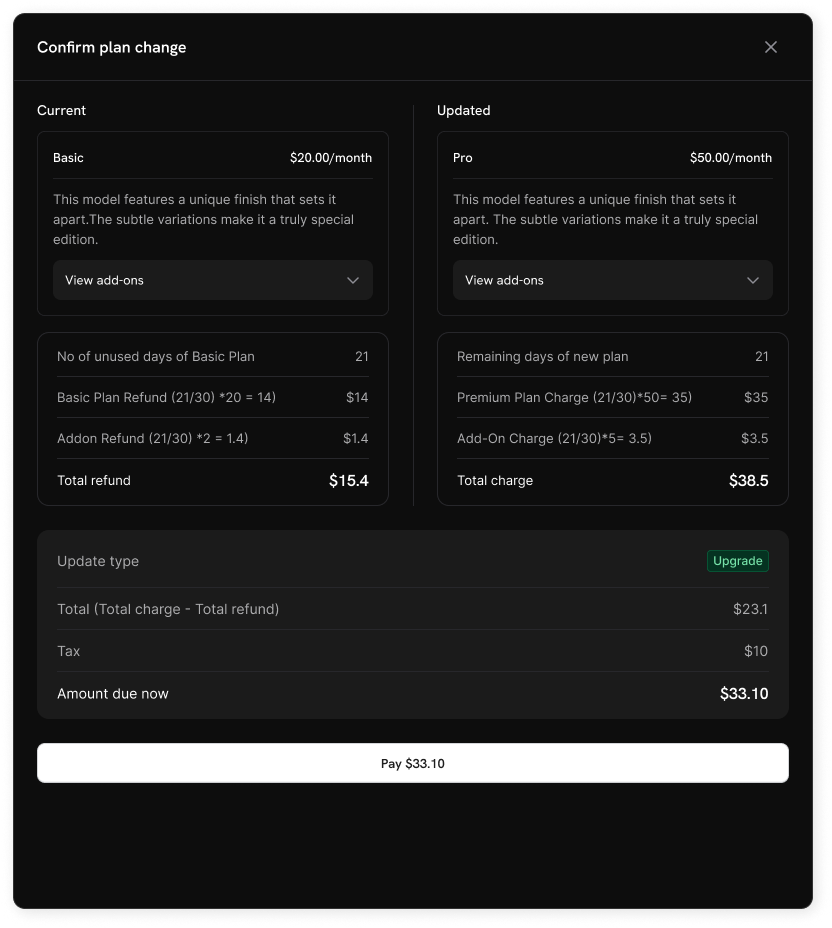 Customers cannot change to products outside their current collection. Create separate collections for distinct product lines.
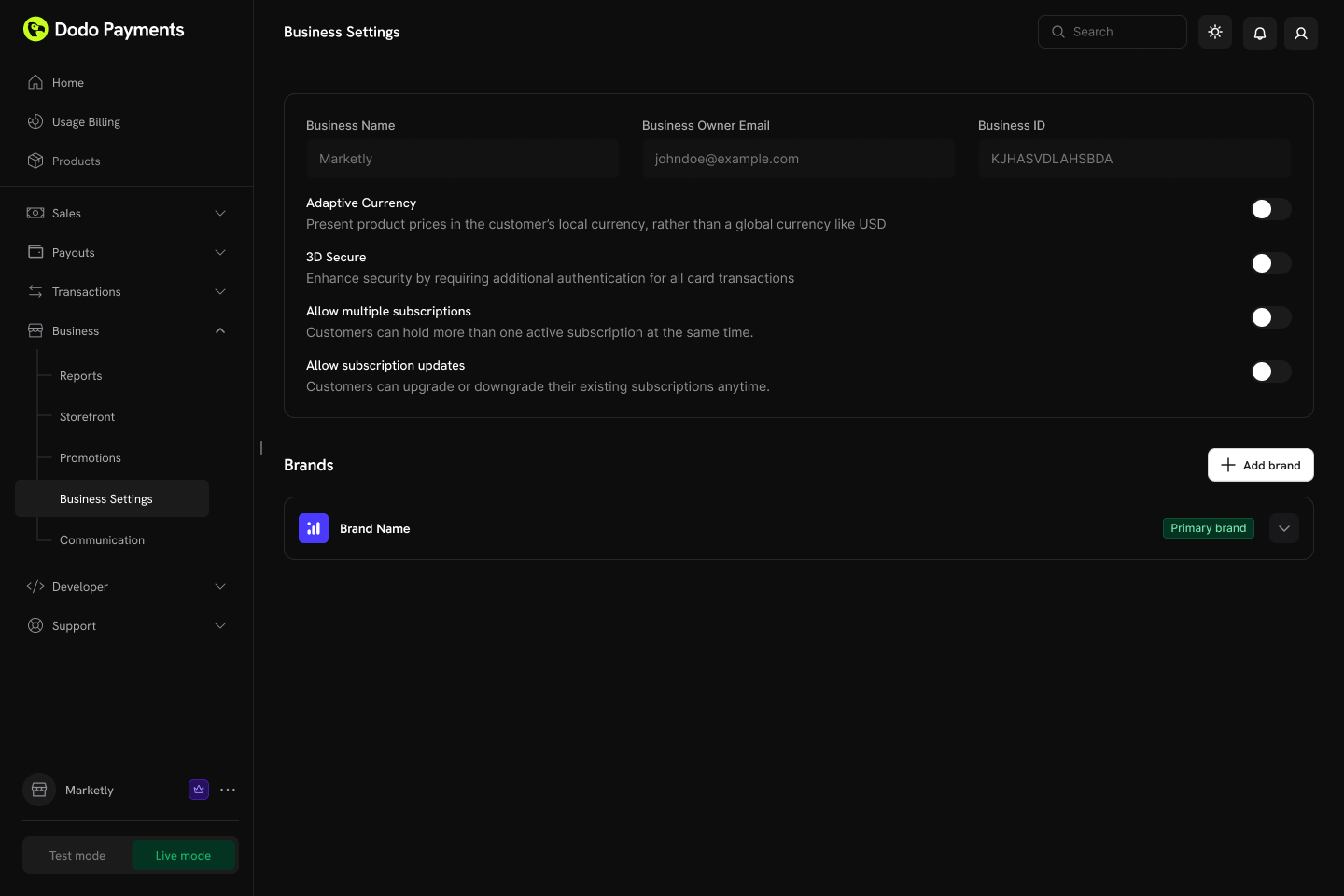
## Subscription Settings
Cấu hình cách đăng ký và thay đổi gói hoạt động trên toàn bộ doanh nghiệp của bạn từ **Cài đặt → Đăng ký** trong bảng điều khiển của bạn.
Customers cannot change to products outside their current collection. Create separate collections for distinct product lines.
## Subscription Settings
Cấu hình cách đăng ký và thay đổi gói hoạt động trên toàn bộ doanh nghiệp của bạn từ **Cài đặt → Đăng ký** trong bảng điều khiển của bạn.
 ### Available Settings
| Setting | Description | Default |
| -------------------------------- | ------------------------------------------------------------------------------------------- | -------- |
| **Allow Multiple Subscriptions** | Customers can hold more than one active subscription at the same time | Enabled |
| **Allow Subscription Updates** | Customers can upgrade or downgrade their existing subscriptions anytime via Customer Portal | Disabled |
Thay đổi gói qua Cổng thông tin khách hàng bị tắt theo mặc định. Kích hoạt "Cho phép Cập Nhật Đăng Ký" trong **Cài đặt → Đăng ký** để cho phép khách hàng nâng cấp hoặc hạ cấp giữa các sản phẩm trong cùng một bộ sưu tập.
Learn more about proration modes and plan change behavior.
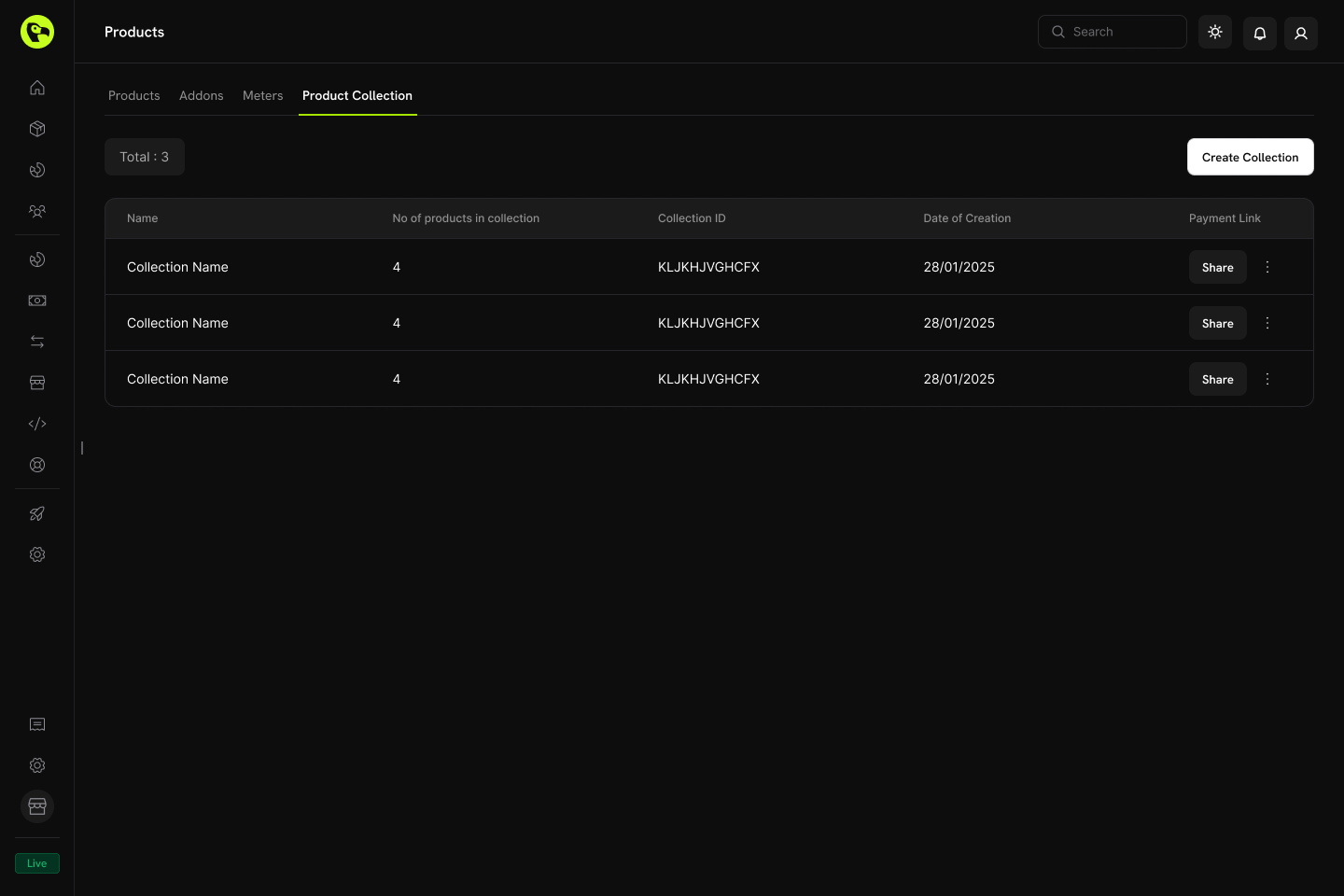
## Managing Collections
Bộ sưu tập sản phẩm có thể được quản lý thông qua bảng điều khiển Dodo Payments hoặc lập trình thông qua API. API cung cấp toàn quyền kiểm soát việc tạo, cập nhật, tải lên hình ảnh, lưu trữ và quản lý các nhóm lồng ghép và sản phẩm.
### Hoạt động trên Dashboard
* **Tạo mới**: Thiết lập bộ sưu tập mới với sản phẩm và nhóm
* **Cập nhật**: Chỉnh sửa tên, mô tả, hình ảnh và tổ chức sản phẩm
* **Sắp xếp lại**: Kéo và thả để thay đổi thứ tự hiển thị sản phẩm
* **Bật/Tắt sản phẩm**: Kiểm soát sản phẩm nào xuất hiện trong phần thanh toán
* **Lưu trữ**: Ẩn bộ sưu tập mà không xóa vĩnh viễn (có thể mở lại sau)
### Available Settings
| Setting | Description | Default |
| -------------------------------- | ------------------------------------------------------------------------------------------- | -------- |
| **Allow Multiple Subscriptions** | Customers can hold more than one active subscription at the same time | Enabled |
| **Allow Subscription Updates** | Customers can upgrade or downgrade their existing subscriptions anytime via Customer Portal | Disabled |
Thay đổi gói qua Cổng thông tin khách hàng bị tắt theo mặc định. Kích hoạt "Cho phép Cập Nhật Đăng Ký" trong **Cài đặt → Đăng ký** để cho phép khách hàng nâng cấp hoặc hạ cấp giữa các sản phẩm trong cùng một bộ sưu tập.
Learn more about proration modes and plan change behavior.
## Managing Collections
Bộ sưu tập sản phẩm có thể được quản lý thông qua bảng điều khiển Dodo Payments hoặc lập trình thông qua API. API cung cấp toàn quyền kiểm soát việc tạo, cập nhật, tải lên hình ảnh, lưu trữ và quản lý các nhóm lồng ghép và sản phẩm.
### Hoạt động trên Dashboard
* **Tạo mới**: Thiết lập bộ sưu tập mới với sản phẩm và nhóm
* **Cập nhật**: Chỉnh sửa tên, mô tả, hình ảnh và tổ chức sản phẩm
* **Sắp xếp lại**: Kéo và thả để thay đổi thứ tự hiển thị sản phẩm
* **Bật/Tắt sản phẩm**: Kiểm soát sản phẩm nào xuất hiện trong phần thanh toán
* **Lưu trữ**: Ẩn bộ sưu tập mà không xóa vĩnh viễn (có thể mở lại sau)
 ### Quản lý API
Các endpoint sau cho phép bạn tạo, cập nhật, truy xuất, lưu trữ và tổ chức bộ sưu tập sản phẩm bằng lập trình — bao gồm quản lý các nhóm lồng ghép và sản phẩm trong chúng.
Lấy tất cả bộ sưu tập sản phẩm liên kết với tài khoản của bạn bằng cách gửi yêu cầu `GET` đến endpoint `/product-collections`. Hỗ trợ phân trang, lọc theo thương hiệu và bao gồm cả các bộ sưu tập đã lưu trữ.
Xem cấu trúc yêu cầu và phản hồi chi tiết trong tài liệu API Danh sách Bộ sưu tập sản phẩm.
Tạo một bộ sưu tập sản phẩm mới bằng cách gửi yêu cầu `POST` đến endpoint `/product-collections` với các chi tiết như tên, mô tả và thương hiệu.
Xem cấu trúc yêu cầu và phản hồi chi tiết trong tài liệu API Tạo Bộ sưu tập sản phẩm.
Lấy thông tin chi tiết về một bộ sưu tập sản phẩm cụ thể — bao gồm các nhóm và mặt hàng sản phẩm — bằng cách gửi yêu cầu `GET` đến endpoint `/product-collections/{id}`.
Xem cấu trúc yêu cầu và phản hồi chi tiết trong tài liệu API Lấy Bộ sưu tập sản phẩm.
Chỉnh sửa chi tiết của một bộ sưu tập sản phẩm (tên, mô tả, thương hiệu, v.v.) bằng cách gửi yêu cầu `PATCH` đến endpoint `/product-collections/{id}`.
Xem cấu trúc yêu cầu và phản hồi chi tiết trong tài liệu API Cập nhật Bộ sưu tập sản phẩm.
Liên kết một hình ảnh với một bộ sưu tập bằng cách tải lên qua URL được ký sẵn. Yêu cầu một URL tải lên từ endpoint `/product-collections/{id}/images`, sau đó `PUT` hình ảnh đến URL được trả về trong vòng 60 giây.
URL được ký sẵn sẽ hết hạn sau 60 giây, vì vậy hình ảnh phải được tải lên trong khung thời gian đó.
Xem cấu trúc yêu cầu và phản hồi chi tiết trong tài liệu API Cập nhật Hình ảnh Bộ sưu tập.
Lưu trữ một bộ sưu tập bằng cách gửi yêu cầu `DELETE` đến endpoint `/product-collections/{id}`. Điều này ẩn bộ sưu tập khỏi việc sử dụng mới nhưng không loại bỏ vĩnh viễn.
Xem cấu trúc yêu cầu và phản hồi chi tiết trong tài liệu API Lưu trữ Bộ sưu tập sản phẩm.
Khôi phục một bộ sưu tập đã lưu trữ bằng cách gửi yêu cầu `POST` đến endpoint `/product-collections/{id}/unarchive`.
Xem cấu trúc yêu cầu và phản hồi chi tiết trong tài liệu API Bỏ lưu trữ Bộ sưu tập sản phẩm.
Nhóm cho phép bạn tổ chức các sản phẩm bên trong một bộ sưu tập (ví dụ: "Gói hàng tháng" so với "Gói hàng năm"). Sử dụng các endpoint nhóm để thêm, cập nhật hoặc xóa nhóm trong bộ sưu tập.
* **Tạo một nhóm**: `POST /product-collections/{id}/groups`
* **Cập nhật một nhóm**: `PATCH /product-collections/{id}/groups/{group_id}`
* **Xóa một nhóm**: `DELETE /product-collections/{id}/groups/{group_id}`
Thêm một nhóm mới vào bộ sưu tập sản phẩm.
Chỉnh sửa tên hoặc thuộc tính của một nhóm.
Loại bỏ một nhóm khỏi bộ sưu tập.
Quản lý các mặt hàng sản phẩm riêng lẻ bên trong một nhóm — thêm sản phẩm mới, cập nhật các mặt hàng hiện có (chẳng hạn như thứ tự hiển thị), hoặc xóa chúng hoàn toàn.
* **Thêm sản phẩm vào nhóm**: `POST /product-collections/{id}/groups/{group_id}/items`
* **Cập nhật một mặt hàng nhóm**: `PATCH /product-collections/{id}/groups/{group_id}/items/{item_id}`
* **Xóa một mặt hàng nhóm**: `DELETE /product-collections/{id}/groups/{group_id}/items/{item_id}`
Thêm một hoặc nhiều sản phẩm vào nhóm trong bộ sưu tập.
Cập nhật một mặt hàng sản phẩm trong nhóm.
Loại bỏ một mặt hàng sản phẩm khỏi nhóm.
## Thực hành tốt nhất
* **Nhóm hợp lý**: Tổ chức sản phẩm theo khoảng thời gian thanh toán (hàng tháng/hàng năm) hoặc cấp tính năng (khởi đầu/chuyên nghiệp/doanh nghiệp)
* **Sắp xếp chiến lược**: Đặt kế hoạch phổ biến nhất hoặc được đề xuất đầu tiên, vì nó sẽ được chọn trước trong phần thanh toán
* **Sử dụng tên rõ ràng**: Tên sản phẩm nên truyền đạt rõ ràng sự khác biệt về giá trị
* **Cho phép cả hai hướng**: Cho phép cả nâng cấp và hạ cấp để mang lại sự linh hoạt cho khách hàng
* **Xem xét tính tương đối giá**: Chọn một chế độ tương đối giá phù hợp với mô hình kinh doanh của bạn
* **Kiểm tra kỹ lưỡng**: Xác minh quy trình thanh toán và thay đổi kế hoạch trong chế độ thử nghiệm trước khi đưa lên thực tế
Bạn đã sẵn sàng để tạo bộ sưu tập sản phẩm và cung cấp cho khách hàng trải nghiệm lựa chọn gói thống nhất.
Tạo các sản phẩm một lần, đăng ký hoặc dựa trên việc sử dụng để thêm vào bộ sưu tập.
Hiển thị sản phẩm trong bộ sưu tập trong trải nghiệm thanh toán thống nhất.
Cho phép khách hàng nâng cấp hoặc hạ cấp trong cùng một bộ sưu tập.
Quản lý kế hoạch định kỳ với việc tương đối giá và thay đổi kế hoạch.
### Quản lý API
Các endpoint sau cho phép bạn tạo, cập nhật, truy xuất, lưu trữ và tổ chức bộ sưu tập sản phẩm bằng lập trình — bao gồm quản lý các nhóm lồng ghép và sản phẩm trong chúng.
Lấy tất cả bộ sưu tập sản phẩm liên kết với tài khoản của bạn bằng cách gửi yêu cầu `GET` đến endpoint `/product-collections`. Hỗ trợ phân trang, lọc theo thương hiệu và bao gồm cả các bộ sưu tập đã lưu trữ.
Xem cấu trúc yêu cầu và phản hồi chi tiết trong tài liệu API Danh sách Bộ sưu tập sản phẩm.
Tạo một bộ sưu tập sản phẩm mới bằng cách gửi yêu cầu `POST` đến endpoint `/product-collections` với các chi tiết như tên, mô tả và thương hiệu.
Xem cấu trúc yêu cầu và phản hồi chi tiết trong tài liệu API Tạo Bộ sưu tập sản phẩm.
Lấy thông tin chi tiết về một bộ sưu tập sản phẩm cụ thể — bao gồm các nhóm và mặt hàng sản phẩm — bằng cách gửi yêu cầu `GET` đến endpoint `/product-collections/{id}`.
Xem cấu trúc yêu cầu và phản hồi chi tiết trong tài liệu API Lấy Bộ sưu tập sản phẩm.
Chỉnh sửa chi tiết của một bộ sưu tập sản phẩm (tên, mô tả, thương hiệu, v.v.) bằng cách gửi yêu cầu `PATCH` đến endpoint `/product-collections/{id}`.
Xem cấu trúc yêu cầu và phản hồi chi tiết trong tài liệu API Cập nhật Bộ sưu tập sản phẩm.
Liên kết một hình ảnh với một bộ sưu tập bằng cách tải lên qua URL được ký sẵn. Yêu cầu một URL tải lên từ endpoint `/product-collections/{id}/images`, sau đó `PUT` hình ảnh đến URL được trả về trong vòng 60 giây.
URL được ký sẵn sẽ hết hạn sau 60 giây, vì vậy hình ảnh phải được tải lên trong khung thời gian đó.
Xem cấu trúc yêu cầu và phản hồi chi tiết trong tài liệu API Cập nhật Hình ảnh Bộ sưu tập.
Lưu trữ một bộ sưu tập bằng cách gửi yêu cầu `DELETE` đến endpoint `/product-collections/{id}`. Điều này ẩn bộ sưu tập khỏi việc sử dụng mới nhưng không loại bỏ vĩnh viễn.
Xem cấu trúc yêu cầu và phản hồi chi tiết trong tài liệu API Lưu trữ Bộ sưu tập sản phẩm.
Khôi phục một bộ sưu tập đã lưu trữ bằng cách gửi yêu cầu `POST` đến endpoint `/product-collections/{id}/unarchive`.
Xem cấu trúc yêu cầu và phản hồi chi tiết trong tài liệu API Bỏ lưu trữ Bộ sưu tập sản phẩm.
Nhóm cho phép bạn tổ chức các sản phẩm bên trong một bộ sưu tập (ví dụ: "Gói hàng tháng" so với "Gói hàng năm"). Sử dụng các endpoint nhóm để thêm, cập nhật hoặc xóa nhóm trong bộ sưu tập.
* **Tạo một nhóm**: `POST /product-collections/{id}/groups`
* **Cập nhật một nhóm**: `PATCH /product-collections/{id}/groups/{group_id}`
* **Xóa một nhóm**: `DELETE /product-collections/{id}/groups/{group_id}`
Thêm một nhóm mới vào bộ sưu tập sản phẩm.
Chỉnh sửa tên hoặc thuộc tính của một nhóm.
Loại bỏ một nhóm khỏi bộ sưu tập.
Quản lý các mặt hàng sản phẩm riêng lẻ bên trong một nhóm — thêm sản phẩm mới, cập nhật các mặt hàng hiện có (chẳng hạn như thứ tự hiển thị), hoặc xóa chúng hoàn toàn.
* **Thêm sản phẩm vào nhóm**: `POST /product-collections/{id}/groups/{group_id}/items`
* **Cập nhật một mặt hàng nhóm**: `PATCH /product-collections/{id}/groups/{group_id}/items/{item_id}`
* **Xóa một mặt hàng nhóm**: `DELETE /product-collections/{id}/groups/{group_id}/items/{item_id}`
Thêm một hoặc nhiều sản phẩm vào nhóm trong bộ sưu tập.
Cập nhật một mặt hàng sản phẩm trong nhóm.
Loại bỏ một mặt hàng sản phẩm khỏi nhóm.
## Thực hành tốt nhất
* **Nhóm hợp lý**: Tổ chức sản phẩm theo khoảng thời gian thanh toán (hàng tháng/hàng năm) hoặc cấp tính năng (khởi đầu/chuyên nghiệp/doanh nghiệp)
* **Sắp xếp chiến lược**: Đặt kế hoạch phổ biến nhất hoặc được đề xuất đầu tiên, vì nó sẽ được chọn trước trong phần thanh toán
* **Sử dụng tên rõ ràng**: Tên sản phẩm nên truyền đạt rõ ràng sự khác biệt về giá trị
* **Cho phép cả hai hướng**: Cho phép cả nâng cấp và hạ cấp để mang lại sự linh hoạt cho khách hàng
* **Xem xét tính tương đối giá**: Chọn một chế độ tương đối giá phù hợp với mô hình kinh doanh của bạn
* **Kiểm tra kỹ lưỡng**: Xác minh quy trình thanh toán và thay đổi kế hoạch trong chế độ thử nghiệm trước khi đưa lên thực tế
Bạn đã sẵn sàng để tạo bộ sưu tập sản phẩm và cung cấp cho khách hàng trải nghiệm lựa chọn gói thống nhất.
Tạo các sản phẩm một lần, đăng ký hoặc dựa trên việc sử dụng để thêm vào bộ sưu tập.
Hiển thị sản phẩm trong bộ sưu tập trong trải nghiệm thanh toán thống nhất.
Cho phép khách hàng nâng cấp hoặc hạ cấp trong cùng một bộ sưu tập.
Quản lý kế hoạch định kỳ với việc tương đối giá và thay đổi kế hoạch.