> ## Documentation Index
> Fetch the complete documentation index at: https://docs.dodopayments.com/llms.txt
> Use this file to discover all available pages before exploring further.
# WooCommerce-plugin
> Integrera Dodo Payments sömlöst med din WooCommerce-butik för att ta emot globala betalningar via UPI, kort och mer.
## Introduktion
Dodo Payments WooCommerce-plugin ger en sömlös integration med din butik, vilket gör att du kan ta emot betalningar genom flera metoder inklusive UPI, kort, nätbank och digitala plånböcker. Denna omfattande guide kommer att vägleda dig genom installations- och konfigurationsprocessen.
## Steg-för-steg installationsguide
1. Ladda ner den senaste zip-filen av WooCommerce betalningsplugin.
Skaffa den senaste versionen av vår WooCommerce-plugin
Alternativt kan du installera direkt från WordPress plugin-katalogen:
Installera Dodo Payments för WooCommerce från WordPress.org
2. Logga in på din WordPress-webbplats som administratör (vi antar att du redan har WooCommerce inställt)
3. Gå till **Plugins → Lägg till nytt plugin**
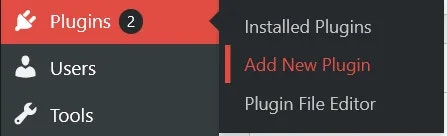 4. Klicka på knappen **Ladda upp plugin** och en filvalsdialog kommer att visas

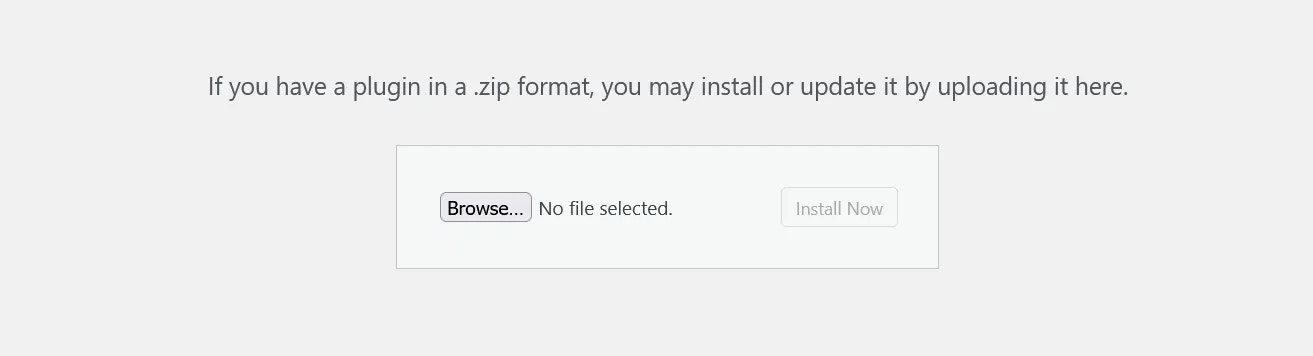 5. Klicka på **Bläddra...** och välj zip-filen du laddade ner
6. Klicka på knappen **Installera nu** för att börja installationsprocessen
5. Klicka på **Bläddra...** och välj zip-filen du laddade ner
6. Klicka på knappen **Installera nu** för att börja installationsprocessen
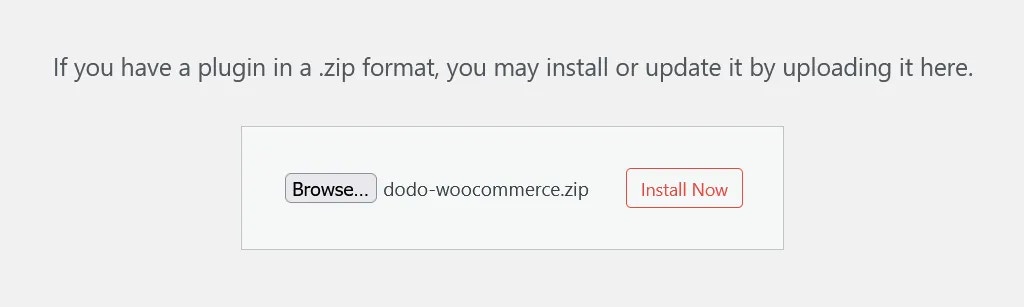 7. Efter att installationen är klar, klicka på **Aktivera plugin** eller aktivera det från avsnittet **Installerade plugins**
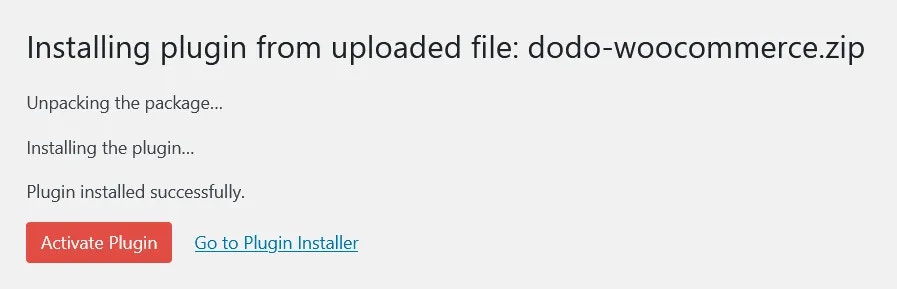 8. Pluginet är nu installerat, men konfiguration krävs fortfarande. Fortsätt till installationsguiden nedan.
## Konfigurationsguide
### Ställa in API-nycklar och webhooks
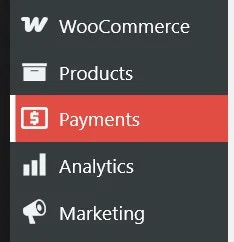
1. Navigera till **WooCommerce → Inställningar → Betalningar** eller klicka på knappen **Betalningar** i vänstra sidofältet under WooCommerce-menyalternativet
8. Pluginet är nu installerat, men konfiguration krävs fortfarande. Fortsätt till installationsguiden nedan.
## Konfigurationsguide
### Ställa in API-nycklar och webhooks
1. Navigera till **WooCommerce → Inställningar → Betalningar** eller klicka på knappen **Betalningar** i vänstra sidofältet under WooCommerce-menyalternativet
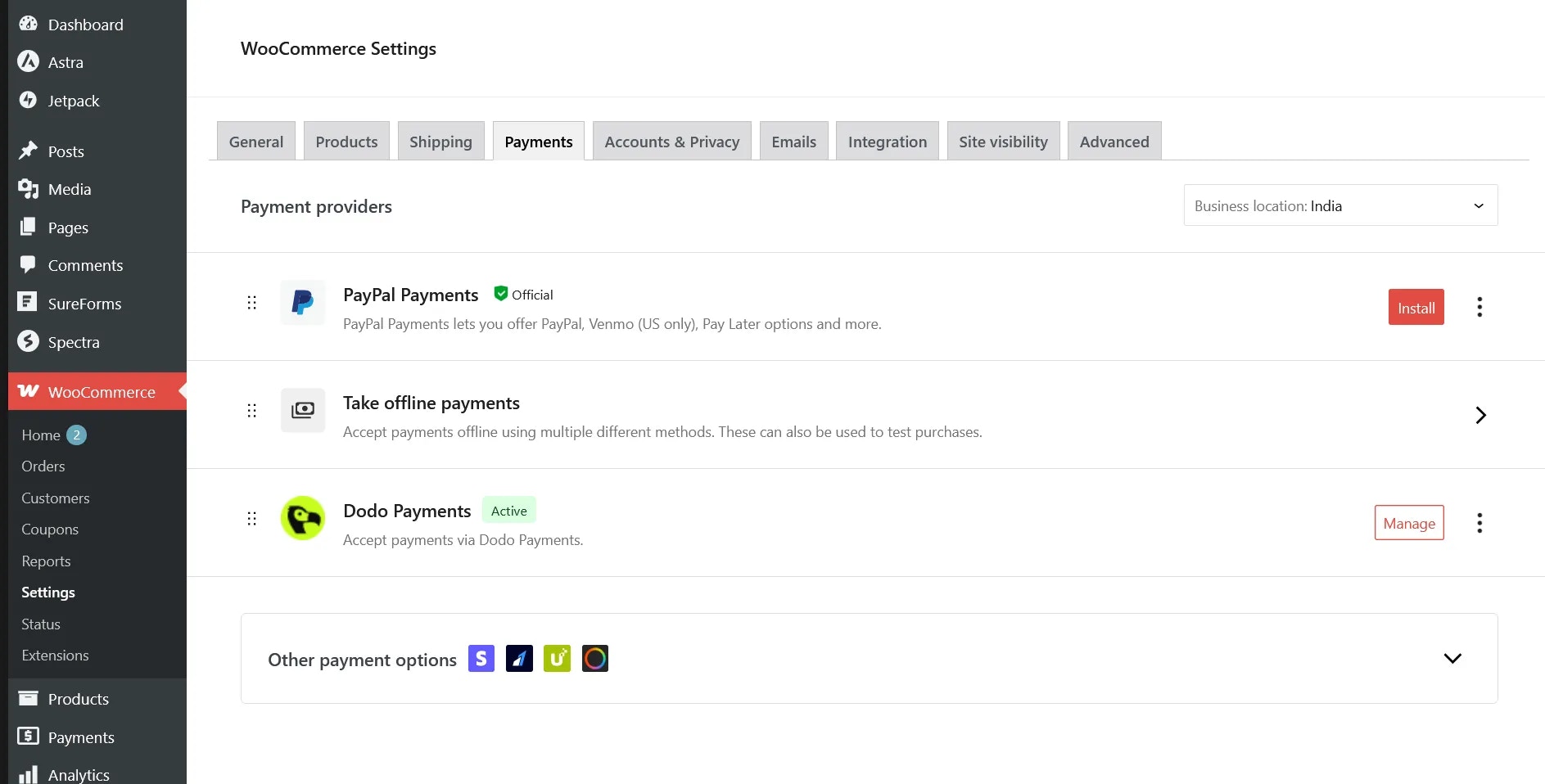
 2. Aktivera betalningsleverantören **Dodo Payments** om den inte redan är aktiverad, klicka sedan på **Hantera** för att konfigurera pluginet
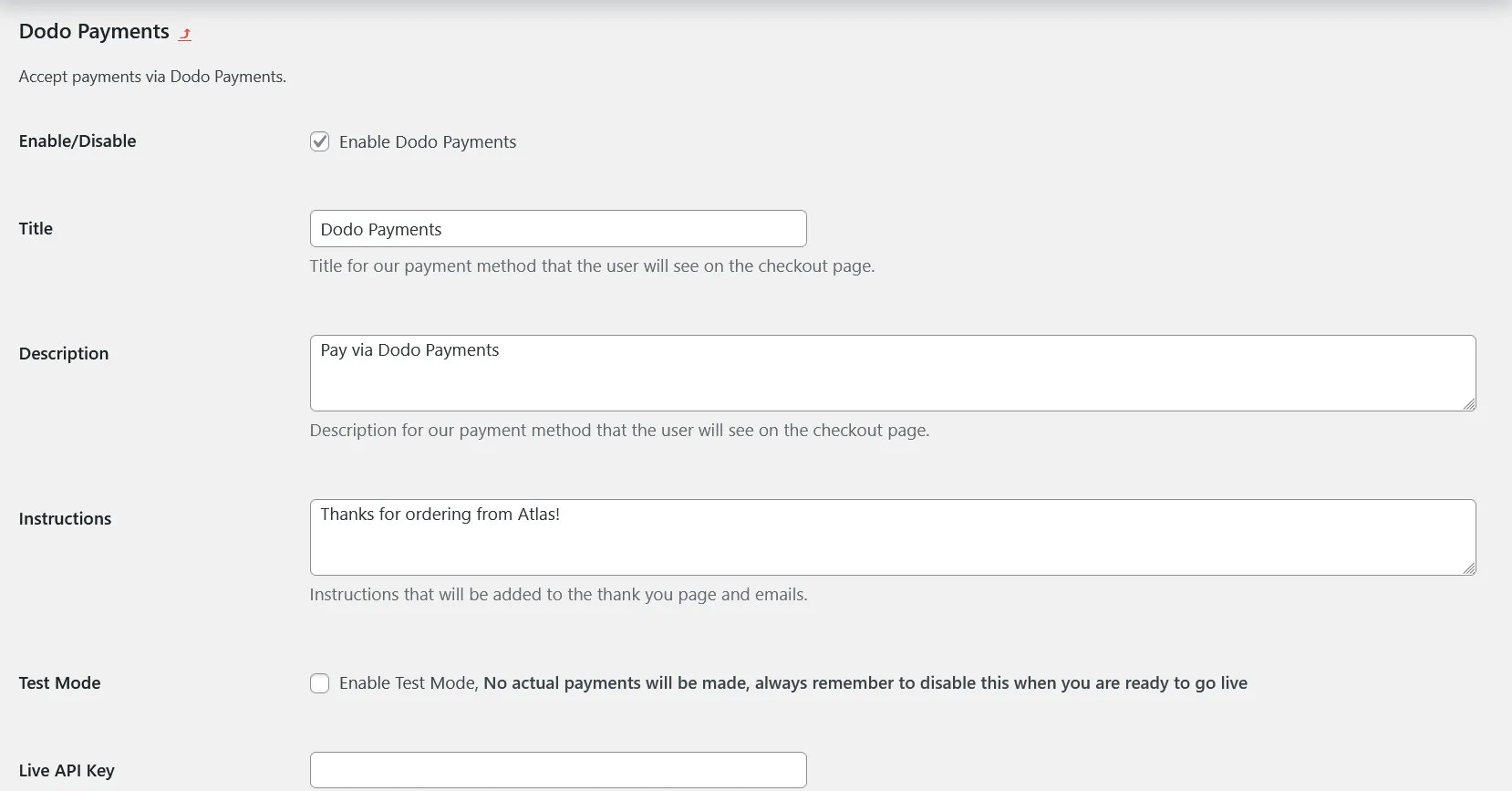
3. Du kommer att se olika konfigurationsalternativ, var och en med förklarande text. Börja med att ställa in din Live API Key
2. Aktivera betalningsleverantören **Dodo Payments** om den inte redan är aktiverad, klicka sedan på **Hantera** för att konfigurera pluginet
3. Du kommer att se olika konfigurationsalternativ, var och en med förklarande text. Börja med att ställa in din Live API Key
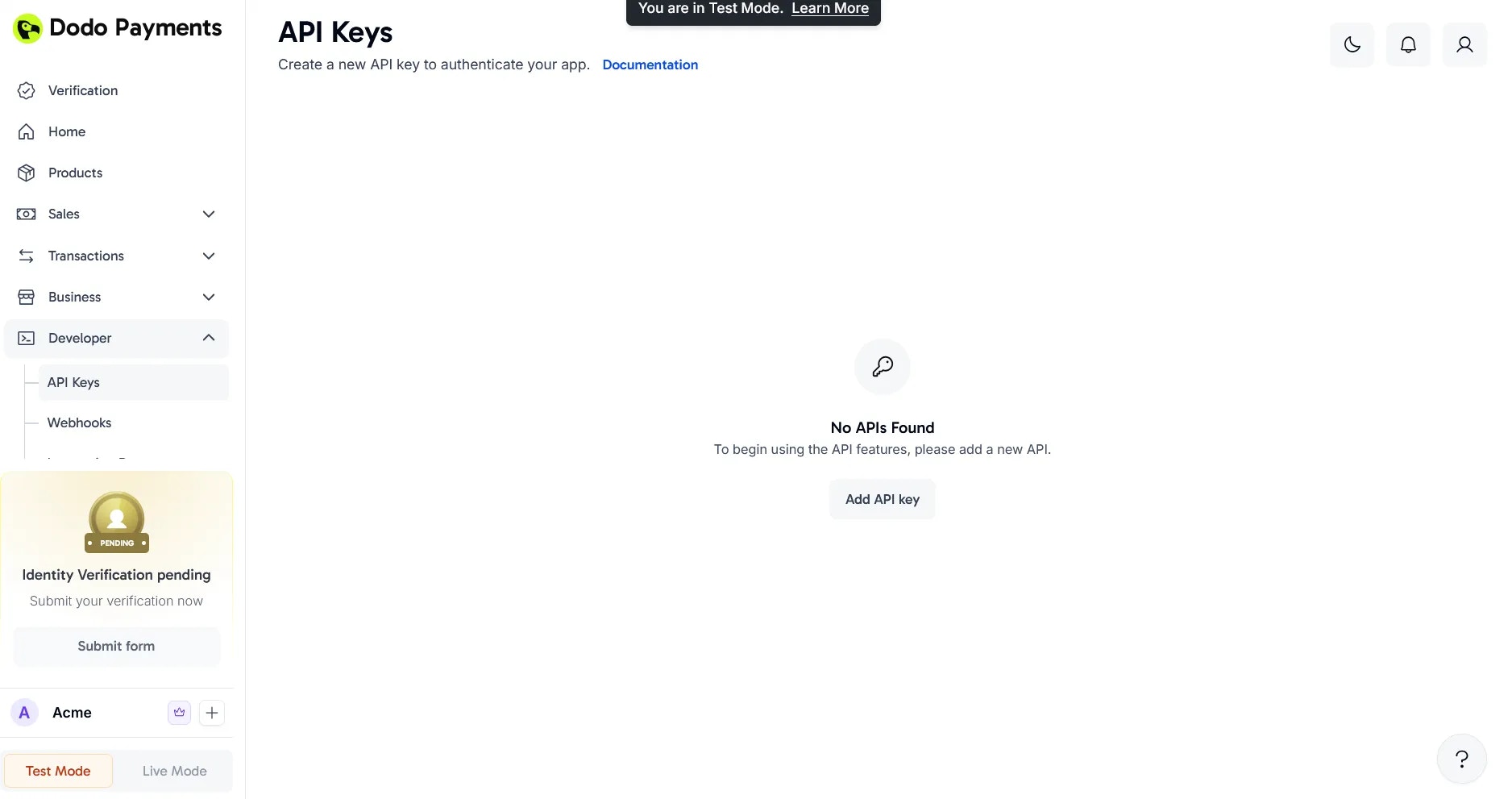
 4. Logga in på din Dodo Payments-instrumentpanel i **Live Mode**, navigera sedan till **Dodo Payments (Live Mode) > Developer > API Keys** eller besök [denna direkta länk](https://app.dodopayments.com/developer/api-keys) och klicka på **Lägg till API-nyckel**
 5. Ge din API-nyckel ett beskrivande namn och klicka på **Skapa**
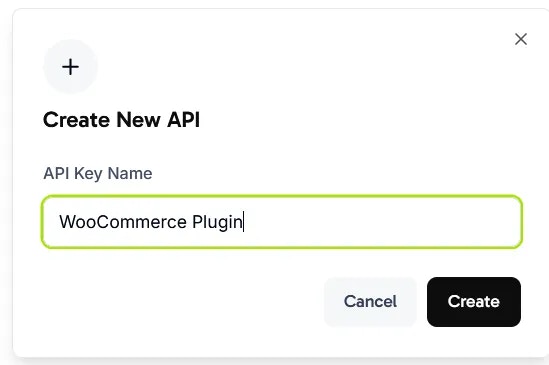 6. Kopiera den genererade API-nyckeln och klistra in den i fältet **Live API Key** i dina WooCommerce-plugin-inställningar
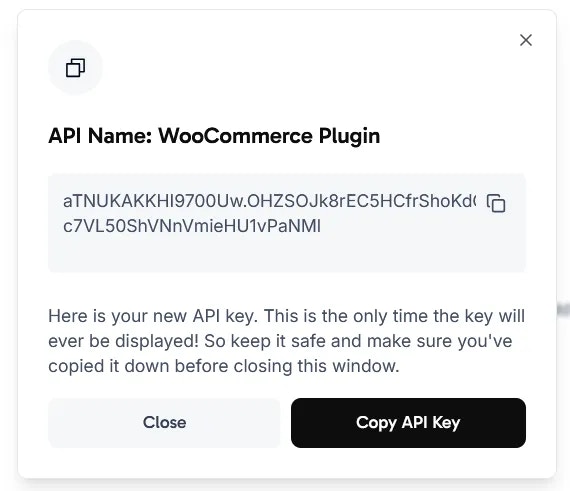
 7. Nästa steg, sätt upp Webhook Signing Key för att möjliggöra betalningsstatussynkronisering mellan Dodo Payments och WooCommerce
8. Scrolla till botten av pluginets inställningssida och kopiera webhook-URL:en som visas där
7. Nästa steg, sätt upp Webhook Signing Key för att möjliggöra betalningsstatussynkronisering mellan Dodo Payments och WooCommerce
8. Scrolla till botten av pluginets inställningssida och kopiera webhook-URL:en som visas där
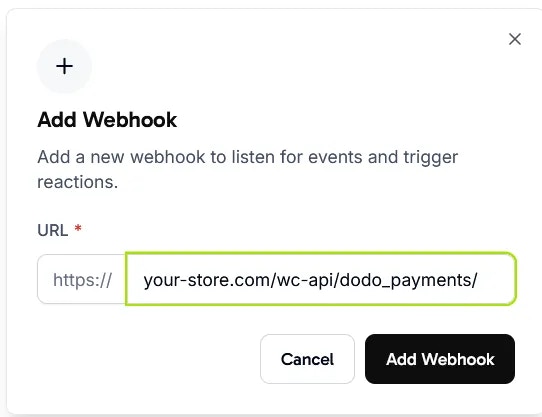
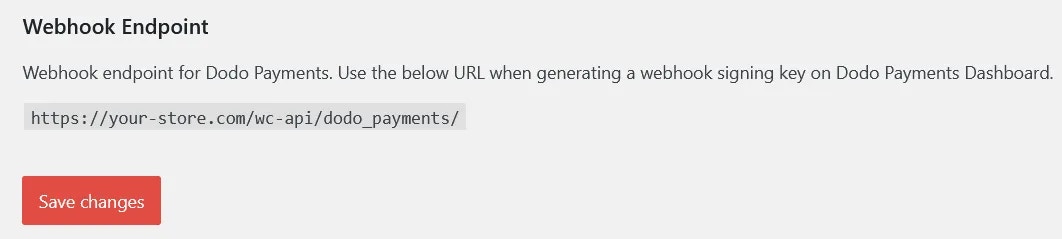 9. Gå tillbaka till din Dodo Payments-instrumentpanel och navigera till **Dodo Payments (Live Mode) > Developer > Webhooks** och klicka på **Lägg till Webhook**
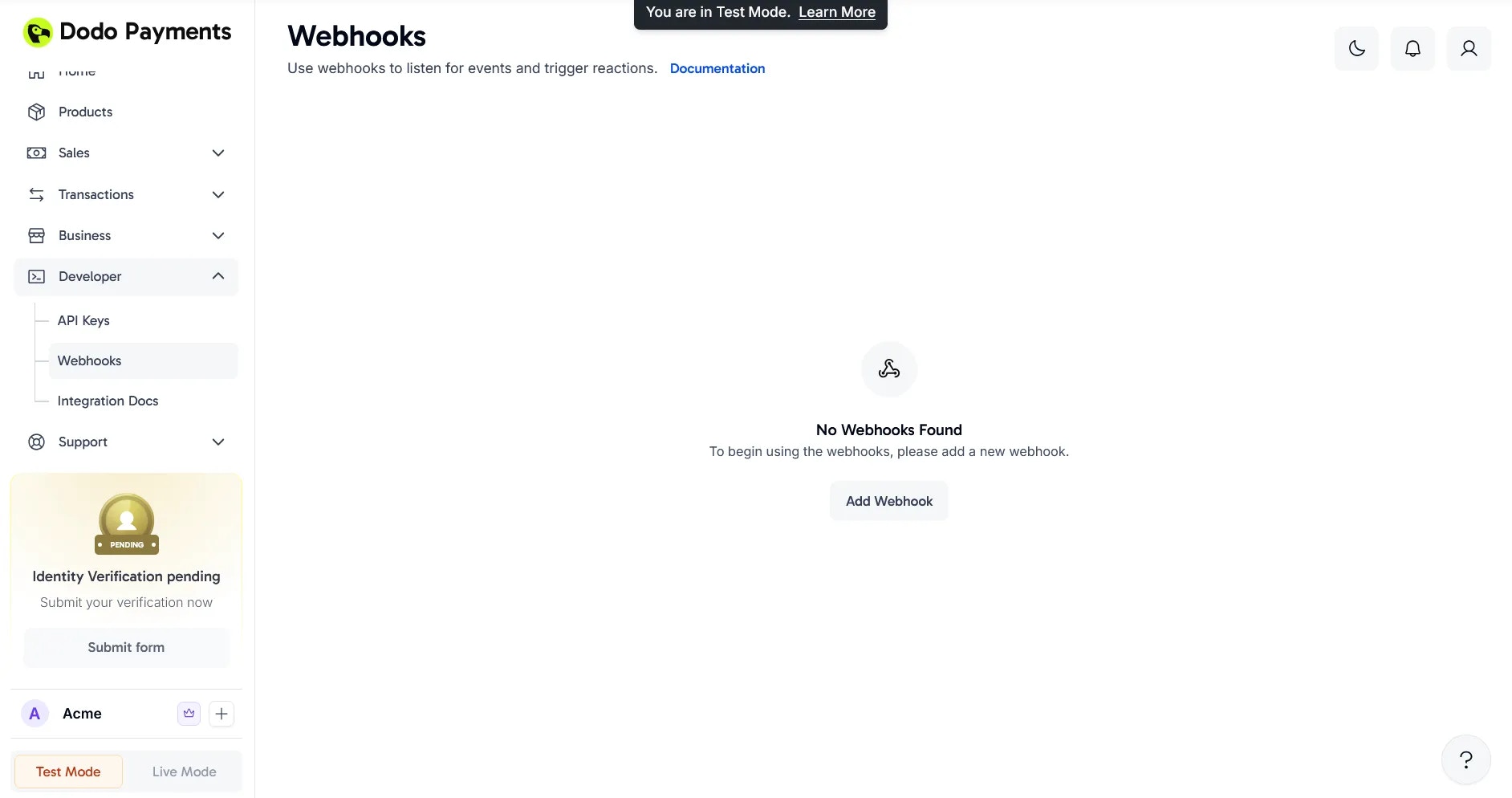 10. Klistra in URL:en du kopierade i steg 8 i dialogrutan och klicka på **Lägg till Webhook**
 11. Efter att du skapat webhook, klicka på ögonikonen bredvid den dolda **Signing Key** för att avslöja och kopiera den
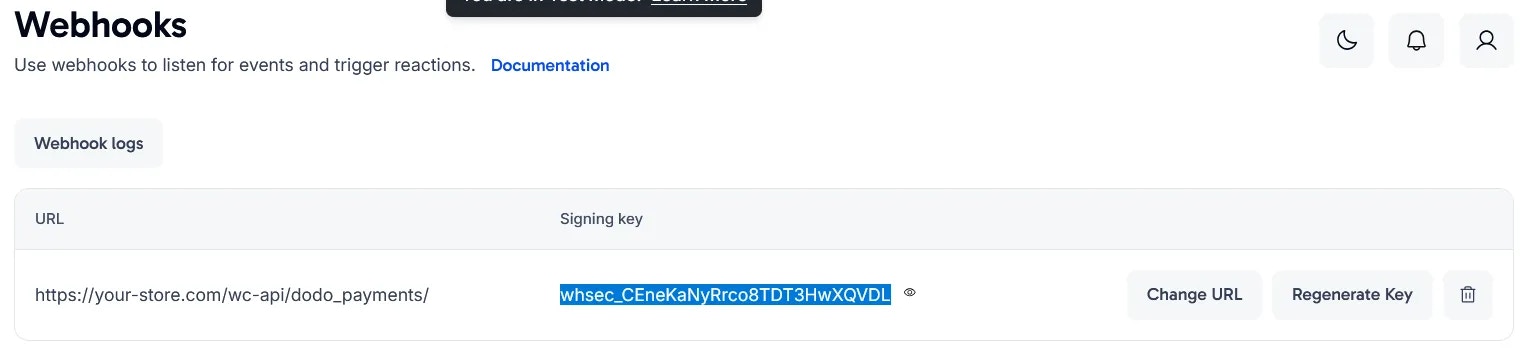 12. Klistra in underskriftsnyckeln i fältet **Live Webhook Signing Key** i dina plugin-inställningar och spara ändringarna
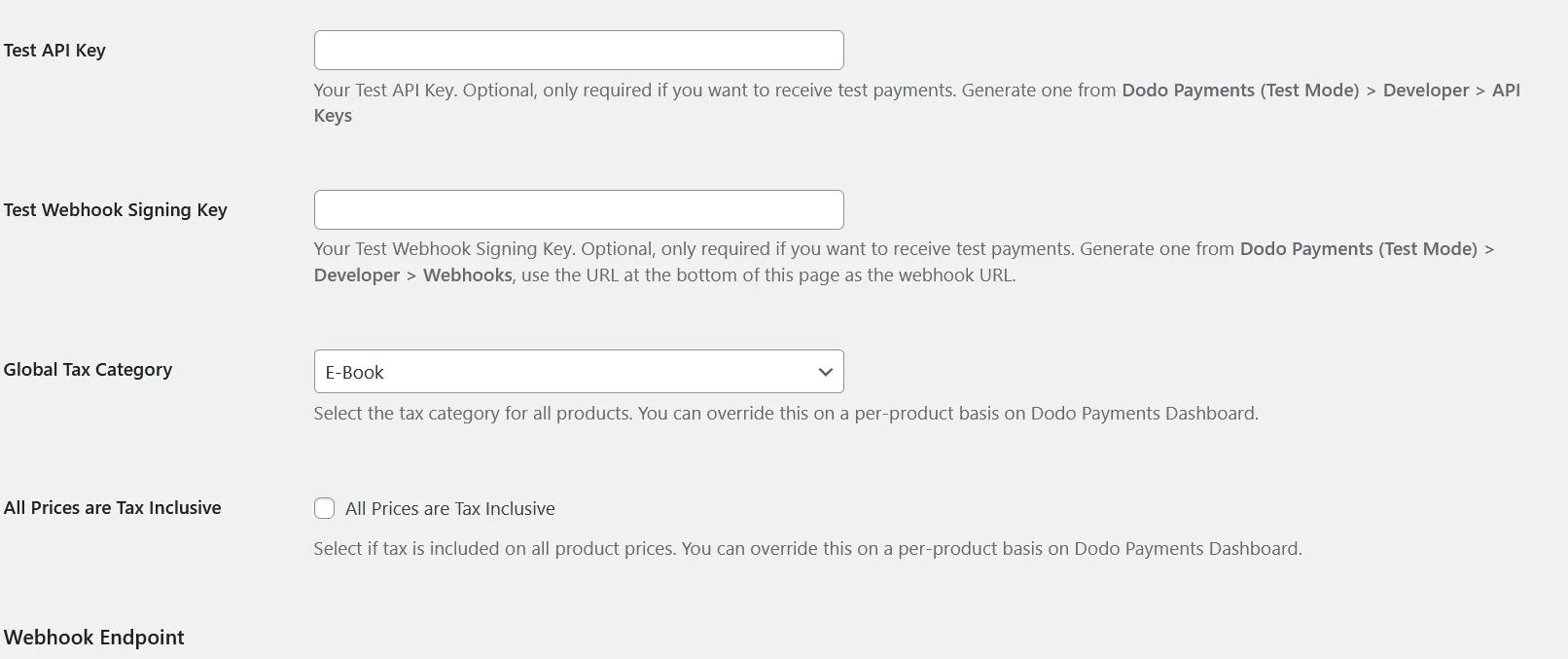
 13. Granska de återstående inställningarna som **Global Tax Category** och **All Prices are Tax Inclusive**, eftersom dessa alternativ bestämmer hur produkter synkas från WooCommerce till Dodo Payments. Observera att **Test API Key** och **Test Webhook Signing Key** endast behövs om du planerar att använda Test Mode
 ## Du är redo!
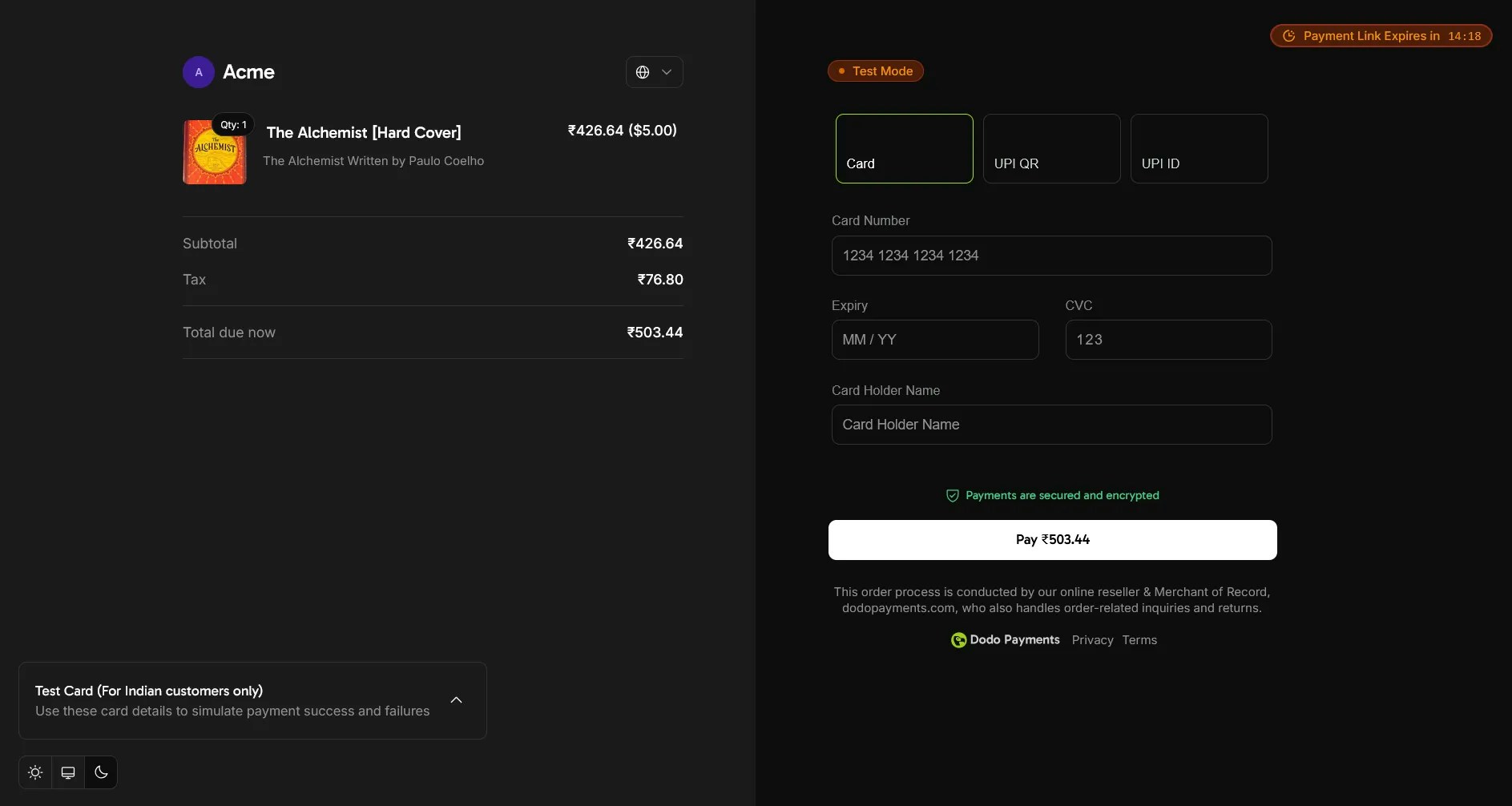
Din WooCommerce-butik är nu integrerad med Dodo Payments! Kunder kan välja Dodo Payments vid kassan för att få tillgång till alla stödda betalningsmetoder.
## Du är redo!
Din WooCommerce-butik är nu integrerad med Dodo Payments! Kunder kan välja Dodo Payments vid kassan för att få tillgång till alla stödda betalningsmetoder.
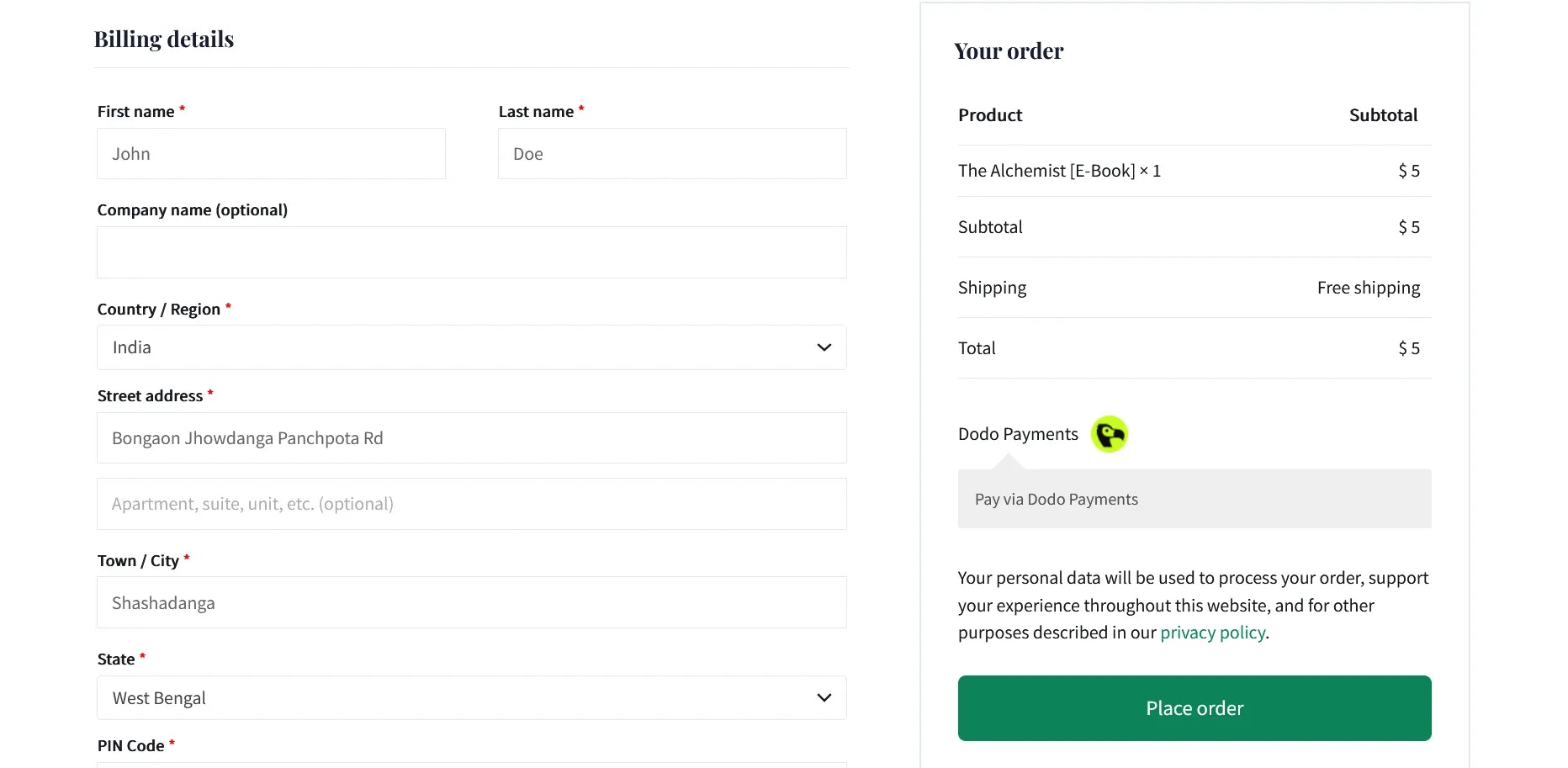 När kunder väljer Dodo Payments kommer de sömlöst att omdirigeras till Dodo Payments kassa för att slutföra sin transaktion.
 ## Nyckelfunktioner
* **Sömlös kassaupplevelse**: Omdirigera kunder till en säker, optimerad kassasida
* **Flera betalningsmetoder**: Stöd för olika lokala och internationella betalningsalternativ
* **Uppdateringar i realtid**: Omedelbar synkronisering av orderstatus via webhooks
* **Detaljerade transaktionsregister**: Omfattande betalningshistorik i din WooCommerce-instrumentpanel
* **Stöd för flera valutor**: Acceptera betalningar i flera valutor
## Felsökning
### Vanliga problem
1. **Betalningsbehandlingsfel**
* Verifiera att API-nycklar är korrekt konfigurerade
* Se till att webhook-URL:en är korrekt inställd
* Kontrollera att ditt SSL-certifikat är giltigt
2. **Webhook-synkroniseringsproblem**
* Bekräfta att webhook-signeringstangenten matchar
* Granska serverloggar för potentiella fel
* Verifiera att din server kan ta emot inkommande webhook-förfrågningar
### Supportresurser
För ytterligare hjälp:
* Kontakta oss på [support@dodopayments.com](mailto:support@dodopayments.com)
* Se vår [omfattande dokumentation](https://docs.dodopayments.com)
## Underhålls bästa praxis
1. Uppdatera regelbundet plugin för säkerhetsuppdateringar och nya funktioner
2. Testa alla betalningsflöden i sandbox-läge innan du behandlar live-transaktioner
3. Håll WordPress och WooCommerce uppdaterade till de senaste versionerna
4. Implementera regelbundna webbplatsbackuper
5. Övervaka transaktionsloggar för eventuell ovanlig aktivitet
6. Förvara API-nycklar säkert och dela dem aldrig offentligt
## Nyckelfunktioner
* **Sömlös kassaupplevelse**: Omdirigera kunder till en säker, optimerad kassasida
* **Flera betalningsmetoder**: Stöd för olika lokala och internationella betalningsalternativ
* **Uppdateringar i realtid**: Omedelbar synkronisering av orderstatus via webhooks
* **Detaljerade transaktionsregister**: Omfattande betalningshistorik i din WooCommerce-instrumentpanel
* **Stöd för flera valutor**: Acceptera betalningar i flera valutor
## Felsökning
### Vanliga problem
1. **Betalningsbehandlingsfel**
* Verifiera att API-nycklar är korrekt konfigurerade
* Se till att webhook-URL:en är korrekt inställd
* Kontrollera att ditt SSL-certifikat är giltigt
2. **Webhook-synkroniseringsproblem**
* Bekräfta att webhook-signeringstangenten matchar
* Granska serverloggar för potentiella fel
* Verifiera att din server kan ta emot inkommande webhook-förfrågningar
### Supportresurser
För ytterligare hjälp:
* Kontakta oss på [support@dodopayments.com](mailto:support@dodopayments.com)
* Se vår [omfattande dokumentation](https://docs.dodopayments.com)
## Underhålls bästa praxis
1. Uppdatera regelbundet plugin för säkerhetsuppdateringar och nya funktioner
2. Testa alla betalningsflöden i sandbox-läge innan du behandlar live-transaktioner
3. Håll WordPress och WooCommerce uppdaterade till de senaste versionerna
4. Implementera regelbundna webbplatsbackuper
5. Övervaka transaktionsloggar för eventuell ovanlig aktivitet
6. Förvara API-nycklar säkert och dela dem aldrig offentligt