> ## Documentation Index
> Fetch the complete documentation index at: https://docs.dodopayments.com/llms.txt
> Use this file to discover all available pages before exploring further.
# Microsoft Teams
> Envie notificações de pagamentos do Dodo para canais do Microsoft Teams com cartões adaptativos ricos.
## Introdução
Mantenha sua equipe de negócios informada com notificações de pagamento em tempo real no Microsoft Teams. A integração entrega eventos de pagamento como cartões adaptativos ricos—perfeito para ambientes empresariais onde o Teams é a principal ferramenta de colaboração.
Este guia pressupõe que você tem acesso de administrador para criar webhooks no seu workspace do Microsoft Teams.
## Começando
No painel do Dodo Payments, navegue até Webhooks → + Adicionar Endpoint e expanda o menu suspenso de integrações.
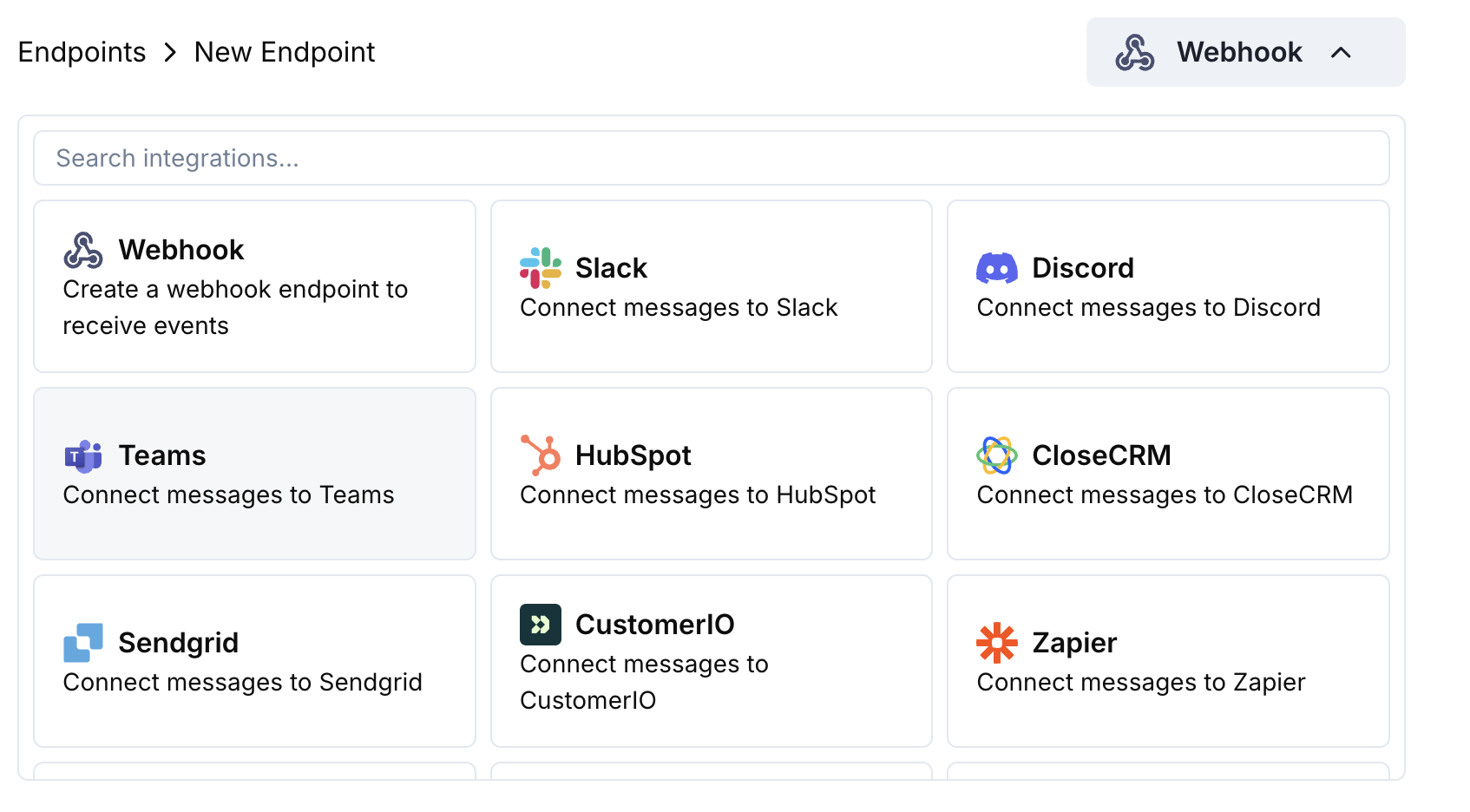 Escolha o cartão de integração Microsoft Teams.
No Teams, vá para o seu canal → ⋯ → Connectors → Incoming Webhook → Configure. Copie a URL do webhook.
Cole a URL do webhook do Teams na configuração do endpoint.
Edite o código de transformação para formatar as mensagens como Adaptive Cards para o Teams.
Teste com payloads de exemplo e clique em Create para ativar.
🎉 Seu canal do Teams agora receberá atualizações do Dodo Payments como Adaptive Cards.
## Exemplos de Código de Transformação
### Cartão de Pagamento Básico
```javascript payment_card.js icon="js" expandable theme={null}
function handler(webhook) {
if (webhook.eventType === "payment.succeeded") {
const p = webhook.payload.data;
webhook.payload = {
type: "message",
attachments: [{
contentType: "application/vnd.microsoft.card.adaptive",
content: {
type: "AdaptiveCard",
body: [
{
type: "TextBlock",
text: "✅ Payment Successful",
weight: "Bolder",
size: "Medium"
},
{
type: "FactSet",
facts: [
{ title: "Amount", value: `$${(p.total_amount / 100).toFixed(2)}` },
{ title: "Customer", value: p.customer.email },
{ title: "Payment ID", value: p.payment_id }
]
}
]
}
}]
};
}
return webhook;
}
```
### Gerenciamento de Assinaturas
```javascript subscription_card.js icon="js" expandable theme={null}
function handler(webhook) {
const s = webhook.payload.data;
switch (webhook.eventType) {
case "subscription.active":
webhook.payload = {
type: "message",
attachments: [{
contentType: "application/vnd.microsoft.card.adaptive",
content: {
type: "AdaptiveCard",
body: [
{
type: "TextBlock",
text: "📄 Subscription Activated",
weight: "Bolder",
color: "Good"
},
{
type: "FactSet",
facts: [
{ title: "Customer", value: s.customer.email },
{ title: "Product", value: s.product_id },
{ title: "Amount", value: `$${(s.recurring_pre_tax_amount / 100).toFixed(2)}/${s.payment_frequency_interval}` },
{ title: "Next Billing", value: new Date(s.next_billing_date).toLocaleDateString() }
]
}
]
}
}]
};
break;
case "subscription.cancelled":
webhook.payload = {
type: "message",
attachments: [{
contentType: "application/vnd.microsoft.card.adaptive",
content: {
type: "AdaptiveCard",
body: [
{
type: "TextBlock",
text: "⚠️ Subscription Cancelled",
weight: "Bolder",
color: "Warning"
},
{
type: "FactSet",
facts: [
{ title: "Customer", value: s.customer.email },
{ title: "Product", value: s.product_id },
{ title: "Cancelled At", value: new Date(s.cancelled_at).toLocaleDateString() }
]
}
]
}
}]
};
break;
}
return webhook;
}
```
### Alertas de Disputa
```javascript dispute_card.js icon="js" expandable theme={null}
function handler(webhook) {
if (webhook.eventType.startsWith("dispute.")) {
const d = webhook.payload.data;
const color = d.dispute_status === "won" ? "Good" : d.dispute_status === "lost" ? "Attention" : "Warning";
const title = d.dispute_status === "won" ? "🏆 Dispute Won" : d.dispute_status === "lost" ? "❌ Dispute Lost" : "🚨 Dispute Update";
webhook.payload = {
type: "message",
attachments: [{
contentType: "application/vnd.microsoft.card.adaptive",
content: {
type: "AdaptiveCard",
body: [
{
type: "TextBlock",
text: title,
weight: "Bolder",
color: color
},
{
type: "FactSet",
facts: [
{ title: "Payment ID", value: d.payment_id },
{ title: "Amount", value: `$${(d.amount / 100).toFixed(2)}` },
{ title: "Status", value: d.dispute_status },
{ title: "Stage", value: d.dispute_stage }
]
}
]
}
}]
};
}
return webhook;
}
```
## Dicas
* Use cartões adaptativos para formatação rica e interativa
* Escolha cores apropriadas: Bom (verde), Aviso (amarelo), Atenção (vermelho)
* Mantenha conjuntos de fatos concisos e legíveis
* Teste com o testador de webhook do Teams antes de implantar
## Solução de Problemas
* Verifique se a URL do webhook está correta e ativa
* Confira se a transformação retorna JSON válido de Adaptive Card
* Garanta que o webhook tenha permissão para postar no canal
* Valide o esquema do Adaptive Card no testador de webhook do Teams
* Verifique se todos os campos obrigatórios estão presentes
* Certifique-se de que os valores de cor são válidos (Good, Warning, Attention, Default)
Escolha o cartão de integração Microsoft Teams.
No Teams, vá para o seu canal → ⋯ → Connectors → Incoming Webhook → Configure. Copie a URL do webhook.
Cole a URL do webhook do Teams na configuração do endpoint.
Edite o código de transformação para formatar as mensagens como Adaptive Cards para o Teams.
Teste com payloads de exemplo e clique em Create para ativar.
🎉 Seu canal do Teams agora receberá atualizações do Dodo Payments como Adaptive Cards.
## Exemplos de Código de Transformação
### Cartão de Pagamento Básico
```javascript payment_card.js icon="js" expandable theme={null}
function handler(webhook) {
if (webhook.eventType === "payment.succeeded") {
const p = webhook.payload.data;
webhook.payload = {
type: "message",
attachments: [{
contentType: "application/vnd.microsoft.card.adaptive",
content: {
type: "AdaptiveCard",
body: [
{
type: "TextBlock",
text: "✅ Payment Successful",
weight: "Bolder",
size: "Medium"
},
{
type: "FactSet",
facts: [
{ title: "Amount", value: `$${(p.total_amount / 100).toFixed(2)}` },
{ title: "Customer", value: p.customer.email },
{ title: "Payment ID", value: p.payment_id }
]
}
]
}
}]
};
}
return webhook;
}
```
### Gerenciamento de Assinaturas
```javascript subscription_card.js icon="js" expandable theme={null}
function handler(webhook) {
const s = webhook.payload.data;
switch (webhook.eventType) {
case "subscription.active":
webhook.payload = {
type: "message",
attachments: [{
contentType: "application/vnd.microsoft.card.adaptive",
content: {
type: "AdaptiveCard",
body: [
{
type: "TextBlock",
text: "📄 Subscription Activated",
weight: "Bolder",
color: "Good"
},
{
type: "FactSet",
facts: [
{ title: "Customer", value: s.customer.email },
{ title: "Product", value: s.product_id },
{ title: "Amount", value: `$${(s.recurring_pre_tax_amount / 100).toFixed(2)}/${s.payment_frequency_interval}` },
{ title: "Next Billing", value: new Date(s.next_billing_date).toLocaleDateString() }
]
}
]
}
}]
};
break;
case "subscription.cancelled":
webhook.payload = {
type: "message",
attachments: [{
contentType: "application/vnd.microsoft.card.adaptive",
content: {
type: "AdaptiveCard",
body: [
{
type: "TextBlock",
text: "⚠️ Subscription Cancelled",
weight: "Bolder",
color: "Warning"
},
{
type: "FactSet",
facts: [
{ title: "Customer", value: s.customer.email },
{ title: "Product", value: s.product_id },
{ title: "Cancelled At", value: new Date(s.cancelled_at).toLocaleDateString() }
]
}
]
}
}]
};
break;
}
return webhook;
}
```
### Alertas de Disputa
```javascript dispute_card.js icon="js" expandable theme={null}
function handler(webhook) {
if (webhook.eventType.startsWith("dispute.")) {
const d = webhook.payload.data;
const color = d.dispute_status === "won" ? "Good" : d.dispute_status === "lost" ? "Attention" : "Warning";
const title = d.dispute_status === "won" ? "🏆 Dispute Won" : d.dispute_status === "lost" ? "❌ Dispute Lost" : "🚨 Dispute Update";
webhook.payload = {
type: "message",
attachments: [{
contentType: "application/vnd.microsoft.card.adaptive",
content: {
type: "AdaptiveCard",
body: [
{
type: "TextBlock",
text: title,
weight: "Bolder",
color: color
},
{
type: "FactSet",
facts: [
{ title: "Payment ID", value: d.payment_id },
{ title: "Amount", value: `$${(d.amount / 100).toFixed(2)}` },
{ title: "Status", value: d.dispute_status },
{ title: "Stage", value: d.dispute_stage }
]
}
]
}
}]
};
}
return webhook;
}
```
## Dicas
* Use cartões adaptativos para formatação rica e interativa
* Escolha cores apropriadas: Bom (verde), Aviso (amarelo), Atenção (vermelho)
* Mantenha conjuntos de fatos concisos e legíveis
* Teste com o testador de webhook do Teams antes de implantar
## Solução de Problemas
* Verifique se a URL do webhook está correta e ativa
* Confira se a transformação retorna JSON válido de Adaptive Card
* Garanta que o webhook tenha permissão para postar no canal
* Valide o esquema do Adaptive Card no testador de webhook do Teams
* Verifique se todos os campos obrigatórios estão presentes
* Certifique-se de que os valores de cor são válidos (Good, Warning, Attention, Default)