> ## Documentation Index
> Fetch the complete documentation index at: https://docs.dodopayments.com/llms.txt
> Use this file to discover all available pages before exploring further.
# Discord
> 실시간 Dodo Payments 알림을 Discord 채널로 전송합니다.
## 소개
팀이 이미 협업하는 곳에서 정보를 유지하세요. Discord 통합은 결제, 구독, 분쟁 및 기타 중요한 이벤트를 선택한 채널로 직접 전달합니다—폴링이나 대시보드가 필요 없습니다.
이 가이드는 Dodo Payments 대시보드의 통합(Integrations) 섹션에 액세스할 수 있다고 가정합니다.
## 시작하기
Dodo Payments 대시보드에서 Webhooks → + Add Endpoint를 열고 드롭다운을 확장하여 통합을 표시하세요.
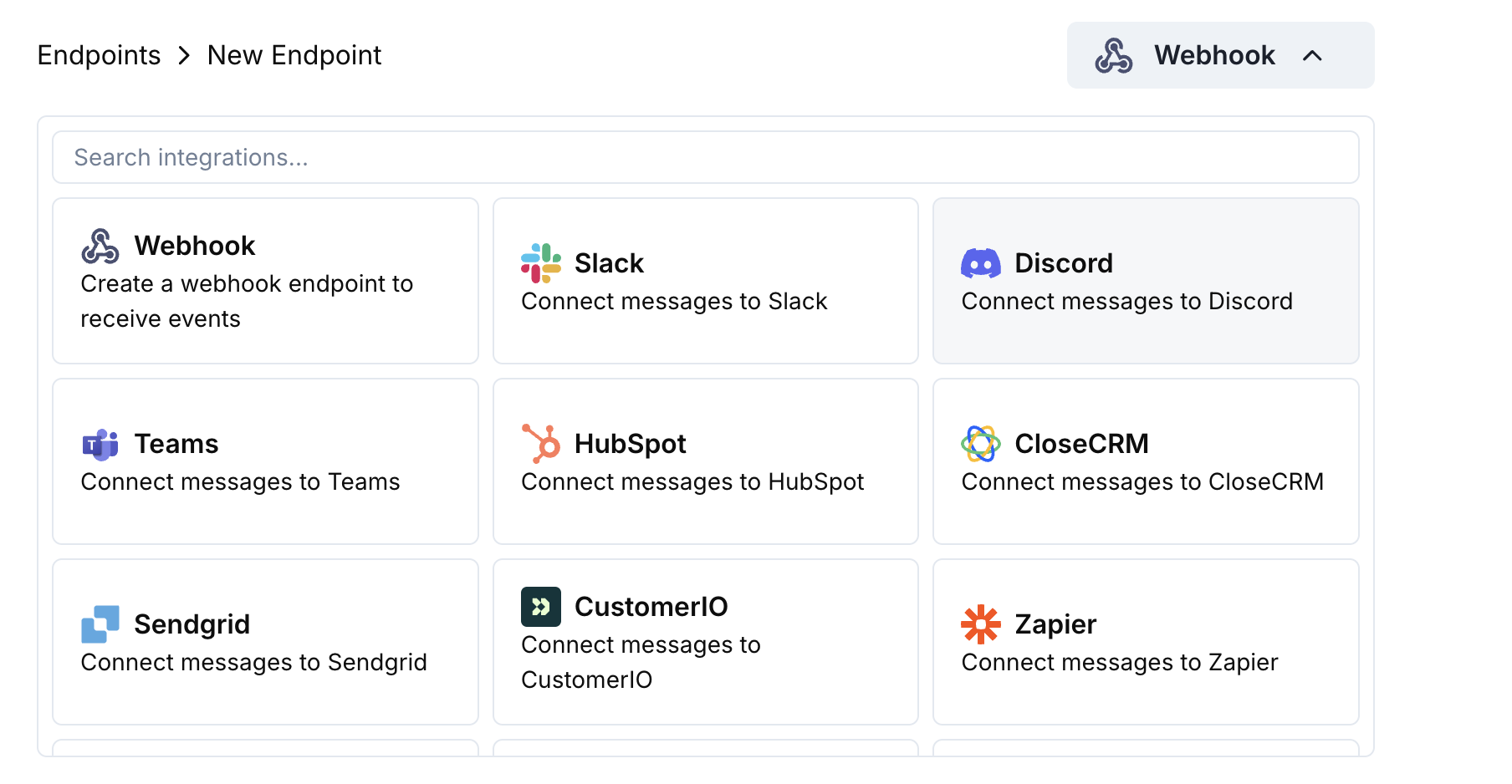 Discord 카드를 선택한 다음 Connect your Discord workspace를 클릭하세요.
요청된 권한을 부여하면 봇이 선택한 채널에 메시지를 게시할 수 있습니다.
페이로드 → 임베드 매핑을 필요에 맞게 조정하거나 아래 템플릿으로 시작하세요.
샘플 페이로드를 사용해 임베드를 미리 보고, 그런 다음 Create를 누르세요.
🎉 이제 Discord 채널에서 실시간 Dodo Payments 업데이트를 받게 됩니다.
## 변환 코드 예제
### 최소 결제 임베드
```javascript payment_embed.js icon="js" expandable theme={null}
function handler(webhook) {
if (webhook.eventType === "payment.succeeded") {
const p = webhook.payload.data;
webhook.payload = {
embeds: [{
title: "✅ Payment Successful",
description: `**Amount:** $${(p.total_amount / 100).toFixed(2)}\n**Customer:** ${p.customer.email}`,
color: 0x2ecc71 // green
}]
};
}
return webhook;
}
```
### 구독 이벤트
```javascript subscription_embed.js icon="js" expandable theme={null}
function handler(webhook) {
const s = webhook.payload.data;
switch (webhook.eventType) {
case "subscription.active":
webhook.payload = {
embeds: [{
title: "📄 Subscription Activated",
fields: [
{ name: "Customer", value: s.customer.email, inline: true },
{ name: "Product", value: s.product_id, inline: true },
{ name: "Next Billing", value: new Date(s.next_billing_date).toLocaleDateString(), inline: true }
],
color: 0x2ecc71
}]
};
break;
case "subscription.cancelled":
webhook.payload = {
embeds: [{
title: "⚠️ Subscription Cancelled",
fields: [
{ name: "Customer", value: s.customer.email, inline: true },
{ name: "Product", value: s.product_id, inline: true }
],
color: 0xf1c40f
}]
};
break;
}
return webhook;
}
```
### 분쟁 알림
```javascript dispute_embed.js icon="js" expandable theme={null}
function handler(webhook) {
if (webhook.eventType.startsWith("dispute.")) {
const d = webhook.payload.data;
webhook.payload = {
embeds: [{
title: d.dispute_status === "won" ? "🏆 Dispute Won" : d.dispute_status === "lost" ? "❌ Dispute Lost" : "🚨 Dispute Update",
fields: [
{ name: "Payment ID", value: d.payment_id, inline: true },
{ name: "Amount", value: `$${(d.amount / 100).toFixed(2)}`, inline: true },
{ name: "Status", value: d.dispute_status, inline: true }
],
color: d.dispute_status === "won" ? 0x2ecc71 : d.dispute_status === "lost" ? 0xe74c3c : 0xe67e22
}]
};
}
return webhook;
}
```
## 팁
* 풍부한 형식과 색상을 위해 임베드를 선호하세요.
* 제목은 짧게 유지하고 세부정보는 필드에 넣으세요.
* 직관적인 색상 사용: 초록(성공), 빨강(실패), 주황(경고).
## 문제 해결
* 봇이 채널에 액세스할 수 있는지 확인하세요.
* 변환이 `embeds`를 포함한 JSON 객체를 반환하는지 확인하세요.
* 편집기에서 코드를 검증하세요 – 구문 오류가 있으면 전달이 차단됩니다.
* 필드 이름이 웹훅 페이로드 구조와 일치하는지 확인하세요.
Discord 카드를 선택한 다음 Connect your Discord workspace를 클릭하세요.
요청된 권한을 부여하면 봇이 선택한 채널에 메시지를 게시할 수 있습니다.
페이로드 → 임베드 매핑을 필요에 맞게 조정하거나 아래 템플릿으로 시작하세요.
샘플 페이로드를 사용해 임베드를 미리 보고, 그런 다음 Create를 누르세요.
🎉 이제 Discord 채널에서 실시간 Dodo Payments 업데이트를 받게 됩니다.
## 변환 코드 예제
### 최소 결제 임베드
```javascript payment_embed.js icon="js" expandable theme={null}
function handler(webhook) {
if (webhook.eventType === "payment.succeeded") {
const p = webhook.payload.data;
webhook.payload = {
embeds: [{
title: "✅ Payment Successful",
description: `**Amount:** $${(p.total_amount / 100).toFixed(2)}\n**Customer:** ${p.customer.email}`,
color: 0x2ecc71 // green
}]
};
}
return webhook;
}
```
### 구독 이벤트
```javascript subscription_embed.js icon="js" expandable theme={null}
function handler(webhook) {
const s = webhook.payload.data;
switch (webhook.eventType) {
case "subscription.active":
webhook.payload = {
embeds: [{
title: "📄 Subscription Activated",
fields: [
{ name: "Customer", value: s.customer.email, inline: true },
{ name: "Product", value: s.product_id, inline: true },
{ name: "Next Billing", value: new Date(s.next_billing_date).toLocaleDateString(), inline: true }
],
color: 0x2ecc71
}]
};
break;
case "subscription.cancelled":
webhook.payload = {
embeds: [{
title: "⚠️ Subscription Cancelled",
fields: [
{ name: "Customer", value: s.customer.email, inline: true },
{ name: "Product", value: s.product_id, inline: true }
],
color: 0xf1c40f
}]
};
break;
}
return webhook;
}
```
### 분쟁 알림
```javascript dispute_embed.js icon="js" expandable theme={null}
function handler(webhook) {
if (webhook.eventType.startsWith("dispute.")) {
const d = webhook.payload.data;
webhook.payload = {
embeds: [{
title: d.dispute_status === "won" ? "🏆 Dispute Won" : d.dispute_status === "lost" ? "❌ Dispute Lost" : "🚨 Dispute Update",
fields: [
{ name: "Payment ID", value: d.payment_id, inline: true },
{ name: "Amount", value: `$${(d.amount / 100).toFixed(2)}`, inline: true },
{ name: "Status", value: d.dispute_status, inline: true }
],
color: d.dispute_status === "won" ? 0x2ecc71 : d.dispute_status === "lost" ? 0xe74c3c : 0xe67e22
}]
};
}
return webhook;
}
```
## 팁
* 풍부한 형식과 색상을 위해 임베드를 선호하세요.
* 제목은 짧게 유지하고 세부정보는 필드에 넣으세요.
* 직관적인 색상 사용: 초록(성공), 빨강(실패), 주황(경고).
## 문제 해결
* 봇이 채널에 액세스할 수 있는지 확인하세요.
* 변환이 `embeds`를 포함한 JSON 객체를 반환하는지 확인하세요.
* 편집기에서 코드를 검증하세요 – 구문 오류가 있으면 전달이 차단됩니다.
* 필드 이름이 웹훅 페이로드 구조와 일치하는지 확인하세요.