> ## Documentation Index
> Fetch the complete documentation index at: https://docs.dodopayments.com/llms.txt
> Use this file to discover all available pages before exploring further.
# 보고서
> 잔액을 조정하고 모든 수수료를 검토하며, 모든 날짜 범위에 대해 결제, 조정, 지급 및 잔액 원장을 CSV 또는 XLSX로 내보내세요.
## 소개
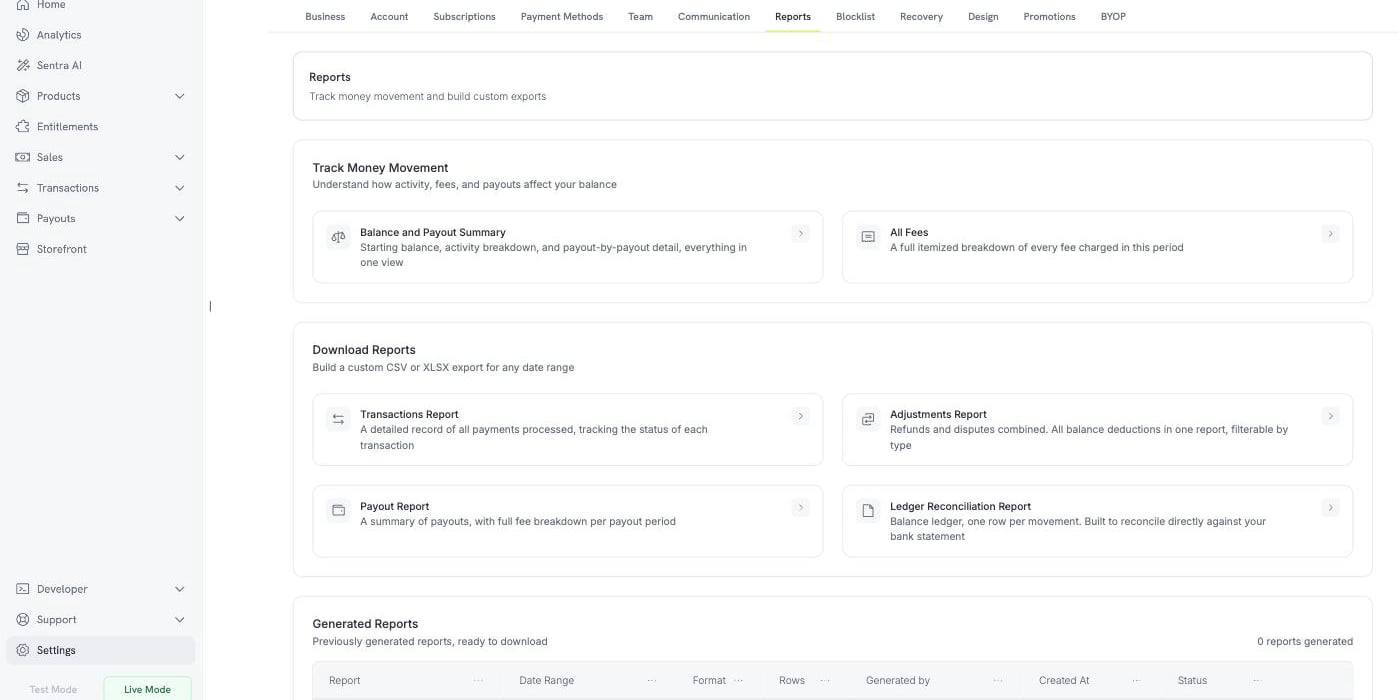
**보고서**에서는 자금 이동을 추적하고 내보내기 파일을 생성할 수 있습니다.
**Settings → Reports**로 이동하세요.
페이지는 세 부분으로 구성됩니다:
화면에서 잔액과 수수료를 설명하는 두 가지 실시간 보기입니다.
날짜 범위에 대해 CSV 또는 XLSX로 생성하는 네 가지 내보내기입니다.
이전에 생성한 모든 보고서를 다시 다운로드할 수 있습니다.
 보고서는 **Test Mode**와 **Live Mode** 모두에서 사용할 수 있으며, 각 모드는 해당 모드의 데이터만 읽습니다. 보고서를 생성하기 전에 사이드바에서 모드를 전환하세요.
***
## 자금 이동 추적
두 가지 보기를 통해 다운로드 없이 화면에서 질문에 답할 수 있습니다. 각 보기에서 날짜 범위를 지정할 수 있으며, 동일한 보기를 파일로 저장하는 **Export** 버튼이 있습니다.
### 잔액 및 지급 요약
이 보기에서는 해당 기간의 잔액을 조정합니다. 세 개의 블록으로 구성됩니다.
보고서는 **Test Mode**와 **Live Mode** 모두에서 사용할 수 있으며, 각 모드는 해당 모드의 데이터만 읽습니다. 보고서를 생성하기 전에 사이드바에서 모드를 전환하세요.
***
## 자금 이동 추적
두 가지 보기를 통해 다운로드 없이 화면에서 질문에 답할 수 있습니다. 각 보기에서 날짜 범위를 지정할 수 있으며, 동일한 보기를 파일로 저장하는 **Export** 버튼이 있습니다.
### 잔액 및 지급 요약
이 보기에서는 해당 기간의 잔액을 조정합니다. 세 개의 블록으로 구성됩니다.
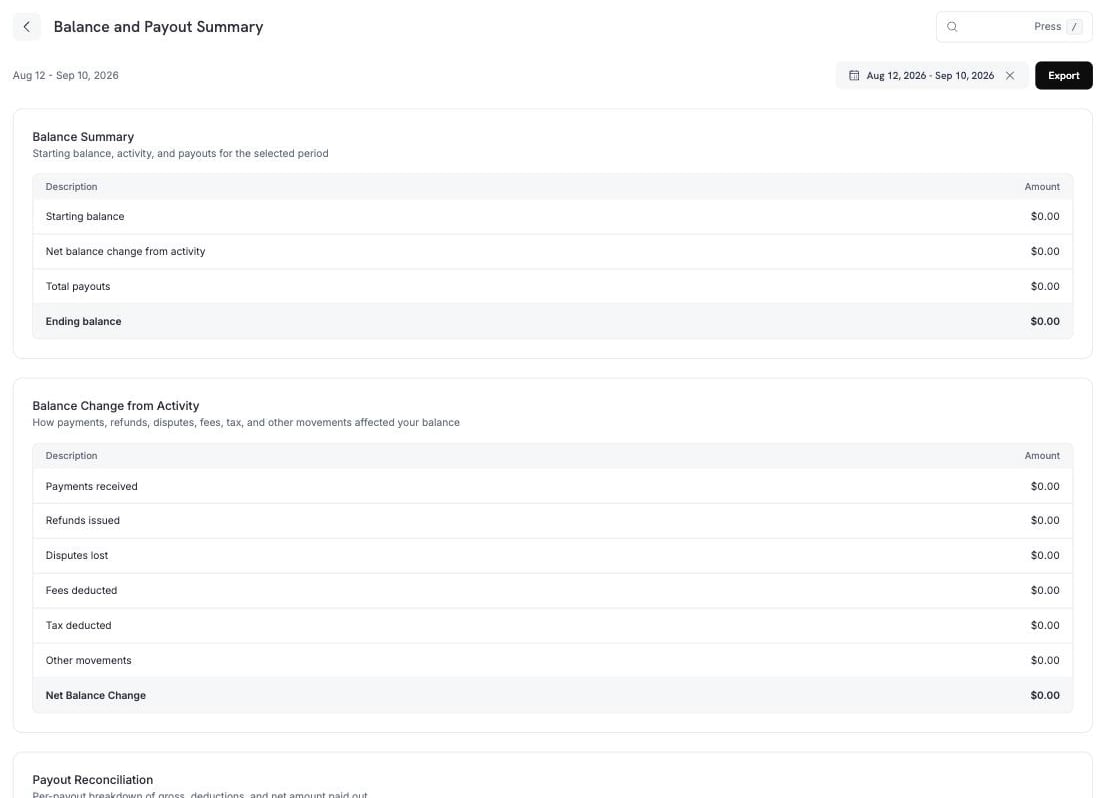 **Balance Summary**에는 해당 기간의 시작부터 종료까지의 내역이 표시됩니다.
| 행 | 의미 |
| --------------- | ----------------------------- |
| 시작 잔액 | 기간이 시작될 때의 잔액입니다. |
| 활동으로 인한 순 잔액 변동 | 지급을 제외하고 해당 기간에 발생한 모든 내역입니다. |
| 총 지급액 | 지급으로 빠져나간 금액입니다. |
| 종료 잔액 | 시작 잔액 + 활동 − 지급액입니다. |
**Balance Change from Activity**에서는 중간 행을 구성 요소별로 나눠 표시합니다.
| 행 | 포함 항목 |
| ------- | ------------------------------------------------------------------------------------------- |
| 수취한 결제 | 성공한 결제입니다. |
| 발행된 환불 | 환불 및 환불 수수료에서 각각의 취소 금액을 뺀 값입니다. |
| 패소한 분쟁 | 분쟁 및 분쟁 수수료에서 분쟁 취소 금액을 뺀 값입니다. |
| 차감된 수수료 | 결제 수수료, 지급 수수료, 독촉 수수료, 결제 재시도 수수료, BYOP 수수료, 버려진 장바구니 복구 수수료 및 Ethoca 수수료에서 취소 금액을 뺀 값입니다. |
| 차감된 세금 | 세금에서 세금 취소 금액을 뺀 값입니다. |
| 기타 이동 | Dodo Credits, 수동 조정 및 통화 변환입니다. |
| 순 잔액 변동 | 위 행의 합계입니다. |
**기타 이동**에는 위에서 명시된 행에 해당하지 않는 항목이 포함됩니다:
**Dodo Credits**(Dodo Payments가 잔액에 적용하는 크레딧), **수동 조정**(저희 팀이 게시한 수정 내역), **통화 변환**(잔액을 통화 간에 변환할 때 기록되는 차액)입니다.
**Payout Reconciliation**에는 해당 기간의 각 지급이 별도의 행으로 표시되며, 총액, 각 공제액 및 실제 지급된 순액이 포함됩니다.
**Balance Summary**에는 해당 기간의 시작부터 종료까지의 내역이 표시됩니다.
| 행 | 의미 |
| --------------- | ----------------------------- |
| 시작 잔액 | 기간이 시작될 때의 잔액입니다. |
| 활동으로 인한 순 잔액 변동 | 지급을 제외하고 해당 기간에 발생한 모든 내역입니다. |
| 총 지급액 | 지급으로 빠져나간 금액입니다. |
| 종료 잔액 | 시작 잔액 + 활동 − 지급액입니다. |
**Balance Change from Activity**에서는 중간 행을 구성 요소별로 나눠 표시합니다.
| 행 | 포함 항목 |
| ------- | ------------------------------------------------------------------------------------------- |
| 수취한 결제 | 성공한 결제입니다. |
| 발행된 환불 | 환불 및 환불 수수료에서 각각의 취소 금액을 뺀 값입니다. |
| 패소한 분쟁 | 분쟁 및 분쟁 수수료에서 분쟁 취소 금액을 뺀 값입니다. |
| 차감된 수수료 | 결제 수수료, 지급 수수료, 독촉 수수료, 결제 재시도 수수료, BYOP 수수료, 버려진 장바구니 복구 수수료 및 Ethoca 수수료에서 취소 금액을 뺀 값입니다. |
| 차감된 세금 | 세금에서 세금 취소 금액을 뺀 값입니다. |
| 기타 이동 | Dodo Credits, 수동 조정 및 통화 변환입니다. |
| 순 잔액 변동 | 위 행의 합계입니다. |
**기타 이동**에는 위에서 명시된 행에 해당하지 않는 항목이 포함됩니다:
**Dodo Credits**(Dodo Payments가 잔액에 적용하는 크레딧), **수동 조정**(저희 팀이 게시한 수정 내역), **통화 변환**(잔액을 통화 간에 변환할 때 기록되는 차액)입니다.
**Payout Reconciliation**에는 해당 기간의 각 지급이 별도의 행으로 표시되며, 총액, 각 공제액 및 실제 지급된 순액이 포함됩니다.
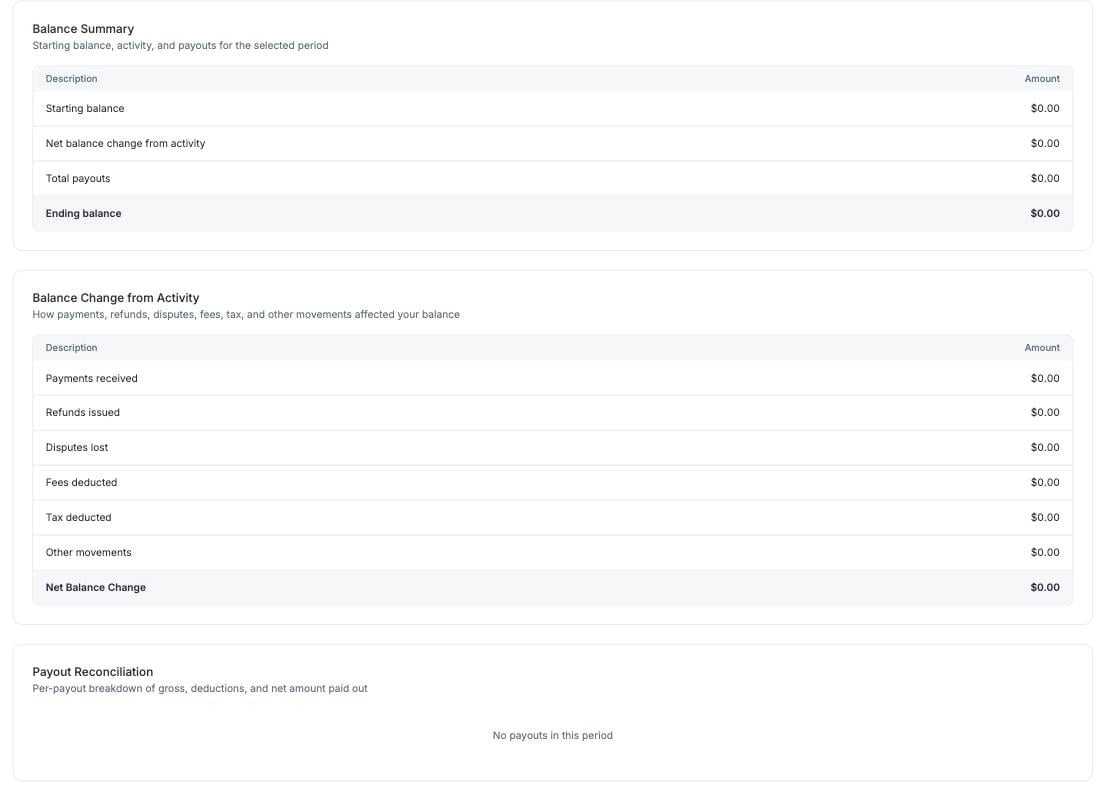 지급은 해당 기간의 결제뿐 아니라 기준일 이전의 청구되지 않은 모든 원장 항목을 포함합니다. 따라서 Dodo Credits와 조정 금액이 지급액의 일부를 충당할 수 있으며, **Other** 아래에 표시됩니다.
### 모든 수수료
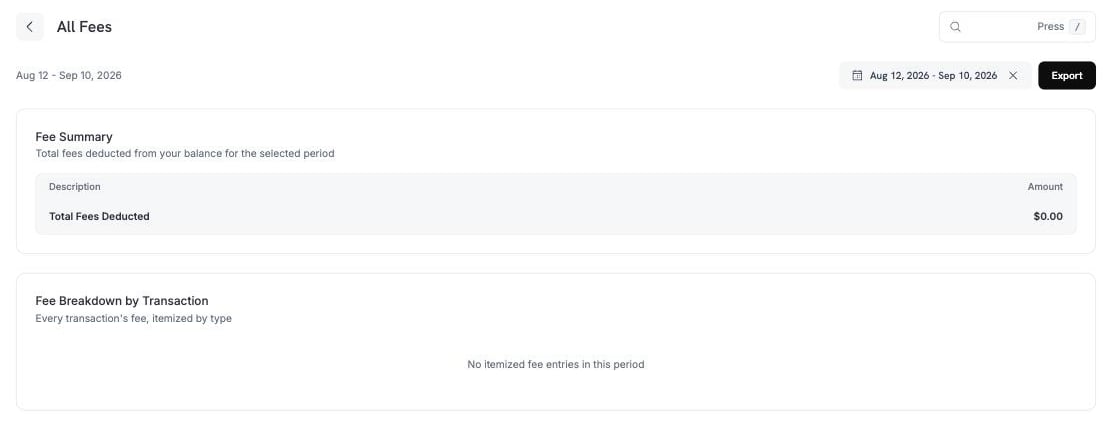
해당 기간에 잔액에서 차감된 모든 수수료와 총액 및 거래별 세부 내역입니다.
지급은 해당 기간의 결제뿐 아니라 기준일 이전의 청구되지 않은 모든 원장 항목을 포함합니다. 따라서 Dodo Credits와 조정 금액이 지급액의 일부를 충당할 수 있으며, **Other** 아래에 표시됩니다.
### 모든 수수료
해당 기간에 잔액에서 차감된 모든 수수료와 총액 및 거래별 세부 내역입니다.
 ***
## 보고서 다운로드
네 가지 보고서에서 모든 날짜 범위에 대한 파일을 생성할 수 있습니다. 각 보고서를 선택하면 기간, 형식 및 해당 보고서의 필터를 지정하는 패널이 열립니다.
모든 보고서는 **CSV** 또는 **XLSX**로 내보낼 수 있습니다.
| 보고서 | 포함 내용 |
| ------------- | ------------------------------------------ |
| **거래 보고서** | 처리된 모든 결제와 각 거래의 상태입니다. |
| **조정 보고서** | 환불과 분쟁을 하나의 파일에 함께 담은 모든 잔액 공제 내역입니다. |
| **지급 보고서** | 지급 요약과 지급 기간별 전체 수수료 내역입니다. |
| **원장 조정 보고서** | 이동별 한 행으로 구성된 잔액 원장으로, 은행 명세서와 대조할 수 있습니다. |
### 거래 보고서
***
## 보고서 다운로드
네 가지 보고서에서 모든 날짜 범위에 대한 파일을 생성할 수 있습니다. 각 보고서를 선택하면 기간, 형식 및 해당 보고서의 필터를 지정하는 패널이 열립니다.
모든 보고서는 **CSV** 또는 **XLSX**로 내보낼 수 있습니다.
| 보고서 | 포함 내용 |
| ------------- | ------------------------------------------ |
| **거래 보고서** | 처리된 모든 결제와 각 거래의 상태입니다. |
| **조정 보고서** | 환불과 분쟁을 하나의 파일에 함께 담은 모든 잔액 공제 내역입니다. |
| **지급 보고서** | 지급 요약과 지급 기간별 전체 수수료 내역입니다. |
| **원장 조정 보고서** | 이동별 한 행으로 구성된 잔액 원장으로, 은행 명세서와 대조할 수 있습니다. |
### 거래 보고서
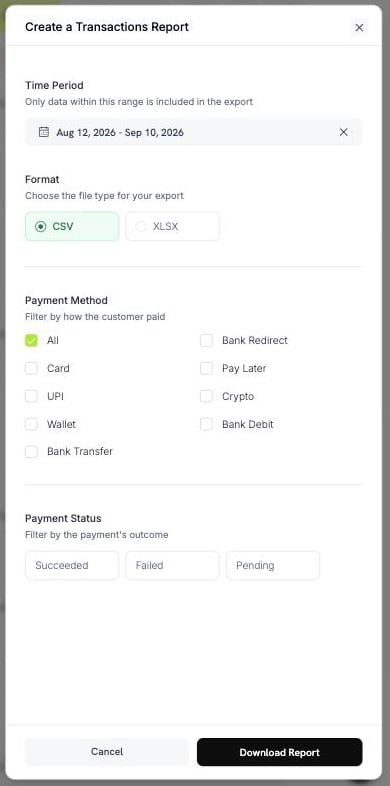 * **Payment Method** — Card, UPI, Wallet, Bank Transfer, Bank Redirect, Pay Later, Crypto 또는 Bank Debit입니다. 모든 결제 수단을 선택하려면 **All**을 선택하세요.
* **Payment Status** — Succeeded, Failed 또는 Pending입니다.
### 조정 보고서
* **Payment Method** — Card, UPI, Wallet, Bank Transfer, Bank Redirect, Pay Later, Crypto 또는 Bank Debit입니다. 모든 결제 수단을 선택하려면 **All**을 선택하세요.
* **Payment Status** — Succeeded, Failed 또는 Pending입니다.
### 조정 보고서
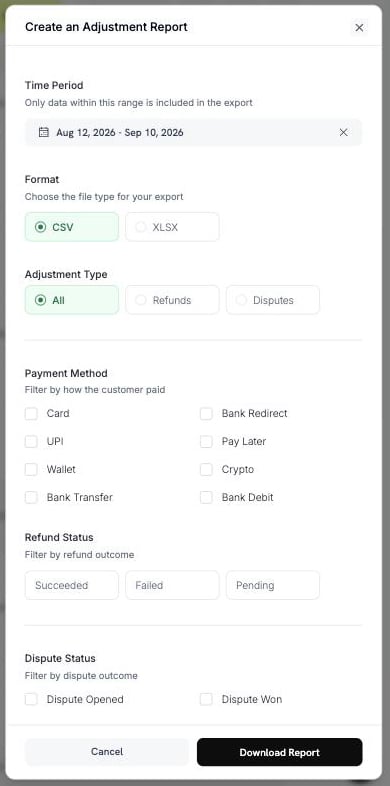 * **Adjustment Type** — All, Refunds 또는 Disputes입니다.
* **Payment Method** — 위와 동일한 8가지 결제 수단입니다.
* **Refund Status** — Succeeded, Failed 또는 Pending입니다.
* **Dispute Status** — Opened, Challenged, Accepted, Lost, Won, Cancelled 또는 Expired입니다.
### 지급 보고서
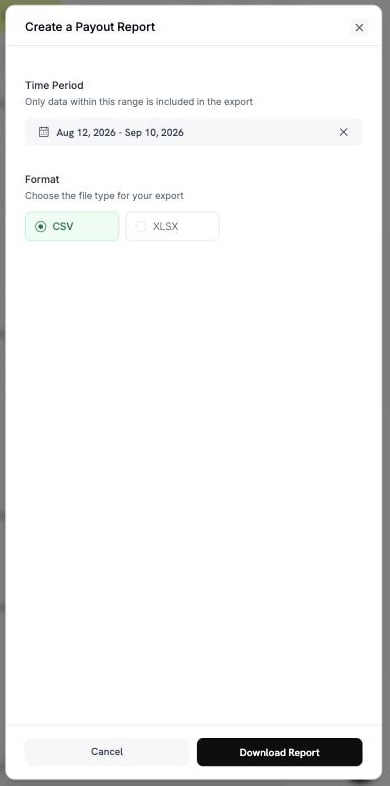
기간과 형식을 선택하세요. 이 보고서에는 다른 필터가 필요하지 않습니다.
* **Adjustment Type** — All, Refunds 또는 Disputes입니다.
* **Payment Method** — 위와 동일한 8가지 결제 수단입니다.
* **Refund Status** — Succeeded, Failed 또는 Pending입니다.
* **Dispute Status** — Opened, Challenged, Accepted, Lost, Won, Cancelled 또는 Expired입니다.
### 지급 보고서
기간과 형식을 선택하세요. 이 보고서에는 다른 필터가 필요하지 않습니다.
 ### 원장 조정 보고서
이 보고서에는 두 가지 모드가 있습니다. **Reconciliation by**를 사용하여 하나를 선택하세요.
### 원장 조정 보고서
이 보고서에는 두 가지 모드가 있습니다. **Reconciliation by**를 사용하여 하나를 선택하세요.
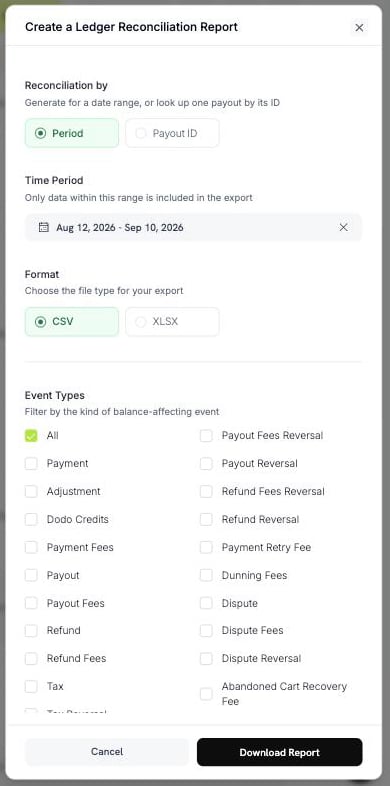 **Period**는 날짜 범위 내의 모든 원장 이동을 내보냅니다.
**Payout ID**는 하나의 지급에 해당하는 이동을 내보냅니다. 지급 참조값(예: `pyt_kxncrebha`)을 입력하면 해당 지급으로 정산된 정확한 행을 가져옵니다.
**Period**는 날짜 범위 내의 모든 원장 이동을 내보냅니다.
**Payout ID**는 하나의 지급에 해당하는 이동을 내보냅니다. 지급 참조값(예: `pyt_kxncrebha`)을 입력하면 해당 지급으로 정산된 정확한 행을 가져옵니다.
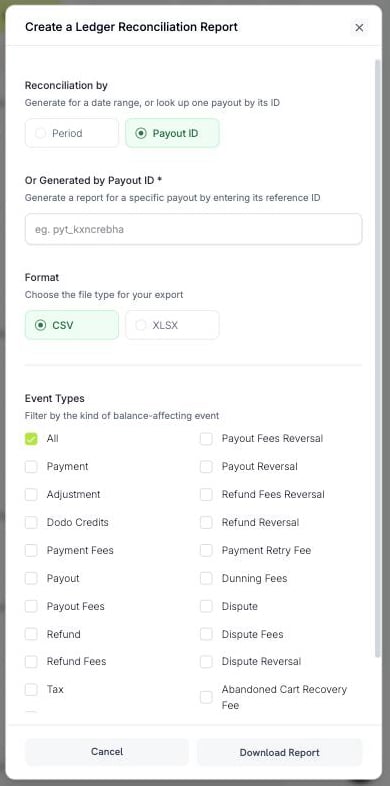 존재하지 않는 지급 ID를 입력하면 오류가 반환됩니다. 빈 파일이 반환되지 않습니다.
**Event Types**는 잔액 이동의 종류별로 행을 필터링합니다. 모든 유형을 유지하려면 **All**을 선택하거나 다음 중에서 선택하세요:
| 그룹 | 옵션 |
| --- | ------------------------------------------------------------------------------------ |
| 입금 | Payment, Dodo Credits, Adjustment, Currency Conversion |
| 지급 | Payout, Payout Reversal, Payout Fees, Payout Fees Reversal |
| 환불 | Refund, Refund Reversal, Refund Fees, Refund Fees Reversal |
| 분쟁 | Dispute, Dispute Fees, Dispute Reversal |
| 수수료 | Payment Fees, Payment Retry Fee, Dunning Fees, Abandoned Cart Recovery Fee, BYOP Fee |
| 세금 | Tax, Tax Reversal |
모든 유형에 취소 내역이 있는 것은 아닙니다. Payout, Payout Fees, Refund, Refund Fees, Dispute 및 Tax에만 취소 내역이 있습니다.
"이 지급에 무엇이 포함되었는가?"를 확인하려면 **Payout ID** 모드를 사용하세요. 은행 명세서를 한 줄씩 조정하려면 **All** 이벤트 유형과 함께 **Period**를 사용하세요.
***
## 보고서 생성 및 다운로드
**Settings → Reports**로 이동하여 필요한 보고서를 선택하세요.
날짜 범위를 선택하세요. 이 범위 내의 데이터만 파일에 포함됩니다.
**CSV** 또는 **XLSX**를 선택한 다음 해당 보고서의 필터를 설정하세요.
**Download Report**를 선택하세요. 파일이 다운로드되고 보고서가 **Generated Reports**에 추가됩니다.
파일 이름에는 보고서와 날짜 범위가 포함되므로 파일을 열지 않고도 다운로드한 파일을 식별할 수 있습니다. 예: `dodo_ledger_2026-06-01_to_2026-06-30.csv`.
CSV 내보내기 파일은 UTF-8 바이트 순서 표시로 시작하므로 Excel에서 악센트 문자와 비라틴 문자를 올바르게 열 수 있습니다.
### 행 제한
단일 내보내기 파일에는 제한이 있으므로 기간이 긴 경우 나누어야 할 수 있습니다.
| 보고서 | CSV | XLSX |
| --------- | ---------- | ---------- |
| 원장 조정 | 500,000개 행 | 100,000개 행 |
| 기타 모든 보고서 | 100,000개 행 | 50,000개 행 |
날짜 범위가 제한을 초과하면 메시지와 함께 내보내기가 거부됩니다. 범위를 좁히거나 필터를 추가한 후 다시 생성하세요.
기간이 긴 경우 CSV를 선택하세요. 행 제한이 더 높습니다.
***
## 생성된 보고서
생성한 모든 보고서가 기록되므로 다시 생성하지 않고도 다시 다운로드할 수 있습니다.
| 열 | 의미 |
| ------------ | ------------------------------- |
| Report | 보고서 유형입니다. |
| Date Range | 보고서가 포함하는 기간입니다. |
| Format | CSV 또는 XLSX입니다. |
| Rows | 파일에 포함된 행 수입니다. |
| Generated by | 보고서를 생성한 팀 구성원입니다. |
| Created At | 보고서가 생성된 시간입니다. |
| Status | **Completed** 또는 **Failed**입니다. |
다운로드 링크는 짧은 시간 동안만 유효합니다. 저장된 파일이 만료된 경우 Dodo Payments가 동일한 매개변수로 파일을 다시 생성하며, 해당 행은 재생성됨으로 표시됩니다.
다시 생성된 보고서는 원본과 다를 수 있습니다. 날짜 범위에 포함되는 데이터는 계속 변경됩니다. 첫 번째 생성 이후 기록된 환불이나 분쟁은 다시 생성된 보고서에 나타납니다. 수치를 당시 상태 그대로 보존해야 한다면 다운로드한 파일을 보관하세요.
***
## 어떤 보고서가 필요한가요?
| 질문 | 보고서 |
| ---------------------- | --------------------------------------- |
| 잔액이 왜 이 금액인가요? | Balance and Payout Summary |
| 이 지급에 무엇이 포함되었나요? | Ledger Reconciliation, **Payout ID** 기준 |
| 어떤 수수료를 지불했나요? | All Fees |
| 회계사에게 모든 결제 내역이 필요합니다. | Transactions Report |
| 환불과 분쟁에 얼마가 들었나요? | Adjustments Report |
| 은행 명세서와 대조해야 합니다. | Ledger Reconciliation, **Period** 기준 |
***
## 모범 사례
* 먼저 **Balance and Payout Summary**로 조정하세요. 특정 수치를 설명해야 할 때만 상세 보고서를 다운로드하세요.
* 기간이 긴 경우 **CSV**로 내보내고, 파일에서 직접 작업할 때만 **XLSX**를 사용하세요.
* 다운로드한 파일을 보관하세요. 다시 생성한 보고서가 일치한다고 보장할 수 없습니다.
* 날짜 범위를 늘리기 전에 필터를 적용하세요. 필터를 사용하면 내보내기 파일을 행 제한 이하로 유지할 수 있습니다.
수치가 잘못된 것처럼 보이면 먼저 날짜 범위와 필터를 확인하세요. 여전히 문제가 있으면 보고서 유형과 기간을 포함하여 [support@dodopayments.com](mailto:support@dodopayments.com)으로 문의하세요.
## 다음 단계
매출, 고객, 유지율 및 거래 상태를 추적하세요.
수익, 공제액 및 지급 주기를 파악하세요.
지급금이 언제 어떻게 은행 계좌에 도착하는지 확인하세요.
환불을 시작하고 모니터링하세요.
존재하지 않는 지급 ID를 입력하면 오류가 반환됩니다. 빈 파일이 반환되지 않습니다.
**Event Types**는 잔액 이동의 종류별로 행을 필터링합니다. 모든 유형을 유지하려면 **All**을 선택하거나 다음 중에서 선택하세요:
| 그룹 | 옵션 |
| --- | ------------------------------------------------------------------------------------ |
| 입금 | Payment, Dodo Credits, Adjustment, Currency Conversion |
| 지급 | Payout, Payout Reversal, Payout Fees, Payout Fees Reversal |
| 환불 | Refund, Refund Reversal, Refund Fees, Refund Fees Reversal |
| 분쟁 | Dispute, Dispute Fees, Dispute Reversal |
| 수수료 | Payment Fees, Payment Retry Fee, Dunning Fees, Abandoned Cart Recovery Fee, BYOP Fee |
| 세금 | Tax, Tax Reversal |
모든 유형에 취소 내역이 있는 것은 아닙니다. Payout, Payout Fees, Refund, Refund Fees, Dispute 및 Tax에만 취소 내역이 있습니다.
"이 지급에 무엇이 포함되었는가?"를 확인하려면 **Payout ID** 모드를 사용하세요. 은행 명세서를 한 줄씩 조정하려면 **All** 이벤트 유형과 함께 **Period**를 사용하세요.
***
## 보고서 생성 및 다운로드
**Settings → Reports**로 이동하여 필요한 보고서를 선택하세요.
날짜 범위를 선택하세요. 이 범위 내의 데이터만 파일에 포함됩니다.
**CSV** 또는 **XLSX**를 선택한 다음 해당 보고서의 필터를 설정하세요.
**Download Report**를 선택하세요. 파일이 다운로드되고 보고서가 **Generated Reports**에 추가됩니다.
파일 이름에는 보고서와 날짜 범위가 포함되므로 파일을 열지 않고도 다운로드한 파일을 식별할 수 있습니다. 예: `dodo_ledger_2026-06-01_to_2026-06-30.csv`.
CSV 내보내기 파일은 UTF-8 바이트 순서 표시로 시작하므로 Excel에서 악센트 문자와 비라틴 문자를 올바르게 열 수 있습니다.
### 행 제한
단일 내보내기 파일에는 제한이 있으므로 기간이 긴 경우 나누어야 할 수 있습니다.
| 보고서 | CSV | XLSX |
| --------- | ---------- | ---------- |
| 원장 조정 | 500,000개 행 | 100,000개 행 |
| 기타 모든 보고서 | 100,000개 행 | 50,000개 행 |
날짜 범위가 제한을 초과하면 메시지와 함께 내보내기가 거부됩니다. 범위를 좁히거나 필터를 추가한 후 다시 생성하세요.
기간이 긴 경우 CSV를 선택하세요. 행 제한이 더 높습니다.
***
## 생성된 보고서
생성한 모든 보고서가 기록되므로 다시 생성하지 않고도 다시 다운로드할 수 있습니다.
| 열 | 의미 |
| ------------ | ------------------------------- |
| Report | 보고서 유형입니다. |
| Date Range | 보고서가 포함하는 기간입니다. |
| Format | CSV 또는 XLSX입니다. |
| Rows | 파일에 포함된 행 수입니다. |
| Generated by | 보고서를 생성한 팀 구성원입니다. |
| Created At | 보고서가 생성된 시간입니다. |
| Status | **Completed** 또는 **Failed**입니다. |
다운로드 링크는 짧은 시간 동안만 유효합니다. 저장된 파일이 만료된 경우 Dodo Payments가 동일한 매개변수로 파일을 다시 생성하며, 해당 행은 재생성됨으로 표시됩니다.
다시 생성된 보고서는 원본과 다를 수 있습니다. 날짜 범위에 포함되는 데이터는 계속 변경됩니다. 첫 번째 생성 이후 기록된 환불이나 분쟁은 다시 생성된 보고서에 나타납니다. 수치를 당시 상태 그대로 보존해야 한다면 다운로드한 파일을 보관하세요.
***
## 어떤 보고서가 필요한가요?
| 질문 | 보고서 |
| ---------------------- | --------------------------------------- |
| 잔액이 왜 이 금액인가요? | Balance and Payout Summary |
| 이 지급에 무엇이 포함되었나요? | Ledger Reconciliation, **Payout ID** 기준 |
| 어떤 수수료를 지불했나요? | All Fees |
| 회계사에게 모든 결제 내역이 필요합니다. | Transactions Report |
| 환불과 분쟁에 얼마가 들었나요? | Adjustments Report |
| 은행 명세서와 대조해야 합니다. | Ledger Reconciliation, **Period** 기준 |
***
## 모범 사례
* 먼저 **Balance and Payout Summary**로 조정하세요. 특정 수치를 설명해야 할 때만 상세 보고서를 다운로드하세요.
* 기간이 긴 경우 **CSV**로 내보내고, 파일에서 직접 작업할 때만 **XLSX**를 사용하세요.
* 다운로드한 파일을 보관하세요. 다시 생성한 보고서가 일치한다고 보장할 수 없습니다.
* 날짜 범위를 늘리기 전에 필터를 적용하세요. 필터를 사용하면 내보내기 파일을 행 제한 이하로 유지할 수 있습니다.
수치가 잘못된 것처럼 보이면 먼저 날짜 범위와 필터를 확인하세요. 여전히 문제가 있으면 보고서 유형과 기간을 포함하여 [support@dodopayments.com](mailto:support@dodopayments.com)으로 문의하세요.
## 다음 단계
매출, 고객, 유지율 및 거래 상태를 추적하세요.
수익, 공제액 및 지급 주기를 파악하세요.
지급금이 언제 어떻게 은행 계좌에 도착하는지 확인하세요.
환불을 시작하고 모니터링하세요.