> ## Documentation Index
> Fetch the complete documentation index at: https://docs.dodopayments.com/llms.txt
> Use this file to discover all available pages before exploring further.

# AI SDK 및 LLM Blueprint로 AI 채팅 앱 구축하기

> 자동 토큰 추적 및 사용 기반 청구 기능을 갖춘 AI 채팅 앱을 구축하는 과정을 따라가세요.

<Tip>
  <strong>Sentra가 통합 코드를 대신 작성해 드립니다.</strong><br />
  VS Code, Cursor 또는 Windsurf에서 AI 도우미를 사용하여 SDK/API 코드, LLM Blueprint 통합 코드, 웹후크 등을 원하는 방식으로 설명만 하면 생성하세요.

  <a href="https://dodopayments.com/sentra" target="_blank" rel="noopener noreferrer">
    Sentra 사용해보기: AI 지원 통합 →
  </a>
</Tip>

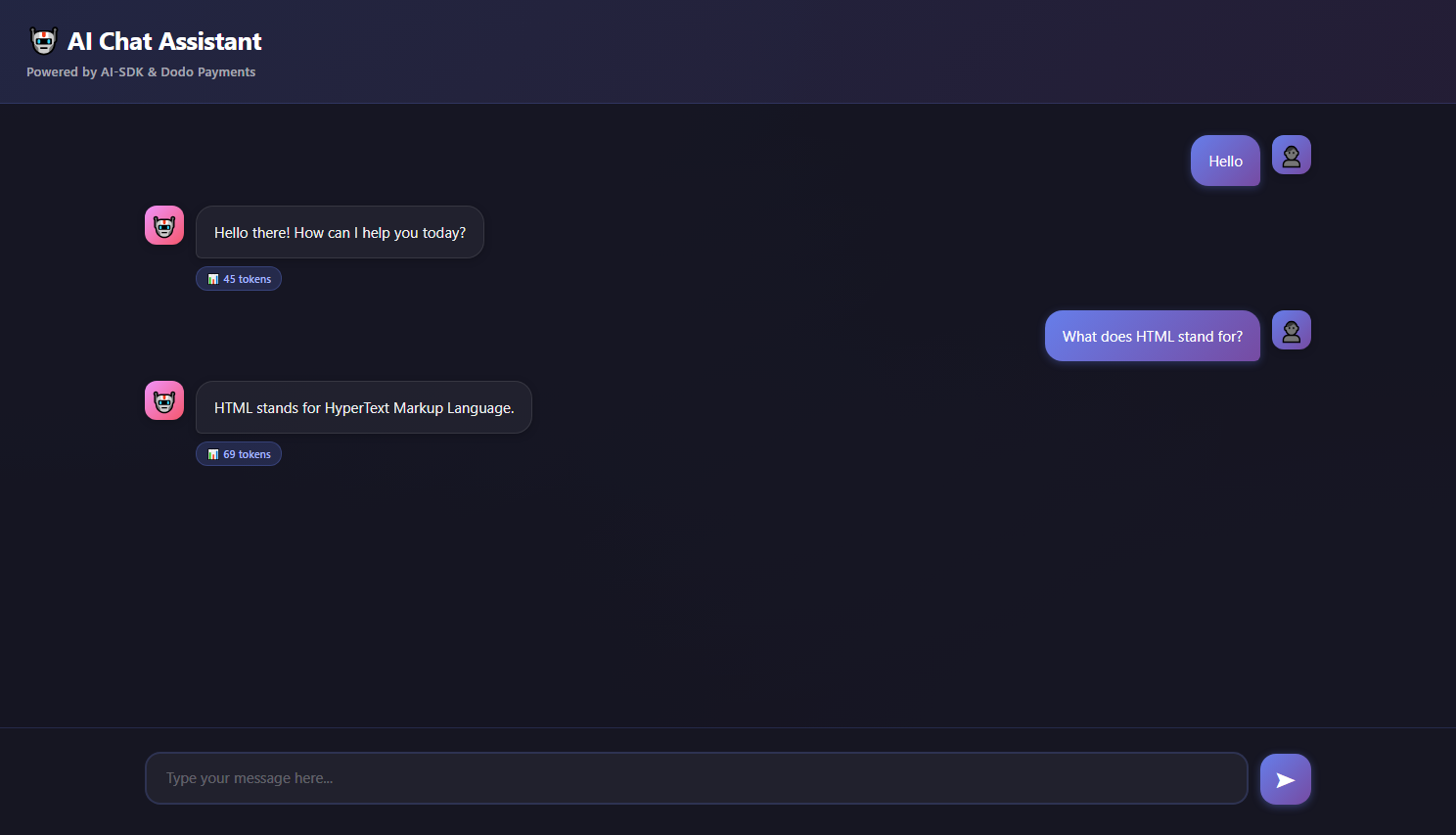
이 튜토리얼에서는 자동 사용 기반 청구 기능을 갖춘 **AI 채팅 애플리케이션**을 구축합니다. 청구 미터기, 제품 구성 및 대화를 지원하고 실시간으로 토큰 사용량을 추적하는 애플리케이션 코드를 처음부터 끝까지 모두 생성할 것입니다.

<Note>
  이 튜토리얼은 백엔드와 프론트엔드를 모두 포함하는 완전한 작동 애플리케이션을 제공합니다. 이 채팅 앱은 Google의 Gemini AI를 사용하며 토큰 사용량을 수동으로 계산할 필요 없이 자동으로 추적합니다.
</Note>

이 튜토리얼이 끝나면 다음과 같은 작동하는 채팅 애플리케이션을 갖게 됩니다:

* Google Gemini(AI SDK)를 사용하여 AI 대화 지원
* 자동으로 토큰 사용량 추적(수동 코드 없음)
* 실제 토큰 소비에 따라 고객에게 요금 청구
* 아름다운 채팅 인터페이스 포함

<Frame>
  <img src="https://mintcdn.com/dodopayments/oig3NPG69DDpua_S/images/cookbooks/ai-chat-app/ai-chat-demo.png?fit=max&auto=format&n=oig3NPG69DDpua_S&q=85&s=9d9932fb528b64632cfbedaad98c09f3" alt="AI Chat Demo" style={{ maxHeight: '500px', width: 'auto' }} width="1488" height="853" data-path="images/cookbooks/ai-chat-app/ai-chat-demo.png" />
</Frame>

## 우리가 구축할 내용

AI 채팅 서비스를 이해하는 것부터 시작해봅시다:

* **서비스**: Google Gemini(AI SDK)를 사용하는 AI 기반 채팅
* **가격 모델**: 토큰당 요금(\$0.01 per 1,000 tokens)
* **무료 티어**: 고객당 월 10,000개의 무료 토큰
* **기능**: 대화 기록, 자동 토큰 추적

<Info>
  시작하기 전에 다음이 준비되어 있는지 확인하세요:

  * Dodo Payments 계정
  * Google AI API 키 ([aistudio에서 발급받기](https://aistudio.google.com/api-keys))
  * Node.js v16+ 설치
</Info>

***

## 1단계: 사용량 미터기 생성하기

Dodo Payments 대시보드에서 AI 토큰 사용량을 추적할 미터기를 생성하는 것부터 시작하겠습니다.

<Tip>
  **구축할 것**: 채팅 대화에서 사용된 모든 토큰을 합산하는 "AI Token Usage Meter"라는 미터입니다.
</Tip>

<Steps>
  <Step title="Open the Meters section">
    1. Dodo Payments 대시보드에 로그인합니다
    2. 왼쪽 사이드바에서 Products를 클릭합니다
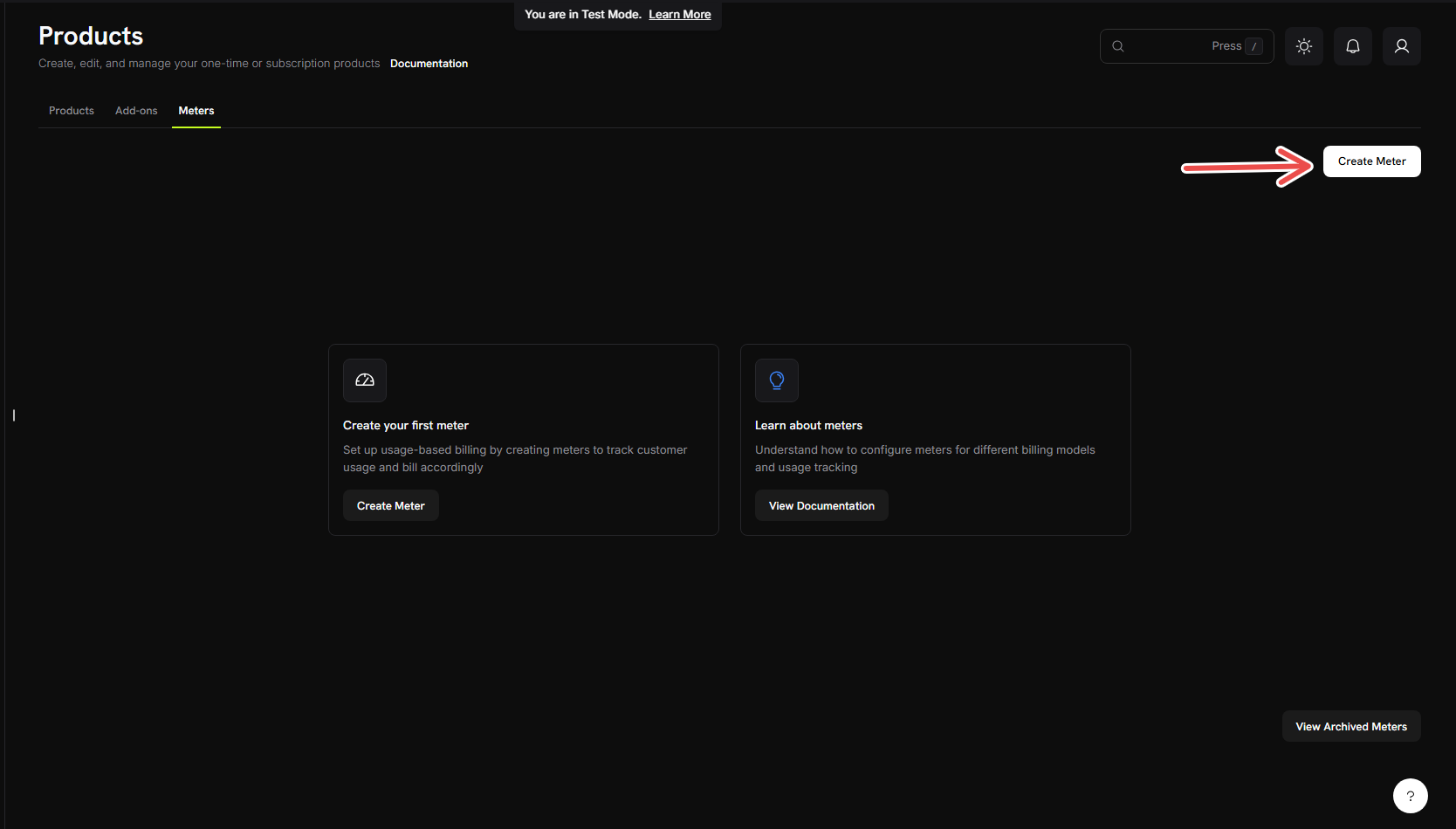
    3. **Meters**를 클릭합니다
    4. **Create Meter** 버튼을 클릭합니다

    <Frame>
      <img src="https://mintcdn.com/dodopayments/oig3NPG69DDpua_S/images/cookbooks/ai-chat-app/create-meter.png?fit=max&auto=format&n=oig3NPG69DDpua_S&q=85&s=e5aa342d55a4a9c7323cf68015f737e4" alt="Create Meter" style={{ maxHeight: '500px', width: 'auto' }} width="1668" height="950" data-path="images/cookbooks/ai-chat-app/create-meter.png" />
    </Frame>

    폼이 나타나면 토큰 추적을 구성할 준비가 된 것입니다.
  </Step>

  <Step title="Fill in the basic meter information">
    이제 AI 채팅 서비스에 대한 세부 정보를 입력해 보겠습니다:

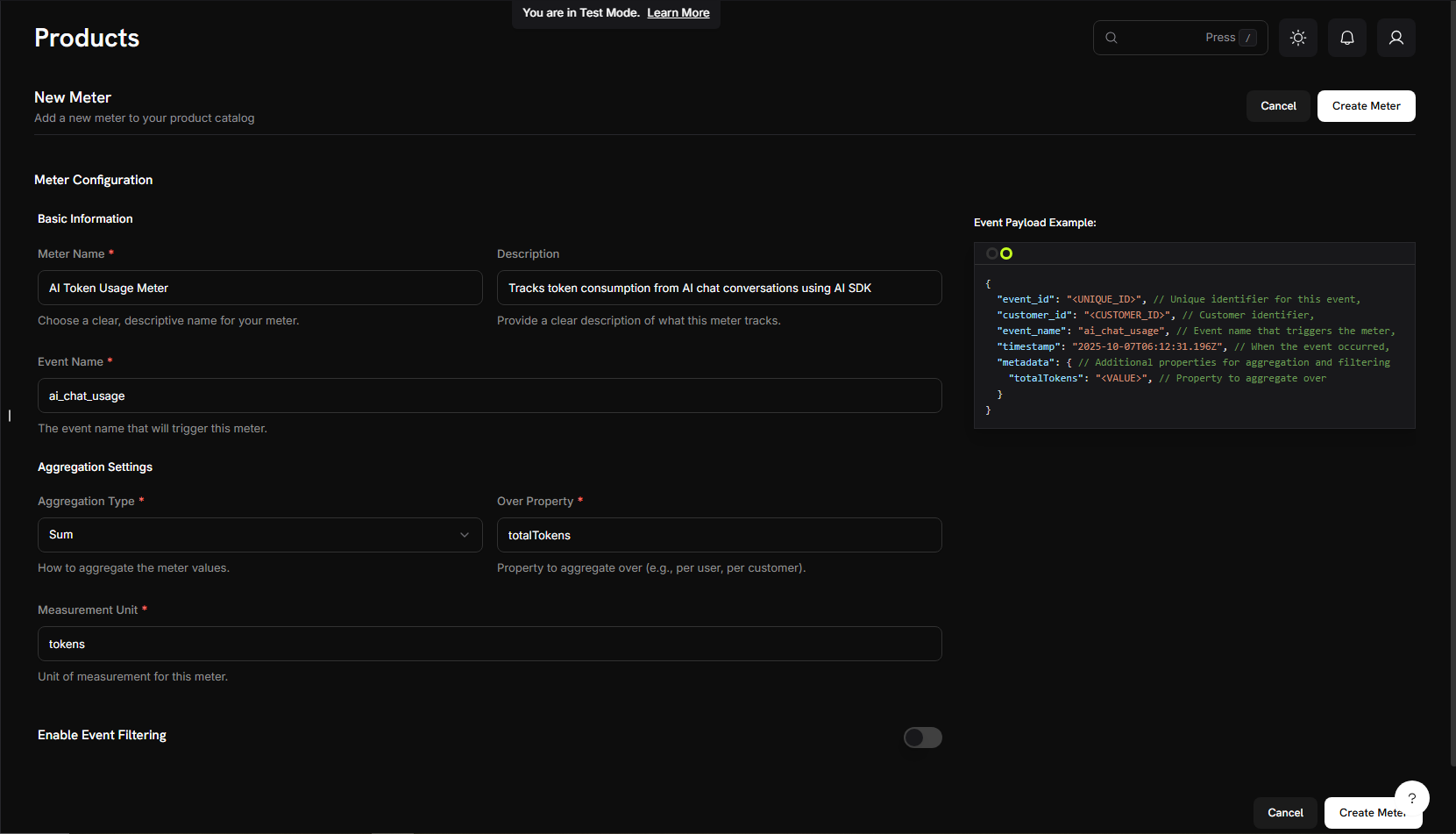
    **Meter Name** → `AI Token Usage Meter`

    **Description** → `Tracks token consumption from AI chat conversations using AI SDK`

    **Event Name** → `ai_chat_usage`

    <Warning>
      이벤트 이름 `ai_chat_usage`은 나중에 애플리케이션 코드에서 전송할 값과 정확히 일치해야 합니다. 이벤트 이름은 대소문자를 구분합니다!
    </Warning>
  </Step>

  <Step title="Configure how we count tokens">
    집계(미터가 이벤트를 계산하는 방식)를 설정합니다:

    **집계 유형**: 드롭다운에서 **합계**를 선택합니다.

    **Aggregate Over**: Type → `totalTokens`

    **Measurement Unit**: Type → `tokens`

    <Info>
      여러 채팅 메시지에서 소비된 모든 토큰을 합산하고 싶기 때문에 "Sum"을 사용합니다. SDK는 각 이벤트에서 자동으로 `totalTokens`를 전송합니다.
    </Info>
  </Step>

  <Step title="Create your meter">
    1. 위 값과 설정이 모두 일치하는지 다시 확인합니다
    2. **Create Meter**를 클릭합니다

    <Frame>
      <img src="https://mintcdn.com/dodopayments/4L3_sb2jJa5trJWD/images/cookbooks/ai-chat-app/meter-configuration.png?fit=max&auto=format&n=4L3_sb2jJa5trJWD&q=85&s=c5b4f56326b6825847c9fc7666056102" alt="Meter Configuration" style={{ maxHeight: '500px', width: 'auto' }} width="1661" height="951" data-path="images/cookbooks/ai-chat-app/meter-configuration.png" />
    </Frame>

    <Check>
      **미터 생성 완료!** "AI Token Usage Meter"가 이제 토큰을 계산할 준비가 되었습니다. 다음으로 이 미터를 청구 제품에 연결하겠습니다.
    </Check>
  </Step>
</Steps>

## 2단계: API 키 가져오기

앱을 구축하기 전에 필요한 API 키를 모아봅시다.

<Steps>
  <Step title="Get Dodo Payments API Key">
    1. Dodo Payments 대시보드에서 **Developers** → **API Keys**로 이동합니다
    2. **Create API Key**를 클릭합니다
    3. API 키를 복사합니다 - `test_abc123...`처럼 보입니다

    <Note>
      이 API 키를 저장하세요 - 나중에 `.env` 파일에 추가할 예정입니다.
    </Note>
  </Step>

  <Step title="Get Google AI API Key">
    1. [aistudio.google.com](https://aistudio.google.com/api-keys)에 접속합니다
    2. **Get API Key**를 클릭합니다
    3. 새 API 키를 생성하거나 기존 키를 사용합니다
    4. 키를 복사합니다

    <Note>
      이 키도 안전한 곳에 보관하세요 - 같은 `.env` 파일에 추가할 예정입니다.
    </Note>
  </Step>
</Steps>

***

## 3단계: 청구 제품 생성하기

이제 가격(\$0.01 per 1,000 tokens 및 10,000개의 무료 토큰)을 정의하는 제품을 생성해야 합니다. 이는 미터기를 실제 청구에 연결합니다.

<Tip>
  **구축할 것**: 토큰 소비량에 따라 요금이 청구되며 관대한 무료 티어를 제공하는 "AI Chat Service" 상품입니다.
</Tip>

<Steps>
  <Step title="Navigate to Products">
    1. Dodo Payments 대시보드에서 왼쪽 사이드바의 **Products**를 클릭합니다
    2. **Create Product**를 클릭합니다
    3. 상품 유형으로 **Usage-Based**를 선택합니다

    이렇게 하면 Dodo Payments가 고정 구독이 아닌 미터 사용량 기준으로 청구를 처리합니다.
  </Step>

  <Step title="Enter product details">
    필수 항목을 입력합니다:

    **Product Name**: → `AI Chat Service`

    **Description**: → `AI-powered chat service with automatic token-based billing`

    **제품 이미지**: 관련 이미지를 업로드합니다.

    <Info>
      이 정보는 고객 인보이스에 표시되므로 명확하고 전문적으로 작성하세요.
    </Info>
  </Step>

  <Step title="Connect your meter">
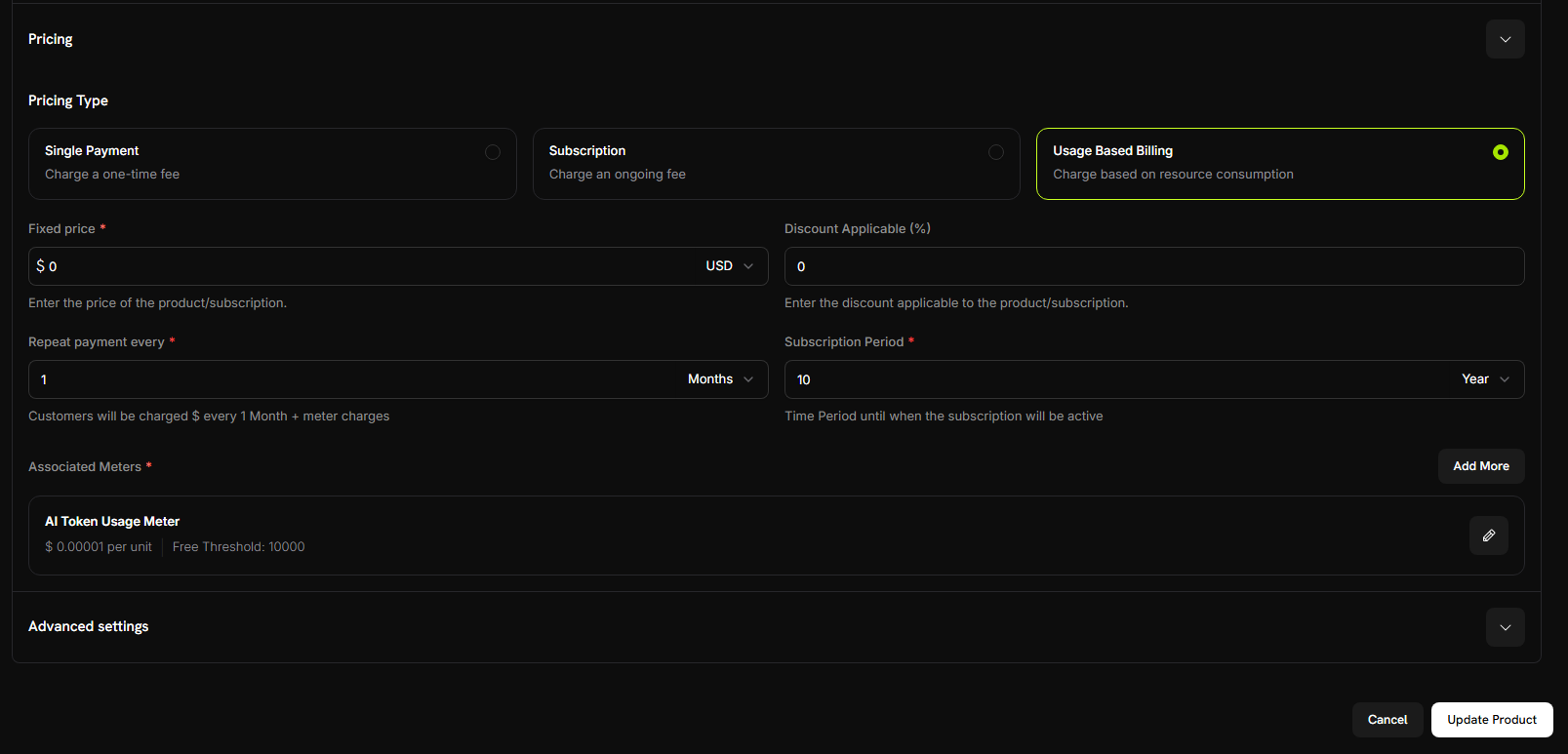
    미터를 연결하기 전에 상품의 가격 유형으로 **Usage Based Billing**이 선택되어 있는지 확인하세요.

    또한 **Fixed Price**를 `0`로 설정하여 고객이 기본 요금 없이 사용량에 따라서만 청구되도록 합니다.

    이제 방금 생성한 미터기를 연결합니다:

    1. **연결된 미터기** 섹션으로 스크롤합니다.
    2. **미터기 추가**를 클릭합니다.
    3. 드롭다운에서 **"AI 토큰 사용량 미터기"**(이전에 생성한 것)를 선택합니다.
    4. 제품 구성에 나타나는지 확인합니다.

    <Check>
      이제 이 미터가 이 상품과 성공적으로 연결되었습니다.
    </Check>
  </Step>

  <Step title="Set your pricing">
    여기서 비즈니스 모델을 정의합니다:

    **Price Per Unit**: → `0.00001` 입력 (1,000 토큰당 $0.01 또는 토큰당 $0.00001)

    **Free Threshold**: → `10000` 입력 (고객당 월 10,000개의 무료 토큰 제공)

    <Frame>
      <img src="https://mintcdn.com/dodopayments/4L3_sb2jJa5trJWD/images/cookbooks/ai-chat-app/product-pricing.png?fit=max&auto=format&n=4L3_sb2jJa5trJWD&q=85&s=e92dcb98316e970c1b921e0572f10b43" alt="Product Pricing" style={{ maxHeight: '500px', width: 'auto' }} width="1607" height="773" data-path="images/cookbooks/ai-chat-app/product-pricing.png" />
    </Frame>

    <Tip>
      **청구 방식**: 고객이 한 달 동안 25,000 토큰을 사용하면 15,000 토큰(25,000 - 10,000 무료)에 대해 요금이 청구됩니다 = 15,000 × $0.00001 = $0.15
    </Tip>
  </Step>

  <Step title="Save your product">
    1. 모든 설정을 검토합니다:
       * 이름: AI Chat Service
       * 미터: AI Token Usage Meter
       * 가격: 1,000 토큰당 \$0.01
       * 무료 티어: 10,000 토큰
    2. **Save Changes**를 클릭합니다

    <Check>
      **상품 생성 완료!** 이제 청구 구성이 완료되었습니다. 고객은 토큰 사용량에 따라 자동으로 요금을 부과받습니다.
    </Check>
  </Step>
</Steps>

## 4단계: 테스트 구매하기

앱을 구축하기 전에 구매를 통해 테스트 고객을 생성해봅시다.

<Steps>
  <Step title="Get your payment link">
    1. Dodo Payments 대시보드에서 **Products**로 이동합니다
    2. "AI Chat Service" 상품을 찾습니다
    3. 상품 옆의 **Share** 버튼을 클릭합니다
    4. 표시되는 결제 링크를 복사합니다
  </Step>

  <Step title="Complete a test purchase">
    1. 새 브라우저 탭에서 결제 링크를 엽니다
    2. 테스트 결제 정보를 입력하고 구매를 완료합니다

    <Check>
      결제가 성공하면 애플리케이션 코드에서 사용할 고객 ID를 받게 됩니다.
    </Check>
  </Step>

  <Step title="Find your customer ID">
    1. Dodo Payments 대시보드로 돌아갑니다
    2. 왼쪽 사이드바에서 **Sales** -> **Customers**로 이동합니다
    3. 방금 생성한 고객(테스트 이메일)을 찾습니다
    4. 고객 ID를 복사합니다 - `cus_123`처럼 보입니다

    <Note>
      이 고객 ID를 저장하세요 - 채팅 애플리케이션 테스트 시 사용합니다.
    </Note>
  </Step>
</Steps>

## 5단계: 채팅 애플리케이션 구축하기

이제 청구 설정이 완료되고 테스트 고객이 생성되었습니다. 자동 토큰 추적 기능을 갖춘 AI 채팅 애플리케이션을 구축해봅시다.

<Steps>
  <Step title="Set up your project">
    새 디렉터리를 만들고 프로젝트를 초기화합니다:

    ```bash theme={null}
    mkdir ai-chat-app
    cd ai-chat-app
    npm init -y
    ```
  </Step>

  <Step title="Install dependencies">
    필요한 패키지를 설치합니다:

    ```bash theme={null}
    npm install express ai @ai-sdk/google @dodopayments/ingestion-blueprints dotenv
    npm install --save-dev typescript @types/express @types/node tsx
    ```
  </Step>

  <Step title="Configure TypeScript">
    `tsconfig.json`를 생성합니다:

    ```json tsconfig.json theme={null}
    {
      "compilerOptions": {
        "target": "ES2020",
        "module": "ESNext",
        "moduleResolution": "node",
        "esModuleInterop": true,
        "strict": true,
        "skipLibCheck": true,
        "outDir": "./dist",
        "rootDir": "./src"
      },
      "include": ["src/**/*"],
      "exclude": ["node_modules"]
    }
    ```

    `package.json`을 업데이트하여 모듈 유형 및 스크립트를 추가합니다:

    ```json package.json theme={null}
    {
      "type": "module",
      "scripts": {
        "dev": "tsx src/server.ts",
        "build": "tsc",
        "start": "node dist/server.js"
      }
    }
    ```
  </Step>

  <Step title="Create project structure">
    폴더와 파일을 만듭니다:

    ```bash theme={null}
    mkdir src public
    ```
  </Step>

  <Step title="Set up environment variables">
    프로젝트 루트에 `.env` 파일을 생성합니다:

    ```bash .env theme={null}
    DODO_PAYMENTS_API_KEY=your_dodo_api_key_here
    DODO_ENVIRONMENT=test_mode
    GOOGLE_GENERATIVE_AI_API_KEY=your_google_api_key_here
    PORT=3000
    ```

    2단계에서 받은 실제 API 키로 플레이스홀더 값을 교체합니다.
  </Step>

  <Step title="Create the backend server">
    `src/server.ts`를 생성하고 아래 전체 서버 코드를 복사합니다:
  </Step>
</Steps>

다음은 통합 청구 기능을 갖춘 전체 AI 채팅 서버입니다:

<CodeGroup>
  ```typescript src/server.ts expandable theme={null}
  import express, { Request, Response } from 'express';
  import { generateText } from 'ai';
  import { google } from '@ai-sdk/google';
  import { createLLMTracker } from '@dodopayments/ingestion-blueprints';
  import 'dotenv/config';

  const app = express();
  app.use(express.json());
  app.use(express.static('public'));

  // Replace with your test customer ID
  const CUSTOMER_ID = 'cus_123';

  // Create tracker once with your meter event name
  const llmTracker = createLLMTracker({
    apiKey: process.env.DODO_PAYMENTS_API_KEY!,
    environment: process.env.DODO_ENVIRONMENT as 'test_mode' | 'live_mode',
    eventName: 'ai_chat_usage', // Must match your meter configuration
  });

  // Chat endpoint with conversation support
  app.post('/chat', async (req: Request, res: Response) => {
    try {
      const { messages } = req.body;

      if (!messages || !Array.isArray(messages)) {
        return res.status(400).json({ 
          error: 'Missing required field: messages (array)' 
        });
      }

      // Wrap AI SDK with automatic token tracking
      const trackedClient = llmTracker.wrap({
        client: { generateText },
        customerId: CUSTOMER_ID
      });

      // Generate AI response - tokens are automatically tracked!
      const response = await trackedClient.generateText({
        model: google('gemini-2.5-flash'),
        messages: messages
      });

      res.json({
        message: response.text,
        usage: {
          totalTokens: response.usage.totalTokens
        }
      });

    } catch (error: any) {
      console.error('Chat error:', error);
      res.status(500).json({ 
        error: 'Failed to process chat',
        details: error.message 
      });
    }
  });

  const PORT = process.env.PORT || 3000;
  app.listen(PORT, () => {
    console.log(`🚀 Server running at http://localhost:${PORT}`);
    console.log(`📊 Tracking event: ai_chat_usage`);
    console.log(`👤 Customer ID: ${CUSTOMER_ID}`);
    console.log(`🔧 Environment: ${process.env.DODO_ENVIRONMENT}`);
  });
  ```

  ```bash .env theme={null}
  # Add your API keys here
  DODO_PAYMENTS_API_KEY=your_dodo_api_key_here
  DODO_ENVIRONMENT=test_mode
  GOOGLE_GENERATIVE_AI_API_KEY=your_google_api_key_here
  PORT=3000
  ```

  ```json package.json expandable theme={null}
  {
    "name": "ai-chat-app",
    "version": "1.0.0",
    "type": "module",
    "scripts": {
      "dev": "tsx src/server.ts",
      "build": "tsc",
      "start": "node dist/server.js"
    },
    "dependencies": {
      "express": "^4.18.2",
      "ai": "^3.0.0",
      "@ai-sdk/google": "^0.0.15",
      "@dodopayments/ingestion-blueprints": "latest",
      "dotenv": "^16.0.3"
    },
    "devDependencies": {
      "typescript": "^5.0.0",
      "@types/express": "^4.17.17",
      "@types/node": "^20.0.0",
      "tsx": "^3.12.7"
    }
  }
  ```
</CodeGroup>

***

## 6단계: 채팅 인터페이스 추가하기

이제 전체 대화 기록이 표시되는 아름다운 채팅 인터페이스를 추가합니다! `public/index.html`를 생성합니다:

```html public/index.html expandable theme={null}
<!DOCTYPE html>
<html lang="en">
  <head>
    <meta charset="UTF-8" />
    <meta name="viewport" content="width=device-width, initial-scale=1.0" />
    <title>AI Chat with Usage Billing</title>
    <style>
      * {
        margin: 0;
        padding: 0;
        box-sizing: border-box;
      }

      body {
        font-family: "Inter", -apple-system, BlinkMacSystemFont, "Segoe UI",
          Roboto, sans-serif;
        background: #0f0f1e;
        background-image: radial-gradient(
            at 0% 0%,
            rgba(102, 126, 234, 0.15) 0px,
            transparent 50%
          ),
          radial-gradient(
            at 100% 100%,
            rgba(118, 75, 162, 0.15) 0px,
            transparent 50%
          ),
          radial-gradient(
            at 50% 50%,
            rgba(102, 126, 234, 0.05) 0px,
            transparent 50%
          );
        height: 100vh;
        display: flex;
        justify-content: center;
        align-items: center;
        padding: 0;
        position: relative;
        overflow: hidden;
        margin: 0;
      }

      .chat-container {
        background: rgba(22, 22, 35, 0.95);
        border: 1px solid rgba(102, 126, 234, 0.2);
        border-radius: 0;
        box-shadow: 0 10px 40px rgba(0, 0, 0, 0.5);
        width: 100%;
        max-width: 100%;
        height: 100vh;
        display: flex;
        flex-direction: column;
        overflow: hidden;
        position: relative;
        z-index: 1;
      }

      .chat-header {
        background: linear-gradient(
          135deg,
          rgba(102, 126, 234, 0.15) 0%,
          rgba(118, 75, 162, 0.15) 100%
        );
        border-bottom: 1px solid rgba(102, 126, 234, 0.2);
        color: white;
        padding: 24px 28px;
        position: relative;
        overflow: hidden;
      }

      .chat-header h1 {
        font-size: 26px;
        margin-bottom: 6px;
        font-weight: 700;
        letter-spacing: -0.5px;
        color: #fff;
      }

      .chat-header p {
        font-size: 13px;
        opacity: 0.6;
        font-weight: 500;
        letter-spacing: 0.3px;
      }

      .chat-messages {
        flex: 1;
        overflow-y: auto;
        padding: 32px 10%;
        background: transparent;
        will-change: scroll-position;
        scroll-behavior: smooth;
      }

      .chat-messages::-webkit-scrollbar {
        width: 6px;
      }

      .chat-messages::-webkit-scrollbar-track {
        background: rgba(255, 255, 255, 0.05);
      }

      .chat-messages::-webkit-scrollbar-thumb {
        background: rgba(102, 126, 234, 0.3);
        border-radius: 3px;
      }

      .chat-messages::-webkit-scrollbar-thumb:hover {
        background: rgba(102, 126, 234, 0.5);
      }

      .message {
        margin-bottom: 20px;
        display: flex;
        gap: 12px;
        animation: slideIn 0.2s ease-out;
      }

      @keyframes slideIn {
        from {
          opacity: 0;
          transform: translateY(10px);
        }

        to {
          opacity: 1;
          transform: translateY(0);
        }
      }

      .message.user {
        flex-direction: row-reverse;
      }

      .message-avatar {
        width: 40px;
        height: 40px;
        border-radius: 12px;
        display: flex;
        align-items: center;
        justify-content: center;
        font-size: 20px;
        flex-shrink: 0;
        box-shadow: 0 2px 8px rgba(0, 0, 0, 0.2);
      }

      .message.user .message-avatar {
        background: linear-gradient(135deg, #667eea 0%, #764ba2 100%);
      }

      .message.assistant .message-avatar {
        background: linear-gradient(135deg, #f093fb 0%, #f5576c 100%);
      }

      .message-content {
        max-width: 65%;
      }

      .message-bubble {
        padding: 14px 18px;
        border-radius: 18px;
        line-height: 1.6;
        word-wrap: break-word;
        font-size: 15px;
        position: relative;
      }

      .message.user .message-bubble {
        background: linear-gradient(135deg, #667eea 0%, #764ba2 100%);
        color: white;
        border-bottom-right-radius: 6px;
        box-shadow: 0 2px 8px rgba(102, 126, 234, 0.3);
      }

      .message.assistant .message-bubble {
        background: rgba(255, 255, 255, 0.05);
        color: rgba(255, 255, 255, 0.95);
        border: 1px solid rgba(255, 255, 255, 0.1);
        border-bottom-left-radius: 6px;
        box-shadow: 0 2px 8px rgba(0, 0, 0, 0.2);
      }

      .message-meta {
        display: flex;
        gap: 10px;
        margin-top: 8px;
        font-size: 11px;
        color: rgba(255, 255, 255, 0.4);
        font-weight: 500;
      }

      .message.user .message-meta {
        justify-content: flex-end;
      }

      .token-badge {
        background: rgba(102, 126, 234, 0.2);
        color: #a8b9ff;
        padding: 4px 10px;
        border-radius: 12px;
        font-weight: 600;
        border: 1px solid rgba(102, 126, 234, 0.3);
      }

      .chat-input-area {
        padding: 24px 10% 32px;
        background: rgba(22, 22, 35, 0.95);
        border-top: 1px solid rgba(102, 126, 234, 0.2);
      }

      .input-wrapper {
        display: flex;
        gap: 12px;
        align-items: flex-end;
      }

      #messageInput {
        flex: 1;
        background: rgba(255, 255, 255, 0.05);
        border: 2px solid rgba(102, 126, 234, 0.2);
        border-radius: 16px;
        padding: 14px 20px;
        font-size: 15px;
        font-family: inherit;
        resize: none;
        max-height: 120px;
        transition: border-color 0.2s ease, background 0.2s ease;
        color: white;
        will-change: border-color;
        overflow: hidden;
        scrollbar-width: none;
        /* Firefox */
      }

      #messageInput::-webkit-scrollbar {
        display: none;
      }

      #messageInput::placeholder {
        color: rgba(255, 255, 255, 0.3);
      }

      #messageInput:focus {
        outline: none;
        border-color: #667eea;
        background: rgba(255, 255, 255, 0.08);
      }

      #sendBtn {
        background: linear-gradient(135deg, #667eea 0%, #764ba2 100%);
        color: white;
        border: none;
        width: 52px;
        height: 52px;
        border-radius: 16px;
        cursor: pointer;
        display: flex;
        align-items: center;
        justify-content: center;
        font-size: 22px;
        transition: transform 0.1s ease, box-shadow 0.1s ease;
        flex-shrink: 0;
        box-shadow: 0 2px 8px rgba(102, 126, 234, 0.4);
        position: relative;
      }

      #sendBtn:hover:not(:disabled) {
        transform: translateY(-1px);
        box-shadow: 0 4px 12px rgba(102, 126, 234, 0.5);
      }

      #sendBtn:active:not(:disabled) {
        transform: translateY(0);
      }

      #sendBtn:disabled {
        opacity: 0.4;
        cursor: not-allowed;
        box-shadow: none;
      }

      .typing-indicator {
        display: none;
        padding: 14px 18px;
        background: rgba(255, 255, 255, 0.05);
        border: 1px solid rgba(255, 255, 255, 0.1);
        border-radius: 18px;
        border-bottom-left-radius: 6px;
        box-shadow: 0 2px 8px rgba(0, 0, 0, 0.2);
        width: fit-content;
      }

      .typing-indicator.show {
        display: block;
      }

      .typing-dots {
        display: flex;
        gap: 6px;
      }

      .typing-dots span {
        width: 10px;
        height: 10px;
        border-radius: 50%;
        background: #667eea;
        animation: typing 1.4s infinite ease-in-out;
        will-change: transform, opacity;
      }

      .typing-dots span:nth-child(2) {
        animation-delay: 0.2s;
      }

      .typing-dots span:nth-child(3) {
        animation-delay: 0.4s;
      }

      @keyframes typing {
        0%,
        60%,
        100% {
          transform: translateY(0) scale(1);
          opacity: 0.6;
        }

        30% {
          transform: translateY(-12px) scale(1.1);
          opacity: 1;
        }
      }

      .error-message {
        background: rgba(239, 68, 68, 0.15);
        color: #fca5a5;
        padding: 14px 18px;
        border-radius: 12px;
        margin-bottom: 12px;
        display: none;
        border: 1px solid rgba(239, 68, 68, 0.3);
        font-size: 14px;
        font-weight: 500;
      }

      .error-message.show {
        display: block;
        animation: slideIn 0.3s ease;
      }

      .empty-state {
        text-align: center;
        padding: 80px 20px;
        color: rgba(255, 255, 255, 0.5);
      }

      .empty-state-icon {
        font-size: 72px;
        margin-bottom: 20px;
        animation: float 3s ease-in-out infinite;
      }

      @keyframes float {
        0%,
        100% {
          transform: translateY(0px);
        }

        50% {
          transform: translateY(-10px);
        }
      }

      .empty-state h2 {
        font-size: 24px;
        margin-bottom: 10px;
        color: rgba(255, 255, 255, 0.9);
        font-weight: 700;
        letter-spacing: -0.5px;
      }

      .empty-state p {
        font-size: 15px;
        color: rgba(255, 255, 255, 0.4);
        font-weight: 500;
      }
    </style>
  </head>

  <body>
    <div class="chat-container">
      <div class="chat-header">
        <h1>🤖 AI Chat Assistant</h1>
        <p>Powered by AI-SDK & Dodo Payments</p>
      </div>

      <div class="chat-messages" id="chatMessages">
        <div class="empty-state" id="emptyState">
          <div class="empty-state-icon">💬</div>
          <h2>Start a Conversation</h2>
          <p>Ask me anything! Your token usage is automatically tracked.</p>
        </div>
      </div>

      <div class="chat-input-area">
        <div class="error-message" id="errorMessage"></div>
        <div class="input-wrapper">
          <textarea
            id="messageInput"
            placeholder="Type your message here..."
            rows="1"
          ></textarea>
          <button id="sendBtn" onclick="sendMessage()">➤</button>
        </div>
      </div>
    </div>

    <script>
      let conversationHistory = [];

      const messageInput = document.getElementById("messageInput");
      let resizeTimeout;
      messageInput.addEventListener("input", function () {
        clearTimeout(resizeTimeout);
        resizeTimeout = setTimeout(() => {
          this.style.height = "auto";
          this.style.height = Math.min(this.scrollHeight, 120) + "px";
        }, 10);
      });

      // Send message on Enter (Shift+Enter for new line)
      messageInput.addEventListener("keydown", function (e) {
        if (e.key === "Enter" && !e.shiftKey) {
          e.preventDefault();
          sendMessage();
        }
      });

      async function sendMessage() {
        const input = document.getElementById("messageInput");
        const message = input.value.trim();

        if (!message) return;

        // Hide empty state
        document.getElementById("emptyState").style.display = "none";

        // Hide error
        document.getElementById("errorMessage").classList.remove("show");

        // Add user message to UI
        addMessage("user", message);

        // Add to conversation history
        conversationHistory.push({
          role: "user",
          content: message,
        });

        // Clear input
        input.value = "";
        input.style.height = "auto";

        // Show typing indicator
        showTypingIndicator();

        // Disable send button
        const sendBtn = document.getElementById("sendBtn");
        sendBtn.disabled = true;

        try {
          const response = await fetch("/chat", {
            method: "POST",
            headers: {
              "Content-Type": "application/json",
            },
            body: JSON.stringify({
              messages: conversationHistory,
            }),
          });

          const data = await response.json();

          if (!response.ok) {
            throw new Error(data.error || "Failed to get response");
          }

          // Hide typing indicator
          hideTypingIndicator();

          // Add assistant response to UI
          addMessage("assistant", data.message, data.usage);

          // Add to conversation history
          conversationHistory.push({
            role: "assistant",
            content: data.message,
          });
        } catch (error) {
          hideTypingIndicator();
          showError(error.message);
          // Remove the last user message from history since it failed
          conversationHistory.pop();
        } finally {
          sendBtn.disabled = false;
        }
      }

      function addMessage(role, content, usage = null) {
        const messagesDiv = document.getElementById("chatMessages");

        const messageDiv = document.createElement("div");
        messageDiv.className = `message ${role}`;

        const avatar = role === "user" ? "👤" : "🤖";

        let metaHTML = "";
        if (usage) {
          metaHTML = `
                    <div class="message-meta">
                        <span class="token-badge">📊 ${usage.totalTokens} tokens</span>
                    </div>
                `;
        }

        messageDiv.innerHTML = `
                <div class="message-avatar">${avatar}</div>
                <div class="message-content">
                    <div class="message-bubble">${escapeHtml(content)}</div>
                    ${metaHTML}
                </div>
            `;

        messagesDiv.appendChild(messageDiv);
        requestAnimationFrame(() => {
          messagesDiv.scrollTop = messagesDiv.scrollHeight;
        });
      }

      function showTypingIndicator() {
        const messagesDiv = document.getElementById("chatMessages");

        const typingDiv = document.createElement("div");
        typingDiv.className = "message assistant";
        typingDiv.id = "typingIndicator";
        typingDiv.innerHTML = `
                <div class="message-avatar">🤖</div>
                <div class="typing-indicator show">
                    <div class="typing-dots">
                        <span></span>
                        <span></span>
                        <span></span>
                    </div>
                </div>
            `;

        messagesDiv.appendChild(typingDiv);
        requestAnimationFrame(() => {
          messagesDiv.scrollTop = messagesDiv.scrollHeight;
        });
      }

      function hideTypingIndicator() {
        const typingIndicator = document.getElementById("typingIndicator");
        if (typingIndicator) {
          typingIndicator.remove();
        }
      }

      function showError(message) {
        const errorDiv = document.getElementById("errorMessage");
        errorDiv.textContent = "❌ " + message;
        errorDiv.classList.add("show");
      }

      function escapeHtml(text) {
        const div = document.createElement("div");
        div.textContent = text;
        return div.innerHTML.replace(/\n/g, "<br>");
      }
    </script>
  </body>
</html>
```

***

## 7단계: 채팅 애플리케이션 테스트하기

이제 AI 채팅 앱을 테스트하고 청구가 작동하는지 확인해봅시다! 모든 것이 끝에서 끝까지 작동하는지 확인해봅시다.

<Tip>
  **테스트할 내용**: AI와 대화를 진행하고, 토큰 이벤트가 Dodo Payments에 도달하는지 확인하며, 청구 계산이 정확한지 검증합니다.
</Tip>

<Steps>
  <Step title="Start the server">
    먼저 모든 설정이 잘 되어 있는지 확인합니다:

    1. `.env` 파일에 2단계의 모든 API 키가 있는지 확인합니다
    2. 개발 서버를 시작합니다:

    ```bash theme={null}
    npm run dev
    ```

    다음과 같은 메시지가 표시되어야 합니다:

    ```
    🚀 Server running at http://localhost:3000
    📊 Tracking event: ai_chat_usage
    👤 Customer ID: {YOUR CUSTOMER_ID}
    🔧 Environment: test_mode
    ```

    <Check>
      서버가 실행 중입니다! 채팅을 시작할 시간입니다.
    </Check>
  </Step>

  <Step title="Open the chat interface">
    1. 브라우저를 엽니다
    2. `http://localhost:3000`로 이동합니다
    3. 아름다운 채팅 인터페이스가 표시됩니다

    <Note>
      `server.ts`의 `CUSTOMER_ID`를 4단계에서 받은 실제 테스트 고객 ID로 업데이트했는지 확인하세요.
    </Note>
  </Step>

  <Step title="Have your first conversation">
    테스트해봅시다! 다음 메시지를 시도해 보세요:

    1. **"인공지능이란 무엇인가요?"**
    2. **"기계 학습은 어떻게 작동하나요?"**
    3. **"신경망을 설명해 주실 수 있나요?"**

    각 응답 후 토큰 사용량 표시가 업데이트되는 것을 지켜보세요!

    <Check>
      AI가 응답하고 토큰 수가 표시되면 앱이 제대로 작동하는 것입니다!
    </Check>
  </Step>

  <Step title="Check your Dodo Payments dashboard">
    이제 이벤트가 수신되는지 확인합니다:

    1. Dodo Payments 대시보드를 엽니다.
    2. **사용 청구** → **AI 토큰 사용량 미터기**로 이동합니다.
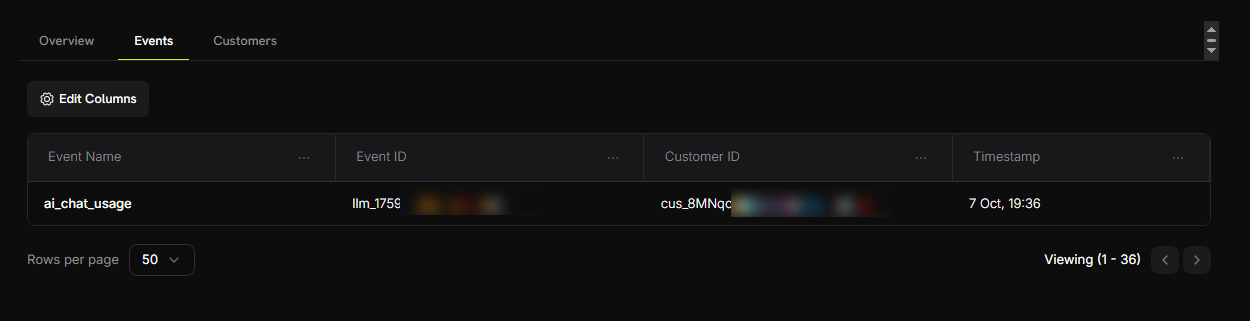
    3. **이벤트** 탭을 클릭합니다.
    4. 채팅 이벤트가 나열되어야 합니다.

    **확인할 내용:**

    * 이벤트 이름: `ai_chat_usage`
    * 고객 ID: 테스트 고객 ID

    <Frame>
      <img src="https://mintcdn.com/dodopayments/4L3_sb2jJa5trJWD/images/cookbooks/ai-chat-app/meter-event.png?fit=max&auto=format&n=4L3_sb2jJa5trJWD&q=85&s=041f2bd60ce174a0e67f051e206d25b0" alt="Meter Events" style={{ maxHeight: '500px', width: 'auto' }} width="1250" height="321" data-path="images/cookbooks/ai-chat-app/meter-event.png" />
    </Frame>

    <Check>
      보낸 메시지마다 하나씩 이벤트가 표시되어야 합니다!
    </Check>
  </Step>

  <Step title="Verify token counting">
    추가 메시지를 보내 토큰 집계가 제대로 작동하는지 확인합니다:

    1. 미터기에서 **고객** 탭으로 이동합니다.
    2. 테스트 고객을 찾습니다.
    3. "소비된 단위" 열을 확인합니다 - 사용된 총 토큰 수가 표시되어야 합니다.

    <Frame>
      <img src="https://mintcdn.com/dodopayments/oig3NPG69DDpua_S/images/cookbooks/ai-chat-app/aggregation.png?fit=max&auto=format&n=oig3NPG69DDpua_S&q=85&s=58fa883c91fae2d4e7d59e266ca8913b" alt="Meter Customer Tokens" style={{ maxHeight: '500px', width: 'auto' }} width="871" height="352" data-path="images/cookbooks/ai-chat-app/aggregation.png" />
    </Frame>

    <Info>
      미터가 모든 `totalTokens` 값을 자동으로 합산합니다!
    </Info>
  </Step>

  <Step title="Test the free tier">
    무료 티어를 초과할 만큼 많은 토큰을 사용해봅시다:

    1. 여러 번 대화를 나눕니다(약 15,000개 이상의 총 토큰 목표)
    2. 미터기 대시보드에서 **고객** 탭을 다시 확인합니다.
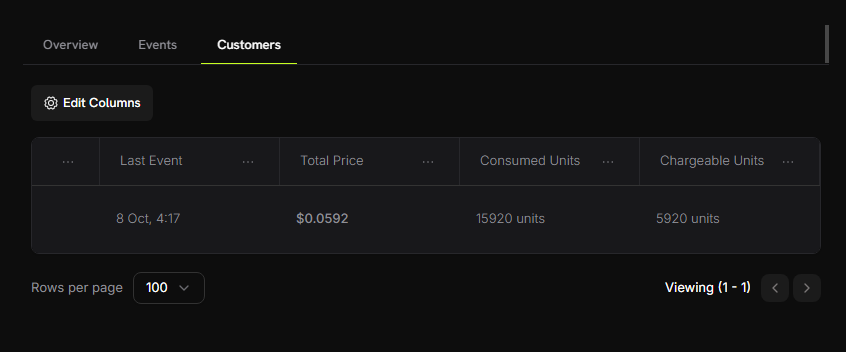
    3. 이제 다음과 같은 내용이 표시되어야 합니다:
       * 소비된 단위: 15,000개 이상의 토큰
       * 청구 가능한 단위: 5,000개 (10,000개의 무료 토큰 적용)
       * 총 가격: \~\$0.05

    <Frame>
      <img src="https://mintcdn.com/dodopayments/oig3NPG69DDpua_S/images/cookbooks/ai-chat-app/free-tier-test.png?fit=max&auto=format&n=oig3NPG69DDpua_S&q=85&s=5ffc1f234acfbaaa2ab0c34805812785" alt="Free Tier Test" style={{ maxHeight: '500px', width: 'auto' }} width="846" height="352" data-path="images/cookbooks/ai-chat-app/free-tier-test.png" />
    </Frame>

    <Check>
      **성공!** 사용량 기반 청구가 완벽하게 작동합니다. 고객은 실제 토큰 소비량에 따라 자동으로 청구됩니다.
    </Check>
  </Step>
</Steps>

***

## 문제 해결

일반적인 문제와 그 해결 방법:

<AccordionGroup>
  <Accordion title="Events not appearing in dashboard">
    **가능한 원인:**

    * 이벤트 이름이 미터 구성과 정확히 일치하지 않음
    * 고객 ID가 계정에 없음
    * API 키가 유효하지 않거나 만료됨
    * 네트워크 연결 문제

    **해결 방법:**

    1. 이벤트 이름이 미터 구성과 정확히 일치하는지 확인합니다 (대소문자 구분: `ai_chat_usage`)
    2. 고객 ID가 Dodo Payments 대시보드에 존재하는지 확인합니다
    3. 간단한 API 호출로 API 키를 테스트합니다
    4. 서버 로그에서 오류 메시지를 확인합니다
  </Accordion>

  <Accordion title="Token counts showing zero">
    **가능한 원인:**

    * 모델이 사용량 정보를 반환하지 않음
    * SDK 버전이 잘못됨

    **해결 방법:**

    1. 모델이 사용량을 반환하는지 테스트합니다:

    ```typescript theme={null}
    const response = await generateText({...});
    console.log('Usage:', response.usage);
    ```

    2. 최신 Blueprints SDK로 업데이트: `npm install @dodopayments/ingestion-blueprints@latest`
  </Accordion>

  <Accordion title="API key invalid error">
    **가능한 원인:**

    * 환경에 맞지 않는 API 키 사용
    * `.env` 파일에 불필요한 공백 또는 따옴표 있음

    **해결 방법:**

    * 테스트 키는 `test_`로 시작하고 라이브 키는 `live_`로 시작하는지 확인합니다
    * `.env` 파일에서 키 주위의 따옴표를 제거합니다
    * 필요한 경우 새 키를 생성합니다
  </Accordion>
</AccordionGroup>

도움이 필요하신가요?

* [Discord 커뮤니티](https://discord.gg/bYqAp4ayYh)
* [support@dodopayments.com](mailto:support@dodopayments.com)

***

## 축하합니다! AI 채팅 앱을 구축했습니다

이제 자동 토큰 사용량 추적 및 청구 기능을 갖춘 완전한 기능의 AI 채팅 애플리케이션이 준비되었습니다. 🎉

### 더 알아보기

<CardGroup cols={2}>
  <Card title="LLM Blueprint" icon="robot" href="/developer-resources/ingestion-blueprints/llm">
    LLM Ingestion Blueprint에 대해 자세히 알아보기
  </Card>

  <Card title="Ingestion Blueprints SDK" icon="github" href="https://github.com/dodopayments/ingestion-blueprints">
    더 많은 예제를 보려면 GitHub 저장소 확인하기
  </Card>

  <Card title="Join Community" icon="discord" href="https://discord.gg/bYqAp4ayYh">
    Discord에서 도움을 받고 프로젝트를 공유하세요
  </Card>
</CardGroup>