> ## Documentation Index
> Fetch the complete documentation index at: https://docs.dodopayments.com/llms.txt
> Use this file to discover all available pages before exploring further.
# ParityDeals
> ウェブサイトに地域別割引バナーを表示し、ParityDealsを使ってDodo Paymentsで対応する割引コードを自動生成します。
## はじめに
[ParityDeals](https://www.paritydeals.com/) は、ウェブサイト上で対象となる訪問者に地域別割引バナーを表示し、Dodo Paymentsで対応する割引コードを自動生成するプラットフォームです。訪問者がバナーを見ると、チェックアウトで使用できるコードを取得できます。これらのコードは、Dodo Paymentsダッシュボードの **Sales → Discounts** に表示されます。
Dodo Paymentsにはネイティブの [Purchasing Power Parity](/features/purchasing-power-parity) があり、バナーやスクリプトを使わず、チェックアウト時に国ごとに価格を引き下げます。自社サイトに目立つ割引バナーを表示したい場合や、ホリデーセールや期間限定セールを実施したい場合は、ParityDealsが適しています。
## 仕組み
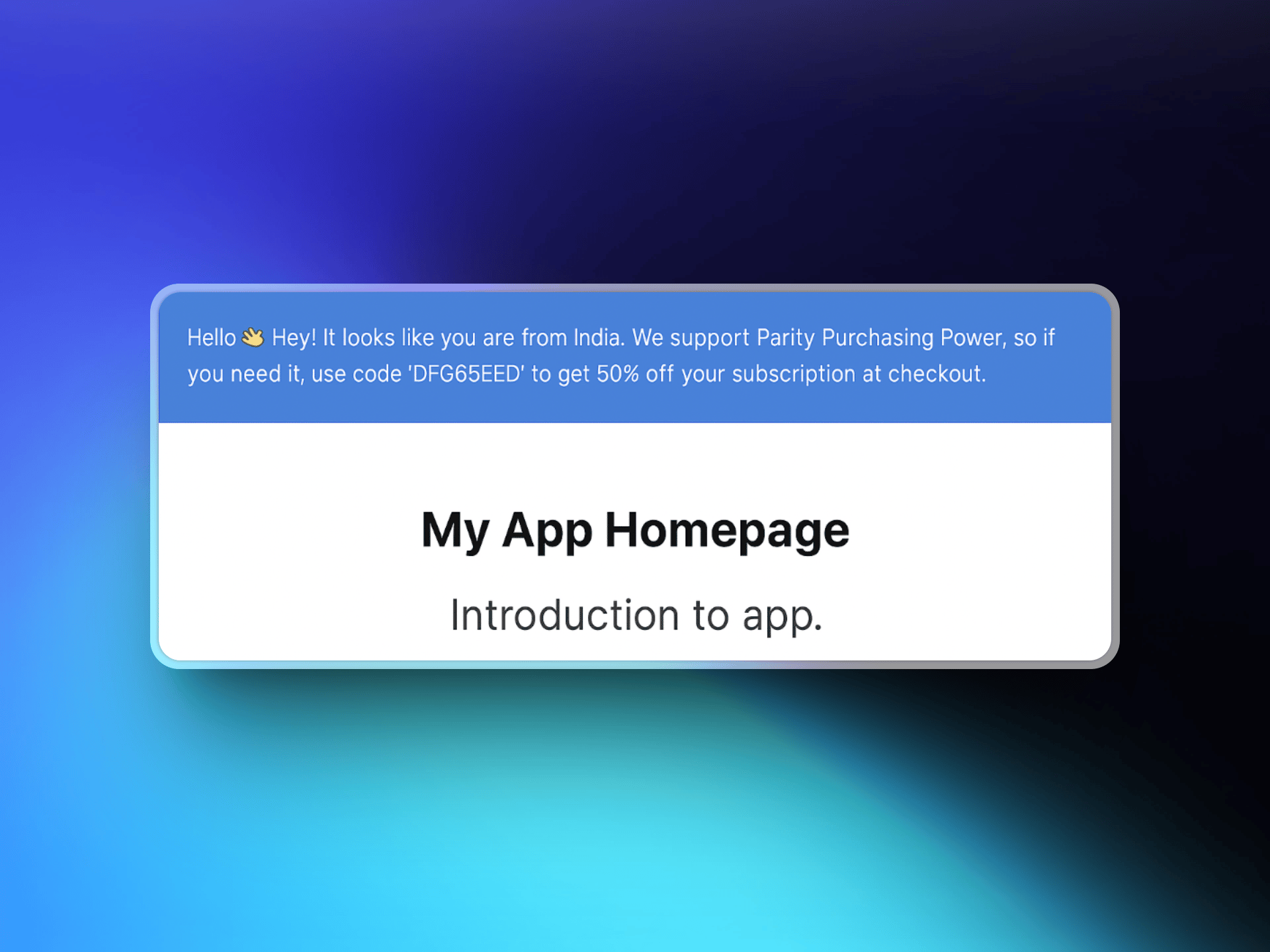
ParityDealsは訪問者の所在地を検出し、ウェブサイトにカスタマイズ可能な割引バナーを表示して、チェックアウトで適用できる割引コードを生成します。コードはDodo Paymentsアカウント内で自動的に作成され、設定した商品で使用できます。
1. 訪問者がウェブサイトにアクセスすると、ParityDealsが所在地を検出します。
2. 訪問者が割引の対象である場合、地域別コードが記載されたバナーが表示されます。
3. 訪問者がチェックアウトでコードを使用すると、Dodo Paymentsが割引を適用します。
4. コードはダッシュボードの **Sales → Discounts** に表示されます。
 ## ParityDealsとネイティブPPPの比較
国別の価格設定には、ネイティブのPurchasing Power Parityを使用することをおすすめします。自社サイトに割引バナーを表示したい場合や、ホリデーキャンペーン、期間限定キャンペーンを実施したい場合は、ParityDealsを選択してください。
| | ネイティブPPP | ParityDeals |
| :--------------- | :----------------- | :----------------- |
| 仕組み | 国ごとの割合をチェックアウト時に適用 | コードを通じて一定割合を割引 |
| 設定場所 | Dodo Paymentsに組み込み | ParityDealsダッシュボード |
| サイト上のバナーまたはスクリプト | 不要 | 必須 |
| ホリデーおよび期間限定セール | いいえ | はい |
| 最適な用途 | サイトを変更せずに適正価格を設定 | プロモーションバナーや季節限定セール |
Dodo PaymentsがホスティングするチェックアウトやストアフロントにParityDealsのバナーを埋め込むことはできません。カスタムスクリプトはそこでサポートされていないためです。バナーは自社のウェブサイトまたはアプリに設置してください。
## 前提条件
この連携を設定する前に、以下を用意してください。
1. [Dodo Paymentsアカウント](https://app.dodopayments.com)
2. [ParityDealsアカウント](https://app.paritydeals.com/)
3. Dodo Payments API key
## はじめに
[app.paritydeals.com](https://app.paritydeals.com/) にアクセスしてアカウントを作成します。
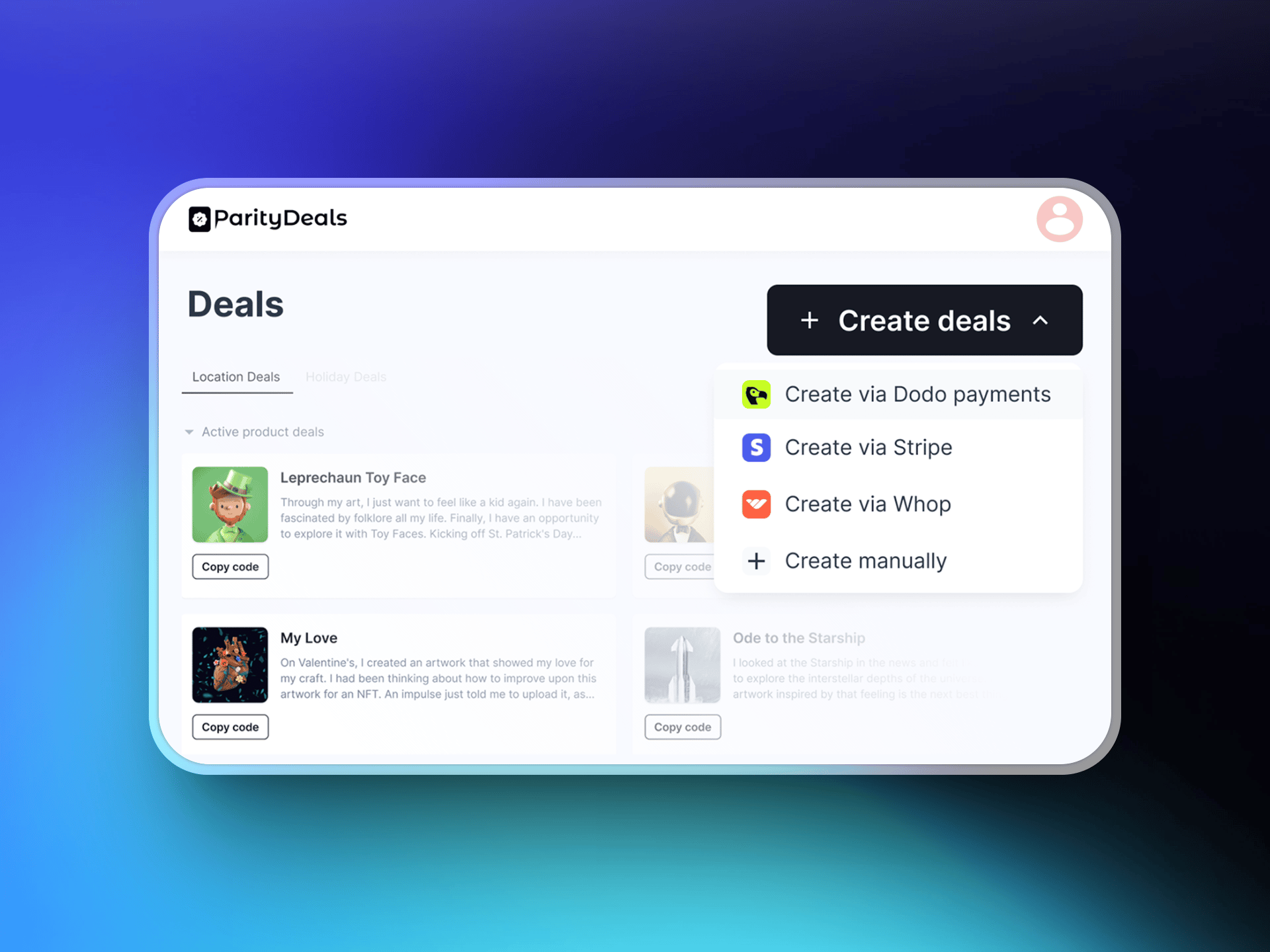
サインイン後、セールを作成するオプションを探します。ドロップダウンメニューから **"Create Deals via Dodo Payments"** を選択します。
## ParityDealsとネイティブPPPの比較
国別の価格設定には、ネイティブのPurchasing Power Parityを使用することをおすすめします。自社サイトに割引バナーを表示したい場合や、ホリデーキャンペーン、期間限定キャンペーンを実施したい場合は、ParityDealsを選択してください。
| | ネイティブPPP | ParityDeals |
| :--------------- | :----------------- | :----------------- |
| 仕組み | 国ごとの割合をチェックアウト時に適用 | コードを通じて一定割合を割引 |
| 設定場所 | Dodo Paymentsに組み込み | ParityDealsダッシュボード |
| サイト上のバナーまたはスクリプト | 不要 | 必須 |
| ホリデーおよび期間限定セール | いいえ | はい |
| 最適な用途 | サイトを変更せずに適正価格を設定 | プロモーションバナーや季節限定セール |
Dodo PaymentsがホスティングするチェックアウトやストアフロントにParityDealsのバナーを埋め込むことはできません。カスタムスクリプトはそこでサポートされていないためです。バナーは自社のウェブサイトまたはアプリに設置してください。
## 前提条件
この連携を設定する前に、以下を用意してください。
1. [Dodo Paymentsアカウント](https://app.dodopayments.com)
2. [ParityDealsアカウント](https://app.paritydeals.com/)
3. Dodo Payments API key
## はじめに
[app.paritydeals.com](https://app.paritydeals.com/) にアクセスしてアカウントを作成します。
サインイン後、セールを作成するオプションを探します。ドロップダウンメニューから **"Create Deals via Dodo Payments"** を選択します。
 **Dodo Paymentsダッシュボード** にログインし、**Developers → API Keys** に移動します。**"Create New API"** をクリックします。
後で識別できるように、API keyには説明的な名前(例:'ParityDeals')を付けます。
**Dodo Paymentsダッシュボード** にログインし、**Developers → API Keys** に移動します。**"Create New API"** をクリックします。
後で識別できるように、API keyには説明的な名前(例:'ParityDeals')を付けます。
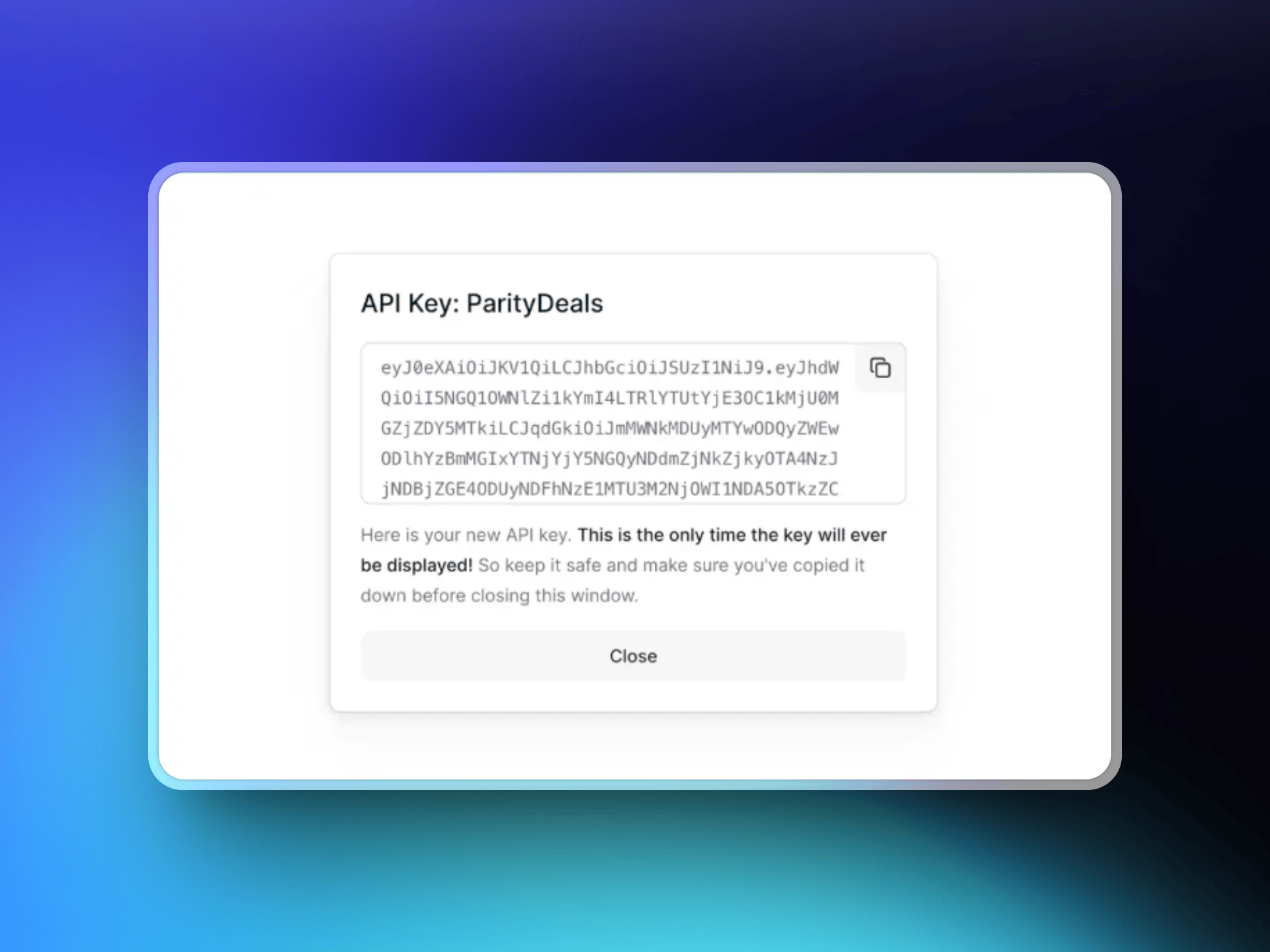 作成したAPI keyをコピーし、ParityDealsのインターフェースに貼り付けて、Dodo Paymentsアカウントとの接続を確立します。
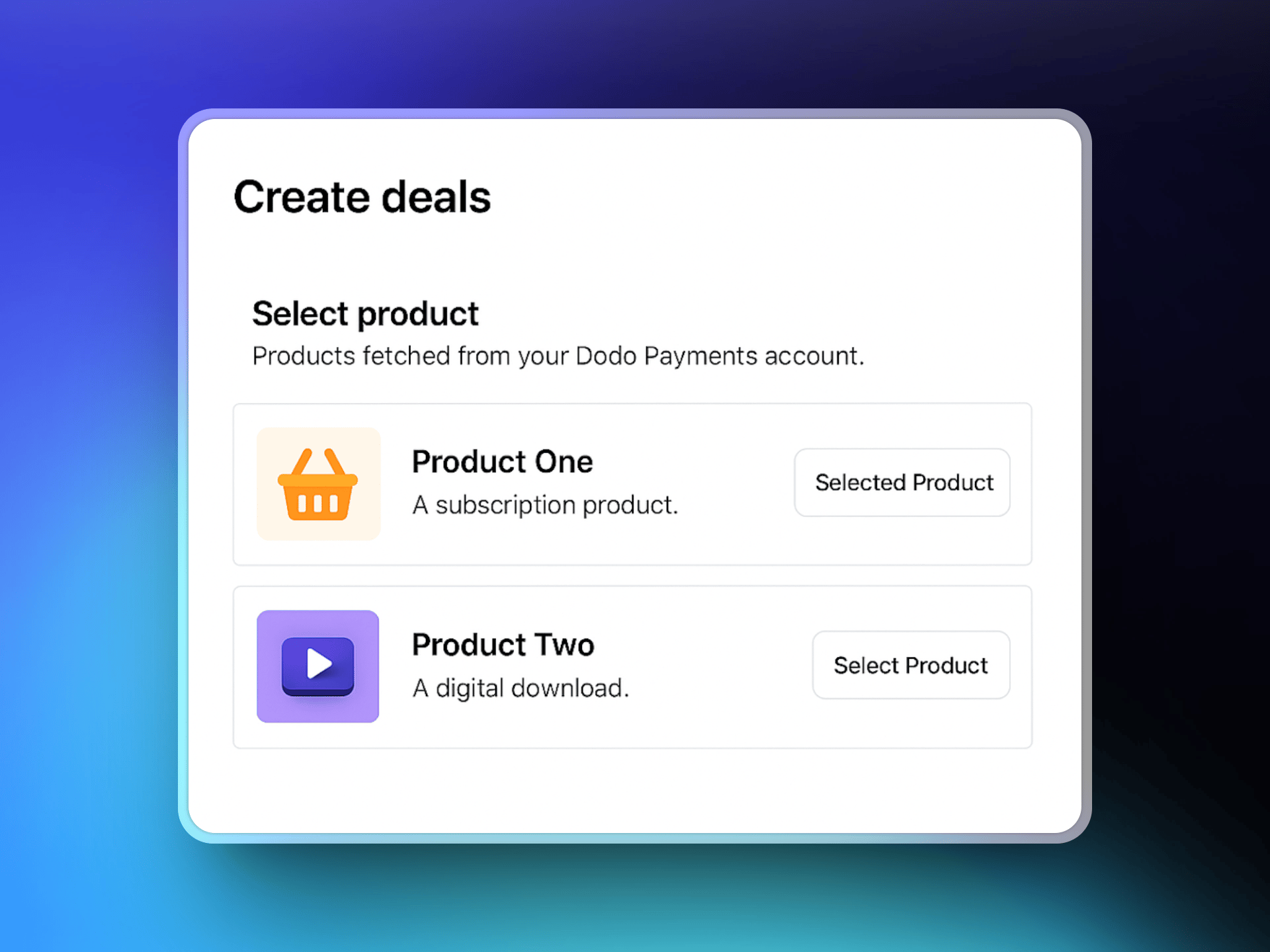
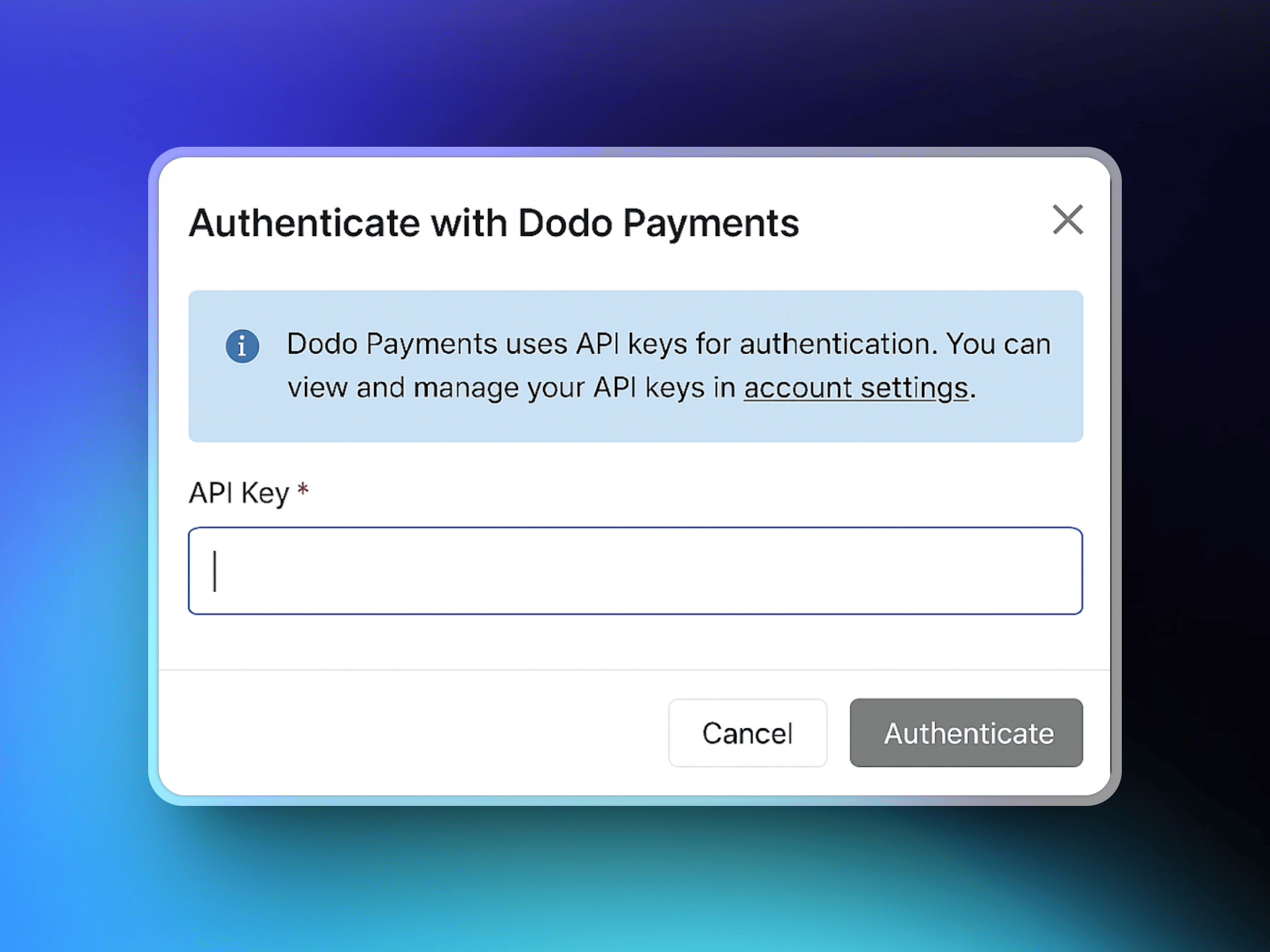 接続すると、ParityDealsがDodo Paymentsの商品カタログを取得します。セールに関連付ける商品を選択します。
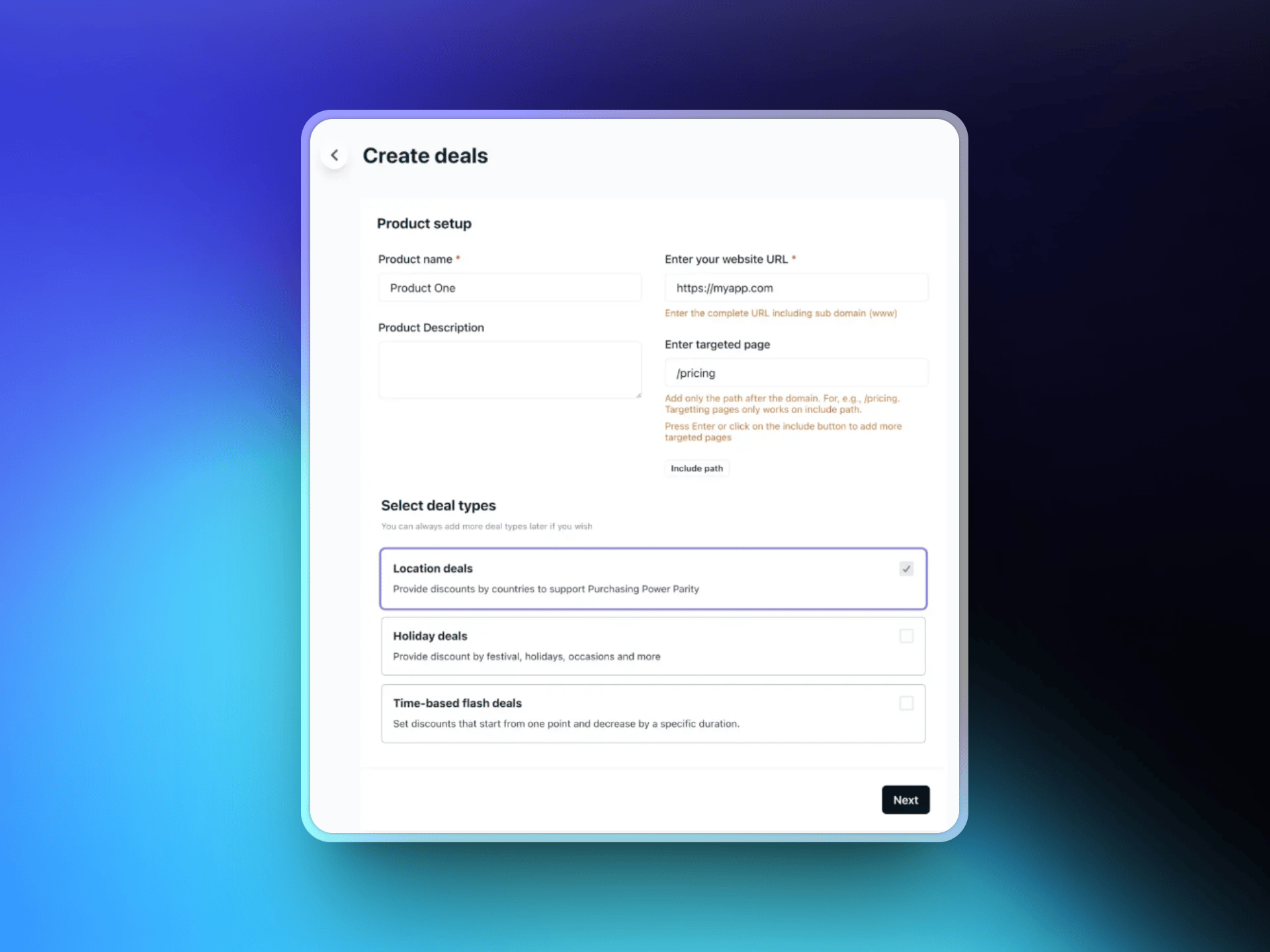
 ウェブサイトのURLを入力し、必要に応じて割引バナーを表示する特定の対象ページを選択します。次に、希望するセールの種類を選択します。
* 地域別セール
* ホリデーセール
* 期間限定フラッシュセール
ウェブサイトのURLを入力し、必要に応じて割引バナーを表示する特定の対象ページを選択します。次に、希望するセールの種類を選択します。
* 地域別セール
* ホリデーセール
* 期間限定フラッシュセール
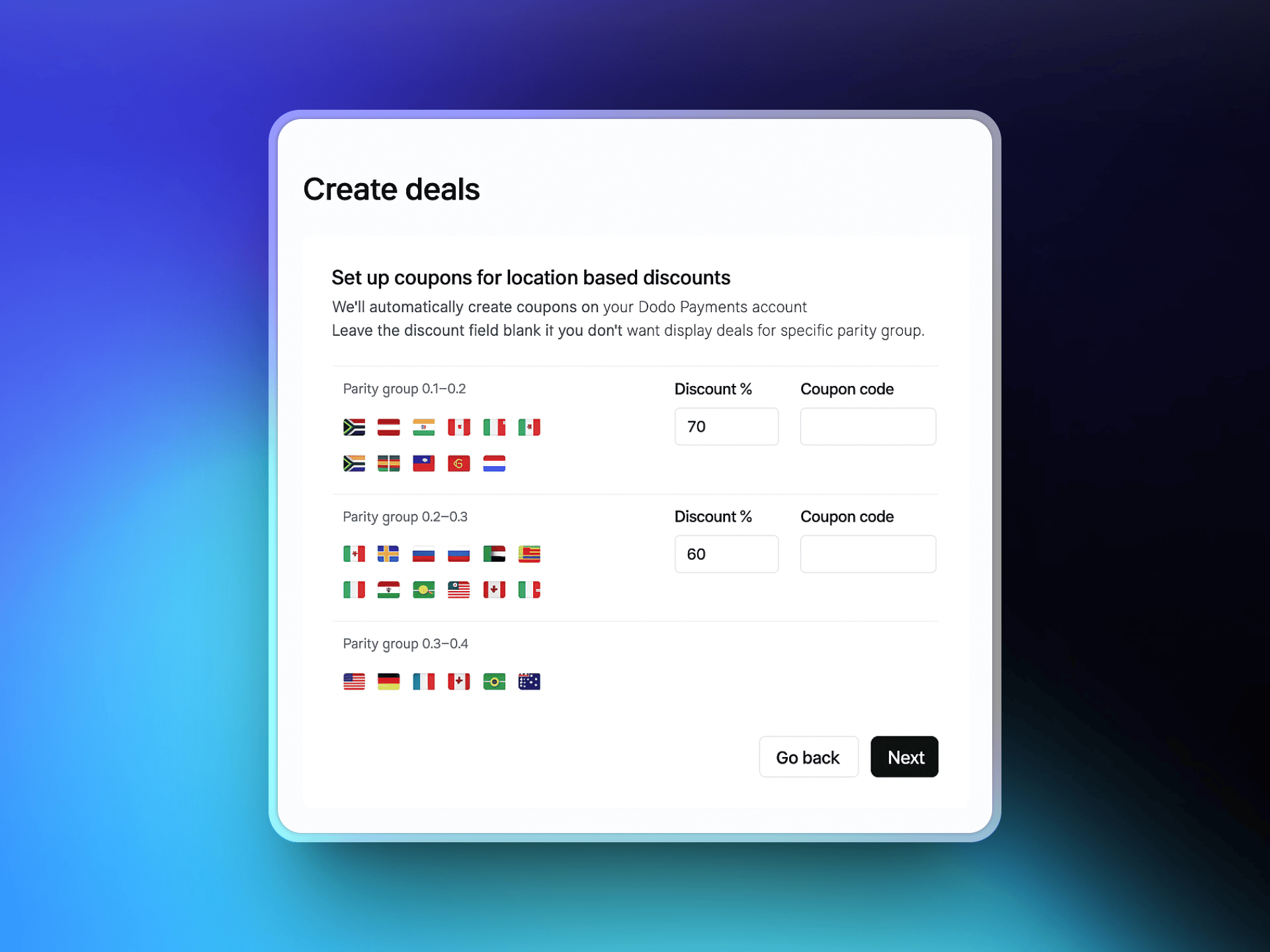
 ローカライズされた割引を提供する国を選択し、それぞれの割引率を定義します。ParityDealsには推奨されるデフォルト値が用意されており、必要に応じて調整できます。
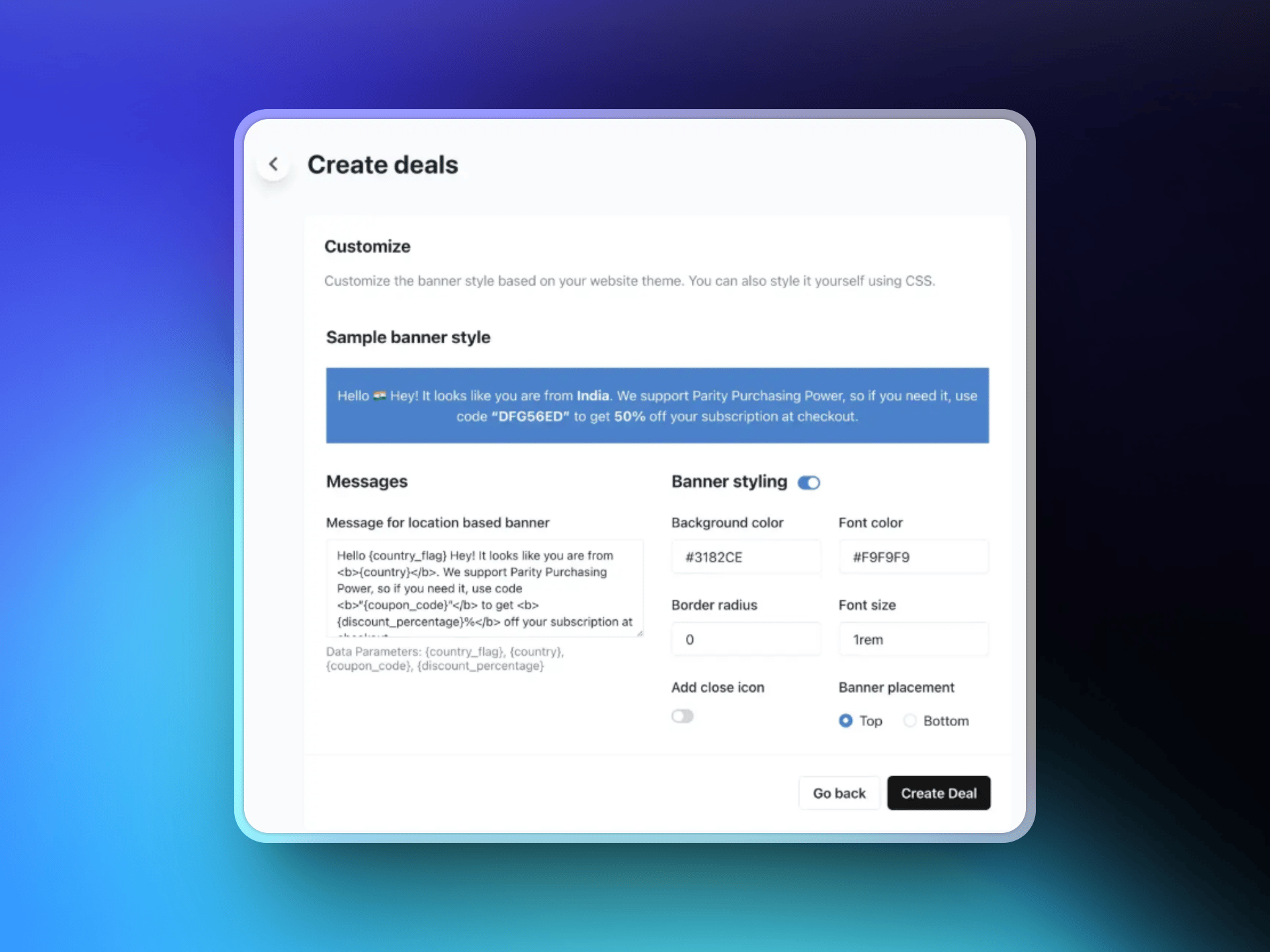
 テキストのカスタマイズ、色とレイアウトの選択、バナー位置(ページの上部または下部)の指定によって、割引バナーをデザインします。このバナーは、設定したルールに基づいて対象となる訪問者に表示されます。
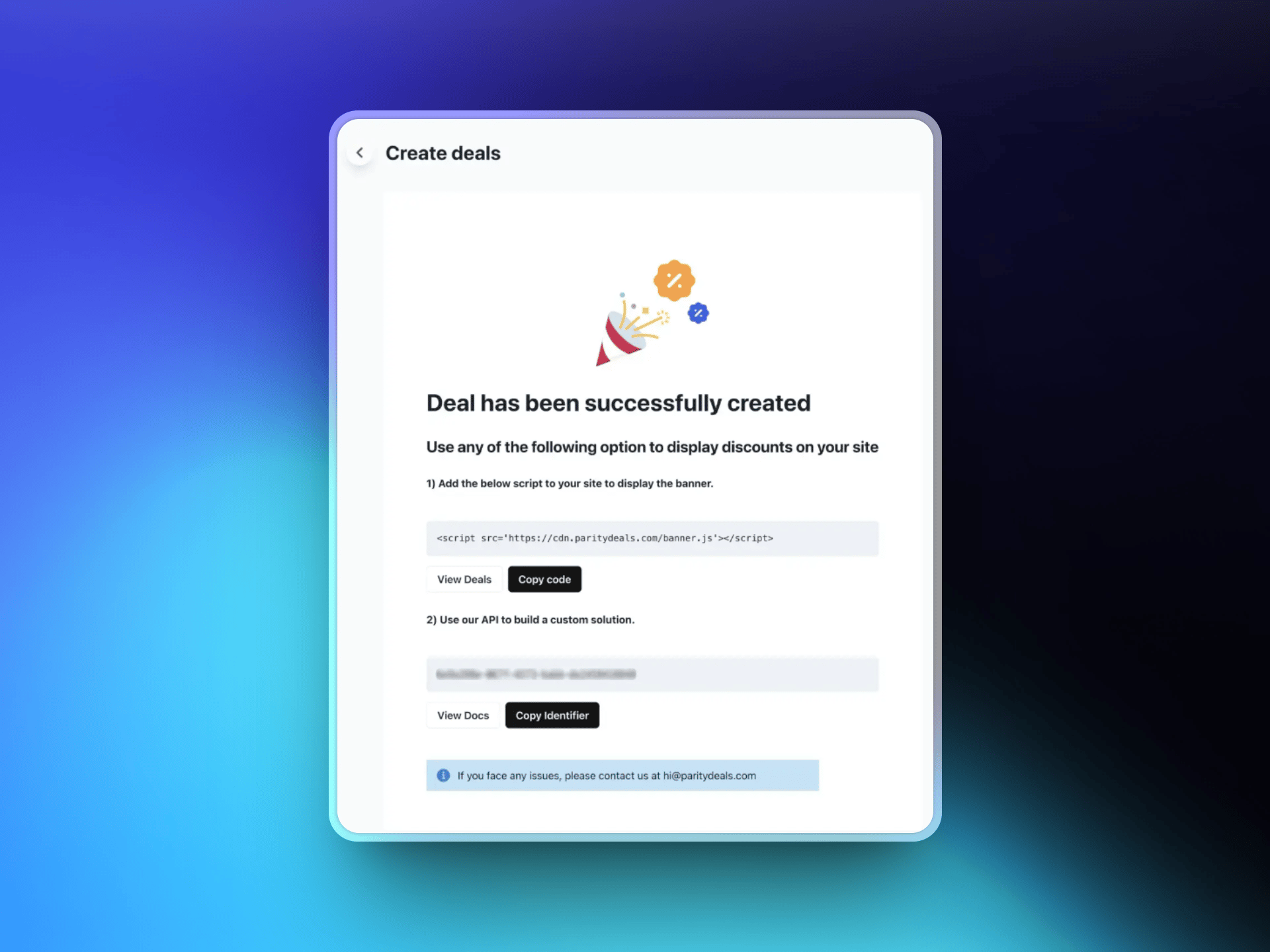
 セールを保存すると、ParityDealsがスクリプトを生成します。このスクリプトをウェブサイトのコードに追加します(通常は``セクション内)。このスクリプトは訪問者の所在地を自動的に検出し、適切な割引バナーを表示します。
 ## その他の機能
ParityDealsでは、年間を通じて[自動期間限定割引](https://www.paritydeals.com/features/time-based-discounts/)や[ホリデー向けプロモーション](https://www.paritydeals.com/features/holiday-based-discounts/)も提供できます。詳しくは、[ParityDeals Documentation](https://www.paritydeals.com/docs/)を参照してください。
## その他のリソース
ParityDealsのドキュメントにある、完全なセットアップ手順と機能ガイド。
バナー不要の、Dodo PaymentsにおけるネイティブPPP価格設定。
Dodo Paymentsでの割引コードの仕組み。
自動クーポンローテーションに対応した、割引コードの代替ツール。
## その他の機能
ParityDealsでは、年間を通じて[自動期間限定割引](https://www.paritydeals.com/features/time-based-discounts/)や[ホリデー向けプロモーション](https://www.paritydeals.com/features/holiday-based-discounts/)も提供できます。詳しくは、[ParityDeals Documentation](https://www.paritydeals.com/docs/)を参照してください。
## その他のリソース
ParityDealsのドキュメントにある、完全なセットアップ手順と機能ガイド。
バナー不要の、Dodo PaymentsにおけるネイティブPPP価格設定。
Dodo Paymentsでの割引コードの仕組み。
自動クーポンローテーションに対応した、割引コードの代替ツール。