> ## Documentation Index
> Fetch the complete documentation index at: https://docs.dodopayments.com/llms.txt
> Use this file to discover all available pages before exploring further.
# Businessのアーカイブ
> 今後取引に使用しないBusinessを完全に終了します。利用条件、確認フロー、アーカイブ後に起こることについて説明します。
## はじめに
アーカイブすると、今後取引に使用しないBusinessを終了できます。Businessはdashboardから表示されなくなり、そのAPI keysは機能しなくなります。また、checkout、payment links、storefront、Customer Portalは顧客へのサービス提供を停止します。
アーカイブは削除ではありません。Dodo Paymentsはお客様の[Merchant of Record](/features/mor-introduction)であるため、取引を停止した後も、コンプライアンス上、payments、refunds、invoices、tax recordsを長期間保持する必要があります。アーカイブするとBusinessでの新しいアクティビティは停止しますが、これらのrecordsはそのまま保持されます。
アーカイブは永久的な操作です。アーカイブしたBusinessを復元する方法はなく、supportでも取り消すことはできません。1つのbrandだけを終了し、他のbrandでの取引を続けたい場合は、Businessではなくbrandをアーカイブしてください。[Multi-Brand Setup](/features/multi-brands)を参照してください。
## 利用条件
Businessをアーカイブできるのは、完全にsettledした後だけです。このオプションが利用可能になる前に、Dodo Paymentsは7つの要件を確認し、それぞれの状況をリアルタイムのchecklistで表示します。日常的に使用している既存のtoolsを使って、未完了の項目を自分で解決します。
| Requirement | Cleared when | How to clear it |
| --------------------- | -------------------------------------------------- | ------------------------------------------------------------------------------------------------------------- |
| **Dormancy** | 過去180日間、Businessでpayment activityがない場合 | 期間が経過するまで待ちます。checklistにeligibleになる日付が表示されます。 |
| **Payout Wallet** | すべてのcurrency balanceが正確にゼロの場合 | 残っているfundsをwithdrawします。[Account Summary and Payout Wallet](/features/account-summary-payout-wallet)を参照してください。 |
| **Payouts** | 進行中、保留中、または開始待ちのpayoutがない場合 | 各payoutがsettledするまで待ちます。[Payout Structure](/features/payouts/payout-structure)を参照してください。 |
| **Disputes** | openまたはchallengedのdisputeがない場合 | すべてのdisputeをresolveまたはacceptします。[Disputes](/features/transactions/disputes)を参照してください。 |
| **Refunds** | pendingまたはunder reviewのrefundがない場合 | 各refundがcompleteするまで待ちます。[Refunds](/features/transactions/refunds)を参照してください。 |
| **Subscriptions** | pending、active、on hold、またはpausedのsubscriptionがない場合 | 各subscriptionをcancelします。[Subscriptions](/features/subscription)を参照してください。 |
| **Customer Balances** | customerがcash balanceを保持していない場合 | [Customer Wallet](/features/customer-wallet) ledgerを通じて、各balanceをゼロにします。 |
次回のbilling dateにcancelされる予定のsubscriptionも、実際に終了するまでアーカイブをブロックします。Dodo Paymentsがお客様に代わってsubscriptionをcancelすることはないため、customerに請求する内容は常にお客様が管理できます。
結果にかかわらず、すべてのpaymentがdormancy期間にカウントされます。failedまたはabandonedのpayment attemptも、successfulなpaymentと同様に180日間の期間を再開します。
Customer credit grantsはアーカイブをブロックしません。対象となるのはcash balancesだけです。Creditsは独自のスケジュールでexpireします。
checklistは開くたびにリアルタイムで評価されるため、項目を解決した後にrefreshすると、要件がgreenに変わったことを確認できます。
## Businessをアーカイブする方法
Businessをアーカイブできるのは、その**Owner**だけです。EditorsとViewersはchecklistを確認できますが、アーカイブはできません。Ownershipはtransferできないため、Ownerでない場合はOwnerにこのフローを完了してもらってください。
**Settings → Business**に移動し、**Danger Zone** panelまでscrollします。status lineの横にある**See Details**を選択してchecklistを展開します。
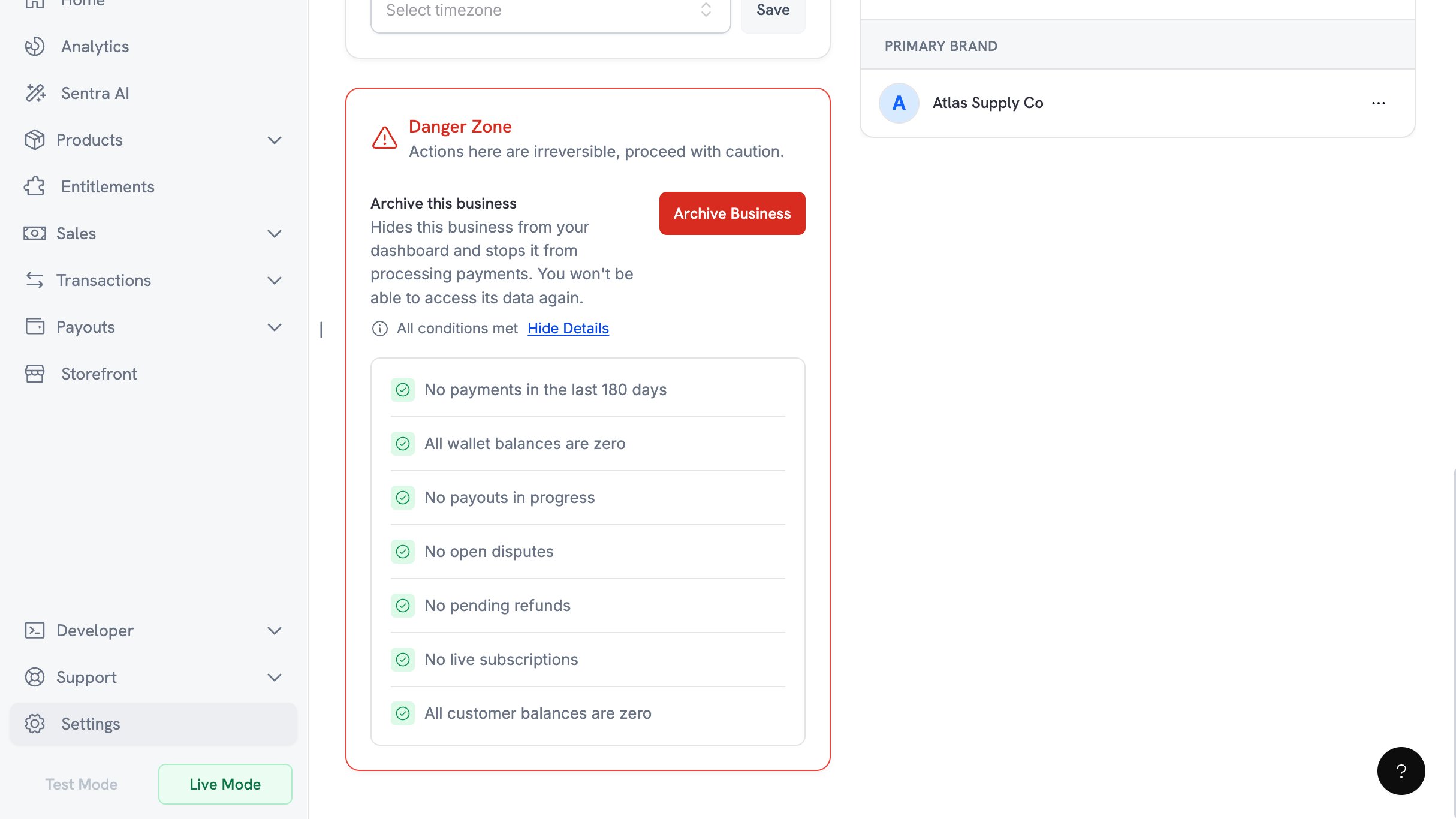 まだpassedになっていない項目を、上のtableにあるresolution linksに従って解決します。作業中はpanelに戻り、checklistを再度展開してください。clearする項目がなくなると、checklist上部のstatus lineに**All conditions met**と表示されます。
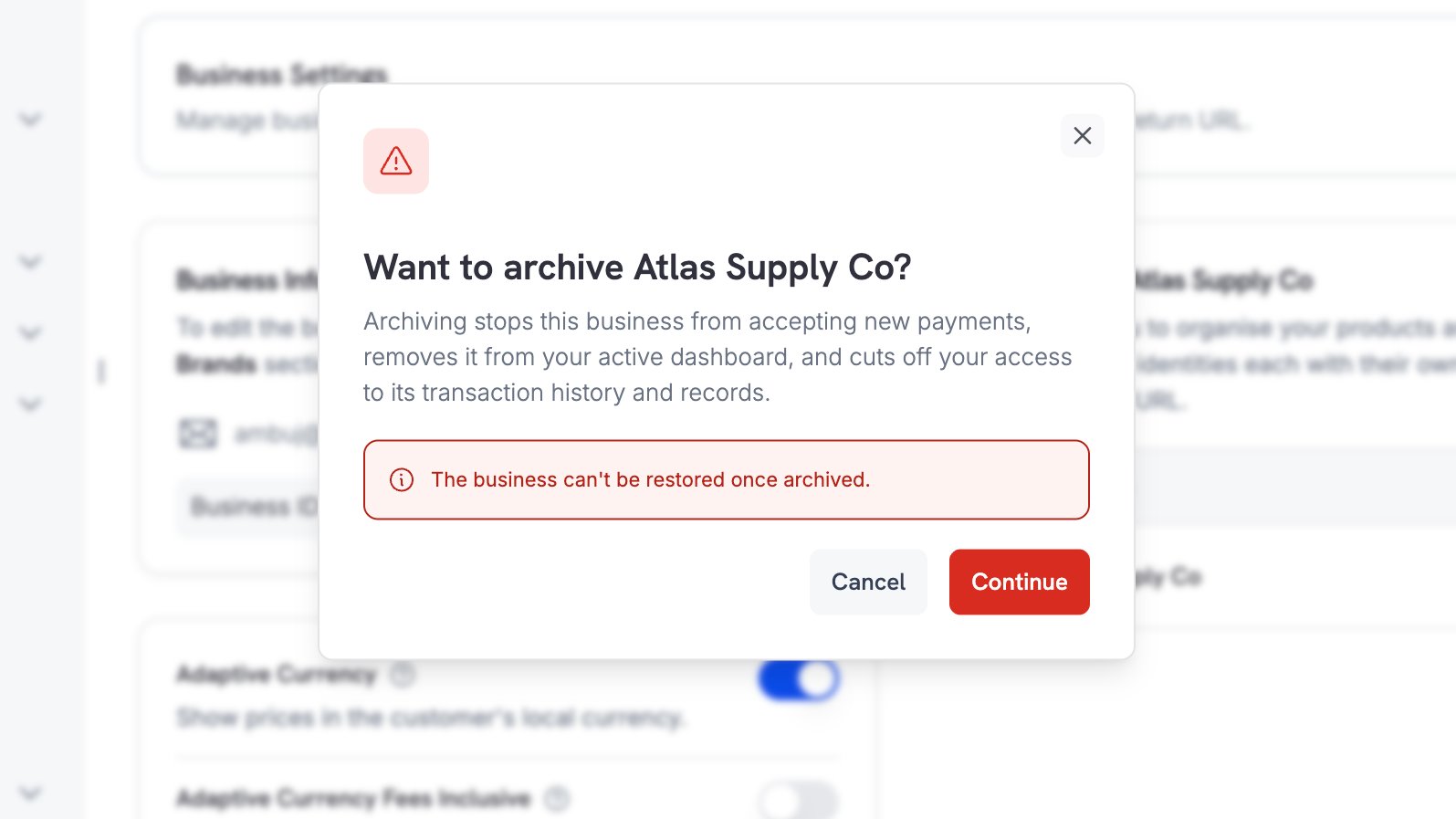
**Archive Business**を選択してconfirmation dialogを読みます。**Continue**を選択すると、Ownerのemail addressにconfirmation codeが送信されます。
まだpassedになっていない項目を、上のtableにあるresolution linksに従って解決します。作業中はpanelに戻り、checklistを再度展開してください。clearする項目がなくなると、checklist上部のstatus lineに**All conditions met**と表示されます。
**Archive Business**を選択してconfirmation dialogを読みます。**Continue**を選択すると、Ownerのemail addressにconfirmation codeが送信されます。
 Dodo PaymentsはOwnerのregistered addressに6桁のcodeをemailで送信します。codeの有効期限は10分間です。新しいcodeは60秒ごとにリクエストでき、fresh codeが必要になるまでに3回attemptできます。
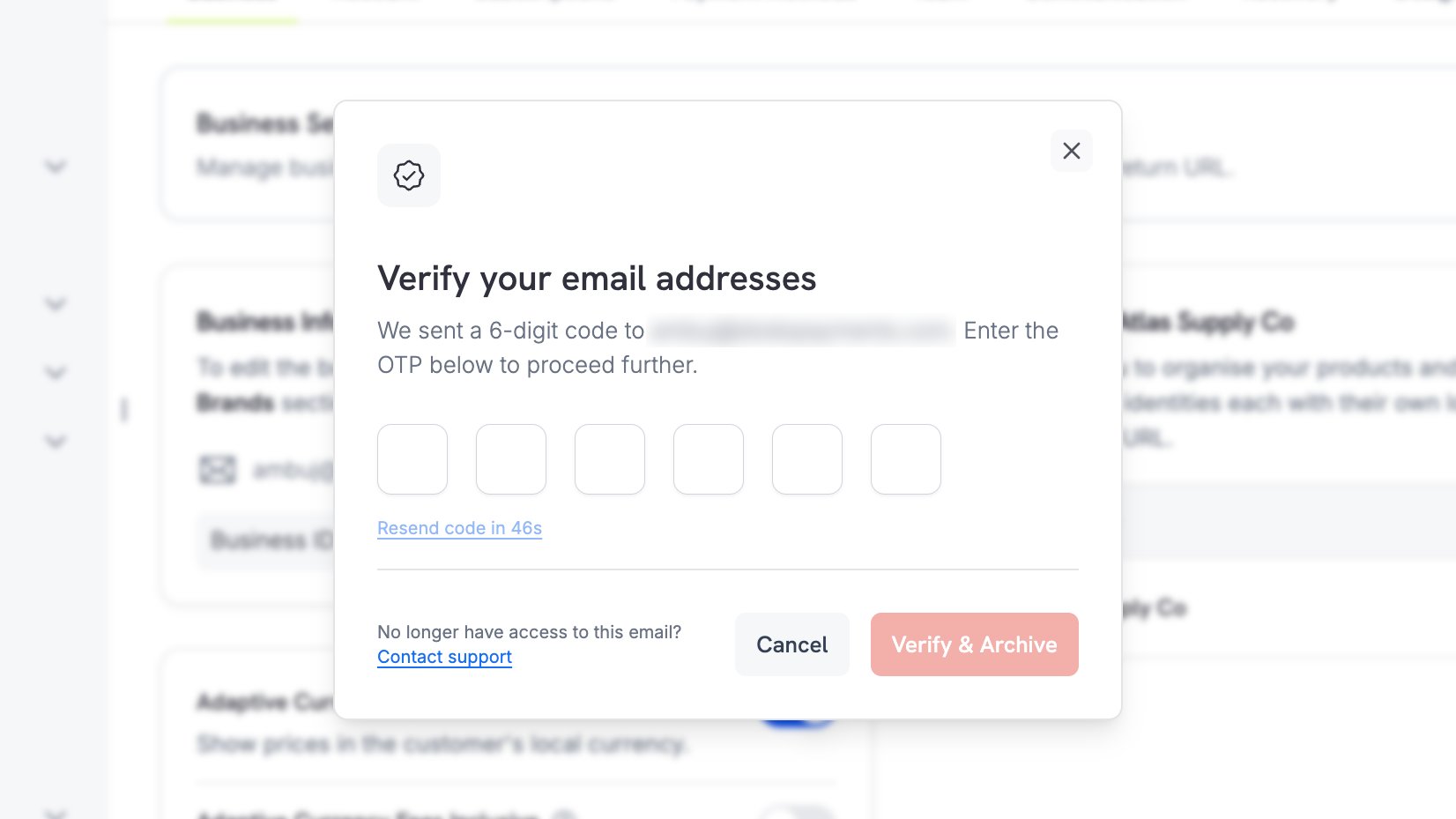 Ownerのmailboxにアクセスできなくなった場合は、dialog内の**Contact support** linkを使用してください。
codeを入力し、**Verify & Archive**を選択します。これは後戻りできない最終段階です。codeがacceptされると、Businessは直ちにアーカイブされます。
Ownerのmailboxにアクセスできなくなった場合は、dialog内の**Contact support** linkを使用してください。
codeを入力し、**Verify & Archive**を選択します。これは後戻りできない最終段階です。codeがacceptされると、Businessは直ちにアーカイブされます。
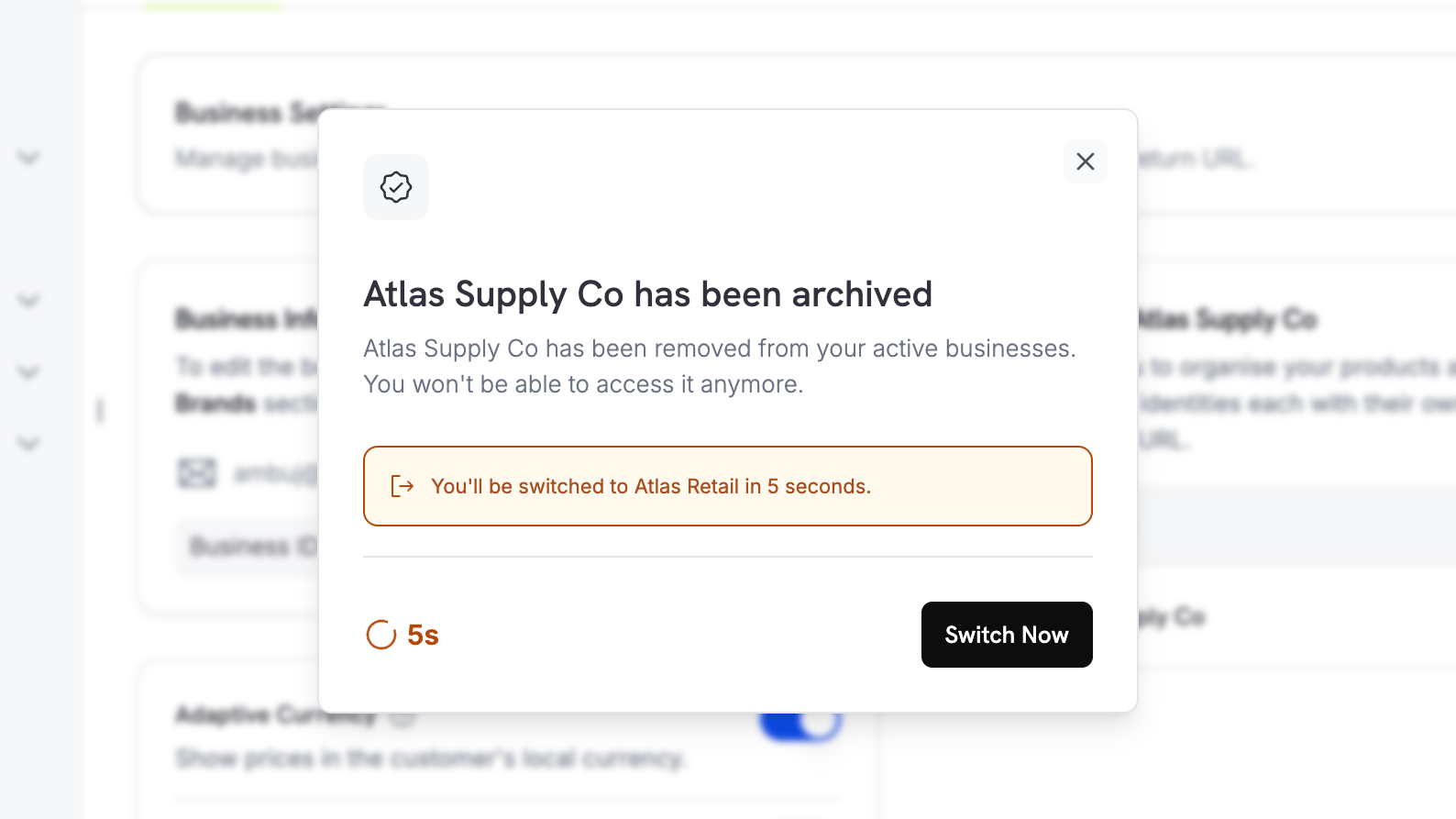
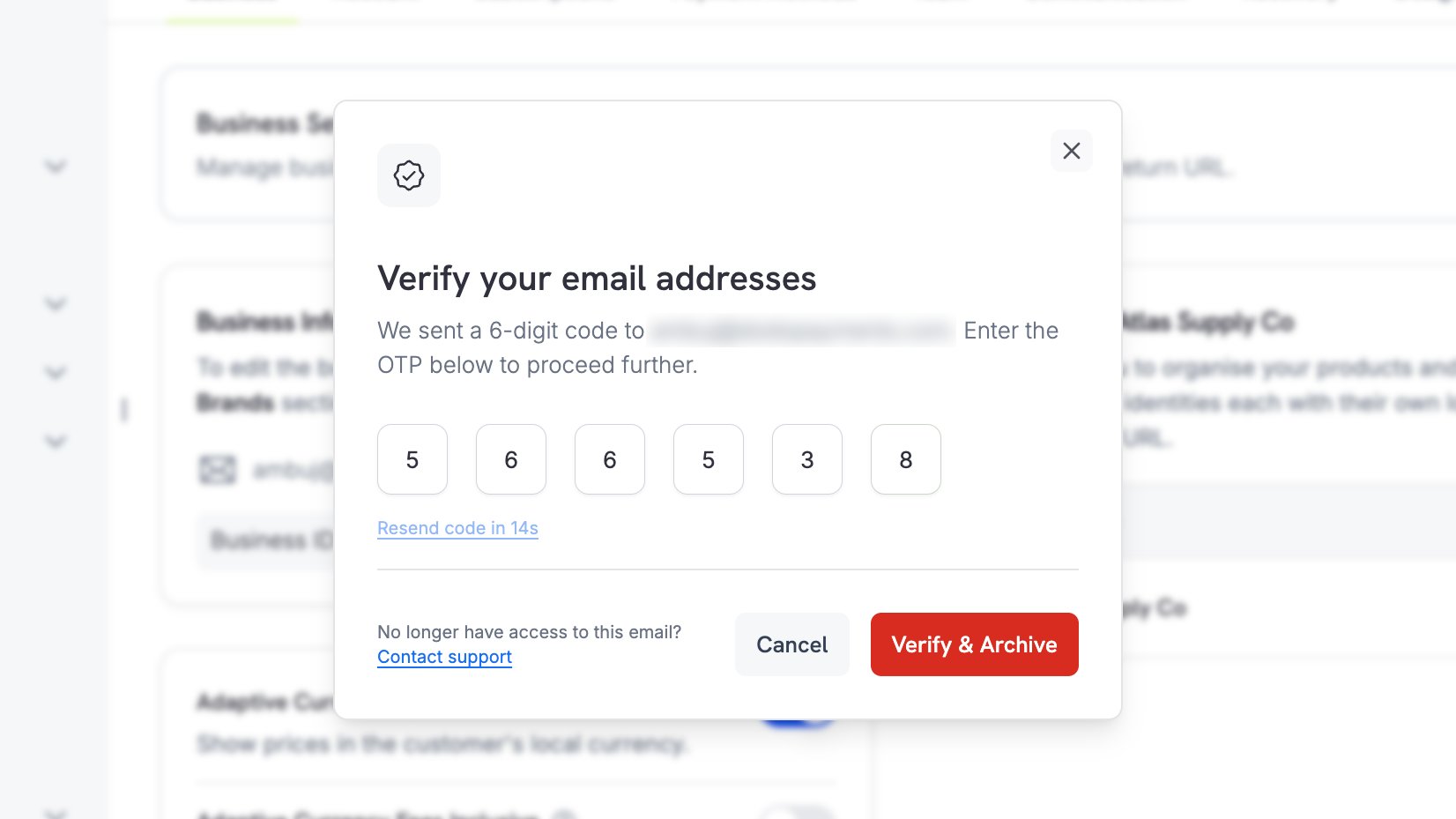 Dodo Paymentsはアーカイブをconfirmし、別のBusinessに移動します。すぐに移動するには**Switch Now**を選択します。
 ## アーカイブ後に起こること
**お客様について**
* Businessはdashboardまたはbusiness switcherに表示されなくなります。Dodo Paymentsはアーカイブ直後に別のBusinessへ移動します。
* live modeとlive paymentsはoffになります。
* BusinessのすべてのAPI keyがlive modeとtest modeの両方で機能しなくなります。cached credentialsのexpireには数分かかる場合があるため、アーカイブ後もintegrationが一時的に機能し続けることがあります。
**Customerについて**
* Checkout sessions、payment links、static checkout pagesはpaymentを受け付けなくなります。
* storefrontはproductsを提供しなくなります。
* Customer Portal sessionsは終了し、customerはsign inしてpurchasesを管理できなくなります。
* License keyのactivationとdeactivationは停止します。
アーカイブする前にcustomerへ知らせてください。Businessがアーカイブされると、customerがpurchase historyに戻るためのself-serve routeはなくなり、Dodo Paymentsはretryではなくterminal errorを返します。
**Recordsについて**
Payments、refunds、invoices、payouts、tax filingsは保持されます。Businessをアーカイブする前に、保持したいinvoicesとreportsをdownloadしてください。Businessがアーカイブされた瞬間にdashboard accessが終了するためです。後からrecordsのcopyが必要な場合は、[support](/miscellaneous/help-support)にcontactしてください。
## 制限事項
* \*\*アーカイブは元に戻せません。\*\*この操作はmerchantにもsupportにも永久的です。
* \*\*最後のBusinessはこの方法ではアーカイブできません。\*\*所有しているBusinessが1つだけの場合は、代わりに[support](/miscellaneous/help-support)にcontactしてaccountをcloseしてください。
* \*\*アーカイブは全か無かの操作です。\*\*catalogueの一部を終了し、取引を続けたい場合は、Businessではなくbrandをアーカイブしてください。
1つのbrandをアーカイブし、Businessの残りの部分で取引を続けます。
アーカイブする前に、残りのbalanceをwithdrawします。
Business profilesを管理し、Business間を切り替えます。
account closureまたはrecords requestについて問い合わせます。
## アーカイブ後に起こること
**お客様について**
* Businessはdashboardまたはbusiness switcherに表示されなくなります。Dodo Paymentsはアーカイブ直後に別のBusinessへ移動します。
* live modeとlive paymentsはoffになります。
* BusinessのすべてのAPI keyがlive modeとtest modeの両方で機能しなくなります。cached credentialsのexpireには数分かかる場合があるため、アーカイブ後もintegrationが一時的に機能し続けることがあります。
**Customerについて**
* Checkout sessions、payment links、static checkout pagesはpaymentを受け付けなくなります。
* storefrontはproductsを提供しなくなります。
* Customer Portal sessionsは終了し、customerはsign inしてpurchasesを管理できなくなります。
* License keyのactivationとdeactivationは停止します。
アーカイブする前にcustomerへ知らせてください。Businessがアーカイブされると、customerがpurchase historyに戻るためのself-serve routeはなくなり、Dodo Paymentsはretryではなくterminal errorを返します。
**Recordsについて**
Payments、refunds、invoices、payouts、tax filingsは保持されます。Businessをアーカイブする前に、保持したいinvoicesとreportsをdownloadしてください。Businessがアーカイブされた瞬間にdashboard accessが終了するためです。後からrecordsのcopyが必要な場合は、[support](/miscellaneous/help-support)にcontactしてください。
## 制限事項
* \*\*アーカイブは元に戻せません。\*\*この操作はmerchantにもsupportにも永久的です。
* \*\*最後のBusinessはこの方法ではアーカイブできません。\*\*所有しているBusinessが1つだけの場合は、代わりに[support](/miscellaneous/help-support)にcontactしてaccountをcloseしてください。
* \*\*アーカイブは全か無かの操作です。\*\*catalogueの一部を終了し、取引を続けたい場合は、Businessではなくbrandをアーカイブしてください。
1つのbrandをアーカイブし、Businessの残りの部分で取引を続けます。
アーカイブする前に、残りのbalanceをwithdrawします。
Business profilesを管理し、Business間を切り替えます。
account closureまたはrecords requestについて問い合わせます。