> ## Documentation Index
> Fetch the complete documentation index at: https://docs.dodopayments.com/llms.txt
> Use this file to discover all available pages before exploring further.
# v1.113.6(2026年8月22日)
> statusフィールドによるサブスクリプションの一時停止と再開。削除されたpauseフィールドに代わる機能に加え、国ごとの割合を設定できるネイティブPurchasing Power Parity、Charm Pricing、businessとbrandのアーカイブ、Milestonesページ、ガイド付きセットアップ体験を追加しました。
## 重大な変更
**`PATCH /subscriptions/{subscription_id}`上のboolean型`pause`フィールドが削除されました。** このフィールドは何もせずに処理されるのではなく、常に`422`で失敗するようになりました。そのため、引き続きこのフィールドを送信するintegrationでは、決して一時停止されないサブスクリプションが作成されるのではなく、明確なエラーが返されます。
一時停止と再開は`status`フィールドに移動しました。一時停止するには`{"status": "paused"}`、再開するには`{"status": "active"}`を送信してください。個別の一時停止endpointはありません。いずれの値も単独で送信する必要があり、他のフィールドと組み合わせた場合も`422`で拒否されます。
以前のドキュメントに従ってpause APIをintegrationしている場合は、アップグレード前に該当する呼び出しを更新してください。
詳しくは:[サブスクリプションの一時停止と再開](/features/subscription#pausing-and-resuming-subscriptions)
## 新機能
### 1. **サブスクリプションの一時停止と再開**
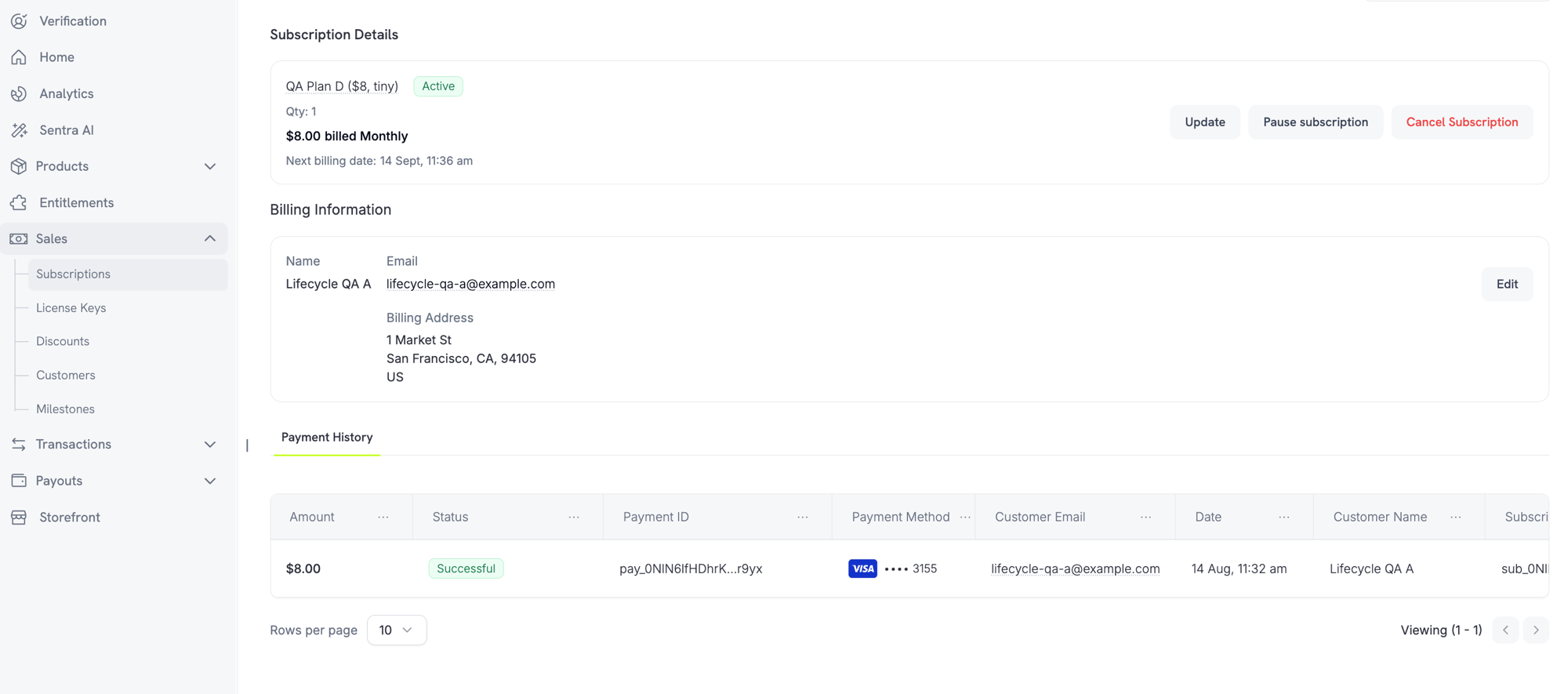
Merchantsは、dashboardのサブスクリプション詳細ページからサブスクリプションを直接一時停止・再開できるようになりました。business settingsで許可されている場合、CustomersはCustomer Portalから一時停止できます。
**Merchant向けの操作**
サブスクリプション詳細ページの**Pause subscription**または**Resume subscription**ボタンを使用して、サブスクリプションを一時停止または再開します。
 **Business settings**
**Settings → Subscriptions**に2つの新しい設定が表示されます。
* **Allow Subscription Pause** — 「Customer Portalからいつでもサブスクリプションを一時停止・再開できるようにする」
* **Bill Usage at Pause** — 「一時停止した時点で、usage-based subscriptionの未請求のusage分を請求する」
**Customer体験**
CustomerがCustomer Portalから一時停止すると、一時停止によってアクセスが直ちに取り消されることを知らせる警告が表示されます。サブスクリプションが再開されるまで、機能、ダウンロード、license keyは利用できなくなります。
詳しくは:[サブスクリプション](/features/subscription) | [Customer Portal](/features/customer-portal)
### 2. **Purchasing Power Parity**
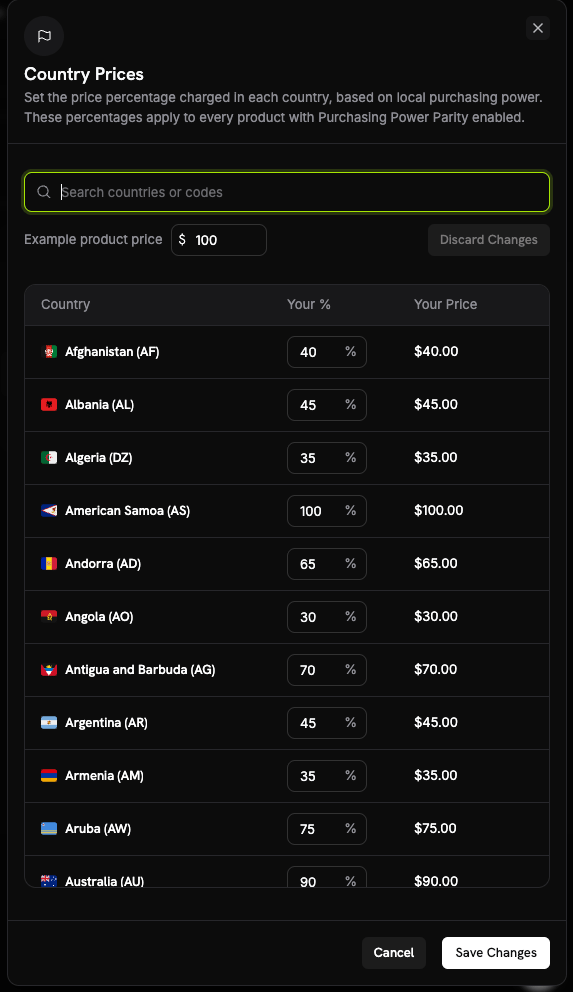
ネイティブPPPにより、サードパーティツールへの依存が不要になりました。**Business Settings**の**Country Prices**シートから、business全体に適用する国別の割合を設定できます。この割合は、PPPが有効になっているすべてのproductに適用されます。
**仕組み**
* 各productのpricingセクションにある**Purchasing Power Parity**チェックボックスから、productごとに個別にopt-inします。
* PPPを使用するにはAdaptive Currencyを有効にする必要があります。businessでAdaptive Currencyが無効になっている場合、productのopt-inは拒否されます。
**Business settings**
**Settings → Subscriptions**に2つの新しい設定が表示されます。
* **Allow Subscription Pause** — 「Customer Portalからいつでもサブスクリプションを一時停止・再開できるようにする」
* **Bill Usage at Pause** — 「一時停止した時点で、usage-based subscriptionの未請求のusage分を請求する」
**Customer体験**
CustomerがCustomer Portalから一時停止すると、一時停止によってアクセスが直ちに取り消されることを知らせる警告が表示されます。サブスクリプションが再開されるまで、機能、ダウンロード、license keyは利用できなくなります。
詳しくは:[サブスクリプション](/features/subscription) | [Customer Portal](/features/customer-portal)
### 2. **Purchasing Power Parity**
ネイティブPPPにより、サードパーティツールへの依存が不要になりました。**Business Settings**の**Country Prices**シートから、business全体に適用する国別の割合を設定できます。この割合は、PPPが有効になっているすべてのproductに適用されます。
**仕組み**
* 各productのpricingセクションにある**Purchasing Power Parity**チェックボックスから、productごとに個別にopt-inします。
* PPPを使用するにはAdaptive Currencyを有効にする必要があります。businessでAdaptive Currencyが無効になっている場合、productのopt-inは拒否されます。
 詳しくは:[Purchasing Power Parity](/features/purchasing-power-parity)
### 3. **Charm Pricing**
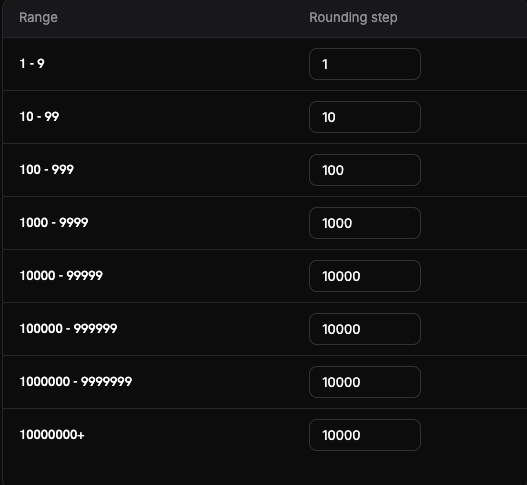
心理的に魅力的な値になるように換算後の価格を丸めます。設定はBusiness Settingsの**Set up Charm Pricing**シートから行います。丸め単位は価格帯ごとに設定するため、小額と高額の価格で異なる丸め方ができます。
**丸めの種類**
4種類の丸め方から選択できます(開始時にはNearestを推奨します)。
* **Nearest** — 最も近い単位に丸める
* **Floor** — 切り下げる
* **Ceiling** — 切り上げる
* **Whole** — 整数に丸める
保存する前に、**Try it**プレビューで指定した金額がどのように丸められるかを確認できます。
詳しくは:[Purchasing Power Parity](/features/purchasing-power-parity)
### 3. **Charm Pricing**
心理的に魅力的な値になるように換算後の価格を丸めます。設定はBusiness Settingsの**Set up Charm Pricing**シートから行います。丸め単位は価格帯ごとに設定するため、小額と高額の価格で異なる丸め方ができます。
**丸めの種類**
4種類の丸め方から選択できます(開始時にはNearestを推奨します)。
* **Nearest** — 最も近い単位に丸める
* **Floor** — 切り下げる
* **Ceiling** — 切り上げる
* **Whole** — 整数に丸める
保存する前に、**Try it**プレビューで指定した金額がどのように丸められるかを確認できます。
 詳しくは:[Charm Pricing](/features/charm-pricing)
### 4. **BusinessとBrandのアーカイブ**
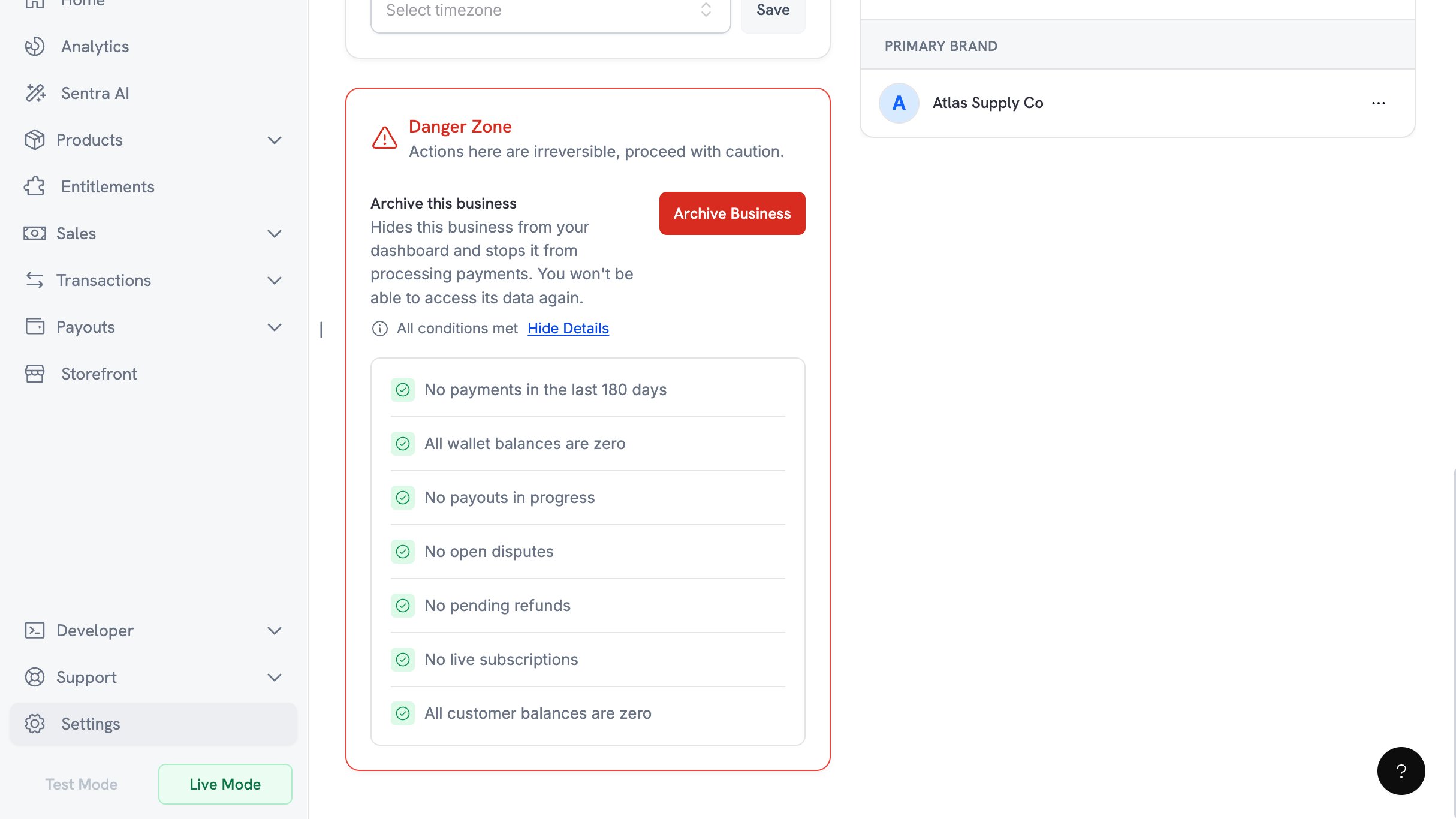
**Business Settings → Danger Zone → Archive Business**から、現在は取引していないbusinessをアーカイブできます。この操作はownerのみ実行でき、元に戻すことはできません。
**アーカイブの条件**
アーカイブを実行するには、7つの条件をすべて満たす必要があります。
* 過去180日間にpaymentがない
* すべてのwallet残高が0である
* 進行中のpayoutがない
* 未解決のdisputeがない
* 保留中のrefundがない
* 有効なsubscriptionがない
* すべてのcustomer残高が0である
詳しくは:[Charm Pricing](/features/charm-pricing)
### 4. **BusinessとBrandのアーカイブ**
**Business Settings → Danger Zone → Archive Business**から、現在は取引していないbusinessをアーカイブできます。この操作はownerのみ実行でき、元に戻すことはできません。
**アーカイブの条件**
アーカイブを実行するには、7つの条件をすべて満たす必要があります。
* 過去180日間にpaymentがない
* すべてのwallet残高が0である
* 進行中のpayoutがない
* 未解決のdisputeがない
* 保留中のrefundがない
* 有効なsubscriptionがない
* すべてのcustomer残高が0である
 **確認フロー**
確認にはownerにメールで送信される6桁のコードが必要です。試行できる回数は3回で、コードの有効期限は10分です。
Brandはbusinessとは別にアーカイブできます。
詳しくは:[Businessのアーカイブ](/features/archive-business)
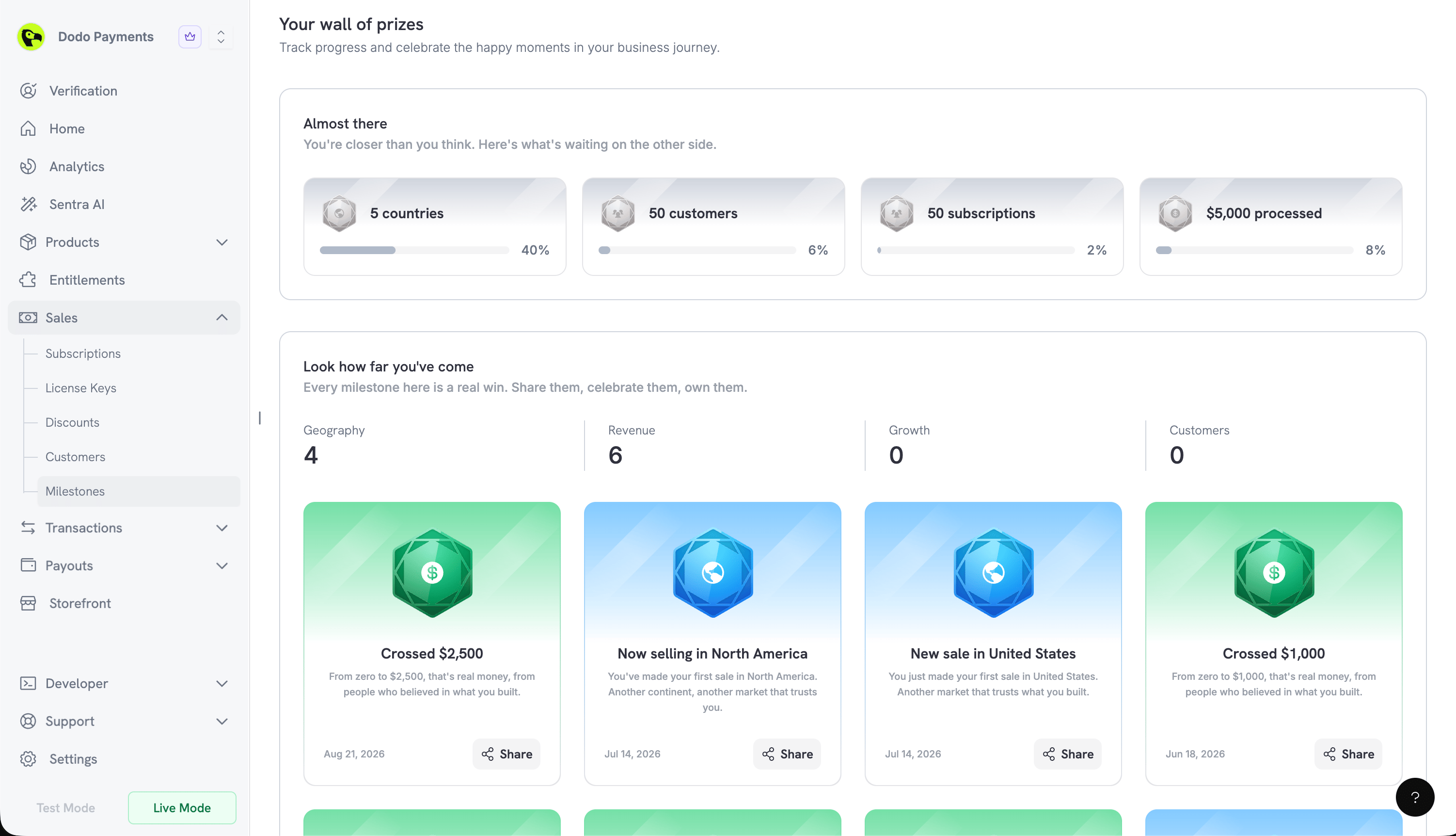
### 5. **Milestones**
新しい**Milestones**ページでbusinessの成長を確認できます。dashboardの**Sales → Milestones**にあります。進捗は**Geography**、**Revenue**、**Growth**、**Customers**の4カテゴリで追跡されます。
**進捗と達成カード**
* **Almost there**には、達成間近のMilestonesがそれぞれ達成率とともに表示されます
* **Look how far you've come**では、すでに達成したMilestonesを確認できます
達成したMilestonesから、共有可能なカードを作成できます。**Share**をクリックすると、**Include business & logo**トグルと、画像として保存するための**Download**ボタンを備えたプレビューが開きます。
**確認フロー**
確認にはownerにメールで送信される6桁のコードが必要です。試行できる回数は3回で、コードの有効期限は10分です。
Brandはbusinessとは別にアーカイブできます。
詳しくは:[Businessのアーカイブ](/features/archive-business)
### 5. **Milestones**
新しい**Milestones**ページでbusinessの成長を確認できます。dashboardの**Sales → Milestones**にあります。進捗は**Geography**、**Revenue**、**Growth**、**Customers**の4カテゴリで追跡されます。
**進捗と達成カード**
* **Almost there**には、達成間近のMilestonesがそれぞれ達成率とともに表示されます
* **Look how far you've come**では、すでに達成したMilestonesを確認できます
達成したMilestonesから、共有可能なカードを作成できます。**Share**をクリックすると、**Include business & logo**トグルと、画像として保存するための**Download**ボタンを備えたプレビューが開きます。
 ### 6. **ガイド付きセットアップ体験**
すべてのsignup経路が、1つのonboardingダイアログに集約されるようになりました。このダイアログは、後からdashboardヘッダーの**Setup guide**ボタンで開くこともできます。進捗は保存されるため、ガイドは前回終了した場所から再開されます。liveへの移行が完了すると、celebration画面が表示されます。
test modeで作成したproductは、Productsページの**Import from Test**を使用してliveにコピーできます。
### 6. **ガイド付きセットアップ体験**
すべてのsignup経路が、1つのonboardingダイアログに集約されるようになりました。このダイアログは、後からdashboardヘッダーの**Setup guide**ボタンで開くこともできます。進捗は保存されるため、ガイドは前回終了した場所から再開されます。liveへの移行が完了すると、celebration画面が表示されます。
test modeで作成したproductは、Productsページの**Import from Test**を使用してliveにコピーできます。