> ## Documentation Index
> Fetch the complete documentation index at: https://docs.dodopayments.com/llms.txt
> Use this file to discover all available pages before exploring further.
# Microsoft Teams
> Invia notifiche di Dodo Payments ai canali di Microsoft Teams con schede Adaptive ricche.
## Introduzione
Tieni il tuo team aziendale aggiornato con notifiche di pagamento in tempo reale in Microsoft Teams. L'integrazione fornisce eventi di pagamento come schede Adaptive ricche, perfette per ambienti aziendali in cui Teams è lo strumento principale di collaborazione.
Questa guida presuppone che tu abbia accesso amministrativo per creare webhook nel tuo workspace Microsoft Teams.
## Iniziare
Nel tuo cruscotto Dodo Payments, vai su Webhooks → + Aggiungi Endpoint e espandi il menu a discesa delle integrazioni.
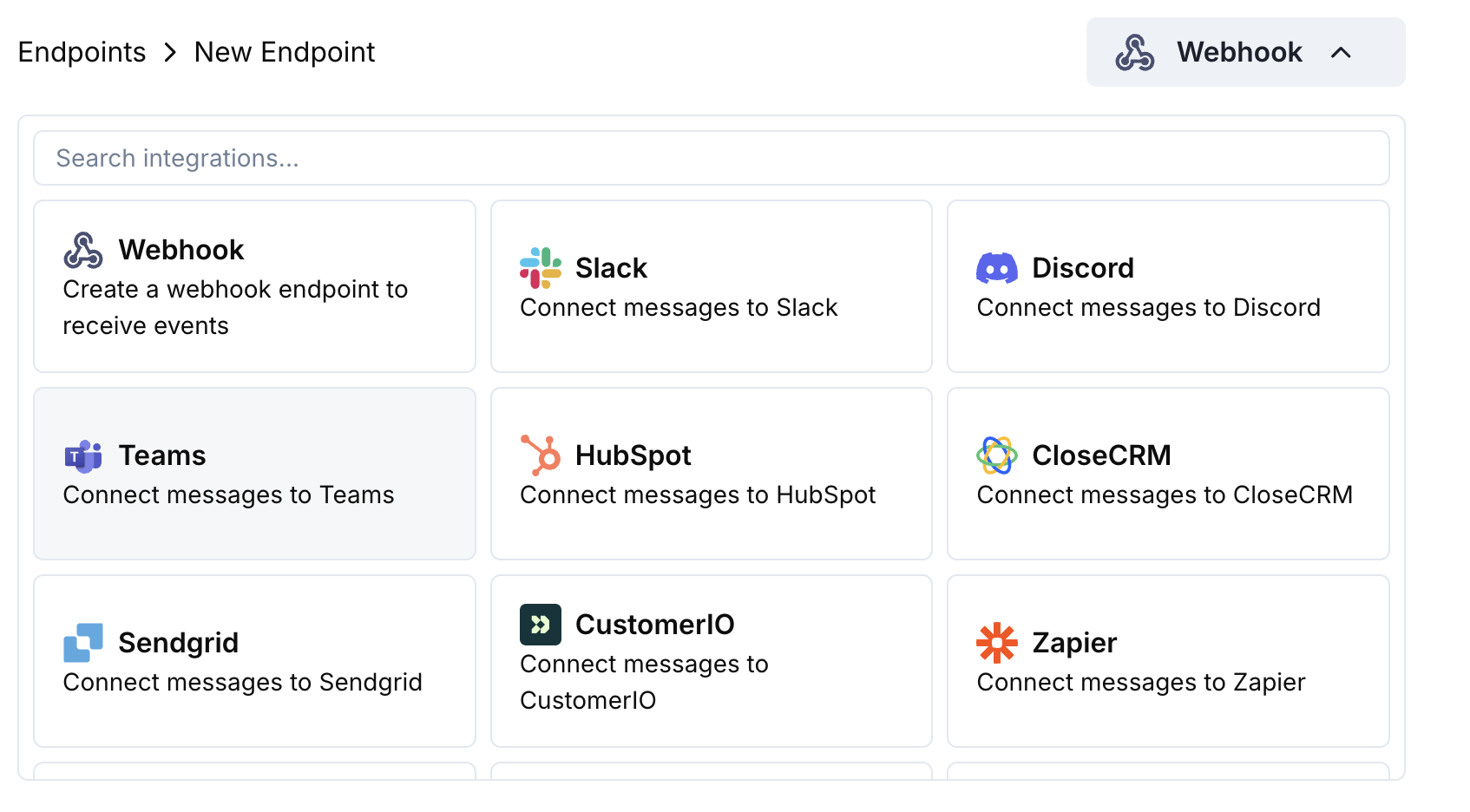 Seleziona la scheda di integrazione Microsoft Teams.
In Teams, vai al tuo canale → ⋯ → Connettori → Webhook in arrivo → Configura. Copia l'URL del webhook.
Incolla l'URL del webhook di Teams nella configurazione dell’endpoint.
Modifica il codice di trasformazione per formattare i messaggi come Adaptive Card per Teams.
Esegui test con payload di esempio e clicca su Crea per attivare.
🎉 Il tuo canale Teams riceverà ora aggiornamenti di Dodo Payments come Adaptive Card.
## Esempi di Codice di Trasformazione
### Scheda di Pagamento di Base
```javascript payment_card.js icon="js" expandable theme={null}
function handler(webhook) {
if (webhook.eventType === "payment.succeeded") {
const p = webhook.payload.data;
webhook.payload = {
type: "message",
attachments: [{
contentType: "application/vnd.microsoft.card.adaptive",
content: {
type: "AdaptiveCard",
body: [
{
type: "TextBlock",
text: "✅ Payment Successful",
weight: "Bolder",
size: "Medium"
},
{
type: "FactSet",
facts: [
{ title: "Amount", value: `$${(p.total_amount / 100).toFixed(2)}` },
{ title: "Customer", value: p.customer.email },
{ title: "Payment ID", value: p.payment_id }
]
}
]
}
}]
};
}
return webhook;
}
```
### Gestione degli Abbonamenti
```javascript subscription_card.js icon="js" expandable theme={null}
function handler(webhook) {
const s = webhook.payload.data;
switch (webhook.eventType) {
case "subscription.active":
webhook.payload = {
type: "message",
attachments: [{
contentType: "application/vnd.microsoft.card.adaptive",
content: {
type: "AdaptiveCard",
body: [
{
type: "TextBlock",
text: "📄 Subscription Activated",
weight: "Bolder",
color: "Good"
},
{
type: "FactSet",
facts: [
{ title: "Customer", value: s.customer.email },
{ title: "Product", value: s.product_id },
{ title: "Amount", value: `$${(s.recurring_pre_tax_amount / 100).toFixed(2)}/${s.payment_frequency_interval}` },
{ title: "Next Billing", value: new Date(s.next_billing_date).toLocaleDateString() }
]
}
]
}
}]
};
break;
case "subscription.cancelled":
webhook.payload = {
type: "message",
attachments: [{
contentType: "application/vnd.microsoft.card.adaptive",
content: {
type: "AdaptiveCard",
body: [
{
type: "TextBlock",
text: "⚠️ Subscription Cancelled",
weight: "Bolder",
color: "Warning"
},
{
type: "FactSet",
facts: [
{ title: "Customer", value: s.customer.email },
{ title: "Product", value: s.product_id },
{ title: "Cancelled At", value: new Date(s.cancelled_at).toLocaleDateString() }
]
}
]
}
}]
};
break;
}
return webhook;
}
```
### Avvisi di Controversia
```javascript dispute_card.js icon="js" expandable theme={null}
function handler(webhook) {
if (webhook.eventType.startsWith("dispute.")) {
const d = webhook.payload.data;
const color = d.dispute_status === "won" ? "Good" : d.dispute_status === "lost" ? "Attention" : "Warning";
const title = d.dispute_status === "won" ? "🏆 Dispute Won" : d.dispute_status === "lost" ? "❌ Dispute Lost" : "🚨 Dispute Update";
webhook.payload = {
type: "message",
attachments: [{
contentType: "application/vnd.microsoft.card.adaptive",
content: {
type: "AdaptiveCard",
body: [
{
type: "TextBlock",
text: title,
weight: "Bolder",
color: color
},
{
type: "FactSet",
facts: [
{ title: "Payment ID", value: d.payment_id },
{ title: "Amount", value: `$${(d.amount / 100).toFixed(2)}` },
{ title: "Status", value: d.dispute_status },
{ title: "Stage", value: d.dispute_stage }
]
}
]
}
}]
};
}
return webhook;
}
```
## Suggerimenti
* Usa schede Adaptive per una formattazione ricca e interattiva
* Scegli colori appropriati: Buono (verde), Avviso (giallo), Attenzione (rosso)
* Mantieni i set di fatti concisi e leggibili
* Testa con il tester del webhook di Teams prima di distribuire
## Risoluzione dei Problemi
* Verifica che l'URL del webhook sia corretto e attivo
* Controlla che la trasformazione restituisca JSON valido per Adaptive Card
* Assicurati che il webhook abbia l'autorizzazione per inviare messaggi nel canale
* Valida lo schema Adaptive Card nel tester webhook di Teams
* Controlla che tutti i campi obbligatori siano presenti
* Assicurati che i valori colore siano validi (Good, Warning, Attention, Default)
Seleziona la scheda di integrazione Microsoft Teams.
In Teams, vai al tuo canale → ⋯ → Connettori → Webhook in arrivo → Configura. Copia l'URL del webhook.
Incolla l'URL del webhook di Teams nella configurazione dell’endpoint.
Modifica il codice di trasformazione per formattare i messaggi come Adaptive Card per Teams.
Esegui test con payload di esempio e clicca su Crea per attivare.
🎉 Il tuo canale Teams riceverà ora aggiornamenti di Dodo Payments come Adaptive Card.
## Esempi di Codice di Trasformazione
### Scheda di Pagamento di Base
```javascript payment_card.js icon="js" expandable theme={null}
function handler(webhook) {
if (webhook.eventType === "payment.succeeded") {
const p = webhook.payload.data;
webhook.payload = {
type: "message",
attachments: [{
contentType: "application/vnd.microsoft.card.adaptive",
content: {
type: "AdaptiveCard",
body: [
{
type: "TextBlock",
text: "✅ Payment Successful",
weight: "Bolder",
size: "Medium"
},
{
type: "FactSet",
facts: [
{ title: "Amount", value: `$${(p.total_amount / 100).toFixed(2)}` },
{ title: "Customer", value: p.customer.email },
{ title: "Payment ID", value: p.payment_id }
]
}
]
}
}]
};
}
return webhook;
}
```
### Gestione degli Abbonamenti
```javascript subscription_card.js icon="js" expandable theme={null}
function handler(webhook) {
const s = webhook.payload.data;
switch (webhook.eventType) {
case "subscription.active":
webhook.payload = {
type: "message",
attachments: [{
contentType: "application/vnd.microsoft.card.adaptive",
content: {
type: "AdaptiveCard",
body: [
{
type: "TextBlock",
text: "📄 Subscription Activated",
weight: "Bolder",
color: "Good"
},
{
type: "FactSet",
facts: [
{ title: "Customer", value: s.customer.email },
{ title: "Product", value: s.product_id },
{ title: "Amount", value: `$${(s.recurring_pre_tax_amount / 100).toFixed(2)}/${s.payment_frequency_interval}` },
{ title: "Next Billing", value: new Date(s.next_billing_date).toLocaleDateString() }
]
}
]
}
}]
};
break;
case "subscription.cancelled":
webhook.payload = {
type: "message",
attachments: [{
contentType: "application/vnd.microsoft.card.adaptive",
content: {
type: "AdaptiveCard",
body: [
{
type: "TextBlock",
text: "⚠️ Subscription Cancelled",
weight: "Bolder",
color: "Warning"
},
{
type: "FactSet",
facts: [
{ title: "Customer", value: s.customer.email },
{ title: "Product", value: s.product_id },
{ title: "Cancelled At", value: new Date(s.cancelled_at).toLocaleDateString() }
]
}
]
}
}]
};
break;
}
return webhook;
}
```
### Avvisi di Controversia
```javascript dispute_card.js icon="js" expandable theme={null}
function handler(webhook) {
if (webhook.eventType.startsWith("dispute.")) {
const d = webhook.payload.data;
const color = d.dispute_status === "won" ? "Good" : d.dispute_status === "lost" ? "Attention" : "Warning";
const title = d.dispute_status === "won" ? "🏆 Dispute Won" : d.dispute_status === "lost" ? "❌ Dispute Lost" : "🚨 Dispute Update";
webhook.payload = {
type: "message",
attachments: [{
contentType: "application/vnd.microsoft.card.adaptive",
content: {
type: "AdaptiveCard",
body: [
{
type: "TextBlock",
text: title,
weight: "Bolder",
color: color
},
{
type: "FactSet",
facts: [
{ title: "Payment ID", value: d.payment_id },
{ title: "Amount", value: `$${(d.amount / 100).toFixed(2)}` },
{ title: "Status", value: d.dispute_status },
{ title: "Stage", value: d.dispute_stage }
]
}
]
}
}]
};
}
return webhook;
}
```
## Suggerimenti
* Usa schede Adaptive per una formattazione ricca e interattiva
* Scegli colori appropriati: Buono (verde), Avviso (giallo), Attenzione (rosso)
* Mantieni i set di fatti concisi e leggibili
* Testa con il tester del webhook di Teams prima di distribuire
## Risoluzione dei Problemi
* Verifica che l'URL del webhook sia corretto e attivo
* Controlla che la trasformazione restituisca JSON valido per Adaptive Card
* Assicurati che il webhook abbia l'autorizzazione per inviare messaggi nel canale
* Valida lo schema Adaptive Card nel tester webhook di Teams
* Controlla che tutti i campi obbligatori siano presenti
* Assicurati che i valori colore siano validi (Good, Warning, Attention, Default)