> ## Documentation Index
> Fetch the complete documentation index at: https://docs.dodopayments.com/llms.txt
> Use this file to discover all available pages before exploring further.
# Zapier
> Connect Dodo Payments to 5000+ apps through Zapier webhooks for unlimited automation possibilities.
## Introduction
Connect Dodo Payments to thousands of apps and services through Zapier. Automate workflows by triggering Zaps when payment events occur, from sending emails to updating spreadsheets, creating tasks, and much more.
This integration requires a Zapier webhook URL from your Zap configuration.
## Getting Started
In your Dodo Payments dashboard, navigate to Webhooks → + Add Endpoint and expand the integrations dropdown.
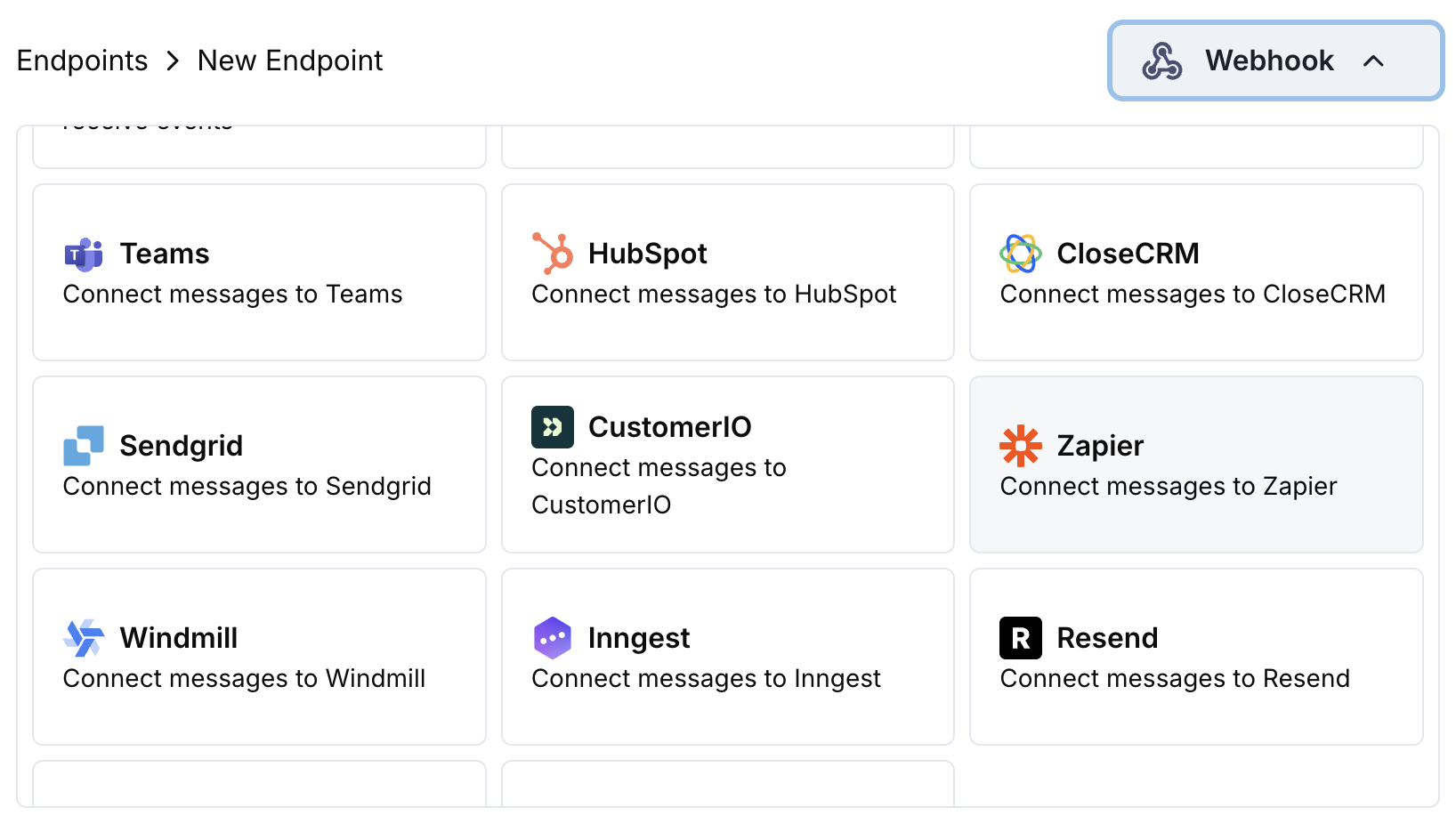 Choose the Zapier integration card.
In Zapier, create a new Zap with "Webhooks by Zapier" as the trigger. Copy the webhook URL.
Paste the Zapier webhook URL into the endpoint configuration.
Edit the transformation code to format data for your Zapier workflow.
Test with sample payloads and click Create to activate the integration.
🎉 Payment events will now trigger your Zapier workflows automatically.
## Transformation Code Examples
### Basic Webhook Payload
```javascript basic_webhook.js icon="js" expandable theme={null}
function handler(webhook) {
if (webhook.eventType === "payment.succeeded") {
const p = webhook.payload.data;
webhook.payload = {
event_type: webhook.eventType,
payment_id: p.payment_id,
amount: (p.total_amount / 100).toFixed(2),
currency: p.currency || "USD",
customer_email: p.customer.email,
customer_name: p.customer.name,
payment_method: p.payment_method || "unknown",
timestamp: webhook.payload.timestamp
};
}
return webhook;
}
```
### Subscription Event Handler
```javascript subscription_webhook.js icon="js" expandable theme={null}
function handler(webhook) {
const s = webhook.payload.data;
switch (webhook.eventType) {
case "subscription.active":
webhook.payload = {
event_type: "subscription_started",
subscription_id: s.subscription_id,
customer_email: s.customer.email,
customer_name: s.customer.name,
product_id: s.product_id,
amount: (s.recurring_pre_tax_amount / 100).toFixed(2),
frequency: s.payment_frequency_interval,
next_billing: s.next_billing_date,
timestamp: webhook.payload.timestamp
};
break;
case "subscription.cancelled":
webhook.payload = {
event_type: "subscription_cancelled",
subscription_id: s.subscription_id,
customer_email: s.customer.email,
cancelled_at: s.cancelled_at,
cancel_at_next_billing: s.cancel_at_next_billing_date,
timestamp: webhook.payload.timestamp
};
break;
}
return webhook;
}
```
### Dispute Alert Handler
```javascript dispute_webhook.js icon="js" expandable theme={null}
function handler(webhook) {
if (webhook.eventType.startsWith("dispute.")) {
const d = webhook.payload.data;
webhook.payload = {
event_type: webhook.eventType,
dispute_id: d.dispute_id,
payment_id: d.payment_id,
amount: (d.amount / 100).toFixed(2),
status: d.dispute_status,
stage: d.dispute_stage,
remarks: d.remarks || "",
urgent: webhook.eventType === "dispute.opened",
timestamp: webhook.payload.timestamp
};
}
return webhook;
}
```
## Popular Zapier Use Cases
* Send Gmail/Outlook emails for payment confirmations
* Create email sequences in Mailchimp/ConvertKit
* Send Slack/Discord notifications
* Create Google Sheets records
* Add contacts to HubSpot/Salesforce
* Create deals in Pipedrive/Close
* Update customer records in Airtable
* Log activities in Monday.com
* Create tasks in Asana/Trello
* Add to-do items in Notion
* Create calendar events
* Send SMS notifications via Twilio
## Tips
* Keep payload structure simple for easy Zapier parsing
* Use consistent field names across all events
* Include timestamps for workflow timing
* Test your Zap with sample data before going live
* Use Zapier's built-in filters for conditional logic
## Troubleshooting
* Verify webhook URL is correct and active
* Check that Zap is turned on in Zapier
* Ensure payload structure matches Zapier expectations
* Test webhook delivery in Zapier dashboard
* Check field names in Zapier action steps
* Verify data types match expected formats
* Use Zapier's test feature to debug mapping
* Ensure transformation code returns valid JSON
Choose the Zapier integration card.
In Zapier, create a new Zap with "Webhooks by Zapier" as the trigger. Copy the webhook URL.
Paste the Zapier webhook URL into the endpoint configuration.
Edit the transformation code to format data for your Zapier workflow.
Test with sample payloads and click Create to activate the integration.
🎉 Payment events will now trigger your Zapier workflows automatically.
## Transformation Code Examples
### Basic Webhook Payload
```javascript basic_webhook.js icon="js" expandable theme={null}
function handler(webhook) {
if (webhook.eventType === "payment.succeeded") {
const p = webhook.payload.data;
webhook.payload = {
event_type: webhook.eventType,
payment_id: p.payment_id,
amount: (p.total_amount / 100).toFixed(2),
currency: p.currency || "USD",
customer_email: p.customer.email,
customer_name: p.customer.name,
payment_method: p.payment_method || "unknown",
timestamp: webhook.payload.timestamp
};
}
return webhook;
}
```
### Subscription Event Handler
```javascript subscription_webhook.js icon="js" expandable theme={null}
function handler(webhook) {
const s = webhook.payload.data;
switch (webhook.eventType) {
case "subscription.active":
webhook.payload = {
event_type: "subscription_started",
subscription_id: s.subscription_id,
customer_email: s.customer.email,
customer_name: s.customer.name,
product_id: s.product_id,
amount: (s.recurring_pre_tax_amount / 100).toFixed(2),
frequency: s.payment_frequency_interval,
next_billing: s.next_billing_date,
timestamp: webhook.payload.timestamp
};
break;
case "subscription.cancelled":
webhook.payload = {
event_type: "subscription_cancelled",
subscription_id: s.subscription_id,
customer_email: s.customer.email,
cancelled_at: s.cancelled_at,
cancel_at_next_billing: s.cancel_at_next_billing_date,
timestamp: webhook.payload.timestamp
};
break;
}
return webhook;
}
```
### Dispute Alert Handler
```javascript dispute_webhook.js icon="js" expandable theme={null}
function handler(webhook) {
if (webhook.eventType.startsWith("dispute.")) {
const d = webhook.payload.data;
webhook.payload = {
event_type: webhook.eventType,
dispute_id: d.dispute_id,
payment_id: d.payment_id,
amount: (d.amount / 100).toFixed(2),
status: d.dispute_status,
stage: d.dispute_stage,
remarks: d.remarks || "",
urgent: webhook.eventType === "dispute.opened",
timestamp: webhook.payload.timestamp
};
}
return webhook;
}
```
## Popular Zapier Use Cases
* Send Gmail/Outlook emails for payment confirmations
* Create email sequences in Mailchimp/ConvertKit
* Send Slack/Discord notifications
* Create Google Sheets records
* Add contacts to HubSpot/Salesforce
* Create deals in Pipedrive/Close
* Update customer records in Airtable
* Log activities in Monday.com
* Create tasks in Asana/Trello
* Add to-do items in Notion
* Create calendar events
* Send SMS notifications via Twilio
## Tips
* Keep payload structure simple for easy Zapier parsing
* Use consistent field names across all events
* Include timestamps for workflow timing
* Test your Zap with sample data before going live
* Use Zapier's built-in filters for conditional logic
## Troubleshooting
* Verify webhook URL is correct and active
* Check that Zap is turned on in Zapier
* Ensure payload structure matches Zapier expectations
* Test webhook delivery in Zapier dashboard
* Check field names in Zapier action steps
* Verify data types match expected formats
* Use Zapier's test feature to debug mapping
* Ensure transformation code returns valid JSON