> ## Documentation Index
> Fetch the complete documentation index at: https://docs.dodopayments.com/llms.txt
> Use this file to discover all available pages before exploring further.
# Raycast Extension
> Install the Raycast extension to browse and manage Dodo Payments resources from your keyboard.
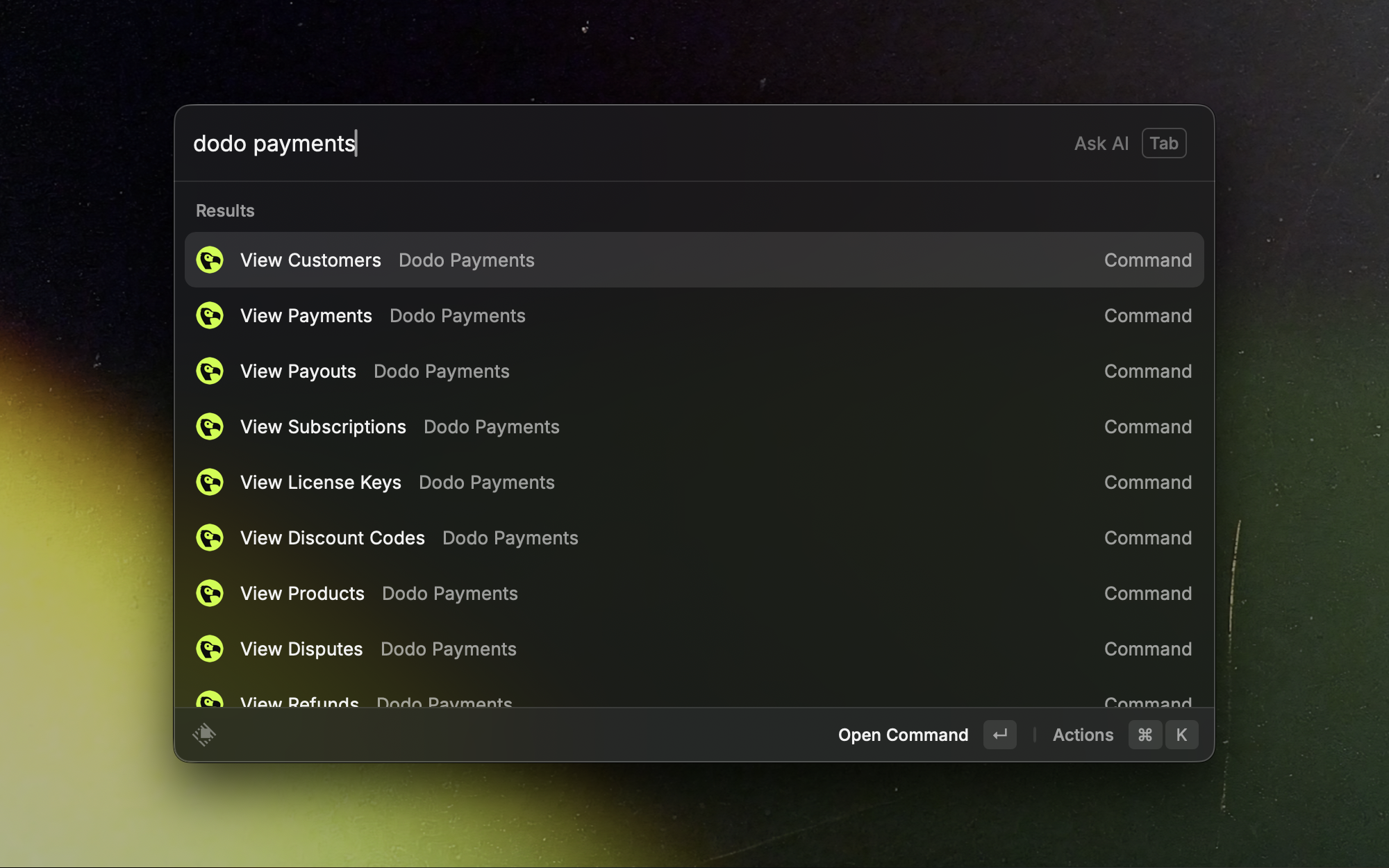 Your Dodo Payments dashboard, a few keystrokes away. Use Raycast to quickly view payments, subscriptions, customers, products, discount codes, license keys, and refunds without opening the dashboard.
## Install
Open the Dodo Payments extension page in the Raycast Store.
Requires Raycast on macOS and a Dodo Payments API key.
## Setup
1. Log in to your Dodo Payments dashboard.
2. Go to Developer › API Keys.
3. Copy your API key.
1. Open Raycast.
2. Search for "Dodo Payments" and select any command.
3. When prompted, enter your API key in the API Key field.
4. Choose the API mode:
* Test: use for development and testing.
* Live: use for production data.
5. Save the settings.
Start in Test mode to validate your setup, then switch to Live.
Treat your API key like a password. Do not share it or store it in plaintext.
## Use the extension
* **Search**: open Raycast, type "Dodo Payments", and pick a command.
* **Filter**: narrow results by typing parts of IDs, emails, names, or statuses.
* **Open details**: press Enter on a list item to view more information.
## Commands and views
### Payments
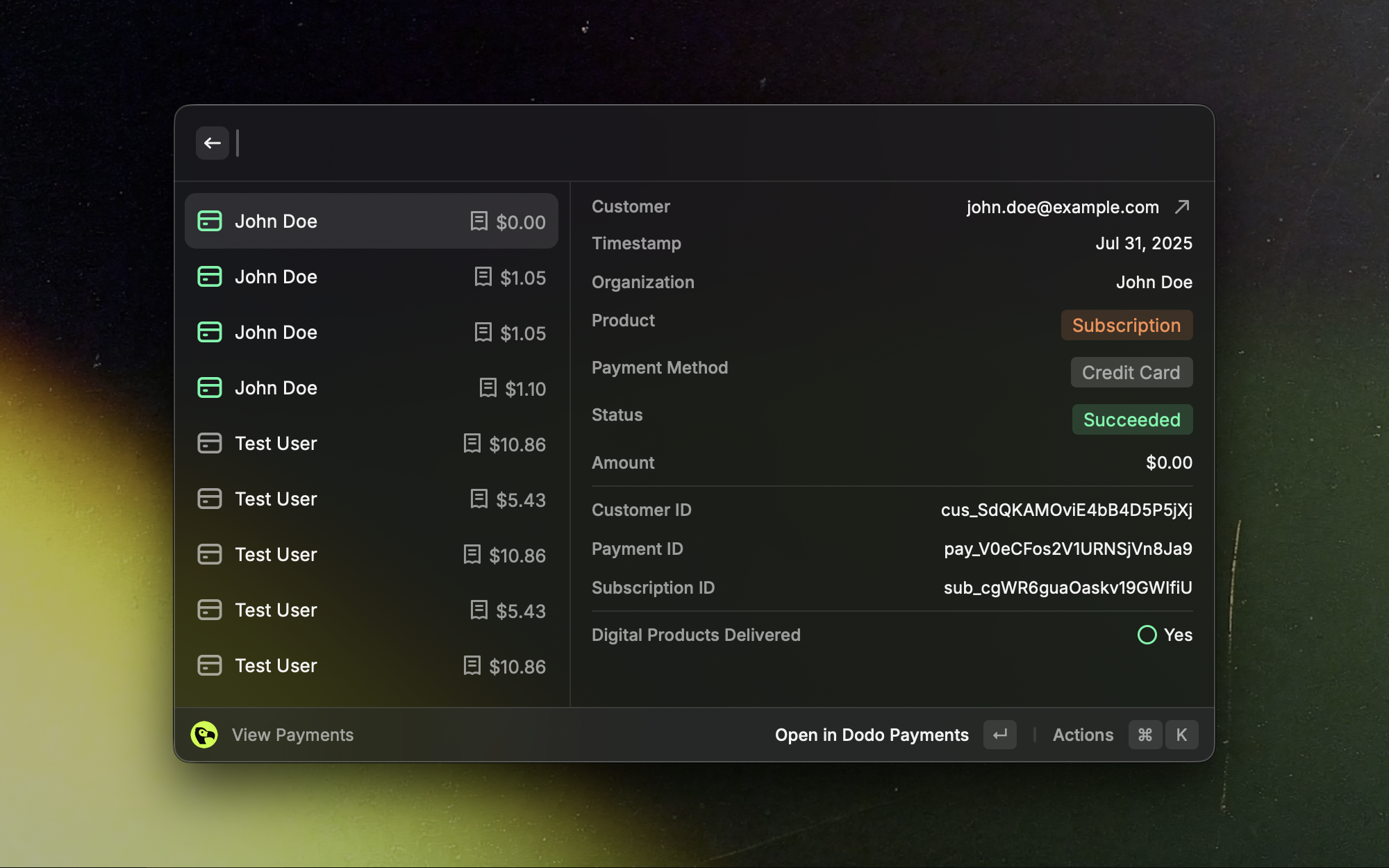
Browse recent payments and jump into detailed views in seconds.
Your Dodo Payments dashboard, a few keystrokes away. Use Raycast to quickly view payments, subscriptions, customers, products, discount codes, license keys, and refunds without opening the dashboard.
## Install
Open the Dodo Payments extension page in the Raycast Store.
Requires Raycast on macOS and a Dodo Payments API key.
## Setup
1. Log in to your Dodo Payments dashboard.
2. Go to Developer › API Keys.
3. Copy your API key.
1. Open Raycast.
2. Search for "Dodo Payments" and select any command.
3. When prompted, enter your API key in the API Key field.
4. Choose the API mode:
* Test: use for development and testing.
* Live: use for production data.
5. Save the settings.
Start in Test mode to validate your setup, then switch to Live.
Treat your API key like a password. Do not share it or store it in plaintext.
## Use the extension
* **Search**: open Raycast, type "Dodo Payments", and pick a command.
* **Filter**: narrow results by typing parts of IDs, emails, names, or statuses.
* **Open details**: press Enter on a list item to view more information.
## Commands and views
### Payments
Browse recent payments and jump into detailed views in seconds.
 ### Subscriptions
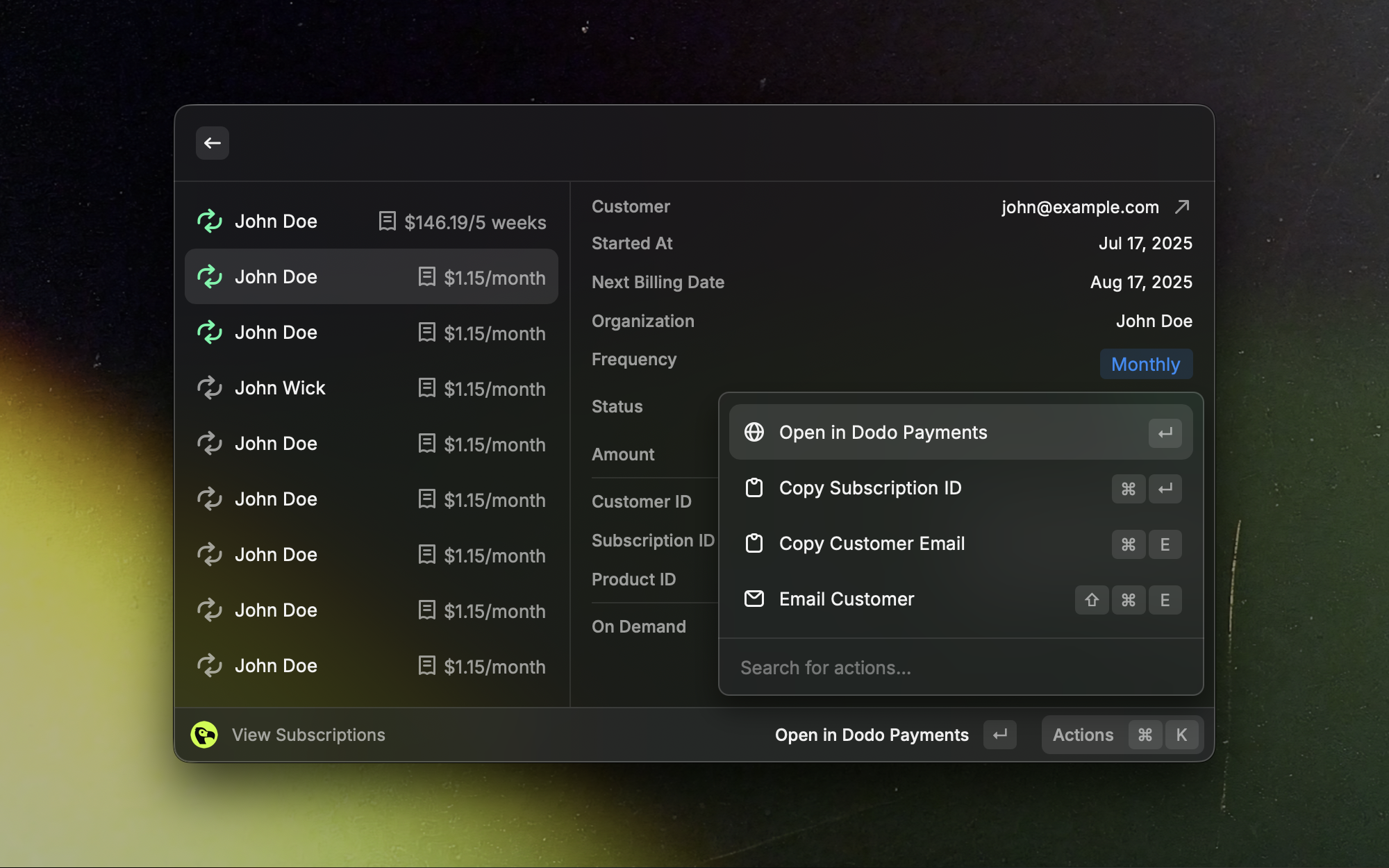
Quickly scan active, trialing, and canceled subscriptions.
### Subscriptions
Quickly scan active, trialing, and canceled subscriptions.
 ### Customers
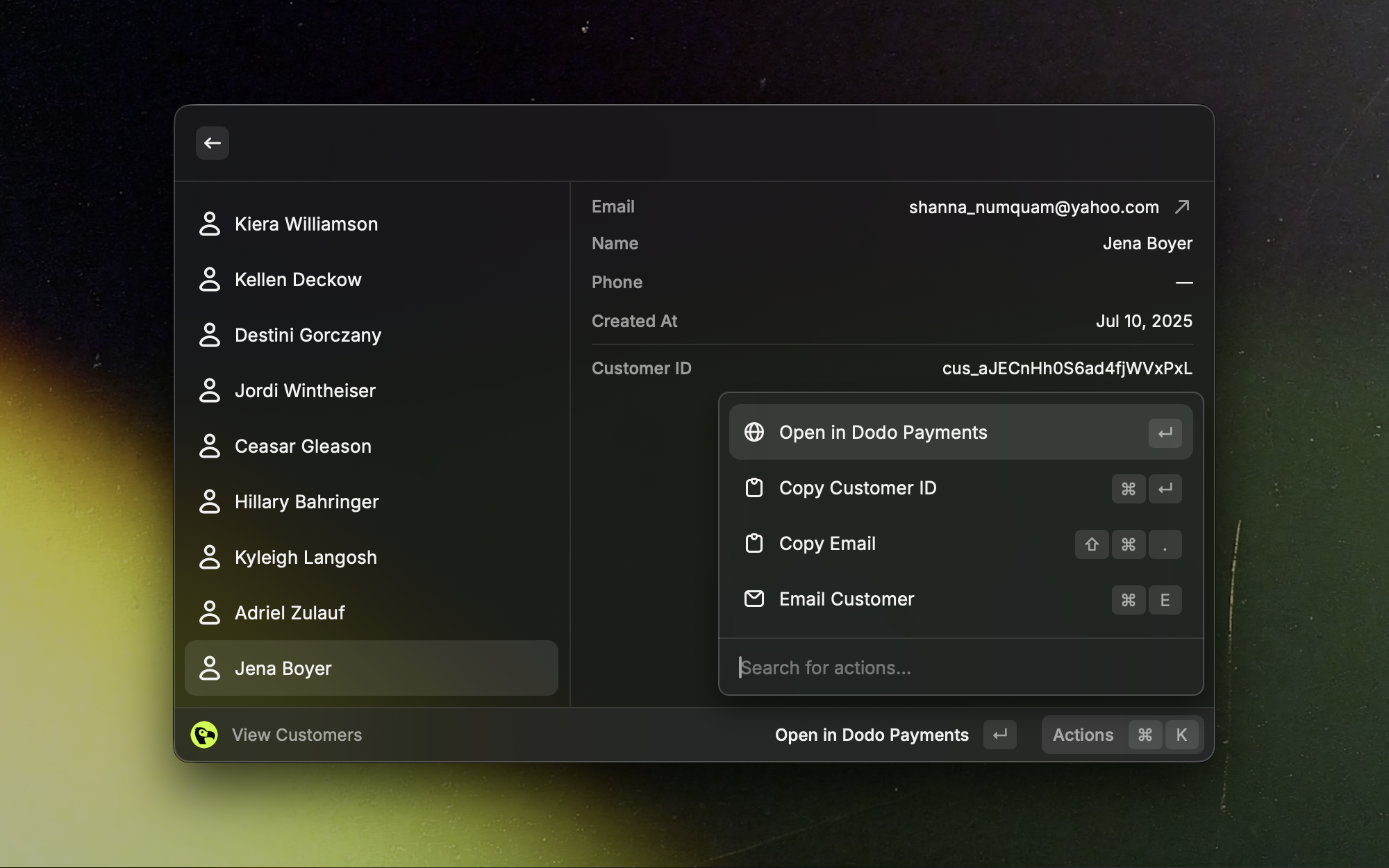
Find customers fast and open full profiles.
### Customers
Find customers fast and open full profiles.
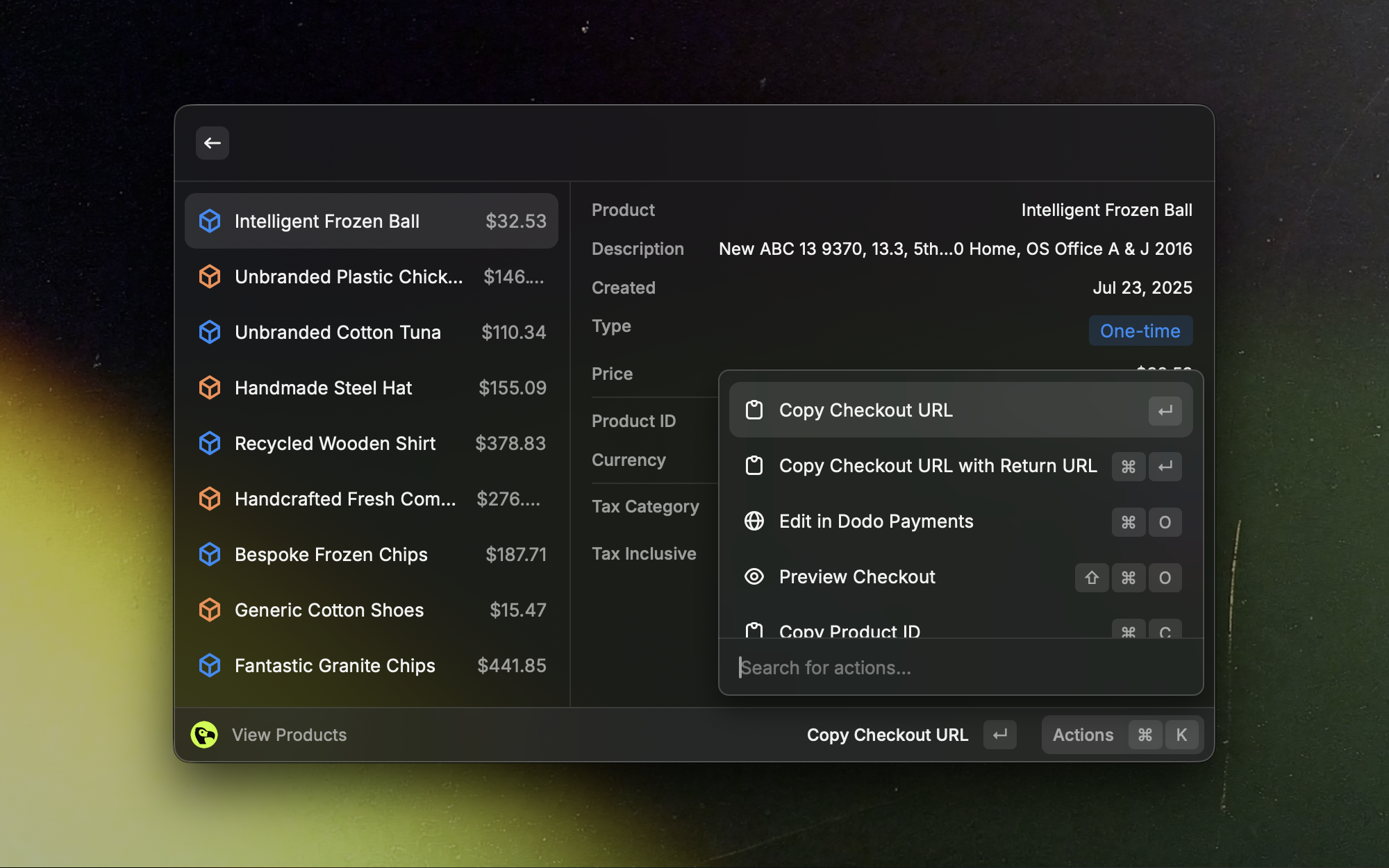
 ### Products
Review and manage your product catalog at a glance.
### Products
Review and manage your product catalog at a glance.
 ### Discount Codes
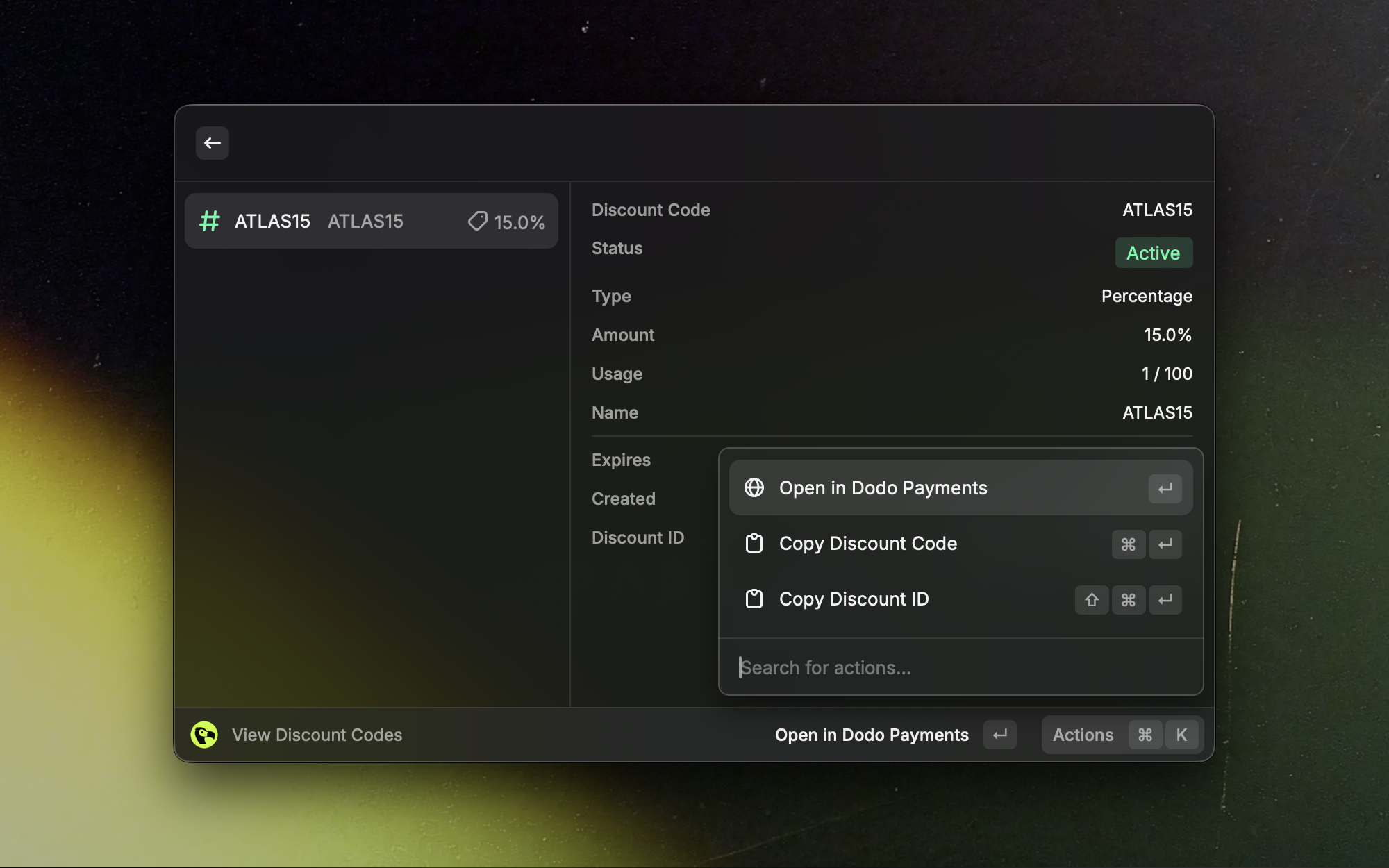
Search and reference active discount codes quickly.
### Discount Codes
Search and reference active discount codes quickly.
 ### License Keys
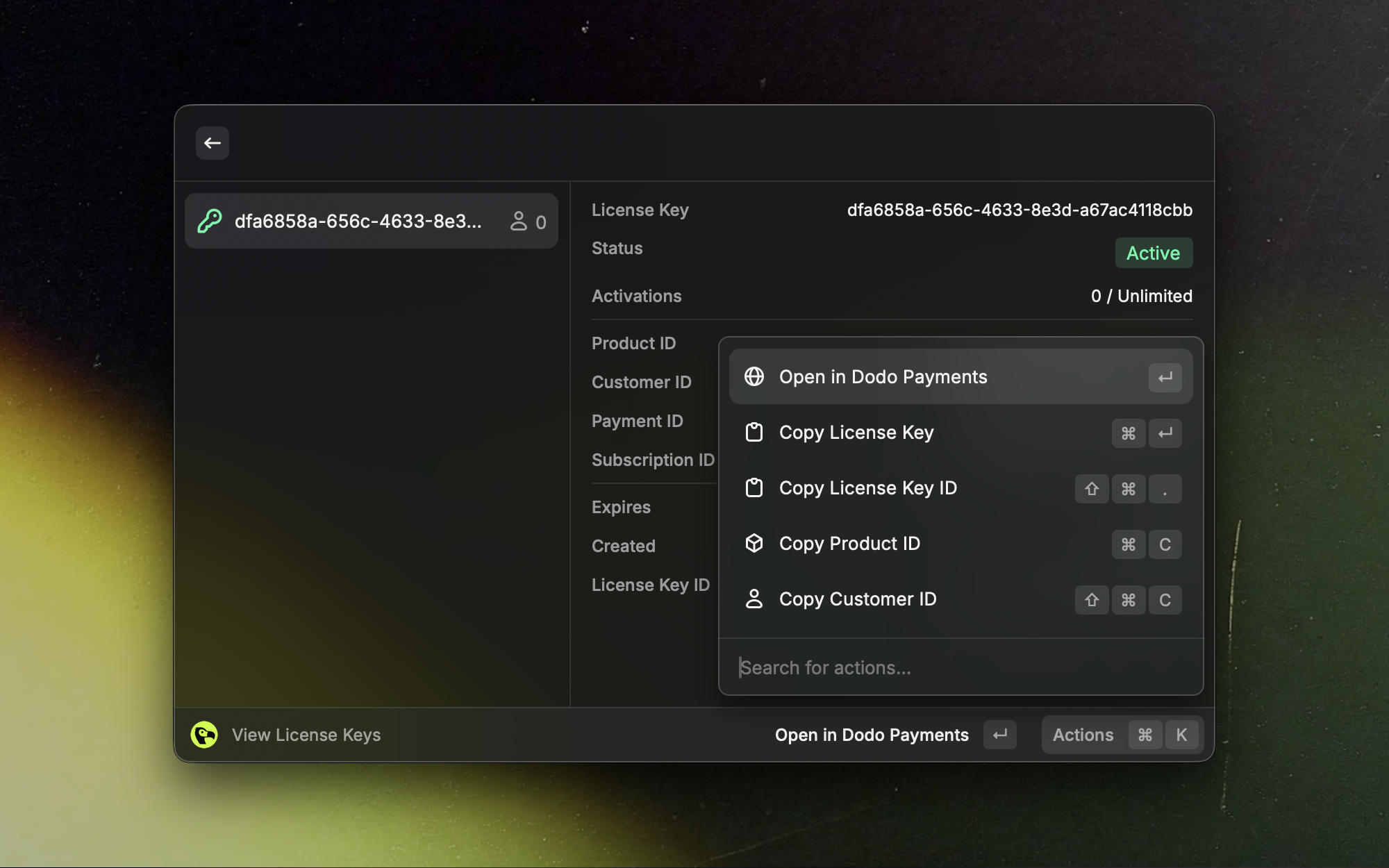
Look up and manage license keys without leaving Raycast.
### License Keys
Look up and manage license keys without leaving Raycast.
 ### Refunds
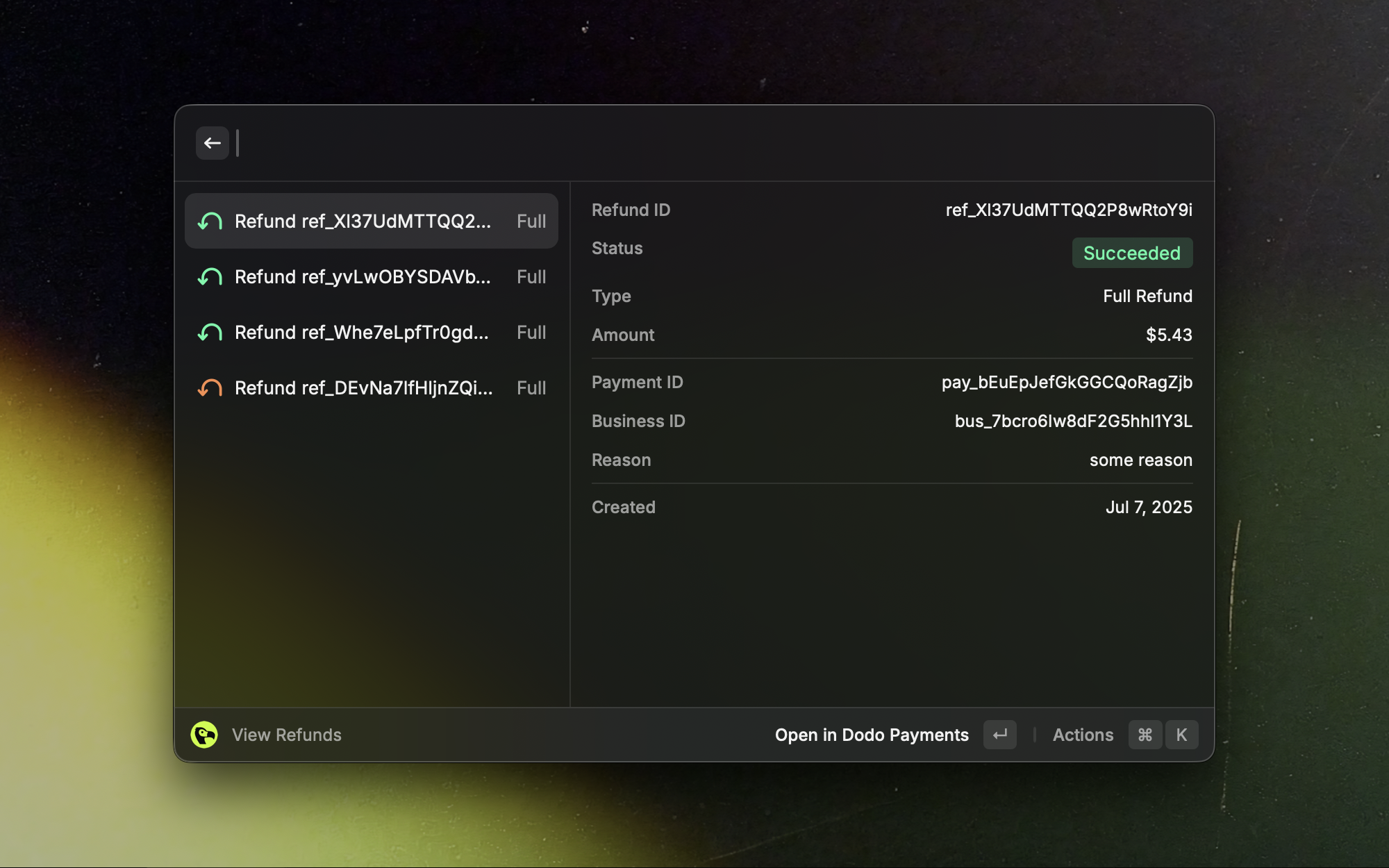
See recent refunds and drill into their details.
### Refunds
See recent refunds and drill into their details.
 Additional live-only views: disputes and payouts.
## Troubleshooting
Confirm the API key and mode (Test vs Live) match your dashboard data. Reopen the command and re-enter the key if needed.
Ensure your selected mode has data. Try switching between Test and Live.
Wait a moment and try again. If the issue persists, check your network connectivity.
Get assistance from the Dodo Payments team.
Additional live-only views: disputes and payouts.
## Troubleshooting
Confirm the API key and mode (Test vs Live) match your dashboard data. Reopen the command and re-enter the key if needed.
Ensure your selected mode has data. Try switching between Test and Live.
Wait a moment and try again. If the issue persists, check your network connectivity.
Get assistance from the Dodo Payments team.