> ## Documentation Index
> Fetch the complete documentation index at: https://docs.dodopayments.com/llms.txt
> Use this file to discover all available pages before exploring further.
# ParityDeals
> Show location-based discount banners on your website and auto-generate matching discount codes in Dodo Payments with ParityDeals.
## Introduction
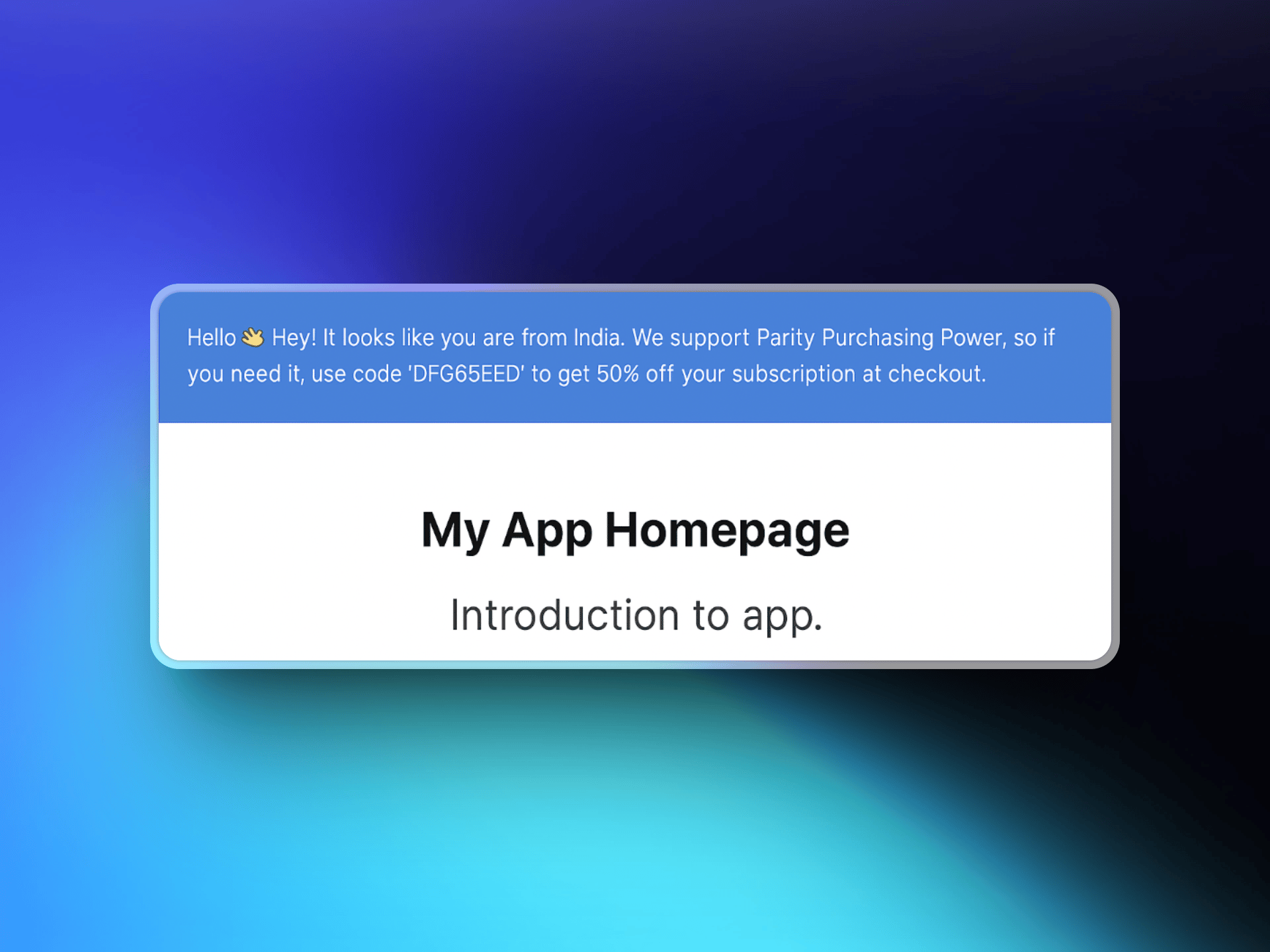
[ParityDeals](https://www.paritydeals.com/) is a platform that displays location-based discount banners to eligible visitors on your website and automatically generates the matching discount codes in Dodo Payments. When a visitor sees the banner, they get a code they can use at checkout. Those codes appear in your Dodo Payments dashboard under **Sales → Discounts**.
Dodo Payments has native [Purchasing Power Parity](/features/purchasing-power-parity), which reduces prices by country at checkout with no banner and no script. ParityDeals is for merchants who want a visible discount banner on their own site, or who want to run holiday and time-based deals.
## How It Works
ParityDeals detects a visitor's location, shows them a customizable discount banner on your website, and generates a discount code they can apply at checkout. The code is created automatically in your Dodo Payments account and works on the products you configure.
1. A visitor lands on your website and ParityDeals detects their location.
2. If the visitor is eligible for a discount, a banner appears with a location-based code.
3. The visitor uses that code at checkout, and Dodo Payments applies the discount.
4. The code appears in your dashboard under **Sales → Discounts**.
 ## ParityDeals vs Native PPP
Native Purchasing Power Parity is the recommended way to price by country. Choose ParityDeals when you specifically need a discount banner on your own site, or holiday and time-based campaigns.
| | Native PPP | ParityDeals |
| :---------------------------- | :-------------------------------------------- | :--------------------------------------- |
| How it works | A percentage per country, applied at checkout | A percentage off, applied through a code |
| Where it is configured | Built into Dodo Payments | ParityDeals dashboard |
| Banner or script on your site | Not required | Required |
| Holiday and time-based deals | No | Yes |
| Best for | Correct prices, with no site changes | Promotional banners and seasonal deals |
You cannot embed the ParityDeals banner on a Dodo Payments-hosted checkout or storefront, as custom scripts are not supported there. The banner goes on your own website or app.
## Prerequisites
Before setting up this integration, ensure you have:
1. A [Dodo Payments account](https://app.dodopayments.com)
2. A [ParityDeals account](https://app.paritydeals.com/)
3. A Dodo Payments API key
## Getting Started
Visit [app.paritydeals.com](https://app.paritydeals.com/) and create an account.
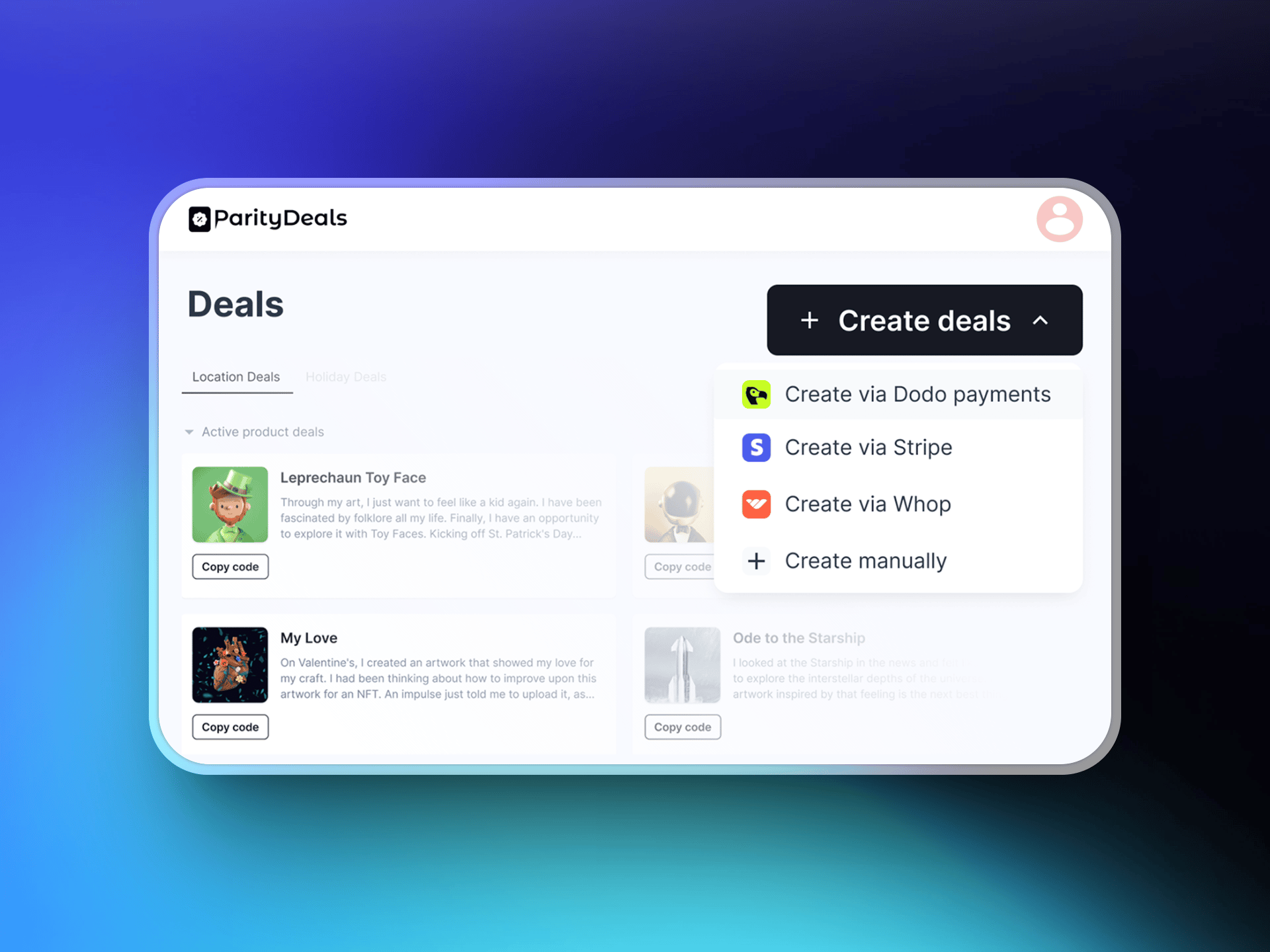
After signing in, locate the option to create deals. From the dropdown menu, select **"Create Deals via Dodo Payments"**.
## ParityDeals vs Native PPP
Native Purchasing Power Parity is the recommended way to price by country. Choose ParityDeals when you specifically need a discount banner on your own site, or holiday and time-based campaigns.
| | Native PPP | ParityDeals |
| :---------------------------- | :-------------------------------------------- | :--------------------------------------- |
| How it works | A percentage per country, applied at checkout | A percentage off, applied through a code |
| Where it is configured | Built into Dodo Payments | ParityDeals dashboard |
| Banner or script on your site | Not required | Required |
| Holiday and time-based deals | No | Yes |
| Best for | Correct prices, with no site changes | Promotional banners and seasonal deals |
You cannot embed the ParityDeals banner on a Dodo Payments-hosted checkout or storefront, as custom scripts are not supported there. The banner goes on your own website or app.
## Prerequisites
Before setting up this integration, ensure you have:
1. A [Dodo Payments account](https://app.dodopayments.com)
2. A [ParityDeals account](https://app.paritydeals.com/)
3. A Dodo Payments API key
## Getting Started
Visit [app.paritydeals.com](https://app.paritydeals.com/) and create an account.
After signing in, locate the option to create deals. From the dropdown menu, select **"Create Deals via Dodo Payments"**.
 Log in to your **Dodo Payments dashboard** and navigate to **Developers → API Keys**. Click **"Create New API"**.
Name your API key descriptively (e.g., 'ParityDeals') so you can identify it later.
Log in to your **Dodo Payments dashboard** and navigate to **Developers → API Keys**. Click **"Create New API"**.
Name your API key descriptively (e.g., 'ParityDeals') so you can identify it later.
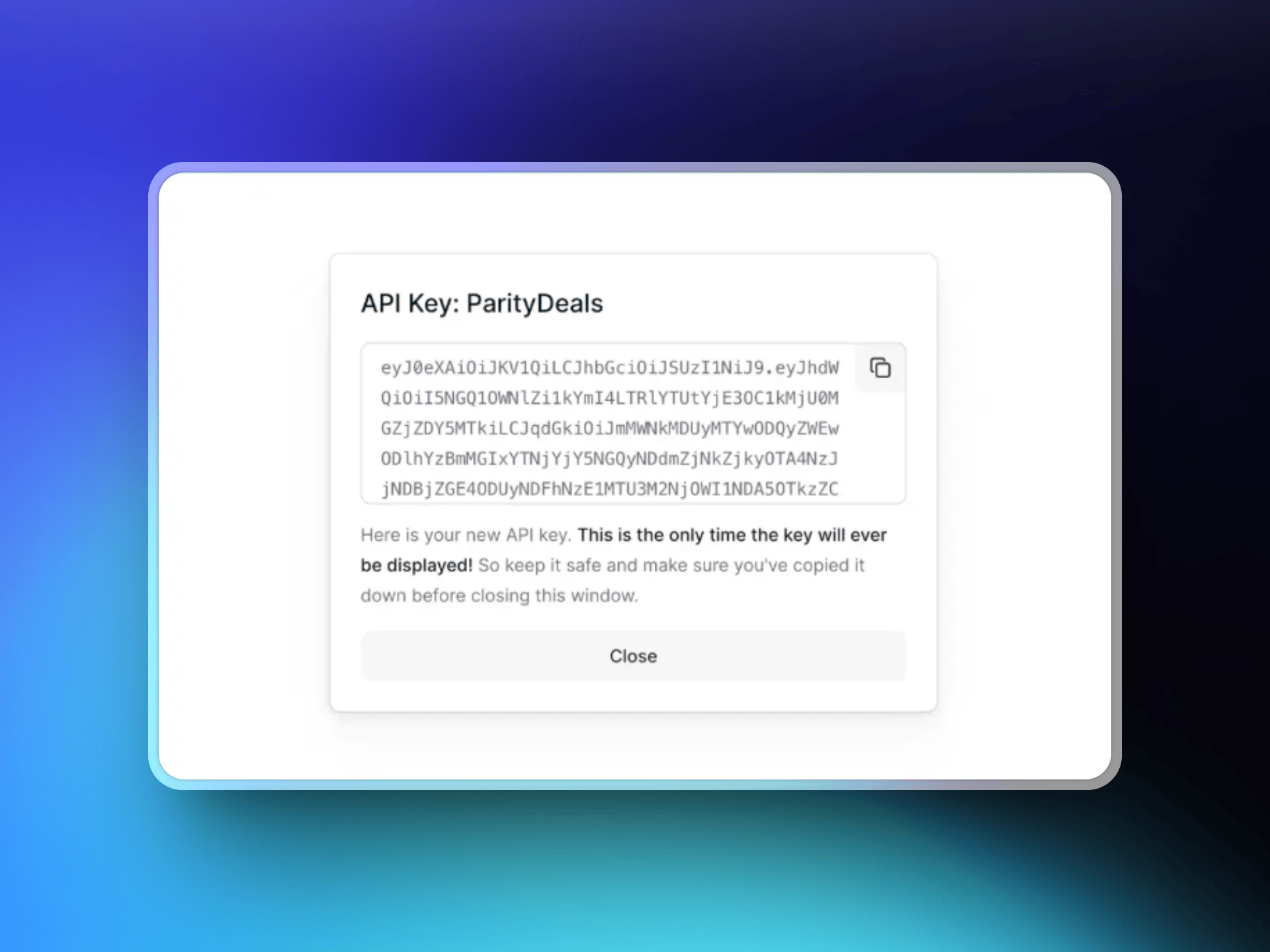 Copy the API key you created and paste it into the ParityDeals interface to establish the connection with your Dodo Payments account.
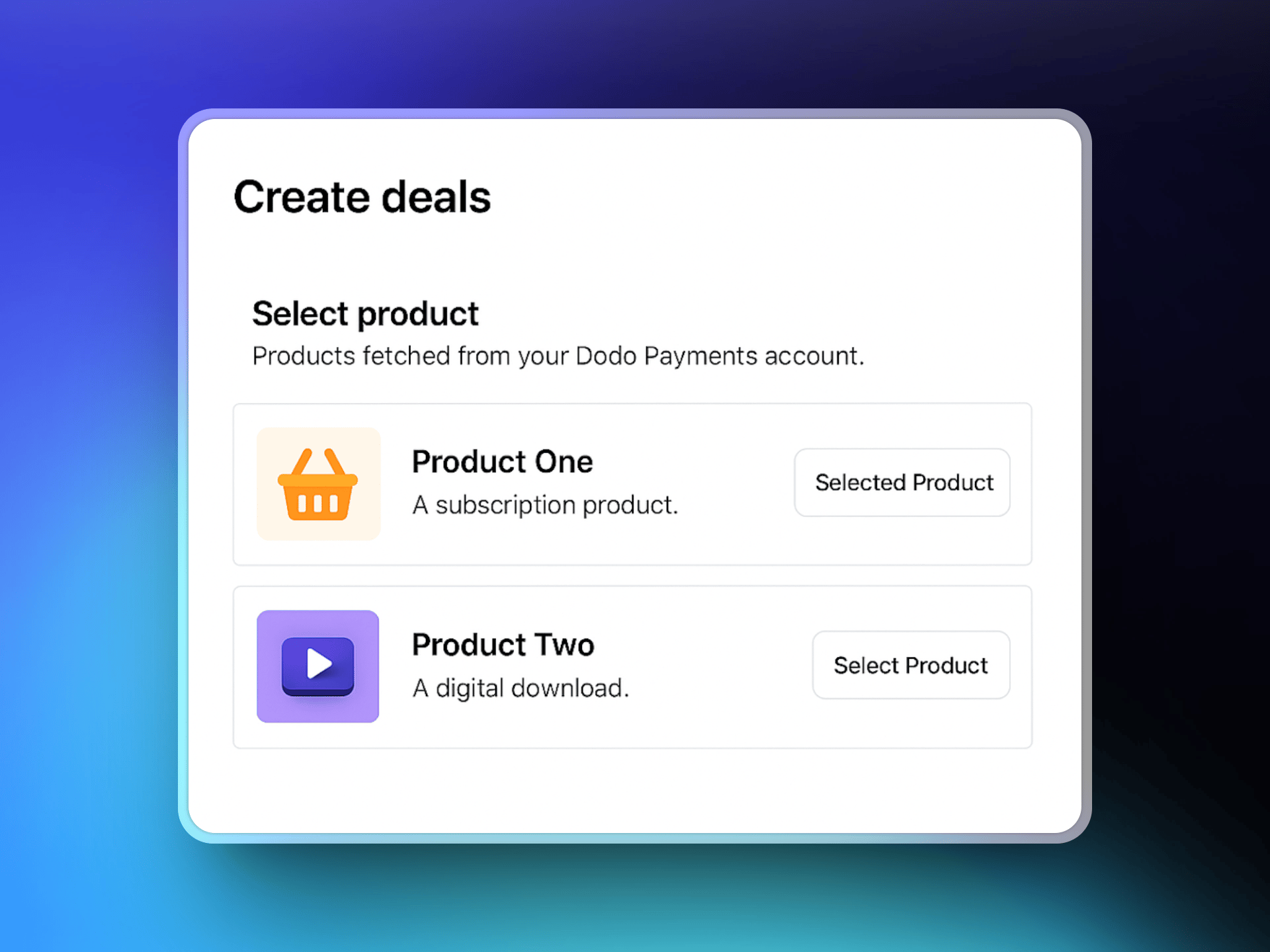
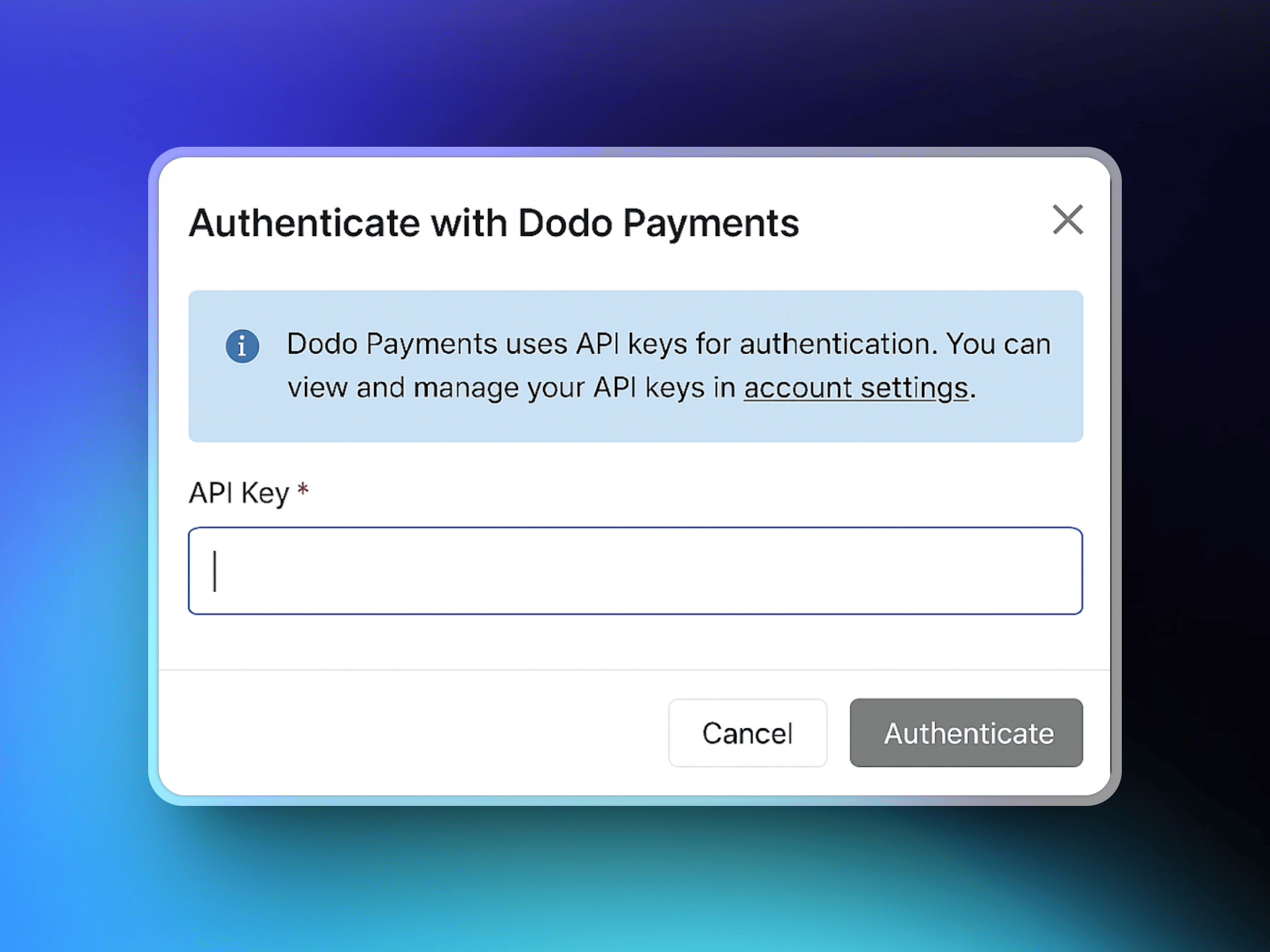 Once connected, ParityDeals will fetch your Dodo Payments product catalog. Select the products you want to associate with your deals.
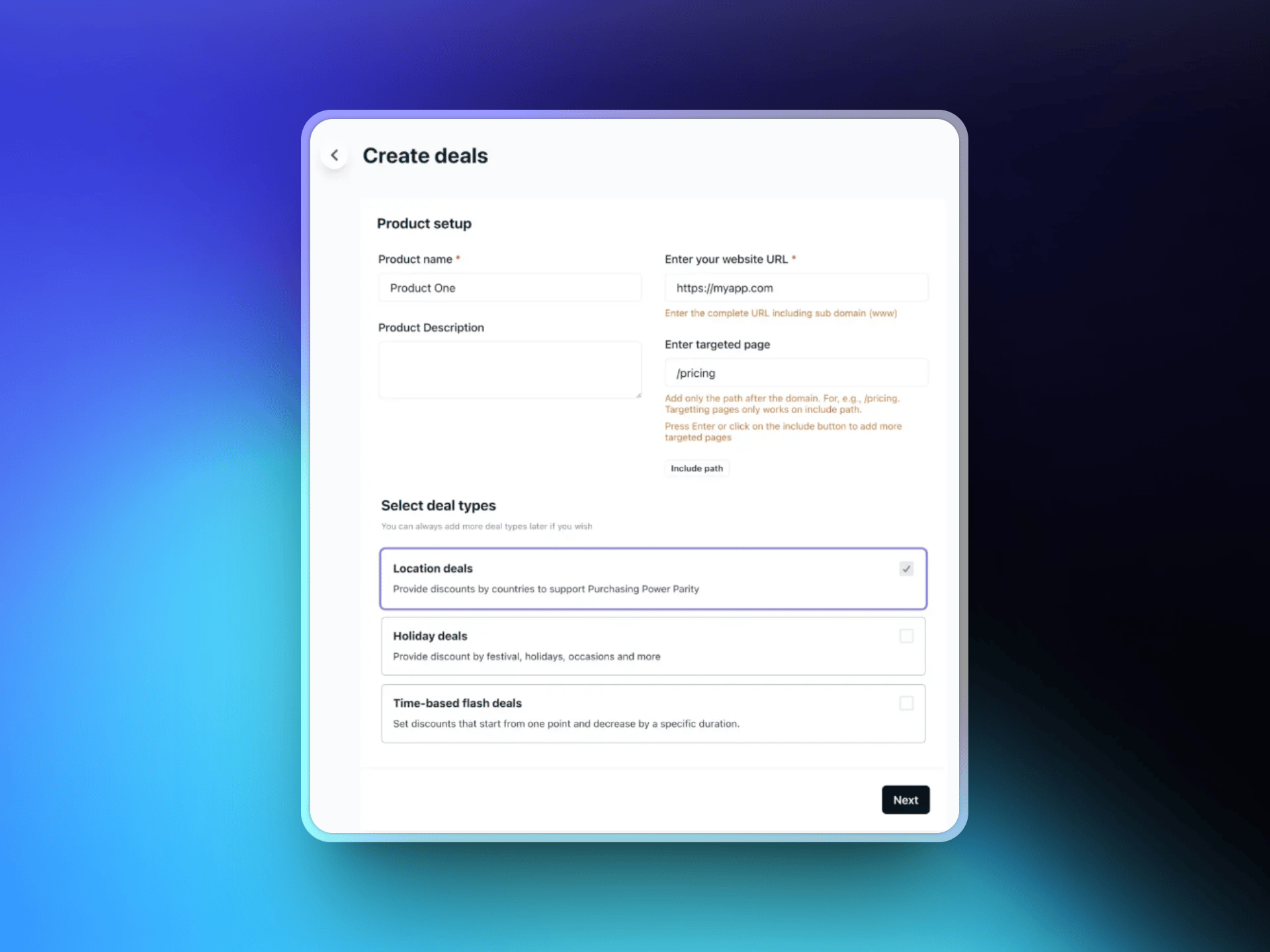
 Enter your website URL and optionally select specific target pages where the discount banner should appear. Then choose your preferred deal type:
* Location-based deals
* Holiday deals
* Time-based flash deals
Enter your website URL and optionally select specific target pages where the discount banner should appear. Then choose your preferred deal type:
* Location-based deals
* Holiday deals
* Time-based flash deals
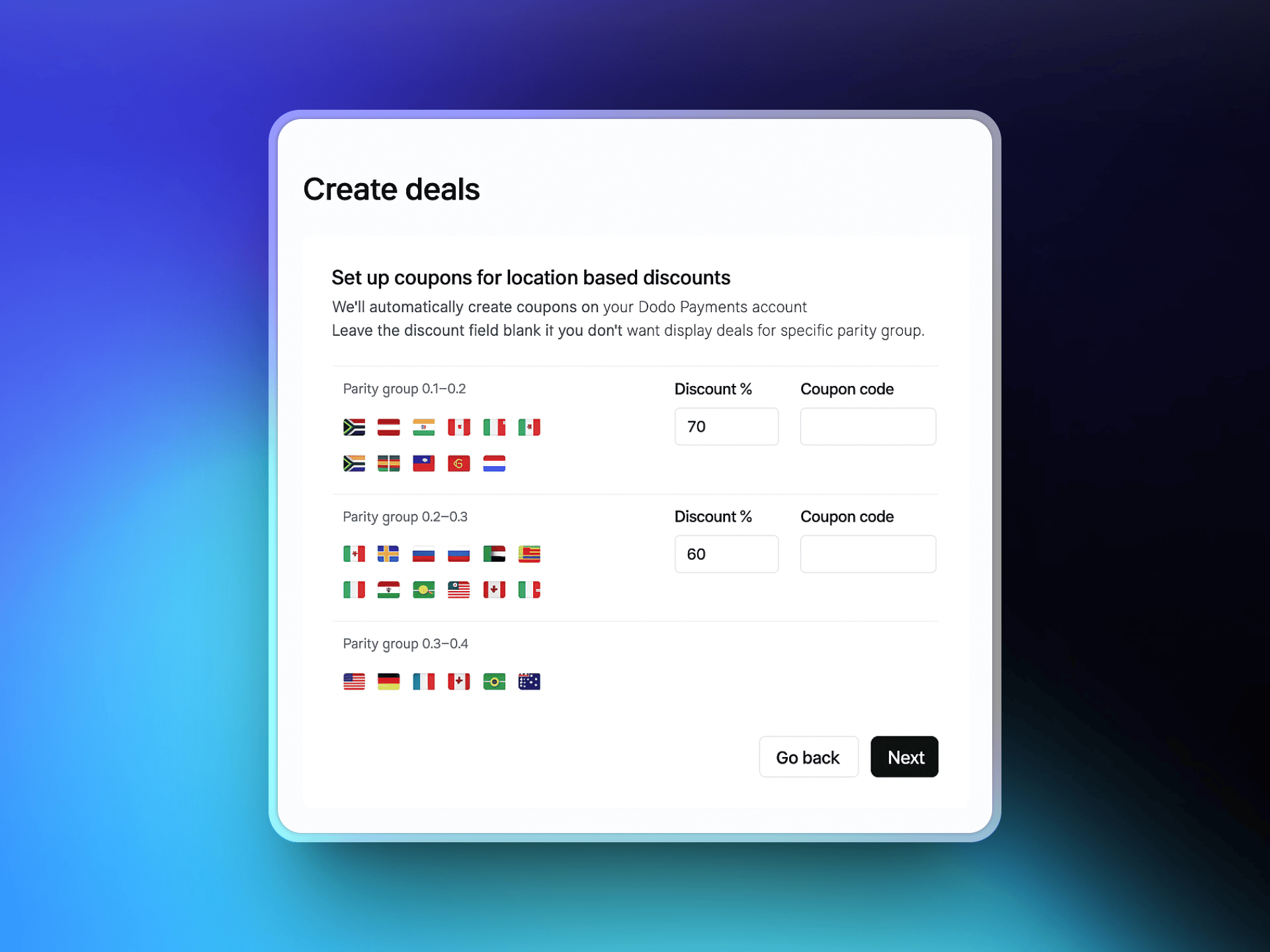
 Select the countries you want to offer localized discounts to and define the discount percentage for each. ParityDeals provides recommended defaults that you can adjust as needed.
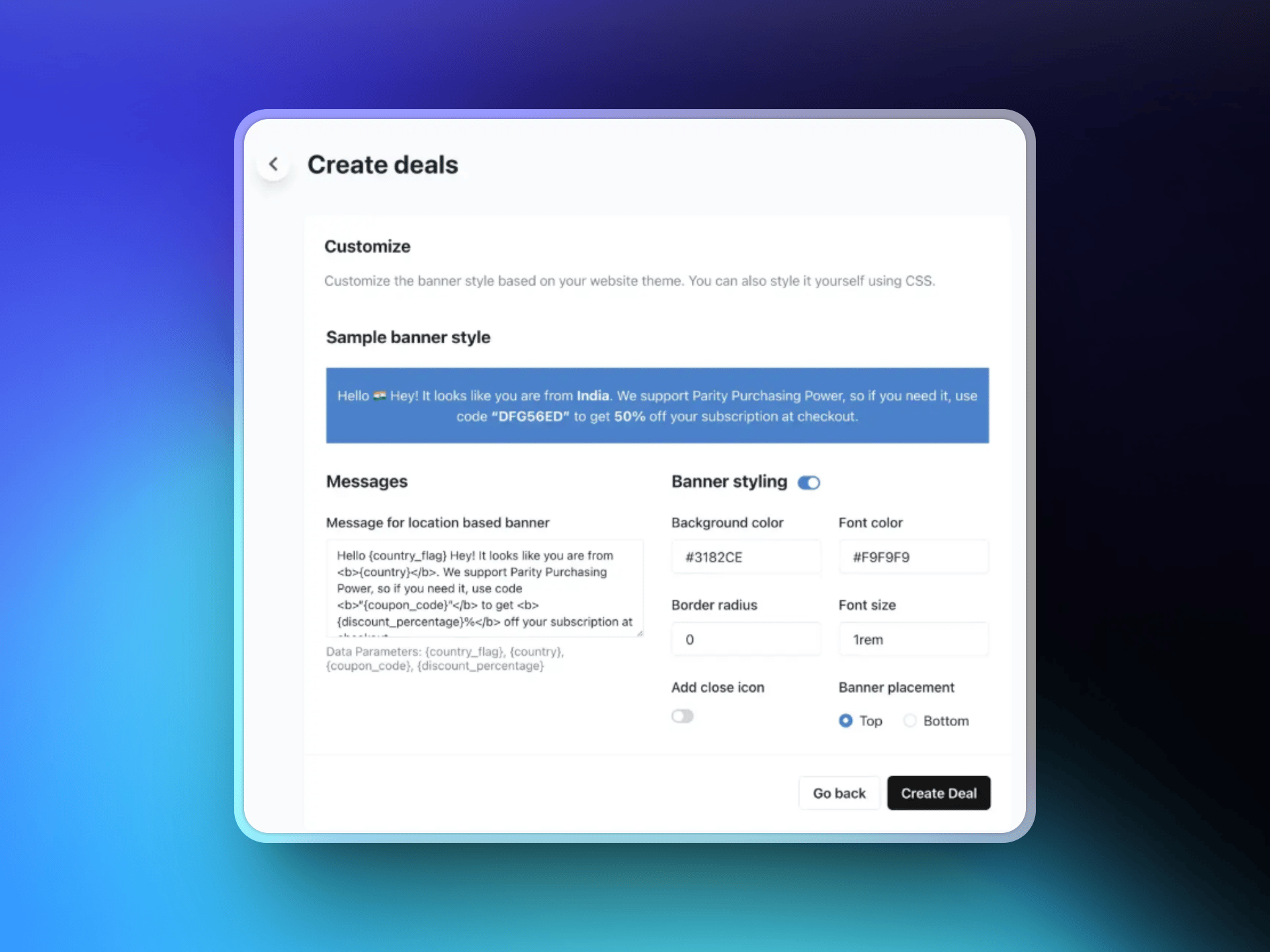
 Design your discount banner by customizing the text, selecting colors and layout, and choosing the banner position (top or bottom of page). This banner will be displayed to eligible visitors based on your configured rules.
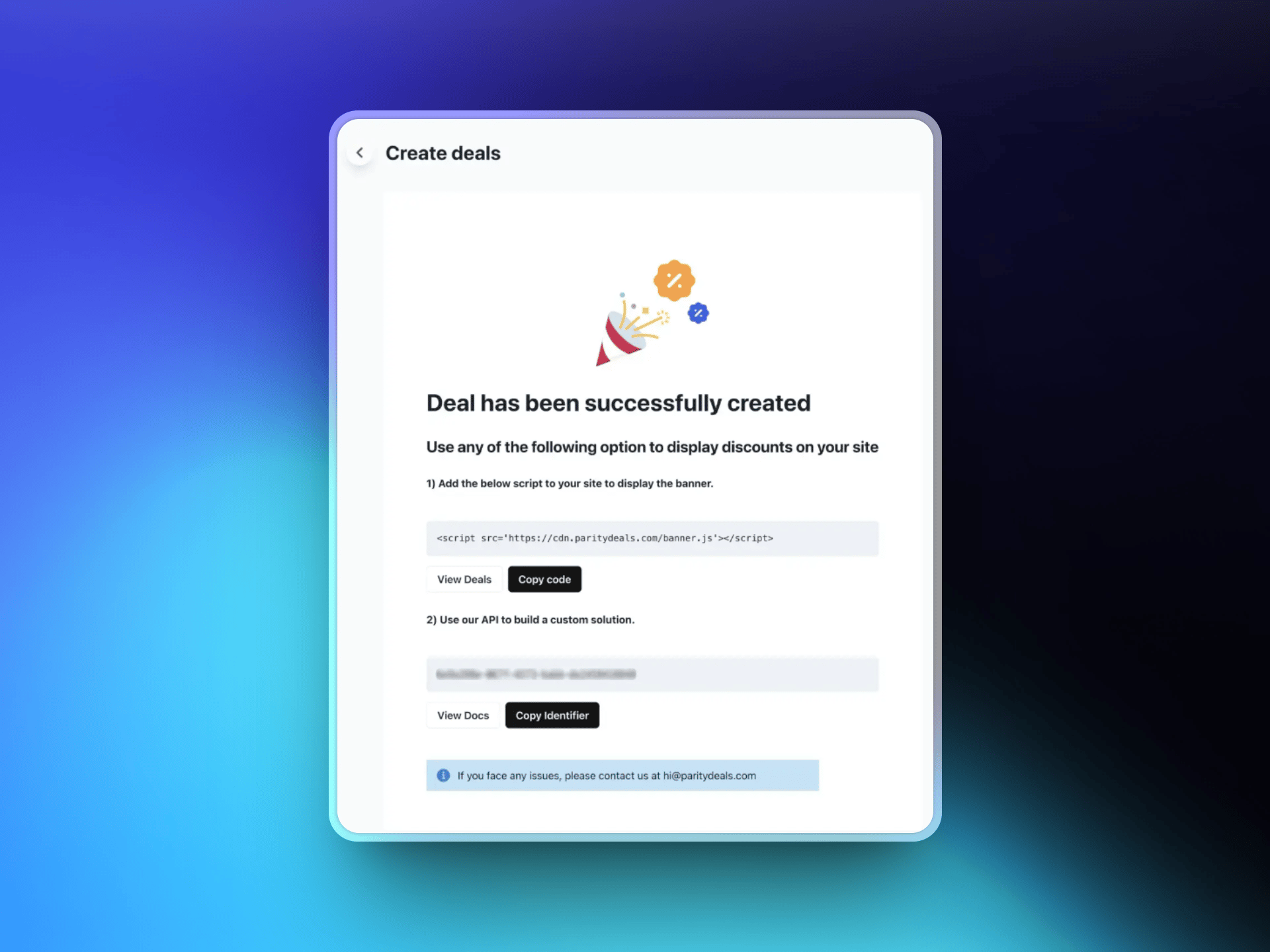
 After saving your deal, ParityDeals will generate a script. Add this script to your website code (typically in the `` section). This script automatically detects visitor locations and displays the appropriate discount banner.
 ## Additional Features
With ParityDeals, you can also offer [automatic time-based discounts](https://www.paritydeals.com/features/time-based-discounts/) and [holiday-based promotions](https://www.paritydeals.com/features/holiday-based-discounts/) throughout the year. For more detailed information, refer to the [ParityDeals Documentation](https://www.paritydeals.com/docs/).
## Additional Resources
Full setup walkthrough and feature guide on ParityDeals' docs.
Native PPP pricing in Dodo Payments, no banner required.
How discount codes work in Dodo Payments.
An alternative discount-code tool, with automatic coupon rotation.
## Additional Features
With ParityDeals, you can also offer [automatic time-based discounts](https://www.paritydeals.com/features/time-based-discounts/) and [holiday-based promotions](https://www.paritydeals.com/features/holiday-based-discounts/) throughout the year. For more detailed information, refer to the [ParityDeals Documentation](https://www.paritydeals.com/docs/).
## Additional Resources
Full setup walkthrough and feature guide on ParityDeals' docs.
Native PPP pricing in Dodo Payments, no banner required.
How discount codes work in Dodo Payments.
An alternative discount-code tool, with automatic coupon rotation.