> ## Documentation Index
> Fetch the complete documentation index at: https://docs.dodopayments.com/llms.txt
> Use this file to discover all available pages before exploring further.
# Microsoft Teams
> Send Dodo Payments notifications to Microsoft Teams channels with rich Adaptive Cards.
## Introduction
Keep your business team in the loop with real-time payment notifications in Microsoft Teams. The integration delivers payment events as rich Adaptive Cards—perfect for enterprise environments where Teams is the primary collaboration tool.
This guide assumes you have admin access to create webhooks in your Microsoft Teams workspace.
## Getting Started
In your Dodo Payments dashboard, navigate to Webhooks → + Add Endpoint and expand the integrations dropdown.
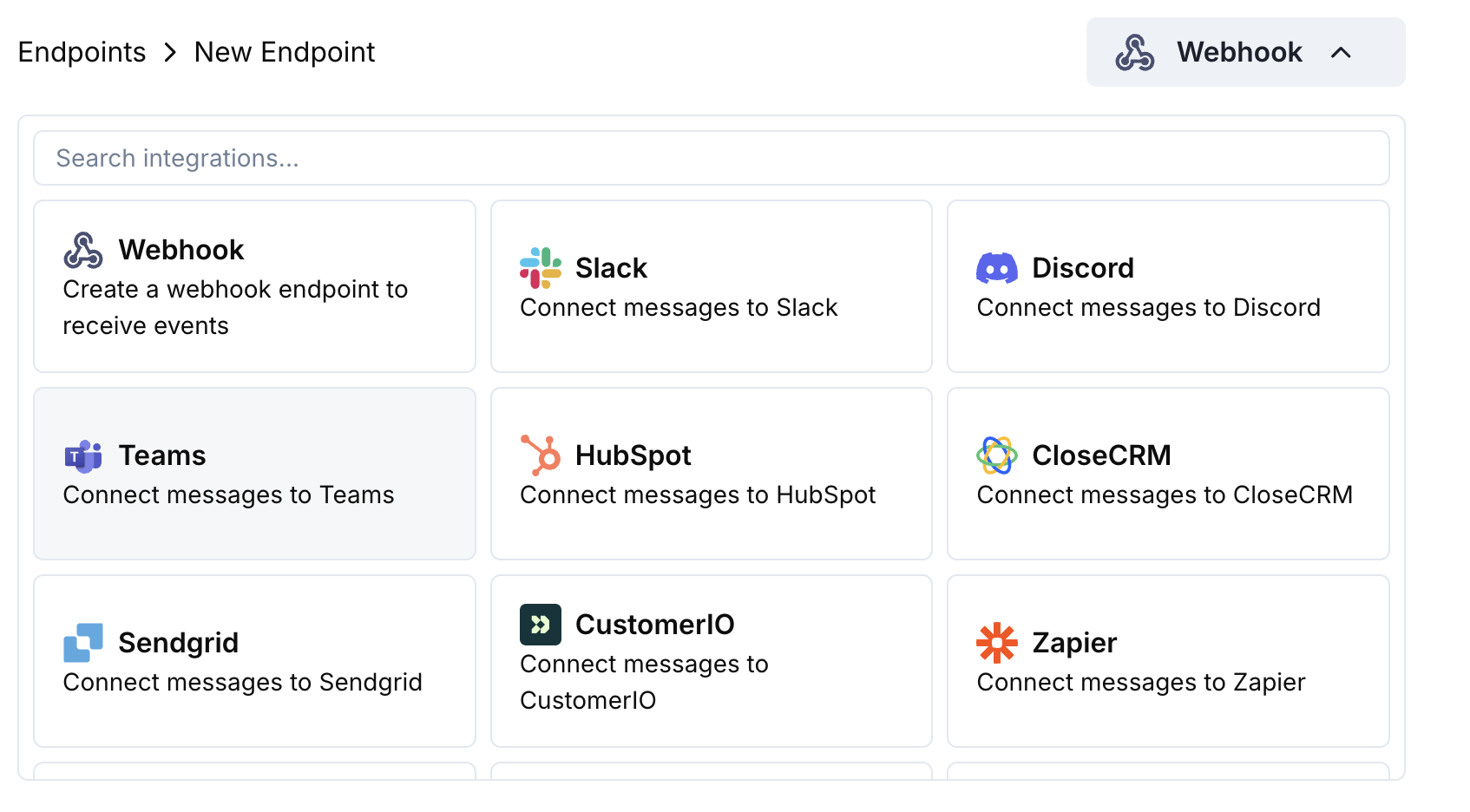 Choose the Microsoft Teams integration card.
In Teams, go to your channel → ⋯ → Connectors → Incoming Webhook → Configure. Copy the webhook URL.
Paste the Teams webhook URL into the endpoint configuration.
Edit the transformation code to format messages as Adaptive Cards for Teams.
Test with sample payloads and click Create to activate.
🎉 Your Teams channel will now receive Dodo Payments updates as Adaptive Cards.
## Transformation Code Examples
### Basic Payment Card
```javascript payment_card.js icon="js" expandable theme={null}
function handler(webhook) {
if (webhook.eventType === "payment.succeeded") {
const p = webhook.payload.data;
webhook.payload = {
type: "message",
attachments: [{
contentType: "application/vnd.microsoft.card.adaptive",
content: {
type: "AdaptiveCard",
body: [
{
type: "TextBlock",
text: "✅ Payment Successful",
weight: "Bolder",
size: "Medium"
},
{
type: "FactSet",
facts: [
{ title: "Amount", value: `$${(p.total_amount / 100).toFixed(2)}` },
{ title: "Customer", value: p.customer.email },
{ title: "Payment ID", value: p.payment_id }
]
}
]
}
}]
};
}
return webhook;
}
```
### Subscription Management
```javascript subscription_card.js icon="js" expandable theme={null}
function handler(webhook) {
const s = webhook.payload.data;
switch (webhook.eventType) {
case "subscription.active":
webhook.payload = {
type: "message",
attachments: [{
contentType: "application/vnd.microsoft.card.adaptive",
content: {
type: "AdaptiveCard",
body: [
{
type: "TextBlock",
text: "📄 Subscription Activated",
weight: "Bolder",
color: "Good"
},
{
type: "FactSet",
facts: [
{ title: "Customer", value: s.customer.email },
{ title: "Product", value: s.product_id },
{ title: "Amount", value: `$${(s.recurring_pre_tax_amount / 100).toFixed(2)}/${s.payment_frequency_interval}` },
{ title: "Next Billing", value: new Date(s.next_billing_date).toLocaleDateString() }
]
}
]
}
}]
};
break;
case "subscription.cancelled":
webhook.payload = {
type: "message",
attachments: [{
contentType: "application/vnd.microsoft.card.adaptive",
content: {
type: "AdaptiveCard",
body: [
{
type: "TextBlock",
text: "⚠️ Subscription Cancelled",
weight: "Bolder",
color: "Warning"
},
{
type: "FactSet",
facts: [
{ title: "Customer", value: s.customer.email },
{ title: "Product", value: s.product_id },
{ title: "Cancelled At", value: new Date(s.cancelled_at).toLocaleDateString() }
]
}
]
}
}]
};
break;
}
return webhook;
}
```
### Dispute Alerts
```javascript dispute_card.js icon="js" expandable theme={null}
function handler(webhook) {
if (webhook.eventType.startsWith("dispute.")) {
const d = webhook.payload.data;
const color = d.dispute_status === "won" ? "Good" : d.dispute_status === "lost" ? "Attention" : "Warning";
const title = d.dispute_status === "won" ? "🏆 Dispute Won" : d.dispute_status === "lost" ? "❌ Dispute Lost" : "🚨 Dispute Update";
webhook.payload = {
type: "message",
attachments: [{
contentType: "application/vnd.microsoft.card.adaptive",
content: {
type: "AdaptiveCard",
body: [
{
type: "TextBlock",
text: title,
weight: "Bolder",
color: color
},
{
type: "FactSet",
facts: [
{ title: "Payment ID", value: d.payment_id },
{ title: "Amount", value: `$${(d.amount / 100).toFixed(2)}` },
{ title: "Status", value: d.dispute_status },
{ title: "Stage", value: d.dispute_stage }
]
}
]
}
}]
};
}
return webhook;
}
```
## Tips
* Use Adaptive Cards for rich, interactive formatting
* Choose appropriate colors: Good (green), Warning (yellow), Attention (red)
* Keep fact sets concise and readable
* Test with Teams webhook tester before deploying
## Troubleshooting
* Verify the webhook URL is correct and active
* Check that the transformation returns valid Adaptive Card JSON
* Ensure the webhook has permission to post in the channel
* Validate Adaptive Card schema in Teams webhook tester
* Check that all required fields are present
* Ensure color values are valid (Good, Warning, Attention, Default)
Choose the Microsoft Teams integration card.
In Teams, go to your channel → ⋯ → Connectors → Incoming Webhook → Configure. Copy the webhook URL.
Paste the Teams webhook URL into the endpoint configuration.
Edit the transformation code to format messages as Adaptive Cards for Teams.
Test with sample payloads and click Create to activate.
🎉 Your Teams channel will now receive Dodo Payments updates as Adaptive Cards.
## Transformation Code Examples
### Basic Payment Card
```javascript payment_card.js icon="js" expandable theme={null}
function handler(webhook) {
if (webhook.eventType === "payment.succeeded") {
const p = webhook.payload.data;
webhook.payload = {
type: "message",
attachments: [{
contentType: "application/vnd.microsoft.card.adaptive",
content: {
type: "AdaptiveCard",
body: [
{
type: "TextBlock",
text: "✅ Payment Successful",
weight: "Bolder",
size: "Medium"
},
{
type: "FactSet",
facts: [
{ title: "Amount", value: `$${(p.total_amount / 100).toFixed(2)}` },
{ title: "Customer", value: p.customer.email },
{ title: "Payment ID", value: p.payment_id }
]
}
]
}
}]
};
}
return webhook;
}
```
### Subscription Management
```javascript subscription_card.js icon="js" expandable theme={null}
function handler(webhook) {
const s = webhook.payload.data;
switch (webhook.eventType) {
case "subscription.active":
webhook.payload = {
type: "message",
attachments: [{
contentType: "application/vnd.microsoft.card.adaptive",
content: {
type: "AdaptiveCard",
body: [
{
type: "TextBlock",
text: "📄 Subscription Activated",
weight: "Bolder",
color: "Good"
},
{
type: "FactSet",
facts: [
{ title: "Customer", value: s.customer.email },
{ title: "Product", value: s.product_id },
{ title: "Amount", value: `$${(s.recurring_pre_tax_amount / 100).toFixed(2)}/${s.payment_frequency_interval}` },
{ title: "Next Billing", value: new Date(s.next_billing_date).toLocaleDateString() }
]
}
]
}
}]
};
break;
case "subscription.cancelled":
webhook.payload = {
type: "message",
attachments: [{
contentType: "application/vnd.microsoft.card.adaptive",
content: {
type: "AdaptiveCard",
body: [
{
type: "TextBlock",
text: "⚠️ Subscription Cancelled",
weight: "Bolder",
color: "Warning"
},
{
type: "FactSet",
facts: [
{ title: "Customer", value: s.customer.email },
{ title: "Product", value: s.product_id },
{ title: "Cancelled At", value: new Date(s.cancelled_at).toLocaleDateString() }
]
}
]
}
}]
};
break;
}
return webhook;
}
```
### Dispute Alerts
```javascript dispute_card.js icon="js" expandable theme={null}
function handler(webhook) {
if (webhook.eventType.startsWith("dispute.")) {
const d = webhook.payload.data;
const color = d.dispute_status === "won" ? "Good" : d.dispute_status === "lost" ? "Attention" : "Warning";
const title = d.dispute_status === "won" ? "🏆 Dispute Won" : d.dispute_status === "lost" ? "❌ Dispute Lost" : "🚨 Dispute Update";
webhook.payload = {
type: "message",
attachments: [{
contentType: "application/vnd.microsoft.card.adaptive",
content: {
type: "AdaptiveCard",
body: [
{
type: "TextBlock",
text: title,
weight: "Bolder",
color: color
},
{
type: "FactSet",
facts: [
{ title: "Payment ID", value: d.payment_id },
{ title: "Amount", value: `$${(d.amount / 100).toFixed(2)}` },
{ title: "Status", value: d.dispute_status },
{ title: "Stage", value: d.dispute_stage }
]
}
]
}
}]
};
}
return webhook;
}
```
## Tips
* Use Adaptive Cards for rich, interactive formatting
* Choose appropriate colors: Good (green), Warning (yellow), Attention (red)
* Keep fact sets concise and readable
* Test with Teams webhook tester before deploying
## Troubleshooting
* Verify the webhook URL is correct and active
* Check that the transformation returns valid Adaptive Card JSON
* Ensure the webhook has permission to post in the channel
* Validate Adaptive Card schema in Teams webhook tester
* Check that all required fields are present
* Ensure color values are valid (Good, Warning, Attention, Default)