> ## Documentation Index
> Fetch the complete documentation index at: https://docs.dodopayments.com/llms.txt
> Use this file to discover all available pages before exploring further.
# DataFast
> Attribute revenue to marketing channels with DataFast analytics. Track which traffic sources drive paying customers and optimize your growth.
## Introduction
DataFast is a revenue-first analytics tool that helps you discover which marketing channels drive paying customers. By integrating Dodo Payments with DataFast, you can attribute revenue to your traffic sources, identify high-value customer segments, and make data-driven decisions to grow your business.
This integration requires your DataFast API Key, which you can obtain from your [DataFast dashboard](https://datafa.st/).
## How It Works
DataFast tracks visitors through a unique visitor ID stored in a cookie. To attribute revenue to marketing channels, you need to:
1. **Capture DataFast's visitor ID** from the `datafast_visitor_id` cookie when creating checkout sessions
2. **Store the visitor ID** in your payment metadata
3. **Send payment data to DataFast** when payments succeed using their Payment API
This allows DataFast to match successful payments with the original traffic source, giving you complete revenue attribution.
## Getting Started
First, install the DataFast tracking script on your website. This creates the `datafast_visitor_id` cookie that tracks your visitors.
Visit the [DataFast documentation](https://datafa.st/docs) for installation instructions specific to your platform.
Log in to your [DataFast dashboard](https://datafa.st/) and navigate to your website settings to obtain your API key.
Keep your API key secure and never expose it in client-side code.
When creating a checkout session, capture the DataFast visitor ID from the cookie and add it to your payment metadata.
Configure a webhook to send payment data to DataFast's Payment API when payments succeed.
🎉 Revenue data will now appear in your DataFast dashboard with full attribution to marketing channels.
## Implementation Guide
### Step 1: Add Visitor ID to Checkout Metadata
When creating a checkout session, capture the DataFast visitor ID from the cookie and include it in your payment metadata.
```typescript Next.js theme={null}
import { cookies } from 'next/headers';
import { dodopayments } from '@/lib/dodopayments';
export async function createCheckout(productId: string) {
// Capture DataFast visitor ID from cookie
const datafastVisitorId = cookies().get('datafast_visitor_id')?.value;
const payment = await dodopayments.payments.create({
product_cart: [{ product_id: productId, quantity: 1 }],
// ... other payment configuration
metadata: {
datafast_visitor_id: datafastVisitorId, // Store visitor ID in metadata
},
});
return payment;
}
```
```javascript Express.js theme={null}
const express = require('express');
const router = express.Router();
router.post('/create-checkout', async (req, res) => {
// Capture DataFast visitor ID from cookie
const datafastVisitorId = req.cookies?.datafast_visitor_id;
const payment = await dodopayments.payments.create({
product_cart: [{ product_id: req.body.productId, quantity: 1 }],
// ... other payment configuration
metadata: {
datafast_visitor_id: datafastVisitorId, // Store visitor ID in metadata
},
});
res.json({ payment });
});
```
```javascript Other Frameworks theme={null}
// Capture DataFast visitor ID from cookie
const datafastVisitorId = getCookie('datafast_visitor_id'); // Use your framework's cookie method
const payment = await dodopayments.payments.create({
product_cart: [{ product_id: productId, quantity: 1 }],
// ... other payment configuration
metadata: {
datafast_visitor_id: datafastVisitorId, // Store visitor ID in metadata
},
});
```
### Step 2: Send Payment Data to DataFast
Configure a webhook endpoint to send payment data to DataFast's Payment API when payments succeed.
In your Dodo Payments dashboard, navigate to Webhooks → + Add Endpoint and expand the integrations dropdown.
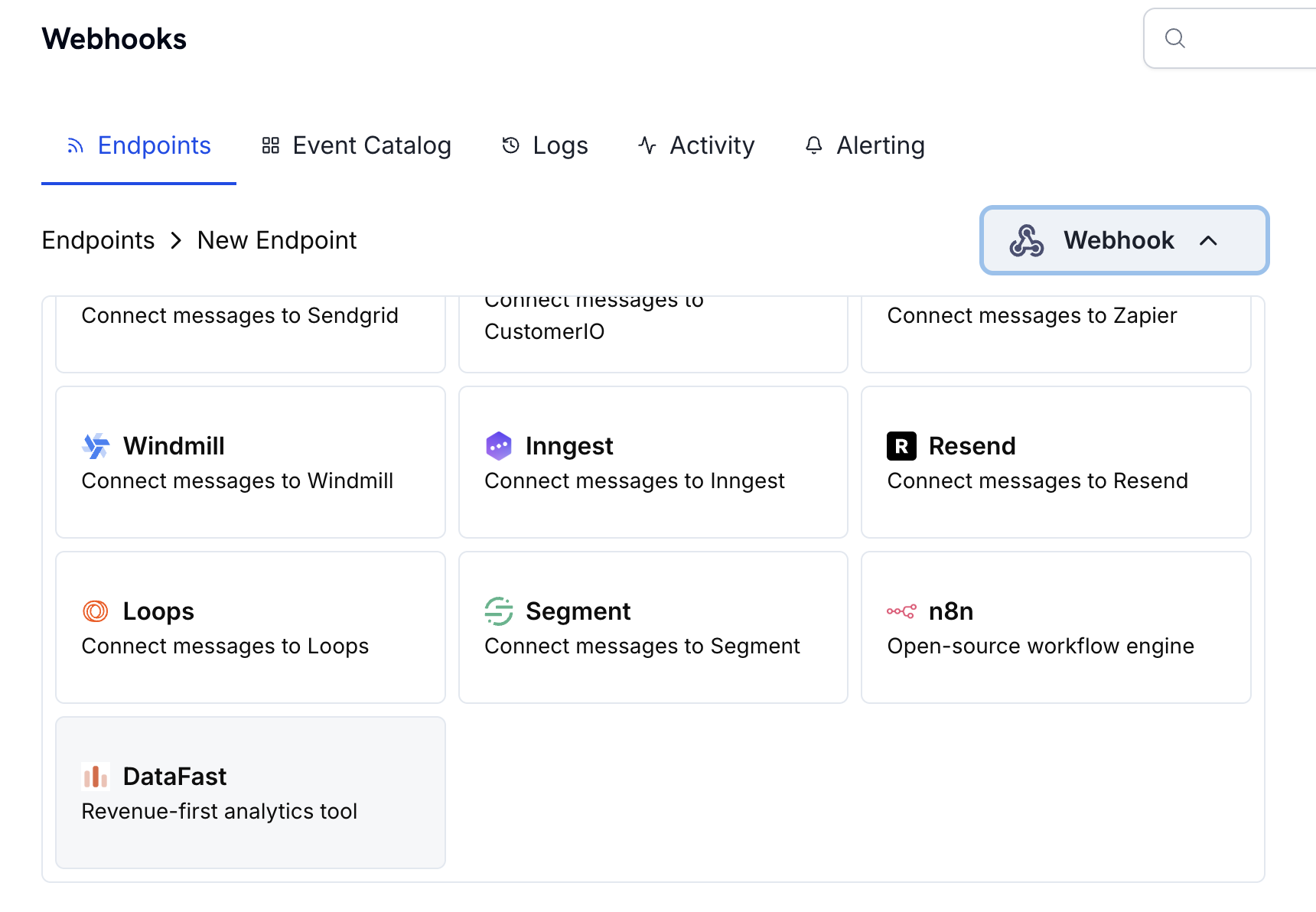 Choose the DataFast integration card.
Provide your DataFast API Key in the configuration field.
Choose the DataFast integration card.
Provide your DataFast API Key in the configuration field.
 Edit the transformation code to format payment data for DataFast's Payment API.
Test with sample payloads and click Create to activate the integration.
## Transformation Code Examples
### Basic Payment Attribution
```javascript basic_payment.js icon="js" expandable theme={null}
function handler(webhook) {
if (webhook.eventType === "payment.succeeded") {
const payment = webhook.payload.data;
// Only send to DataFast if visitor ID exists in metadata
if (payment.metadata && payment.metadata.datafast_visitor_id) {
webhook.payload = {
amount: payment.total_amount / 100, // Convert from cents to dollars
currency: payment.currency,
transaction_id: payment.payment_id,
datafast_visitor_id: payment.metadata.datafast_visitor_id,
};
} else {
// Cancel dispatch if no visitor ID (prevents unnecessary API calls)
webhook.cancel = true;
}
}
return webhook;
}
```
### Handle Zero Decimal Currencies
Some currencies (like JPY) don't use decimal places. Adjust the amount calculation accordingly:
```javascript zero_decimal.js icon="js" expandable theme={null}
function handler(webhook) {
if (webhook.eventType === "payment.succeeded") {
const payment = webhook.payload.data;
if (payment.metadata && payment.metadata.datafast_visitor_id) {
// Zero decimal currencies: JPY, KRW, CLP, etc.
const zeroDecimalCurrencies = ['JPY', 'KRW', 'CLP', 'VND', 'UGX', 'MGA'];
const isZeroDecimal = zeroDecimalCurrencies.includes(payment.currency);
webhook.payload = {
amount: isZeroDecimal
? payment.total_amount // Use amount as-is for zero decimal currencies
: payment.total_amount / 100, // Convert from cents for other currencies
currency: payment.currency,
transaction_id: payment.payment_id,
datafast_visitor_id: payment.metadata.datafast_visitor_id,
};
} else {
// Cancel dispatch if no visitor ID (prevents unnecessary API calls)
webhook.cancel = true;
}
}
return webhook;
}
```
### Subscription Payments
For recurring subscription payments, you can track each payment:
```javascript subscription_payment.js icon="js" expandable theme={null}
function handler(webhook) {
if (webhook.eventType === "payment.succeeded") {
const payment = webhook.payload.data;
// Check if this is a subscription payment
const isSubscription = payment.subscription_id !== null;
if (payment.metadata && payment.metadata.datafast_visitor_id) {
webhook.payload = {
amount: payment.total_amount / 100,
currency: payment.currency,
transaction_id: payment.payment_id,
datafast_visitor_id: payment.metadata.datafast_visitor_id,
// Optional: Add subscription context
...(isSubscription && {
subscription_id: payment.subscription_id,
}),
};
} else {
// Cancel dispatch if no visitor ID (prevents unnecessary API calls)
webhook.cancel = true;
}
}
return webhook;
}
```
## Best Practices
**Capture visitor ID early**: Store the DataFast visitor ID as soon as possible in your checkout flow to ensure accurate attribution, even if the user navigates away and returns later.
* **Always include visitor ID in metadata**: Without the visitor ID, DataFast cannot attribute revenue to marketing channels
* **Handle zero decimal currencies**: Some currencies (JPY, KRW, etc.) don't use decimal places—adjust your amount calculation accordingly
* **Test with sample payments**: Verify the integration works correctly before going live
* **Monitor your DataFast dashboard**: Check that payments are appearing correctly with proper attribution
* **Use webhook retries**: DataFast's Payment API is idempotent, so retries are safe if a webhook fails
## Troubleshooting
* Verify your DataFast API key is correct and active
* Check that the `datafast_visitor_id` is being captured and stored in payment metadata
* Ensure the webhook transformation is correctly formatting the payload
* Verify the webhook is triggering on `payment.succeeded` events
* Check DataFast dashboard for any error messages or API logs
* Confirm the DataFast tracking script is installed and working on your website
* Verify the `datafast_visitor_id` cookie is being set correctly
* Check that visitor IDs match between checkout creation and payment completion
* Ensure you're capturing the visitor ID before creating the checkout session
* Review DataFast's [Payment API documentation](https://datafa.st/docs/payments-api) for additional guidance
* Validate the JSON structure matches DataFast's Payment API format
* Check that all required fields (`amount`, `currency`, `transaction_id`, `datafast_visitor_id`) are present
* Ensure amount is correctly converted (divide by 100 for most currencies, except zero decimal currencies)
* Verify the API endpoint URL is correct: `https://datafa.st/api/v1/payments`
* Test the transformation with sample webhook payloads
* For zero decimal currencies (JPY, KRW, CLP, VND, UGX, MGA), send the amount as-is without dividing by 100
* For all other currencies, divide the amount by 100 to convert from cents to the base unit
* Double-check the currency code matches ISO 4217 format (e.g., "USD", "EUR", "JPY")
## Additional Resources
Learn more about DataFast's Payment API and revenue attribution features.
Access your DataFast dashboard to view revenue analytics and attribution data.
Need help? Contact Dodo Payments support at [support@dodopayments.com](mailto:support@dodopayments.com) for assistance with the integration.
Edit the transformation code to format payment data for DataFast's Payment API.
Test with sample payloads and click Create to activate the integration.
## Transformation Code Examples
### Basic Payment Attribution
```javascript basic_payment.js icon="js" expandable theme={null}
function handler(webhook) {
if (webhook.eventType === "payment.succeeded") {
const payment = webhook.payload.data;
// Only send to DataFast if visitor ID exists in metadata
if (payment.metadata && payment.metadata.datafast_visitor_id) {
webhook.payload = {
amount: payment.total_amount / 100, // Convert from cents to dollars
currency: payment.currency,
transaction_id: payment.payment_id,
datafast_visitor_id: payment.metadata.datafast_visitor_id,
};
} else {
// Cancel dispatch if no visitor ID (prevents unnecessary API calls)
webhook.cancel = true;
}
}
return webhook;
}
```
### Handle Zero Decimal Currencies
Some currencies (like JPY) don't use decimal places. Adjust the amount calculation accordingly:
```javascript zero_decimal.js icon="js" expandable theme={null}
function handler(webhook) {
if (webhook.eventType === "payment.succeeded") {
const payment = webhook.payload.data;
if (payment.metadata && payment.metadata.datafast_visitor_id) {
// Zero decimal currencies: JPY, KRW, CLP, etc.
const zeroDecimalCurrencies = ['JPY', 'KRW', 'CLP', 'VND', 'UGX', 'MGA'];
const isZeroDecimal = zeroDecimalCurrencies.includes(payment.currency);
webhook.payload = {
amount: isZeroDecimal
? payment.total_amount // Use amount as-is for zero decimal currencies
: payment.total_amount / 100, // Convert from cents for other currencies
currency: payment.currency,
transaction_id: payment.payment_id,
datafast_visitor_id: payment.metadata.datafast_visitor_id,
};
} else {
// Cancel dispatch if no visitor ID (prevents unnecessary API calls)
webhook.cancel = true;
}
}
return webhook;
}
```
### Subscription Payments
For recurring subscription payments, you can track each payment:
```javascript subscription_payment.js icon="js" expandable theme={null}
function handler(webhook) {
if (webhook.eventType === "payment.succeeded") {
const payment = webhook.payload.data;
// Check if this is a subscription payment
const isSubscription = payment.subscription_id !== null;
if (payment.metadata && payment.metadata.datafast_visitor_id) {
webhook.payload = {
amount: payment.total_amount / 100,
currency: payment.currency,
transaction_id: payment.payment_id,
datafast_visitor_id: payment.metadata.datafast_visitor_id,
// Optional: Add subscription context
...(isSubscription && {
subscription_id: payment.subscription_id,
}),
};
} else {
// Cancel dispatch if no visitor ID (prevents unnecessary API calls)
webhook.cancel = true;
}
}
return webhook;
}
```
## Best Practices
**Capture visitor ID early**: Store the DataFast visitor ID as soon as possible in your checkout flow to ensure accurate attribution, even if the user navigates away and returns later.
* **Always include visitor ID in metadata**: Without the visitor ID, DataFast cannot attribute revenue to marketing channels
* **Handle zero decimal currencies**: Some currencies (JPY, KRW, etc.) don't use decimal places—adjust your amount calculation accordingly
* **Test with sample payments**: Verify the integration works correctly before going live
* **Monitor your DataFast dashboard**: Check that payments are appearing correctly with proper attribution
* **Use webhook retries**: DataFast's Payment API is idempotent, so retries are safe if a webhook fails
## Troubleshooting
* Verify your DataFast API key is correct and active
* Check that the `datafast_visitor_id` is being captured and stored in payment metadata
* Ensure the webhook transformation is correctly formatting the payload
* Verify the webhook is triggering on `payment.succeeded` events
* Check DataFast dashboard for any error messages or API logs
* Confirm the DataFast tracking script is installed and working on your website
* Verify the `datafast_visitor_id` cookie is being set correctly
* Check that visitor IDs match between checkout creation and payment completion
* Ensure you're capturing the visitor ID before creating the checkout session
* Review DataFast's [Payment API documentation](https://datafa.st/docs/payments-api) for additional guidance
* Validate the JSON structure matches DataFast's Payment API format
* Check that all required fields (`amount`, `currency`, `transaction_id`, `datafast_visitor_id`) are present
* Ensure amount is correctly converted (divide by 100 for most currencies, except zero decimal currencies)
* Verify the API endpoint URL is correct: `https://datafa.st/api/v1/payments`
* Test the transformation with sample webhook payloads
* For zero decimal currencies (JPY, KRW, CLP, VND, UGX, MGA), send the amount as-is without dividing by 100
* For all other currencies, divide the amount by 100 to convert from cents to the base unit
* Double-check the currency code matches ISO 4217 format (e.g., "USD", "EUR", "JPY")
## Additional Resources
Learn more about DataFast's Payment API and revenue attribution features.
Access your DataFast dashboard to view revenue analytics and attribution data.
Need help? Contact Dodo Payments support at [support@dodopayments.com](mailto:support@dodopayments.com) for assistance with the integration.