> ## Documentation Index
> Fetch the complete documentation index at: https://docs.dodopayments.com/llms.txt
> Use this file to discover all available pages before exploring further.
# AutoSend
> Learn how to use AutoSend's email API to send automated transactional emails for your Dodo Payments transactions, refunds, and payment events.
## Introduction
The AutoSend and Dodo Payments integration enables you to automatically send real-time email notifications for all payment events, from successful transactions to failed attempts and refund confirmations.
Send transactional emails for payment events using AutoSend's powerful email API.
This integration requires your AutoSend API Key for authentication. You can find your API key in the AutoSend dashboard under Settings > API Keys.
## Getting Started
Follow these steps to integrate AutoSend with Dodo Payments:
Navigate to the Webhooks section in your Dodo Payments dashboard.
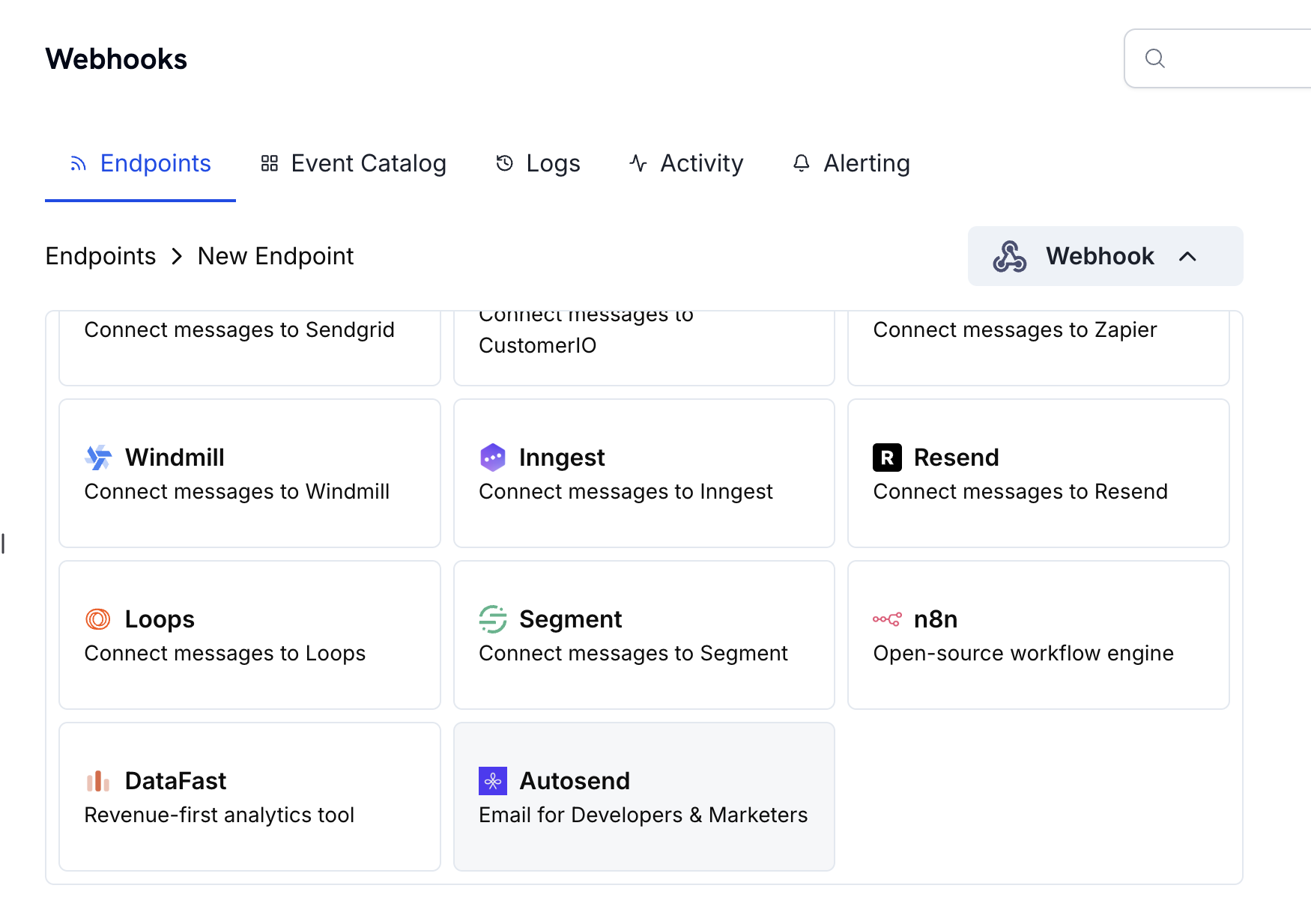 Choose AutoSend from the list of available integrations.
Provide your AutoSend API key for authentication. You can find your API key in the AutoSend dashboard under Settings > API Keys.
Visit the AutoSend documentation for detailed instructions on creating and managing API keys.
Set up JavaScript transformation handlers to customize email content based on payment events.
Test your webhook configuration to ensure emails are sent correctly, then create the integration.
🎉 Your AutoSend integration is now active and will automatically send emails for the configured payment events.
## Code Examples
### Payment Confirmation Email
Send a confirmation email when a payment is successfully processed:
```javascript payment_confirmation.js icon="js" expandable theme={null}
function handler(webhook) {
if (webhook.eventType === "payment.succeeded") {
const p = webhook.payload.data;
webhook.url = "https://api.autosend.com/v1/mails/send";
webhook.payload = {
to: {
email: p.customer.email,
name: p.customer.name,
},
from: {
email: "payments@mail.yourdomain.com",
name: "Your Company",
},
subject: "Payment Successful - Thank you for your purchase!",
templateId: "A-61522f2xxxxxxxxx",
dynamicData: {
customerName: p.customer.name,
amount: p.amount,
currency: p.currency,
paymentId: p.payment_id,
paymentDate: new Date(p.created_at).toLocaleDateString(),
},
replyTo: {
email: "support@yourdomain.com",
name: "Support Team",
},
};
}
return webhook;
}
```
### Subscription Welcome Email
Send a welcome email when a new subscription is created:
```javascript subscription_welcome.js icon="js" expandable theme={null}
function handler(webhook) {
if (webhook.eventType === "subscription.active") {
const s = webhook.payload.data;
webhook.url = "https://api.autosend.com/v1/mails/send";
webhook.payload = {
to: {
email: s.customer.email,
name: s.customer.name,
},
from: {
email: "subscriptions@mail.yourdomain.com",
name: "Your Company",
},
subject: "Welcome to your subscription!",
templateId: "A-61522f2xxxxxxxxx",
dynamicData: {
customerName: s.customer.name,
planName: s.plan.name,
billingInterval: s.billing_interval,
nextBillingDate: new Date(s.next_billing_at).toLocaleDateString(),
subscriptionId: s.subscription_id,
},
replyTo: {
email: "support@yourdomain.com",
name: "Support Team",
},
};
}
return webhook;
}
```
### Payment Failure Notification
Send a notification email when a payment fails:
```javascript payment_failure.js icon="js" expandable theme={null}
function handler(webhook) {
if (webhook.eventType === "payment.failed") {
const p = webhook.payload.data;
webhook.url = "https://api.autosend.com/v1/mails/send";
webhook.payload = {
to: {
email: p.customer.email,
name: p.customer.name,
},
from: {
email: "billing@mail.yourdomain.com",
name: "Your Company Billing",
},
subject: "Payment Failed - Action Required",
templateId: "A-61522f2xxxxxxxxx",
dynamicData: {
customerName: p.customer.name,
amount: p.amount,
currency: p.currency,
failureReason: p.failure_reason,
paymentId: p.payment_id,
retryUrl: `https://yourdomain.com/billing/retry/${p.payment_id}`,
},
replyTo: {
email: "billing@yourdomain.com",
name: "Billing Support",
},
};
}
return webhook;
}
```
## Best Practices
* **Verify your sender domain**: Ensure your sender email domain is verified in AutoSend to improve deliverability and avoid authentication issues. Verified domains help prevent emails from landing in spam folders.
* **Use dynamic data for personalization**: Use the `dynamicData` field to personalize emails with customer-specific information like names, payment amounts, and subscription details. Personalized emails have higher engagement rates.
* **Write clear subject lines**: Write descriptive subject lines that clearly indicate the email's purpose. Avoid spam-trigger words and keep subjects concise (under 50 characters).
* **Test before production**: Always test your emails before sending them in production. This ensures your email content renders correctly and all dynamic data is properly mapped.
## API Reference
For complete details on the AutoSend API, including all available parameters and error codes, visit the [AutoSend API Documentation](https://docs.autosend.com/api-reference/mails/send).
## Troubleshooting
* Verify API Key is correct and active
* Check that sender domain is verified in AutoSend
* Ensure recipient email addresses are valid
* Review AutoSend sending limits and quotas
* Verify the API endpoint URL is correct: `https://api.autosend.com/v1/mails/send`
* Check that required parameters are present in the payload
* Validate JSON structure matches AutoSend API format
* Check that all required fields are present (`to`, `from`, `templateId` or `html`/`text`)
* Ensure email addresses are properly formatted
* Verify `templateId` is valid if using templates
* Check that `dynamicData` keys match your template variables
* Verify your template ID is correct and active in AutoSend
* Ensure `dynamicData` keys match the variables used in your template
* Check that all required template variables are provided
* Test your template independently in the AutoSend dashboard
Choose AutoSend from the list of available integrations.
Provide your AutoSend API key for authentication. You can find your API key in the AutoSend dashboard under Settings > API Keys.
Visit the AutoSend documentation for detailed instructions on creating and managing API keys.
Set up JavaScript transformation handlers to customize email content based on payment events.
Test your webhook configuration to ensure emails are sent correctly, then create the integration.
🎉 Your AutoSend integration is now active and will automatically send emails for the configured payment events.
## Code Examples
### Payment Confirmation Email
Send a confirmation email when a payment is successfully processed:
```javascript payment_confirmation.js icon="js" expandable theme={null}
function handler(webhook) {
if (webhook.eventType === "payment.succeeded") {
const p = webhook.payload.data;
webhook.url = "https://api.autosend.com/v1/mails/send";
webhook.payload = {
to: {
email: p.customer.email,
name: p.customer.name,
},
from: {
email: "payments@mail.yourdomain.com",
name: "Your Company",
},
subject: "Payment Successful - Thank you for your purchase!",
templateId: "A-61522f2xxxxxxxxx",
dynamicData: {
customerName: p.customer.name,
amount: p.amount,
currency: p.currency,
paymentId: p.payment_id,
paymentDate: new Date(p.created_at).toLocaleDateString(),
},
replyTo: {
email: "support@yourdomain.com",
name: "Support Team",
},
};
}
return webhook;
}
```
### Subscription Welcome Email
Send a welcome email when a new subscription is created:
```javascript subscription_welcome.js icon="js" expandable theme={null}
function handler(webhook) {
if (webhook.eventType === "subscription.active") {
const s = webhook.payload.data;
webhook.url = "https://api.autosend.com/v1/mails/send";
webhook.payload = {
to: {
email: s.customer.email,
name: s.customer.name,
},
from: {
email: "subscriptions@mail.yourdomain.com",
name: "Your Company",
},
subject: "Welcome to your subscription!",
templateId: "A-61522f2xxxxxxxxx",
dynamicData: {
customerName: s.customer.name,
planName: s.plan.name,
billingInterval: s.billing_interval,
nextBillingDate: new Date(s.next_billing_at).toLocaleDateString(),
subscriptionId: s.subscription_id,
},
replyTo: {
email: "support@yourdomain.com",
name: "Support Team",
},
};
}
return webhook;
}
```
### Payment Failure Notification
Send a notification email when a payment fails:
```javascript payment_failure.js icon="js" expandable theme={null}
function handler(webhook) {
if (webhook.eventType === "payment.failed") {
const p = webhook.payload.data;
webhook.url = "https://api.autosend.com/v1/mails/send";
webhook.payload = {
to: {
email: p.customer.email,
name: p.customer.name,
},
from: {
email: "billing@mail.yourdomain.com",
name: "Your Company Billing",
},
subject: "Payment Failed - Action Required",
templateId: "A-61522f2xxxxxxxxx",
dynamicData: {
customerName: p.customer.name,
amount: p.amount,
currency: p.currency,
failureReason: p.failure_reason,
paymentId: p.payment_id,
retryUrl: `https://yourdomain.com/billing/retry/${p.payment_id}`,
},
replyTo: {
email: "billing@yourdomain.com",
name: "Billing Support",
},
};
}
return webhook;
}
```
## Best Practices
* **Verify your sender domain**: Ensure your sender email domain is verified in AutoSend to improve deliverability and avoid authentication issues. Verified domains help prevent emails from landing in spam folders.
* **Use dynamic data for personalization**: Use the `dynamicData` field to personalize emails with customer-specific information like names, payment amounts, and subscription details. Personalized emails have higher engagement rates.
* **Write clear subject lines**: Write descriptive subject lines that clearly indicate the email's purpose. Avoid spam-trigger words and keep subjects concise (under 50 characters).
* **Test before production**: Always test your emails before sending them in production. This ensures your email content renders correctly and all dynamic data is properly mapped.
## API Reference
For complete details on the AutoSend API, including all available parameters and error codes, visit the [AutoSend API Documentation](https://docs.autosend.com/api-reference/mails/send).
## Troubleshooting
* Verify API Key is correct and active
* Check that sender domain is verified in AutoSend
* Ensure recipient email addresses are valid
* Review AutoSend sending limits and quotas
* Verify the API endpoint URL is correct: `https://api.autosend.com/v1/mails/send`
* Check that required parameters are present in the payload
* Validate JSON structure matches AutoSend API format
* Check that all required fields are present (`to`, `from`, `templateId` or `html`/`text`)
* Ensure email addresses are properly formatted
* Verify `templateId` is valid if using templates
* Check that `dynamicData` keys match your template variables
* Verify your template ID is correct and active in AutoSend
* Ensure `dynamicData` keys match the variables used in your template
* Check that all required template variables are provided
* Test your template independently in the AutoSend dashboard