> ## Documentation Index
> Fetch the complete documentation index at: https://docs.dodopayments.com/llms.txt
> Use this file to discover all available pages before exploring further.
# Plugin WooCommerce
> Integrasikan Dodo Payments dengan mulus ke toko WooCommerce Anda untuk menerima pembayaran global melalui UPI, kartu, dan lainnya.
## Pendahuluan
Plugin WooCommerce Dodo Payments menyediakan integrasi yang mulus dengan toko Anda, memungkinkan Anda untuk menerima pembayaran melalui berbagai metode termasuk UPI, kartu, perbankan internet, dan dompet digital. Panduan komprehensif ini akan memandu Anda melalui proses instalasi dan konfigurasi.
## Panduan Instalasi Langkah-demi-Langkah
1. Unduh zip terbaru dari plugin pembayaran WooCommerce.
Dapatkan versi terbaru plugin WooCommerce kami
Sebagai alternatif, Anda dapat menginstal langsung dari direktori plugin WordPress:
Install Dodo Payments for WooCommerce from WordPress.org
2. Masuk ke situs web WordPress Anda sebagai administrator (kami menganggap Anda sudah menyiapkan WooCommerce)
3. Navigasikan ke **Plugins → Add New Plugin**
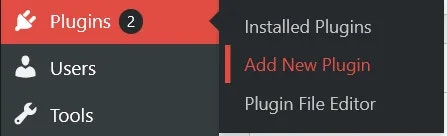 4. Klik tombol **Upload Plugin** dan dialog pemilihan file akan muncul

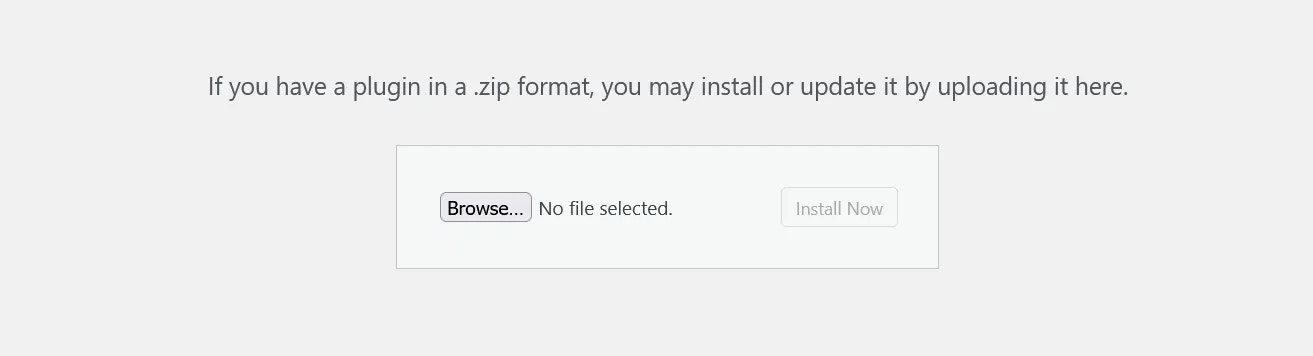 5. Klik **Browse…** dan pilih file zip yang Anda unduh
6. Klik tombol **Install Now** untuk memulai proses instalasi
5. Klik **Browse…** dan pilih file zip yang Anda unduh
6. Klik tombol **Install Now** untuk memulai proses instalasi
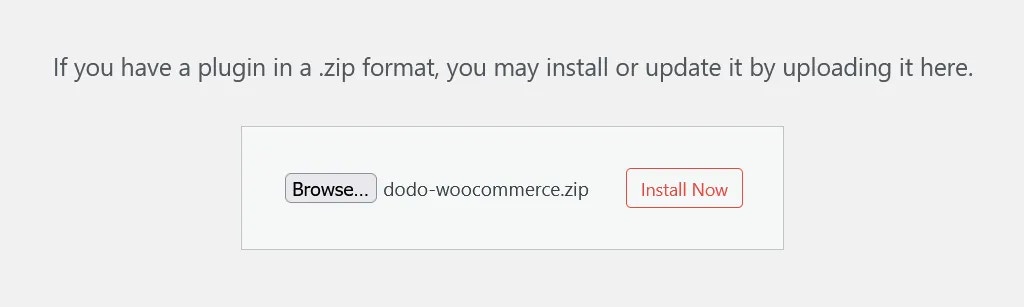 7. Setelah instalasi selesai, klik **Activate Plugin** atau aktifkan dari bagian **Installed Plugins**
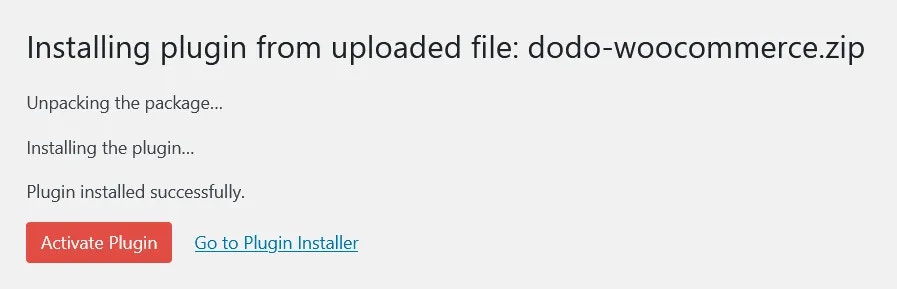 8. Plugin sekarang terinstal, tetapi konfigurasi masih diperlukan. Lanjutkan ke panduan pengaturan di bawah ini.
## Panduan Konfigurasi
### Menyiapkan Kunci API dan Webhook
1. Navigasikan ke **WooCommerce → Settings → Payments** atau klik tombol **Payments** di bilah samping kiri di bawah item menu WooCommerce
8. Plugin sekarang terinstal, tetapi konfigurasi masih diperlukan. Lanjutkan ke panduan pengaturan di bawah ini.
## Panduan Konfigurasi
### Menyiapkan Kunci API dan Webhook
1. Navigasikan ke **WooCommerce → Settings → Payments** atau klik tombol **Payments** di bilah samping kiri di bawah item menu WooCommerce
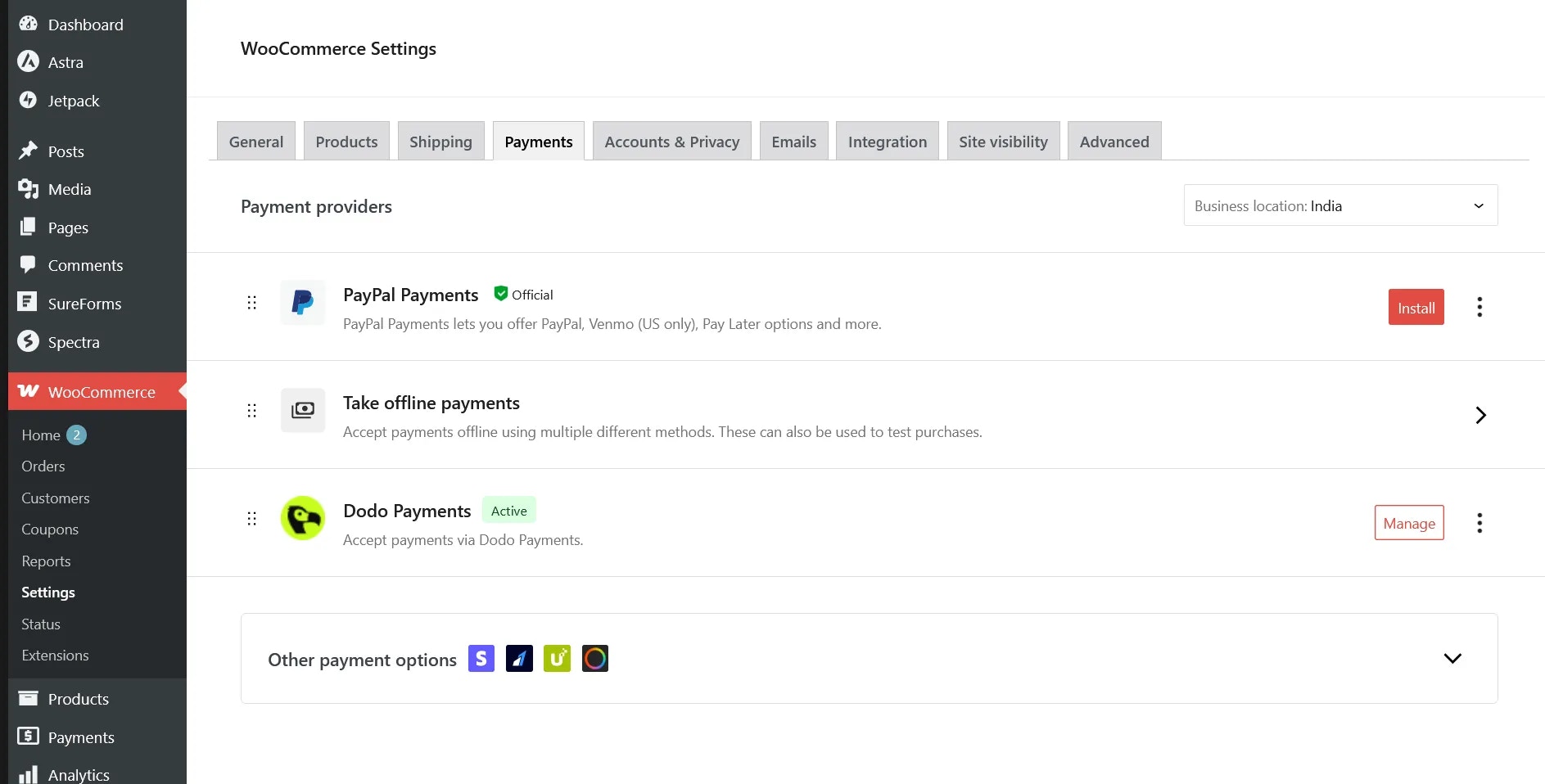
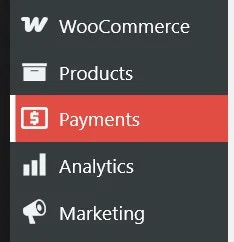 2. Aktifkan penyedia pembayaran **Dodo Payments** jika belum diaktifkan, lalu klik **Manage** untuk mengonfigurasi plugin
3. Anda akan melihat berbagai opsi konfigurasi, masing-masing dengan teks penjelasan yang membantu. Mulailah dengan mengatur Live API Key Anda
2. Aktifkan penyedia pembayaran **Dodo Payments** jika belum diaktifkan, lalu klik **Manage** untuk mengonfigurasi plugin
3. Anda akan melihat berbagai opsi konfigurasi, masing-masing dengan teks penjelasan yang membantu. Mulailah dengan mengatur Live API Key Anda
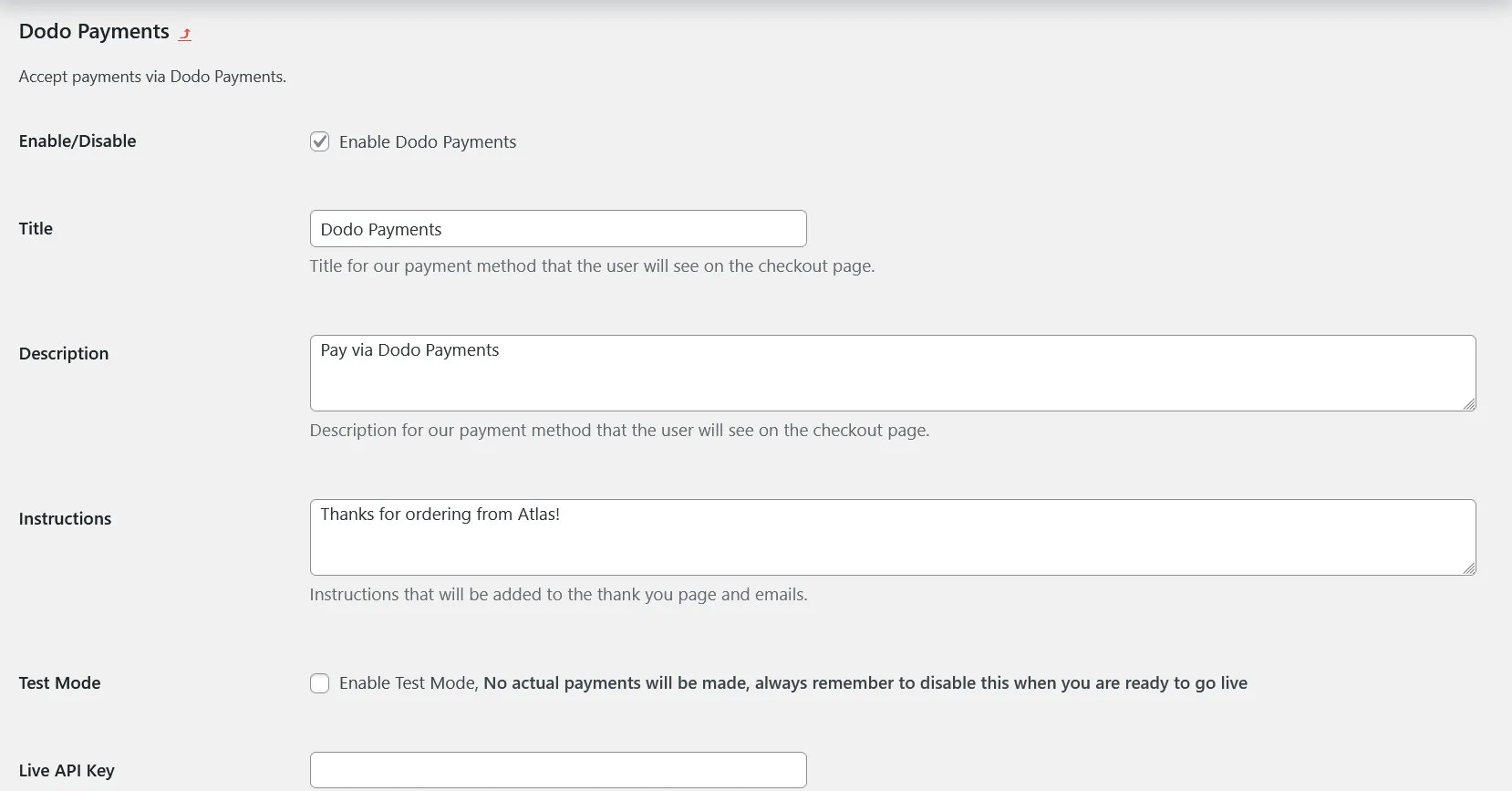 4. Masuk ke dasbor Dodo Payments Anda dalam **Live Mode**, lalu navigasikan ke **Dodo Payments (Live Mode) > Developer > API Keys** atau kunjungi [tautan langsung ini](https://app.dodopayments.com/developer/api-keys) dan klik **Add API Key**
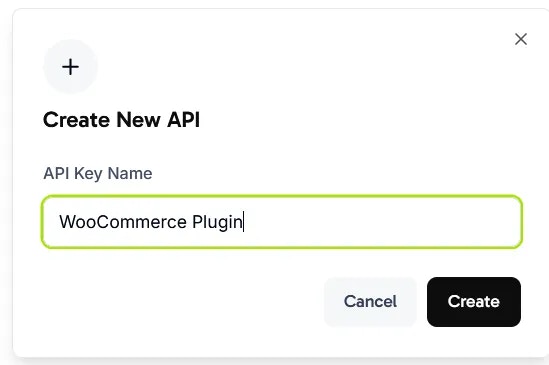
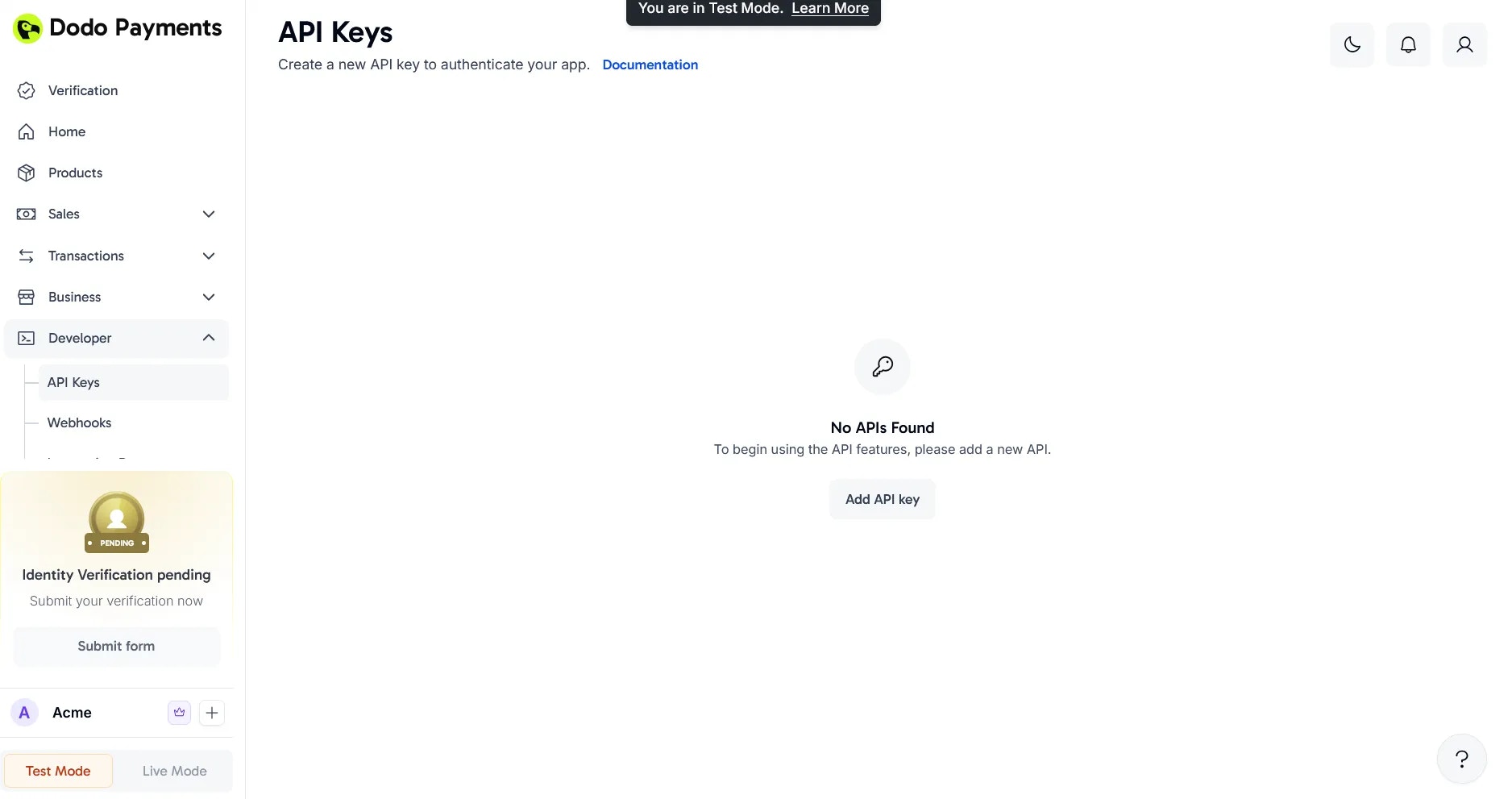 5. Beri nama yang deskriptif untuk API Key Anda dan klik **Create**
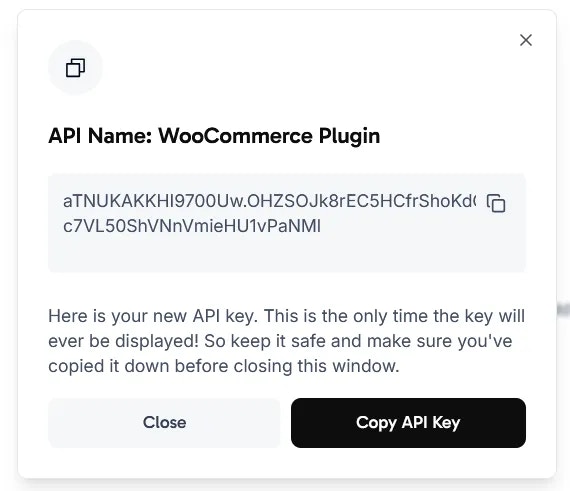
 6. Salin API Key yang dihasilkan dan tempelkan ke dalam field **Live API Key** di pengaturan plugin WooCommerce Anda
 7. Selanjutnya, atur Webhook Signing Key untuk mengaktifkan sinkronisasi status pembayaran antara Dodo Payments dan WooCommerce
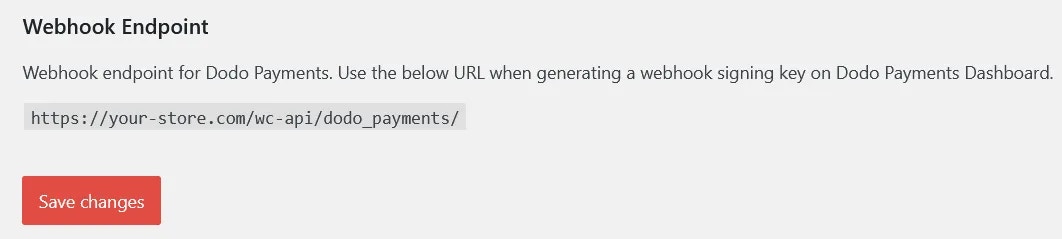
8. Gulir ke bagian bawah halaman pengaturan plugin dan salin URL webhook yang ditampilkan di sana
7. Selanjutnya, atur Webhook Signing Key untuk mengaktifkan sinkronisasi status pembayaran antara Dodo Payments dan WooCommerce
8. Gulir ke bagian bawah halaman pengaturan plugin dan salin URL webhook yang ditampilkan di sana
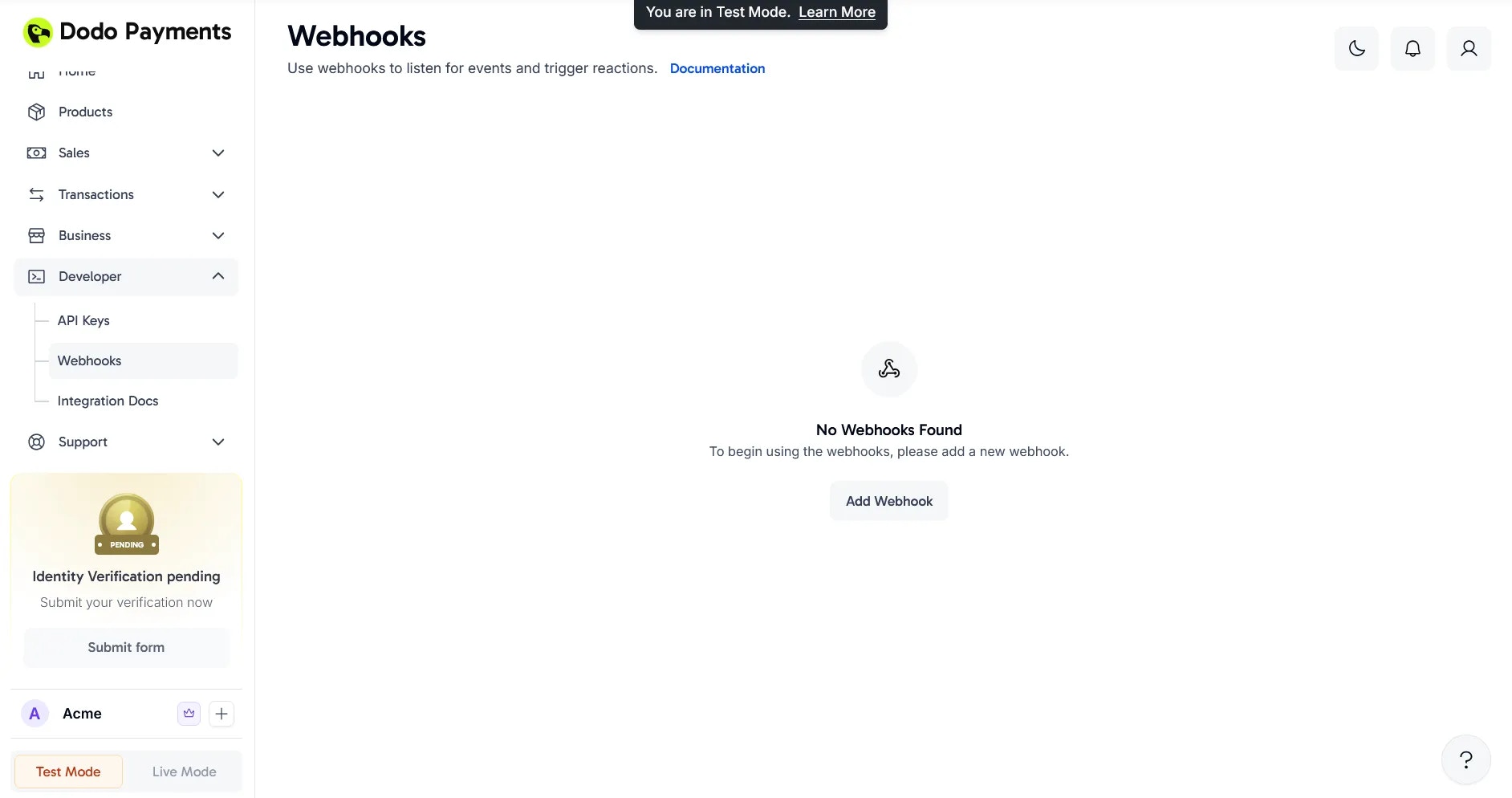
 9. Kembali ke dasbor Dodo Payments Anda dan navigasikan ke **Dodo Payments (Live Mode) > Developer > Webhooks** dan klik **Add Webhook**
 10. Tempelkan URL yang Anda salin pada langkah 8 ke dalam dialog dan klik **Add Webhook**
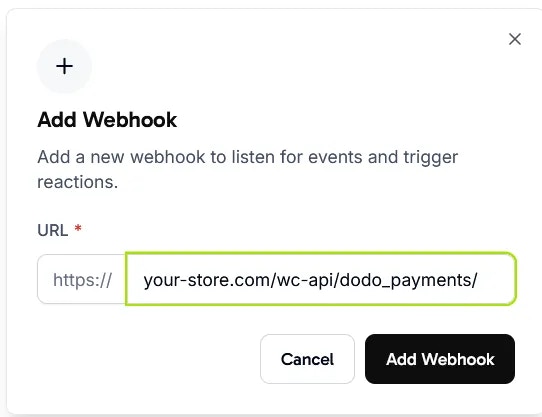 11. Setelah membuat webhook, klik ikon mata di sebelah **Signing Key** yang disembunyikan untuk menampilkan dan menyalinnya
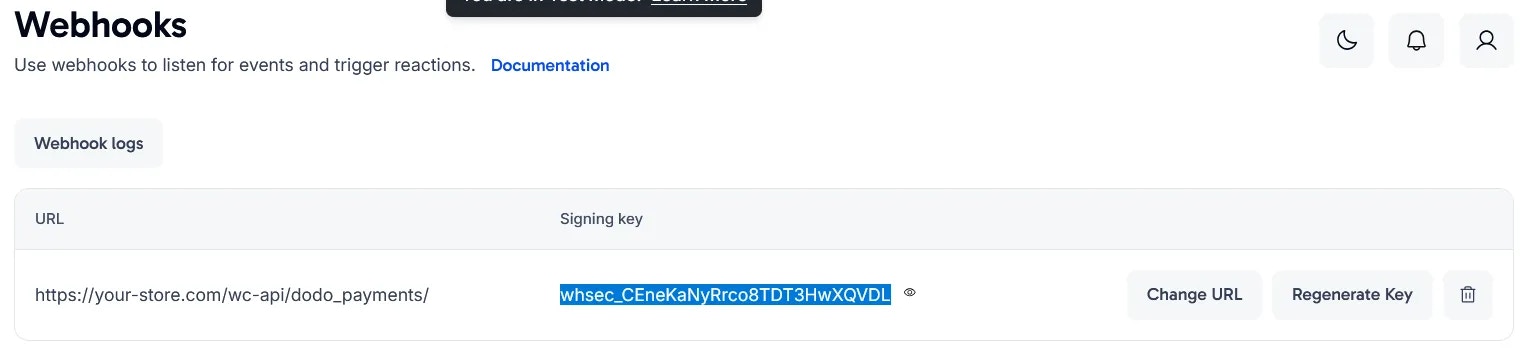 12. Tempelkan Signing Key ke dalam field **Live Webhook Signing Key** di pengaturan plugin Anda dan simpan perubahan
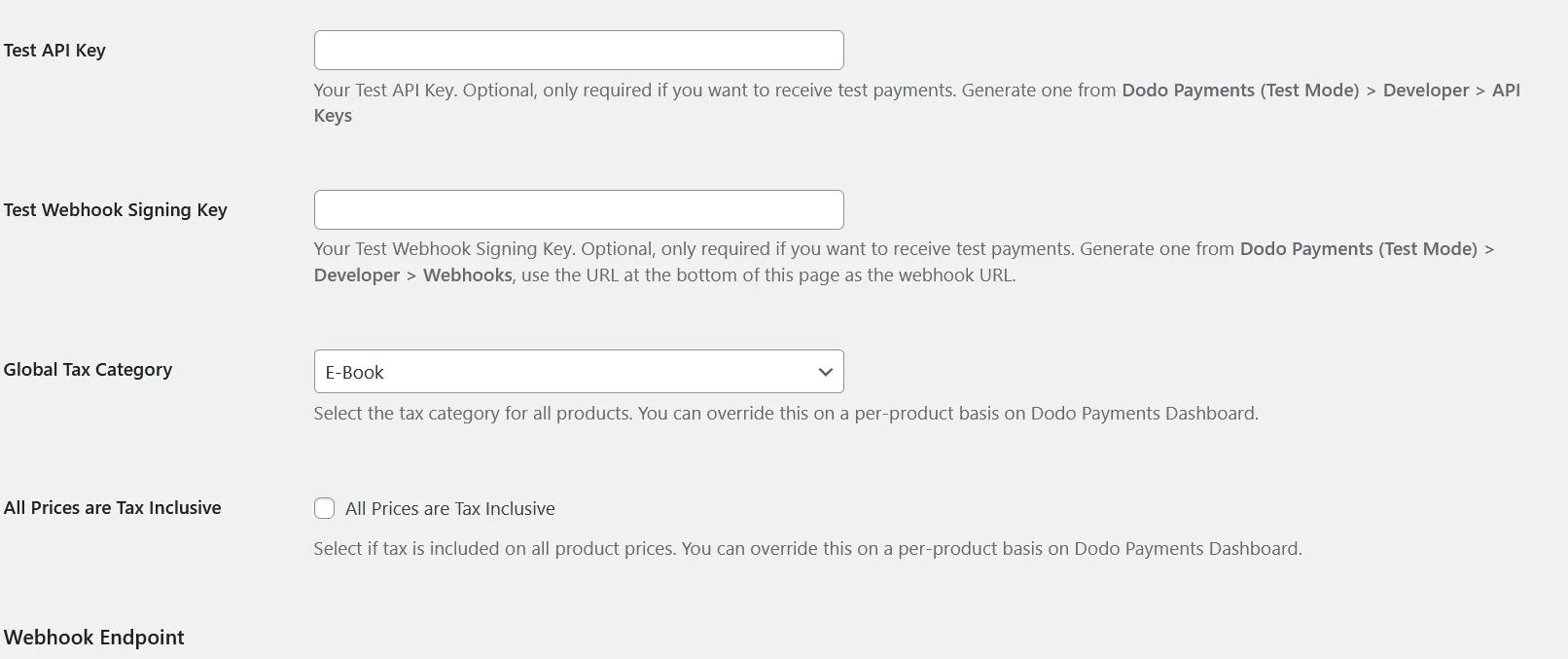
 13. Tinjau pengaturan lainnya seperti **Global Tax Category** dan **All Prices are Tax Inclusive**, karena opsi-opsi ini menentukan bagaimana produk disinkronkan dari WooCommerce ke Dodo Payments. Perhatikan bahwa **Test API Key** dan **Test Webhook Signing Key** hanya diperlukan jika Anda berencana menggunakan Test Mode
 ## Anda Sudah Siap!
Toko WooCommerce Anda sekarang terintegrasi dengan Dodo Payments! Pelanggan dapat memilih Dodo Payments saat checkout untuk mengakses semua metode pembayaran yang didukung.
## Anda Sudah Siap!
Toko WooCommerce Anda sekarang terintegrasi dengan Dodo Payments! Pelanggan dapat memilih Dodo Payments saat checkout untuk mengakses semua metode pembayaran yang didukung.
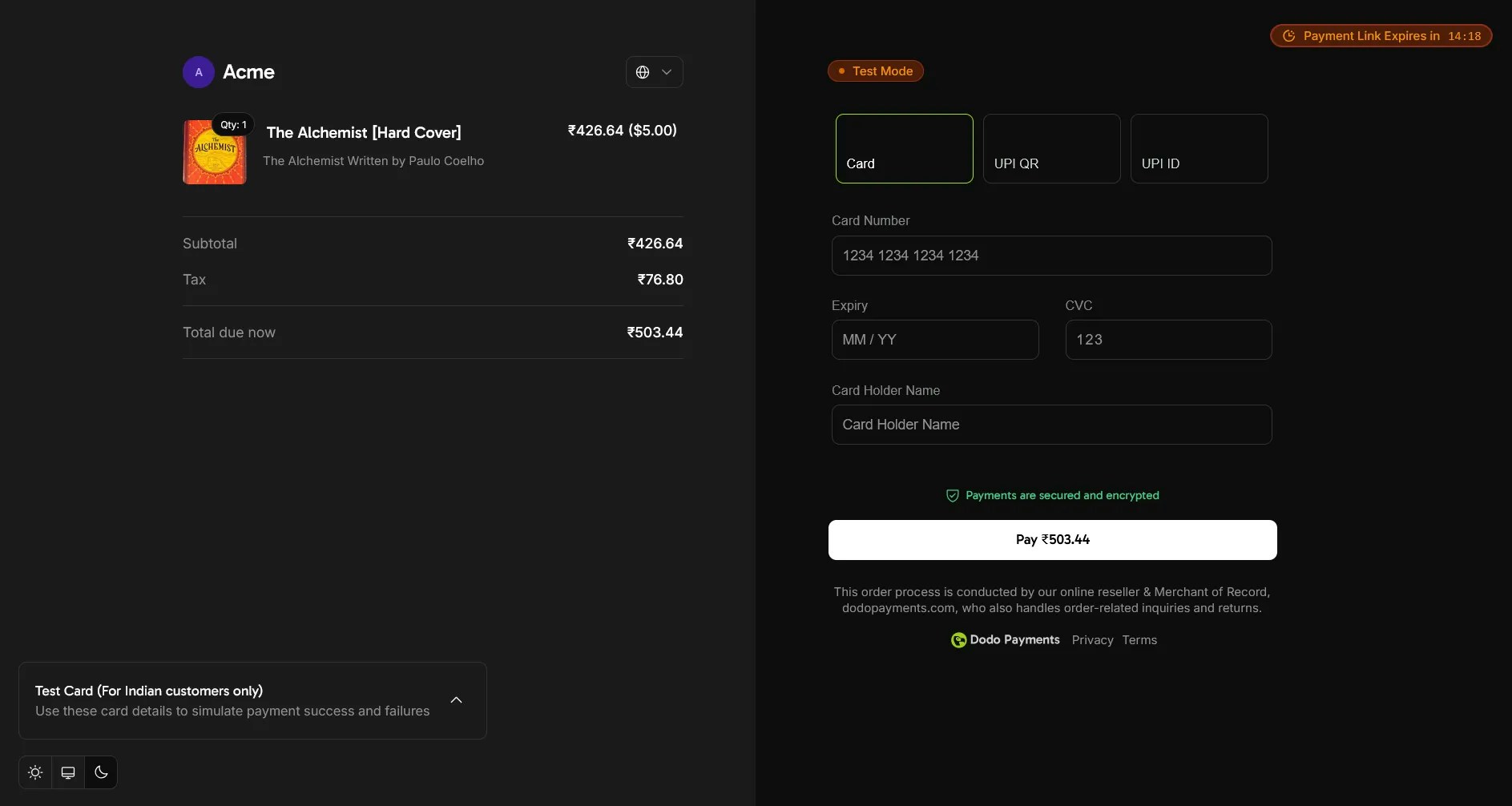
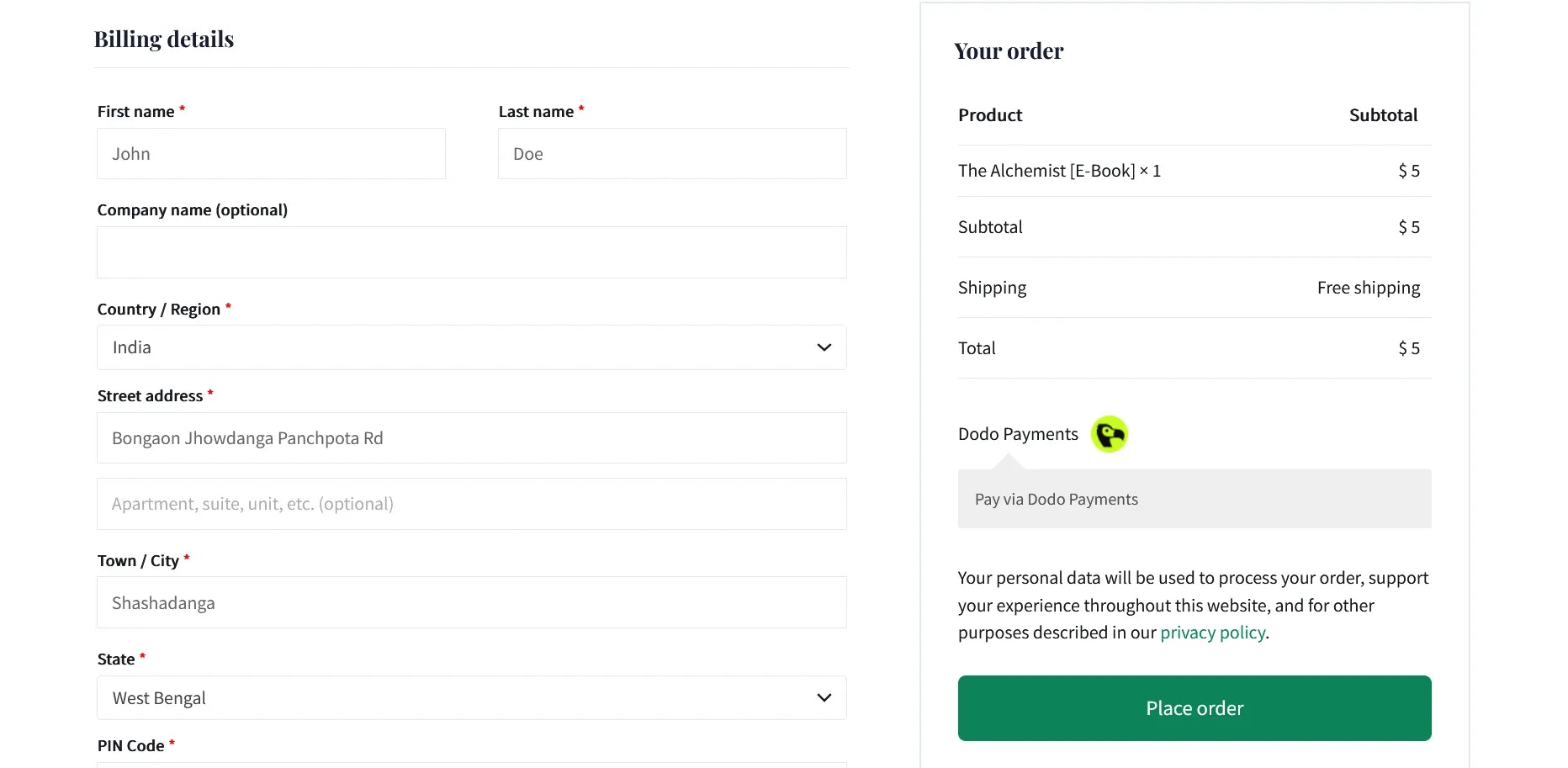 Ketika pelanggan memilih Dodo Payments, mereka akan diarahkan dengan mulus ke halaman checkout Dodo Payments untuk menyelesaikan transaksi mereka.
 ## Fitur Utama
* **Pengalaman Checkout yang Mulus**: Arahkan pelanggan ke halaman checkout yang aman dan dioptimalkan
* **Berbagai Metode Pembayaran**: Dukungan untuk berbagai opsi pembayaran lokal dan internasional
* **Pembaruan Status Waktu Nyata**: Sinkronisasi status pesanan instan melalui webhook
* **Rekaman Transaksi yang Detail**: Riwayat pembayaran yang komprehensif di dasbor WooCommerce Anda
* **Dukungan Multi-mata Uang**: Terima pembayaran dalam berbagai mata uang
## Pemecahan Masalah
### Masalah Umum
1. **Kegagalan Pemrosesan Pembayaran**
* Verifikasi kunci API telah dikonfigurasi dengan benar
* Pastikan URL webhook telah diatur dengan benar
* Periksa bahwa sertifikat SSL Anda valid
2. **Masalah Sinkronisasi Webhook**
* Konfirmasi kunci penandatangan webhook cocok
* Tinjau log server untuk potensi kesalahan
* Verifikasi server Anda dapat menerima permintaan webhook yang masuk
### Sumber Daya Dukungan
Untuk bantuan tambahan:
* Hubungi kami di [support@dodopayments.com](mailto:support@dodopayments.com)
* Lihat [dokumentasi komprehensif kami](https://docs.dodopayments.com)
## Praktik Terbaik Pemeliharaan
1. Secara teratur perbarui plugin untuk patch keamanan dan fitur baru
2. Uji semua alur pembayaran dalam mode sandbox sebelum memproses transaksi langsung
3. Jaga WordPress dan WooCommerce tetap diperbarui ke versi terbaru
4. Lakukan cadangan situs secara teratur
5. Pantau log transaksi untuk aktivitas yang tidak biasa
6. Simpan kunci API dengan aman dan jangan pernah membagikannya secara publik
## Fitur Utama
* **Pengalaman Checkout yang Mulus**: Arahkan pelanggan ke halaman checkout yang aman dan dioptimalkan
* **Berbagai Metode Pembayaran**: Dukungan untuk berbagai opsi pembayaran lokal dan internasional
* **Pembaruan Status Waktu Nyata**: Sinkronisasi status pesanan instan melalui webhook
* **Rekaman Transaksi yang Detail**: Riwayat pembayaran yang komprehensif di dasbor WooCommerce Anda
* **Dukungan Multi-mata Uang**: Terima pembayaran dalam berbagai mata uang
## Pemecahan Masalah
### Masalah Umum
1. **Kegagalan Pemrosesan Pembayaran**
* Verifikasi kunci API telah dikonfigurasi dengan benar
* Pastikan URL webhook telah diatur dengan benar
* Periksa bahwa sertifikat SSL Anda valid
2. **Masalah Sinkronisasi Webhook**
* Konfirmasi kunci penandatangan webhook cocok
* Tinjau log server untuk potensi kesalahan
* Verifikasi server Anda dapat menerima permintaan webhook yang masuk
### Sumber Daya Dukungan
Untuk bantuan tambahan:
* Hubungi kami di [support@dodopayments.com](mailto:support@dodopayments.com)
* Lihat [dokumentasi komprehensif kami](https://docs.dodopayments.com)
## Praktik Terbaik Pemeliharaan
1. Secara teratur perbarui plugin untuk patch keamanan dan fitur baru
2. Uji semua alur pembayaran dalam mode sandbox sebelum memproses transaksi langsung
3. Jaga WordPress dan WooCommerce tetap diperbarui ke versi terbaru
4. Lakukan cadangan situs secara teratur
5. Pantau log transaksi untuk aktivitas yang tidak biasa
6. Simpan kunci API dengan aman dan jangan pernah membagikannya secara publik