> ## Documentation Index
> Fetch the complete documentation index at: https://docs.dodopayments.com/llms.txt
> Use this file to discover all available pages before exploring further.
# Credit-Based Billing
> Issue, manage, and track credit entitlements across subscriptions, one-time products, and usage-based billing with rollover, overage, and expiration controls.
Penagihan Berbasis Kredit memungkinkan Anda memberikan pelanggan saldo kredit - panggilan API, token, unit komputasi, atau metrik kustom lainnya - dan menguranginya dari saldo seiring mereka menggunakan layanan Anda. Kredit bekerja di semua jenis produk: langganan, pembelian satu kali, dan penagihan berbasis penggunaan.
## Apa itu Penagihan Berbasis Kredit?
Penagihan Berbasis Kredit memberi Anda sistem fleksibel untuk memberikan hak kredit kepada pelanggan sebagai bagian dari produk Anda. Alih-alih menagih per penggunaan atau membatasi akses melalui fitur flags, Anda mengalokasikan sejumlah kredit yang dapat digunakan pelanggan saat mereka menggunakan layanan Anda.
Kredit ideal untuk:
* **Platform AI dan LLM**: Berikan token atau kredit generasi per tingkat rencana
* **Layanan API**: Alokasikan kredit panggilan API dengan harga kelebihan
* **Platform Infrastruktur**: Berikan kredit jam komputasi atau penyimpanan
* **Layanan Komunikasi**: Sediakan kredit pesan atau menit per langganan
* **SaaS dengan tingkat konsumsi**: Gabungkan penggunaan yang termasuk dalam kumpulan kredit
## Konsep Inti
### Jenis Kredit
Saat membuat kredit, Anda memilih antara dua jenis:
Tentukan kredit dalam unit Anda sendiri - token, panggilan API, jam komputasi, atau metrik apa pun yang bermakna untuk produk Anda. Unit kustom menggunakan presisi yang Anda tetapkan (0 hingga 3 angka desimal).
**Terbaik untuk**: Panggilan API, token AI, jam komputasi, unit penyimpanan, pesan
Kredit mewakili nilai mata uang sebenarnya (mis., USD, EUR). Pelanggan menerima saldo kredit moneter yang berkurang saat mereka menggunakan layanan Anda pada harga yang Anda tentukan.
**Terbaik untuk**: Saldo prabayar, kredit promosi, kompensasi layanan
### Siklus Hidup Kredit
Kredit mengikuti siklus hidup yang jelas dari penerbitan hingga konsumsi:
Kredit diberikan ketika pelanggan membeli produk (langganan atau satu kali) dengan hak kredit yang terkait. Untuk langganan, kredit diterbitkan kembali setiap siklus penagihan.
Saat pelanggan menggunakan layanan Anda, kredit dikurangi. Untuk produk berbasis penggunaan, pengukur secara otomatis mengurangi kredit berdasarkan peristiwa waktu nyata. Anda juga dapat mengurangi kredit secara manual melalui dashboard atau API.
Pada akhir siklus penagihan (atau setelah periode kedaluwarsa yang dikonfigurasi), kredit yang tidak terpakai akan kedaluwarsa atau bergulir ke periode berikutnya berdasarkan pengaturan Anda.
Jika kredit habis di tengah siklus, Anda dapat memungkinkan kelebihan (penggunaan yang dilanjutkan melebihi saldo) dan memilih cara menangani kelebihan tersebut - maaf atau data, tagih, atau bawakan defisit ke depan.
### Sumber Pemberian
Kredit dapat diberikan dari beberapa sumber:
| Sumber | Deskripsi |
| ------------- | ------------------------------------------------------------------------------------------ |
| **Langganan** | Kredit diterbitkan dengan pembelian langganan, diterbitkan kembali setiap siklus penagihan |
| **Satu Kali** | Kredit diterbitkan dengan produk pembayaran satu kali |
| **API** | Kredit diberikan secara manual melalui API atau dasbor |
| **Gulirkan** | Kredit dibawa ke siklus penagihan sebelumnya |
***
## Membuat Kredit
Buat hak kredit di bagian **Produk → Kredit** dari dasbor Anda. Setiap kredit mendefinisikan unit, presisi, aturan kedaluwarsa, dan perilaku siklus hidup.
Buka **Produk** di dasbor Anda dan pilih tab **Kredit**. Klik **Buat Kredit** untuk memulai.
Masukkan **Nama Kredit** - ini adalah pengidentifikasi internal Anda untuk kredit tersebut.
Konfigurasikan tipe dan properti tampilan kredit:
Pilih **Unit Kustom** atau **Kredit Fiat**.
* **Unit Kustom** - Tentukan metrik Anda sendiri (token, panggilan API, jam komputasi). Memerlukan pengaturan **Nama Unit** (mis., "Platform tokens") dan **Presisi**.
* **Kredit Fiat** - Kredit mewakili nilai mata uang sebenarnya. Memerlukan pilihan **Mata Uang Unit** (USD, EUR, GBP, INR, dll.).
Hanya untuk kredit Unit Kustom. Label yang dilihat pelanggan untuk kredit ini (mis., "Token AI", "Panggilan API"). Ditampilkan di checkout dan portal pelanggan.
Hanya untuk kredit Unit Kustom. Jumlah tempat desimal yang diperbolehkan:
* `0` - Bilangan bulat (terbaik untuk item yang dapat dihitung seperti panggilan API)
* `1` - Satu desimal (0.0)
* `2` - Dua desimal (0.00) - **default**
* `3` - Tiga desimal (0.000)
Presisi tidak dapat diubah setelah kredit dibuat.
Berapa lama kredit tetap valid setelah diterbitkan:
* **7 hari**, **30 hari** (default), **60 hari**, **90 hari**, **Kustom**, atau **Tidak Pernah**
Pilih **Kustom** untuk menentukan jumlah hari kustom (minimal 1).
Pengaturan ini mengontrol perilaku kredit dalam langganan berulang:
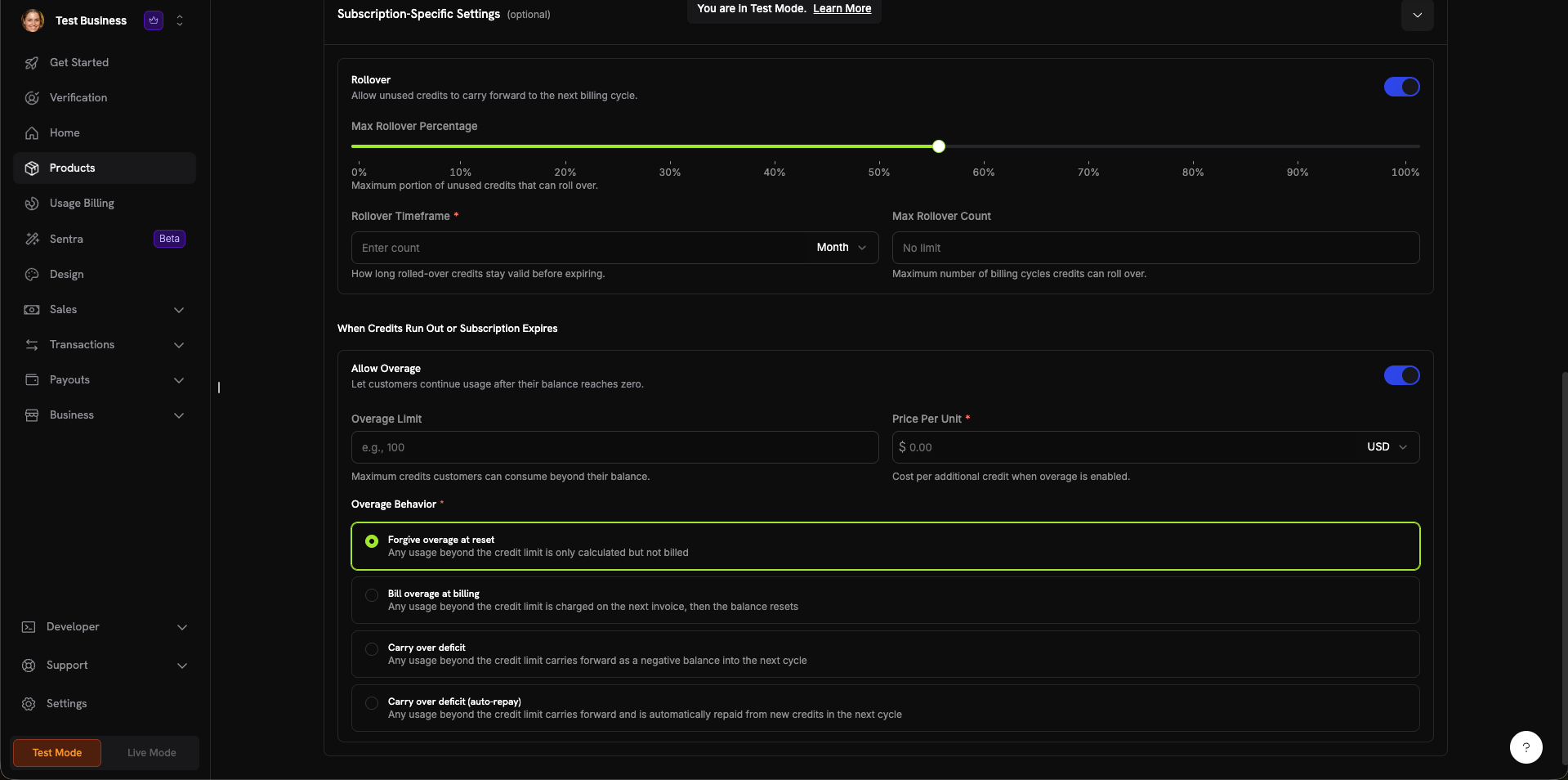
Izinkan kredit yang tidak terpakai untuk dibawa ke siklus penagihan berikutnya. Saat diaktifkan, konfigurasikan:
* **Persentase Maks Gulirkan** (0–100%) - Batasi berapa banyak yang dibawa ke depan
* **Jangka Waktu Gulirkan** - Berapa lama kredit yang digulirkan tetap valid (mis., 1 Bulan)
* **Jumlah Maks Gulirkan** - Maksimum guliran berkelanjutan sebelum kredit hangus
**Ketika Kredit Habis atau Langganan Kedaluwarsa:**
Beri pelanggan izin untuk terus menggunakan layanan Anda setelah saldo kredit mereka mencapai nol. Saat diaktifkan, konfigurasikan:
* **Batas Kelebihan** - Maksimum kredit yang dapat digunakan pelanggan di luar saldo mereka
* **Harga Per Unit** - Biaya per kredit tambahan saat kelebihan diaktifkan (dengan pilihan mata uang)
Mengontrol cara menangani kelebihan di akhir siklus penagihan:
* **Maaf atas kelebihan saat reset** (default) - Penggunaan yang melebihi batas kredit dicatat tetapi tidak ditagih. Saldo direset setiap siklus.
* **Tagih kelebihan saat penagihan** - Penggunaan yang melebihi batas kredit dikenakan pada faktur berikutnya, kemudian saldo direset.
* **Bawa defisit ke depan** - Penggunaan di luar batas kredit dibawa ke depan sebagai saldo negatif ke siklus berikutnya.
* **Bawa defisit ke depan (pembayaran otomatis)** - Defisit dibawa ke depan dan dibayar otomatis dari kredit baru di siklus berikutnya.
Klik **Buat Kredit** untuk menyimpan. Kredit sekarang tersedia untuk dilampirkan ke produk apa pun.
Hak kredit Anda siap. Lampirkan ke produk untuk mulai menerbitkan kredit kepada pelanggan.
Mulailah dengan pengaturan sederhana - tanpa guliran, tanpa kelebihan - dan tambahkan kerumitan saat Anda belajar cara pelanggan menggunakan kredit. Sebagian besar pengaturan dapat diperbarui kapan saja tanpa memengaruhi pemberian yang ada. Perhatikan bahwa **presisi tidak dapat diubah** setelah kredit dibuat.
***
## Attaching Credits to Products
Kredit dilampirkan ke produk sebagai **hak** dalam alur pembuatan atau pengeditan produk. Anda dapat melampirkan hingga **5 kredit per produk**. Kredit berfungsi dengan ketiga jenis penetapan harga.
### Subscription Products
For subscriptions, credits are issued **per billing cycle** and can be configured with proration, trial credits, and cycle-specific settings.
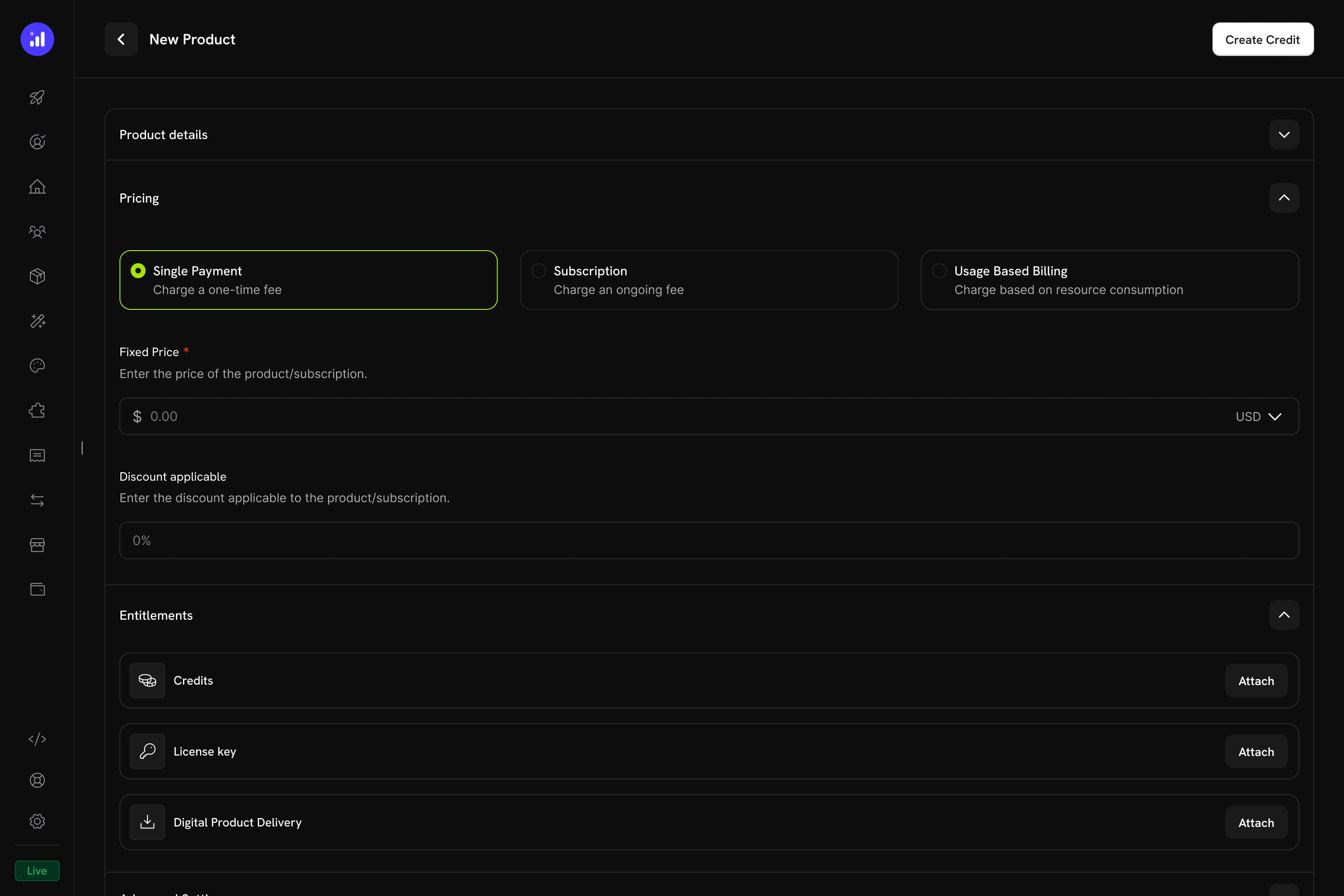
Go to **Products → Create Product** or edit an existing product. Select **Subscription** as the pricing type and configure your recurring price.
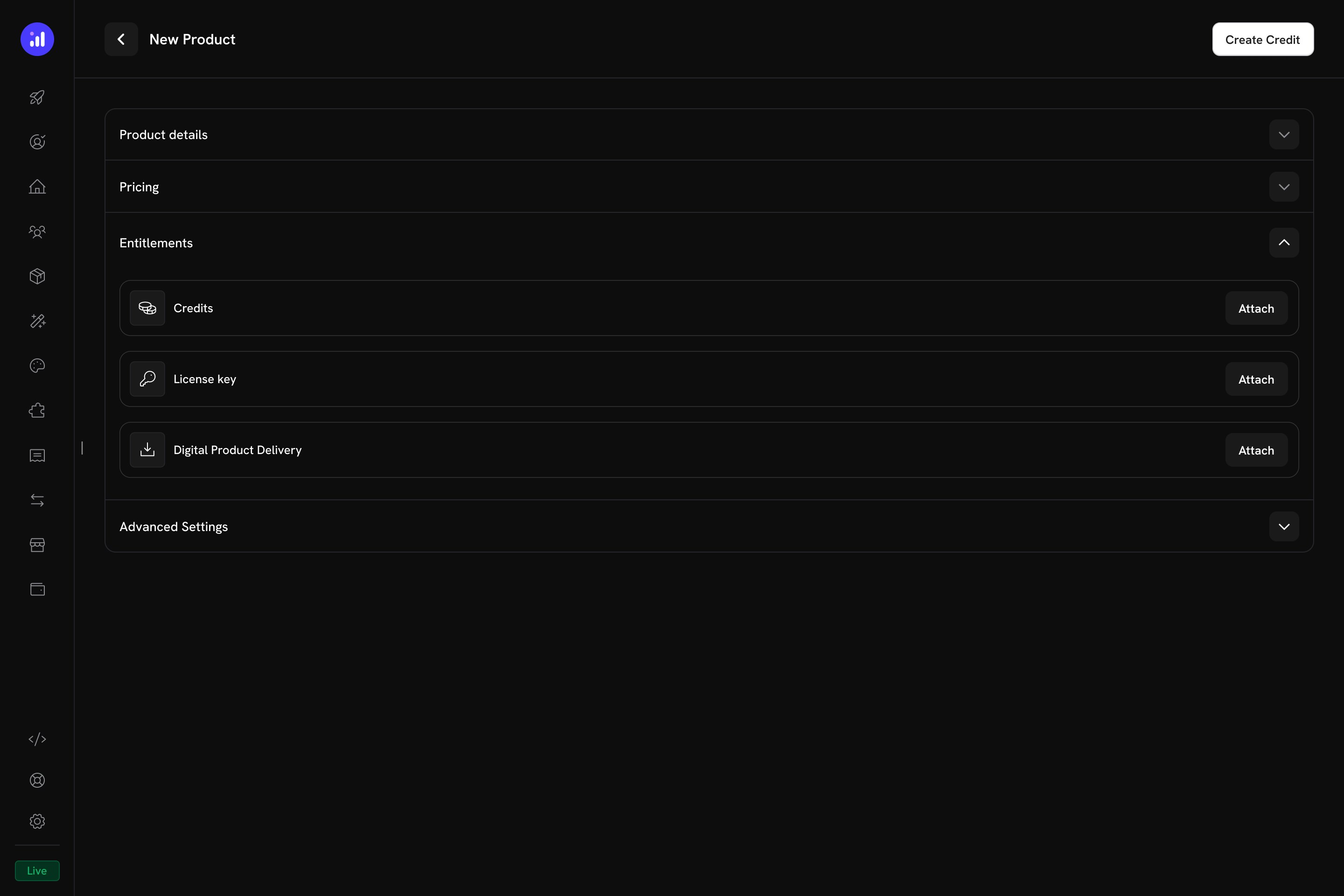
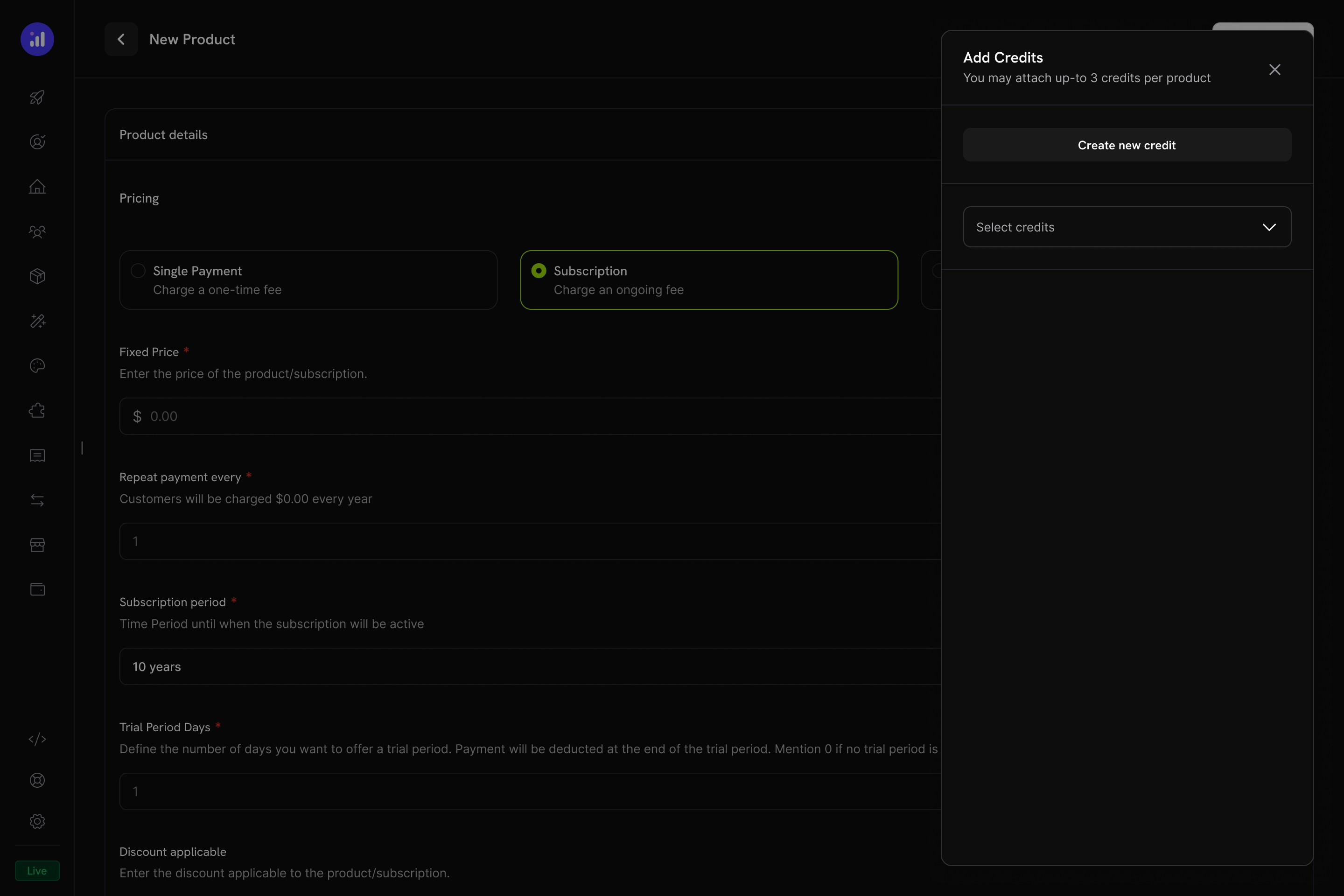
Expand the **Entitlements** section and click the **Attach** button next to **Credits**.
An **Add Credits** panel opens. You can select an existing credit from the dropdown or click **Create new credit** to define one on the spot.
Anda dapat melampirkan hingga 5 kredit per produk. Setiap kredit dapat memiliki konfigurasinya sendiri.
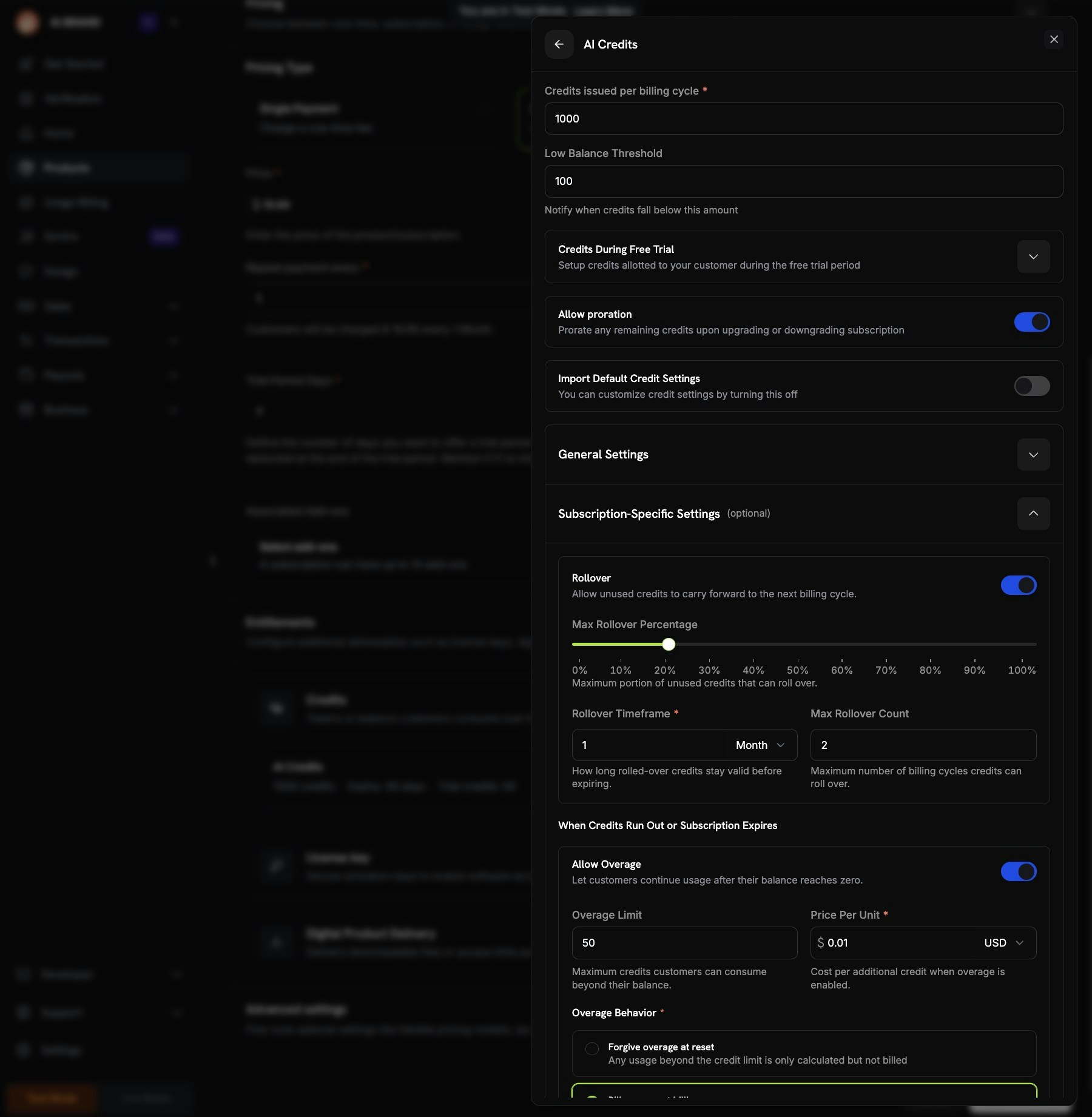
For each attached credit, configure:
The number of credits granted to the customer each billing period.
Notify when credits fall below this amount. Useful for alerting customers before they run out.
Set a different credit amount for trial periods. Enable **Expire trial credits after trial ends** to revoke unused trial credits when the trial converts to a paid subscription.
Prorate remaining credits when a customer upgrades or downgrades their subscription plan.
Use the default rollover, overage, and expiry settings from the credit entitlement. Turn this off to customize settings specifically for this product.
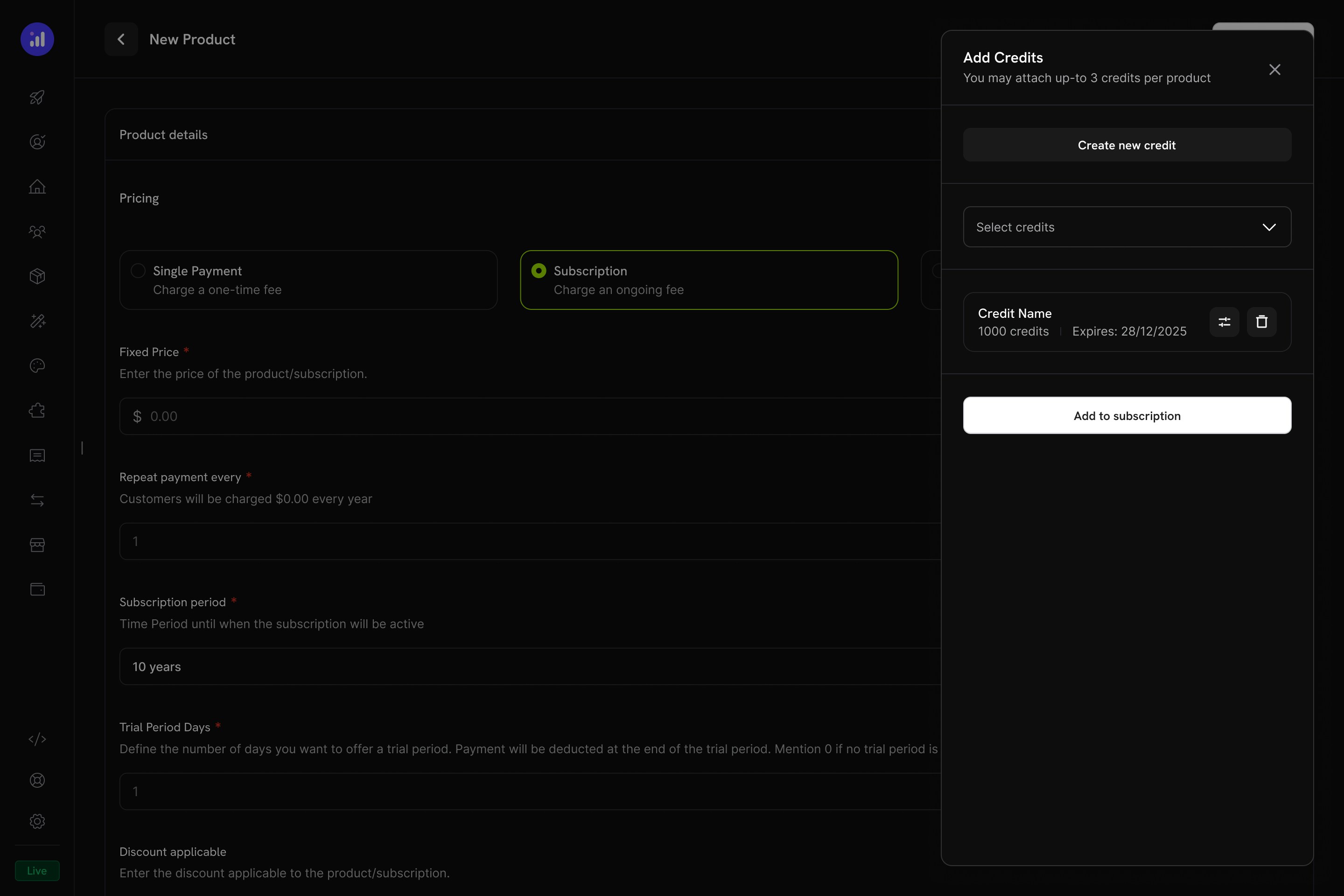
Review the attached credit showing name, amount, and expiration. Click **Add to Subscription** to confirm.
### One-Time Payment Products
For one-time payments, credits are issued **once** at the time of purchase.
Create a product with **Single Payment** pricing type.
Open the **Entitlements** section and attach credits. Configure the **number of credits issued** (total one-time grant) on purchase.
One-time credit products are ideal for credit top-up packs, promotional bundles, or prepaid credit purchases.
### Usage-Based Billing Products
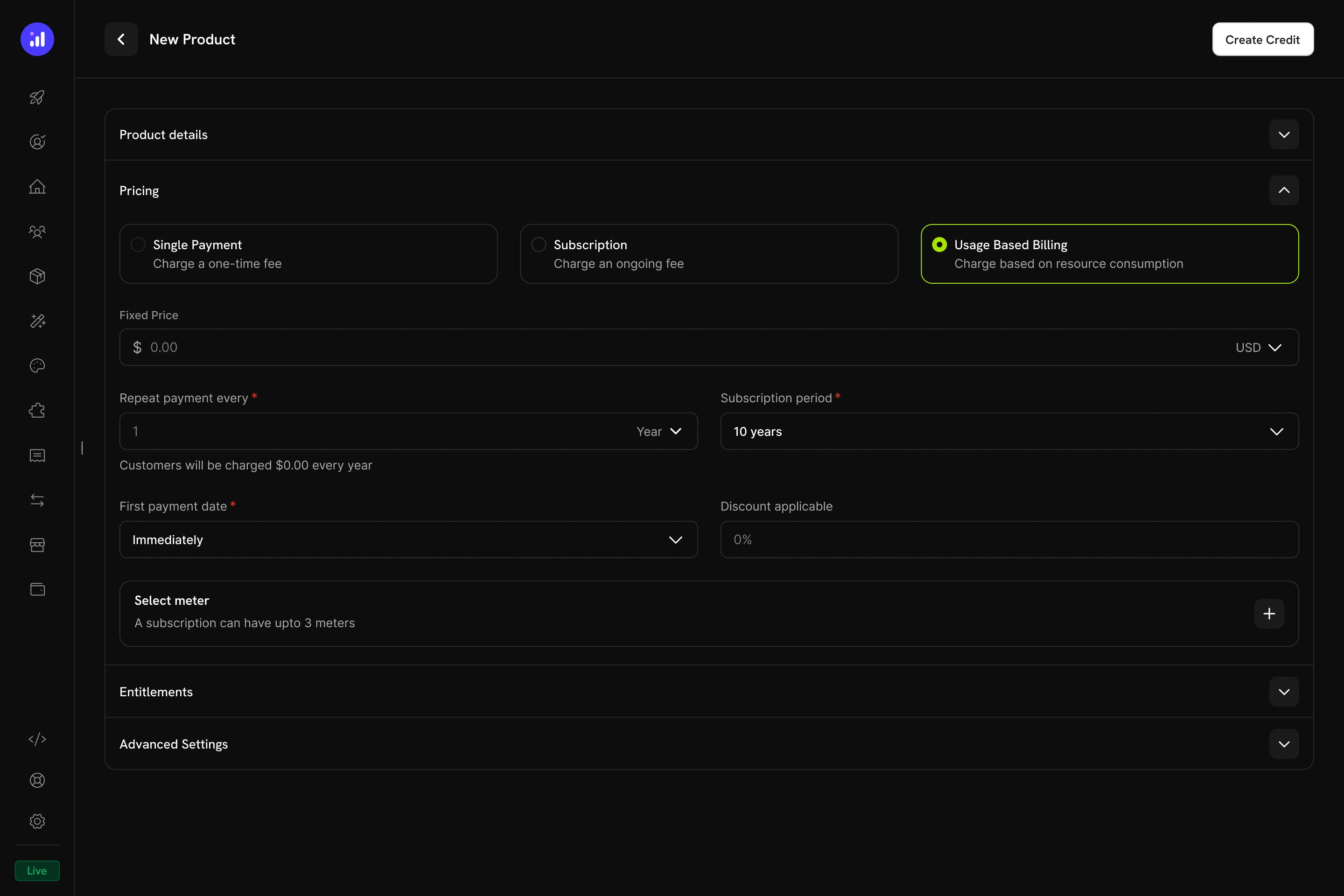
For usage-based products, credits are **linked to meters** and automatically deducted based on real-time consumption events.
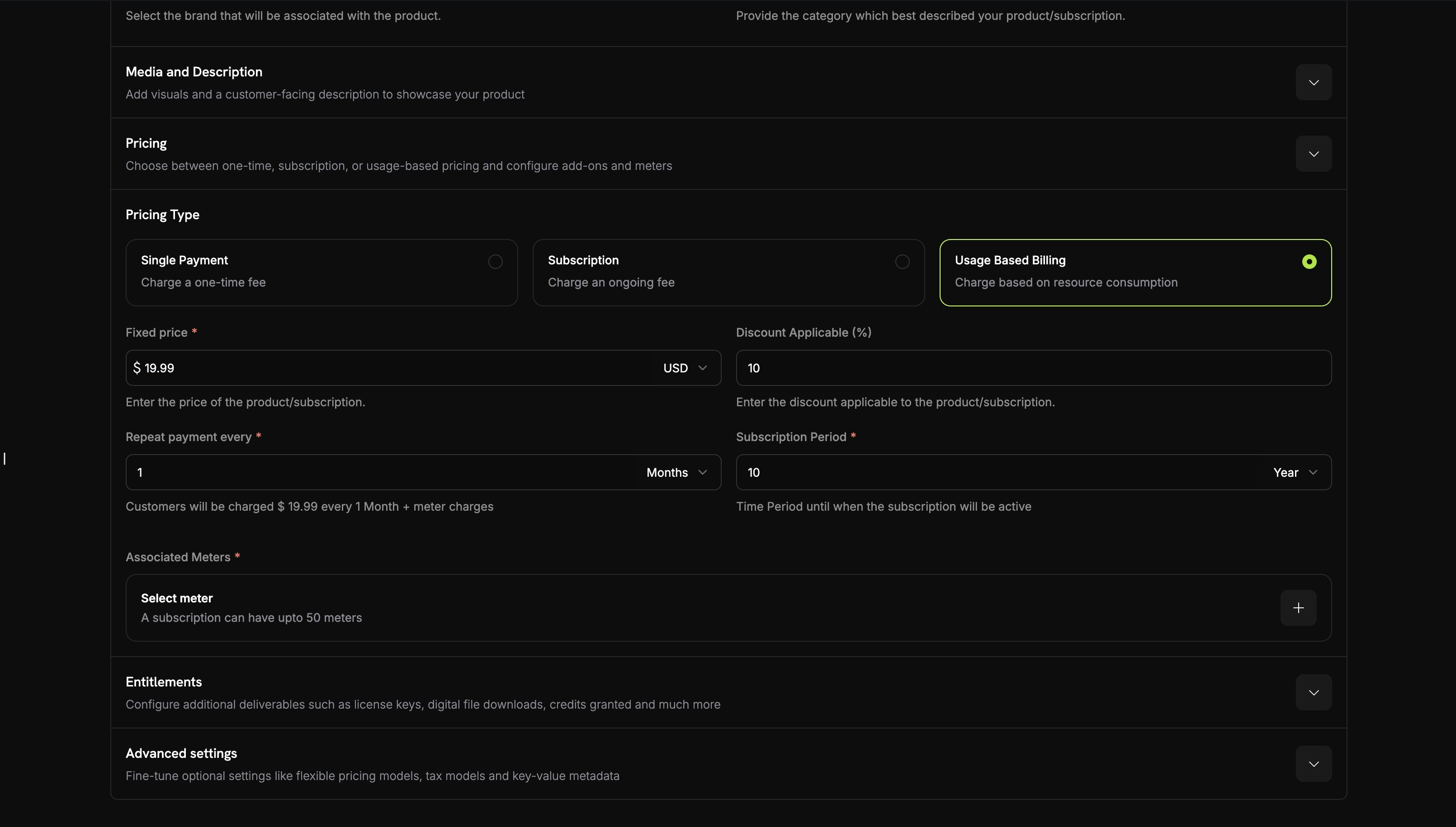
Select **Usage Based Billing** as the pricing type. Configure the base price and billing frequency.
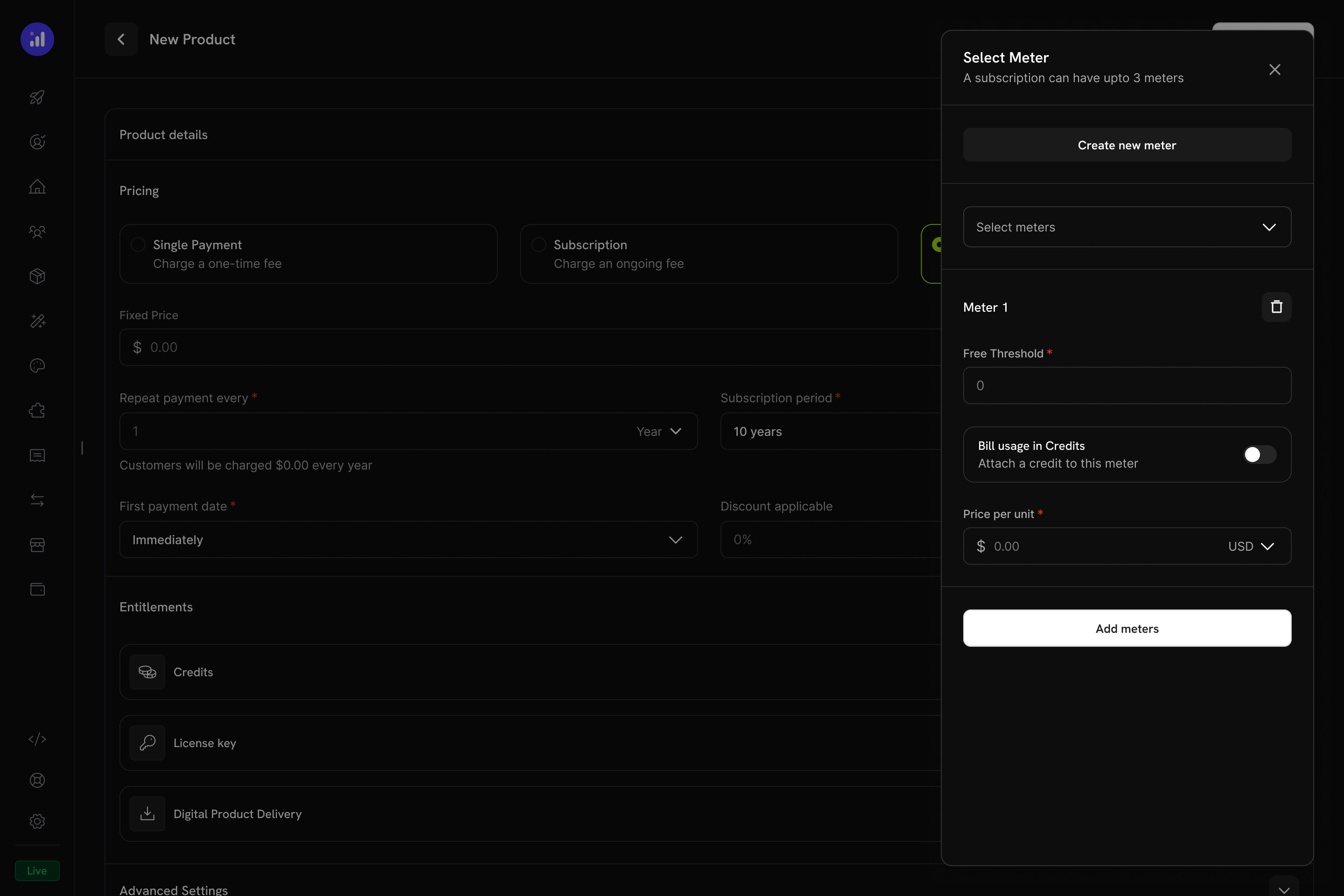
Click the **+** button in the **Select meter** section to add a meter. A subscription can have up to **3 meters**.
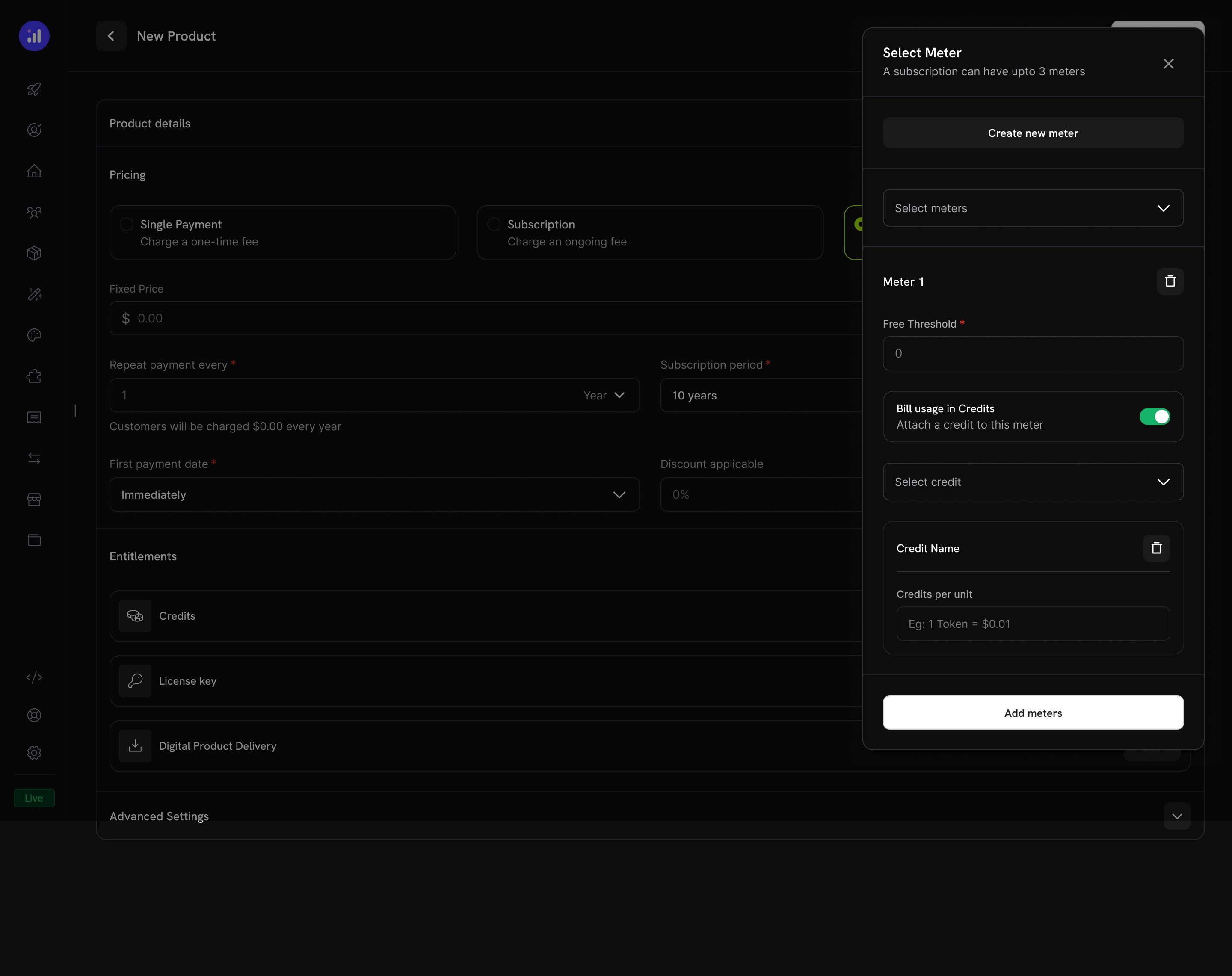
Toggle **Bill usage in Credits** to attach a credit to the meter. Select the credit entitlement from the dropdown.
The number of units that are free before credit deduction begins.
When enabled, meter usage deducts from the customer's credit balance instead of charging per-unit.
The number of usage units required to deduct 1 credit. For example, if set to `1000`, then 1,000 API calls consume 1 credit.
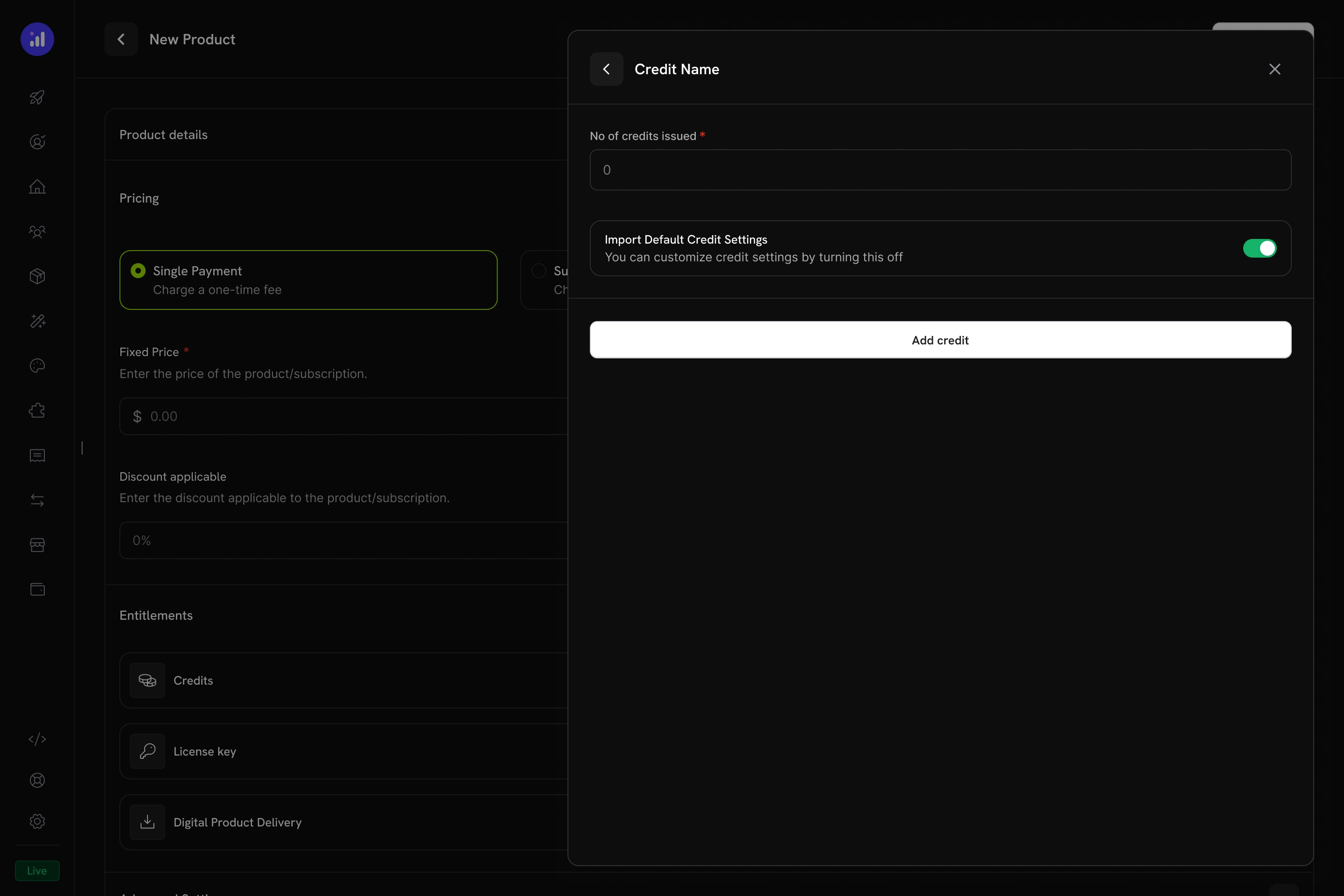
Set the number of credits issued and optionally customize the credit settings for this product.
Once configured, the meter shows the attached credit name, unit price, and free threshold.
When credits are linked to meters, the system automatically deducts credits based on ingested usage events. A background worker processes events every minute, aggregates them according to the meter's configuration, and applies FIFO (first-in, first-out) deduction from the customer's oldest non-expired grants.
***
## Credit Settings
### Rollover
Rollover lets unused credits carry forward to the next billing cycle instead of expiring.
| Setting | Description |
| --------------------------- | ------------------------------------------------------------------------------------------------------------------- |
| **Rollover Enabled** | Toggle to allow unused credits to carry forward |
| **Max Rollover Percentage** | Limit how much carries over (0–100%). At 50%, only half of unused credits roll over |
| **Rollover Timeframe** | How long rolled-over credits remain valid (day, week, month, year) |
| **Max Rollover Count** | Maximum number of times credits can be consecutively rolled over. After this limit, remaining credits are forfeited |
**Example**: A customer has 200 unused credits at cycle end. With 75% rollover, 150 credits carry forward and 50 are forfeited.
### Overage
Overage controls what happens when a customer's credit balance reaches zero mid-cycle.
| Setting | Description |
| -------------------- | ------------------------------------------------------------------------------ |
| **Allow Overage** | Toggle to let customers continue using the service beyond their credit balance |
| **Overage Limit** | Maximum credits customers can consume beyond their balance |
| **Price Per Unit** | Cost per additional credit consumed as overage (with currency) |
| **Overage Behavior** | Controls what happens to overage at the end of the billing cycle (see below) |
**Overage Behavior options:**
| Behavior | Description |
| ----------------------------------- | -------------------------------------------------------------------------------------- |
| **Forgive overage at reset** | Usage beyond the credit limit is tracked but not billed. Balance resets each cycle |
| **Bill overage at billing** | Usage beyond the credit limit is charged on the next invoice, then the balance resets |
| **Carry over deficit** | Overage carries forward as a negative balance into the next cycle |
| **Carry over deficit (auto-repay)** | Deficit carries forward and is automatically repaid from new credits in the next cycle |
When overage is disabled, customers cannot use the service once their credit balance reaches zero. Choose an overage behavior that matches your billing model - **Forgive at reset** is the default and simplest option.
### Expiration
| Setting | Description |
| ------------------------------------ | ------------------------------------------------------------------------------------ |
| **Credit Expiry** | Duration after issuance before credits expire (7, 30, 60, 90, custom days, or never) |
| **Trial Credits Expire After Trial** | Whether trial-specific credits expire when the trial period ends |
Expired credits create a `CreditExpired` ledger entry. If rollover is enabled, the rollover percentage is applied before expiration, and only the remainder expires.
***
## Usage Billing with Credits
When credits are linked to usage meters, the system creates a powerful consumption-based billing model. Customers receive a credit allocation, and usage events automatically deduct from their balance.
### How Meter-Based Credit Deduction Works
1. **Aplikasi Anda mengirimkan acara penggunaan** - Setiap acara mencakup ID pelanggan, nama acara, dan metadata
2. **Meters menggabungkan acara** - Menggunakan agregasi Count, Sum, Max, atau Last
3. **Kredit dipotong secara otomatis** - Seorang pekerja latar belakang memproses acara setiap menit, mengonversi satuan meter ke kredit menggunakan tarif yang Anda konfigurasi, dan memotong saldo pelanggan menggunakan urutan FIFO (pemberian tertua terlebih dahulu)
4. **Penggunaan berlebih dilacak** - Jika saldo kredit mencapai nol dan penggunaan berlebih diaktifkan, sistem melacak penggunaan berlebih untuk penagihan akhir siklus
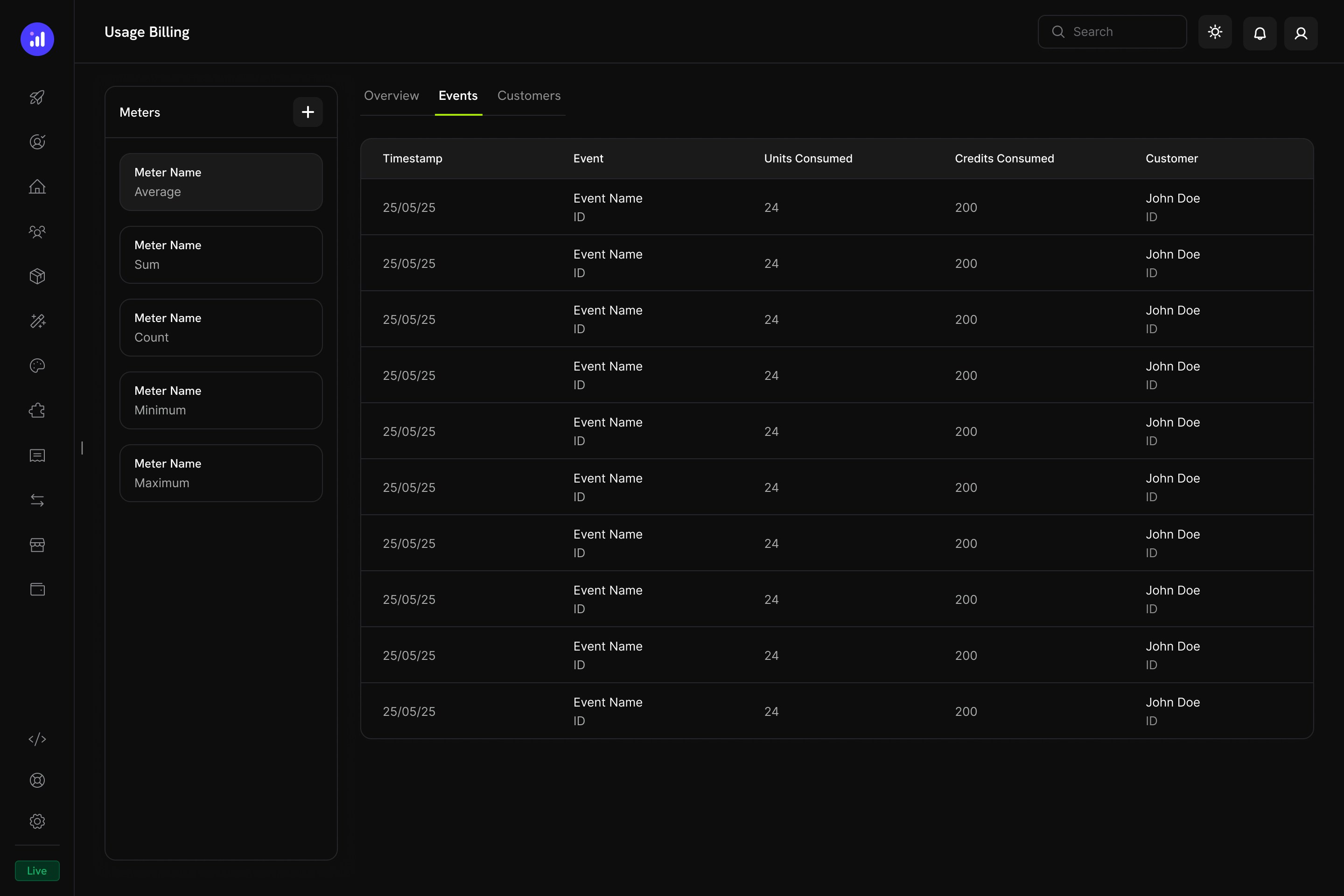
### Meters Panel
The Usage Billing dashboard includes a **Meters** panel listing all defined meters with their aggregation type:
| Agregasi | Deskripsi | Contoh |
| --------- | ----------------------------- | ------------------------------ |
| **Count** | Jumlah total acara | Panggilan API |
| **Sum** | Jumlah dari field nilai | Total byte yang ditransfer |
| **Max** | Nilai tertinggi yang tercatat | Pengguna bersamaan puncak |
| **Last** | Nilai terbaru | Penyimpanan saat ini digunakan |
***
## Customer Experience
### Checkout
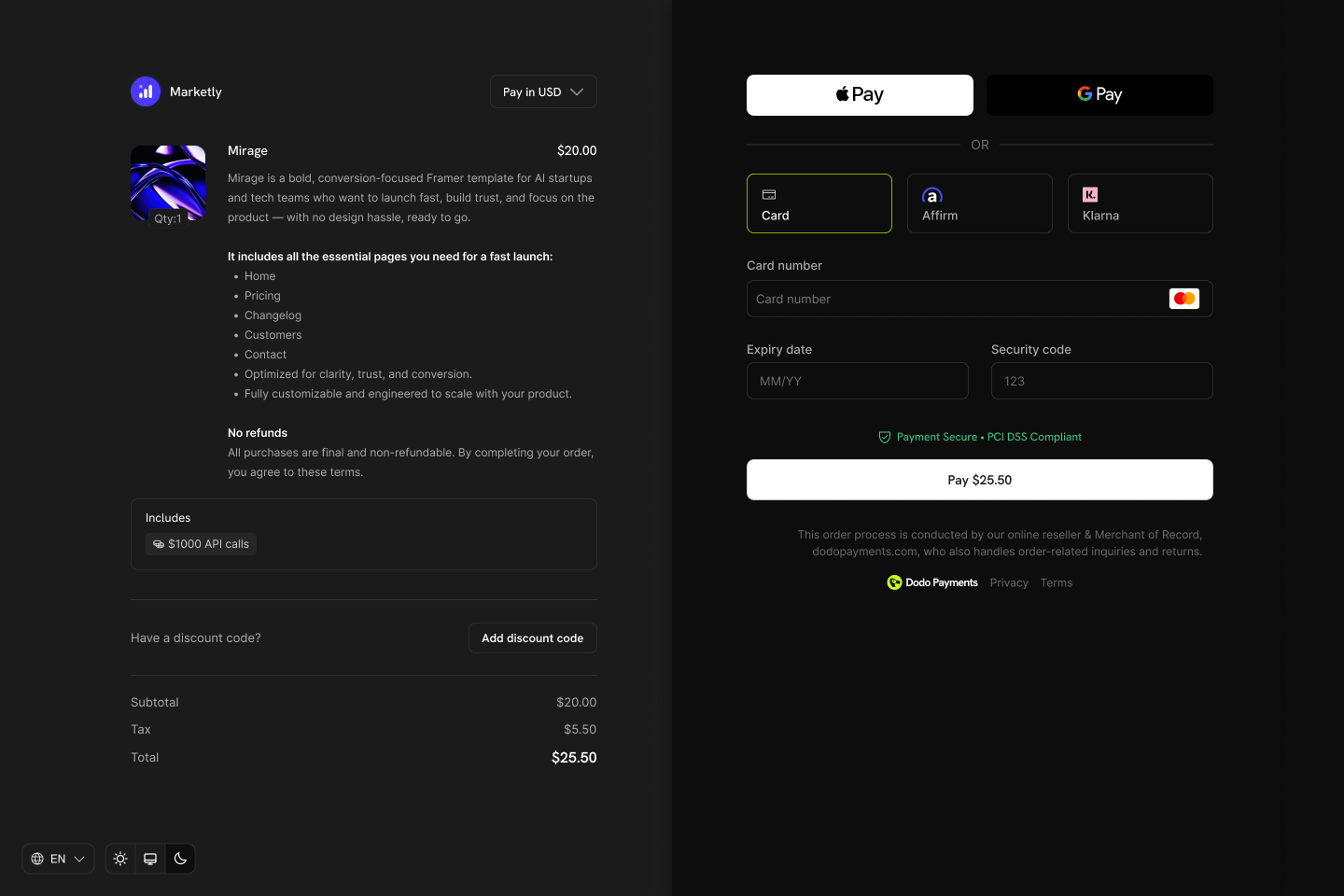
When a customer purchases a product with attached credits, the checkout page displays the included credits as part of the product offering.
Credits appear in an **Includes** section below the product description, showing the credit amount and type (e.g., "\$1000 API calls").
### Customer Portal
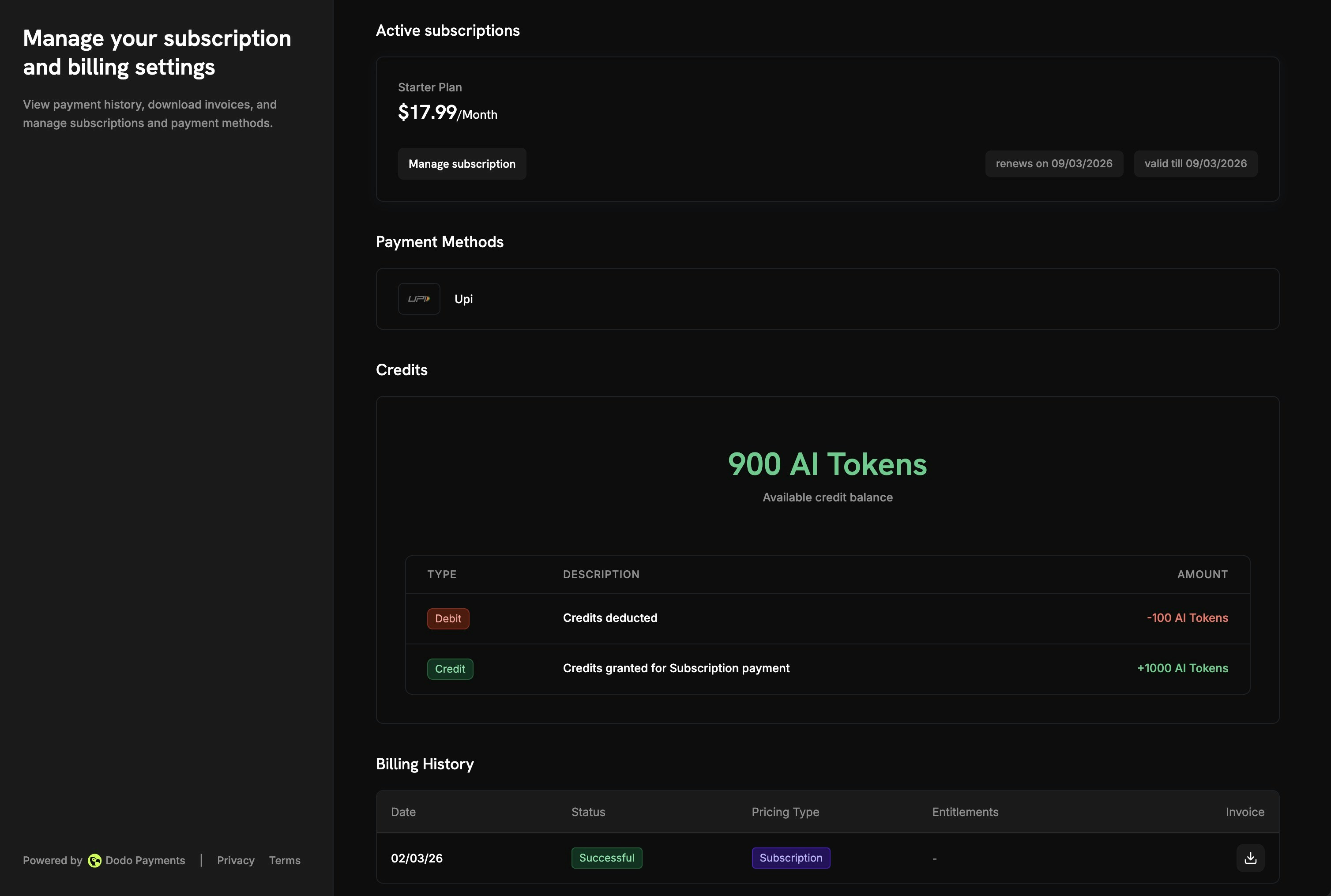
Customers can view and manage their credit balances in the Customer Portal under the **Credits** section.
The portal displays:
* **Available Balance** - Current credit balance displayed prominently
* **Credit Tabs** - Switch between different credit types (e.g., "OpenAI Credits", "Usage Tokens")
* **Recent Transactions** - Full history with date, transaction ID, type, amount, and running balance
Transaction types shown to customers include:
| Type | Description | Amount |
| ----------------------------- | ------------------------------------------------- | --------- |
| **Credits with Subscription** | Credits issued with subscription purchase/renewal | Green (+) |
| **One-Time Credits** | Credits from one-time purchases or manual grants | Green (+) |
| **Usage Deduction** | Credits consumed through service usage | Red (-) |
| **Overage** | Usage beyond credit balance | Red (-) |
### Subscription Details
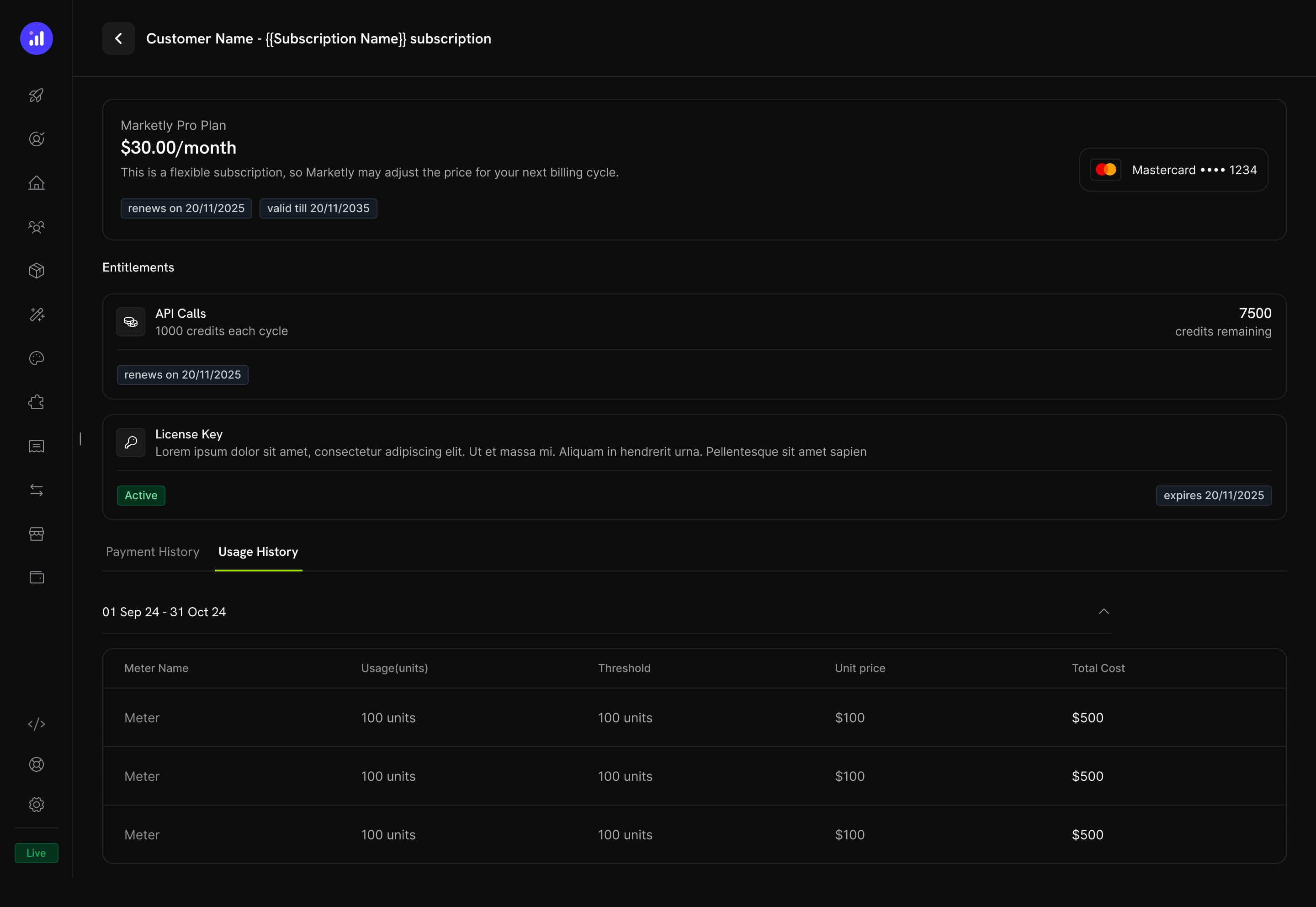
The subscription detail page shows credit entitlements alongside other plan information.
Key information displayed:
* **Credit allocation** per billing cycle (e.g., "1000 credits each cycle")
* **Remaining balance** (e.g., "7500 credits remaining")
* **Renewal date** for next credit issuance
* **Usage History** tab with meter-level breakdown showing units consumed, thresholds, unit prices, and total costs
### Transaction Details
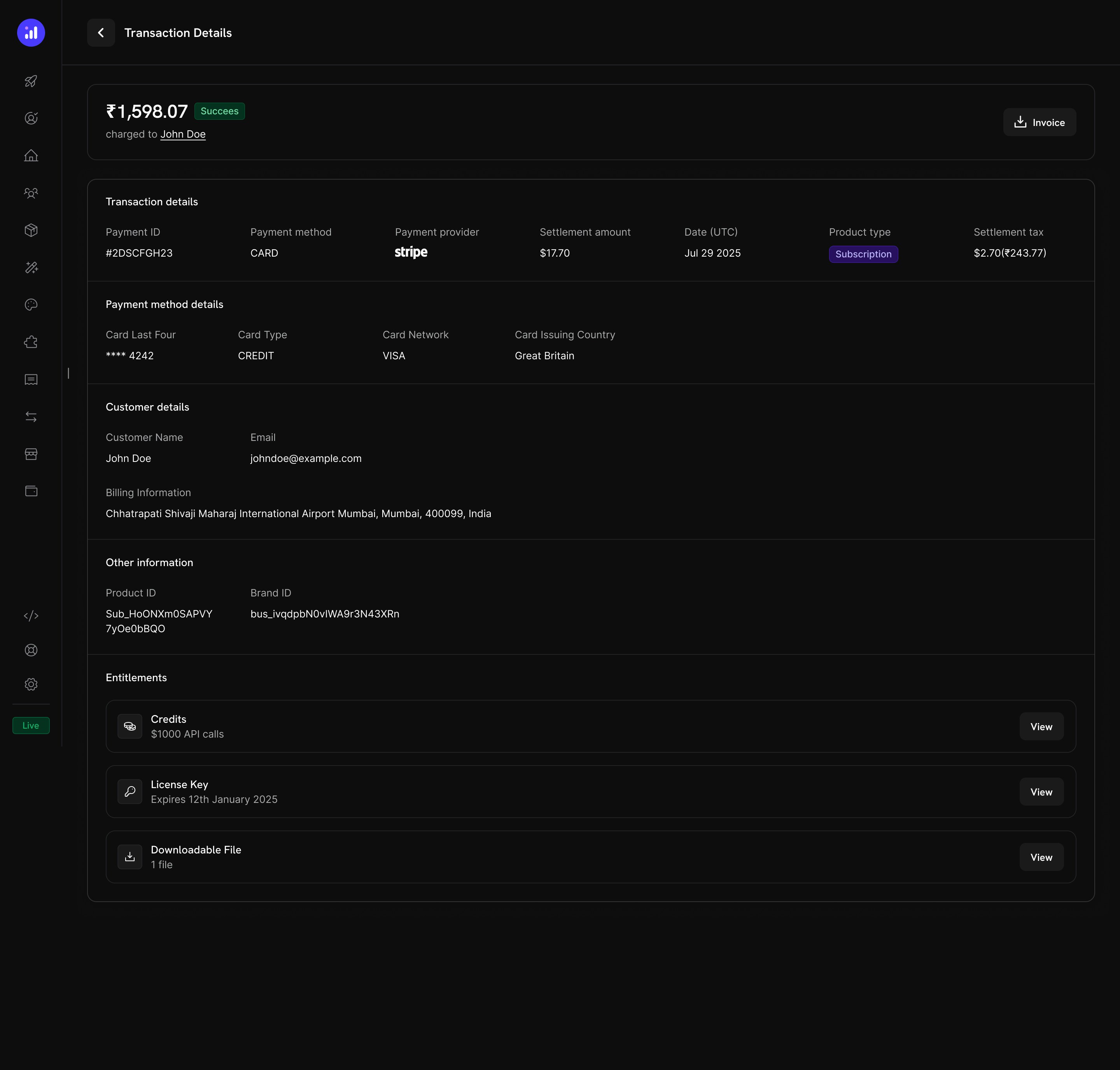
Payment transaction pages include an **Entitlements** section showing all entitlements delivered with the payment, including credits.
***
## Managing Credits
### Dashboard Views
#### Credit Entitlements List
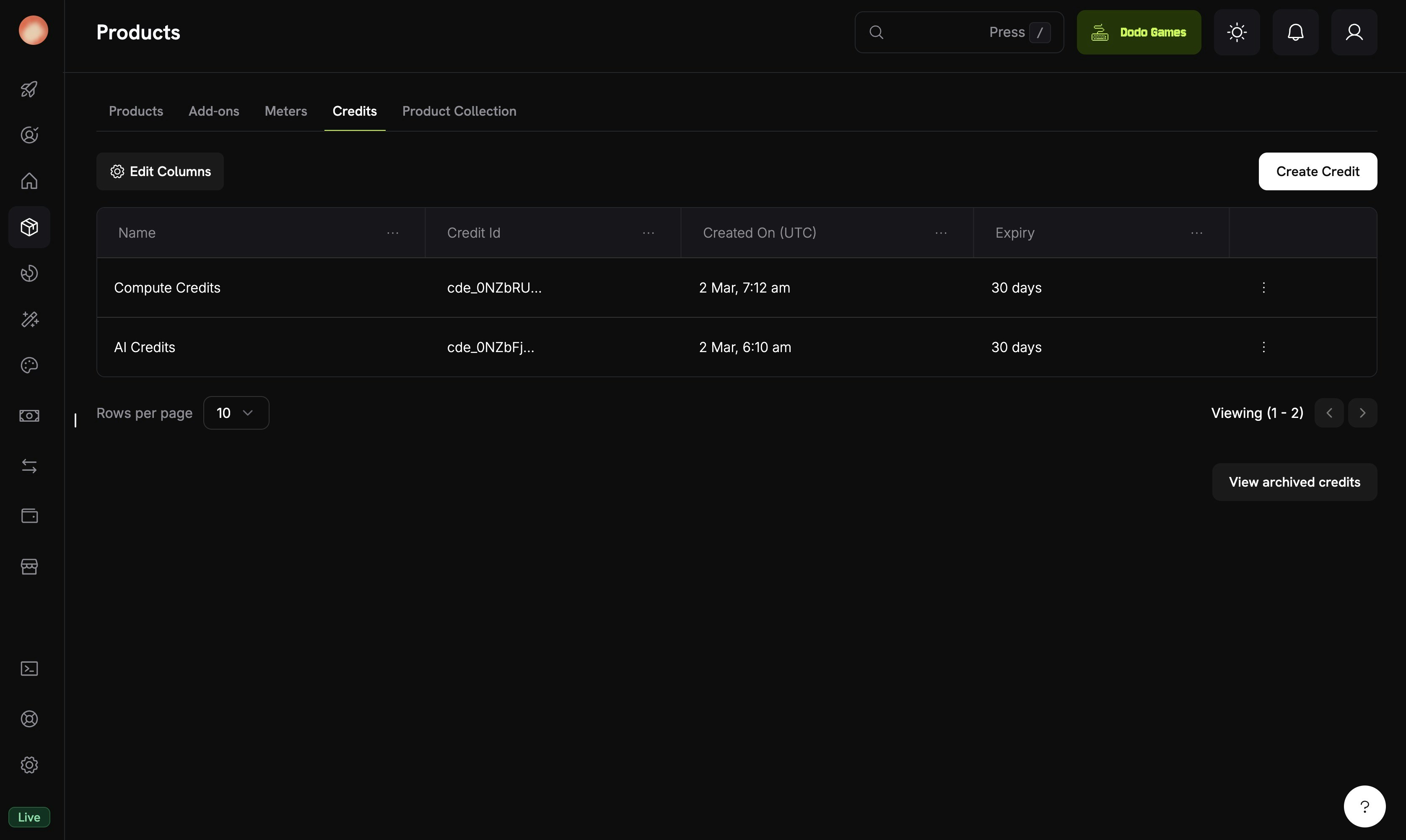
View all your credit entitlements in **Products → Credits**. The table shows credit name, expiry settings, and provides quick actions for editing or archiving.
#### Customer Credit Details
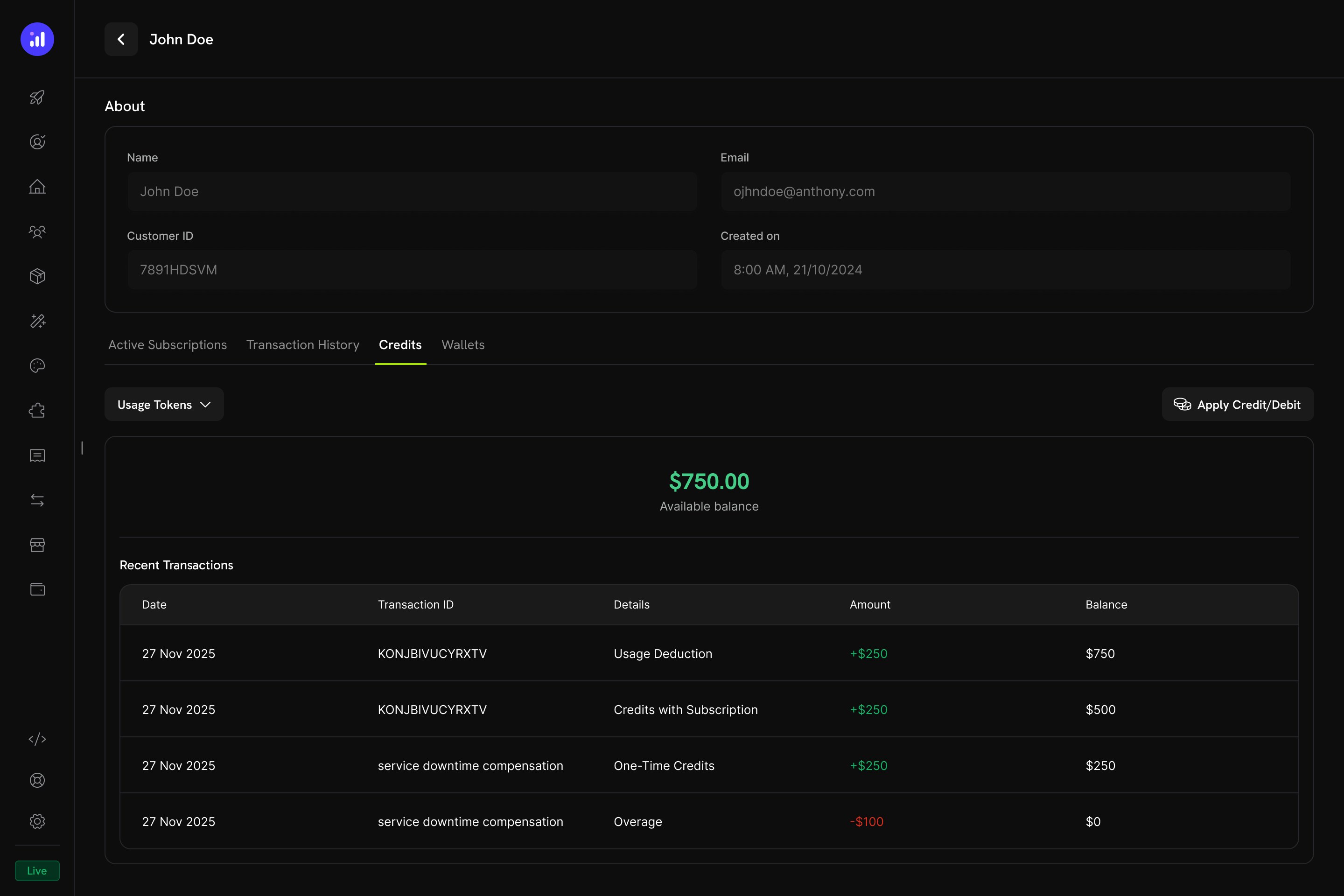
View a specific customer's credit balances and transaction history from **Customers → \[Customer Name] → Credits**.
The customer credit view includes:
* **Credit Selector** - Switch between different credit entitlements
* **Available Balance** - Current balance in large, prominent display
* **Apply Credit/Debit** - Button to manually adjust the customer's balance
* **Recent Transactions** - Full ledger with date, transaction ID, type, amount, and running balance
### Manual Adjustments
You can manually credit or debit a customer's balance directly from the dashboard:
Go to **Customers** and select the customer.
Click the **Credits** tab and select the appropriate credit entitlement from the wallet selector.
Click **Apply Credit/Debit** to open the adjustment interface.
Select **Credit** to add credits or **Debit** to remove credits from the customer's balance.
The number of credits to add or remove.
Optional explanation for the adjustment (e.g., "Service compensation", "Promotional bonus").
Review and apply the adjustment. The change is reflected immediately in the customer's balance and recorded in the credit ledger.
Manual adjustments create a `ManualAdjustment` ledger entry with full audit trail.
### Credit Ledger
Every credit operation is recorded in the credit ledger, providing a complete audit trail:
| Transaction Type | Description |
| ---------------------- | --------------------------------------------------------- |
| **Credit Added** | Credits granted (subscription, one-time, or API) |
| **Credit Deducted** | Credits consumed through usage or manual debit |
| **Credit Expired** | Credits expired without rollover |
| **Credit Rolled Over** | Credits carried forward to the next period |
| **Rollover Forfeited** | Rolled credits forfeited after max rollover count reached |
| **Overage Charged** | Usage beyond credit balance with overage enabled |
| **Auto Top-Up** | Automatic credit replenishment at low balance |
| **Manual Adjustment** | Credit or debit applied manually by merchant |
| **Refund** | Credits refunded |
Each ledger entry records the balance before and after the transaction, overage before and after, a description, and reference to the source (payment, subscription, etc.).
***
## Webhooks
Credit-Based Billing fires webhook events for every credit lifecycle change. Use these to keep your application in sync with credit balances, trigger notifications, or build custom billing workflows.
| Event | Description |
| --------------------------- | ---------------------------------------------- |
| `credit.added` | Credits granted to a customer |
| `credit.deducted` | Credits consumed through usage or manual debit |
| `credit.expired` | Unused credits expired |
| `credit.rolled_over` | Credits carried forward to a new grant |
| `credit.rollover_forfeited` | Credits forfeited at max rollover count |
| `credit.overage_charged` | Overage charges applied |
| `credit.manual_adjustment` | Manual credit/debit adjustment made |
| `credit.balance_low` | Balance dropped below configured threshold |
Semua acara buku besar (`credit.added` hingga `credit.manual_adjustment`) mencakup payload lengkap `CreditLedgerEntry` dengan saldo sebelum/sesudah, kelebihan sebelum/sesudah, referensi sumber, dan `metadata` dari langganan sumber hibah atau pembayaran (kosong untuk hibah yang dibuat langsung melalui API). Acara `credit.balance_low` mencakup konfigurasi ambang batas dan saldo saat ini.
View full payload schemas, field descriptions, and integration examples for all credit webhook events.
***
## API Management
Use the API to create credit entitlements programmatically with full control over rollover, overage, and expiration settings.
Create a new credit entitlement with rollover, overage, and expiry configuration.
Retrieve all credit entitlements for your business.
Retrieve, update, or delete credit entitlements. Deleted entitlements can be restored.
Retrieve a specific credit entitlement by ID.
Update rollover, overage, expiry, or other settings.
Soft-delete a credit entitlement.
Restore a previously deleted credit entitlement.
Grant credits directly to a customer's balance without requiring a purchase, or create manual debit entries for billing adjustments.
Credit or debit a customer's balance with full audit trail and idempotency support.
Retrieve a customer's current credit balance, grant history, and full ledger of transactions for any credit entitlement.
List all customer balances for a credit entitlement.
Get a specific customer's balance.
View all credit grants for a customer.
Full transaction history for a customer.
### Integration Example
Inisialisasi klien Dodo Payments:
```typescript theme={null}
import DodoPayments from 'dodopayments';
const client = new DodoPayments({
bearerToken: process.env['DODO_PAYMENTS_API_KEY'],
environment: 'test_mode', // defaults to 'live_mode'
});
```
Lampirkan kredit ke produk langganan saat checkout:
```typescript theme={null}
const session = await client.checkoutSessions.create({
product_cart: [
{
product_id: 'prod_ai_pro_plan',
quantity: 1,
}
],
customer: { email: 'customer@example.com' },
return_url: 'https://yourapp.com/success'
});
```
Kirim event penggunaan yang secara otomatis mengurangi kredit:
```typescript theme={null}
await client.usageEvents.ingest({
events: [{
event_id: `gen_${Date.now()}`,
customer_id: 'cus_abc123',
event_name: 'ai.generation',
timestamp: new Date().toISOString(),
metadata: { model: 'gpt-4', tokens: 1500 }
}]
});
```
***
## Contoh Dunia Nyata
**Struktur Harga:**
| Plan | Price | Credits/Month | Overage |
| ---------- | -------- | ---------------- | ------------- |
| Starter | \$29/mo | 10,000 tokens | \$0.003/token |
| Pro | \$99/mo | 100,000 tokens | \$0.002/token |
| Enterprise | \$499/mo | 1,000,000 tokens | \$0.001/token |
**Konfigurasi:**
* Jenis Kredit: Unit Khusus ("AI Tokens")
* Presisi: 0 (token utuh)
* Rollover: Maks 25%, jangka waktu 1 bulan
* Overage: Diaktifkan, tagih overage saat penagihan
* Meter: `ai.generation` dengan agregasi Sum pada bidang `tokens`
**Struktur Harga:**
| Plan | Price | Credits/Month | Overage |
| --------- | ------- | ------------- | ------------- |
| Free | \$0/mo | 1,000 calls | Blocked |
| Developer | \$19/mo | 50,000 calls | \$0.001/call |
| Business | \$99/mo | 500,000 calls | \$0.0005/call |
**Konfigurasi:**
* Jenis Kredit: Unit Khusus ("API Calls")
* Presisi: 0 (panggilan utuh)
* Rollover: Dinonaktifkan
* Overage: Paket Developer+ mengizinkan overage (diampuni saat reset), paket Free menonaktifkan overage
* Meter: `api.request` dengan agregasi Count
**Struktur Harga:**
| Plan | Price | Credits/Month | Overage |
| -------- | ------- | -------------- | -------------- |
| Personal | \$9/mo | 100 GB-hours | \$0.05/GB-hour |
| Team | \$49/mo | 1,000 GB-hours | \$0.03/GB-hour |
**Konfigurasi:**
* Jenis Kredit: Unit Khusus ("GB-hours")
* Presisi: 2 (dua tempat desimal)
* Rollover: Maks 50%, digulirkan sekali
* Overage: Diaktifkan dengan batas 200%
* Meter: `storage.usage` dengan agregasi Sum
***
## Praktik Terbaik
* **Mulailah dengan sederhana**: Mulailah dengan satu jenis kredit dan tanpa rollover. Tambahkan kompleksitas berdasarkan umpan balik pelanggan dan pola penggunaan.
* **Tetapkan ekspektasi yang jelas**: Tampilkan alokasi kredit, sisa saldo, dan harga kelebihan dengan jelas di halaman produk dan portal pelanggan Anda.
* **Gunakan satuan yang bermakna**: Namai kredit sesuai dengan apa yang mereka wakili (misalnya, "API Calls", "AI Tokens") daripada istilah umum. Ini membantu pelanggan memahami nilai.
* **Konfigurasikan kedaluwarsa dengan hati-hati**: Jendela kedaluwarsa pendek (7 hari) mendorong urgensi tetapi dapat membuat pelanggan frustrasi. Jendela yang lebih panjang (30–90 hari) lebih ramah pelanggan untuk sebagian besar produk SaaS.
* **Pantau saldo rendah**: Tetapkan ambang batas saldo rendah untuk memperingatkan pelanggan sebelum kehabisan, mengurangi kejutan biaya kelebihan.
* **Uji dalam mode uji**: Buat kredit, lampirkan ke produk uji, dan simulasi siklus pembelian → penggunaan → pengurangan → kedaluwarsa sepenuhnya sebelum ditayangkan.
Penagihan Berbasis Kredit berfungsi dengan mulus dengan semua fitur Dodo Payments lainnya - langganan dengan uji coba, perubahan rencana dengan prorata, dan portal pelanggan. Mulailah dengan pengaturan dasar dan kembangkan saat model harga Anda berkembang.
 ## Konsep Inti
### Jenis Kredit
Saat membuat kredit, Anda memilih antara dua jenis:
## Konsep Inti
### Jenis Kredit
Saat membuat kredit, Anda memilih antara dua jenis:
 ### How Meter-Based Credit Deduction Works
1. **Aplikasi Anda mengirimkan acara penggunaan** - Setiap acara mencakup ID pelanggan, nama acara, dan metadata
2. **Meters menggabungkan acara** - Menggunakan agregasi Count, Sum, Max, atau Last
3. **Kredit dipotong secara otomatis** - Seorang pekerja latar belakang memproses acara setiap menit, mengonversi satuan meter ke kredit menggunakan tarif yang Anda konfigurasi, dan memotong saldo pelanggan menggunakan urutan FIFO (pemberian tertua terlebih dahulu)
4. **Penggunaan berlebih dilacak** - Jika saldo kredit mencapai nol dan penggunaan berlebih diaktifkan, sistem melacak penggunaan berlebih untuk penagihan akhir siklus
### Meters Panel
The Usage Billing dashboard includes a **Meters** panel listing all defined meters with their aggregation type:
| Agregasi | Deskripsi | Contoh |
| --------- | ----------------------------- | ------------------------------ |
| **Count** | Jumlah total acara | Panggilan API |
| **Sum** | Jumlah dari field nilai | Total byte yang ditransfer |
| **Max** | Nilai tertinggi yang tercatat | Pengguna bersamaan puncak |
| **Last** | Nilai terbaru | Penyimpanan saat ini digunakan |
***
## Customer Experience
### Checkout
When a customer purchases a product with attached credits, the checkout page displays the included credits as part of the product offering.
### How Meter-Based Credit Deduction Works
1. **Aplikasi Anda mengirimkan acara penggunaan** - Setiap acara mencakup ID pelanggan, nama acara, dan metadata
2. **Meters menggabungkan acara** - Menggunakan agregasi Count, Sum, Max, atau Last
3. **Kredit dipotong secara otomatis** - Seorang pekerja latar belakang memproses acara setiap menit, mengonversi satuan meter ke kredit menggunakan tarif yang Anda konfigurasi, dan memotong saldo pelanggan menggunakan urutan FIFO (pemberian tertua terlebih dahulu)
4. **Penggunaan berlebih dilacak** - Jika saldo kredit mencapai nol dan penggunaan berlebih diaktifkan, sistem melacak penggunaan berlebih untuk penagihan akhir siklus
### Meters Panel
The Usage Billing dashboard includes a **Meters** panel listing all defined meters with their aggregation type:
| Agregasi | Deskripsi | Contoh |
| --------- | ----------------------------- | ------------------------------ |
| **Count** | Jumlah total acara | Panggilan API |
| **Sum** | Jumlah dari field nilai | Total byte yang ditransfer |
| **Max** | Nilai tertinggi yang tercatat | Pengguna bersamaan puncak |
| **Last** | Nilai terbaru | Penyimpanan saat ini digunakan |
***
## Customer Experience
### Checkout
When a customer purchases a product with attached credits, the checkout page displays the included credits as part of the product offering.
 The portal displays:
* **Available Balance** - Current credit balance displayed prominently
* **Credit Tabs** - Switch between different credit types (e.g., "OpenAI Credits", "Usage Tokens")
* **Recent Transactions** - Full history with date, transaction ID, type, amount, and running balance
Transaction types shown to customers include:
| Type | Description | Amount |
| ----------------------------- | ------------------------------------------------- | --------- |
| **Credits with Subscription** | Credits issued with subscription purchase/renewal | Green (+) |
| **One-Time Credits** | Credits from one-time purchases or manual grants | Green (+) |
| **Usage Deduction** | Credits consumed through service usage | Red (-) |
| **Overage** | Usage beyond credit balance | Red (-) |
### Subscription Details
The subscription detail page shows credit entitlements alongside other plan information.
The portal displays:
* **Available Balance** - Current credit balance displayed prominently
* **Credit Tabs** - Switch between different credit types (e.g., "OpenAI Credits", "Usage Tokens")
* **Recent Transactions** - Full history with date, transaction ID, type, amount, and running balance
Transaction types shown to customers include:
| Type | Description | Amount |
| ----------------------------- | ------------------------------------------------- | --------- |
| **Credits with Subscription** | Credits issued with subscription purchase/renewal | Green (+) |
| **One-Time Credits** | Credits from one-time purchases or manual grants | Green (+) |
| **Usage Deduction** | Credits consumed through service usage | Red (-) |
| **Overage** | Usage beyond credit balance | Red (-) |
### Subscription Details
The subscription detail page shows credit entitlements alongside other plan information.
 Key information displayed:
* **Credit allocation** per billing cycle (e.g., "1000 credits each cycle")
* **Remaining balance** (e.g., "7500 credits remaining")
* **Renewal date** for next credit issuance
* **Usage History** tab with meter-level breakdown showing units consumed, thresholds, unit prices, and total costs
### Transaction Details
Payment transaction pages include an **Entitlements** section showing all entitlements delivered with the payment, including credits.
Key information displayed:
* **Credit allocation** per billing cycle (e.g., "1000 credits each cycle")
* **Remaining balance** (e.g., "7500 credits remaining")
* **Renewal date** for next credit issuance
* **Usage History** tab with meter-level breakdown showing units consumed, thresholds, unit prices, and total costs
### Transaction Details
Payment transaction pages include an **Entitlements** section showing all entitlements delivered with the payment, including credits.
 ***
## Managing Credits
### Dashboard Views
#### Credit Entitlements List
View all your credit entitlements in **Products → Credits**. The table shows credit name, expiry settings, and provides quick actions for editing or archiving.
***
## Managing Credits
### Dashboard Views
#### Credit Entitlements List
View all your credit entitlements in **Products → Credits**. The table shows credit name, expiry settings, and provides quick actions for editing or archiving.
 The customer credit view includes:
* **Credit Selector** - Switch between different credit entitlements
* **Available Balance** - Current balance in large, prominent display
* **Apply Credit/Debit** - Button to manually adjust the customer's balance
* **Recent Transactions** - Full ledger with date, transaction ID, type, amount, and running balance
### Manual Adjustments
You can manually credit or debit a customer's balance directly from the dashboard:
The customer credit view includes:
* **Credit Selector** - Switch between different credit entitlements
* **Available Balance** - Current balance in large, prominent display
* **Apply Credit/Debit** - Button to manually adjust the customer's balance
* **Recent Transactions** - Full ledger with date, transaction ID, type, amount, and running balance
### Manual Adjustments
You can manually credit or debit a customer's balance directly from the dashboard: