> ## Documentation Index
> Fetch the complete documentation index at: https://docs.dodopayments.com/llms.txt
> Use this file to discover all available pages before exploring further.
# रिपोर्ट
> अपना बैलेंस मिलान करें, हर शुल्क की समीक्षा करें, और किसी भी तारीख सीमा के लिए भुगतान, समायोजन, पेआउट और बैलेंस लेजर को CSV या XLSX के रूप में एक्सपोर्ट करें।
## परिचय
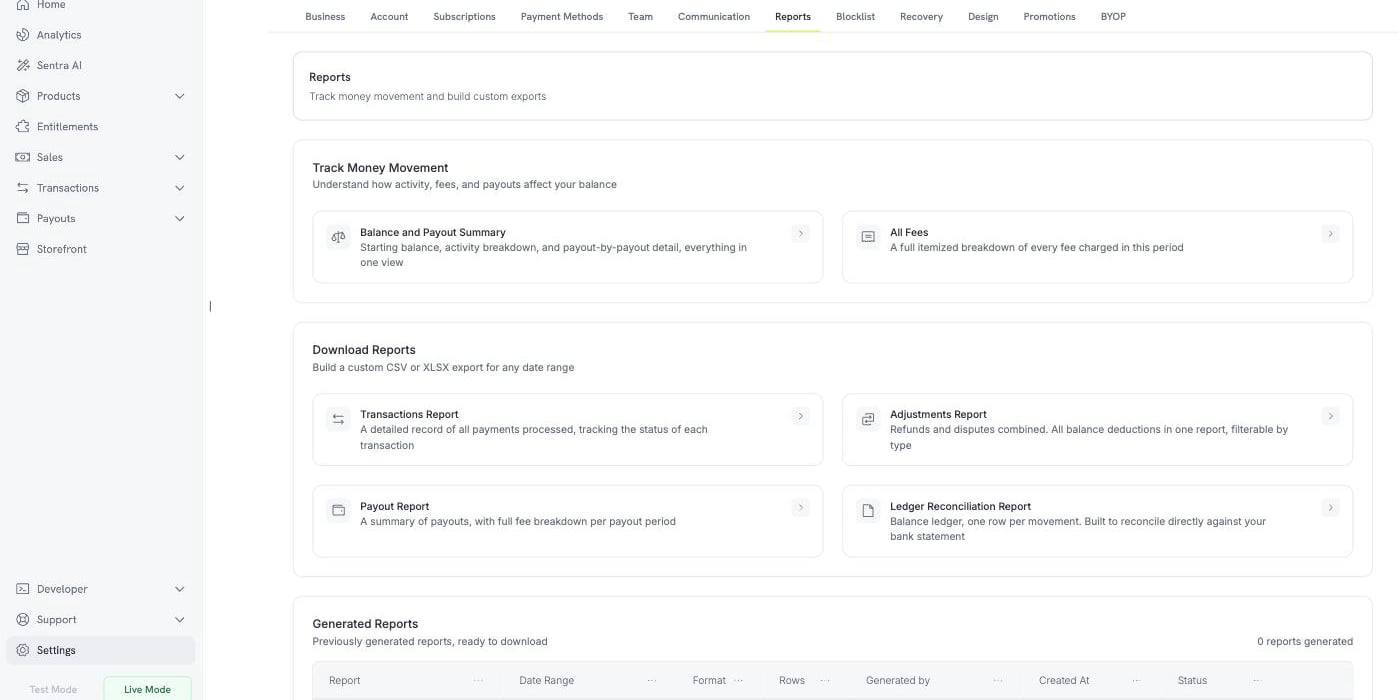
**रिपोर्ट** वह जगह है जहाँ आप धन के आवागमन को ट्रैक करते हैं और एक्सपोर्ट तैयार करते हैं।
**Settings → Reports** पर जाएँ।
पेज के तीन भाग हैं:
दो लाइव व्यू, जो आपके बैलेंस और शुल्कों को स्क्रीन पर समझाते हैं।
चार एक्सपोर्ट, जिन्हें आप किसी तारीख सीमा के लिए CSV या XLSX के रूप में तैयार करते हैं।
आपके द्वारा पहले तैयार की गई हर रिपोर्ट, जिसे फिर से डाउनलोड किया जा सकता है।
 Reports, **Test Mode** और **Live Mode** दोनों में उपलब्ध हैं, और प्रत्येक केवल उसी मोड के डेटा को पढ़ता है। रिपोर्ट तैयार करने से पहले साइडबार में मोड बदलें।
***
## धन के आवागमन को ट्रैक करें
दो व्यू स्क्रीन पर सवाल का जवाब देते हैं, बिना किसी डाउनलोड के। प्रत्येक में तारीख सीमा होती है और एक **Export** बटन होता है, जो उसी व्यू को फ़ाइल के रूप में सेव करता है।
### बैलेंस और पेआउट सारांश
यह व्यू इस अवधि के लिए आपके बैलेंस का मिलान करता है। इसमें तीन ब्लॉक होते हैं।
Reports, **Test Mode** और **Live Mode** दोनों में उपलब्ध हैं, और प्रत्येक केवल उसी मोड के डेटा को पढ़ता है। रिपोर्ट तैयार करने से पहले साइडबार में मोड बदलें।
***
## धन के आवागमन को ट्रैक करें
दो व्यू स्क्रीन पर सवाल का जवाब देते हैं, बिना किसी डाउनलोड के। प्रत्येक में तारीख सीमा होती है और एक **Export** बटन होता है, जो उसी व्यू को फ़ाइल के रूप में सेव करता है।
### बैलेंस और पेआउट सारांश
यह व्यू इस अवधि के लिए आपके बैलेंस का मिलान करता है। इसमें तीन ब्लॉक होते हैं।
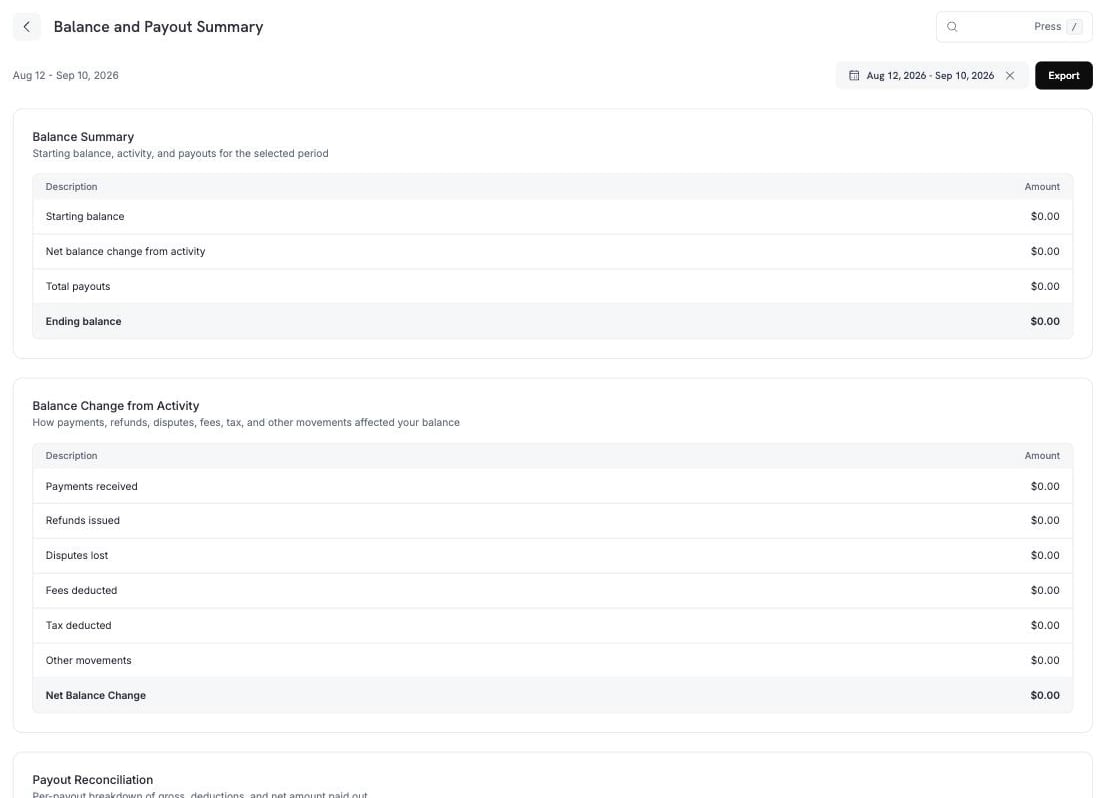 **Balance Summary** अवधि को आरंभ से अंत तक दिखाता है।
| पंक्ति | अर्थ |
| ------------------------------ | -------------------------------------- |
| प्रारंभिक बैलेंस | अवधि शुरू होने पर आपका बैलेंस। |
| गतिविधि से नेट बैलेंस परिवर्तन | पेआउट को छोड़कर, अवधि में हुई हर चीज़। |
| कुल पेआउट | पेआउट के रूप में बाहर गया धन। |
| अंतिम बैलेंस | प्रारंभिक बैलेंस + गतिविधि − पेआउट। |
**Balance Change from Activity** बीच वाली पंक्ति को उसके भागों में विभाजित करता है।
| पंक्ति | इसमें क्या शामिल है |
| ------------------- | --------------------------------------------------------------------------------------------------------------------------------------------------- |
| प्राप्त भुगतान | सफल भुगतान। |
| जारी किए गए रिफंड | रिफंड और रिफंड शुल्क, इनमें से किसी के भी रिवर्सल को घटाकर। |
| हारे हुए विवाद | विवाद और विवाद शुल्क, किसी भी विवाद रिवर्सल को घटाकर। |
| काटे गए शुल्क | भुगतान शुल्क, पेआउट शुल्क, dunning शुल्क, payment retry शुल्क, BYOP शुल्क, abandoned cart recovery शुल्क और Ethoca शुल्क, किसी भी रिवर्सल को घटाकर। |
| काटा गया टैक्स | टैक्स, किसी भी टैक्स रिवर्सल को घटाकर। |
| अन्य गतिविधियाँ | Dodo Credits, मैन्युअल समायोजन और मुद्रा रूपांतरण। |
| नेट बैलेंस परिवर्तन | ऊपर दी गई पंक्तियों का योग। |
**अन्य गतिविधियाँ** उन एंट्री को शामिल करती हैं जो ऊपर दी गई किसी नामित पंक्ति से संबंधित नहीं हैं:
**Dodo Credits** (वे क्रेडिट जिन्हें Dodo Payments आपके बैलेंस में लागू करता है), **मैन्युअल
समायोजन** (हमारी टीम द्वारा दर्ज किया गया सुधार), और **मुद्रा रूपांतरण**
(बैलेंस को एक मुद्रा से दूसरी मुद्रा में बदलने पर दर्ज किया गया अंतर)।
**Payout Reconciliation** अवधि के प्रत्येक पेआउट को अलग पंक्ति में सूचीबद्ध करता है, जिसमें सकल राशि, प्रत्येक कटौती और भुगतान की गई नेट राशि होती है।
**Balance Summary** अवधि को आरंभ से अंत तक दिखाता है।
| पंक्ति | अर्थ |
| ------------------------------ | -------------------------------------- |
| प्रारंभिक बैलेंस | अवधि शुरू होने पर आपका बैलेंस। |
| गतिविधि से नेट बैलेंस परिवर्तन | पेआउट को छोड़कर, अवधि में हुई हर चीज़। |
| कुल पेआउट | पेआउट के रूप में बाहर गया धन। |
| अंतिम बैलेंस | प्रारंभिक बैलेंस + गतिविधि − पेआउट। |
**Balance Change from Activity** बीच वाली पंक्ति को उसके भागों में विभाजित करता है।
| पंक्ति | इसमें क्या शामिल है |
| ------------------- | --------------------------------------------------------------------------------------------------------------------------------------------------- |
| प्राप्त भुगतान | सफल भुगतान। |
| जारी किए गए रिफंड | रिफंड और रिफंड शुल्क, इनमें से किसी के भी रिवर्सल को घटाकर। |
| हारे हुए विवाद | विवाद और विवाद शुल्क, किसी भी विवाद रिवर्सल को घटाकर। |
| काटे गए शुल्क | भुगतान शुल्क, पेआउट शुल्क, dunning शुल्क, payment retry शुल्क, BYOP शुल्क, abandoned cart recovery शुल्क और Ethoca शुल्क, किसी भी रिवर्सल को घटाकर। |
| काटा गया टैक्स | टैक्स, किसी भी टैक्स रिवर्सल को घटाकर। |
| अन्य गतिविधियाँ | Dodo Credits, मैन्युअल समायोजन और मुद्रा रूपांतरण। |
| नेट बैलेंस परिवर्तन | ऊपर दी गई पंक्तियों का योग। |
**अन्य गतिविधियाँ** उन एंट्री को शामिल करती हैं जो ऊपर दी गई किसी नामित पंक्ति से संबंधित नहीं हैं:
**Dodo Credits** (वे क्रेडिट जिन्हें Dodo Payments आपके बैलेंस में लागू करता है), **मैन्युअल
समायोजन** (हमारी टीम द्वारा दर्ज किया गया सुधार), और **मुद्रा रूपांतरण**
(बैलेंस को एक मुद्रा से दूसरी मुद्रा में बदलने पर दर्ज किया गया अंतर)।
**Payout Reconciliation** अवधि के प्रत्येक पेआउट को अलग पंक्ति में सूचीबद्ध करता है, जिसमें सकल राशि, प्रत्येक कटौती और भुगतान की गई नेट राशि होती है।
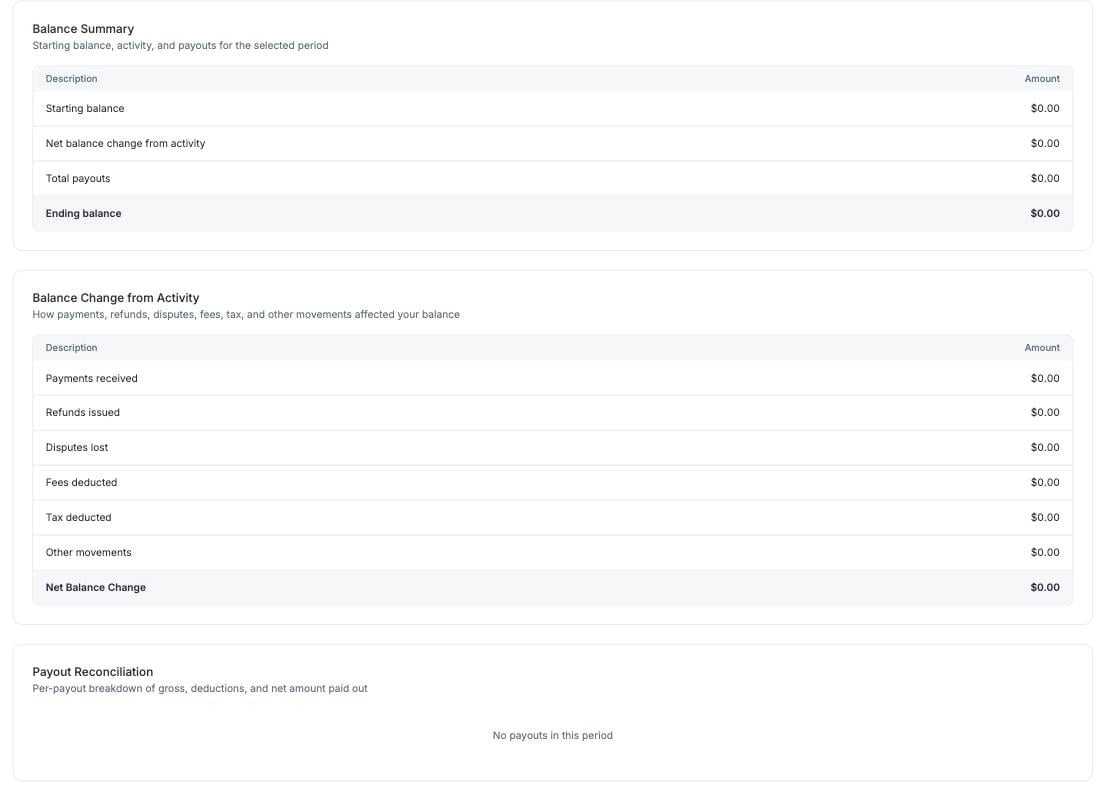 एक पेआउट अपनी cut-off तारीख तक की हर ऐसी लेजर एंट्री का दावा करता है जिस पर दावा नहीं किया गया है, केवल अवधि के भुगतानों का नहीं। इसलिए Dodo Credits और समायोजन पेआउट के किसी हिस्से को फंड कर सकते हैं, और वे **Other** के अंतर्गत दिखाई देते हैं।
### सभी शुल्क
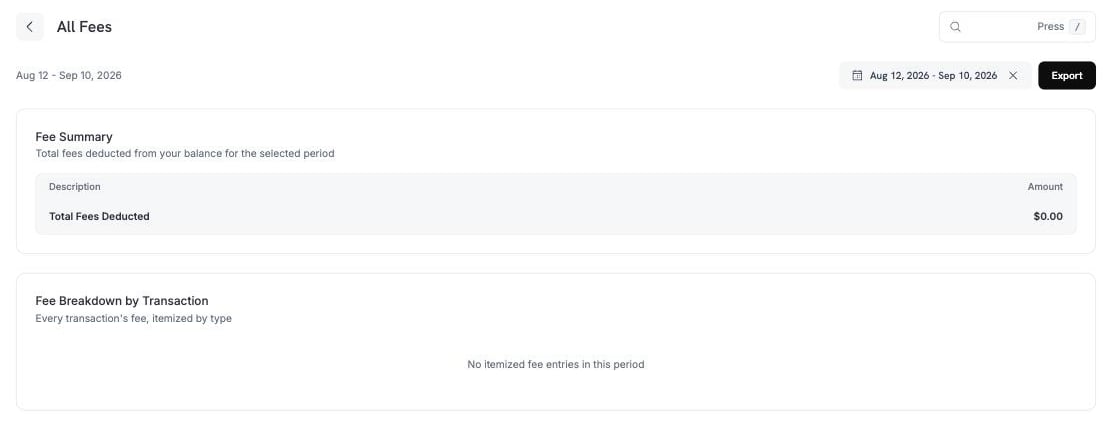
अवधि में आपके बैलेंस से लिया गया प्रत्येक शुल्क, कुल राशि और प्रति-लेनदेन विवरण के साथ।
एक पेआउट अपनी cut-off तारीख तक की हर ऐसी लेजर एंट्री का दावा करता है जिस पर दावा नहीं किया गया है, केवल अवधि के भुगतानों का नहीं। इसलिए Dodo Credits और समायोजन पेआउट के किसी हिस्से को फंड कर सकते हैं, और वे **Other** के अंतर्गत दिखाई देते हैं।
### सभी शुल्क
अवधि में आपके बैलेंस से लिया गया प्रत्येक शुल्क, कुल राशि और प्रति-लेनदेन विवरण के साथ।
 ***
## रिपोर्ट डाउनलोड करें
चार रिपोर्ट किसी भी तारीख सीमा के लिए फ़ाइल तैयार करती हैं। प्रत्येक एक पैनल खोलती है जहाँ आप उस रिपोर्ट की अवधि, फ़ॉर्मैट और फ़िल्टर चुनते हैं।
प्रत्येक रिपोर्ट **CSV** या **XLSX** के रूप में एक्सपोर्ट होती है।
| रिपोर्ट | इसमें क्या शामिल है |
| -------------------------------- | ---------------------------------------------------------------------------------------------- |
| **Transactions Report** | प्रोसेस किए गए हर भुगतान के साथ प्रत्येक लेनदेन की स्थिति। |
| **Adjustments Report** | रिफंड और विवाद एक साथ — एक फ़ाइल में हर बैलेंस कटौती। |
| **Payout Report** | पेआउट का सारांश, जिसमें प्रत्येक पेआउट अवधि का पूरा शुल्क विवरण है। |
| **Ledger Reconciliation Report** | बैलेंस लेजर, प्रत्येक गतिविधि के लिए एक पंक्ति, ताकि आपके बैंक स्टेटमेंट से मिलान किया जा सके। |
### Transactions Report
***
## रिपोर्ट डाउनलोड करें
चार रिपोर्ट किसी भी तारीख सीमा के लिए फ़ाइल तैयार करती हैं। प्रत्येक एक पैनल खोलती है जहाँ आप उस रिपोर्ट की अवधि, फ़ॉर्मैट और फ़िल्टर चुनते हैं।
प्रत्येक रिपोर्ट **CSV** या **XLSX** के रूप में एक्सपोर्ट होती है।
| रिपोर्ट | इसमें क्या शामिल है |
| -------------------------------- | ---------------------------------------------------------------------------------------------- |
| **Transactions Report** | प्रोसेस किए गए हर भुगतान के साथ प्रत्येक लेनदेन की स्थिति। |
| **Adjustments Report** | रिफंड और विवाद एक साथ — एक फ़ाइल में हर बैलेंस कटौती। |
| **Payout Report** | पेआउट का सारांश, जिसमें प्रत्येक पेआउट अवधि का पूरा शुल्क विवरण है। |
| **Ledger Reconciliation Report** | बैलेंस लेजर, प्रत्येक गतिविधि के लिए एक पंक्ति, ताकि आपके बैंक स्टेटमेंट से मिलान किया जा सके। |
### Transactions Report
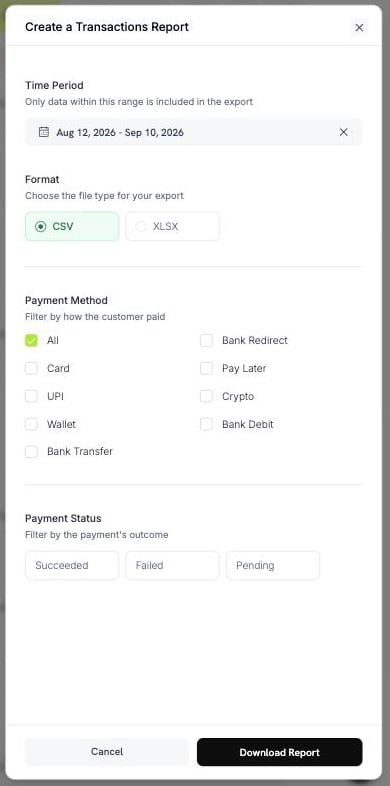 * **Payment Method** — Card, UPI, Wallet, Bank Transfer, Bank Redirect, Pay Later, Crypto या Bank Debit। हर विधि के लिए **All** चुनें।
* **Payment Status** — Succeeded, Failed या Pending।
### Adjustments Report
* **Payment Method** — Card, UPI, Wallet, Bank Transfer, Bank Redirect, Pay Later, Crypto या Bank Debit। हर विधि के लिए **All** चुनें।
* **Payment Status** — Succeeded, Failed या Pending।
### Adjustments Report
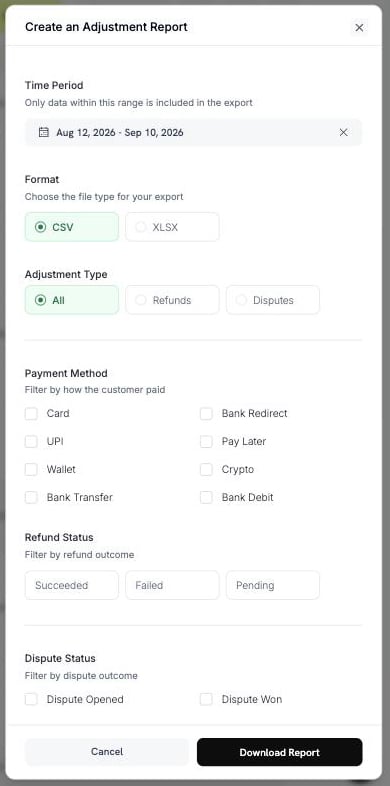 * **Adjustment Type** — All, Refunds या Disputes।
* **Payment Method** — ऊपर दी गई वही आठ विधियाँ।
* **Refund Status** — Succeeded, Failed या Pending।
* **Dispute Status** — Opened, Challenged, Accepted, Lost, Won, Cancelled या Expired।
### Payout Report
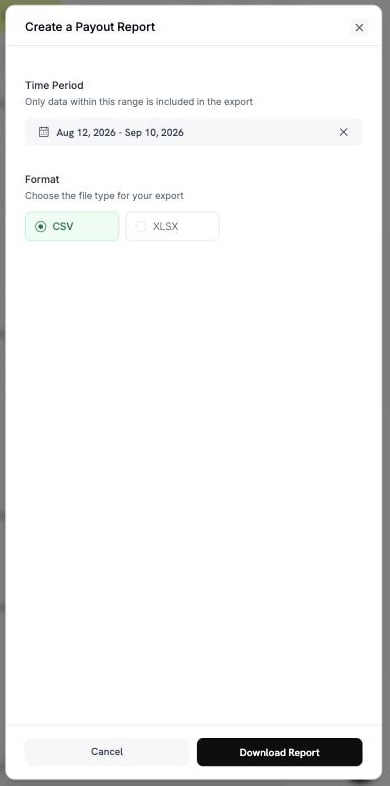
एक अवधि और फ़ॉर्मैट चुनें। इस रिपोर्ट के लिए किसी अन्य फ़िल्टर की आवश्यकता नहीं है।
* **Adjustment Type** — All, Refunds या Disputes।
* **Payment Method** — ऊपर दी गई वही आठ विधियाँ।
* **Refund Status** — Succeeded, Failed या Pending।
* **Dispute Status** — Opened, Challenged, Accepted, Lost, Won, Cancelled या Expired।
### Payout Report
एक अवधि और फ़ॉर्मैट चुनें। इस रिपोर्ट के लिए किसी अन्य फ़िल्टर की आवश्यकता नहीं है।
 ### Ledger Reconciliation Report
इस रिपोर्ट में दो मोड हैं। एक चुनने के लिए **Reconciliation by** का उपयोग करें।
### Ledger Reconciliation Report
इस रिपोर्ट में दो मोड हैं। एक चुनने के लिए **Reconciliation by** का उपयोग करें।
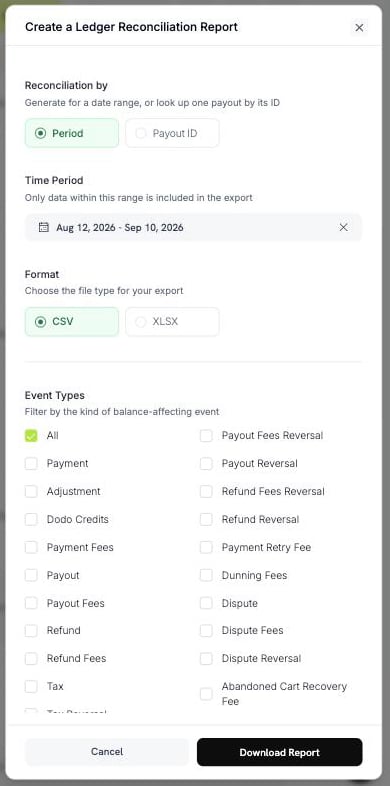 **Period** किसी तारीख सीमा में होने वाली हर लेजर गतिविधि को एक्सपोर्ट करता है।
**Payout ID** एक पेआउट की गतिविधियों को एक्सपोर्ट करता है। सटीक पंक्तियाँ प्राप्त करने के लिए पेआउट रेफरेंस (उदाहरण के लिए `pyt_kxncrebha`) दर्ज करें, जिन्हें उस पेआउट ने सेटल किया है।
**Period** किसी तारीख सीमा में होने वाली हर लेजर गतिविधि को एक्सपोर्ट करता है।
**Payout ID** एक पेआउट की गतिविधियों को एक्सपोर्ट करता है। सटीक पंक्तियाँ प्राप्त करने के लिए पेआउट रेफरेंस (उदाहरण के लिए `pyt_kxncrebha`) दर्ज करें, जिन्हें उस पेआउट ने सेटल किया है।
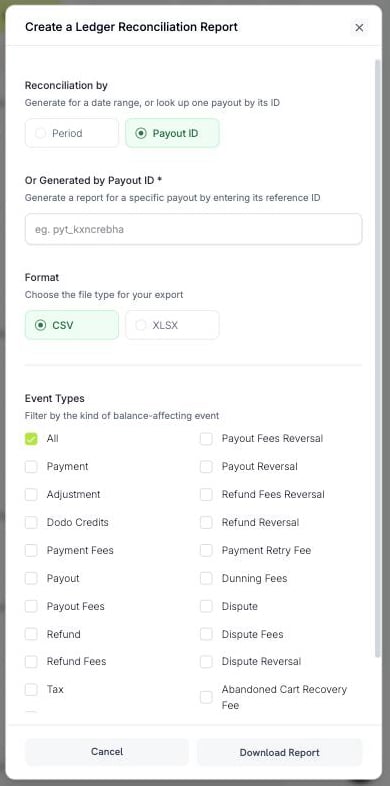 ऐसा Payout ID जो मौजूद नहीं है, एक त्रुटि देता है। यह खाली फ़ाइल नहीं देता।
**Event Types** बैलेंस गतिविधि के प्रकार के आधार पर पंक्तियों को फ़िल्टर करता है। हर प्रकार को शामिल रखने के लिए **All** चुनें, या इनमें से चुनें:
| समूह | विकल्प |
| ----------- | ------------------------------------------------------------------------------------ |
| धन प्राप्ति | Payment, Dodo Credits, Adjustment, Currency Conversion |
| पेआउट | Payout, Payout Reversal, Payout Fees, Payout Fees Reversal |
| रिफंड | Refund, Refund Reversal, Refund Fees, Refund Fees Reversal |
| विवाद | Dispute, Dispute Fees, Dispute Reversal |
| शुल्क | Payment Fees, Payment Retry Fee, Dunning Fees, Abandoned Cart Recovery Fee, BYOP Fee |
| टैक्स | Tax, Tax Reversal |
हर प्रकार का रिवर्सल नहीं होता। केवल Payout, Payout Fees, Refund, Refund Fees, Dispute और Tax के रिवर्सल होते हैं।
"इस पेआउट में क्या था?" का उत्तर पाने के लिए **Payout ID** मोड का उपयोग करें। बैंक स्टेटमेंट की प्रत्येक लाइन का मिलान करने के लिए **All** event types के साथ **Period** का उपयोग करें।
***
## रिपोर्ट तैयार करना और डाउनलोड करना
**Settings → Reports** पर जाएँ और आवश्यक रिपोर्ट चुनें।
तारीख सीमा चुनें। केवल इस सीमा के अंदर का डेटा फ़ाइल में शामिल होगा।
**CSV** या **XLSX** चुनें, फिर उस रिपोर्ट के फ़िल्टर सेट करें।
**Download Report** चुनें। फ़ाइल डाउनलोड हो जाती है और रिपोर्ट **Generated Reports** में जोड़ दी जाती है।
फ़ाइल के नाम में रिपोर्ट और तारीख सीमा शामिल होती है, इसलिए उसे खोले बिना भी डाउनलोड की पहचान की जा सकती है — उदाहरण के लिए `dodo_ledger_2026-06-01_to_2026-06-30.csv`।
CSV एक्सपोर्ट UTF-8 byte order mark से शुरू होता है, इसलिए Excel accented characters और गैर-Latin scripts को सही ढंग से खोलता है।
### पंक्ति सीमाएँ
एक एक्सपोर्ट की सीमा तय होती है, इसलिए बड़ी अवधि को विभाजित करना पड़ सकता है।
| रिपोर्ट | CSV | XLSX |
| --------------------- | ------------ | ------------ |
| Ledger Reconciliation | 500,000 rows | 100,000 rows |
| अन्य सभी रिपोर्ट | 100,000 rows | 50,000 rows |
यदि आपकी तारीख सीमा सीमा से अधिक हो जाती है, तो एक संदेश के साथ एक्सपोर्ट अस्वीकार कर दिया जाता है। सीमा कम करें या फ़िल्टर जोड़ें, फिर इसे दोबारा तैयार करें।
बड़ी अवधि के लिए CSV चुनें। इसकी पंक्ति सीमा अधिक है।
***
## Generated Reports
आपके द्वारा तैयार की गई हर रिपोर्ट रिकॉर्ड की जाती है, ताकि आप उसे दोबारा तैयार किए बिना फिर से डाउनलोड कर सकें।
| कॉलम | अर्थ |
| ------------ | ------------------------------------ |
| Report | रिपोर्ट का प्रकार। |
| Date Range | रिपोर्ट में शामिल अवधि। |
| Format | CSV या XLSX। |
| Rows | फ़ाइल में मौजूद पंक्तियों की संख्या। |
| Generated by | इसे तैयार करने वाला टीम सदस्य। |
| Created At | इसे तैयार किए जाने का समय। |
| Status | **Completed** या **Failed**। |
डाउनलोड लिंक थोड़े समय के लिए मान्य होता है। यदि संग्रहीत फ़ाइल की अवधि समाप्त हो गई है, तो Dodo Payments उसी पैरामीटर से इसे फिर से तैयार करता है और पंक्ति को regenerated के रूप में चिह्नित किया जाता है।
फिर से तैयार की गई रिपोर्ट मूल रिपोर्ट से अलग हो सकती है। तारीख सीमा के पीछे का डेटा लगातार बदलता रहता है — पहली बार तैयार होने के बाद दर्ज किया गया रिफंड या विवाद फिर से तैयार की गई रिपोर्ट में दिखाई देगा। यदि आपको आँकड़े ठीक उसी रूप में चाहिए जैसे वे थे, तो डाउनलोड की गई फ़ाइल सुरक्षित रखें।
***
## मुझे कौन-सी रिपोर्ट चाहिए?
| सवाल | रिपोर्ट |
| ------------------------------------------- | --------------------------------------- |
| मेरा बैलेंस यह संख्या क्यों है? | Balance and Payout Summary |
| इस पेआउट में क्या था? | Ledger Reconciliation, by **Payout ID** |
| मैंने कौन-से शुल्क चुकाए? | All Fees |
| मुझे अपने अकाउंटेंट के लिए हर भुगतान चाहिए। | Transactions Report |
| रिफंड और विवादों की लागत कितनी रही? | Adjustments Report |
| मुझे अपने बैंक स्टेटमेंट से मिलान करना है। | Ledger Reconciliation, by **Period** |
***
## सर्वोत्तम प्रथाएँ
* पहले **Balance and Payout Summary** से मिलान करें। विस्तृत रिपोर्ट तभी डाउनलोड करें जब किसी आँकड़े की व्याख्या आवश्यक हो।
* लंबी अवधि के लिए **CSV** एक्सपोर्ट करें और **XLSX** का उपयोग तभी करें जब आप फ़ाइल में मैन्युअल रूप से काम करेंगे।
* डाउनलोड की गई फ़ाइल सुरक्षित रखें। दोबारा तैयार की गई रिपोर्ट के उससे मेल खाने की गारंटी नहीं है।
* तारीख सीमा बढ़ाने से पहले फ़िल्टर लगाएँ। फ़िल्टर एक्सपोर्ट को पंक्ति सीमा के अंदर रखता है।
यदि कोई आँकड़ा गलत लगता है, तो पहले तारीख सीमा और फ़िल्टर जाँचें। यदि फिर भी गलत हो, तो रिपोर्ट के प्रकार और अवधि के साथ [support@dodopayments.com](mailto:support@dodopayments.com) से संपर्क करें।
## अगले चरण
राजस्व, ग्राहकों, रिटेंशन और लेनदेन की स्थिति को ट्रैक करें।
अपनी कमाई, कटौतियों और पेआउट चक्रों को समझें।
देखें कि पेआउट आपके बैंक खाते तक कैसे और कब पहुँचते हैं।
रिफंड शुरू करें और उनकी निगरानी करें।
ऐसा Payout ID जो मौजूद नहीं है, एक त्रुटि देता है। यह खाली फ़ाइल नहीं देता।
**Event Types** बैलेंस गतिविधि के प्रकार के आधार पर पंक्तियों को फ़िल्टर करता है। हर प्रकार को शामिल रखने के लिए **All** चुनें, या इनमें से चुनें:
| समूह | विकल्प |
| ----------- | ------------------------------------------------------------------------------------ |
| धन प्राप्ति | Payment, Dodo Credits, Adjustment, Currency Conversion |
| पेआउट | Payout, Payout Reversal, Payout Fees, Payout Fees Reversal |
| रिफंड | Refund, Refund Reversal, Refund Fees, Refund Fees Reversal |
| विवाद | Dispute, Dispute Fees, Dispute Reversal |
| शुल्क | Payment Fees, Payment Retry Fee, Dunning Fees, Abandoned Cart Recovery Fee, BYOP Fee |
| टैक्स | Tax, Tax Reversal |
हर प्रकार का रिवर्सल नहीं होता। केवल Payout, Payout Fees, Refund, Refund Fees, Dispute और Tax के रिवर्सल होते हैं।
"इस पेआउट में क्या था?" का उत्तर पाने के लिए **Payout ID** मोड का उपयोग करें। बैंक स्टेटमेंट की प्रत्येक लाइन का मिलान करने के लिए **All** event types के साथ **Period** का उपयोग करें।
***
## रिपोर्ट तैयार करना और डाउनलोड करना
**Settings → Reports** पर जाएँ और आवश्यक रिपोर्ट चुनें।
तारीख सीमा चुनें। केवल इस सीमा के अंदर का डेटा फ़ाइल में शामिल होगा।
**CSV** या **XLSX** चुनें, फिर उस रिपोर्ट के फ़िल्टर सेट करें।
**Download Report** चुनें। फ़ाइल डाउनलोड हो जाती है और रिपोर्ट **Generated Reports** में जोड़ दी जाती है।
फ़ाइल के नाम में रिपोर्ट और तारीख सीमा शामिल होती है, इसलिए उसे खोले बिना भी डाउनलोड की पहचान की जा सकती है — उदाहरण के लिए `dodo_ledger_2026-06-01_to_2026-06-30.csv`।
CSV एक्सपोर्ट UTF-8 byte order mark से शुरू होता है, इसलिए Excel accented characters और गैर-Latin scripts को सही ढंग से खोलता है।
### पंक्ति सीमाएँ
एक एक्सपोर्ट की सीमा तय होती है, इसलिए बड़ी अवधि को विभाजित करना पड़ सकता है।
| रिपोर्ट | CSV | XLSX |
| --------------------- | ------------ | ------------ |
| Ledger Reconciliation | 500,000 rows | 100,000 rows |
| अन्य सभी रिपोर्ट | 100,000 rows | 50,000 rows |
यदि आपकी तारीख सीमा सीमा से अधिक हो जाती है, तो एक संदेश के साथ एक्सपोर्ट अस्वीकार कर दिया जाता है। सीमा कम करें या फ़िल्टर जोड़ें, फिर इसे दोबारा तैयार करें।
बड़ी अवधि के लिए CSV चुनें। इसकी पंक्ति सीमा अधिक है।
***
## Generated Reports
आपके द्वारा तैयार की गई हर रिपोर्ट रिकॉर्ड की जाती है, ताकि आप उसे दोबारा तैयार किए बिना फिर से डाउनलोड कर सकें।
| कॉलम | अर्थ |
| ------------ | ------------------------------------ |
| Report | रिपोर्ट का प्रकार। |
| Date Range | रिपोर्ट में शामिल अवधि। |
| Format | CSV या XLSX। |
| Rows | फ़ाइल में मौजूद पंक्तियों की संख्या। |
| Generated by | इसे तैयार करने वाला टीम सदस्य। |
| Created At | इसे तैयार किए जाने का समय। |
| Status | **Completed** या **Failed**। |
डाउनलोड लिंक थोड़े समय के लिए मान्य होता है। यदि संग्रहीत फ़ाइल की अवधि समाप्त हो गई है, तो Dodo Payments उसी पैरामीटर से इसे फिर से तैयार करता है और पंक्ति को regenerated के रूप में चिह्नित किया जाता है।
फिर से तैयार की गई रिपोर्ट मूल रिपोर्ट से अलग हो सकती है। तारीख सीमा के पीछे का डेटा लगातार बदलता रहता है — पहली बार तैयार होने के बाद दर्ज किया गया रिफंड या विवाद फिर से तैयार की गई रिपोर्ट में दिखाई देगा। यदि आपको आँकड़े ठीक उसी रूप में चाहिए जैसे वे थे, तो डाउनलोड की गई फ़ाइल सुरक्षित रखें।
***
## मुझे कौन-सी रिपोर्ट चाहिए?
| सवाल | रिपोर्ट |
| ------------------------------------------- | --------------------------------------- |
| मेरा बैलेंस यह संख्या क्यों है? | Balance and Payout Summary |
| इस पेआउट में क्या था? | Ledger Reconciliation, by **Payout ID** |
| मैंने कौन-से शुल्क चुकाए? | All Fees |
| मुझे अपने अकाउंटेंट के लिए हर भुगतान चाहिए। | Transactions Report |
| रिफंड और विवादों की लागत कितनी रही? | Adjustments Report |
| मुझे अपने बैंक स्टेटमेंट से मिलान करना है। | Ledger Reconciliation, by **Period** |
***
## सर्वोत्तम प्रथाएँ
* पहले **Balance and Payout Summary** से मिलान करें। विस्तृत रिपोर्ट तभी डाउनलोड करें जब किसी आँकड़े की व्याख्या आवश्यक हो।
* लंबी अवधि के लिए **CSV** एक्सपोर्ट करें और **XLSX** का उपयोग तभी करें जब आप फ़ाइल में मैन्युअल रूप से काम करेंगे।
* डाउनलोड की गई फ़ाइल सुरक्षित रखें। दोबारा तैयार की गई रिपोर्ट के उससे मेल खाने की गारंटी नहीं है।
* तारीख सीमा बढ़ाने से पहले फ़िल्टर लगाएँ। फ़िल्टर एक्सपोर्ट को पंक्ति सीमा के अंदर रखता है।
यदि कोई आँकड़ा गलत लगता है, तो पहले तारीख सीमा और फ़िल्टर जाँचें। यदि फिर भी गलत हो, तो रिपोर्ट के प्रकार और अवधि के साथ [support@dodopayments.com](mailto:support@dodopayments.com) से संपर्क करें।
## अगले चरण
राजस्व, ग्राहकों, रिटेंशन और लेनदेन की स्थिति को ट्रैक करें।
अपनी कमाई, कटौतियों और पेआउट चक्रों को समझें।
देखें कि पेआउट आपके बैंक खाते तक कैसे और कब पहुँचते हैं।
रिफंड शुरू करें और उनकी निगरानी करें।