> ## Documentation Index
> Fetch the complete documentation index at: https://docs.dodopayments.com/llms.txt
> Use this file to discover all available pages before exploring further.
# License Keys
> Generate and deliver unique license keys with activation limits and expiry. License keys are the License Key entitlement type. They're issued automatically on payment, tied to subscription lifecycle, and revoked on cancellation or refund.
License keys are the License Key entitlement type. Create a License Key entitlement once with the activation limit, expiry, and instructions you want, attach it to any product, and Dodo Payments generates and delivers a key per purchase or subscription seat, automatically.
## What are License Keys?
License keys are unique tokens that authorize access to your product. They're ideal for:
* **Software licensing**: Desktop apps, plugins, and CLIs
* **Per-seat controls**: Limit activations per user or device
* **Digital goods**: Gate downloads, updates, or premium features
Inside Dodo Payments, license keys are managed through the [Entitlements](/features/entitlements/introduction) system, meaning the lifecycle of every key (creation, expiry, revocation, regrant) is driven by the same payment and subscription events as your other deliverables.
## Create a License Key Entitlement
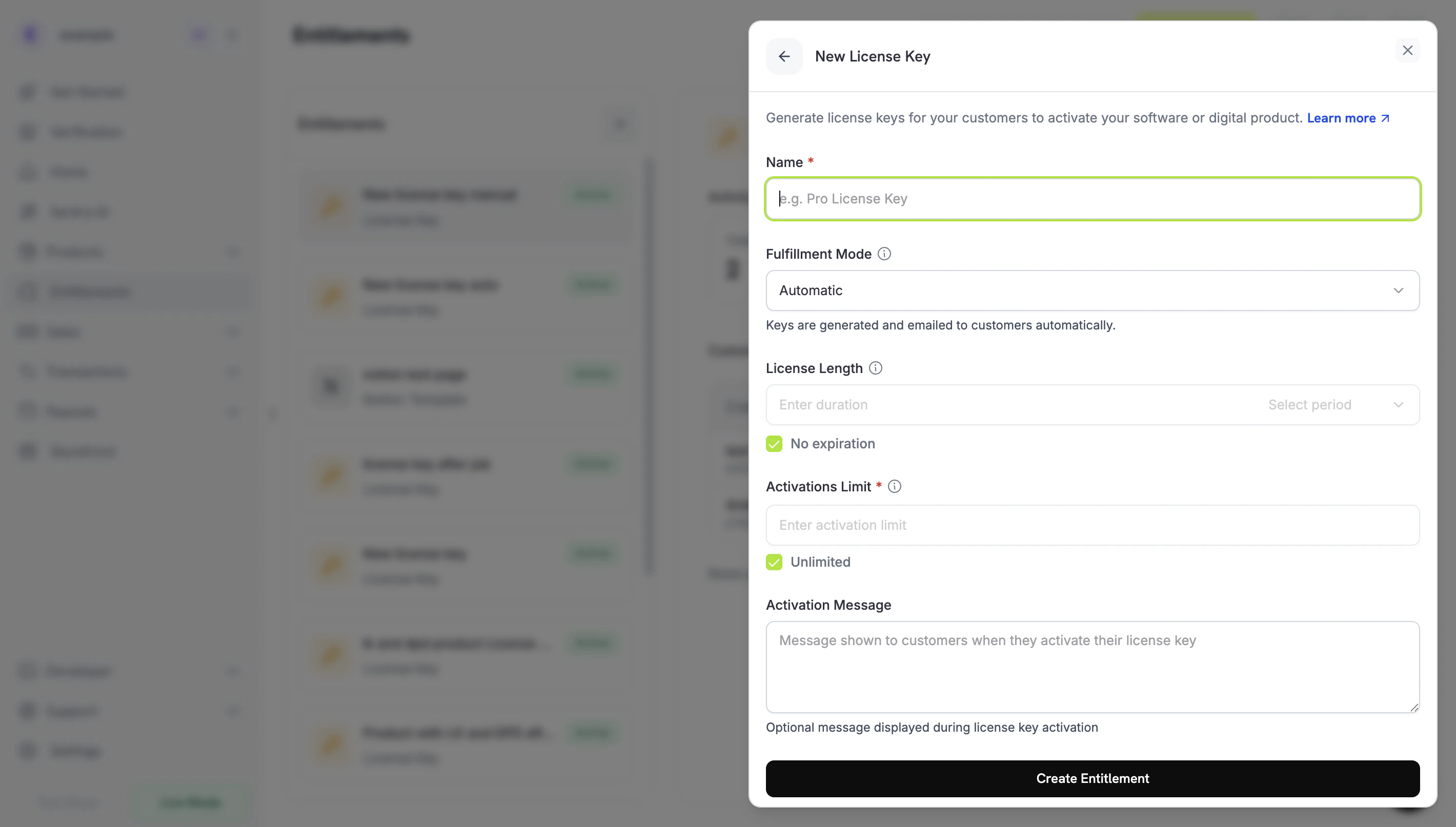
Go to **Entitlements** in your Dodo Payments dashboard and click **+** to create a new entitlement.
Select **License Key** as the integration. Configure how each issued key behaves:
* **Activations Limit**: Maximum concurrent activations per key (e.g., `1` for single-user, `5` for team licenses, leave blank for unlimited).
* **Duration**: How long the key stays valid after issuance (e.g., 30 days, 1 year). For subscription-issued keys, leave blank; keys remain valid as long as the subscription is active.
* **Activation Instructions**: Customer-facing instructions emailed with the key. Examples: `Paste the key in Settings → License` or `Run: mycli activate `.
Save. The entitlement is now available to attach to any product.
## Attach to Products
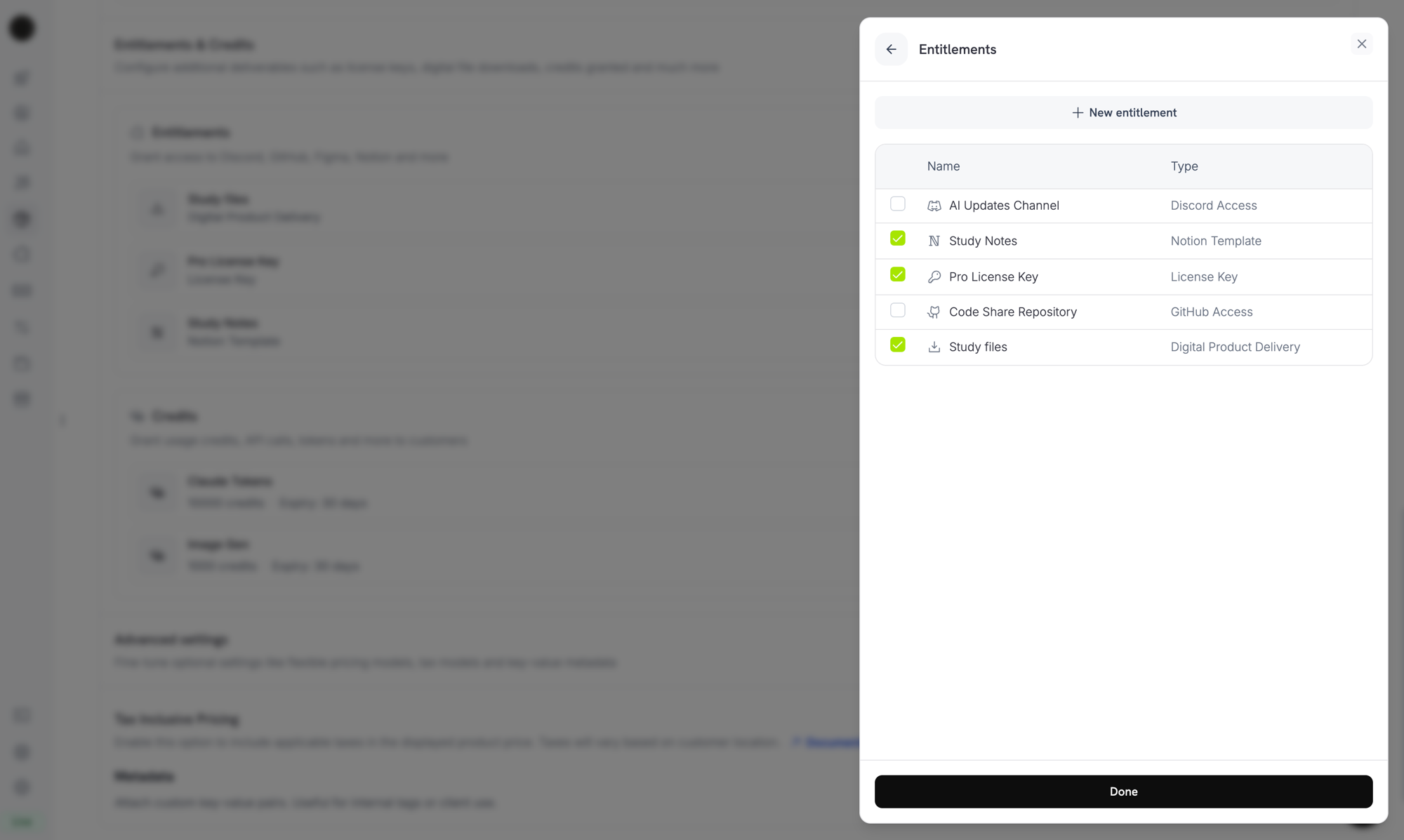
Open a product, expand **Advanced Settings → Entitlements & Credits**, and select your License Key entitlement. A single product can deliver a license key alongside other entitlements (Discord access, file downloads, GitHub repo access, etc.) on the same purchase.
***
## How Keys Are Issued
Key issuance follows the standard [grant lifecycle](/features/entitlements/introduction#how-grants-work):
| Event | Behavior |
| ------------------------------------ | -------------------------------------------------------------------------------------------------------------------------- |
| `payment.succeeded` (one-time) | Generate one key per `quantity` purchased. Key expiry honors the entitlement's duration. |
| `subscription.active` | Generate one key per subscription `quantity` (seat). Key has no expiry; validity is tied to subscription status. |
| `subscription.renewed` | No-op. Existing keys persist. |
| `subscription.on_hold` | Disable the keys. They reactivate when the subscription comes off hold. |
| `subscription.cancelled` / `expired` | Disable the keys permanently. |
| `subscription.plan_changed` | Disable the old keys; issue new ones for the new plan. |
| `refund.succeeded` (one-time) | Disable the keys. |
| Manual revoke via API/dashboard | Disable the keys with `revocation_reason: manual`. These are not auto-regranted on subscription renewal. |
| License key disabled directly | Revoke the grant with `revocation_reason: license_key_disabled`. Re-enabling the key re-activates the grant automatically. |
### Quantity behavior
* **Subscription products** issue one key per seat (`subscriptions.quantity`).
* **One-time products** issue one key per cart line item (`product_cart.quantity`).
* **Manual API grants** issue exactly one key.
## Activation, Validation, Deactivation
The activation/validation/deactivation API endpoints are **public** and require no API key. Use them directly from desktop software, CLIs, or browser-based clients to verify keys at runtime.
**Public Endpoints**: The activate, deactivate, and validate license endpoints are public and do not require an API key. Call them directly from your client applications without exposing your API credentials.
### Activate a license
```typescript TypeScript theme={null} theme={null}
import DodoPayments from 'dodopayments';
// No API key needed for public license endpoints
const client = new DodoPayments();
const response = await client.licenses.activate({
license_key: 'PRO-AAAA-BBBB-CCCC-DDDD',
name: 'Device Name',
});
console.log(response.id);
```
```python Python theme={null} theme={null}
client.licenses.activate(
license_key="PRO-AAAA-BBBB-CCCC-DDDD",
name="Device Name",
)
```
```bash cURL theme={null} theme={null}
curl -X POST https://test.dodopayments.com/licenses/activate \
-H "Content-Type: application/json" \
-d '{
"license_key": "PRO-AAAA-BBBB-CCCC-DDDD",
"name": "Device Name"
}'
```
### Validate a license
```typescript TypeScript theme={null} theme={null}
const response = await client.licenses.validate({
license_key: 'PRO-AAAA-BBBB-CCCC-DDDD',
});
console.log(response.valid);
```
```bash cURL theme={null} theme={null}
curl -X POST https://test.dodopayments.com/licenses/validate \
-H "Content-Type: application/json" \
-d '{ "license_key": "PRO-AAAA-BBBB-CCCC-DDDD" }'
```
### Deactivate an activation instance
```typescript theme={null} theme={null}
await client.licenses.deactivate({
license_key: 'PRO-AAAA-BBBB-CCCC-DDDD',
license_key_instance_id: 'instance_abc123',
});
```
***
## Manage Keys
जब कोई ग्राहक मैनुअल-मोड उत्पाद खरीदता है, तो अनुदान `pending` स्थिति में बिना किसी कुंजी के बनता है और एक [`entitlement_grant.created`](/developer-resources/webhooks/intents/entitlement-grant) webhook फायर करता है `integration_type: "license_key"` और `status: "pending"` के साथ। आप उस webhook पर प्रतिक्रिया कर सकते हैं, या `integration_type` और `status` फ़िल्टर के साथ [List Customer Grants](/api-reference/entitlements/list-customer-grants) endpoint को पोल कर सकते हैं:
```typescript theme={null} theme={null}
const pending = await client.customers.listEntitlementGrants('customer_id', {
integration_type: 'license_key',
status: 'Pending',
});
```
```typescript theme={null} theme={null}
const grants = await client.entitlements.grants.list('ent_license_key_id', {
status: 'delivered',
});
for (const grant of grants.items) {
console.log(grant.license_key.key, grant.license_key.activations_used);
}
```
## Import Existing License Keys via API
Already have license keys in another system? Use the [Create License Key](/api-reference/licenses/create-license-key) API to import them into Dodo Payments. This lets you migrate existing keys without disrupting your customers — they continue to activate, validate, and deactivate against the same key strings without re-issuance.
License keys created or updated through the API do not trigger email notifications to customers. If you need to notify customers about an imported key, handle that separately in your application.
```typescript theme={null} theme={null}
const licenseKey = await client.licenseKeys.create({
customer_id: 'cus_abc123',
product_id: 'prod_456',
key: 'YOUR-EXISTING-LICENSE-KEY',
activations_limit: 5,
expires_at: '2026-12-31T23:59:59Z',
});
```
### How imported keys differ from auto-generated keys
| Field | Auto-generated key | Imported key |
| --------------------------- | -------------------------------------------- | ------------------------------------- |
| `source` | `"auto"` | `"import"` |
| `payment_id` | Set to the originating payment | `null` (no Dodo Payments transaction) |
| `subscription_id` | Set if the key was issued via a subscription | `null` unless explicitly linked |
| Customer email notification | Sent on issuance | Not sent — handle separately |
Use the `source` field on `GET /license_keys` responses to distinguish migrated inventory from organically issued keys when reconciling or auditing.
Migrating from **Polar.sh** or **Lemon Squeezy**? The [`dodo-migrate` CLI](/migrate-to-dodo) automates bulk imports of products, customers, discounts, and license keys in a single command and maps external IDs to Dodo IDs automatically.
***
## License Keys in Return URL
When a customer completes a purchase for a product with a License Key entitlement, the generated key is automatically appended to your `return_url` as a query parameter. This lets you display the key immediately on your success page without making an extra API call.
```text theme={null} theme={null}
https://yoursite.com/return?payment_id=pay_xxx&status=succeeded&license_key=LK-001&email=customer%40example.com
```
If the purchase generates multiple keys (quantity > 1), they are comma-separated:
```text theme={null} theme={null}
https://yoursite.com/return?payment_id=pay_xxx&status=succeeded&license_key=LK-001,LK-002&email=customer%40example.com
```
For subscriptions, `subscription_id` is used instead of `payment_id`:
```text theme={null} theme={null}
https://yoursite.com/return?subscription_id=sub_xxx&status=active&license_key=LK-001&email=customer%40example.com
```
Parse the `license_key` parameter on your return page to show the key immediately, improving the post-purchase experience.
***
## API Management
Activation, deactivation, and validation are public; no API key required.
Create or record an activation instance for a license key.
Revoke a prior activation to free up capacity.
Check authenticity, status, and constraints before granting access.
Create, list, retrieve, and update individual license key records. Use these to import existing keys or fetch usage details.
Create a new license key or import an existing one.
```typescript theme={null} theme={null}
const grants = await client.entitlements.grants.list('ent_license_key_id', {
status: 'Delivered',
});
for (const grant of grants.items) {
console.log(grant.license_key.key, grant.license_key.activations_used);
}
```
Retrieve a specific key and its metadata.
Modify expiry, activation limits, or enable/disable a key.
Manage the License Key entitlement itself: its activation limit, duration, and instructions.
Create a License Key entitlement.
Update the entitlement's configuration.
List the keys issued for an entitlement.
Manually revoke a customer's key.
***
## Webhooks
License-key delivery and revocation fire the four [`entitlement_grant.*` webhook events](/developer-resources/webhooks/intents/entitlement-grant). The grant payload includes a populated `license_key` object with the key, expiry, activations used, and limit.
The legacy `license_key.*` events (`license_key.created`) continue to fire for the underlying license-key record lifecycle; see the [License Key webhook payload page](/developer-resources/webhooks/intents/license-key).
For new integrations, listen to `entitlement_grant.delivered` rather than `license_key.created`. The entitlement event tells you delivery is complete across all integrations on the product, not just the license key.
***
## Legacy License Keys
Products created with the older `license_key_enabled` flag have been **automatically migrated** to a License Key entitlement. The migration is transparent: existing customers' keys continue to work unchanged, the public `/licenses/activate`, `/licenses/validate`, `/licenses/deactivate` endpoints continue to function, and the `/license_keys/*` API endpoints continue to read and write to the same key store.
The standalone **License Keys** dashboard section remains available as a flat list of every key issued, useful for audit and search. New configuration (changing activation limits, durations, or instructions) should be done by editing the migrated License Key entitlement under **Entitlements**.
***
## Best Practices
* **Keep activation limits clear**: Choose sensible defaults (1 for single-user apps, 3–5 for team licenses) and document them.
* **Provide precise activation instructions**: Customers paste these from their email, so exact paths and commands save support tickets.
* **Validate keys server-side**: For network-connected products, validate via `/licenses/validate` rather than caching activation locally.
* **Use webhooks for revocation**: Listen to `entitlement_grant.revoked` to disable in-app features immediately when a customer cancels or refunds.
* **Test with subscriptions and one-times**: License key behavior differs subtly between the two, so test both before going live.
अपने रिटर्न पेज पर `license_key` पैरामीटर को पार्स करें ताकि कुंजी तुरंत दिखाई जा सके, जिससे खरीद के बाद का अनुभव सुधर सके।
***
## API प्रबंधन
सक्रियकरण, निष्क्रियता, और प्रमाणीकरण सार्वजनिक हैं; API कुंजी की आवश्यकता नहीं है।
लाइसेंस कुंजी के लिए एक सक्रियण उदाहरण बनाएं या रिकॉर्ड करें।
क्षमता खाली करने के लिए पिछला सक्रियण रद्द करें।
पहुँच देने से पहले प्रामाणिकता, स्थिति, और प्रतिबंध जाँचें।
व्यक्तिगत लाइसेंस कुंजी रिकॉर्ड बनाएं, सूचीबद्ध करें, पुनः प्राप्त करें, और अपडेट करें। मौजूदा कुंजियों को आयात करने या उपयोग विवरण प्राप्त करने के लिए इनका उपयोग करें।
एक नई लाइसेंस कुंजी बनाएं या मौजूदा को आयात करें।
स्थिति और उपयोग विवरण के साथ सभी कुंजियों को ब्राउज़ करें।
किसी विशेष कुंजी और उसके मेटाडेटा को पुनः प्राप्त करें।
समाप्ति, सक्रियता सीमाएं संशोधित करें, या कुंजी को सक्षम/निष्क्रिय करें।
लाइसेंस कुंजी अधिकार स्वयं प्रबंधित करें: इसकी सक्रियता सीमा, अवधि, और निर्देश।
लाइसेंस कुंजी अधिकार बनाएं।
अधिकार के कॉन्फ़िगरेशन को अपडेट करें।
अधिकार के लिए जारी कुंजियों की सूची बनाएं।
ग्राहक की कुंजी को मैन्युअल रूप से रद्द करें।
***
## Webhooks
लाइसेंस-कुंजी वितरण और रद्दीकरण चार [`entitlement_grant.*` webhook इवेंट्स](/developer-resources/webhooks/intents/entitlement-grant) को ट्रिगर करते हैं। अनुदान पेलोड में कुंजी, समाप्ति, उपयोग की गई सक्रियता, और सीमा के साथ एक भरा हुआ `license_key` ऑब्जेक्ट शामिल होता है।
विरासत `license_key.*` इवेंट्स (`license_key.created`) अंतर्निहित लाइसेंस-कुंजी रिकॉर्ड जीवनचक्र के लिए फायर होते रहते हैं; देखें [लाइसेंस कुंजी webhook पेलोड पेज](/developer-resources/webhooks/intents/license-key)।
नई एकीकरणों के लिए, `entitlement_grant.delivered` को सुनें बजाय `license_key.created` के। अधिकार घटना आपको बताती है कि सभी उत्पाद एकीकरणों में वितरण पूरा हो चुका है, न कि केवल लाइसेंस कुंजी।
***
## पुरानी लाइसेंस कुंजियाँ
पुराने `license_key_enabled` ध्वज के साथ बनाए गए उत्पाद **स्वतः माइग्रेट हो गए हैं** लाइसेंस कुंजी अधिकार में। माइग्रेशन पारदर्शी है: मौजूदा ग्राहकों की कुंजियाँ बिना बदले काम करती रहती हैं, सार्वजनिक `/licenses/activate`, `/licenses/validate`, `/licenses/deactivate` एंडपॉइंट्स चालू रहते हैं, और `/license_keys/*` API एंडपॉइंट्स उसी कुंजी स्टोर को पढ़ते और लिखते रहते हैं।
स्वतंत्र **लाइसेंस कुंजियाँ** डैशबोर्ड अनुभाग हर जारी की गई कुंजी की एक समतल सूची के रूप में उपलब्ध रहता है, जो ऑडिट और खोज के लिए उपयोगी है। नई कॉन्फ़िगरेशन (सक्रियता सीमाएं, अवधि, या निर्देश बदलना) **अधिकारों** के तहत माइग्रेटेड लाइसेंस कुंजी अधिकार को संपादित करके किया जाना चाहिए।
***
## सर्वोत्तम प्रथाएँ
* **सक्रियता सीमाएं स्पष्ट रखें**: उचित डिफ़ॉल्ट चुनें (एकल-उपयोगकर्ता ऐप्स के लिए 1, टीम लाइसेंस के लिए 3-5) और उन्हें दस्तावेज करें।
* **सटीक सक्रियता निर्देश प्रदान करें**: ग्राहक इन्हें अपने ईमेल से कॉपी करते हैं, इसलिए सटीक पथ और कमांड समर्थन टिकट बचाते हैं।
* **कुंजियों को सर्वर-साइड सत्यापित करें**: नेटवर्क से जुड़े उत्पादों के लिए, इसे लोकल सक्रियता कैश करने के बजाय `/licenses/validate` के माध्यम से सत्यापित करें।
* **रद्दीकरण के लिए webhooks का उपयोग करें**: `entitlement_grant.revoked` को सुनें जब ग्राहक रद्द करते हैं या धनवापसी करते हैं तो ऐप फीचर्स को तुरंत अक्षम करने के लिए।
* **सदस्यताओं और एकबारगी के साथ परीक्षण करें**: लाइसेंस कुंजी का व्यवहार दोनों के बीच मामूली रूप से भिन्न होता है, इसलिए लाइव जाने से पहले दोनों का परीक्षण करें।
 ***
## How Keys Are Issued
Key issuance follows the standard [grant lifecycle](/features/entitlements/introduction#how-grants-work):
| Event | Behavior |
| ------------------------------------ | -------------------------------------------------------------------------------------------------------------------------- |
| `payment.succeeded` (one-time) | Generate one key per `quantity` purchased. Key expiry honors the entitlement's duration. |
| `subscription.active` | Generate one key per subscription `quantity` (seat). Key has no expiry; validity is tied to subscription status. |
| `subscription.renewed` | No-op. Existing keys persist. |
| `subscription.on_hold` | Disable the keys. They reactivate when the subscription comes off hold. |
| `subscription.cancelled` / `expired` | Disable the keys permanently. |
| `subscription.plan_changed` | Disable the old keys; issue new ones for the new plan. |
| `refund.succeeded` (one-time) | Disable the keys. |
| Manual revoke via API/dashboard | Disable the keys with `revocation_reason: manual`. These are not auto-regranted on subscription renewal. |
| License key disabled directly | Revoke the grant with `revocation_reason: license_key_disabled`. Re-enabling the key re-activates the grant automatically. |
### Quantity behavior
* **Subscription products** issue one key per seat (`subscriptions.quantity`).
* **One-time products** issue one key per cart line item (`product_cart.quantity`).
* **Manual API grants** issue exactly one key.
## Activation, Validation, Deactivation
The activation/validation/deactivation API endpoints are **public** and require no API key. Use them directly from desktop software, CLIs, or browser-based clients to verify keys at runtime.
***
## How Keys Are Issued
Key issuance follows the standard [grant lifecycle](/features/entitlements/introduction#how-grants-work):
| Event | Behavior |
| ------------------------------------ | -------------------------------------------------------------------------------------------------------------------------- |
| `payment.succeeded` (one-time) | Generate one key per `quantity` purchased. Key expiry honors the entitlement's duration. |
| `subscription.active` | Generate one key per subscription `quantity` (seat). Key has no expiry; validity is tied to subscription status. |
| `subscription.renewed` | No-op. Existing keys persist. |
| `subscription.on_hold` | Disable the keys. They reactivate when the subscription comes off hold. |
| `subscription.cancelled` / `expired` | Disable the keys permanently. |
| `subscription.plan_changed` | Disable the old keys; issue new ones for the new plan. |
| `refund.succeeded` (one-time) | Disable the keys. |
| Manual revoke via API/dashboard | Disable the keys with `revocation_reason: manual`. These are not auto-regranted on subscription renewal. |
| License key disabled directly | Revoke the grant with `revocation_reason: license_key_disabled`. Re-enabling the key re-activates the grant automatically. |
### Quantity behavior
* **Subscription products** issue one key per seat (`subscriptions.quantity`).
* **One-time products** issue one key per cart line item (`product_cart.quantity`).
* **Manual API grants** issue exactly one key.
## Activation, Validation, Deactivation
The activation/validation/deactivation API endpoints are **public** and require no API key. Use them directly from desktop software, CLIs, or browser-based clients to verify keys at runtime.