> ## Documentation Index
> Fetch the complete documentation index at: https://docs.dodopayments.com/llms.txt
> Use this file to discover all available pages before exploring further.
# व्यवसाय को आर्काइव करना
> जिस व्यवसाय के तहत अब आप व्यापार नहीं करते, उसे स्थायी रूप से बंद करें। पात्रता आवश्यकताओं, पुष्टि प्रक्रिया और आर्काइव करने के बाद होने वाली चीज़ों के बारे में जानें।
## परिचय
आर्काइव करने से वह व्यवसाय बंद हो जाता है जिसके तहत अब आप व्यापार नहीं करते। वह व्यवसाय आपके डैशबोर्ड से गायब हो जाता है, उसकी API keys काम करना बंद कर देती हैं, और उसका checkout, payment links, storefront और Customer Portal आपके ग्राहकों को सेवा देना बंद कर देते हैं।
आर्काइव करना deletion नहीं है। Dodo Payments आपका [Merchant of Record](/features/mor-introduction) है, इसलिए अनुपालन के लिए आपके payments, refunds, invoices और tax records को व्यापार बंद करने के लंबे समय बाद तक सुरक्षित रखना आवश्यक है। आर्काइव करने से व्यवसाय नई गतिविधियों के लिए बंद हो जाता है, जबकि ये रिकॉर्ड सुरक्षित रहते हैं।
आर्काइव करना स्थायी है। आर्काइव किए गए व्यवसाय को restore करने का कोई तरीका नहीं है और support भी इसे आपके लिए वापस नहीं कर सकता। यदि आप केवल एक brand को बंद करना चाहते हैं और अन्य brands के तहत व्यापार जारी रखना चाहते हैं, तो व्यवसाय के बजाय उस brand को archive करें। [Multi-Brand Setup](/features/multi-brands) देखें।
## पात्रता आवश्यकताएँ
किसी व्यवसाय को तभी archive किया जा सकता है जब उसका पूरी तरह settlement हो चुका हो। विकल्प उपलब्ध होने से पहले Dodo Payments सात आवश्यकताओं की जाँच करता है और हर आवश्यकता की live checklist दिखाता है। आप अपने रोज़मर्रा में पहले से उपयोग किए जाने वाले उन्हीं tools का इस्तेमाल करके लंबित items स्वयं clear करते हैं।
| आवश्यकता | कब clear होती है | इसे कैसे clear करें |
| --------------------- | -------------------------------------------------------------------- | ----------------------------------------------------------------------------------------------------------------- |
| **Dormancy** | पिछले 180 दिनों में व्यवसाय में कोई payment activity नहीं हुई हो | अवधि पूरी होने तक प्रतीक्षा करें। Checklist वह तारीख दिखाती है जब आप eligible होंगे। |
| **Payout Wallet** | हर currency balance बिल्कुल zero हो | अपनी शेष funds withdraw करें। [Account Summary and Payout Wallet](/features/account-summary-payout-wallet) देखें। |
| **Payouts** | कोई payout progress में, hold पर या initiation की प्रतीक्षा में न हो | हर payout के settle होने तक प्रतीक्षा करें। [Payout Structure](/features/payouts/payout-structure) देखें। |
| **Disputes** | कोई dispute open या challenged न हो | हर dispute को resolve या accept करें। [Disputes](/features/transactions/disputes) देखें। |
| **Refunds** | कोई refund pending या review में न हो | हर refund पूरा होने तक प्रतीक्षा करें। [Refunds](/features/transactions/refunds) देखें। |
| **Subscriptions** | कोई subscription pending, active, hold पर या paused न हो | हर subscription cancel करें। [Subscriptions](/features/subscription) देखें। |
| **Customer Balances** | किसी customer के पास cash balance न हो | [Customer Wallet](/features/customer-wallet) ledger के ज़रिए हर balance को zero करें। |
अगली billing date पर cancel होने के लिए scheduled subscription, वास्तव में समाप्त होने तक archiving को रोकती रहती है। Dodo Payments आपकी ओर से subscriptions को कभी cancel नहीं करता, इसलिए आपके customers से क्या charge किया जाए, इस पर नियंत्रण आपके पास रहता है।
हर payment dormancy window में गिना जाता है, चाहे उसका outcome कुछ भी हो। Failed या abandoned payment attempt भी successful payment की तरह 180 दिनों की अवधि को फिर से शुरू कर देता है।
Customer credit grants archiving को नहीं रोकते। केवल cash balances रोकते हैं। Credits अपने निर्धारित schedule के अनुसार expire होते हैं।
Checklist को हर बार खोलने पर live evaluate किया जाता है, इसलिए किसी item को clear करने के बाद इसे refresh करें ताकि requirement green दिखाई दे।
## अपने व्यवसाय को कैसे archive करें
केवल किसी व्यवसाय का **Owner** ही उसे archive कर सकता है। Editors और Viewers checklist देख सकते हैं, लेकिन archive नहीं कर सकते। Ownership transfer नहीं की जा सकती, इसलिए यदि आप owner नहीं हैं, तो उनसे यह प्रक्रिया पूरी करने को कहें।
**Settings → Business** पर जाएँ और **Danger Zone** panel तक scroll करें। Checklist को expand करने के लिए status line के आगे **See Details** चुनें।
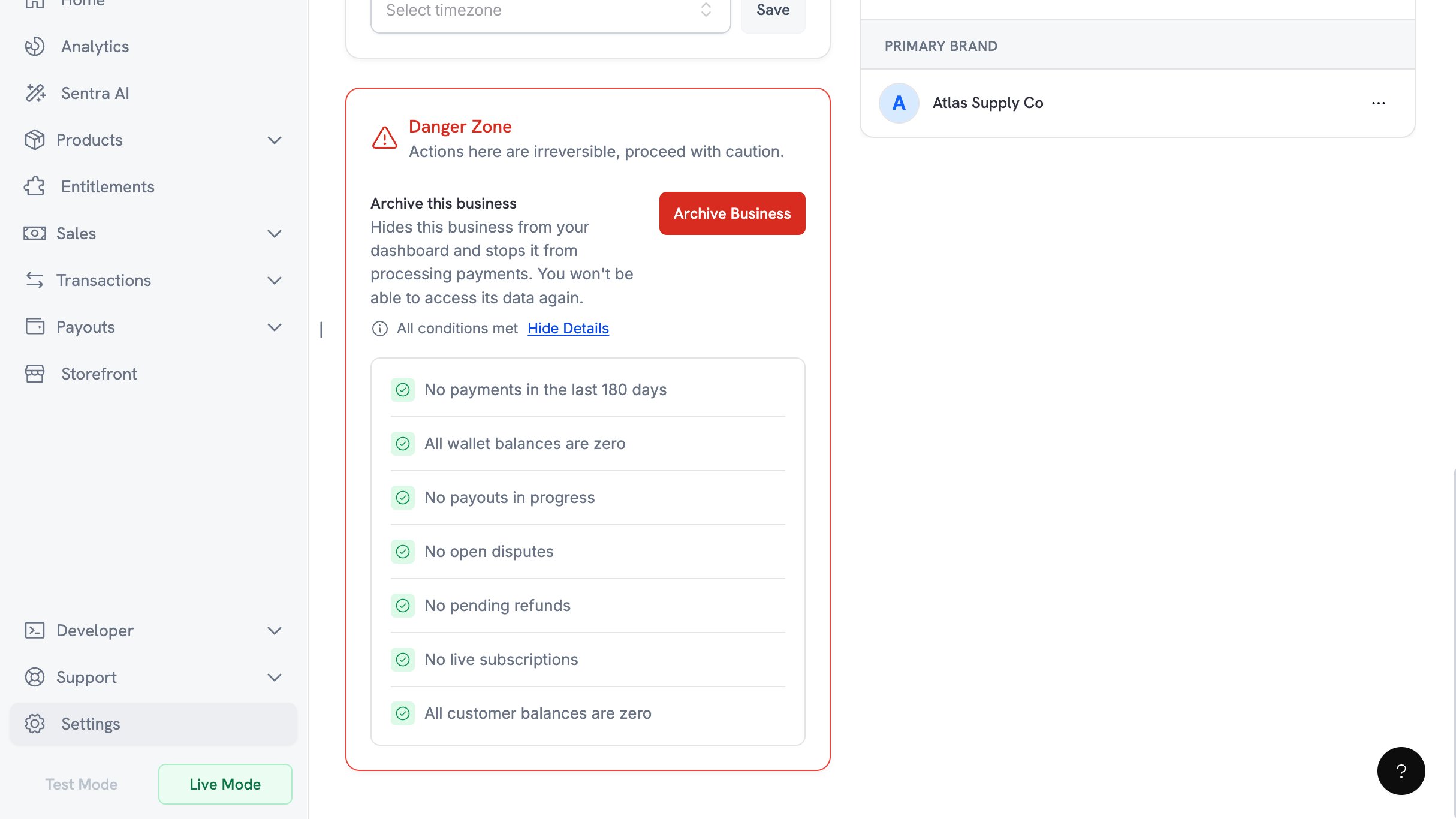 जिन items को pass नहीं किया गया है, उन्हें ऊपर दी गई table में दिए resolution links का पालन करके पूरा करें। Checklist को फिर से expand करने के लिए panel पर वापस जाएँ और आगे बढ़ते रहें। जब clear करने के लिए कुछ भी बाकी नहीं रहता, तो checklist के ऊपर status line **All conditions met** दिखाती है।
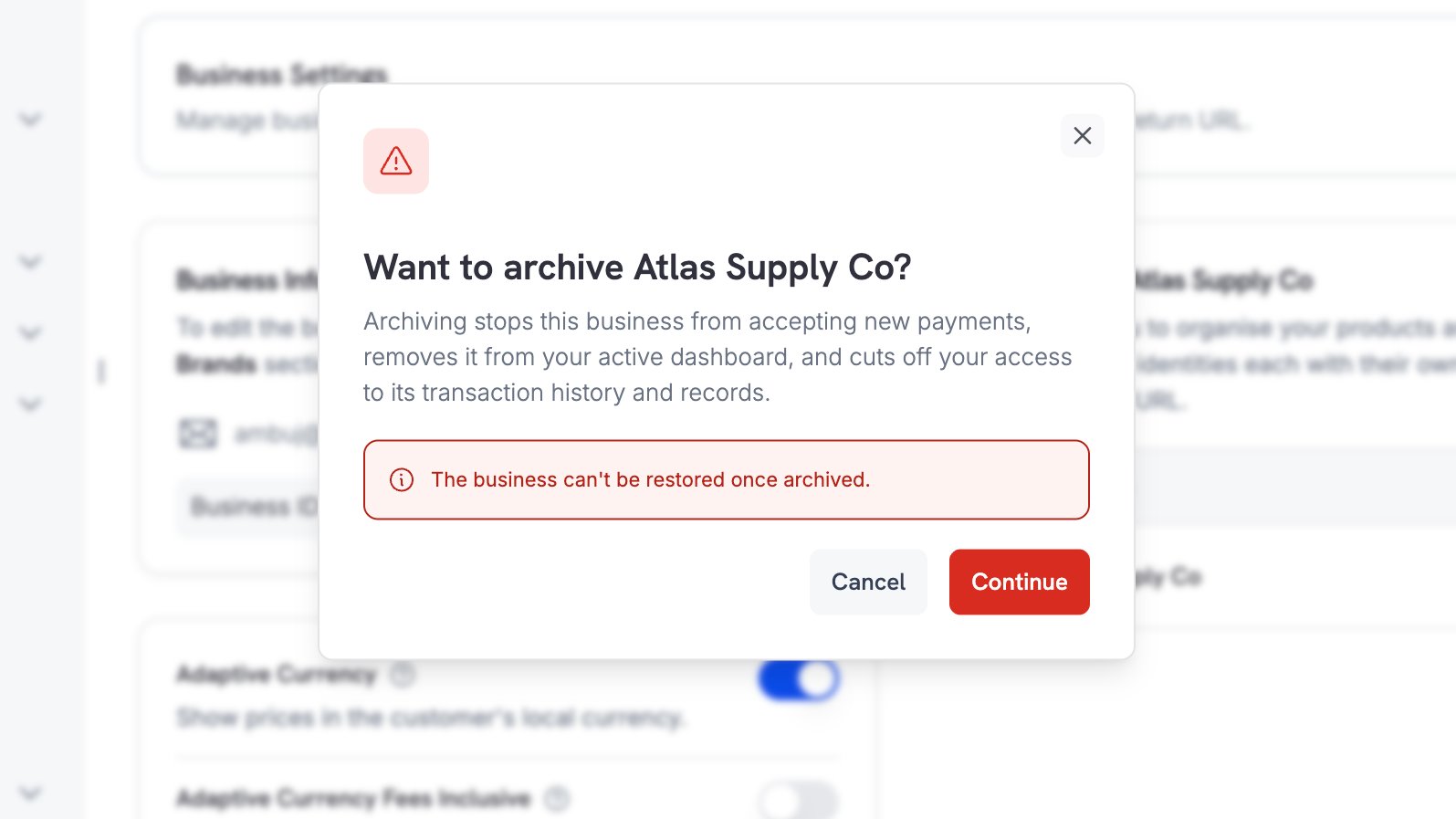
**Archive Business** चुनें और confirmation dialog पढ़ें। Owner के email address पर confirmation code भेजने के लिए **Continue** चुनें।
जिन items को pass नहीं किया गया है, उन्हें ऊपर दी गई table में दिए resolution links का पालन करके पूरा करें। Checklist को फिर से expand करने के लिए panel पर वापस जाएँ और आगे बढ़ते रहें। जब clear करने के लिए कुछ भी बाकी नहीं रहता, तो checklist के ऊपर status line **All conditions met** दिखाती है।
**Archive Business** चुनें और confirmation dialog पढ़ें। Owner के email address पर confirmation code भेजने के लिए **Continue** चुनें।
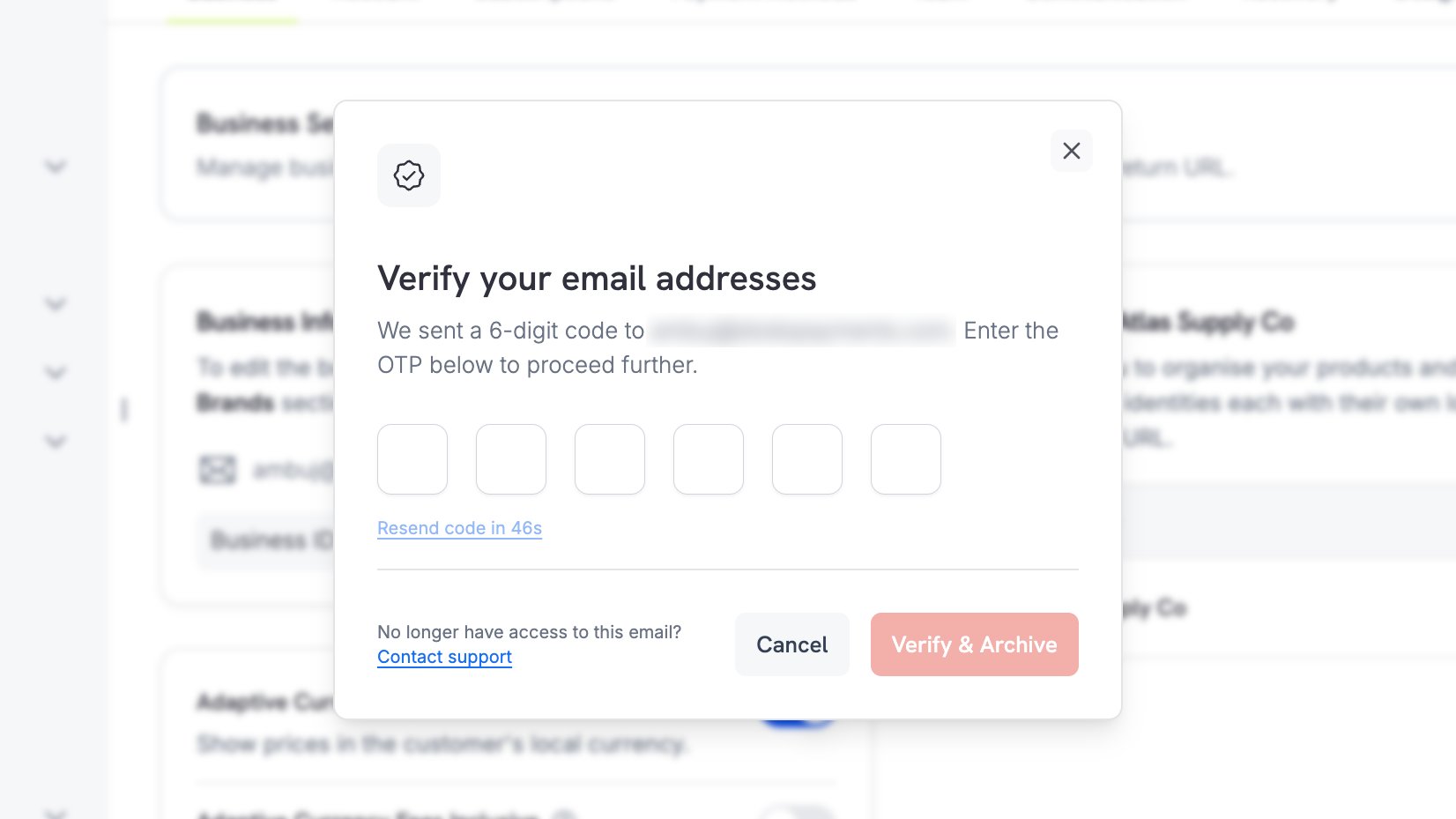
 Dodo Payments owner के registered address पर 6-digit code email करता है। Code 10 मिनट बाद expire हो जाता है, आप हर 60 seconds में नया code request कर सकते हैं और fresh code की आवश्यकता पड़ने से पहले आपके पास 3 attempts होते हैं।
 यदि अब आपके पास owner के mailbox का access नहीं है, तो dialog में दिए **Contact support** link का उपयोग करें।
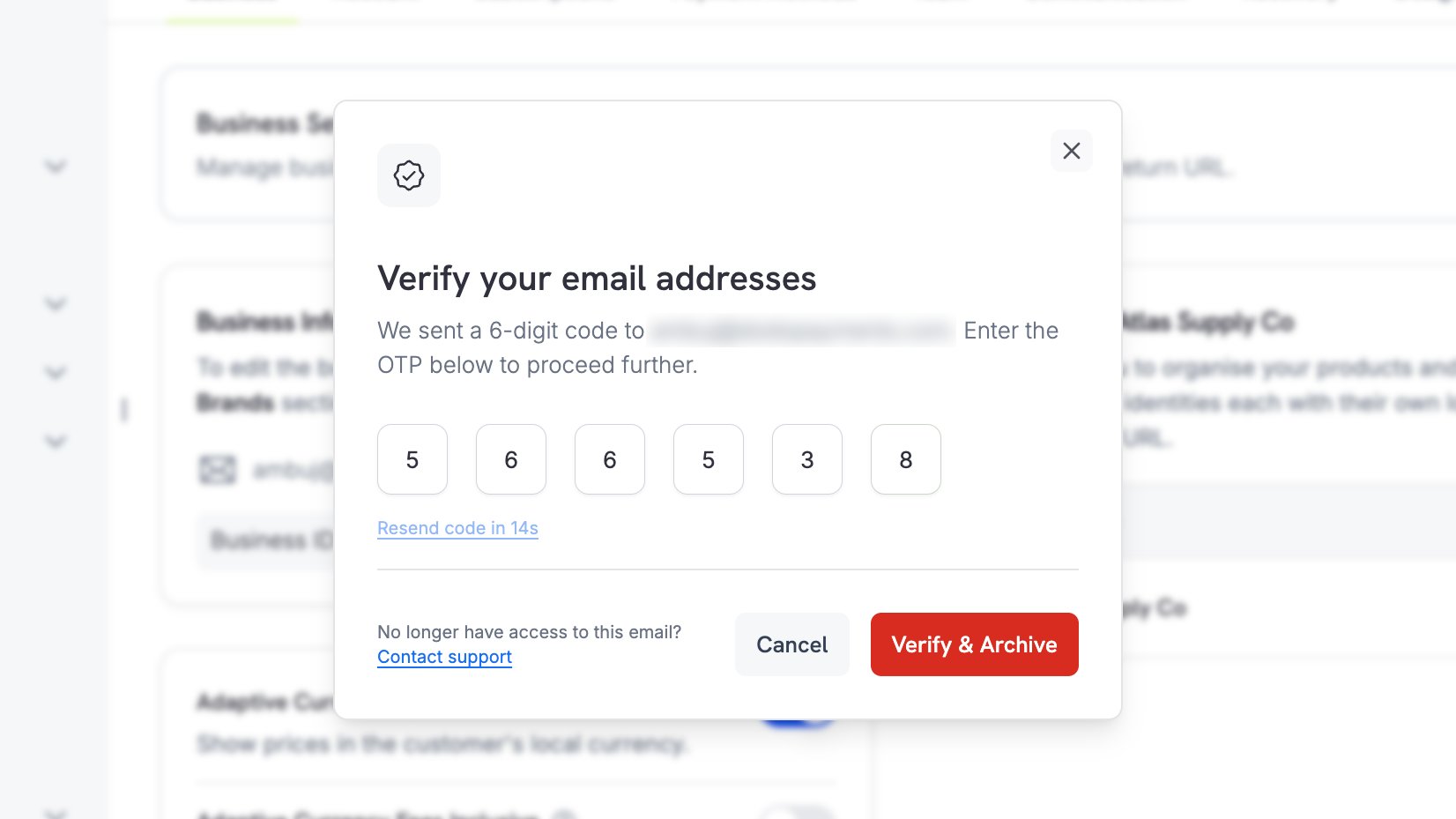
Code दर्ज करें और **Verify & Archive** चुनें। यही वापसी का अंतिम बिंदु है: code स्वीकार होते ही व्यवसाय archive हो जाता है।
यदि अब आपके पास owner के mailbox का access नहीं है, तो dialog में दिए **Contact support** link का उपयोग करें।
Code दर्ज करें और **Verify & Archive** चुनें। यही वापसी का अंतिम बिंदु है: code स्वीकार होते ही व्यवसाय archive हो जाता है।
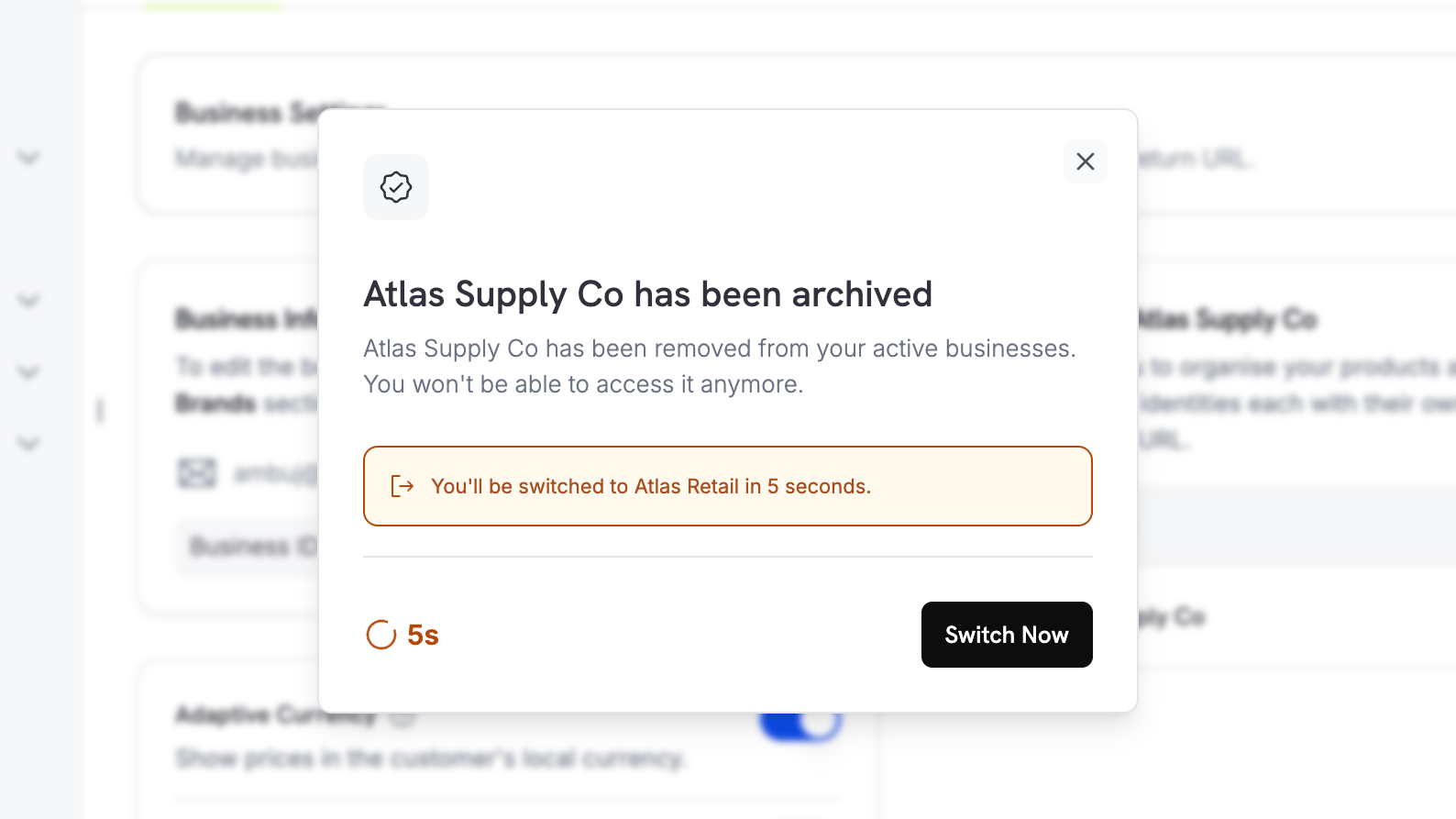
 Dodo Payments archive की पुष्टि करता है और आपको आपके किसी अन्य व्यवसाय पर ले जाता है। वहाँ तुरंत जाने के लिए **Switch Now** चुनें।
 ## Archiving के बाद क्या होता है
**आपके लिए**
* व्यवसाय आपके dashboard या business switcher में दिखाई नहीं देता। Archive करने के तुरंत बाद Dodo Payments आपको आपके किसी अन्य व्यवसाय पर ले जाता है।
* Live mode और live payments बंद कर दिए जाते हैं।
* व्यवसाय की हर API key live mode और test mode दोनों में काम करना बंद कर देती है। Cached credentials को expire होने में कुछ मिनट लग सकते हैं, इसलिए archive करने के बाद कोई integration कुछ समय तक काम करती रह सकती है।
**आपके customers के लिए**
* Checkout sessions, payment links और static checkout pages payments स्वीकार करना बंद कर देते हैं।
* आपका storefront products दिखाना बंद कर देता है।
* Customer Portal sessions समाप्त हो जाते हैं और customers अपनी purchases manage करने के लिए sign in नहीं कर सकते।
* License key activation और deactivation बंद हो जाते हैं।
Archive करने से पहले अपने customers को सूचित करें। Business archive हो जाने के बाद उनके पास अपनी purchase history पर वापस जाने का कोई self-serve तरीका नहीं होता और Dodo Payments retry के बजाय terminal error लौटाता है।
**आपके records के लिए**
Payments, refunds, invoices, payouts और tax filings सुरक्षित रखे जाते हैं। Archive करने से पहले वे invoices और reports download कर लें जिन्हें आप रखना चाहते हैं, क्योंकि business archive होते ही dashboard access समाप्त हो जाता है। बाद में अपने records की copy चाहिए तो [support](/miscellaneous/help-support) से contact करें।
## सीमाएँ
* **Archiving को undo नहीं किया जा सकता।** यह action merchants और support दोनों के लिए स्थायी है।
* **आपका अंतिम business इस तरीके से archive नहीं किया जा सकता।** यदि आपके स्वामित्व में केवल यही एक business है, तो इसके बजाय अपना account बंद करने के लिए [support](/miscellaneous/help-support) से contact करें।
* **Archiving all or nothing है।** अपने catalogue के किसी हिस्से को बंद करके व्यापार जारी रखने के लिए business के बजाय brand को archive करें।
एक brand को archive करें और business के बाकी हिस्से में व्यापार जारी रखें।
Archive करने से पहले अपना शेष balance withdraw करें।
Business profiles manage करें और businesses के बीच switch करें।
Account closure या records requests के बारे में संपर्क करें।
## Archiving के बाद क्या होता है
**आपके लिए**
* व्यवसाय आपके dashboard या business switcher में दिखाई नहीं देता। Archive करने के तुरंत बाद Dodo Payments आपको आपके किसी अन्य व्यवसाय पर ले जाता है।
* Live mode और live payments बंद कर दिए जाते हैं।
* व्यवसाय की हर API key live mode और test mode दोनों में काम करना बंद कर देती है। Cached credentials को expire होने में कुछ मिनट लग सकते हैं, इसलिए archive करने के बाद कोई integration कुछ समय तक काम करती रह सकती है।
**आपके customers के लिए**
* Checkout sessions, payment links और static checkout pages payments स्वीकार करना बंद कर देते हैं।
* आपका storefront products दिखाना बंद कर देता है।
* Customer Portal sessions समाप्त हो जाते हैं और customers अपनी purchases manage करने के लिए sign in नहीं कर सकते।
* License key activation और deactivation बंद हो जाते हैं।
Archive करने से पहले अपने customers को सूचित करें। Business archive हो जाने के बाद उनके पास अपनी purchase history पर वापस जाने का कोई self-serve तरीका नहीं होता और Dodo Payments retry के बजाय terminal error लौटाता है।
**आपके records के लिए**
Payments, refunds, invoices, payouts और tax filings सुरक्षित रखे जाते हैं। Archive करने से पहले वे invoices और reports download कर लें जिन्हें आप रखना चाहते हैं, क्योंकि business archive होते ही dashboard access समाप्त हो जाता है। बाद में अपने records की copy चाहिए तो [support](/miscellaneous/help-support) से contact करें।
## सीमाएँ
* **Archiving को undo नहीं किया जा सकता।** यह action merchants और support दोनों के लिए स्थायी है।
* **आपका अंतिम business इस तरीके से archive नहीं किया जा सकता।** यदि आपके स्वामित्व में केवल यही एक business है, तो इसके बजाय अपना account बंद करने के लिए [support](/miscellaneous/help-support) से contact करें।
* **Archiving all or nothing है।** अपने catalogue के किसी हिस्से को बंद करके व्यापार जारी रखने के लिए business के बजाय brand को archive करें।
एक brand को archive करें और business के बाकी हिस्से में व्यापार जारी रखें।
Archive करने से पहले अपना शेष balance withdraw करें।
Business profiles manage करें और businesses के बीच switch करें।
Account closure या records requests के बारे में संपर्क करें।