> ## Documentation Index
> Fetch the complete documentation index at: https://docs.dodopayments.com/llms.txt
> Use this file to discover all available pages before exploring further.
# Payments
> The Payments section provides merchants with a detailed overview of all payment transactions. Merchants can track payment statuses, initiate refunds, and access payment details for each transaction.
## **Payments Listing Page**
The Payments listing page provides a record of all the payments that have taken place and includes important information about the payment like the transaction amount, payment status and payment method along with the invoice for reference to the purchase associated with the payment.
* The following Payment statuses are shown:
* **In Progress**: The payment is currently being processed.
* **Failed**: The payment attempt was unsuccessful.
* **Successful**: The payment was completed successfully.
The payment method and timestamp are updated once the payment is completed.
***
## **Payment Details Page**
Upon clicking a payment in the listing, merchants are directed to the **Payment Details Page**, which provides a comprehensive breakdown of the transaction
### Successful payment
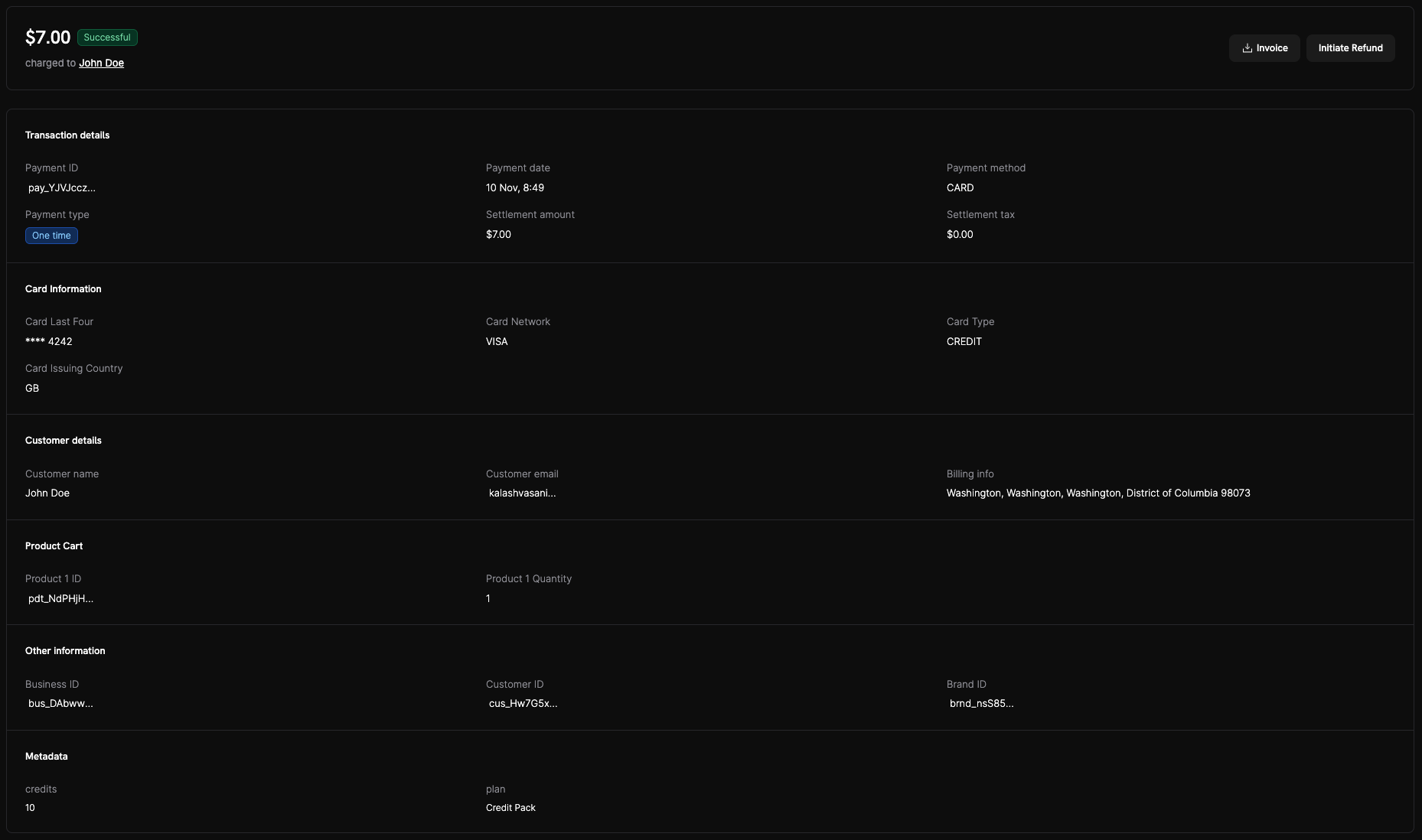
* **Status**: Shows as **Successful** at the top with the final captured amount.
* **Transaction details**: Displays `Payment ID`, `Payment date`, `Payment method`, and `Settlement amount`.
* **Card information**: Card network, last four, issuing country, and type.
* **Customer details**: Name, email, and billing info.
* **Product cart**: Product IDs and quantities purchased.
* **Actions**: You can generate the invoice or initiate a refund from the top-right.
### Failed payment
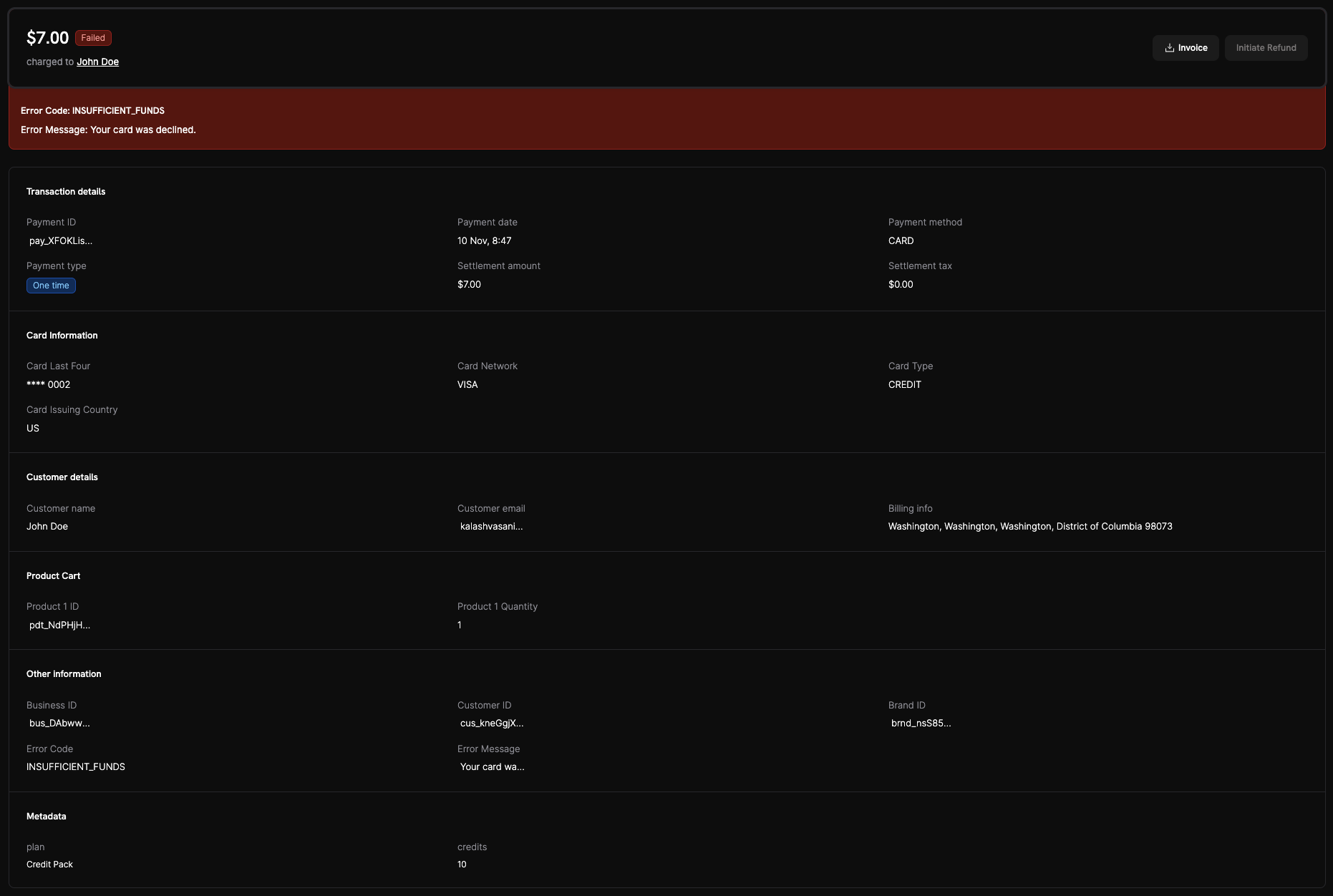
* **Status**: Shows as **Failed** with a red banner.
* **Error context**: Includes the gateway `Error Code` and human-readable `Error Message` (for example, `INSUFFICIENT_FUNDS` – “Your card was declined”).
* **Other information**: The error fields are repeated in the details section for quick reference.
* **Next steps**:
* Retry the payment with a different card or funding source.
* Verify card details and available funds.
* If the decline persists, contact the issuer and try again.
Look up any `Error Code` in the [Transaction Failures](/api-reference/transaction-failures) reference to see what it means and the recommended action. To handle failed payments programmatically, see [Handle Payment Failures](/developer-resources/handle-payment-failures).
## **Important Information**
* **Automatic Activation**: All the payment methods listed above will become available to customers automatically once the merchant's account is verified and live mode is enabled.
* **No Additional Configuration Required**: Merchants do not need to configure these payment options, as they are pre-defined and managed by Dodo Payments.
* **Additional Payment Methods**: We are constantly adding more payment methods to our roster. We will keep updating this page as and when we add more methods. If you have a requirement for any particular payment method, please write to us at [support@dodopayments.com](mailto:support@dodopayments.com) and we will add this to our roadmap if not present.
## How to Navigate and Use the Payments Page
Open the **Transactions** page and click on the **Payments** tab to view all payment transactions.
Use the available filters to narrow down your payment list:
* **Status filter**: View payments by status.
* **Date range**: Select custom date ranges to view payments from specific periods
Click on the **Array icon** next to any payment to access the detailed payment information.
On the payment details page, you can view:
* **Transaction details**: Amount, currency, payment method, and timestamp
* **Customer information**: Name, email, and billing details
* **Payment status**: Current status with timestamp of status changes
To download the associated invoice, click the **download Invoice** (📥) on the invoice preview section.
 * **Status**: Shows as **Successful** at the top with the final captured amount.
* **Transaction details**: Displays `Payment ID`, `Payment date`, `Payment method`, and `Settlement amount`.
* **Card information**: Card network, last four, issuing country, and type.
* **Customer details**: Name, email, and billing info.
* **Product cart**: Product IDs and quantities purchased.
* **Actions**: You can generate the invoice or initiate a refund from the top-right.
### Failed payment
* **Status**: Shows as **Successful** at the top with the final captured amount.
* **Transaction details**: Displays `Payment ID`, `Payment date`, `Payment method`, and `Settlement amount`.
* **Card information**: Card network, last four, issuing country, and type.
* **Customer details**: Name, email, and billing info.
* **Product cart**: Product IDs and quantities purchased.
* **Actions**: You can generate the invoice or initiate a refund from the top-right.
### Failed payment
 * **Status**: Shows as **Failed** with a red banner.
* **Error context**: Includes the gateway `Error Code` and human-readable `Error Message` (for example, `INSUFFICIENT_FUNDS` – “Your card was declined”).
* **Other information**: The error fields are repeated in the details section for quick reference.
* **Next steps**:
* Retry the payment with a different card or funding source.
* Verify card details and available funds.
* If the decline persists, contact the issuer and try again.
* **Status**: Shows as **Failed** with a red banner.
* **Error context**: Includes the gateway `Error Code` and human-readable `Error Message` (for example, `INSUFFICIENT_FUNDS` – “Your card was declined”).
* **Other information**: The error fields are repeated in the details section for quick reference.
* **Next steps**:
* Retry the payment with a different card or funding source.
* Verify card details and available funds.
* If the decline persists, contact the issuer and try again.