> ## Documentation Index
> Fetch the complete documentation index at: https://docs.dodopayments.com/llms.txt
> Use this file to discover all available pages before exploring further.
# Reports
> Reconcile your balance, review every fee, and export payments, adjustments, payouts, and the balance ledger as CSV or XLSX for any date range.
## Introduction
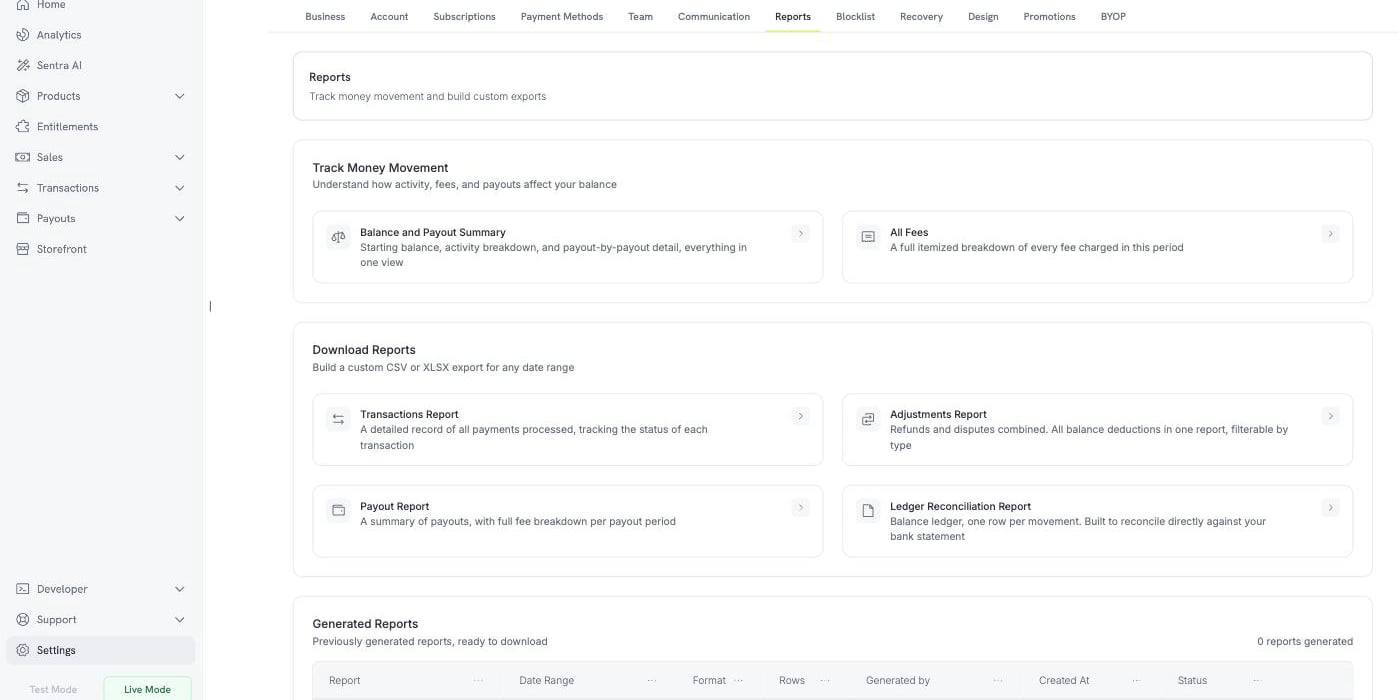
**Reports** is where you track money movement and build exports. Go to
**Settings → Reports**.
The page has three parts:
Two live views that explain your balance and your fees on screen.
Four exports you build for a date range, as CSV or XLSX.
Every report you built before, ready to download again.
 Reports are available in both **Test Mode** and **Live Mode**, and each reads
only that mode's data. Switch mode in the sidebar before you build a report.
***
## Track Money Movement
Two views answer a question on screen, with no download. Each takes a date
range and has an **Export** button that saves the same view as a file.
### Balance and Payout Summary
This view reconciles your balance for the period. It has three blocks.
Reports are available in both **Test Mode** and **Live Mode**, and each reads
only that mode's data. Switch mode in the sidebar before you build a report.
***
## Track Money Movement
Two views answer a question on screen, with no download. Each takes a date
range and has an **Export** button that saves the same view as a file.
### Balance and Payout Summary
This view reconciles your balance for the period. It has three blocks.
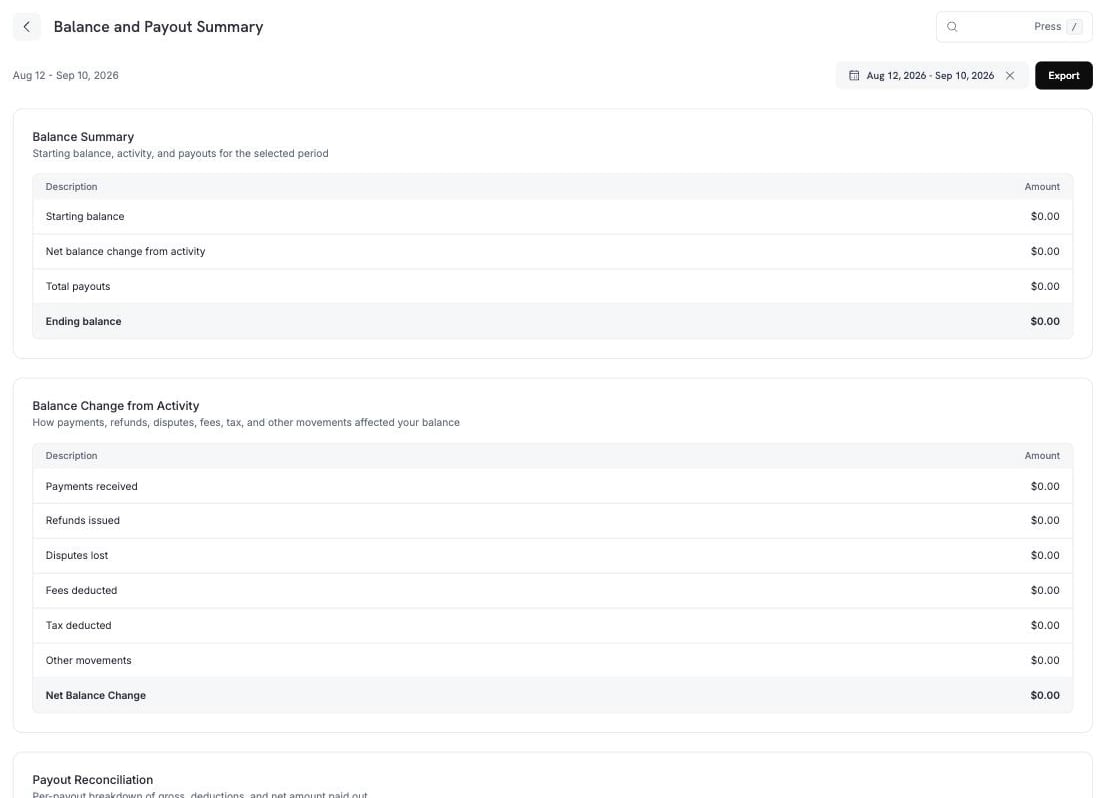 **Balance Summary** shows the period from end to end.
| Row | Meaning |
| -------------------------------- | ------------------------------------------------------- |
| Starting balance | Your balance when the period began. |
| Net balance change from activity | Everything that happened in the period, except payouts. |
| Total payouts | The money that left in payouts. |
| Ending balance | Starting balance + activity − payouts. |
**Balance Change from Activity** breaks the middle row into its parts.
| Row | What it includes |
| ------------------ | ----------------------------------------------------------------------------------------------------------------------------------------- |
| Payments received | Successful payments. |
| Refunds issued | Refunds and refund fees, less any reversal of either. |
| Disputes lost | Disputes and dispute fees, less any dispute reversal. |
| Fees deducted | Payment fees, payout fees, dunning fees, payment retry fees, BYOP fees, abandoned cart recovery fees, and Ethoca fees, less any reversal. |
| Tax deducted | Tax, less any tax reversal. |
| Other movements | Dodo Credits, manual adjustments, and currency conversion. |
| Net Balance Change | The sum of the rows above. |
**Other movements** carries the entries that belong to no named row above:
**Dodo Credits** (credits Dodo Payments applies to your balance), **manual
adjustments** (a correction posted by our team), and **currency conversion**
(the difference recorded when a balance is converted between currencies).
**Payout Reconciliation** lists each payout in the period on its own row, with
the gross amount, each deduction, and the net amount paid out.
**Balance Summary** shows the period from end to end.
| Row | Meaning |
| -------------------------------- | ------------------------------------------------------- |
| Starting balance | Your balance when the period began. |
| Net balance change from activity | Everything that happened in the period, except payouts. |
| Total payouts | The money that left in payouts. |
| Ending balance | Starting balance + activity − payouts. |
**Balance Change from Activity** breaks the middle row into its parts.
| Row | What it includes |
| ------------------ | ----------------------------------------------------------------------------------------------------------------------------------------- |
| Payments received | Successful payments. |
| Refunds issued | Refunds and refund fees, less any reversal of either. |
| Disputes lost | Disputes and dispute fees, less any dispute reversal. |
| Fees deducted | Payment fees, payout fees, dunning fees, payment retry fees, BYOP fees, abandoned cart recovery fees, and Ethoca fees, less any reversal. |
| Tax deducted | Tax, less any tax reversal. |
| Other movements | Dodo Credits, manual adjustments, and currency conversion. |
| Net Balance Change | The sum of the rows above. |
**Other movements** carries the entries that belong to no named row above:
**Dodo Credits** (credits Dodo Payments applies to your balance), **manual
adjustments** (a correction posted by our team), and **currency conversion**
(the difference recorded when a balance is converted between currencies).
**Payout Reconciliation** lists each payout in the period on its own row, with
the gross amount, each deduction, and the net amount paid out.
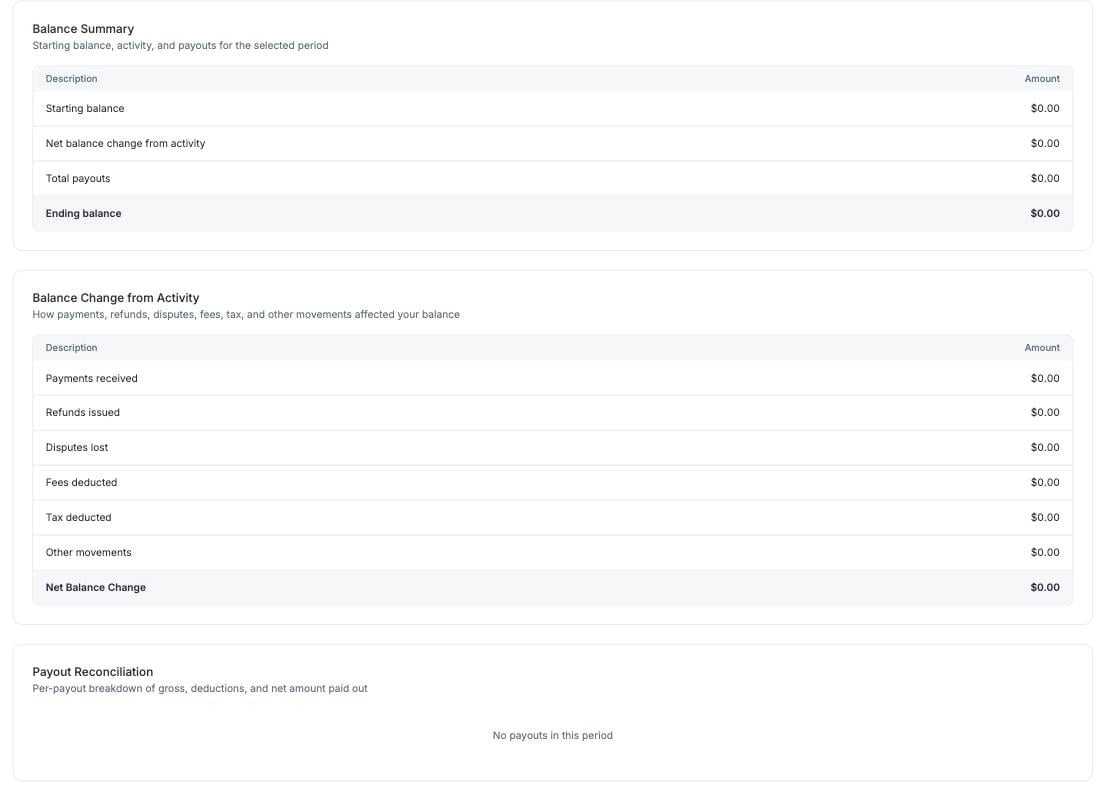 A payout claims every unclaimed ledger entry up to its cut-off date, not only
the payments in the period. Dodo Credits and adjustments can therefore fund
part of a payout, and they appear under **Other**.
### All Fees
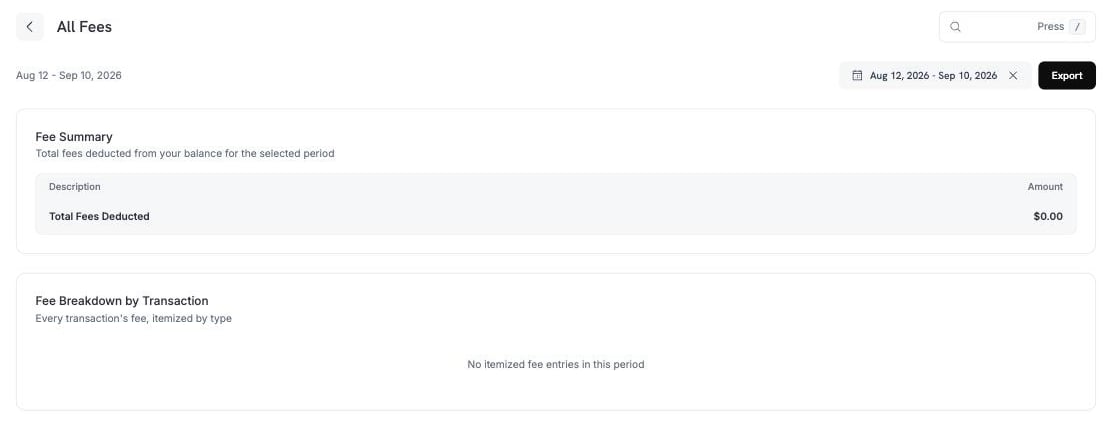
Every fee taken from your balance in the period, with a total and a per-transaction
breakdown.
A payout claims every unclaimed ledger entry up to its cut-off date, not only
the payments in the period. Dodo Credits and adjustments can therefore fund
part of a payout, and they appear under **Other**.
### All Fees
Every fee taken from your balance in the period, with a total and a per-transaction
breakdown.
 ***
## Download Reports
Four reports build a file for any date range. Each opens a panel where you
choose the period, the format, and the filters for that report.
Every report exports as **CSV** or **XLSX**.
| Report | What it contains |
| -------------------------------- | ----------------------------------------------------------------------------------- |
| **Transactions Report** | Every payment processed, with the status of each transaction. |
| **Adjustments Report** | Refunds and disputes together — every balance deduction in one file. |
| **Payout Report** | A summary of payouts, with the full fee breakdown per payout period. |
| **Ledger Reconciliation Report** | The balance ledger, one row per movement, to reconcile against your bank statement. |
### Transactions Report
***
## Download Reports
Four reports build a file for any date range. Each opens a panel where you
choose the period, the format, and the filters for that report.
Every report exports as **CSV** or **XLSX**.
| Report | What it contains |
| -------------------------------- | ----------------------------------------------------------------------------------- |
| **Transactions Report** | Every payment processed, with the status of each transaction. |
| **Adjustments Report** | Refunds and disputes together — every balance deduction in one file. |
| **Payout Report** | A summary of payouts, with the full fee breakdown per payout period. |
| **Ledger Reconciliation Report** | The balance ledger, one row per movement, to reconcile against your bank statement. |
### Transactions Report
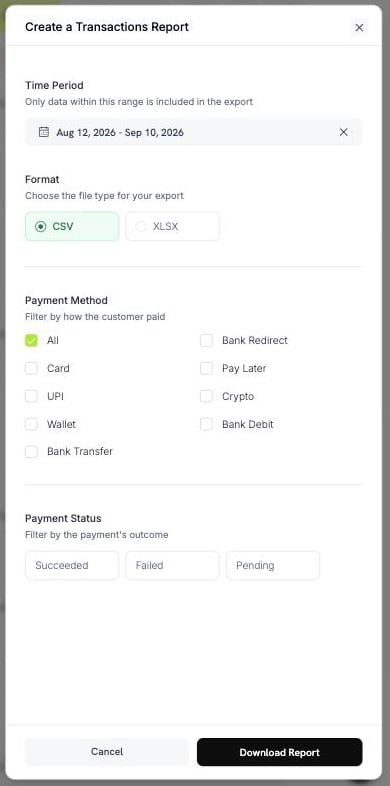 * **Payment Method** — Card, UPI, Wallet, Bank Transfer, Bank Redirect, Pay Later, Crypto, or Bank Debit. Select **All** for every method.
* **Payment Status** — Succeeded, Failed, or Pending.
### Adjustments Report
* **Payment Method** — Card, UPI, Wallet, Bank Transfer, Bank Redirect, Pay Later, Crypto, or Bank Debit. Select **All** for every method.
* **Payment Status** — Succeeded, Failed, or Pending.
### Adjustments Report
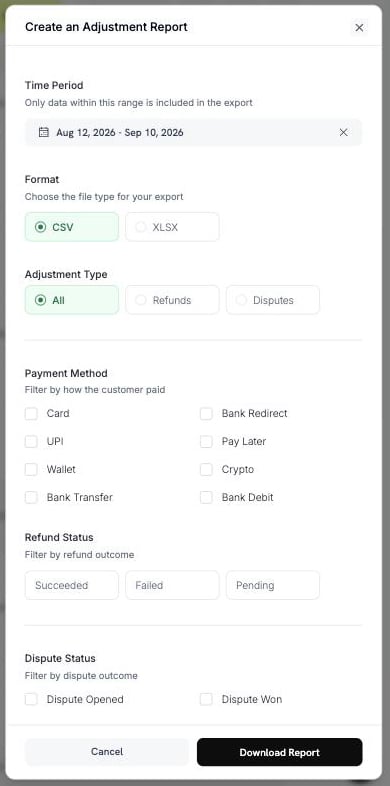 * **Adjustment Type** — All, Refunds, or Disputes.
* **Payment Method** — the same eight methods as above.
* **Refund Status** — Succeeded, Failed, or Pending.
* **Dispute Status** — Opened, Challenged, Accepted, Lost, Won, Cancelled, or Expired.
### Payout Report
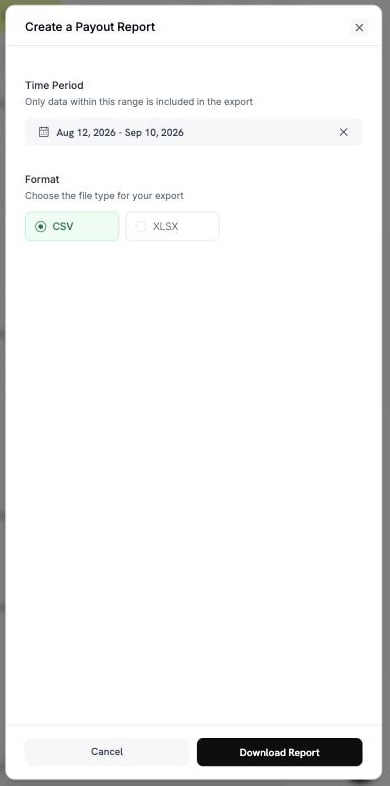
Choose a period and a format. This report needs no other filter.
* **Adjustment Type** — All, Refunds, or Disputes.
* **Payment Method** — the same eight methods as above.
* **Refund Status** — Succeeded, Failed, or Pending.
* **Dispute Status** — Opened, Challenged, Accepted, Lost, Won, Cancelled, or Expired.
### Payout Report
Choose a period and a format. This report needs no other filter.
 ### Ledger Reconciliation Report
This report has two modes. Use **Reconciliation by** to choose one.
### Ledger Reconciliation Report
This report has two modes. Use **Reconciliation by** to choose one.
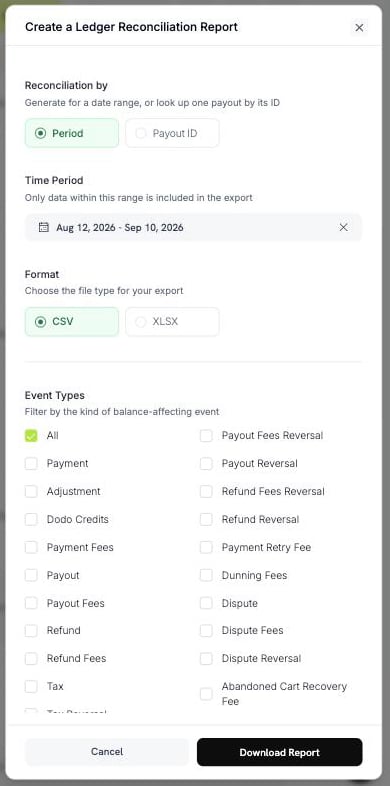 **Period** exports every ledger movement in a date range.
**Payout ID** exports the movements of one payout. Enter the payout reference
(for example `pyt_kxncrebha`) to get the exact rows that payout settled.
**Period** exports every ledger movement in a date range.
**Payout ID** exports the movements of one payout. Enter the payout reference
(for example `pyt_kxncrebha`) to get the exact rows that payout settled.
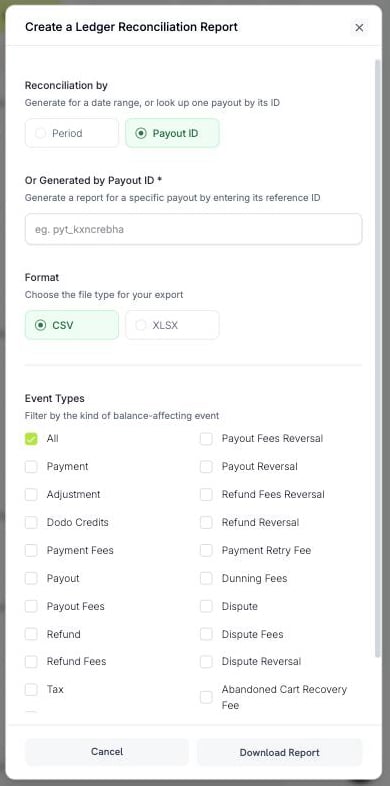 A payout ID that does not exist returns an error. It does not return an empty
file.
**Event Types** filters the rows by the kind of balance movement. Select
**All** to keep every type, or choose from these:
| Group | Options |
| -------- | ------------------------------------------------------------------------------------ |
| Money in | Payment, Dodo Credits, Adjustment, Currency Conversion |
| Payouts | Payout, Payout Reversal, Payout Fees, Payout Fees Reversal |
| Refunds | Refund, Refund Reversal, Refund Fees, Refund Fees Reversal |
| Disputes | Dispute, Dispute Fees, Dispute Reversal |
| Fees | Payment Fees, Payment Retry Fee, Dunning Fees, Abandoned Cart Recovery Fee, BYOP Fee |
| Tax | Tax, Tax Reversal |
Not every type has a reversal. Only Payout, Payout Fees, Refund, Refund Fees,
Dispute, and Tax do.
Use the **Payout ID** mode to answer "what was in this payout?". Use **Period**
with **All** event types to reconcile a bank statement line by line.
***
## Building and Downloading a Report
Go to **Settings → Reports** and select the report you need.
Pick a date range. Only data inside this range enters the file.
Select **CSV** or **XLSX**, then set the filters for that report.
Select **Download Report**. The file downloads, and the report is added to
**Generated Reports**.
The file name carries the report and the date range, so a download is
identifiable without opening it — for example
`dodo_ledger_2026-06-01_to_2026-06-30.csv`.
A CSV export starts with a UTF-8 byte order mark, so Excel opens accented
characters and non-Latin scripts correctly.
### Row Limits
A single export is capped, so a large period may need to be split.
| Report | CSV | XLSX |
| --------------------- | ------------ | ------------ |
| Ledger Reconciliation | 500,000 rows | 100,000 rows |
| Every other report | 100,000 rows | 50,000 rows |
If your date range goes over the limit, the export is refused with a message.
Narrow the range or add a filter, then build it again.
Choose CSV for a large period. Its row limit is higher.
***
## Generated Reports
Every report you build is recorded, so you can download it again without
rebuilding it.
| Column | Meaning |
| ------------ | ----------------------------- |
| Report | The report type. |
| Date Range | The period the report covers. |
| Format | CSV or XLSX. |
| Rows | How many rows the file holds. |
| Generated by | The team member who built it. |
| Created At | When it was built. |
| Status | **Completed** or **Failed**. |
A download link is valid for a short time. If the stored file has expired, Dodo
Payments rebuilds it from the same parameters and the row is marked as
regenerated.
A rebuilt report can differ from the original. The data behind a date range
keeps moving — a refund or a dispute recorded after the first build appears in
the rebuild. Keep the downloaded file if you need the figures exactly as they
were.
***
## Which Report Do I Need?
| Question | Report |
| ------------------------------------------ | --------------------------------------- |
| Why is my balance this number? | Balance and Payout Summary |
| What was in this payout? | Ledger Reconciliation, by **Payout ID** |
| What fees did I pay? | All Fees |
| I need every payment for my accountant. | Transactions Report |
| How much did refunds and disputes cost me? | Adjustments Report |
| I need to match my bank statement. | Ledger Reconciliation, by **Period** |
***
## Best Practices
* Reconcile with **Balance and Payout Summary** first. Download a detailed report only when a figure needs explaining.
* Export **CSV** for a long period, and **XLSX** only when you will work in the file by hand.
* Keep the file you downloaded. A rebuild is not guaranteed to match it.
* Filter before you widen the date range. A filter keeps an export under the row limit.
If a figure looks wrong, check the date range and the filters first. If it is
still wrong, contact [support@dodopayments.com](mailto:support@dodopayments.com)
with the report type and the period.
## Next Steps
Track revenue, customers, retention, and transaction health.
Understand your earnings, deductions, and payout cycles.
See how and when payouts reach your bank account.
Initiate and monitor refunds.
A payout ID that does not exist returns an error. It does not return an empty
file.
**Event Types** filters the rows by the kind of balance movement. Select
**All** to keep every type, or choose from these:
| Group | Options |
| -------- | ------------------------------------------------------------------------------------ |
| Money in | Payment, Dodo Credits, Adjustment, Currency Conversion |
| Payouts | Payout, Payout Reversal, Payout Fees, Payout Fees Reversal |
| Refunds | Refund, Refund Reversal, Refund Fees, Refund Fees Reversal |
| Disputes | Dispute, Dispute Fees, Dispute Reversal |
| Fees | Payment Fees, Payment Retry Fee, Dunning Fees, Abandoned Cart Recovery Fee, BYOP Fee |
| Tax | Tax, Tax Reversal |
Not every type has a reversal. Only Payout, Payout Fees, Refund, Refund Fees,
Dispute, and Tax do.
Use the **Payout ID** mode to answer "what was in this payout?". Use **Period**
with **All** event types to reconcile a bank statement line by line.
***
## Building and Downloading a Report
Go to **Settings → Reports** and select the report you need.
Pick a date range. Only data inside this range enters the file.
Select **CSV** or **XLSX**, then set the filters for that report.
Select **Download Report**. The file downloads, and the report is added to
**Generated Reports**.
The file name carries the report and the date range, so a download is
identifiable without opening it — for example
`dodo_ledger_2026-06-01_to_2026-06-30.csv`.
A CSV export starts with a UTF-8 byte order mark, so Excel opens accented
characters and non-Latin scripts correctly.
### Row Limits
A single export is capped, so a large period may need to be split.
| Report | CSV | XLSX |
| --------------------- | ------------ | ------------ |
| Ledger Reconciliation | 500,000 rows | 100,000 rows |
| Every other report | 100,000 rows | 50,000 rows |
If your date range goes over the limit, the export is refused with a message.
Narrow the range or add a filter, then build it again.
Choose CSV for a large period. Its row limit is higher.
***
## Generated Reports
Every report you build is recorded, so you can download it again without
rebuilding it.
| Column | Meaning |
| ------------ | ----------------------------- |
| Report | The report type. |
| Date Range | The period the report covers. |
| Format | CSV or XLSX. |
| Rows | How many rows the file holds. |
| Generated by | The team member who built it. |
| Created At | When it was built. |
| Status | **Completed** or **Failed**. |
A download link is valid for a short time. If the stored file has expired, Dodo
Payments rebuilds it from the same parameters and the row is marked as
regenerated.
A rebuilt report can differ from the original. The data behind a date range
keeps moving — a refund or a dispute recorded after the first build appears in
the rebuild. Keep the downloaded file if you need the figures exactly as they
were.
***
## Which Report Do I Need?
| Question | Report |
| ------------------------------------------ | --------------------------------------- |
| Why is my balance this number? | Balance and Payout Summary |
| What was in this payout? | Ledger Reconciliation, by **Payout ID** |
| What fees did I pay? | All Fees |
| I need every payment for my accountant. | Transactions Report |
| How much did refunds and disputes cost me? | Adjustments Report |
| I need to match my bank statement. | Ledger Reconciliation, by **Period** |
***
## Best Practices
* Reconcile with **Balance and Payout Summary** first. Download a detailed report only when a figure needs explaining.
* Export **CSV** for a long period, and **XLSX** only when you will work in the file by hand.
* Keep the file you downloaded. A rebuild is not guaranteed to match it.
* Filter before you widen the date range. A filter keeps an export under the row limit.
If a figure looks wrong, check the date range and the filters first. If it is
still wrong, contact [support@dodopayments.com](mailto:support@dodopayments.com)
with the report type and the period.
## Next Steps
Track revenue, customers, retention, and transaction health.
Understand your earnings, deductions, and payout cycles.
See how and when payouts reach your bank account.
Initiate and monitor refunds.