> ## Documentation Index
> Fetch the complete documentation index at: https://docs.dodopayments.com/llms.txt
> Use this file to discover all available pages before exploring further.
# License Keys
> Generate and deliver unique license keys with activation limits and expiry. License keys are the License Key entitlement type. They're issued automatically on payment, tied to subscription lifecycle, and revoked on cancellation or refund.
License keys are the License Key entitlement type. Create a License Key entitlement once with the activation limit, expiry, and instructions you want, attach it to any product, and Dodo Payments generates and delivers a key per purchase or subscription seat, automatically.
## What are License Keys?
License keys are unique tokens that authorize access to your product. They're ideal for:
* **Software licensing**: Desktop apps, plugins, and CLIs
* **Per-seat controls**: Limit activations per user or device
* **Digital goods**: Gate downloads, updates, or premium features
Inside Dodo Payments, license keys are managed through the [Entitlements](/features/entitlements/introduction) system, meaning the lifecycle of every key (creation, expiry, revocation, regrant) is driven by the same payment and subscription events as your other deliverables.
## Create a License Key Entitlement
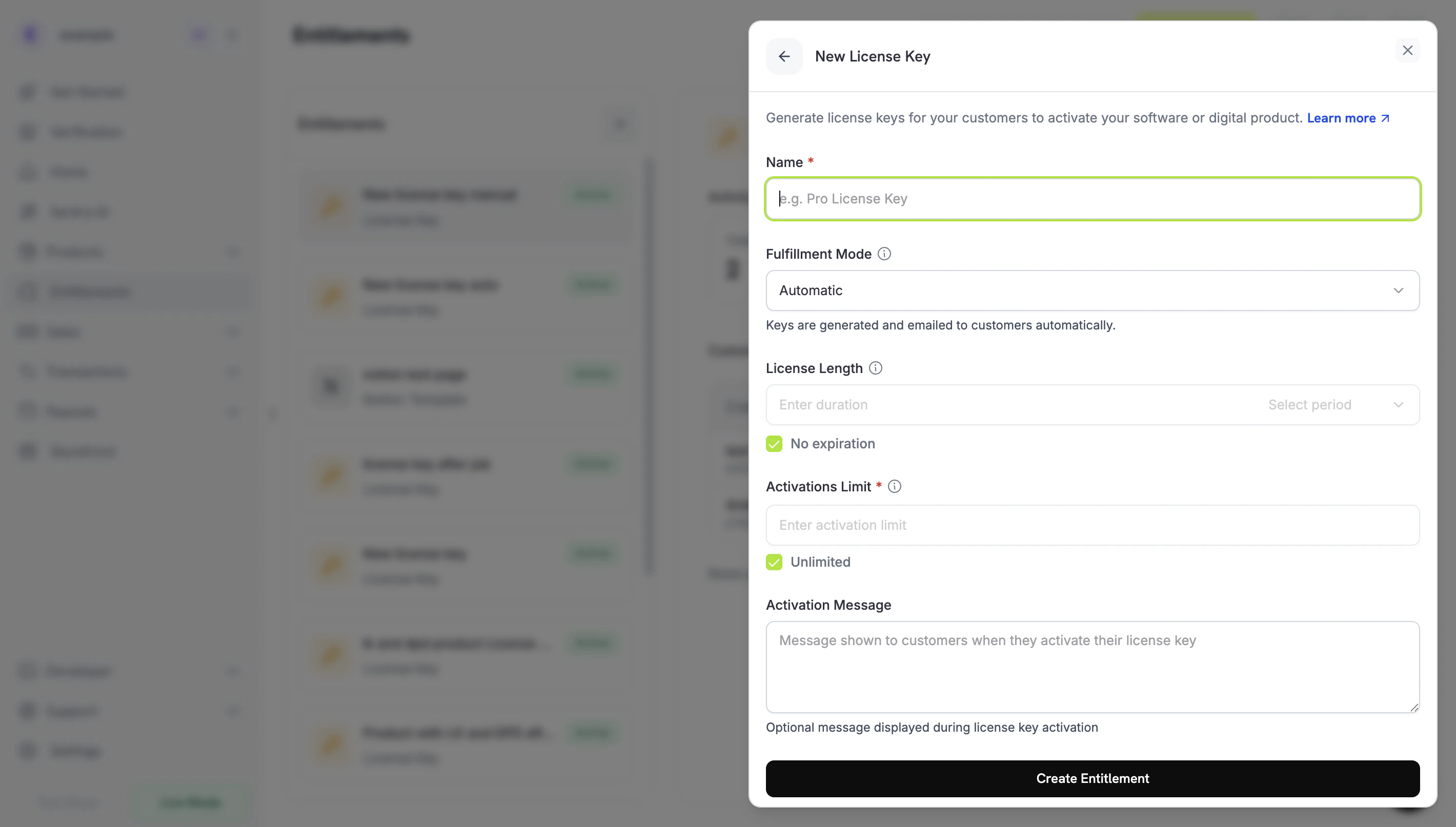
Go to **Entitlements** in your Dodo Payments dashboard and click **+** to create a new entitlement.
Select **License Key** as the integration. Configure how each issued key behaves:
* **Activations Limit**: Maximum concurrent activations per key (e.g., `1` for single-user, `5` for team licenses, leave blank for unlimited).
* **Duration**: How long the key stays valid after issuance (e.g., 30 days, 1 year). For subscription-issued keys, leave blank; keys remain valid as long as the subscription is active.
* **Activation Instructions**: Customer-facing instructions emailed with the key. Examples: `Paste the key in Settings → License` or `Run: mycli activate `.
Save. The entitlement is now available to attach to any product.
## Attach to Products
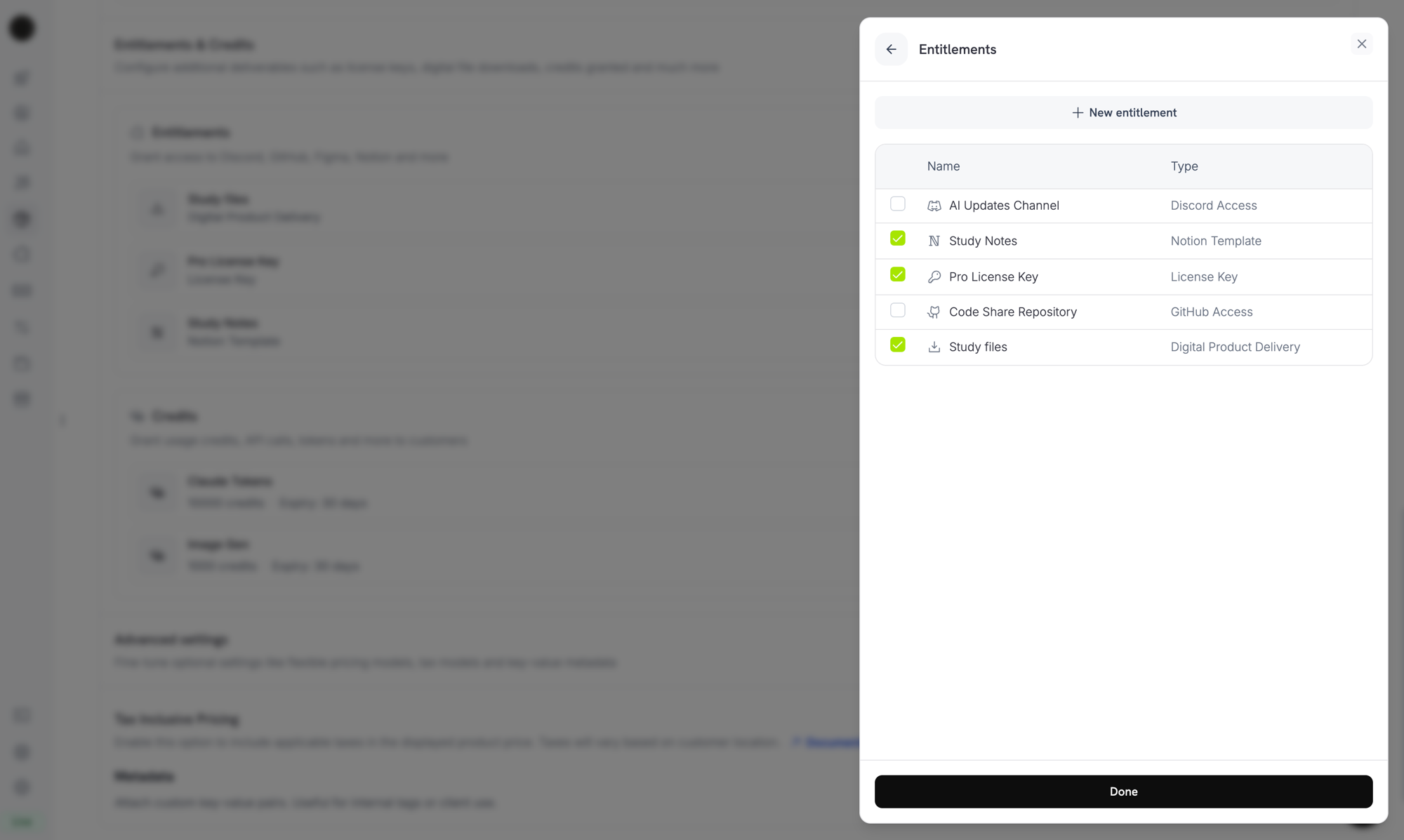
Open a product, expand **Advanced Settings → Entitlements & Credits**, and select your License Key entitlement. A single product can deliver a license key alongside other entitlements (Discord access, file downloads, GitHub repo access, etc.) on the same purchase.
***
## How Keys Are Issued
Key issuance follows the standard [grant lifecycle](/features/entitlements/introduction#how-grants-work):
| Event | Behavior |
| ------------------------------------ | -------------------------------------------------------------------------------------------------------------------------- |
| `payment.succeeded` (one-time) | Generate one key per `quantity` purchased. Key expiry honors the entitlement's duration. |
| `subscription.active` | Generate one key per subscription `quantity` (seat). Key has no expiry; validity is tied to subscription status. |
| `subscription.renewed` | No-op. Existing keys persist. |
| `subscription.on_hold` | Disable the keys. They reactivate when the subscription comes off hold. |
| `subscription.cancelled` / `expired` | Disable the keys permanently. |
| `subscription.plan_changed` | Disable the old keys; issue new ones for the new plan. |
| `refund.succeeded` (one-time) | Disable the keys. |
| Manual revoke via API/dashboard | Disable the keys with `revocation_reason: manual`. These are not auto-regranted on subscription renewal. |
| License key disabled directly | Revoke the grant with `revocation_reason: license_key_disabled`. Re-enabling the key re-activates the grant automatically. |
### Quantity behavior
* **Subscription products** issue one key per seat (`subscriptions.quantity`).
* **One-time products** issue one key per cart line item (`product_cart.quantity`).
* **Manual API grants** issue exactly one key.
### Fulfillment mode
Every License Key entitlement has a `fulfillment_mode` that controls who supplies the key:
* **`auto`** (default): Dodo Payments generates and emails the key automatically on payment or subscription. This is the behavior described above and applies when `fulfillment_mode` is omitted.
* **`manual`**: The purchase creates a `pending` grant with no key, and you supply each key value yourself. See [Manual Fulfillment](#manual-fulfillment) below.
***
## Manual Fulfillment
By default, Dodo Payments generates and emails a license key the moment a customer pays. With **manual fulfillment** you supply the key yourself: the purchase creates a `pending` grant with no key, notifies you, and waits for you to submit the key value. Use it when keys come from your own system, a third-party vendor, or a finite pool of pre-printed codes.
Looking for a step-by-step build? See the [Manual License Key Fulfillment Integration Guide](/developer-resources/manual-license-key-fulfillment) for an end-to-end walkthrough from product creation to delivering the key.
### When to use it
Auto fulfillment is the right default for most software licensing. Choose manual fulfillment when Dodo Payments cannot mint the key itself:
* **Bring-your-own-keys**: The key is generated by your application, a desktop product, or your own license server.
* **Third-party vendors**: You resell keys issued by an upstream provider (a game key, an API credential, a partner platform).
* **Finite inventory**: You hand out codes from a pre-allocated pool and want to assign them one at a time.
* **Human review**: You want to vet a purchase before releasing access.
### Enable manual fulfillment
Set `fulfillment_mode: "manual"` on the License Key entitlement's integration config:
```typescript Node.js theme={null} theme={null}
const entitlement = await client.entitlements.create({
name: 'Pro License (Manual)',
integration_type: 'license_key',
integration_config: {
fulfillment_mode: 'manual',
activations_limit: 5,
duration_count: 1,
duration_interval: 'Year',
},
});
```
```bash cURL theme={null} theme={null}
curl -X POST https://test.dodopayments.com/entitlements \
-H "Authorization: Bearer $DODO_PAYMENTS_API_KEY" \
-H "Content-Type: application/json" \
-d '{
"name": "Pro License (Manual)",
"integration_type": "license_key",
"integration_config": {
"fulfillment_mode": "manual",
"activations_limit": 5,
"duration_count": 1,
"duration_interval": "Year"
}
}'
```
`fulfillment_mode` is backward compatible. Entitlements created before this setting existed have no `fulfillment_mode` and continue to behave as `auto`. Switching to `manual` only affects grants created **after** the change; keys already delivered are untouched.
### Find grants awaiting fulfillment
When a customer buys a manual-mode product, the grant is created in `pending` status with no key and an [`entitlement_grant.created`](/developer-resources/webhooks/intents/entitlement-grant) webhook fires with `integration_type: "license_key"` and `status: "pending"`. You can react to that webhook, or poll the [List Grants](/api-reference/entitlements/list-grants) endpoint with the `integration_type` and `status` filters:
```typescript theme={null} theme={null}
const pending = await client.entitlements.grants.list('ent_license_key_id', {
integration_type: 'license_key',
status: 'pending',
});
```
### Deliver the key
Submit the key with the [Fulfill License Key Grant](/api-reference/entitlements/fulfill-license-key) endpoint. The grant moves to `delivered` and the customer is sent the key automatically — the same email they would receive under auto fulfillment.
```bash cURL theme={null} theme={null}
curl -X POST https://test.dodopayments.com/grants/grant_8VbC6JDZ/license-key \
-H "Authorization: Bearer $DODO_PAYMENTS_API_KEY" \
-H "Content-Type: application/json" \
-d '{
"key": "PRO-AAAA-BBBB-CCCC-DDDD",
"activations_limit": 5,
"expires_at": "2027-05-01T00:00:00Z"
}'
```
`activations_limit` and `expires_at` are optional and fall back to the entitlement config when omitted. Each grant can be fulfilled once; retrying an already-fulfilled grant returns `409` rather than issuing a second key.
You do not need to email the key yourself — delivery happens automatically when the grant is fulfilled. This differs from [importing keys](#import-existing-license-keys-via-api) via `POST /license_keys`, which intentionally does **not** notify the customer.
***
## Activation, Validation, Deactivation
The activation/validation/deactivation API endpoints are **public** and require no API key. Use them directly from desktop software, CLIs, or browser-based clients to verify keys at runtime.
**Public Endpoints**: The activate, deactivate, and validate license endpoints are public and do not require an API key. Call them directly from your client applications without exposing your API credentials.
### Activate a license
```typescript TypeScript theme={null} theme={null}
import DodoPayments from 'dodopayments';
// No API key needed for public license endpoints
const client = new DodoPayments();
const response = await client.licenses.activate({
license_key: 'PRO-AAAA-BBBB-CCCC-DDDD',
name: 'Device Name',
});
console.log(response.id);
```
```python Python theme={null} theme={null}
client.licenses.activate(
license_key="PRO-AAAA-BBBB-CCCC-DDDD",
name="Device Name",
)
```
```bash cURL theme={null} theme={null}
curl -X POST https://test.dodopayments.com/licenses/activate \
-H "Content-Type: application/json" \
-d '{
"license_key": "PRO-AAAA-BBBB-CCCC-DDDD",
"name": "Device Name"
}'
```
### Validate a license
```typescript TypeScript theme={null} theme={null}
const response = await client.licenses.validate({
license_key: 'PRO-AAAA-BBBB-CCCC-DDDD',
});
console.log(response.valid);
```
```bash cURL theme={null} theme={null}
curl -X POST https://test.dodopayments.com/licenses/validate \
-H "Content-Type: application/json" \
-d '{ "license_key": "PRO-AAAA-BBBB-CCCC-DDDD" }'
```
### Deactivate an activation instance
```typescript theme={null} theme={null}
await client.licenses.deactivate({
license_key: 'PRO-AAAA-BBBB-CCCC-DDDD',
license_key_instance_id: 'instance_abc123',
});
```
***
## Manage Keys
Open the License Key entitlement from your dashboard to see every grant (one row per customer key) with delivery date, activation count, and a revoke action. Each grant detail surfaces the underlying license key, expiry, activations used, and the activations limit.
You can also list grants programmatically:
```typescript theme={null} theme={null}
const grants = await client.entitlements.grants.list('ent_license_key_id', {
status: 'delivered',
});
for (const grant of grants.items) {
console.log(grant.license_key.key, grant.license_key.activations_used);
}
```
## Import Existing License Keys via API
Already have license keys in another system? Use the [Create License Key](/api-reference/licenses/create-license-key) API to import them into Dodo Payments. This lets you migrate existing keys without disrupting your customers — they continue to activate, validate, and deactivate against the same key strings without re-issuance.
License keys created or updated through the API do not trigger email notifications to customers. If you need to notify customers about an imported key, handle that separately in your application.
```typescript theme={null} theme={null}
const licenseKey = await client.licenseKeys.create({
customer_id: 'cus_abc123',
product_id: 'prod_456',
key: 'YOUR-EXISTING-LICENSE-KEY',
activations_limit: 5,
expires_at: '2026-12-31T23:59:59Z',
});
```
### How keys differ by source
| Field | Auto-generated key | Manually fulfilled key | Imported key |
| --------------------------- | ------------------------------------- | -------------------------------------------------------------- | ----------------------------------------- |
| `source` | `"auto"` | `"manual"` | `"import"` |
| Origin | Generated by Dodo Payments on payment | [Supplied by you](#manual-fulfillment) against a pending grant | Created/migrated via `POST /license_keys` |
| `payment_id` | Set to the originating payment | Resolved from the grant or its subscription | `null` (no Dodo Payments transaction) |
| `subscription_id` | Set if issued via a subscription | Set if the grant came from a subscription | `null` unless explicitly linked |
| Customer email notification | Sent on issuance | Sent on fulfillment | Not sent — handle separately |
Use the `source` field on `GET /license_keys` responses to distinguish migrated inventory and manually fulfilled keys from organically issued keys when reconciling or auditing.
Migrating from **Polar.sh** or **Lemon Squeezy**? The [`dodo-migrate` CLI](/migrate-to-dodo) automates bulk imports of products, customers, discounts, and license keys in a single command and maps external IDs to Dodo IDs automatically.
***
## License Keys in Return URL
When a customer completes a purchase for a product with a License Key entitlement, the generated key is automatically appended to your `return_url` as a query parameter. This lets you display the key immediately on your success page without making an extra API call.
```text theme={null} theme={null}
https://yoursite.com/return?payment_id=pay_xxx&status=succeeded&license_key=LK-001&email=customer%40example.com
```
If the purchase generates multiple keys (quantity > 1), they are comma-separated:
```text theme={null} theme={null}
https://yoursite.com/return?payment_id=pay_xxx&status=succeeded&license_key=LK-001,LK-002&email=customer%40example.com
```
For subscriptions, `subscription_id` is used instead of `payment_id`:
```text theme={null} theme={null}
https://yoursite.com/return?subscription_id=sub_xxx&status=active&license_key=LK-001&email=customer%40example.com
```
Parse the `license_key` parameter on your return page to show the key immediately, improving the post-purchase experience.
***
## API Management
Activation, deactivation, and validation are public; no API key required.
Create or record an activation instance for a license key.
Revoke a prior activation to free up capacity.
Check authenticity, status, and constraints before granting access.
Create, list, retrieve, and update individual license key records. Use these to import existing keys or fetch usage details.
Create a new license key or import an existing one.
Browse all keys with status and usage details.
Retrieve a specific key and its metadata.
Modify expiry, activation limits, or enable/disable a key.
Manage the License Key entitlement itself: its activation limit, duration, and instructions.
Create a License Key entitlement.
Update the entitlement's configuration.
List the keys issued for an entitlement.
Manually revoke a customer's key.
***
## Webhooks
License-key delivery and revocation fire the four [`entitlement_grant.*` webhook events](/developer-resources/webhooks/intents/entitlement-grant). The grant payload includes a populated `license_key` object with the key, expiry, activations used, and limit.
The legacy `license_key.*` events (`license_key.created`) continue to fire for the underlying license-key record lifecycle; see the [License Key webhook payload page](/developer-resources/webhooks/intents/license-key).
For new integrations, listen to `entitlement_grant.delivered` rather than `license_key.created`. The entitlement event tells you delivery is complete across all integrations on the product, not just the license key.
***
## Legacy License Keys
Products created with the older `license_key_enabled` flag have been **automatically migrated** to a License Key entitlement. The migration is transparent: existing customers' keys continue to work unchanged, the public `/licenses/activate`, `/licenses/validate`, `/licenses/deactivate` endpoints continue to function, and the `/license_keys/*` API endpoints continue to read and write to the same key store.
The standalone **License Keys** dashboard section remains available as a flat list of every key issued, useful for audit and search. New configuration (changing activation limits, durations, or instructions) should be done by editing the migrated License Key entitlement under **Entitlements**.
***
## Best Practices
* **Keep activation limits clear**: Choose sensible defaults (1 for single-user apps, 3–5 for team licenses) and document them.
* **Provide precise activation instructions**: Customers paste these from their email, so exact paths and commands save support tickets.
* **Validate keys server-side**: For network-connected products, validate via `/licenses/validate` rather than caching activation locally.
* **Use webhooks for revocation**: Listen to `entitlement_grant.revoked` to disable in-app features immediately when a customer cancels or refunds.
* **Test with subscriptions and one-times**: License key behavior differs subtly between the two, so test both before going live.
 ***
## How Keys Are Issued
Key issuance follows the standard [grant lifecycle](/features/entitlements/introduction#how-grants-work):
| Event | Behavior |
| ------------------------------------ | -------------------------------------------------------------------------------------------------------------------------- |
| `payment.succeeded` (one-time) | Generate one key per `quantity` purchased. Key expiry honors the entitlement's duration. |
| `subscription.active` | Generate one key per subscription `quantity` (seat). Key has no expiry; validity is tied to subscription status. |
| `subscription.renewed` | No-op. Existing keys persist. |
| `subscription.on_hold` | Disable the keys. They reactivate when the subscription comes off hold. |
| `subscription.cancelled` / `expired` | Disable the keys permanently. |
| `subscription.plan_changed` | Disable the old keys; issue new ones for the new plan. |
| `refund.succeeded` (one-time) | Disable the keys. |
| Manual revoke via API/dashboard | Disable the keys with `revocation_reason: manual`. These are not auto-regranted on subscription renewal. |
| License key disabled directly | Revoke the grant with `revocation_reason: license_key_disabled`. Re-enabling the key re-activates the grant automatically. |
### Quantity behavior
* **Subscription products** issue one key per seat (`subscriptions.quantity`).
* **One-time products** issue one key per cart line item (`product_cart.quantity`).
* **Manual API grants** issue exactly one key.
### Fulfillment mode
Every License Key entitlement has a `fulfillment_mode` that controls who supplies the key:
* **`auto`** (default): Dodo Payments generates and emails the key automatically on payment or subscription. This is the behavior described above and applies when `fulfillment_mode` is omitted.
* **`manual`**: The purchase creates a `pending` grant with no key, and you supply each key value yourself. See [Manual Fulfillment](#manual-fulfillment) below.
***
## Manual Fulfillment
By default, Dodo Payments generates and emails a license key the moment a customer pays. With **manual fulfillment** you supply the key yourself: the purchase creates a `pending` grant with no key, notifies you, and waits for you to submit the key value. Use it when keys come from your own system, a third-party vendor, or a finite pool of pre-printed codes.
***
## How Keys Are Issued
Key issuance follows the standard [grant lifecycle](/features/entitlements/introduction#how-grants-work):
| Event | Behavior |
| ------------------------------------ | -------------------------------------------------------------------------------------------------------------------------- |
| `payment.succeeded` (one-time) | Generate one key per `quantity` purchased. Key expiry honors the entitlement's duration. |
| `subscription.active` | Generate one key per subscription `quantity` (seat). Key has no expiry; validity is tied to subscription status. |
| `subscription.renewed` | No-op. Existing keys persist. |
| `subscription.on_hold` | Disable the keys. They reactivate when the subscription comes off hold. |
| `subscription.cancelled` / `expired` | Disable the keys permanently. |
| `subscription.plan_changed` | Disable the old keys; issue new ones for the new plan. |
| `refund.succeeded` (one-time) | Disable the keys. |
| Manual revoke via API/dashboard | Disable the keys with `revocation_reason: manual`. These are not auto-regranted on subscription renewal. |
| License key disabled directly | Revoke the grant with `revocation_reason: license_key_disabled`. Re-enabling the key re-activates the grant automatically. |
### Quantity behavior
* **Subscription products** issue one key per seat (`subscriptions.quantity`).
* **One-time products** issue one key per cart line item (`product_cart.quantity`).
* **Manual API grants** issue exactly one key.
### Fulfillment mode
Every License Key entitlement has a `fulfillment_mode` that controls who supplies the key:
* **`auto`** (default): Dodo Payments generates and emails the key automatically on payment or subscription. This is the behavior described above and applies when `fulfillment_mode` is omitted.
* **`manual`**: The purchase creates a `pending` grant with no key, and you supply each key value yourself. See [Manual Fulfillment](#manual-fulfillment) below.
***
## Manual Fulfillment
By default, Dodo Payments generates and emails a license key the moment a customer pays. With **manual fulfillment** you supply the key yourself: the purchase creates a `pending` grant with no key, notifies you, and waits for you to submit the key value. Use it when keys come from your own system, a third-party vendor, or a finite pool of pre-printed codes.