> ## Documentation Index
> Fetch the complete documentation index at: https://docs.dodopayments.com/llms.txt
> Use this file to discover all available pages before exploring further.
# Discord Entitlement
> Grant your customers a role in your Discord server when they purchase, and revoke it automatically when their subscription ends.
The Discord entitlement adds a paying customer to your server (and optionally assigns them a role) the moment their subscription becomes active or their one-time purchase clears. Cancellation, refunds, and plan changes revoke the role automatically.
## What gets delivered
* The customer connects their Discord account through an OAuth link in their delivery email or customer portal.
* Once they authorize, Dodo Payments adds them to your server (or finds their existing membership) and assigns the role you configured.
* If you didn't pick a specific role, server membership alone is granted.
This integration is ideal for paid communities, supporter perks, and tiered access channels.
## Connect Discord
In your Dodo Payments dashboard, go to **Entitlements** and click **+** to start a new entitlement.
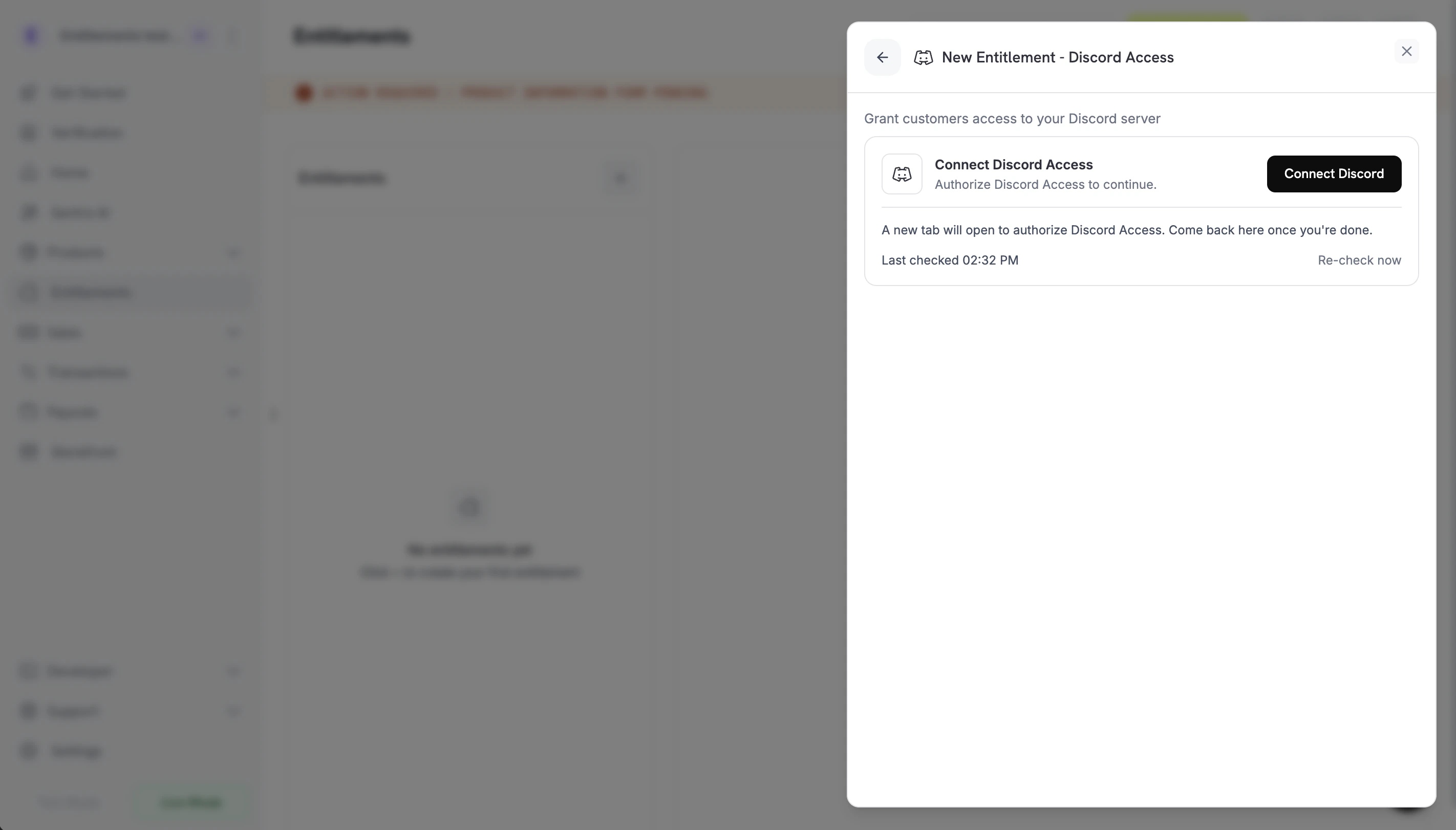
Choose **Discord Access** as the integration. If you have not yet connected Discord for your business, you'll be prompted to **Connect Discord**.
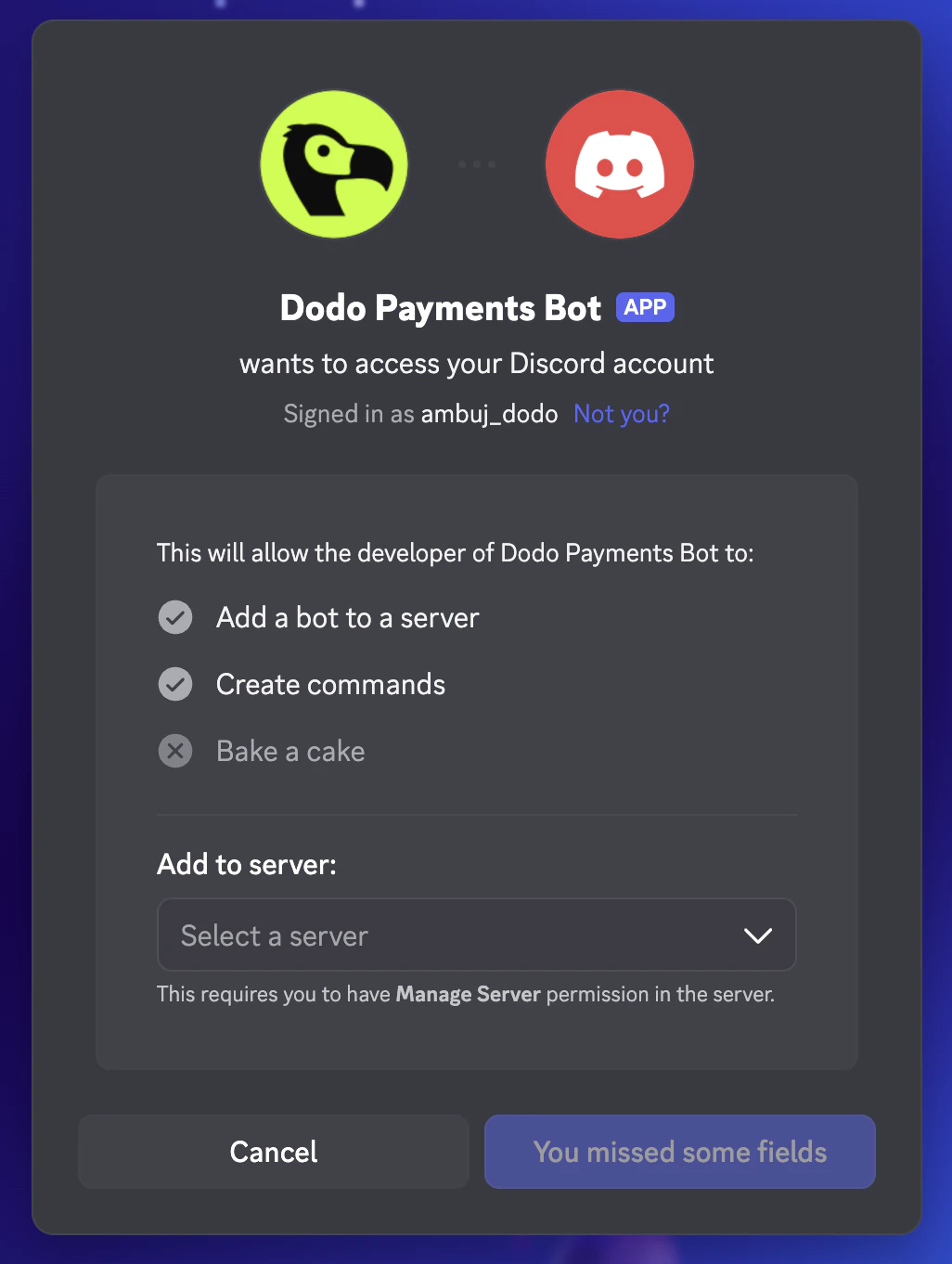
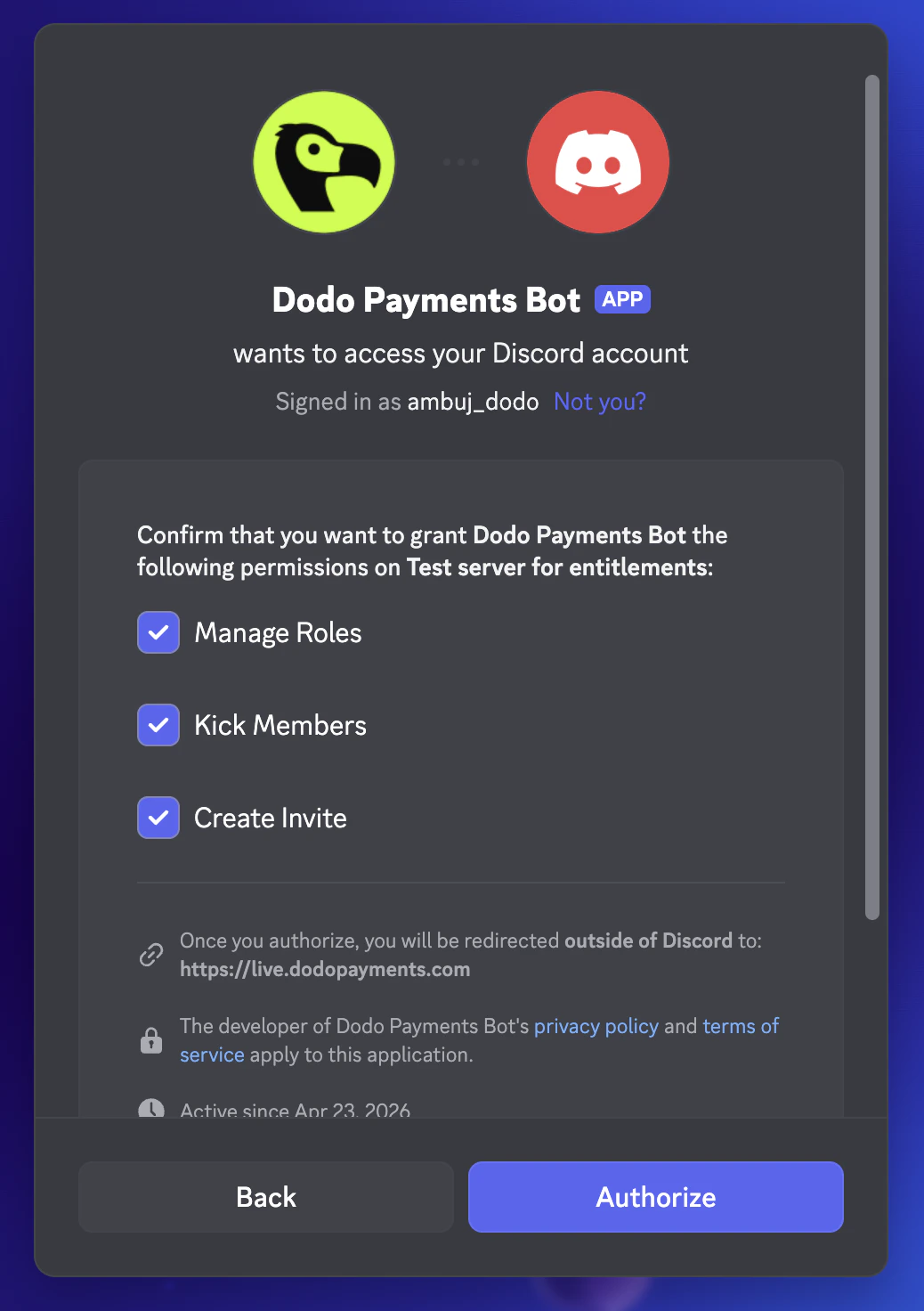
 Clicking through opens Discord in a new tab. Sign in, pick the server you want to gate, and confirm the bot's permissions (Manage Roles, Kick Members, Create Invite) on that server.
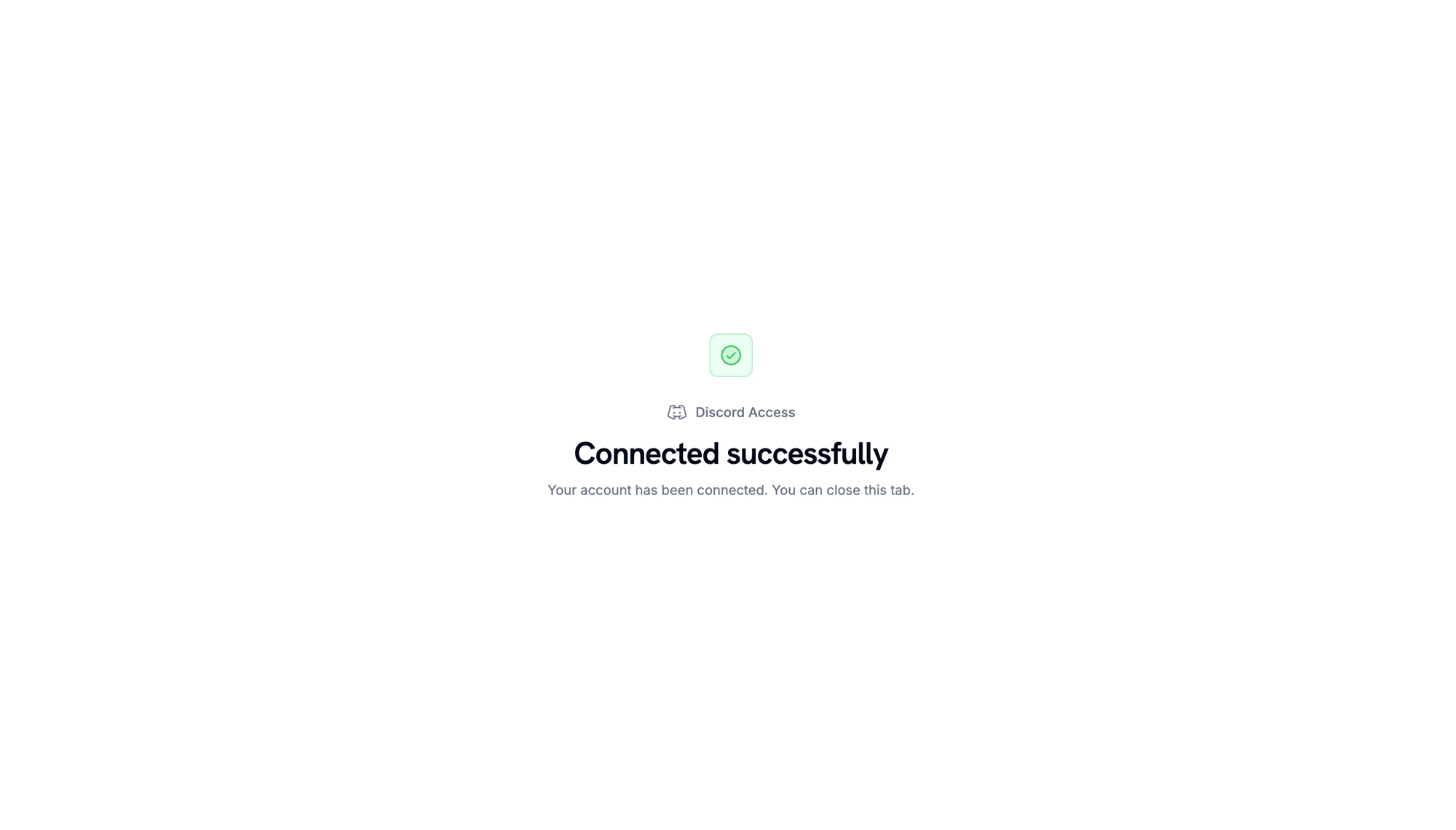
When Discord redirects back, you'll see a confirmation that the server is connected.
Clicking through opens Discord in a new tab. Sign in, pick the server you want to gate, and confirm the bot's permissions (Manage Roles, Kick Members, Create Invite) on that server.
When Discord redirects back, you'll see a confirmation that the server is connected.
 Back in the dashboard, select the **server** (guild) you just connected. Optionally pick a **role** to assign on delivery, or leave it blank to grant server membership only. Give the entitlement a **name** and click **Create Entitlement**.
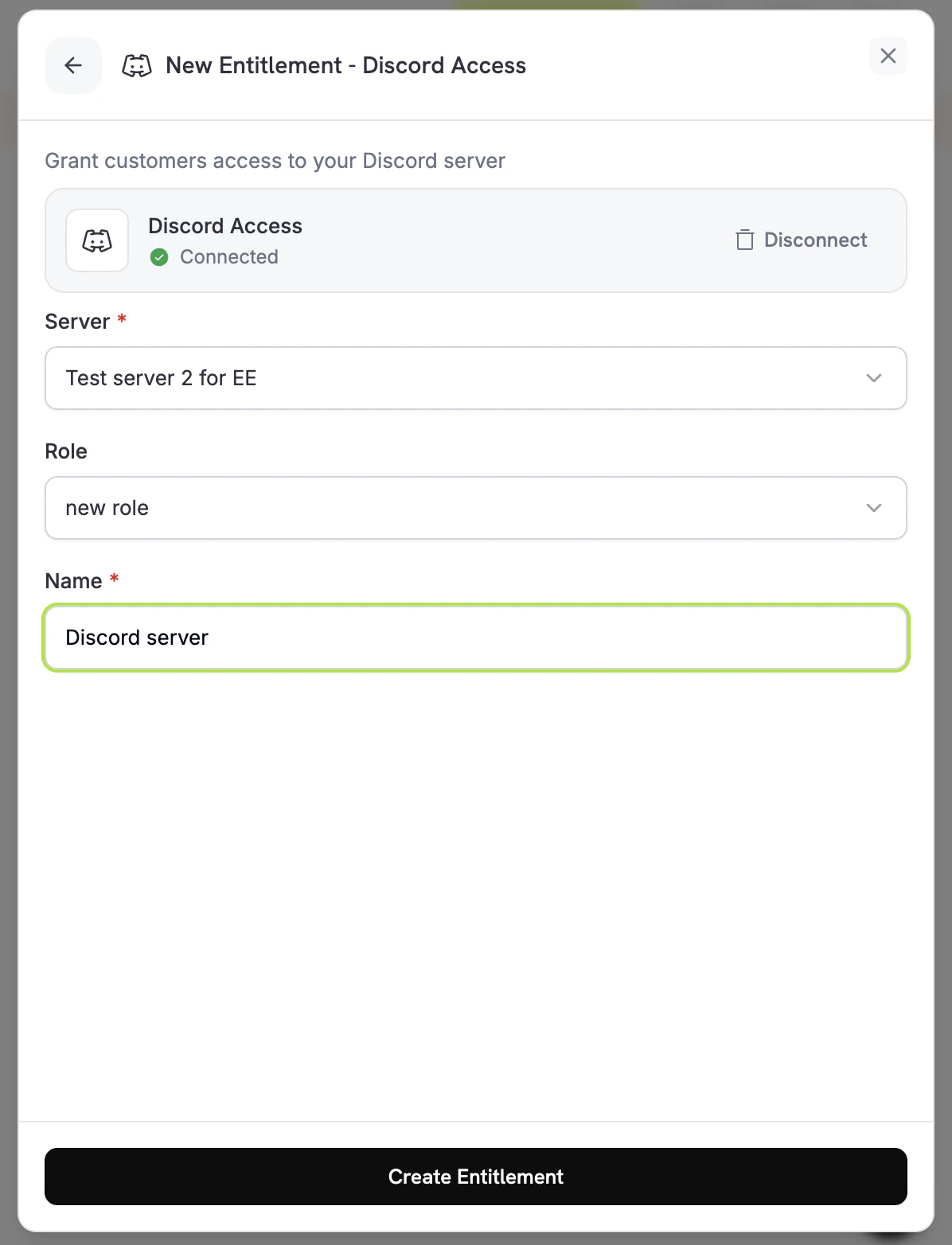 Save the entitlement. It's now available to attach to any product.
## Customer flow
1. The customer completes checkout.
2. Dodo Payments creates a grant in `pending` status with an `oauth_url` pointing to Discord.
3. The customer receives an email with a "Join the Discord" button (the OAuth link). The link is also visible in their customer portal.
4. After the customer authorizes, the bot adds them to the server and assigns the configured role. The grant moves to `delivered`.
5. If the subscription is cancelled, paused, or expires, or if the merchant manually revokes, the bot removes the role and the grant moves to `revoked`.
Make sure the Dodo Payments bot's role is positioned **above** the role you grant. Discord prevents bots from assigning roles ranked higher than their own.
## Required configuration
| Field | Required | Description |
| ---------- | -------- | ----------------------------------------------------------------------- |
| `guild_id` | Yes | The Discord server ID. The dashboard picker fills this in for you. |
| `role_id` | No | The role to assign on delivery. Omit for server-membership-only access. |
## Create via API
```typescript TypeScript theme={null} theme={null}
import DodoPayments from 'dodopayments';
const client = new DodoPayments({
bearerToken: process.env['DODO_PAYMENTS_API_KEY'],
environment: 'test_mode',
});
const entitlement = await client.entitlements.create({
name: 'Patrons Discord Role',
integration_type: 'discord',
integration_config: {
guild_id: '123456789012345678',
role_id: '987654321098765432',
},
});
```
```python Python theme={null} theme={null}
client.entitlements.create(
name="Patrons Discord Role",
integration_type="discord",
integration_config={
"guild_id": "123456789012345678",
"role_id": "987654321098765432",
},
)
```
```go Go theme={null} theme={null}
client.Entitlements.New(ctx, dodopayments.EntitlementNewParams{
Name: dodopayments.F("Patrons Discord Role"),
IntegrationType: dodopayments.F(dodopayments.EntitlementIntegrationTypeDiscord),
IntegrationConfig: dodopayments.F[dodopayments.IntegrationConfigUnionParam](
dodopayments.IntegrationConfigDiscordConfigParam{
GuildID: dodopayments.F("123456789012345678"),
RoleID: dodopayments.F("987654321098765432"),
},
),
})
```
## Webhooks
Subscribe to the [`entitlement_grant.*` webhook events](/developer-resources/webhooks/intents/entitlement-grant) to track Discord grants:
* `entitlement_grant.created` fires with `status: "pending"` and an `oauth_url` for the customer to authorize.
* `entitlement_grant.delivered` fires once the role is assigned.
* `entitlement_grant.revoked` fires when the role is removed.
## Troubleshooting
The grant is in `pending` until the customer completes the OAuth flow. Check the entitlement's grants list and confirm whether they clicked the OAuth link. Resend the delivery email if needed.
Make sure the Dodo Payments bot remains in the server, has `Manage Roles` permission, and is positioned above the role being assigned. Re-saving the entitlement re-runs validation.
Discord propagates role removals immediately, but the customer's local Discord client may cache. They should reconnect or refresh; server-side state is correct.
Save the entitlement. It's now available to attach to any product.
## Customer flow
1. The customer completes checkout.
2. Dodo Payments creates a grant in `pending` status with an `oauth_url` pointing to Discord.
3. The customer receives an email with a "Join the Discord" button (the OAuth link). The link is also visible in their customer portal.
4. After the customer authorizes, the bot adds them to the server and assigns the configured role. The grant moves to `delivered`.
5. If the subscription is cancelled, paused, or expires, or if the merchant manually revokes, the bot removes the role and the grant moves to `revoked`.
Make sure the Dodo Payments bot's role is positioned **above** the role you grant. Discord prevents bots from assigning roles ranked higher than their own.
## Required configuration
| Field | Required | Description |
| ---------- | -------- | ----------------------------------------------------------------------- |
| `guild_id` | Yes | The Discord server ID. The dashboard picker fills this in for you. |
| `role_id` | No | The role to assign on delivery. Omit for server-membership-only access. |
## Create via API
```typescript TypeScript theme={null} theme={null}
import DodoPayments from 'dodopayments';
const client = new DodoPayments({
bearerToken: process.env['DODO_PAYMENTS_API_KEY'],
environment: 'test_mode',
});
const entitlement = await client.entitlements.create({
name: 'Patrons Discord Role',
integration_type: 'discord',
integration_config: {
guild_id: '123456789012345678',
role_id: '987654321098765432',
},
});
```
```python Python theme={null} theme={null}
client.entitlements.create(
name="Patrons Discord Role",
integration_type="discord",
integration_config={
"guild_id": "123456789012345678",
"role_id": "987654321098765432",
},
)
```
```go Go theme={null} theme={null}
client.Entitlements.New(ctx, dodopayments.EntitlementNewParams{
Name: dodopayments.F("Patrons Discord Role"),
IntegrationType: dodopayments.F(dodopayments.EntitlementIntegrationTypeDiscord),
IntegrationConfig: dodopayments.F[dodopayments.IntegrationConfigUnionParam](
dodopayments.IntegrationConfigDiscordConfigParam{
GuildID: dodopayments.F("123456789012345678"),
RoleID: dodopayments.F("987654321098765432"),
},
),
})
```
## Webhooks
Subscribe to the [`entitlement_grant.*` webhook events](/developer-resources/webhooks/intents/entitlement-grant) to track Discord grants:
* `entitlement_grant.created` fires with `status: "pending"` and an `oauth_url` for the customer to authorize.
* `entitlement_grant.delivered` fires once the role is assigned.
* `entitlement_grant.revoked` fires when the role is removed.
## Troubleshooting
The grant is in `pending` until the customer completes the OAuth flow. Check the entitlement's grants list and confirm whether they clicked the OAuth link. Resend the delivery email if needed.
Make sure the Dodo Payments bot remains in the server, has `Manage Roles` permission, and is positioned above the role being assigned. Re-saving the entitlement re-runs validation.
Discord propagates role removals immediately, but the customer's local Discord client may cache. They should reconnect or refresh; server-side state is correct.