> ## Documentation Index
> Fetch the complete documentation index at: https://docs.dodopayments.com/llms.txt
> Use this file to discover all available pages before exploring further.
# Customer Portal
> Empower customers to self-serve and manage their subscriptions, billing history, license keys, and profile securely.
The Customer Portal is a secure, hosted area where your customers can manage subscriptions, view invoices and access license keys details—without contacting support.
Programmatically create secure, time‑bound portal sessions.
Manage recurring plans, upgrades, downgrades, and add‑ons.
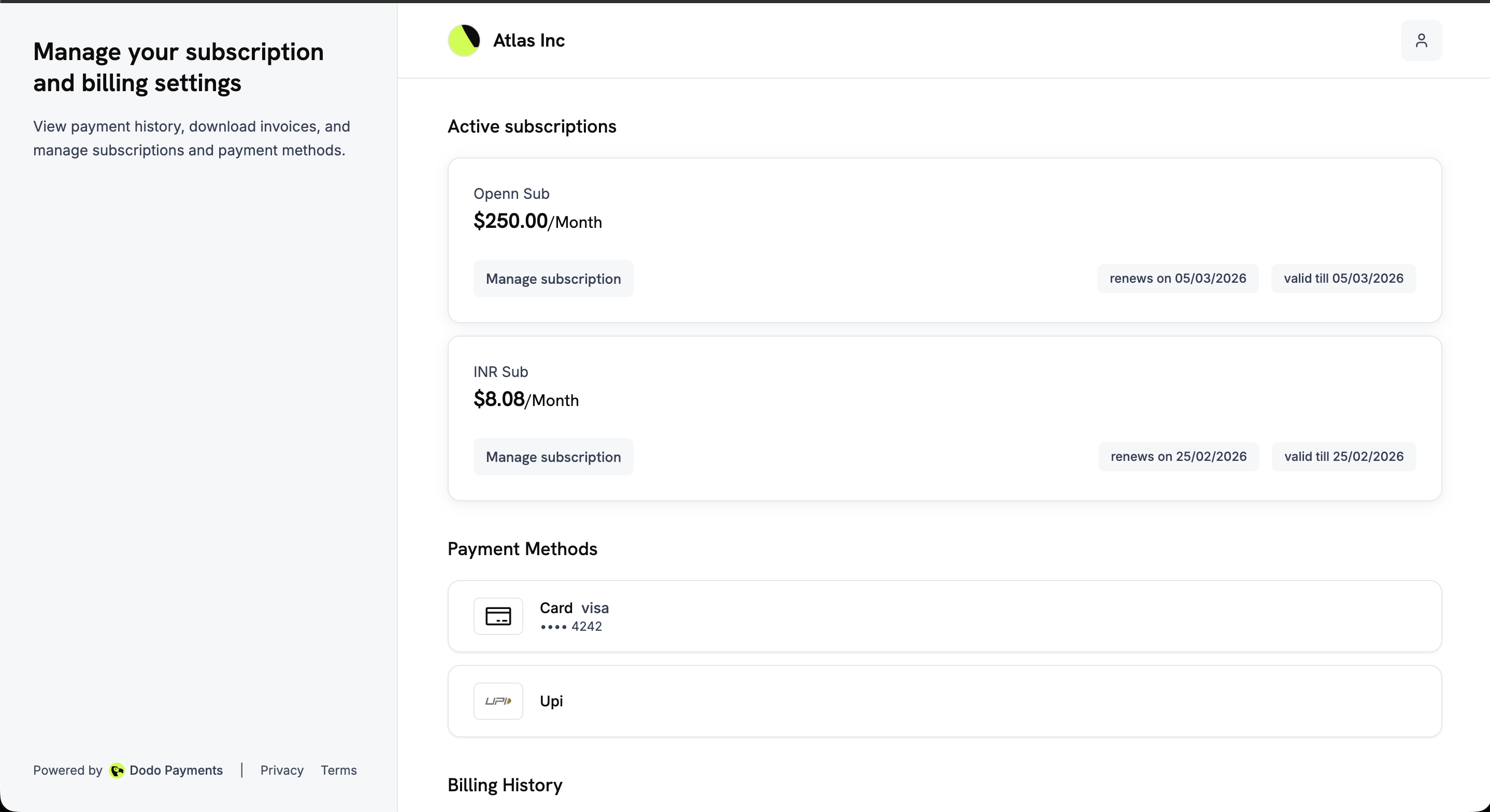 ## What Is the Customer Portal?
The portal provides a trusted, branded self‑service experience for customers to:
* **Access billing history**: View invoices and download receipts.
* **Manage subscriptions**: View subscription details, cancel subscriptions immediately or at the next billing date.
* **Update payment methods**: Change payment methods for active subscriptions or reactivate subscriptions on hold.
* **Retrieve license keys**: Access all keys tied to purchases.
* **Navigate with ease**: Use the back button to move between portal sections without losing context.
## Key Benefits
* **Lower support volume**: Customers resolve common billing requests on their own
* **Faster time‑to‑value**: Immediate access to invoices and keys
* **Reduced churn risk**: Clear visibility into renewals and plan details
* **Secure by design**: Tokenized access with expiring links
* **Localized experience**: Portal is available in 21 languages, with automatic detection based on the customer's browser preferences
## Access Methods
Customers can reach the portal using either a static link or a one‑time dynamic link.
### Static link (email‑based access)
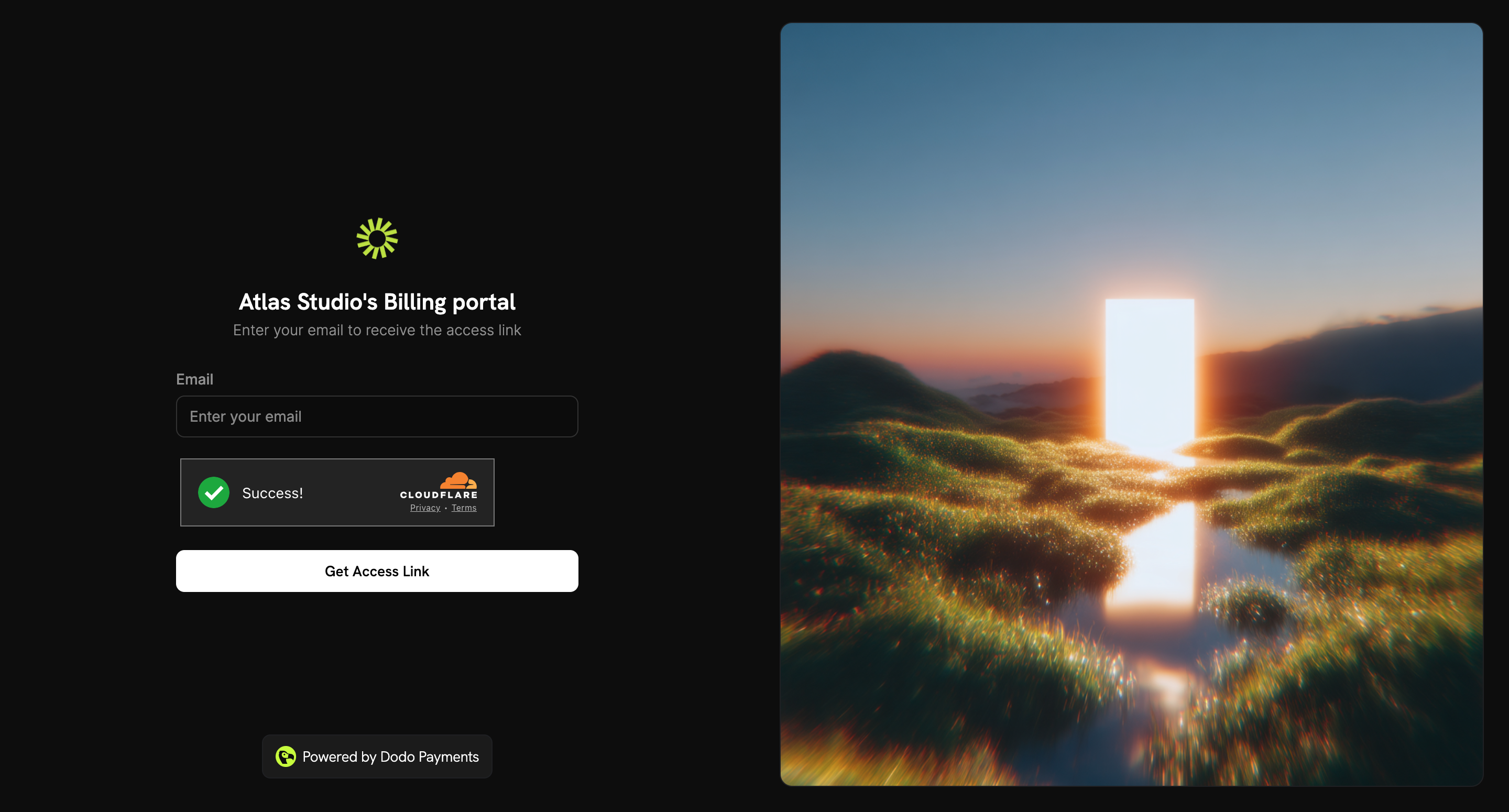
Customers can request portal access by entering their email at a static link that never expires.
The static portal link format varies by environment:
**Test Mode** (for testing and development):
```bash theme={null}
https://test.customer.dodopayments.com/login/{business_id}
```
**Live Mode** (for production with real transactions):
```bash theme={null}
https://customer.dodopayments.com/login/{business_id}
```
Replace `{business_id}` with your actual business identifier, then share the appropriate link with customers so they can enter their email and receive secure access to the portal.
## What Is the Customer Portal?
The portal provides a trusted, branded self‑service experience for customers to:
* **Access billing history**: View invoices and download receipts.
* **Manage subscriptions**: View subscription details, cancel subscriptions immediately or at the next billing date.
* **Update payment methods**: Change payment methods for active subscriptions or reactivate subscriptions on hold.
* **Retrieve license keys**: Access all keys tied to purchases.
* **Navigate with ease**: Use the back button to move between portal sections without losing context.
## Key Benefits
* **Lower support volume**: Customers resolve common billing requests on their own
* **Faster time‑to‑value**: Immediate access to invoices and keys
* **Reduced churn risk**: Clear visibility into renewals and plan details
* **Secure by design**: Tokenized access with expiring links
* **Localized experience**: Portal is available in 21 languages, with automatic detection based on the customer's browser preferences
## Access Methods
Customers can reach the portal using either a static link or a one‑time dynamic link.
### Static link (email‑based access)
Customers can request portal access by entering their email at a static link that never expires.
The static portal link format varies by environment:
**Test Mode** (for testing and development):
```bash theme={null}
https://test.customer.dodopayments.com/login/{business_id}
```
**Live Mode** (for production with real transactions):
```bash theme={null}
https://customer.dodopayments.com/login/{business_id}
```
Replace `{business_id}` with your actual business identifier, then share the appropriate link with customers so they can enter their email and receive secure access to the portal.
 1. Go to Sales → Customer.
2. Click Share invite.
3. Copy the Static link and share it with your customer.
1. Open the static link.
2. Enter the email used at purchase.
3. Receive a secure login link to access the portal.
Existing customers are recognized automatically.
### Dynamic link (magic link)
A personalized, one‑time magic link that sends customers directly into the portal. The link expires in 24 hours.
Dynamic links expire after 24 hours. If it expires, generate and send a new link.
1. Go to Sales → Customer.
2. Click Share invite.
3. Copy the Static link and share it with your customer.
1. Open the static link.
2. Enter the email used at purchase.
3. Receive a secure login link to access the portal.
Existing customers are recognized automatically.
### Dynamic link (magic link)
A personalized, one‑time magic link that sends customers directly into the portal. The link expires in 24 hours.
Dynamic links expire after 24 hours. If it expires, generate and send a new link.
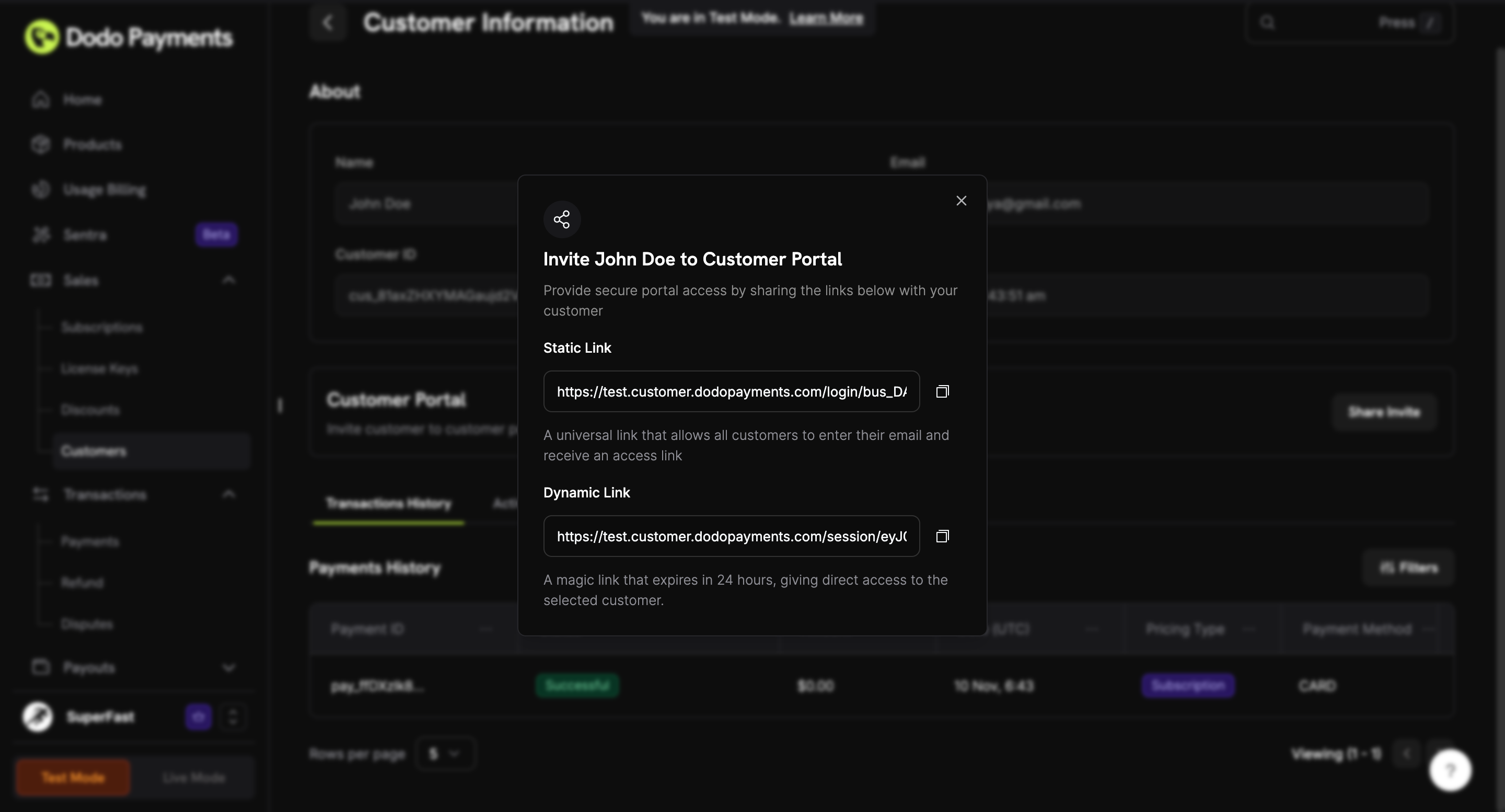 1. Go to Sales → Customer.
2. Click Share invite.
3. Copy the Dynamic link and share it with your customer.
1. Open the dynamic link.
2. Access the Customer Portal directly without entering an email.
## Portal Features
The revamped Customer Portal provides a clean, unified interface with a left sidebar and organized sections for all account management needs.
View all active subscriptions with plan name, price, renewal date, and validity. Click "Manage subscription" to view details, edit billing info, or cancel.
View all saved payment methods (cards, UPI, etc.) at a glance. Edit payment methods directly from subscription details.
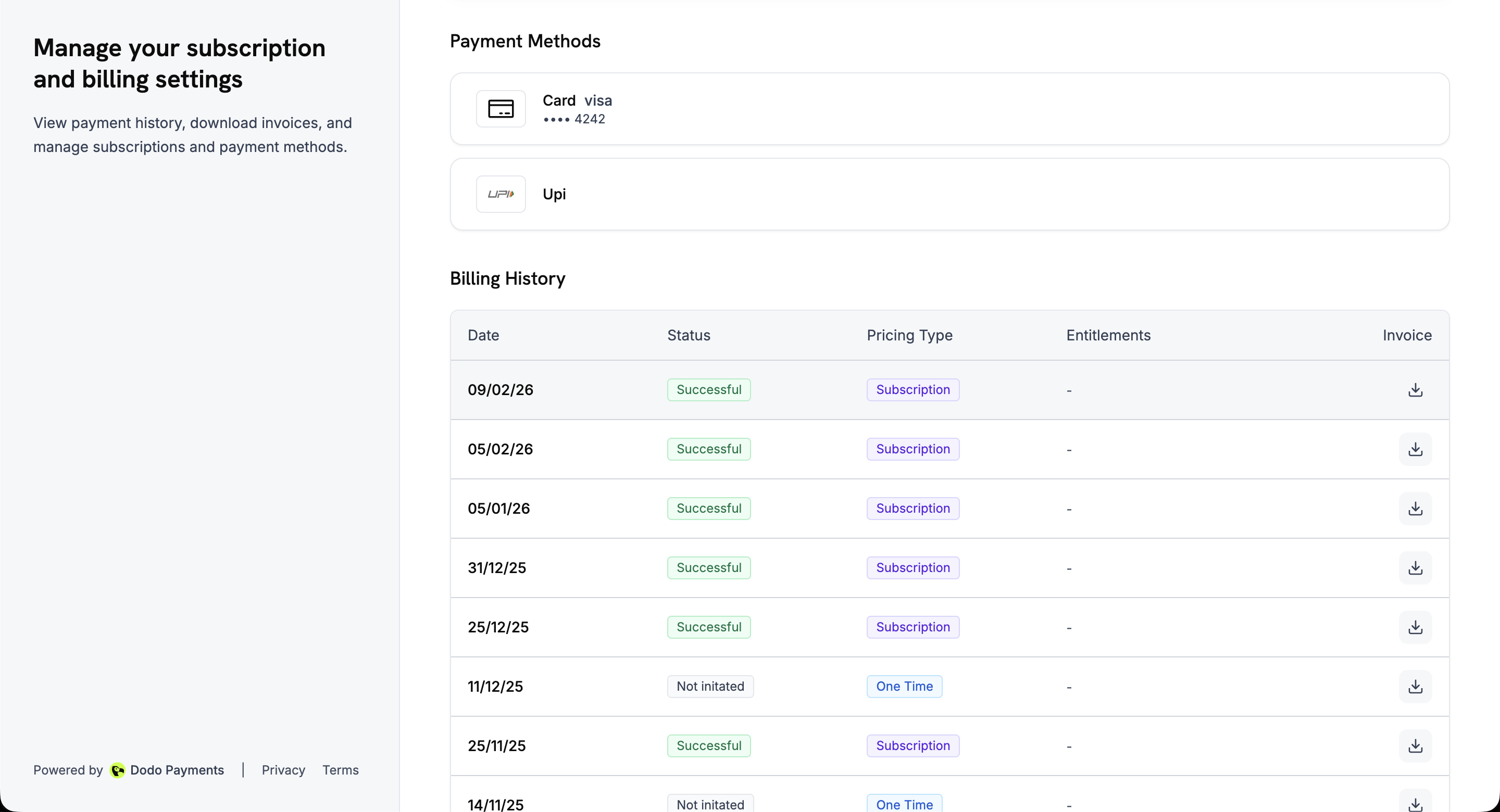
View all transactions in a detailed table with date, status, pricing type, entitlements, and downloadable invoices.
View and edit your name, email, phone number, and billing address from the subscription details page.
### Portal Overview
The main portal page displays all active subscriptions, saved payment methods, and billing history in a single scrollable view.
### Payment Methods & Billing History
Scroll down to view saved payment methods and a complete billing history with status indicators and downloadable invoices.
1. Go to Sales → Customer.
2. Click Share invite.
3. Copy the Dynamic link and share it with your customer.
1. Open the dynamic link.
2. Access the Customer Portal directly without entering an email.
## Portal Features
The revamped Customer Portal provides a clean, unified interface with a left sidebar and organized sections for all account management needs.
View all active subscriptions with plan name, price, renewal date, and validity. Click "Manage subscription" to view details, edit billing info, or cancel.
View all saved payment methods (cards, UPI, etc.) at a glance. Edit payment methods directly from subscription details.
View all transactions in a detailed table with date, status, pricing type, entitlements, and downloadable invoices.
View and edit your name, email, phone number, and billing address from the subscription details page.
### Portal Overview
The main portal page displays all active subscriptions, saved payment methods, and billing history in a single scrollable view.
### Payment Methods & Billing History
Scroll down to view saved payment methods and a complete billing history with status indicators and downloadable invoices.
 ## Language Support
The Customer Portal is available in **21 languages**, so your customers can manage their subscriptions, payment methods, and billing history in the language they're most comfortable with.
### How language selection works
* **Automatic detection**: On first visit, the portal detects the customer's preferred language from their browser settings and loads the matching translation if available. English is used as the fallback.
* **Manual override**: Customers can change the active language at any time from the language selector in the portal header (available on both desktop and mobile).
* **Persisted preference**: The selected language is stored in the `NEXT_LOCALE` cookie (valid for 1 year) so the portal remembers the choice across sessions.
### Supported languages
| Language | Code | Language | Code |
| ----------------- | ---- | ---------- | ---- |
| English (default) | `en` | Indonesian | `id` |
| Arabic | `ar` | Italian | `it` |
| Catalan | `ca` | Japanese | `ja` |
| Chinese | `zh` | Korean | `ko` |
| Dutch | `nl` | Malay | `ms` |
| French | `fr` | Polish | `pl` |
| German | `de` | Portuguese | `pt` |
| Hebrew | `he` | Romanian | `ro` |
| Russian | `ru` | Spanish | `es` |
| Swedish | `sv` | Thai | `th` |
| Turkish | `tr` | | |
## Plan Changes (Upgrade/Downgrade)
When products are organized into **Product Collections**, customers can upgrade or downgrade between plans directly from the Customer Portal.
**Want to enable upgrade/downgrade for existing subscriptions?** Add your subscription products to a Product Collection. Once grouped, customers can switch between plans in the same collection via the Customer Portal.
### Available Actions
| Action | Description | When Available |
| ------------- | ------------------------------------------------- | ----------------------------------------- |
| **Upgrade** | Move to a higher-tier plan in the same collection | Business has enabled subscription updates |
| **Downgrade** | Move to a lower-tier plan in the same collection | Business has enabled subscription updates |
### How Plan Changes Work
1. Customer views their current subscription in the portal
2. Available upgrade/downgrade options are shown based on the product collection
3. Customer selects the new plan
4. Proration is calculated and payment is processed immediately (if applicable)
5. Subscription is updated to the new plan
Plan changes are only available between products within the same collection. Products must be subscription or usage-based billing types.
### Business Controls
Businesses can configure plan change behavior in Subscription Settings:
* **Allow Subscription Updates**: Enable or disable the ability for customers to upgrade or downgrade their subscriptions
Learn how to set up product collections and configure upgrade/downgrade paths.
## Subscription Details
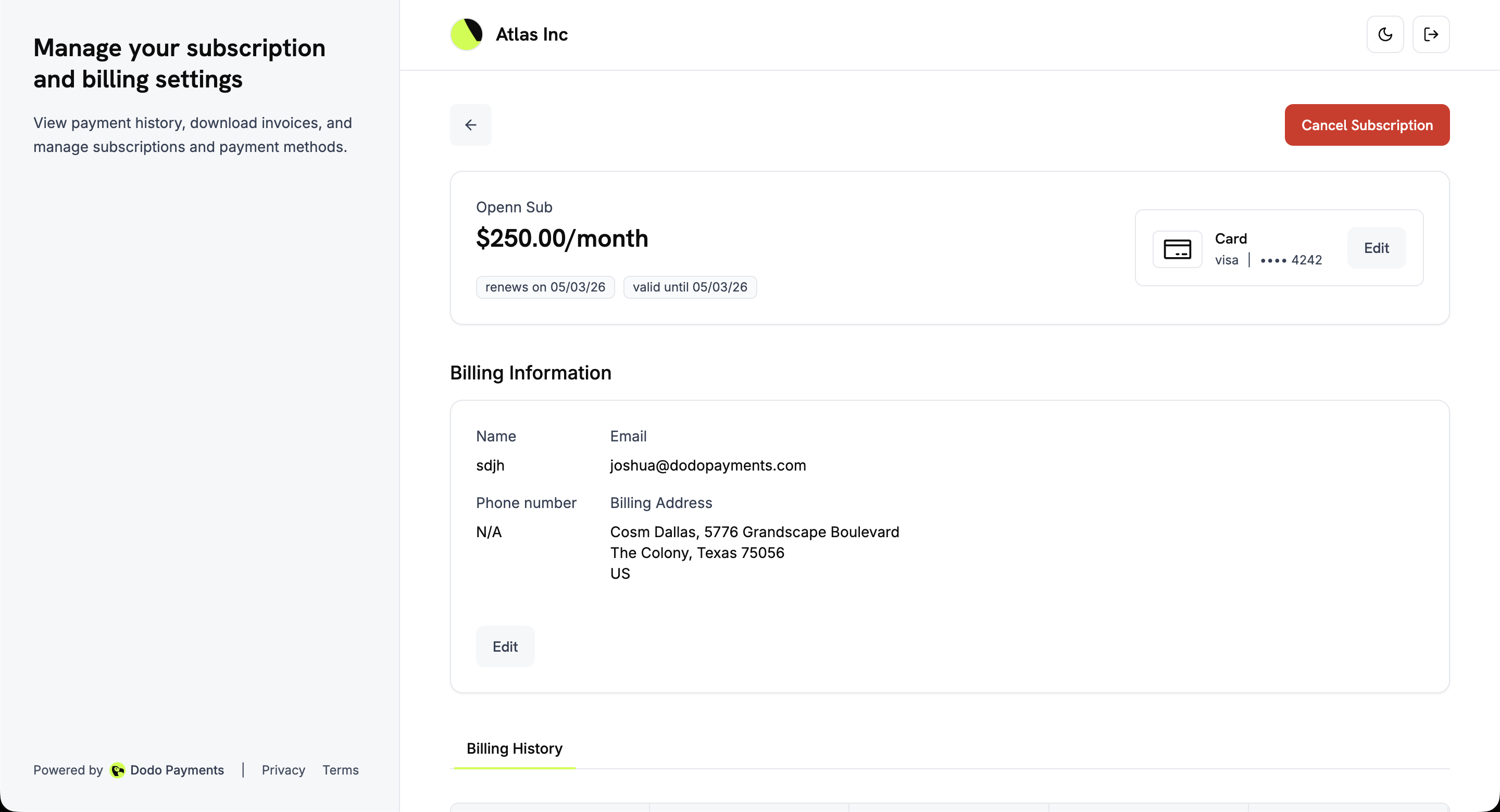
When customers click "Manage subscription" on any active subscription, they are taken to the subscription details page. This page shows:
* **Plan details**: Subscription name, price, renewal date, and validity period
* **Payment method**: The card or payment method linked to the subscription, with an "Edit" button
* **Billing information**: Name, email, phone number, and billing address with an "Edit" button
* **Billing history**: A detailed table of all payments for this subscription
* **Cancel Subscription**: A prominent button to cancel the subscription
## Language Support
The Customer Portal is available in **21 languages**, so your customers can manage their subscriptions, payment methods, and billing history in the language they're most comfortable with.
### How language selection works
* **Automatic detection**: On first visit, the portal detects the customer's preferred language from their browser settings and loads the matching translation if available. English is used as the fallback.
* **Manual override**: Customers can change the active language at any time from the language selector in the portal header (available on both desktop and mobile).
* **Persisted preference**: The selected language is stored in the `NEXT_LOCALE` cookie (valid for 1 year) so the portal remembers the choice across sessions.
### Supported languages
| Language | Code | Language | Code |
| ----------------- | ---- | ---------- | ---- |
| English (default) | `en` | Indonesian | `id` |
| Arabic | `ar` | Italian | `it` |
| Catalan | `ca` | Japanese | `ja` |
| Chinese | `zh` | Korean | `ko` |
| Dutch | `nl` | Malay | `ms` |
| French | `fr` | Polish | `pl` |
| German | `de` | Portuguese | `pt` |
| Hebrew | `he` | Romanian | `ro` |
| Russian | `ru` | Spanish | `es` |
| Swedish | `sv` | Thai | `th` |
| Turkish | `tr` | | |
## Plan Changes (Upgrade/Downgrade)
When products are organized into **Product Collections**, customers can upgrade or downgrade between plans directly from the Customer Portal.
**Want to enable upgrade/downgrade for existing subscriptions?** Add your subscription products to a Product Collection. Once grouped, customers can switch between plans in the same collection via the Customer Portal.
### Available Actions
| Action | Description | When Available |
| ------------- | ------------------------------------------------- | ----------------------------------------- |
| **Upgrade** | Move to a higher-tier plan in the same collection | Business has enabled subscription updates |
| **Downgrade** | Move to a lower-tier plan in the same collection | Business has enabled subscription updates |
### How Plan Changes Work
1. Customer views their current subscription in the portal
2. Available upgrade/downgrade options are shown based on the product collection
3. Customer selects the new plan
4. Proration is calculated and payment is processed immediately (if applicable)
5. Subscription is updated to the new plan
Plan changes are only available between products within the same collection. Products must be subscription or usage-based billing types.
### Business Controls
Businesses can configure plan change behavior in Subscription Settings:
* **Allow Subscription Updates**: Enable or disable the ability for customers to upgrade or downgrade their subscriptions
Learn how to set up product collections and configure upgrade/downgrade paths.
## Subscription Details
When customers click "Manage subscription" on any active subscription, they are taken to the subscription details page. This page shows:
* **Plan details**: Subscription name, price, renewal date, and validity period
* **Payment method**: The card or payment method linked to the subscription, with an "Edit" button
* **Billing information**: Name, email, phone number, and billing address with an "Edit" button
* **Billing history**: A detailed table of all payments for this subscription
* **Cancel Subscription**: A prominent button to cancel the subscription
 ## Cancelling a Subscription
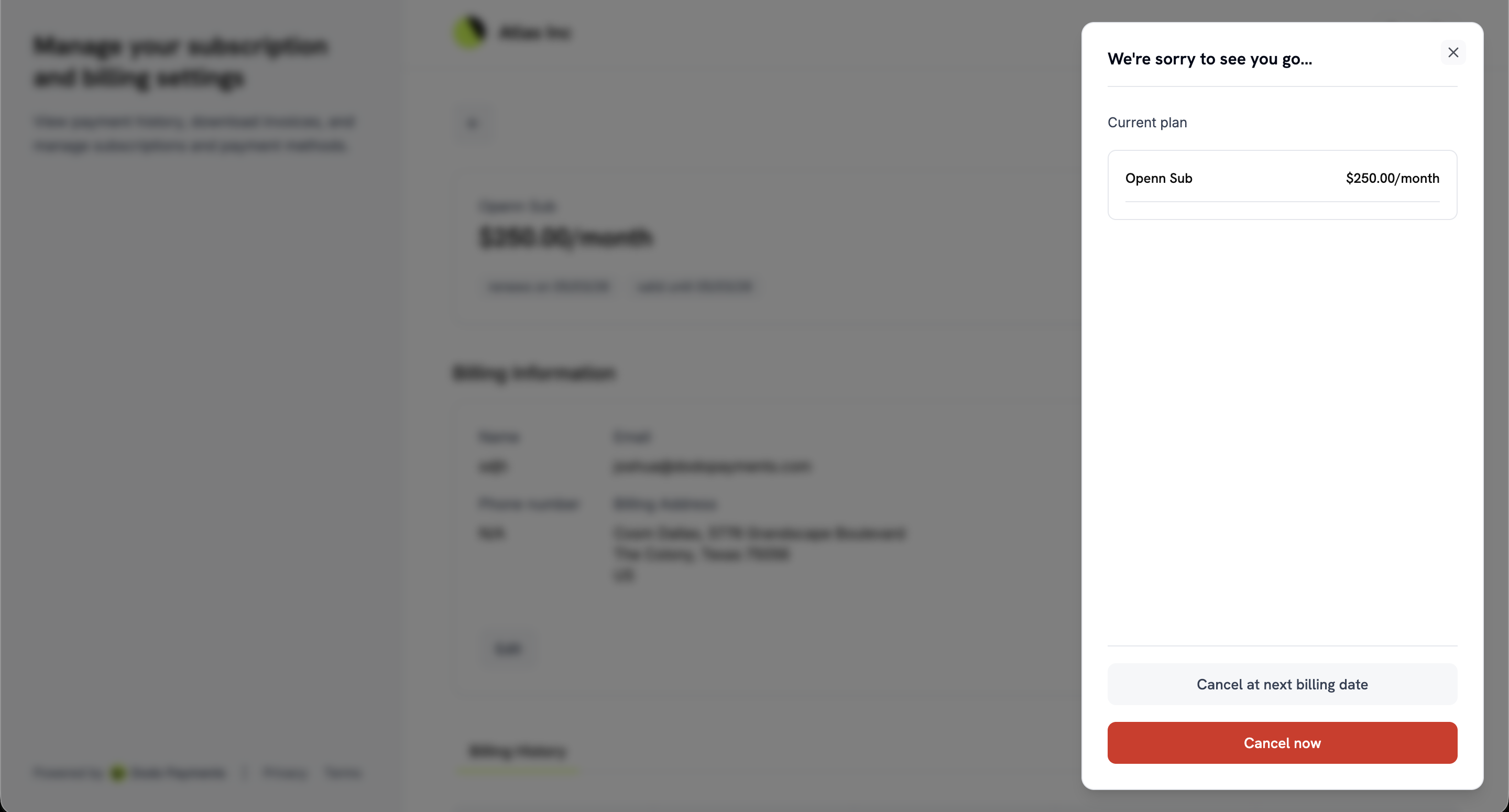
Customers can cancel their subscription directly from the subscription details page. Clicking "Cancel Subscription" opens a confirmation dialog with two options:
* **Cancel at next billing date**: The subscription remains active until the current billing period ends, then cancels automatically.
* **Cancel now**: The subscription is cancelled immediately.
## Cancelling a Subscription
Customers can cancel their subscription directly from the subscription details page. Clicking "Cancel Subscription" opens a confirmation dialog with two options:
* **Cancel at next billing date**: The subscription remains active until the current billing period ends, then cancels automatically.
* **Cancel now**: The subscription is cancelled immediately.
 ### Cancellation Reasons
Before confirming cancellation, customers are asked **"Why are you cancelling?"** and prompted to pick a reason from a curated list. The reason is stored on the subscription and surfaced in webhook payloads and the API, so you can analyze churn drivers and tailor your win-back flows.
### Cancellation Reasons
Before confirming cancellation, customers are asked **"Why are you cancelling?"** and prompted to pick a reason from a curated list. The reason is stored on the subscription and surfaced in webhook payloads and the API, so you can analyze churn drivers and tailor your win-back flows.
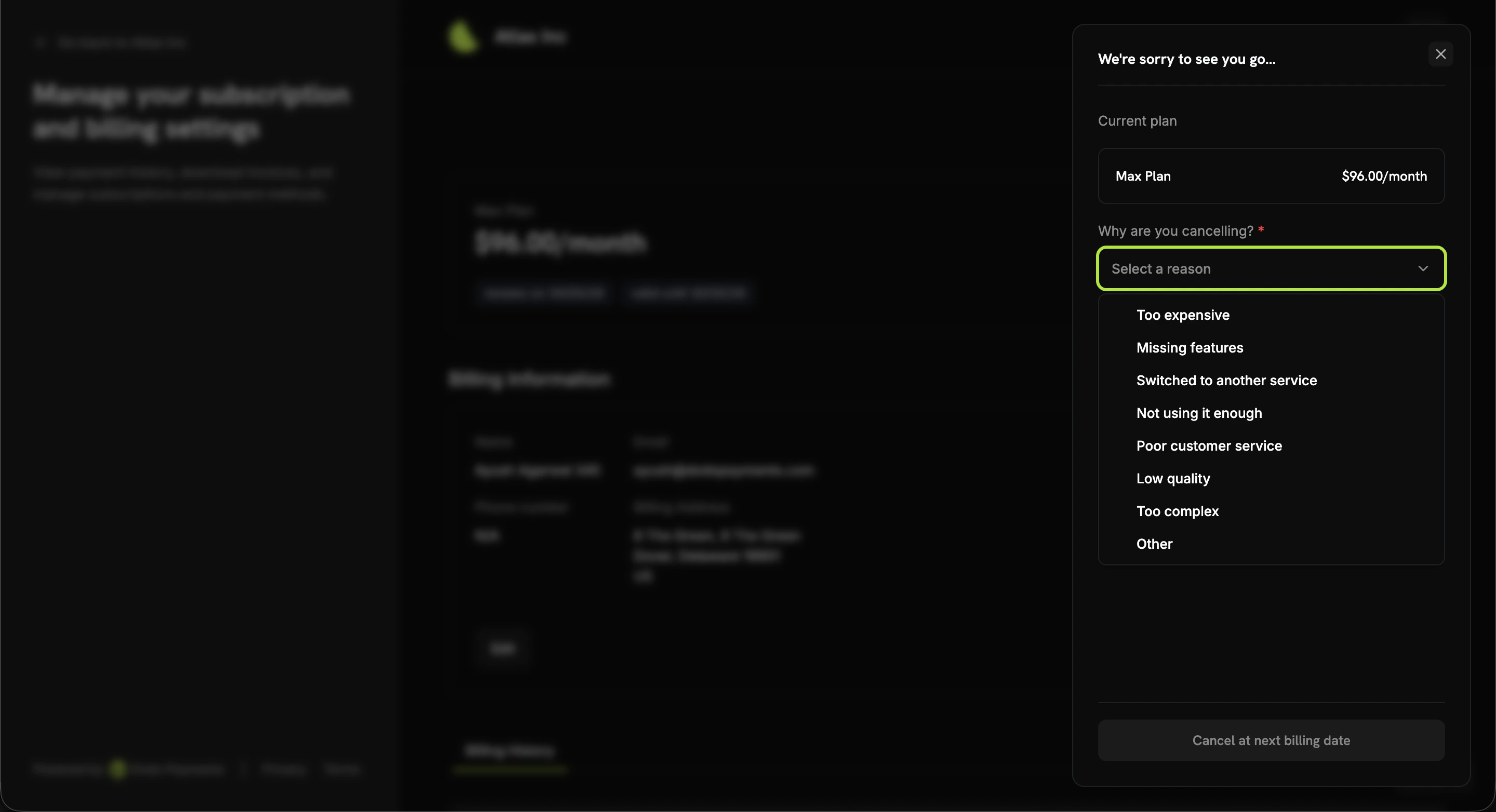 | Value | Customer-facing label |
| ------------------ | --------------------------- |
| `too_expensive` | Too expensive |
| `missing_features` | Missing features |
| `switched_service` | Switched to another service |
| `unused` | Not using it enough |
| `customer_service` | Poor customer service |
| `low_quality` | Low quality |
| `too_complex` | Too complex |
| `other` | Other |
The selected value is written to the subscription's `cancellation_feedback` field. An optional free-text `cancellation_comment` can also be captured.
```typescript theme={null}
// Read the captured feedback after a customer cancels
const subscription = await client.subscriptions.retrieve('sub_123');
console.log(subscription.cancellation_feedback); // e.g., "too_expensive"
console.log(subscription.cancellation_comment); // e.g., "Switching to a competitor"
```
Both fields are also included in the `subscription.cancelled` webhook payload, and you can populate them programmatically on `PATCH /subscriptions/{id}` when scheduling or executing a cancellation through the API.
Combine `cancellation_feedback` with [Subscription Dunning](/features/recovery/subscription-dunning) to tailor win-back emails — for example, send a discount code to `too_expensive` cancellers and a "what's missing?" survey to `missing_features` cancellers.
## Updating Payment Methods
Customers can update their payment methods directly from the subscription details page by clicking "Edit" next to the payment method. This feature is especially important for reactivating subscriptions that have been placed on hold due to failed payments.
### Reactivating Subscriptions on Hold
When a subscription is placed on `on_hold` state due to a failed payment, customers must update their payment method to reactivate it. The update process automatically:
1. **Creates a charge** for remaining dues
2. **Generates an invoice** for the charge
3. **Processes the payment** using the new payment method
4. **Reactivates the subscription** to `active` state upon successful payment
Subscriptions in `on_hold` state will not renew automatically. Customers must update their payment method to clear dues and reactivate the subscription.
After successfully updating the payment method for an `on_hold` subscription, customers will see a confirmation page and receive email notifications about the successful payment and subscription reactivation.
### Payment Method Update Flow
Click "Manage subscription" on any active subscription from the portal home page.
Click the "Edit" button next to the payment method to open the payment method update interface.
Choose an existing saved payment method or add a new one by entering card details securely.
Confirm the update. For `on_hold` subscriptions, this will automatically create a charge for remaining dues.
If the subscription is on hold, customers will be redirected to complete the payment for remaining dues. Upon successful payment, the subscription is automatically reactivated.
Customers receive confirmation that the payment method has been updated and, if applicable, that the subscription has been reactivated.
## Integration Examples
Create a time‑bound Customer Portal session for a specific customer via API, then redirect the user to the session URL.
```typescript Node.js theme={null}
const session = await client.customers.customerPortal.create('cus_123');
// Redirect the user to the hosted Customer Portal
window.location.href = session.link;
```
## Unified Customer Portal
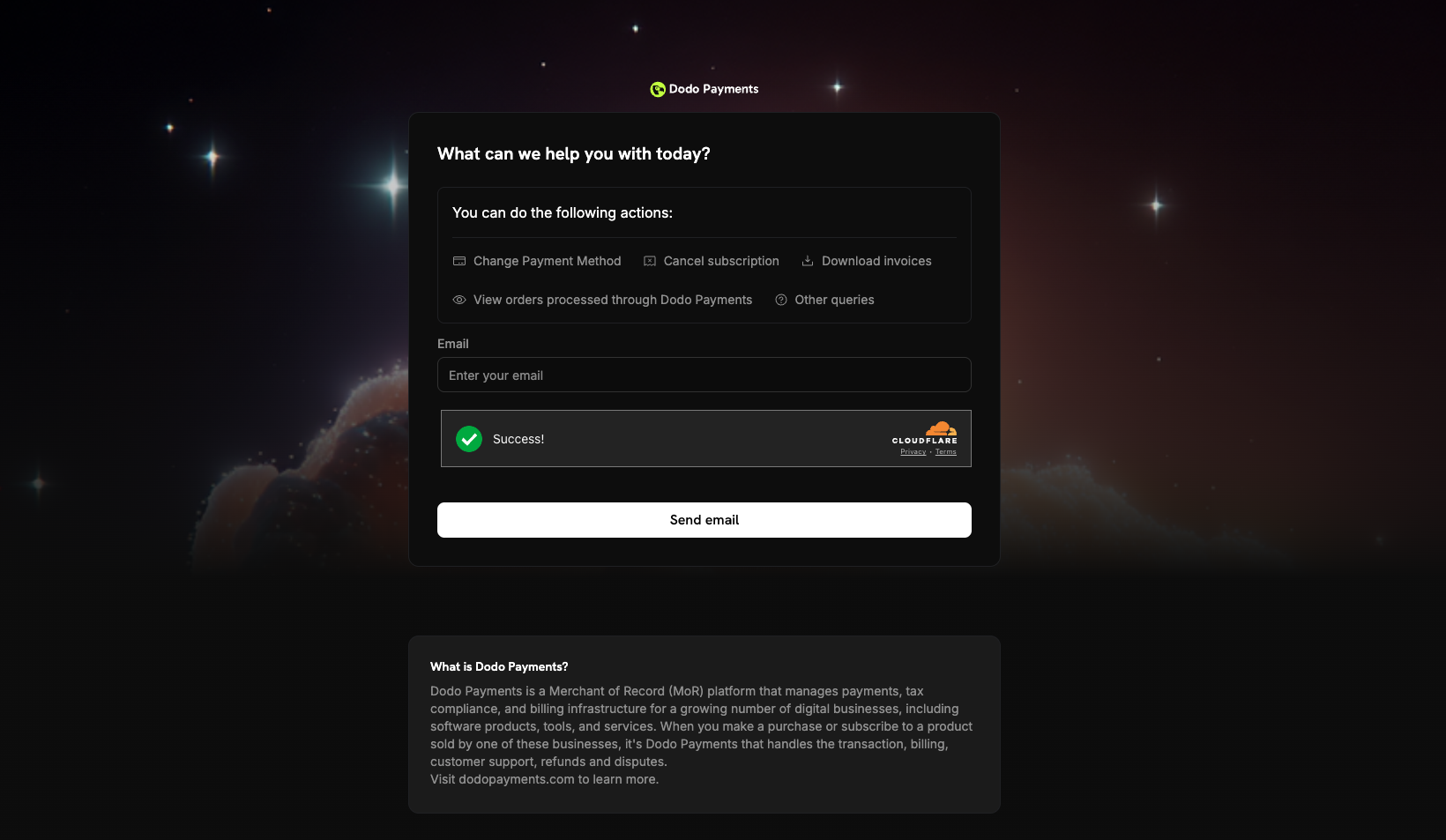
In addition to business-specific customer portals, Dodo Payments offers a **Unified Customer Portal** at [customer.dodopayments.com](https://customer.dodopayments.com) where customers can view and manage all their purchases and subscriptions across different businesses using Dodo Payments.
| Value | Customer-facing label |
| ------------------ | --------------------------- |
| `too_expensive` | Too expensive |
| `missing_features` | Missing features |
| `switched_service` | Switched to another service |
| `unused` | Not using it enough |
| `customer_service` | Poor customer service |
| `low_quality` | Low quality |
| `too_complex` | Too complex |
| `other` | Other |
The selected value is written to the subscription's `cancellation_feedback` field. An optional free-text `cancellation_comment` can also be captured.
```typescript theme={null}
// Read the captured feedback after a customer cancels
const subscription = await client.subscriptions.retrieve('sub_123');
console.log(subscription.cancellation_feedback); // e.g., "too_expensive"
console.log(subscription.cancellation_comment); // e.g., "Switching to a competitor"
```
Both fields are also included in the `subscription.cancelled` webhook payload, and you can populate them programmatically on `PATCH /subscriptions/{id}` when scheduling or executing a cancellation through the API.
Combine `cancellation_feedback` with [Subscription Dunning](/features/recovery/subscription-dunning) to tailor win-back emails — for example, send a discount code to `too_expensive` cancellers and a "what's missing?" survey to `missing_features` cancellers.
## Updating Payment Methods
Customers can update their payment methods directly from the subscription details page by clicking "Edit" next to the payment method. This feature is especially important for reactivating subscriptions that have been placed on hold due to failed payments.
### Reactivating Subscriptions on Hold
When a subscription is placed on `on_hold` state due to a failed payment, customers must update their payment method to reactivate it. The update process automatically:
1. **Creates a charge** for remaining dues
2. **Generates an invoice** for the charge
3. **Processes the payment** using the new payment method
4. **Reactivates the subscription** to `active` state upon successful payment
Subscriptions in `on_hold` state will not renew automatically. Customers must update their payment method to clear dues and reactivate the subscription.
After successfully updating the payment method for an `on_hold` subscription, customers will see a confirmation page and receive email notifications about the successful payment and subscription reactivation.
### Payment Method Update Flow
Click "Manage subscription" on any active subscription from the portal home page.
Click the "Edit" button next to the payment method to open the payment method update interface.
Choose an existing saved payment method or add a new one by entering card details securely.
Confirm the update. For `on_hold` subscriptions, this will automatically create a charge for remaining dues.
If the subscription is on hold, customers will be redirected to complete the payment for remaining dues. Upon successful payment, the subscription is automatically reactivated.
Customers receive confirmation that the payment method has been updated and, if applicable, that the subscription has been reactivated.
## Integration Examples
Create a time‑bound Customer Portal session for a specific customer via API, then redirect the user to the session URL.
```typescript Node.js theme={null}
const session = await client.customers.customerPortal.create('cus_123');
// Redirect the user to the hosted Customer Portal
window.location.href = session.link;
```
## Unified Customer Portal
In addition to business-specific customer portals, Dodo Payments offers a **Unified Customer Portal** at [customer.dodopayments.com](https://customer.dodopayments.com) where customers can view and manage all their purchases and subscriptions across different businesses using Dodo Payments.
 ### Unified Portal Features
* **Cross-business visibility**: View all purchases and subscriptions from any Dodo Payments merchant in one place
* **Centralized management**: Manage subscriptions across different businesses from a single dashboard
* **Unified billing history**: Access invoices and payment history from all purchases
* **Single sign-on**: Log in once with email to access purchases from all Dodo Payments merchants
The Unified Customer Portal complements business-specific portals. Customers can use either the branded merchant portal or the unified portal based on their preference.
## Troubleshooting
* **Link expired**: Generate and send a new dynamic link.
* **Email not recognized**: Ask the customer to use the email associated with their purchase
* **Subscription on hold**: If a subscription is on hold, customers must update their payment method through the portal to clear dues and reactivate the subscription. The update process will automatically charge for remaining dues.
* **Payment method update failed**: If payment fails during the update process for an `on_hold` subscription, the subscription will remain on hold. Customers can try again with a different payment method.
Customize your customer portal appearance with pre-built themes, typography, colors, and live preview from the Design page.
### Unified Portal Features
* **Cross-business visibility**: View all purchases and subscriptions from any Dodo Payments merchant in one place
* **Centralized management**: Manage subscriptions across different businesses from a single dashboard
* **Unified billing history**: Access invoices and payment history from all purchases
* **Single sign-on**: Log in once with email to access purchases from all Dodo Payments merchants
The Unified Customer Portal complements business-specific portals. Customers can use either the branded merchant portal or the unified portal based on their preference.
## Troubleshooting
* **Link expired**: Generate and send a new dynamic link.
* **Email not recognized**: Ask the customer to use the email associated with their purchase
* **Subscription on hold**: If a subscription is on hold, customers must update their payment method through the portal to clear dues and reactivate the subscription. The update process will automatically charge for remaining dues.
* **Payment method update failed**: If payment fails during the update process for an `on_hold` subscription, the subscription will remain on hold. Customers can try again with a different payment method.
Customize your customer portal appearance with pre-built themes, typography, colors, and live preview from the Design page.