> ## Documentation Index
> Fetch the complete documentation index at: https://docs.dodopayments.com/llms.txt
> Use this file to discover all available pages before exploring further.
# Customer Blocklist
> Block a customer to stop future checkouts, cancel their live subscriptions, and make their Customer Portal read-only. Manage the blocklist from Settings or the API.
The Customer Blocklist stops a known bad actor from buying from you again. A blocked customer cannot pay, loses their live subscriptions, and can view but not change anything in the [Customer Portal](/features/customer-portal). Manage it from **Settings → Blocklist** or through the Blocklist API.
 ## What Happens When You Block a Customer
| Area | Effect |
| ------------------------ | ------------------------------------------------------------------------------------------------------------------------------------------------------------------------------------------------------------------------------ |
| **Checkout** | Every payment attempt from the blocked email is refused: payment links, checkout sessions, and payments or subscriptions created through the API. |
| **Live subscriptions** | Subscriptions in `pending`, `active`, `on_hold`, or `paused` status are cancelled with the reason `cancelled_by_merchant`. The usual `subscription.cancelled` webhook fires for each one. |
| **Renewals and retries** | Automatic renewals and [payment retries](/features/recovery/payment-retries) skip a blocked customer, so no further charge is made even if a cancellation is still pending. |
| **Manual retry** | A [manual retry](/features/recovery/manual-retry) of a blocked customer's payment is refused. |
| **Customer Portal** | The customer can still log in and view invoices, subscriptions, and license keys, but cannot cancel, pause, or resume a subscription, change plans, or update a payment method. Removing a saved payment method stays allowed. |
Blocking does not refund past payments, and it does not affect open disputes. Issue any refund separately from the [Refunds](/features/transactions/refunds) page.
## How Blocking Matches Customers
You can block by **customer ID** or by **email**. Either way, the block is keyed on the customer's email, not on the customer record:
* **Every record with that email is covered.** Checkout can create a new customer record for a returning email, so a block on a single customer ID could be bypassed. A block on the email cannot.
* **Aliases are covered.** Emails are compared in lowercase with any `+alias` removed, so `buyer+promo@example.com` and `Buyer@example.com` count as the same customer. Dots in the address are kept as they are.
* **Scoped to your business.** A block applies to your business only. The same email can still buy from other businesses on Dodo Payments.
* **The email must belong to an existing customer.** You cannot block an email that has never checked out with you, and a customer record without an email cannot be blocked.
## Blocking a Customer
Go to **Settings → Blocklist** in your dashboard.
Click **Add to Blocklist**, then enter the customer's email or customer ID. Add a reason so your team can see later why the block was added.
Confirm the block. The customer's live subscriptions are cancelled immediately, and the entry appears in the **Blocked entries** table.
Go to **Sales → Customers** and open the customer you want to block.
Click **Block Customer**. Once the block is in force, the page shows a **Blocked** badge next to the customer's name.
## Managing Blocked Customers
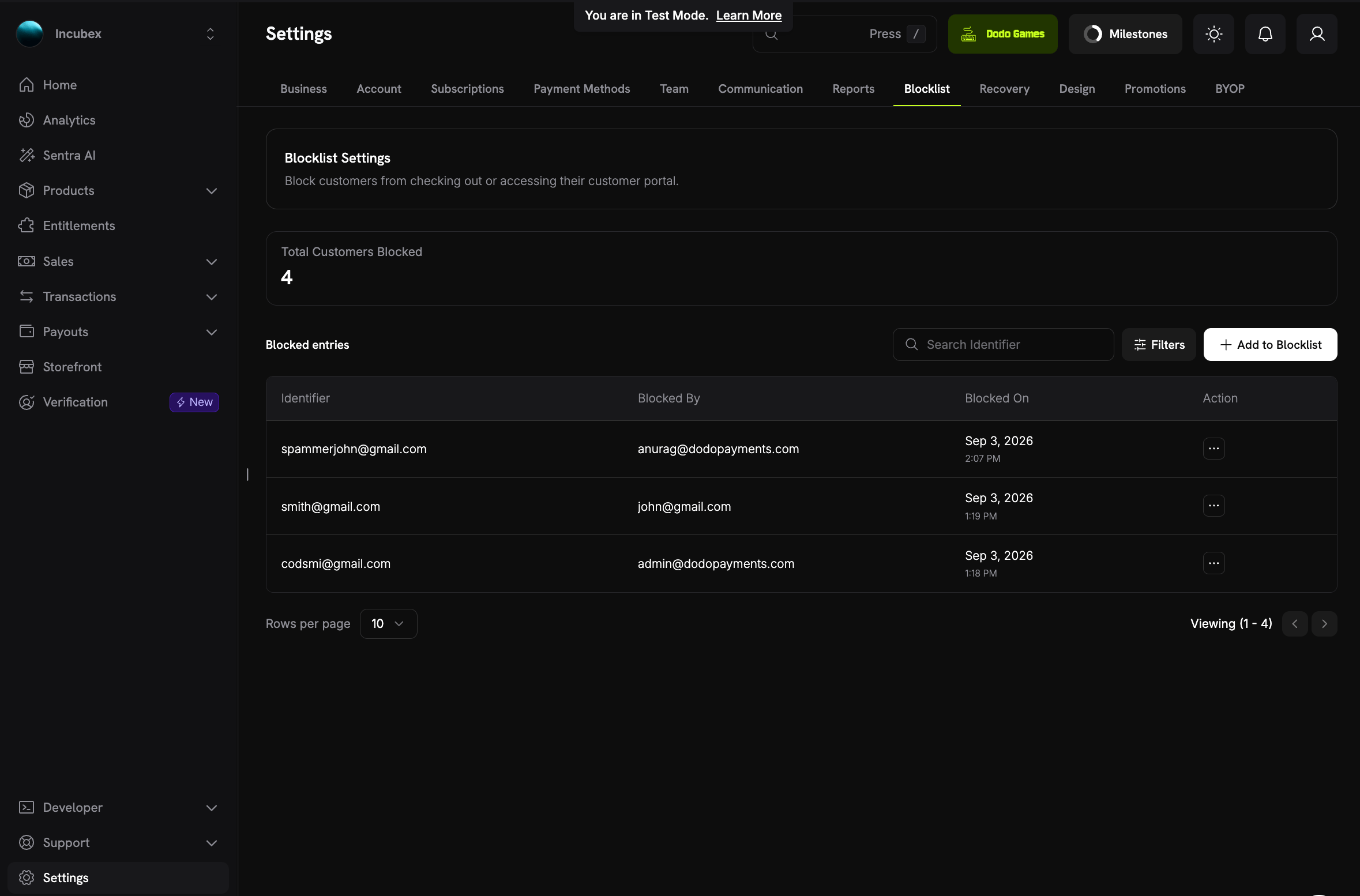
The **Blocklist** page lists every active block:
* **Total Customers Blocked**: How many customers are currently blocked.
* **Blocked entries**: One row per block, with the **Identifier** you entered (email or customer ID), **Blocked By** (the team member who added the block), and **Blocked On**.
* **Search Identifier** and **Filters**: Find an entry by email or customer ID, or filter by who blocked it and when.
* **Action**: Manage the entry, including unblocking the customer.
### The Blocked Customer's Page
## What Happens When You Block a Customer
| Area | Effect |
| ------------------------ | ------------------------------------------------------------------------------------------------------------------------------------------------------------------------------------------------------------------------------ |
| **Checkout** | Every payment attempt from the blocked email is refused: payment links, checkout sessions, and payments or subscriptions created through the API. |
| **Live subscriptions** | Subscriptions in `pending`, `active`, `on_hold`, or `paused` status are cancelled with the reason `cancelled_by_merchant`. The usual `subscription.cancelled` webhook fires for each one. |
| **Renewals and retries** | Automatic renewals and [payment retries](/features/recovery/payment-retries) skip a blocked customer, so no further charge is made even if a cancellation is still pending. |
| **Manual retry** | A [manual retry](/features/recovery/manual-retry) of a blocked customer's payment is refused. |
| **Customer Portal** | The customer can still log in and view invoices, subscriptions, and license keys, but cannot cancel, pause, or resume a subscription, change plans, or update a payment method. Removing a saved payment method stays allowed. |
Blocking does not refund past payments, and it does not affect open disputes. Issue any refund separately from the [Refunds](/features/transactions/refunds) page.
## How Blocking Matches Customers
You can block by **customer ID** or by **email**. Either way, the block is keyed on the customer's email, not on the customer record:
* **Every record with that email is covered.** Checkout can create a new customer record for a returning email, so a block on a single customer ID could be bypassed. A block on the email cannot.
* **Aliases are covered.** Emails are compared in lowercase with any `+alias` removed, so `buyer+promo@example.com` and `Buyer@example.com` count as the same customer. Dots in the address are kept as they are.
* **Scoped to your business.** A block applies to your business only. The same email can still buy from other businesses on Dodo Payments.
* **The email must belong to an existing customer.** You cannot block an email that has never checked out with you, and a customer record without an email cannot be blocked.
## Blocking a Customer
Go to **Settings → Blocklist** in your dashboard.
Click **Add to Blocklist**, then enter the customer's email or customer ID. Add a reason so your team can see later why the block was added.
Confirm the block. The customer's live subscriptions are cancelled immediately, and the entry appears in the **Blocked entries** table.
Go to **Sales → Customers** and open the customer you want to block.
Click **Block Customer**. Once the block is in force, the page shows a **Blocked** badge next to the customer's name.
## Managing Blocked Customers
The **Blocklist** page lists every active block:
* **Total Customers Blocked**: How many customers are currently blocked.
* **Blocked entries**: One row per block, with the **Identifier** you entered (email or customer ID), **Blocked By** (the team member who added the block), and **Blocked On**.
* **Search Identifier** and **Filters**: Find an entry by email or customer ID, or filter by who blocked it and when.
* **Action**: Manage the entry, including unblocking the customer.
### The Blocked Customer's Page
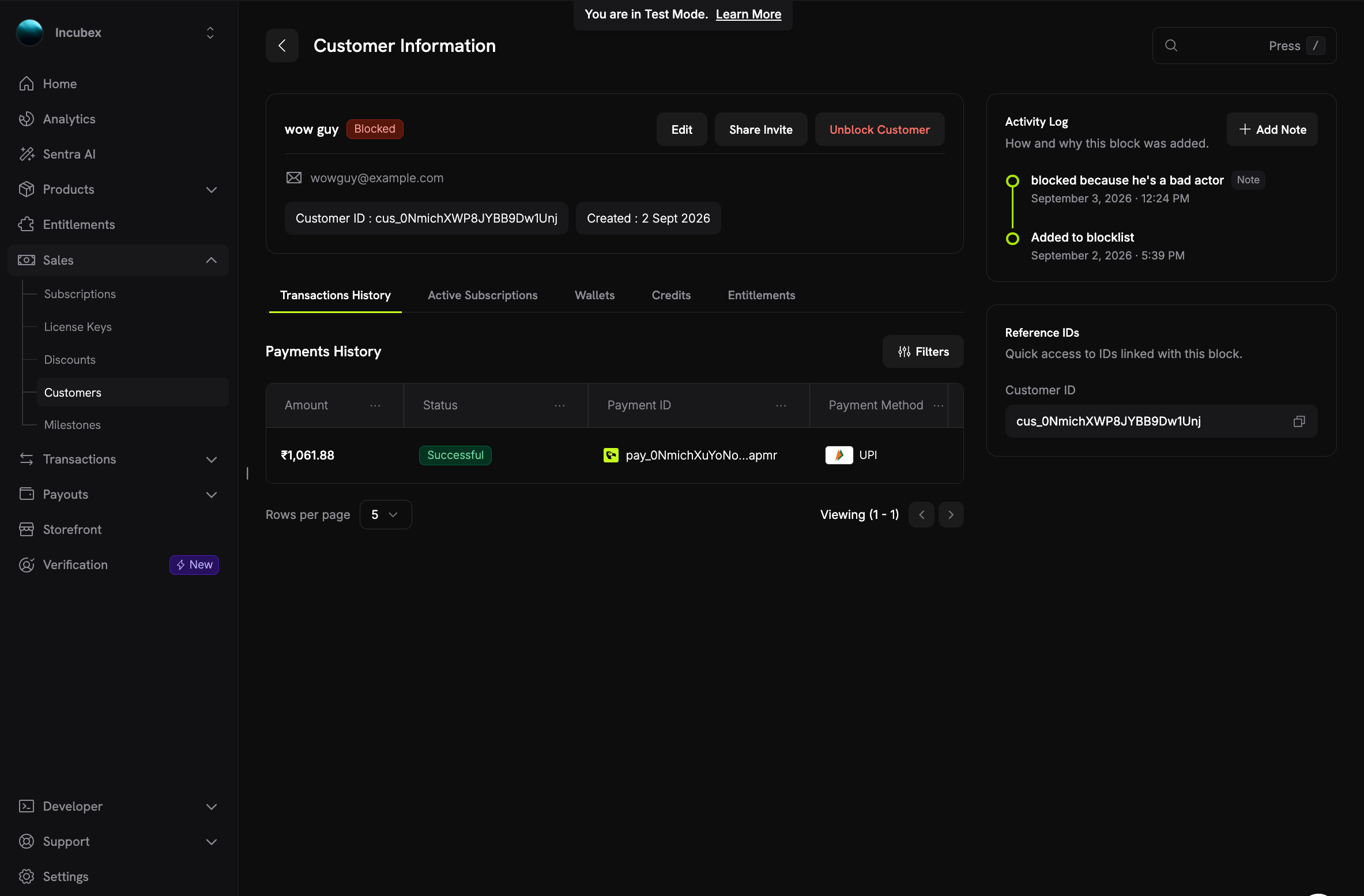 Open a blocked customer from **Sales → Customers** or from the Blocklist page to see:
* A **Blocked** badge next to the customer's name, and an **Unblock Customer** button.
* **Activity Log**: When the customer was added to the blocklist, the reason, and any notes your team has added since. Click **Add Note** to record new context, such as the outcome of a chargeback. Notes can be edited later.
* **Reference IDs**: The customer ID linked to this block, ready to copy.
## Unblocking a Customer
Click **Unblock Customer** on the customer's page, or use the action menu on the Blocklist page.
* Checkout and Customer Portal changes are restored immediately.
* **Cancelled subscriptions are not reactivated.** The customer has to purchase again.
* The entry is kept as an audit record together with its notes, but it no longer appears in the active list.
* You can block the same customer again later. That creates a new entry.
## What the Customer Sees
A blocked customer is never told that they were blocked.
* **At checkout**, the payment fails with a generic decline: "This payment cannot be processed." The API returns HTTP `403` with the error code `PAYMENT_NOT_PERMITTED`, which names no cause. The real reason is written to Dodo Payments' logs only.
* **In the Customer Portal**, everything is visible but every action is disabled. A blocked write returns `PORTAL_ACTION_NOT_PERMITTED` with the message "This action is not available." The portal profile carries `read_only: true` so a custom portal integration can disable its own controls. The portal never exposes the blocklist entry or its notes.
If you render checkout or portal errors in your own product, keep this behavior. Show a generic message for `PAYMENT_NOT_PERMITTED` and `PORTAL_ACTION_NOT_PERMITTED`. Revealing the block tells a bad actor to try a different email.
## Using the API
The Blocklist API lets you block from your own tooling, for example when a chargeback arrives. It requires your secret [API key](/api-reference/introduction). Any key can list entries and read notes. A key with **write access** enabled can block, unblock, and manage notes. The dashboard applies the same split to team roles: the **Viewer** role reads the list, and the **Editor** role makes changes.
| Method | Endpoint | Purpose |
| -------- | ------------------------------------------------- | -------------------------------------------------------- |
| `GET` | `/blocklist/customers` | List blocked customers, with filters and a `total` count |
| `POST` | `/blocklist/customers` | Block a customer by customer ID or email |
| `GET` | `/blocklist/customers/{entry_id}` | Get an entry together with its notes |
| `DELETE` | `/blocklist/customers/{entry_id}` | Unblock a customer |
| `POST` | `/blocklist/customers/{entry_id}/notes` | Add a note |
| `PATCH` | `/blocklist/customers/{entry_id}/notes/{note_id}` | Update a note |
### Block a Customer
Send either `customer_id` or `email` at the top level of the body. `reason` is optional and shows on the entry's page.
```typescript Node.js theme={null}
import DodoPayments from 'dodopayments';
const client = new DodoPayments({
bearerToken: process.env.DODO_PAYMENTS_API_KEY,
});
// Block by customer ID
const entry = await client.blocklist.customers.create({
customer_id: 'cus_0NmichXWP8JYBB9Dw1Unj',
reason: 'Chargeback on pay_0NmichXuYoNoapmr',
});
// Or block by email
const byEmail = await client.blocklist.customers.create({
email: 'buyer@example.com',
reason: 'Repeated refund abuse',
});
console.log(entry.id, entry.cancelled_subscription_ids);
```
```python Python theme={null}
import os
from dodopayments import DodoPayments
client = DodoPayments(bearer_token=os.environ["DODO_PAYMENTS_API_KEY"])
# Block by customer ID
entry = client.blocklist.customers.create(
customer_id="cus_0NmichXWP8JYBB9Dw1Unj",
reason="Chargeback on pay_0NmichXuYoNoapmr",
)
# Or block by email
by_email = client.blocklist.customers.create(
email="buyer@example.com",
reason="Repeated refund abuse",
)
print(entry.id, entry.cancelled_subscription_ids)
```
```bash cURL theme={null}
curl -X POST https://live.dodopayments.com/blocklist/customers \
-H "Authorization: Bearer $DODO_PAYMENTS_API_KEY" \
-H "Content-Type: application/json" \
-d '{
"customer_id": "cus_0NmichXWP8JYBB9Dw1Unj",
"reason": "Chargeback on pay_0NmichXuYoNoapmr"
}'
```
```json Response theme={null}
{
"id": "bcu_7Hq2mV9kRt4LxYw3Pz",
"customer_id": "cus_0NmichXWP8JYBB9Dw1Unj",
"customer_name": "wow guy",
"customer_email": "wowguy@example.com",
"identifier": "cus_0NmichXWP8JYBB9Dw1Unj",
"reason": "Chargeback on pay_0NmichXuYoNoapmr",
"source": "api",
"blocked_by_email": null,
"created_at": "2026-09-02T12:09:41Z",
"unblocked_at": null,
"cancelled_subscription_ids": ["sub_3Fk8pW2nQs6MzXc1"],
"subscriptions_swept": true
}
```
| Field | Description |
| ---------------------------- | ---------------------------------------------------------------------------------------------------------------------------------------- |
| `identifier` | The customer ID or email you sent. |
| `source` | Where the block came from: `blocklist_page`, `customer_page`, `payment_page`, `dispute_page`, or `api`. An API key always records `api`. |
| `blocked_by_email` | The dashboard user who added the block. `null` for an API key. |
| `cancelled_subscription_ids` | Subscriptions this call cancelled. |
| `remaining_subscription_ids` | Subscriptions still live, because a cancellation failed or the call reached its limit of 25 cancellations. |
| `subscriptions_swept` | `false` when live subscriptions remain. Repeat the call until it is `true`. The block itself is already in force. |
Blocking a customer who is already blocked returns HTTP `409` with `CUSTOMER_ALREADY_BLOCKED`, unless subscriptions are still waiting to be cancelled. In that case the call continues the cancellation instead.
### Check Whether a Customer Is Blocked
[Get Customer Detail](/api-reference/customers/get-customers-1) returns two extra fields: `blocked_at`, the time the active block was added (`null` when the customer is not blocked), and `blocklist_entry_id`, the entry behind it. The [List Customers](/api-reference/customers/get-customers) endpoint leaves both empty.
### Unblock a Customer
```typescript Node.js theme={null}
await client.blocklist.customers.delete('bcu_7Hq2mV9kRt4LxYw3Pz');
```
```python Python theme={null}
client.blocklist.customers.delete("bcu_7Hq2mV9kRt4LxYw3Pz")
```
```bash cURL theme={null}
curl -X DELETE https://live.dodopayments.com/blocklist/customers/bcu_7Hq2mV9kRt4LxYw3Pz \
-H "Authorization: Bearer $DODO_PAYMENTS_API_KEY"
```
The endpoint returns HTTP `204` on success. Unblocking restores checkout and portal writes, and reactivates no subscription.
## Best Practices
* **Record the reason.** A short reason on the block, plus notes for anything that happens later, gives your support team the full story without leaving the dashboard.
* **Block after a chargeback.** Open the customer from the dispute or payment and block them there, or automate it from the `dispute.opened` webhook with `POST /blocklist/customers`. See [Disputes](/features/transactions/disputes).
* **Check `subscriptions_swept`.** When you block through the API, repeat the call until the response reports `true`, so no live subscription is left behind.
* **Refund separately.** A block stops future purchases only. If you owe the customer money, refund the payment as usual.
* **Review the list.** Unblock customers whose issue is resolved. Unblocking is immediate and keeps the history.
## Related
Find a customer, open their details page, and manage their subscriptions.
What a blocked customer can and cannot do in the portal.
Respond to chargebacks and decide when a block is warranted.
What `PAYMENT_NOT_PERMITTED` and `PORTAL_ACTION_NOT_PERMITTED` mean.
Open a blocked customer from **Sales → Customers** or from the Blocklist page to see:
* A **Blocked** badge next to the customer's name, and an **Unblock Customer** button.
* **Activity Log**: When the customer was added to the blocklist, the reason, and any notes your team has added since. Click **Add Note** to record new context, such as the outcome of a chargeback. Notes can be edited later.
* **Reference IDs**: The customer ID linked to this block, ready to copy.
## Unblocking a Customer
Click **Unblock Customer** on the customer's page, or use the action menu on the Blocklist page.
* Checkout and Customer Portal changes are restored immediately.
* **Cancelled subscriptions are not reactivated.** The customer has to purchase again.
* The entry is kept as an audit record together with its notes, but it no longer appears in the active list.
* You can block the same customer again later. That creates a new entry.
## What the Customer Sees
A blocked customer is never told that they were blocked.
* **At checkout**, the payment fails with a generic decline: "This payment cannot be processed." The API returns HTTP `403` with the error code `PAYMENT_NOT_PERMITTED`, which names no cause. The real reason is written to Dodo Payments' logs only.
* **In the Customer Portal**, everything is visible but every action is disabled. A blocked write returns `PORTAL_ACTION_NOT_PERMITTED` with the message "This action is not available." The portal profile carries `read_only: true` so a custom portal integration can disable its own controls. The portal never exposes the blocklist entry or its notes.
If you render checkout or portal errors in your own product, keep this behavior. Show a generic message for `PAYMENT_NOT_PERMITTED` and `PORTAL_ACTION_NOT_PERMITTED`. Revealing the block tells a bad actor to try a different email.
## Using the API
The Blocklist API lets you block from your own tooling, for example when a chargeback arrives. It requires your secret [API key](/api-reference/introduction). Any key can list entries and read notes. A key with **write access** enabled can block, unblock, and manage notes. The dashboard applies the same split to team roles: the **Viewer** role reads the list, and the **Editor** role makes changes.
| Method | Endpoint | Purpose |
| -------- | ------------------------------------------------- | -------------------------------------------------------- |
| `GET` | `/blocklist/customers` | List blocked customers, with filters and a `total` count |
| `POST` | `/blocklist/customers` | Block a customer by customer ID or email |
| `GET` | `/blocklist/customers/{entry_id}` | Get an entry together with its notes |
| `DELETE` | `/blocklist/customers/{entry_id}` | Unblock a customer |
| `POST` | `/blocklist/customers/{entry_id}/notes` | Add a note |
| `PATCH` | `/blocklist/customers/{entry_id}/notes/{note_id}` | Update a note |
### Block a Customer
Send either `customer_id` or `email` at the top level of the body. `reason` is optional and shows on the entry's page.
```typescript Node.js theme={null}
import DodoPayments from 'dodopayments';
const client = new DodoPayments({
bearerToken: process.env.DODO_PAYMENTS_API_KEY,
});
// Block by customer ID
const entry = await client.blocklist.customers.create({
customer_id: 'cus_0NmichXWP8JYBB9Dw1Unj',
reason: 'Chargeback on pay_0NmichXuYoNoapmr',
});
// Or block by email
const byEmail = await client.blocklist.customers.create({
email: 'buyer@example.com',
reason: 'Repeated refund abuse',
});
console.log(entry.id, entry.cancelled_subscription_ids);
```
```python Python theme={null}
import os
from dodopayments import DodoPayments
client = DodoPayments(bearer_token=os.environ["DODO_PAYMENTS_API_KEY"])
# Block by customer ID
entry = client.blocklist.customers.create(
customer_id="cus_0NmichXWP8JYBB9Dw1Unj",
reason="Chargeback on pay_0NmichXuYoNoapmr",
)
# Or block by email
by_email = client.blocklist.customers.create(
email="buyer@example.com",
reason="Repeated refund abuse",
)
print(entry.id, entry.cancelled_subscription_ids)
```
```bash cURL theme={null}
curl -X POST https://live.dodopayments.com/blocklist/customers \
-H "Authorization: Bearer $DODO_PAYMENTS_API_KEY" \
-H "Content-Type: application/json" \
-d '{
"customer_id": "cus_0NmichXWP8JYBB9Dw1Unj",
"reason": "Chargeback on pay_0NmichXuYoNoapmr"
}'
```
```json Response theme={null}
{
"id": "bcu_7Hq2mV9kRt4LxYw3Pz",
"customer_id": "cus_0NmichXWP8JYBB9Dw1Unj",
"customer_name": "wow guy",
"customer_email": "wowguy@example.com",
"identifier": "cus_0NmichXWP8JYBB9Dw1Unj",
"reason": "Chargeback on pay_0NmichXuYoNoapmr",
"source": "api",
"blocked_by_email": null,
"created_at": "2026-09-02T12:09:41Z",
"unblocked_at": null,
"cancelled_subscription_ids": ["sub_3Fk8pW2nQs6MzXc1"],
"subscriptions_swept": true
}
```
| Field | Description |
| ---------------------------- | ---------------------------------------------------------------------------------------------------------------------------------------- |
| `identifier` | The customer ID or email you sent. |
| `source` | Where the block came from: `blocklist_page`, `customer_page`, `payment_page`, `dispute_page`, or `api`. An API key always records `api`. |
| `blocked_by_email` | The dashboard user who added the block. `null` for an API key. |
| `cancelled_subscription_ids` | Subscriptions this call cancelled. |
| `remaining_subscription_ids` | Subscriptions still live, because a cancellation failed or the call reached its limit of 25 cancellations. |
| `subscriptions_swept` | `false` when live subscriptions remain. Repeat the call until it is `true`. The block itself is already in force. |
Blocking a customer who is already blocked returns HTTP `409` with `CUSTOMER_ALREADY_BLOCKED`, unless subscriptions are still waiting to be cancelled. In that case the call continues the cancellation instead.
### Check Whether a Customer Is Blocked
[Get Customer Detail](/api-reference/customers/get-customers-1) returns two extra fields: `blocked_at`, the time the active block was added (`null` when the customer is not blocked), and `blocklist_entry_id`, the entry behind it. The [List Customers](/api-reference/customers/get-customers) endpoint leaves both empty.
### Unblock a Customer
```typescript Node.js theme={null}
await client.blocklist.customers.delete('bcu_7Hq2mV9kRt4LxYw3Pz');
```
```python Python theme={null}
client.blocklist.customers.delete("bcu_7Hq2mV9kRt4LxYw3Pz")
```
```bash cURL theme={null}
curl -X DELETE https://live.dodopayments.com/blocklist/customers/bcu_7Hq2mV9kRt4LxYw3Pz \
-H "Authorization: Bearer $DODO_PAYMENTS_API_KEY"
```
The endpoint returns HTTP `204` on success. Unblocking restores checkout and portal writes, and reactivates no subscription.
## Best Practices
* **Record the reason.** A short reason on the block, plus notes for anything that happens later, gives your support team the full story without leaving the dashboard.
* **Block after a chargeback.** Open the customer from the dispute or payment and block them there, or automate it from the `dispute.opened` webhook with `POST /blocklist/customers`. See [Disputes](/features/transactions/disputes).
* **Check `subscriptions_swept`.** When you block through the API, repeat the call until the response reports `true`, so no live subscription is left behind.
* **Refund separately.** A block stops future purchases only. If you owe the customer money, refund the payment as usual.
* **Review the list.** Unblock customers whose issue is resolved. Unblocking is immediate and keeps the history.
## Related
Find a customer, open their details page, and manage their subscriptions.
What a blocked customer can and cannot do in the portal.
Respond to chargebacks and decide when a block is warranted.
What `PAYMENT_NOT_PERMITTED` and `PORTAL_ACTION_NOT_PERMITTED` mean.