> ## Documentation Index
> Fetch the complete documentation index at: https://docs.dodopayments.com/llms.txt
> Use this file to discover all available pages before exploring further.
# Credit-Based Billing
> Issue, manage, and track credit entitlements across subscriptions, one-time products, and usage-based billing with rollover, overage, and expiration controls.
Credit-Based Billing lets you grant customers a balance of credits - API calls, tokens, compute units, or any custom metric - and deduct from that balance as they consume your service. Credits work across all product types: subscriptions, one-time purchases, and usage-based billing.
## What is Credit-Based Billing?
Credit-Based Billing gives you a flexible system to issue credit entitlements to customers as part of your products. Instead of charging per-use or limiting access through feature flags, you allocate a pool of credits that customers draw from as they use your service.
Credits are ideal for:
* **AI and LLM platforms**: Grant tokens or generation credits per plan tier
* **API services**: Allocate API call credits with overage pricing
* **Infrastructure platforms**: Issue compute hours or storage credits
* **Communication services**: Provide message or minute credits per subscription
* **SaaS with consumption tiers**: Bundle included usage into credit pools
## Core Concepts
### Credit Types
When creating a credit, you choose between two types:
Define credits in your own unit - tokens, API calls, compute hours, or any metric meaningful to your product. Custom units use the precision you set (0 to 3 decimal places).
**Best for**: API calls, AI tokens, compute hours, storage units, messages
Credits represent actual currency value (e.g., USD, EUR). Customers receive a monetary credit balance that depletes as they use your service at your defined pricing.
**Best for**: Prepaid balances, promotional credits, service compensation
### Credit Lifecycle
Credits follow a clear lifecycle from issuance through consumption:
Credits are granted when a customer purchases a product (subscription or one-time) with attached credit entitlements. For subscriptions, credits are re-issued each billing cycle.
As customers use your service, credits are deducted. For usage-based products, meters automatically deduct credits based on real-time events. You can also deduct credits manually via the dashboard or API.
At the end of the billing cycle (or after the configured expiry period), unused credits either expire or roll over to the next period based on your settings.
If credits run out mid-cycle, you can allow overage (continued usage beyond the balance) and choose how overage is handled - forgive it, bill it, or carry the deficit forward.
### Grant Sources
Credits can be granted from multiple sources:
| Source | Description |
| ---------------- | ----------------------------------------------------------------------- |
| **Subscription** | Credits issued with subscription purchase, re-issued each billing cycle |
| **One-Time** | Credits issued with a one-time payment product |
| **API** | Credits granted manually via API or dashboard |
| **Rollover** | Credits carried over from a previous billing cycle |
***
## Creating Credits
Create credit entitlements in the **Products → Credits** section of your dashboard. Each credit defines the unit, precision, expiry rules, and lifecycle behavior.
Go to **Products** in your dashboard and select the **Credits** tab. Click **Create Credit** to start.
Enter a **Credit Name** - this is your internal identifier for the credit.
Configure the credit type and display properties:
Choose **Custom Unit** or **Fiat Credits**.
* **Custom Unit** - Define your own metric (tokens, API calls, compute hours). Requires a **Unit Name** (e.g., "Platform tokens") and a **Precision** setting.
* **Fiat Credits** - Credits represent real currency value. Requires a **Unit Currency** selection (USD, EUR, GBP, INR, etc.).
Only for Custom Unit credits. The label customers see for this credit (e.g., "AI Tokens", "API Calls"). Shown in checkout and the customer portal.
Only for Custom Unit credits. Number of decimal places allowed:
* `0` - Whole numbers (best for countable items like API calls)
* `1` - One decimal (0.0)
* `2` - Two decimals (0.00) - **default**
* `3` - Three decimals (0.000)
Precision cannot be changed after the credit is created.
How long credits remain valid after issuance:
* **7 days**, **30 days** (default), **60 days**, **90 days**, **Custom**, or **Never**
Select **Custom** to specify a custom number of days (minimum 1).
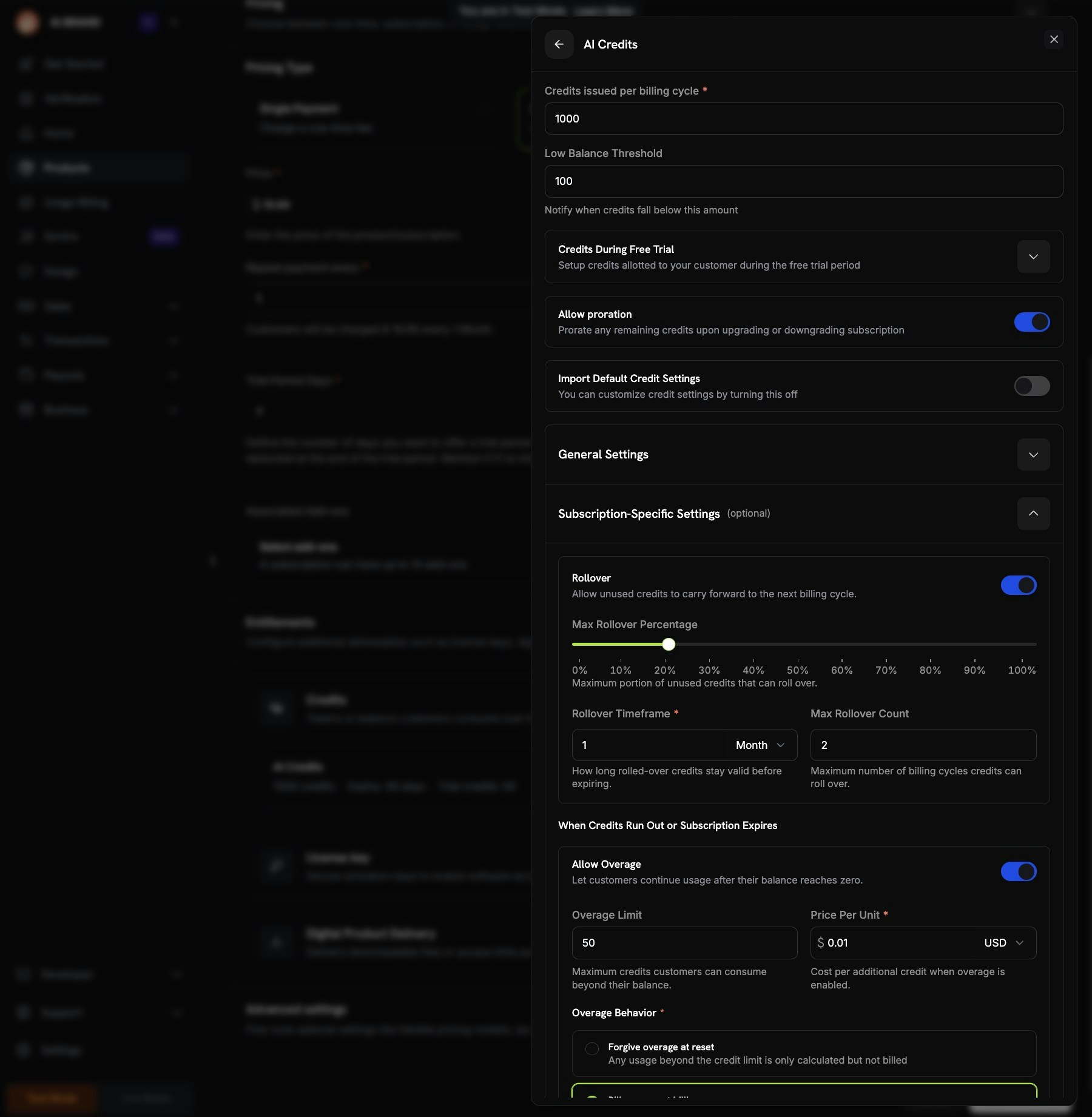
These settings control credit behavior within recurring subscriptions:
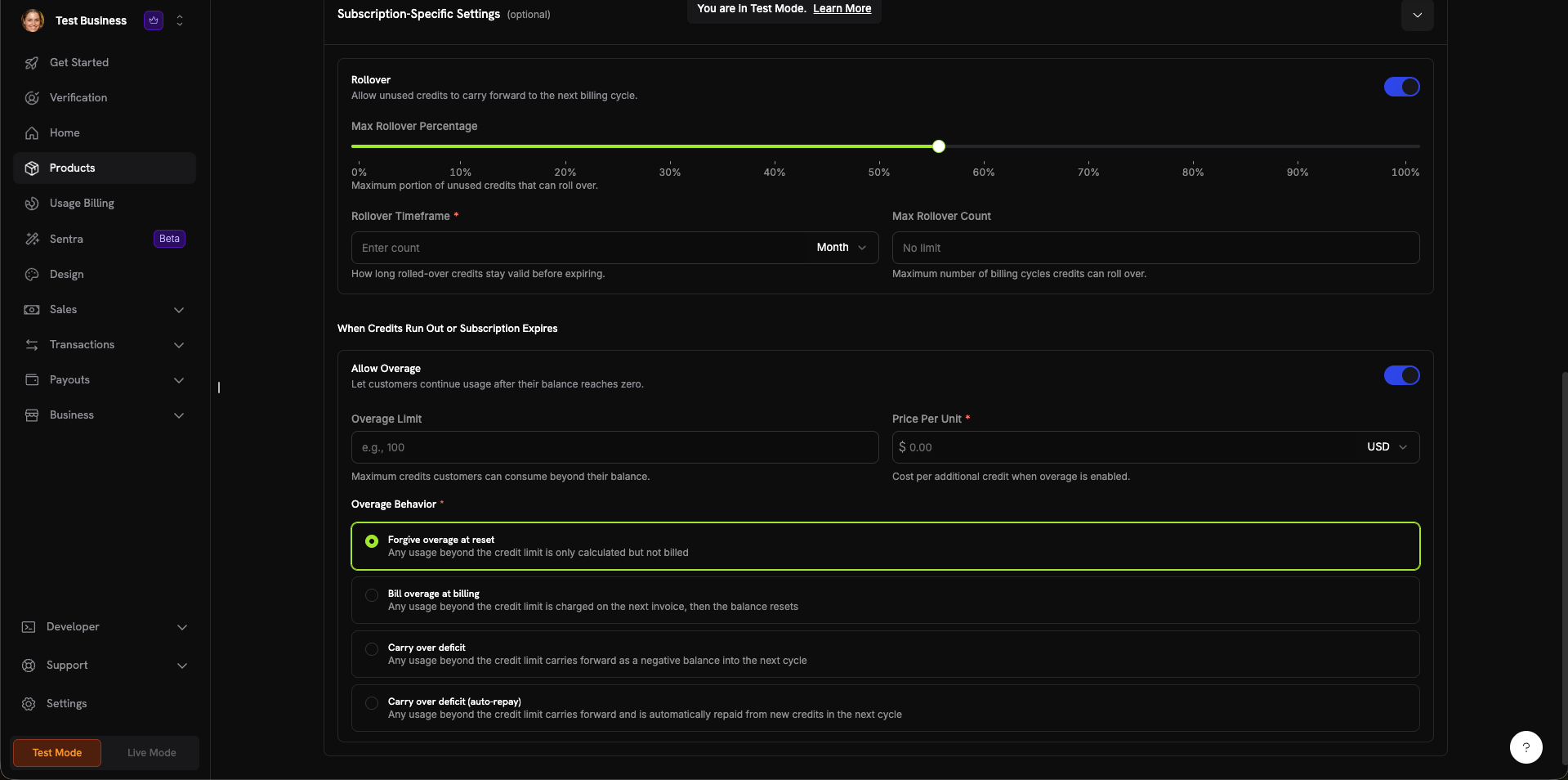
Allow unused credits to carry forward to the next billing cycle. When enabled, configure:
* **Max Rollover Percentage** (0–100%) - Limit how much carries over
* **Rollover Timeframe** - How long rolled-over credits remain valid (e.g., 1 Month)
* **Max Rollover Count** - Maximum consecutive rollovers before credits are forfeited
**When Credits Run Out or Subscription Expires:**
Let customers continue using your service after their credit balance reaches zero. When enabled, configure:
* **Overage Limit** - Maximum credits customers can consume beyond their balance
* **Price Per Unit** - Cost per additional credit when overage is enabled (with currency selector)
Controls how overage is handled at the end of the billing cycle:
* **Forgive overage at reset** (default) - Usage beyond the credit limit is tracked but not billed. Balance resets each cycle.
* **Bill overage at billing** - Usage beyond the credit limit is charged on the next invoice, then the balance resets.
* **Carry over deficit** - Usage beyond the credit limit carries forward as a negative balance into the next cycle.
* **Carry over deficit (auto-repay)** - Deficit carries forward and is automatically repaid from new credits in the next cycle.
Click **Create Credit** to save. The credit is now available to attach to any product.
Your credit entitlement is ready. Attach it to products to start issuing credits to customers.
Start with simple settings - no rollover, no overage - and add complexity as you learn how customers use credits. Most settings can be updated at any time without affecting existing grants. Note that **precision cannot be changed** after a credit is created.
***
## Attaching Credits to Products
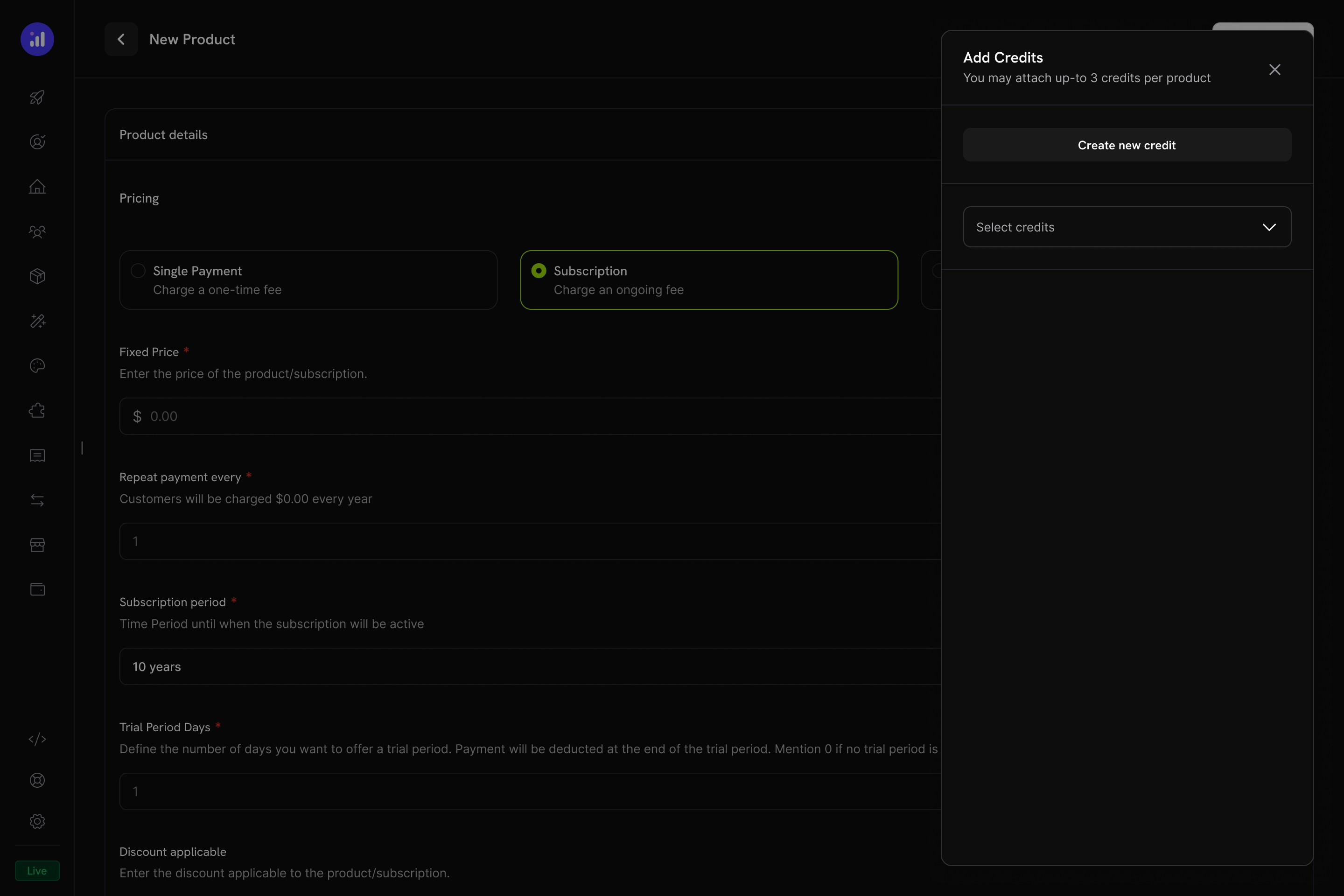
Credits are attached to products as **entitlements** in the product creation or editing flow. You can attach up to **5 credits per product**. Credits work with all three pricing types.
### Subscription Products
For subscriptions, credits are issued **per billing cycle** and can be configured with proration, trial credits, and cycle-specific settings.
Go to **Products → Create Product** or edit an existing product. Select **Subscription** as the pricing type and configure your recurring price.
Expand the **Entitlements** section and click the **Attach** button next to **Credits**.
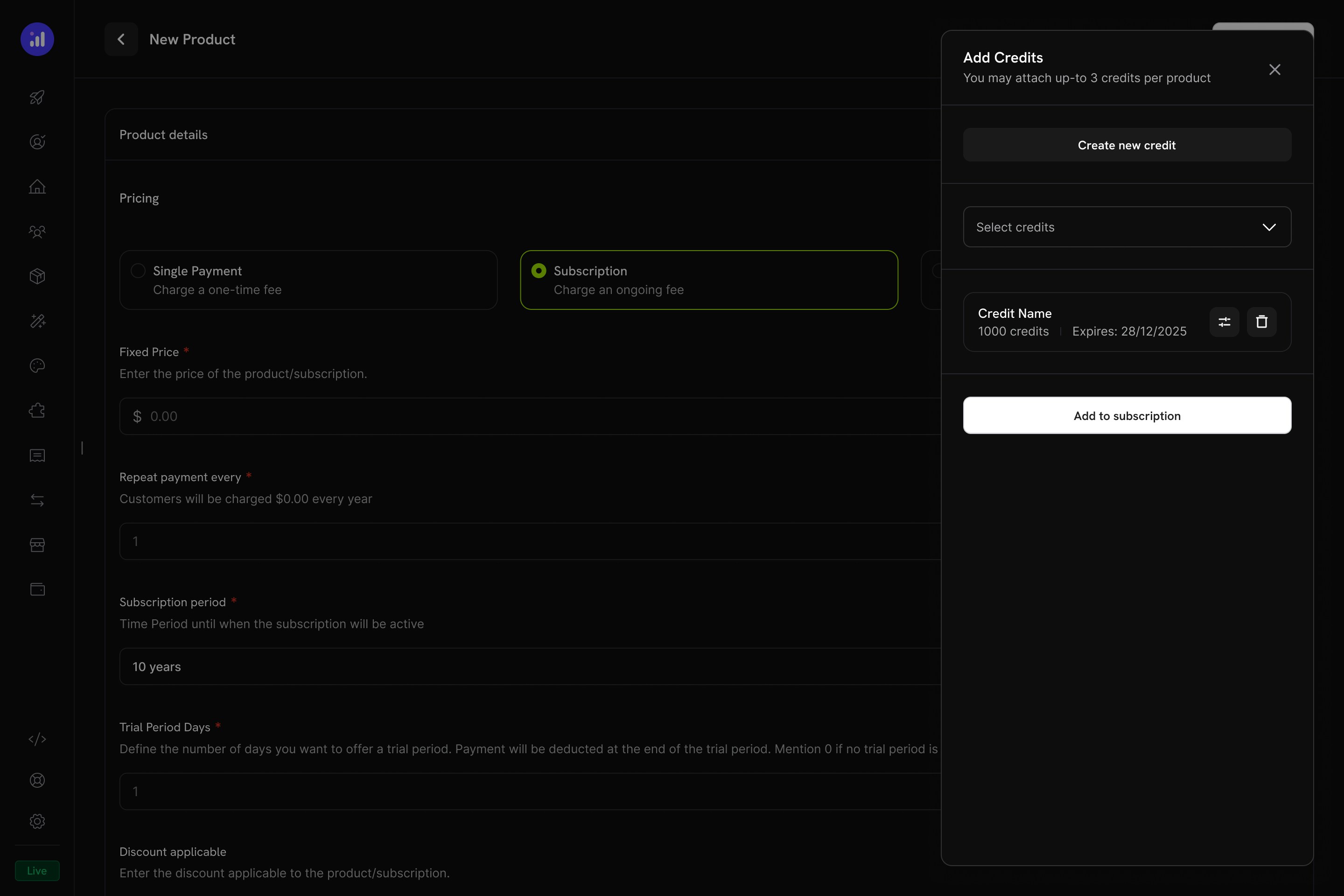
An **Add Credits** panel opens. You can select an existing credit from the dropdown or click **Create new credit** to define one on the spot.
You can attach up to 5 credits per product. Each credit can have its own configuration.
For each attached credit, configure:
The number of credits granted to the customer each billing period.
Notify when credits fall below this amount. Useful for alerting customers before they run out.
Set a different credit amount for trial periods. Enable **Expire trial credits after trial ends** to revoke unused trial credits when the trial converts to a paid subscription.
Prorate remaining credits when a customer upgrades or downgrades their subscription plan.
Use the default rollover, overage, and expiry settings from the credit entitlement. Turn this off to customize settings specifically for this product.
Review the attached credit showing name, amount, and expiration. Click **Add to Subscription** to confirm.
### One-Time Payment Products
For one-time payments, credits are issued **once** at the time of purchase.
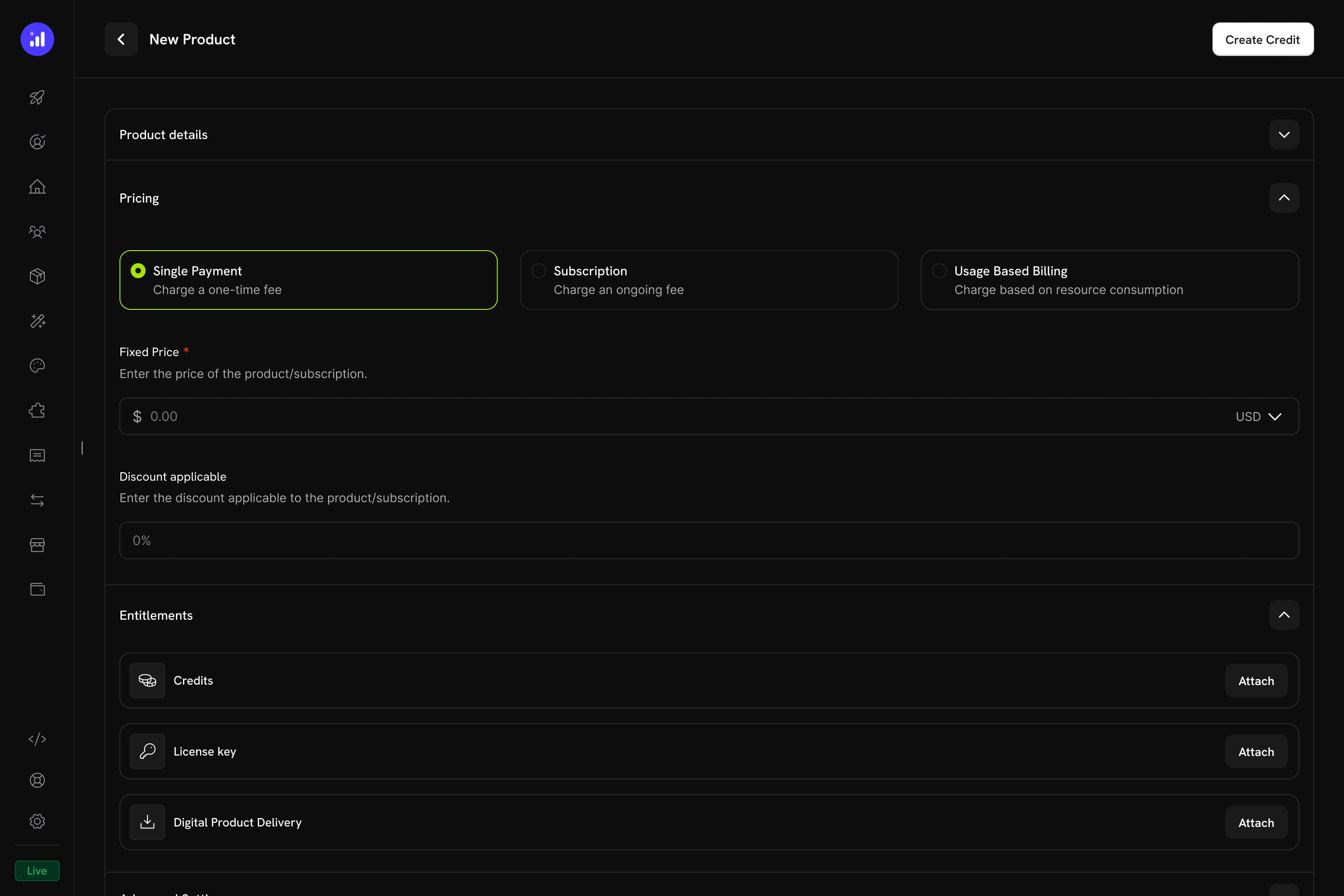
Create a product with **Single Payment** pricing type.
Open the **Entitlements** section and attach credits. Configure the **number of credits issued** (total one-time grant) on purchase.
One-time credit products are ideal for credit top-up packs, promotional bundles, or prepaid credit purchases.
### Usage-Based Billing Products
For usage-based products, credits are **linked to meters** and automatically deducted based on real-time consumption events.
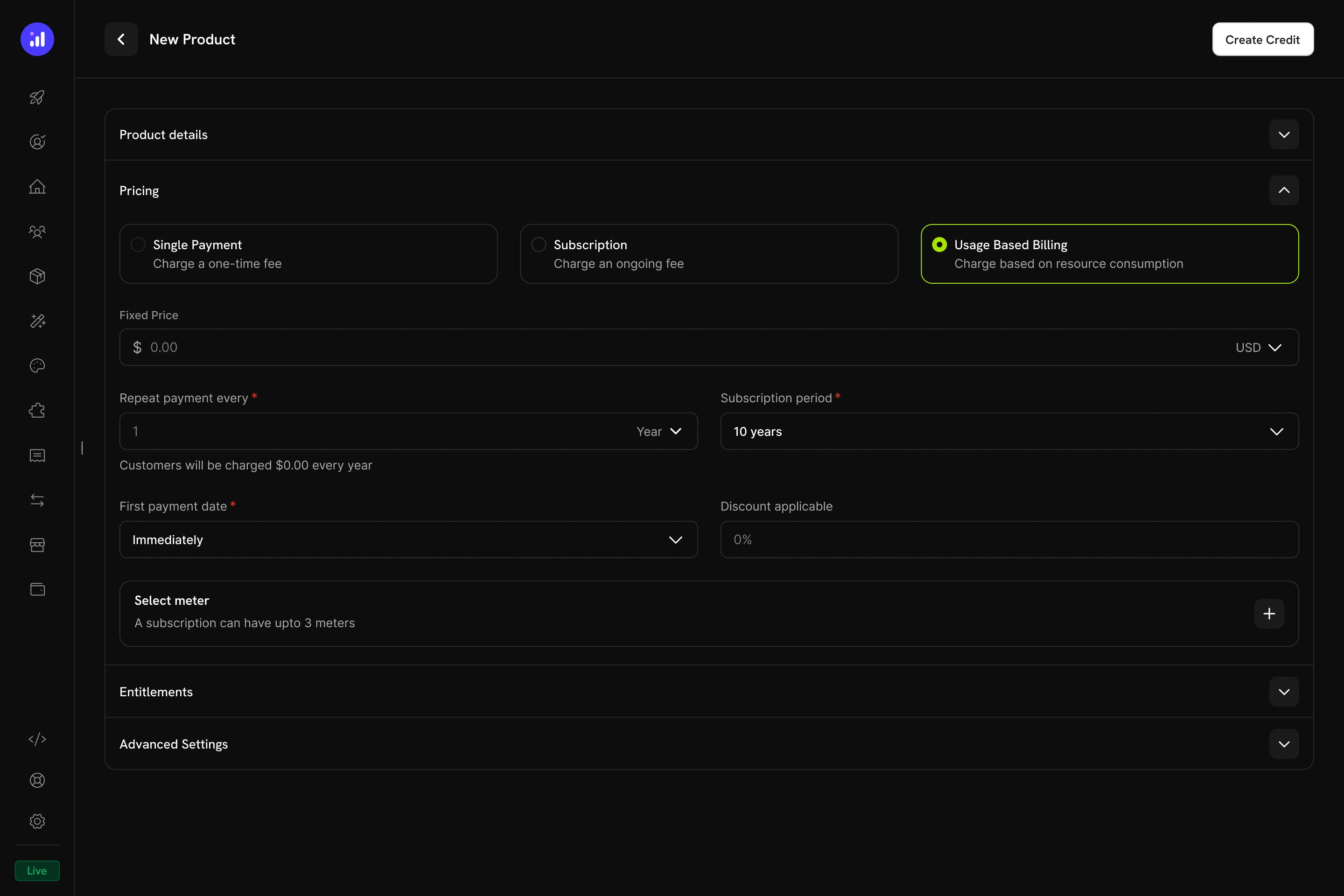
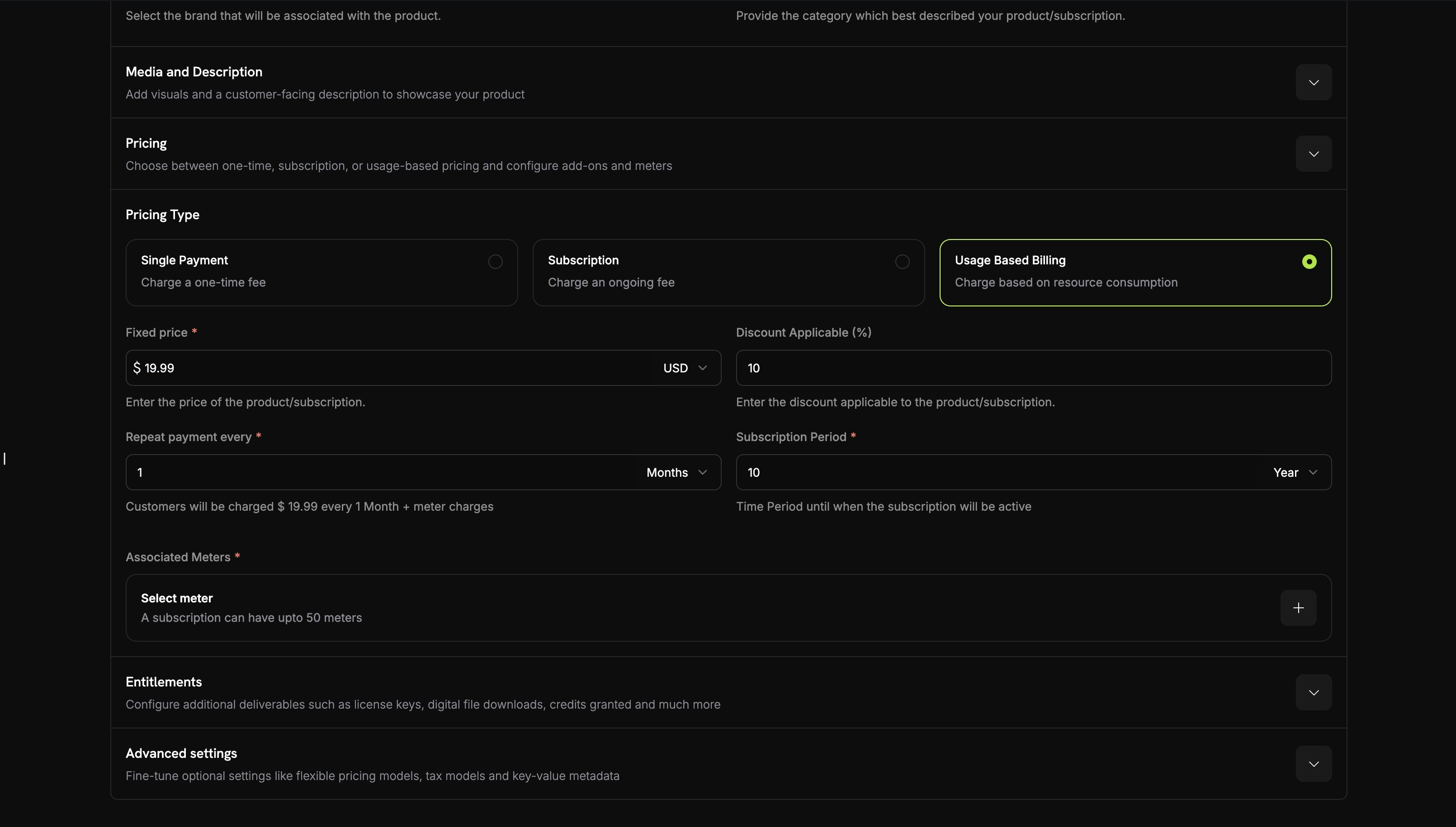
Select **Usage Based Billing** as the pricing type. Configure the base price and billing frequency.
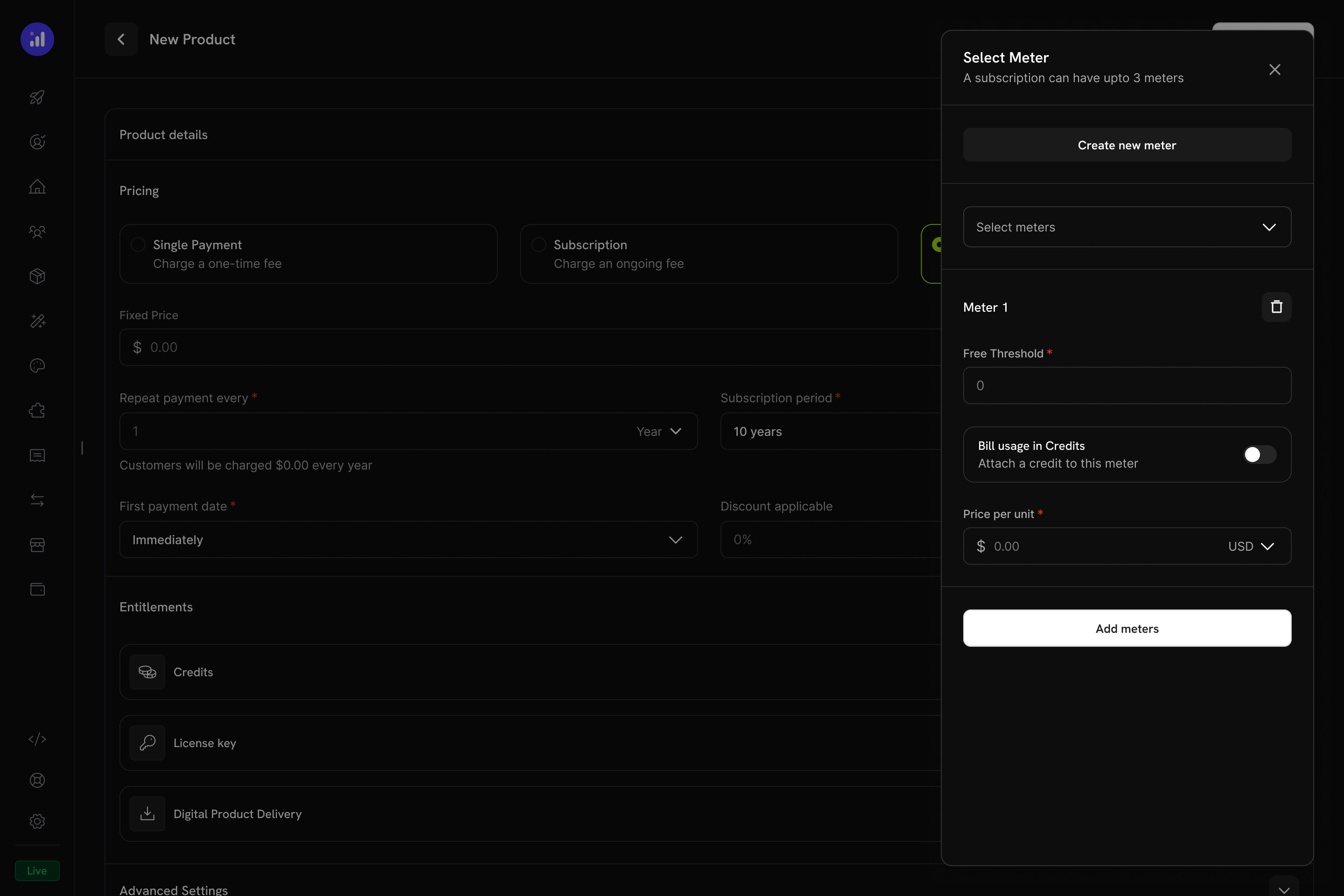
Click the **+** button in the **Select meter** section to add a meter. A subscription can have up to **3 meters**.
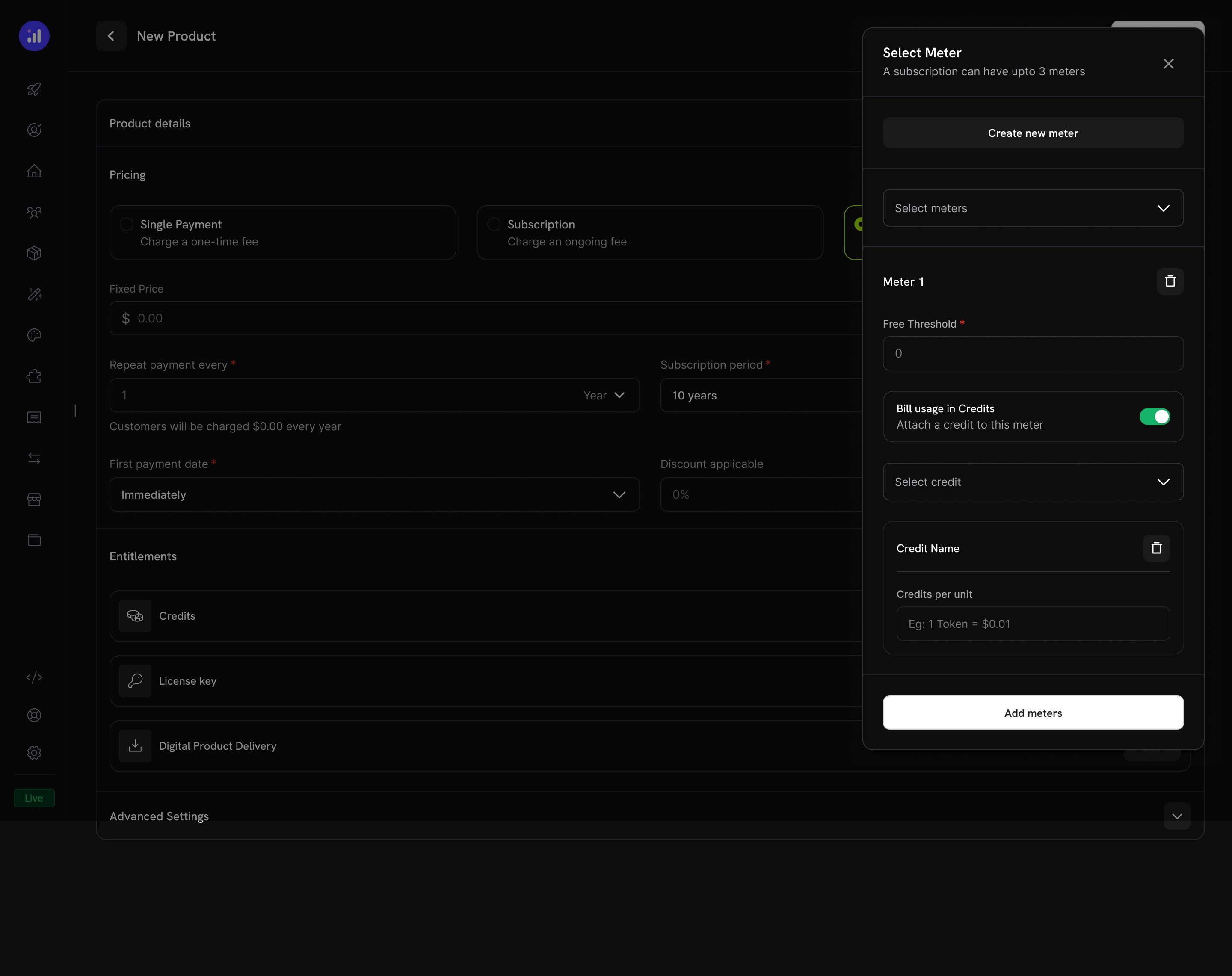
Toggle **Bill usage in Credits** to attach a credit to the meter. Select the credit entitlement from the dropdown.
The number of units that are free before credit deduction begins.
When enabled, meter usage deducts from the customer's credit balance instead of charging per-unit.
The number of usage units required to deduct 1 credit. For example, if set to `1000`, then 1,000 API calls consume 1 credit.
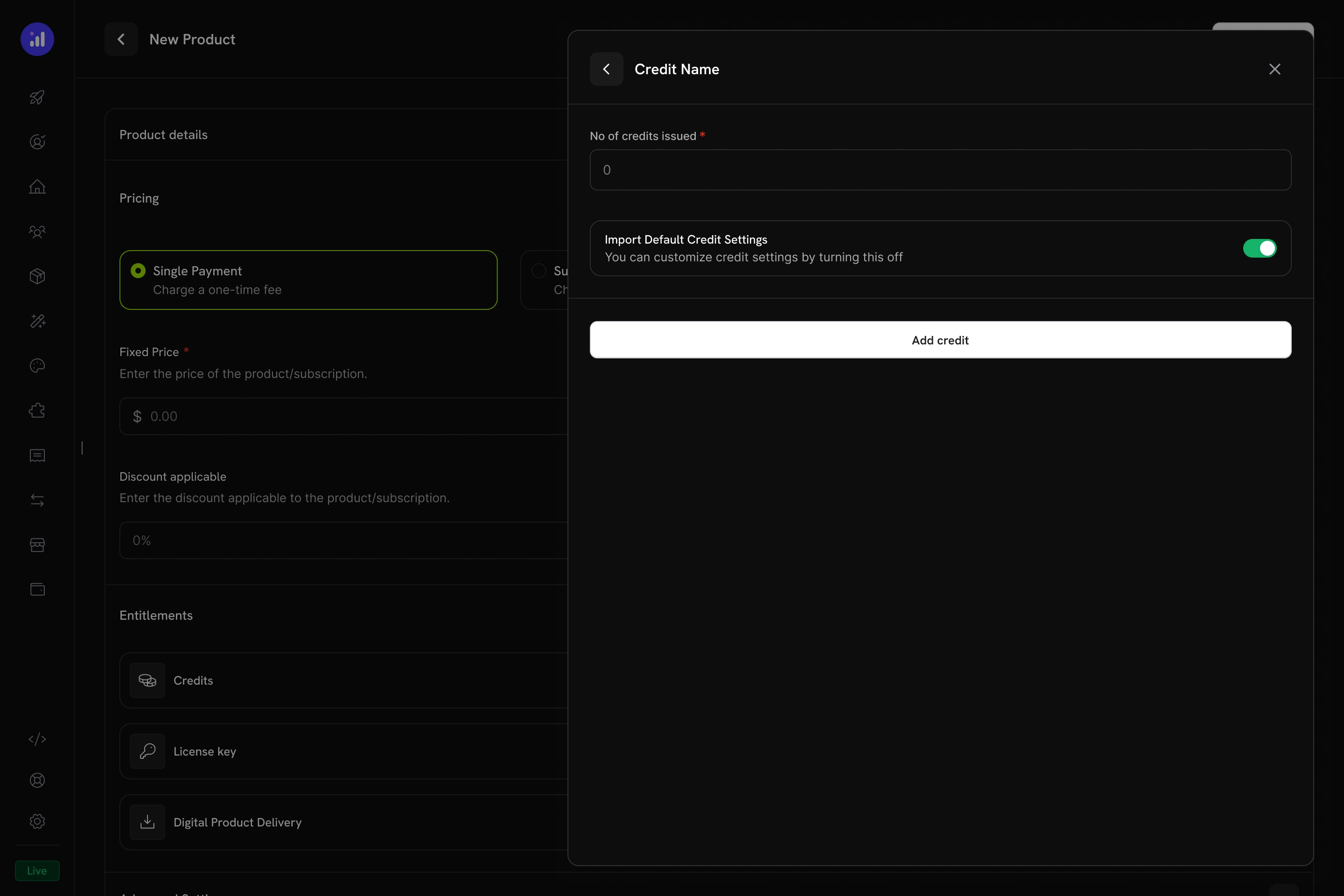
Set the number of credits issued and optionally customize the credit settings for this product.
Once configured, the meter shows the attached credit name, unit price, and free threshold.
When credits are linked to meters, the system automatically deducts credits based on ingested usage events. A background worker processes events every minute, aggregates them according to the meter's configuration, and applies FIFO (first-in, first-out) deduction from the customer's oldest non-expired grants.
***
## Credit Settings
### Rollover
Rollover lets unused credits carry forward to the next billing cycle instead of expiring.
| Setting | Description |
| --------------------------- | ------------------------------------------------------------------------------------------------------------------- |
| **Rollover Enabled** | Toggle to allow unused credits to carry forward |
| **Max Rollover Percentage** | Limit how much carries over (0–100%). At 50%, only half of unused credits roll over |
| **Rollover Timeframe** | How long rolled-over credits remain valid (day, week, month, year) |
| **Max Rollover Count** | Maximum number of times credits can be consecutively rolled over. After this limit, remaining credits are forfeited |
**Example**: A customer has 200 unused credits at cycle end. With 75% rollover, 150 credits carry forward and 50 are forfeited.
### Overage
Overage controls what happens when a customer's credit balance reaches zero mid-cycle.
| Setting | Description |
| -------------------- | ------------------------------------------------------------------------------ |
| **Allow Overage** | Toggle to let customers continue using the service beyond their credit balance |
| **Overage Limit** | Maximum credits customers can consume beyond their balance |
| **Price Per Unit** | Cost per additional credit consumed as overage (with currency) |
| **Overage Behavior** | Controls what happens to overage at the end of the billing cycle (see below) |
**Overage Behavior options:**
| Behavior | Description |
| ----------------------------------- | -------------------------------------------------------------------------------------- |
| **Forgive overage at reset** | Usage beyond the credit limit is tracked but not billed. Balance resets each cycle |
| **Bill overage at billing** | Usage beyond the credit limit is charged on the next invoice, then the balance resets |
| **Carry over deficit** | Overage carries forward as a negative balance into the next cycle |
| **Carry over deficit (auto-repay)** | Deficit carries forward and is automatically repaid from new credits in the next cycle |
When overage is disabled, customers cannot use the service once their credit balance reaches zero. Choose an overage behavior that matches your billing model - **Forgive at reset** is the default and simplest option.
### Expiration
| Setting | Description |
| ------------------------------------ | ------------------------------------------------------------------------------------ |
| **Credit Expiry** | Duration after issuance before credits expire (7, 30, 60, 90, custom days, or never) |
| **Trial Credits Expire After Trial** | Whether trial-specific credits expire when the trial period ends |
Expired credits create a `CreditExpired` ledger entry. If rollover is enabled, the rollover percentage is applied before expiration, and only the remainder expires.
***
## Usage Billing with Credits
When credits are linked to usage meters, the system creates a powerful consumption-based billing model. Customers receive a credit allocation, and usage events automatically deduct from their balance.
### How Meter-Based Credit Deduction Works
1. **Your application sends usage events** - Each event includes a customer ID, event name, and metadata
2. **Meters aggregate events** - Using Count, Sum, Max, or Last aggregation
3. **Credits are deducted automatically** - A background worker processes events every minute, converts meter units to credits using your configured rate, and deducts from the customer's balance using FIFO ordering (oldest grants first)
4. **Overage is tracked** - If the credit balance reaches zero and overage is enabled, the system tracks overage usage for end-of-cycle billing
### Meters Panel
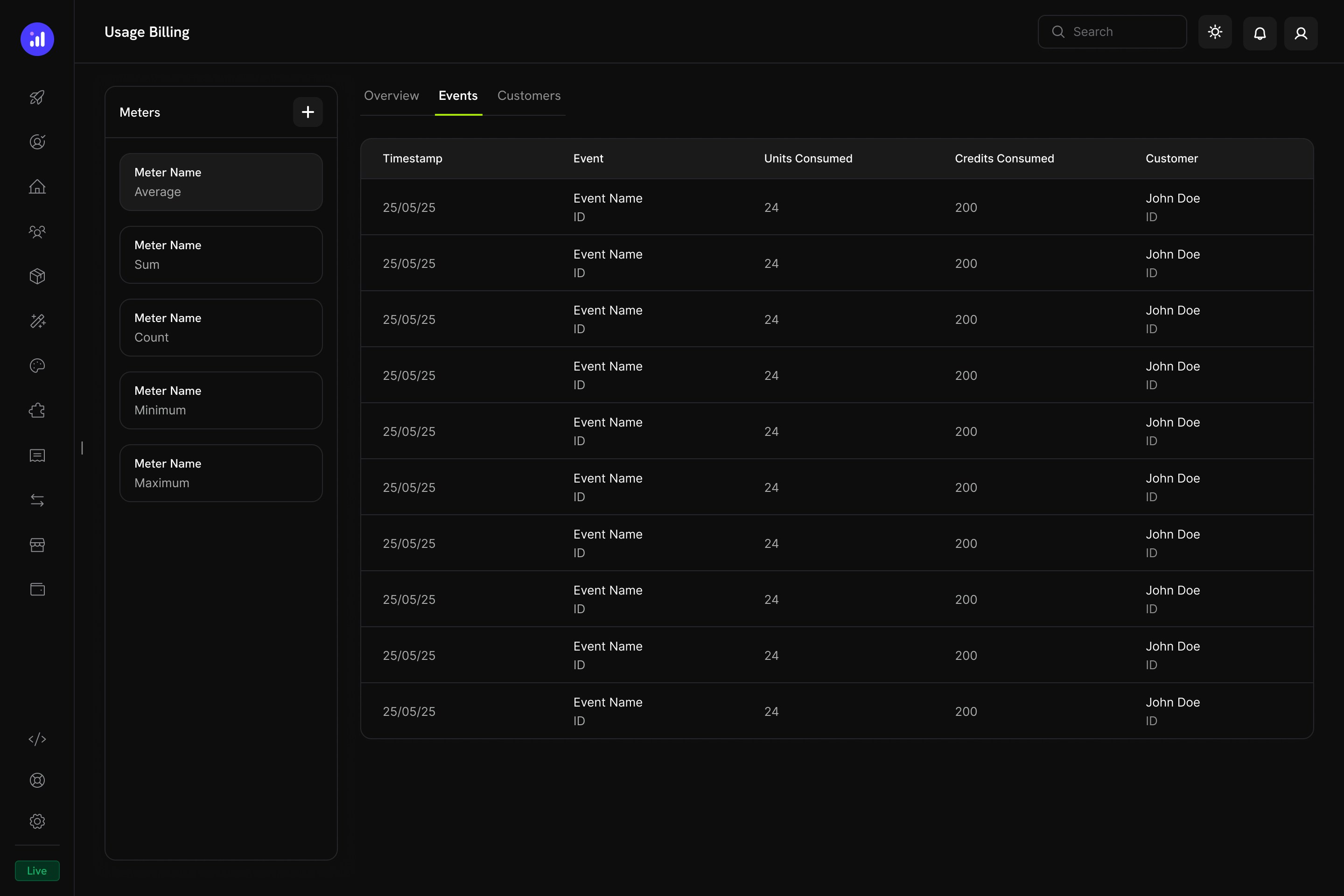
The Usage Billing dashboard includes a **Meters** panel listing all defined meters with their aggregation type:
| Aggregation | Description | Example |
| ----------- | ---------------------- | ----------------------- |
| **Count** | Total number of events | API calls |
| **Sum** | Sum of a value field | Total bytes transferred |
| **Max** | Highest value recorded | Peak concurrent users |
| **Last** | Most recent value | Current storage used |
***
## Customer Experience
### Checkout
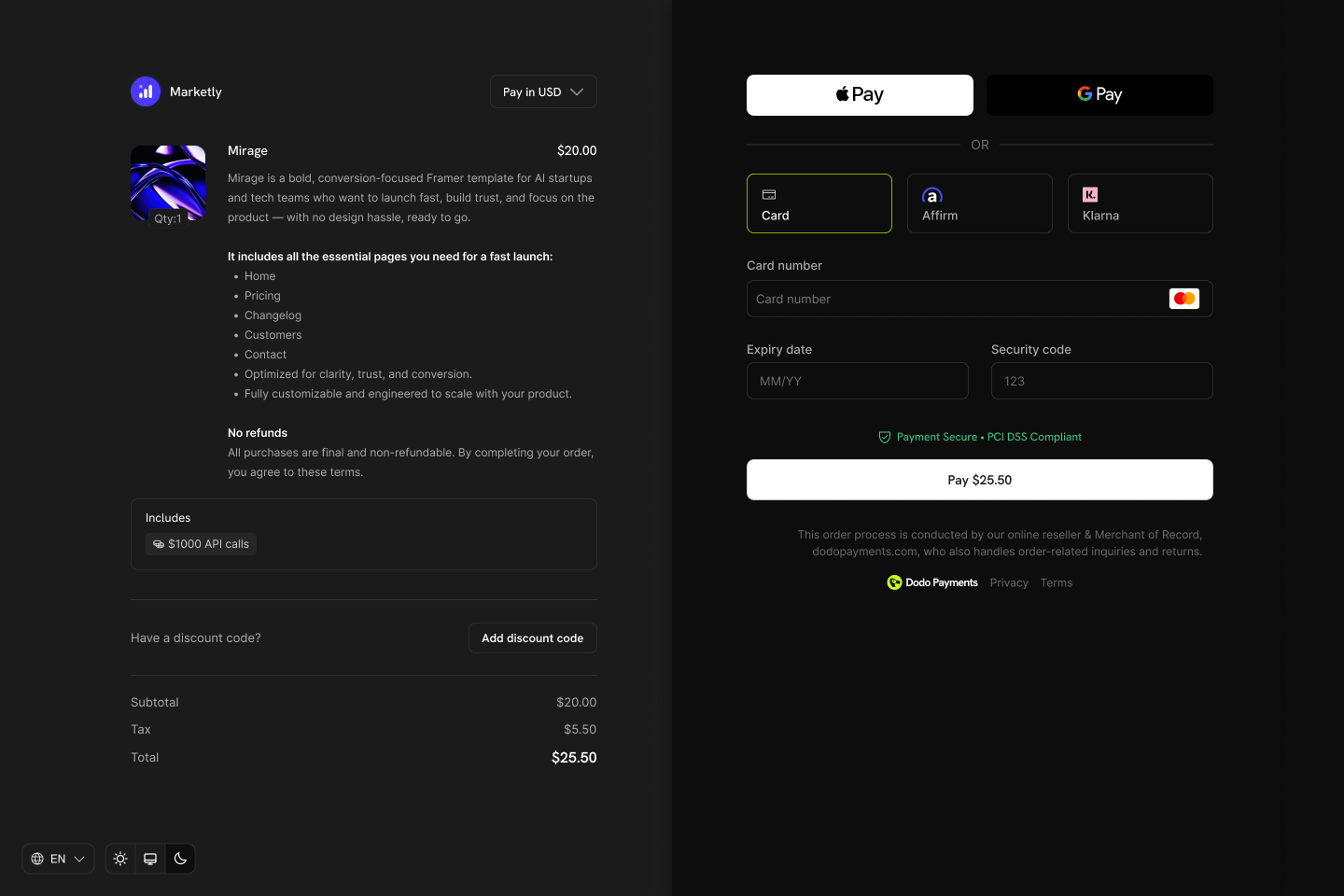
When a customer purchases a product with attached credits, the checkout page displays the included credits as part of the product offering.
Credits appear in an **Includes** section below the product description, showing the credit amount and type (e.g., "\$1000 API calls").
### Customer Portal
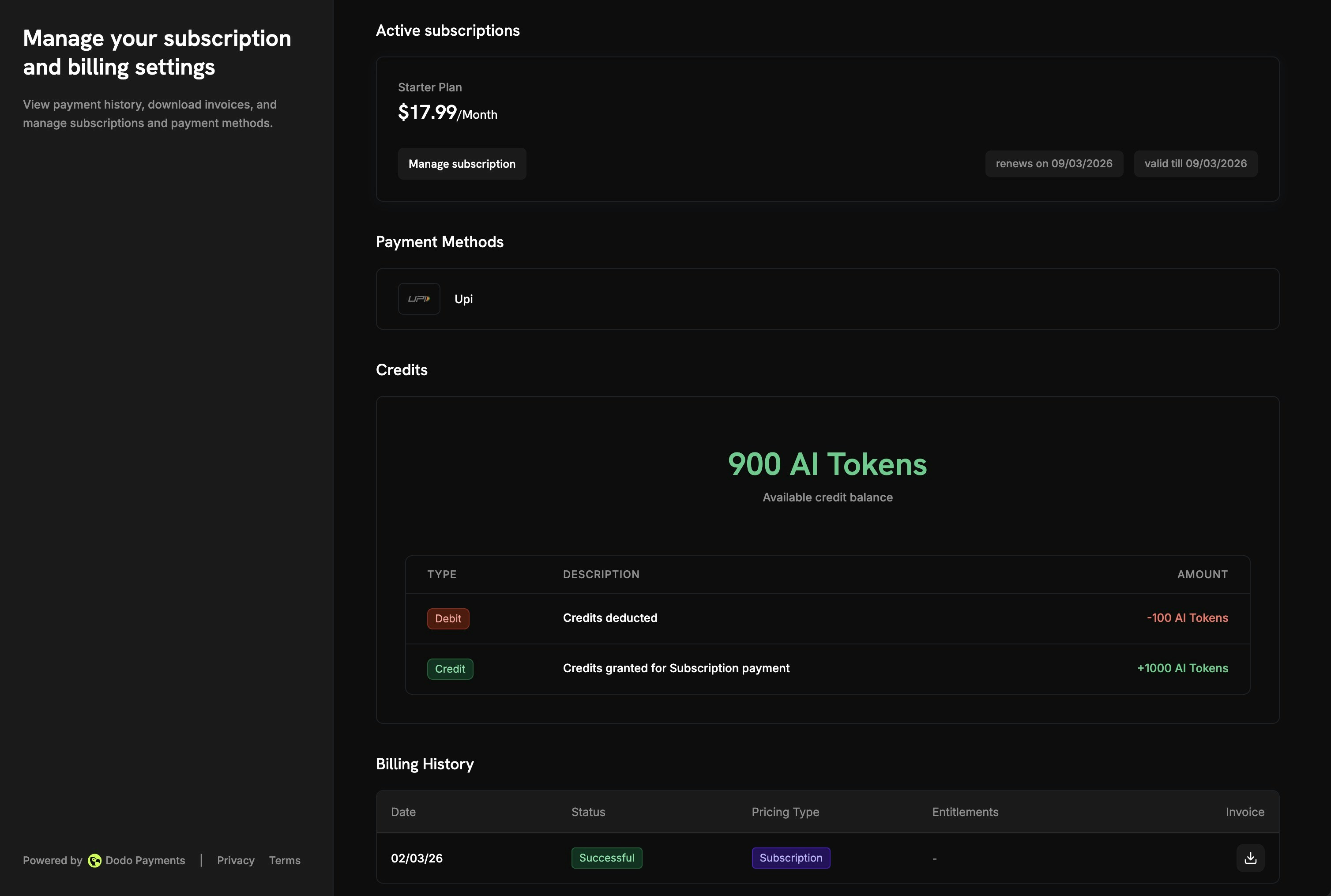
Customers can view and manage their credit balances in the Customer Portal under the **Credits** section.
The portal displays:
* **Available Balance** - Current credit balance displayed prominently
* **Credit Tabs** - Switch between different credit types (e.g., "OpenAI Credits", "Usage Tokens")
* **Recent Transactions** - Full history with date, transaction ID, type, amount, and running balance
Transaction types shown to customers include:
| Type | Description | Amount |
| ----------------------------- | ------------------------------------------------- | --------- |
| **Credits with Subscription** | Credits issued with subscription purchase/renewal | Green (+) |
| **One-Time Credits** | Credits from one-time purchases or manual grants | Green (+) |
| **Usage Deduction** | Credits consumed through service usage | Red (-) |
| **Overage** | Usage beyond credit balance | Red (-) |
### Subscription Details
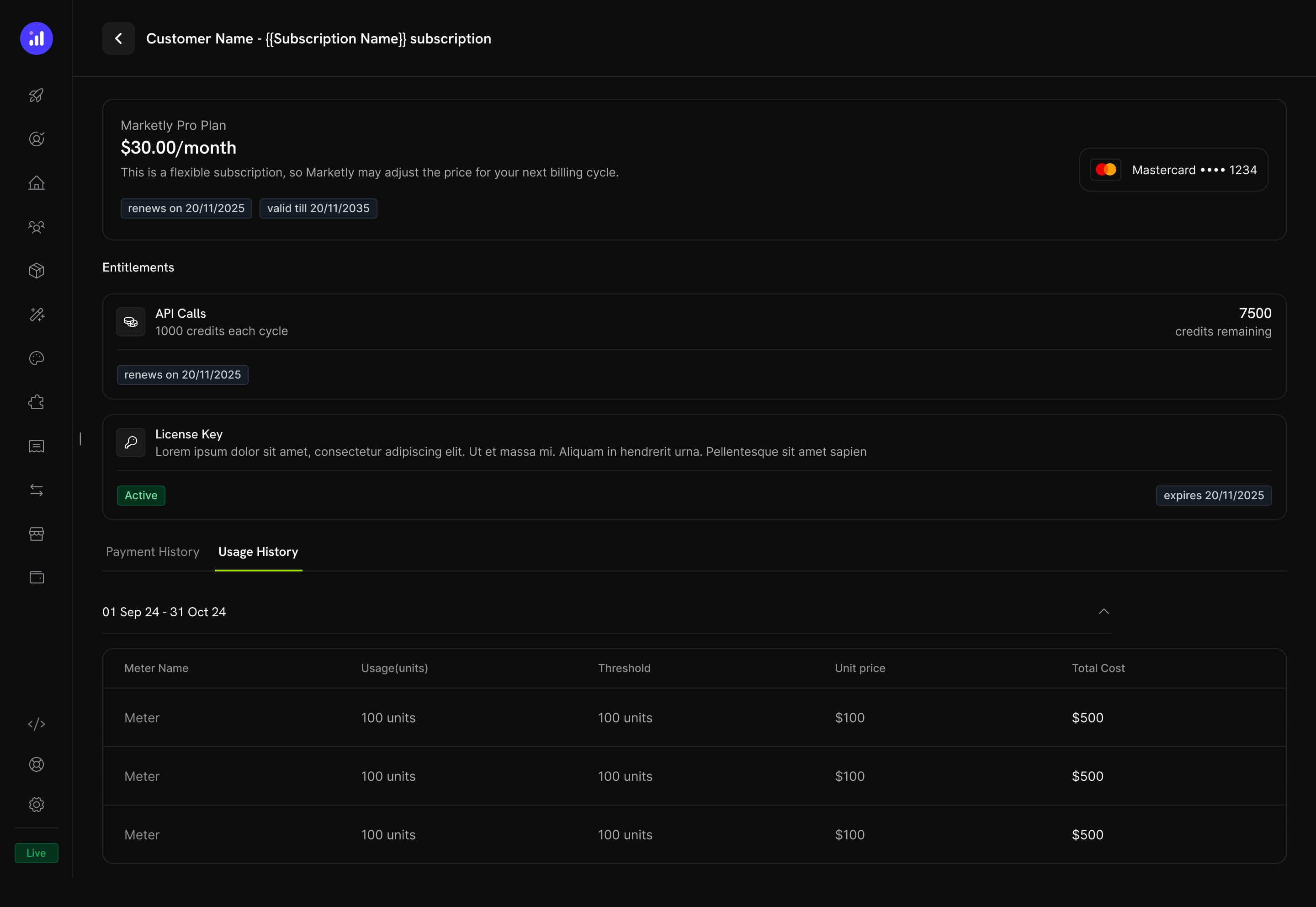
The subscription detail page shows credit entitlements alongside other plan information.
Key information displayed:
* **Credit allocation** per billing cycle (e.g., "1000 credits each cycle")
* **Remaining balance** (e.g., "7500 credits remaining")
* **Renewal date** for next credit issuance
* **Usage History** tab with meter-level breakdown showing units consumed, thresholds, unit prices, and total costs
### Transaction Details
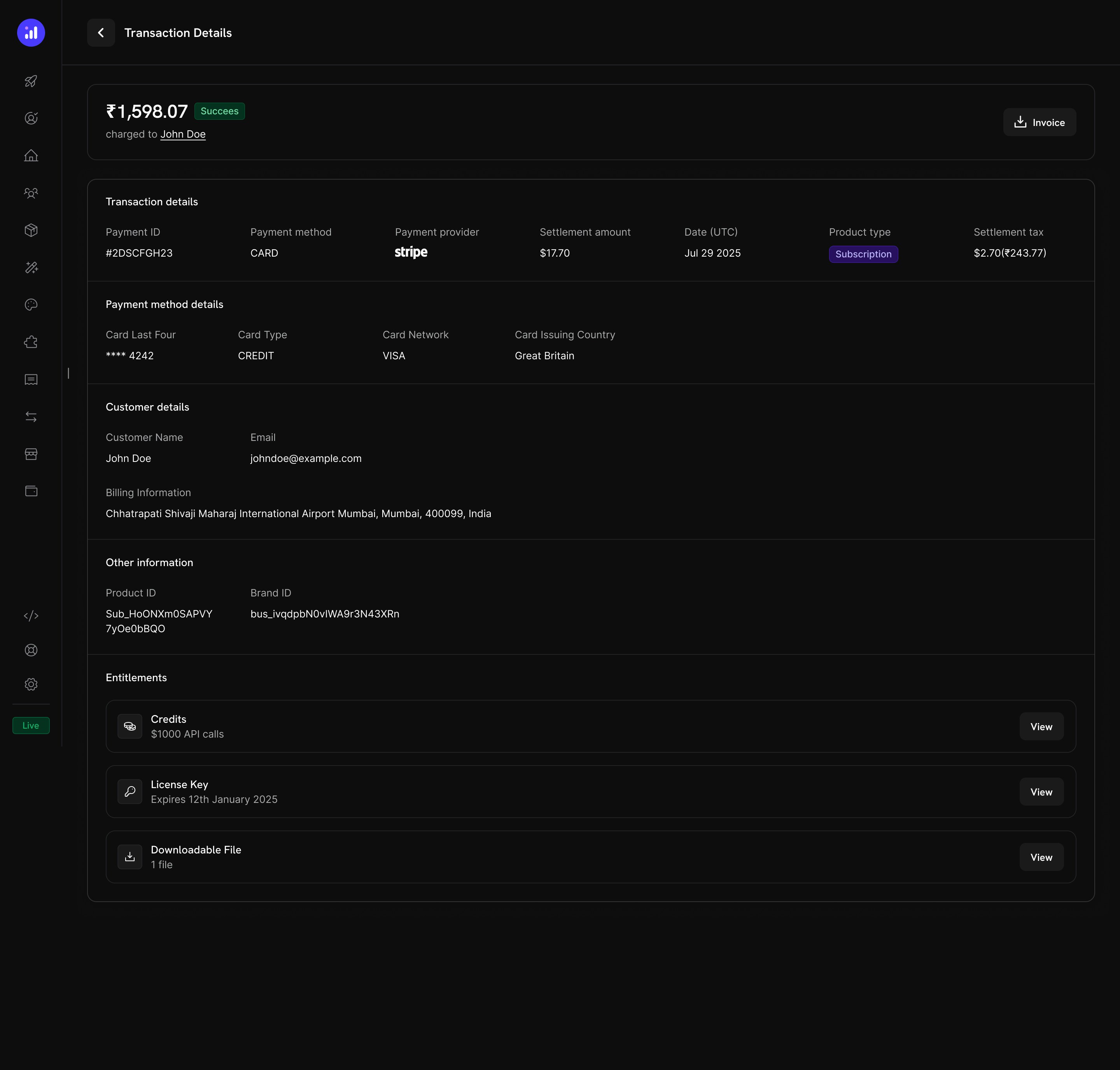
Payment transaction pages include an **Entitlements** section showing all entitlements delivered with the payment, including credits.
***
## Managing Credits
### Dashboard Views
#### Credit Entitlements List
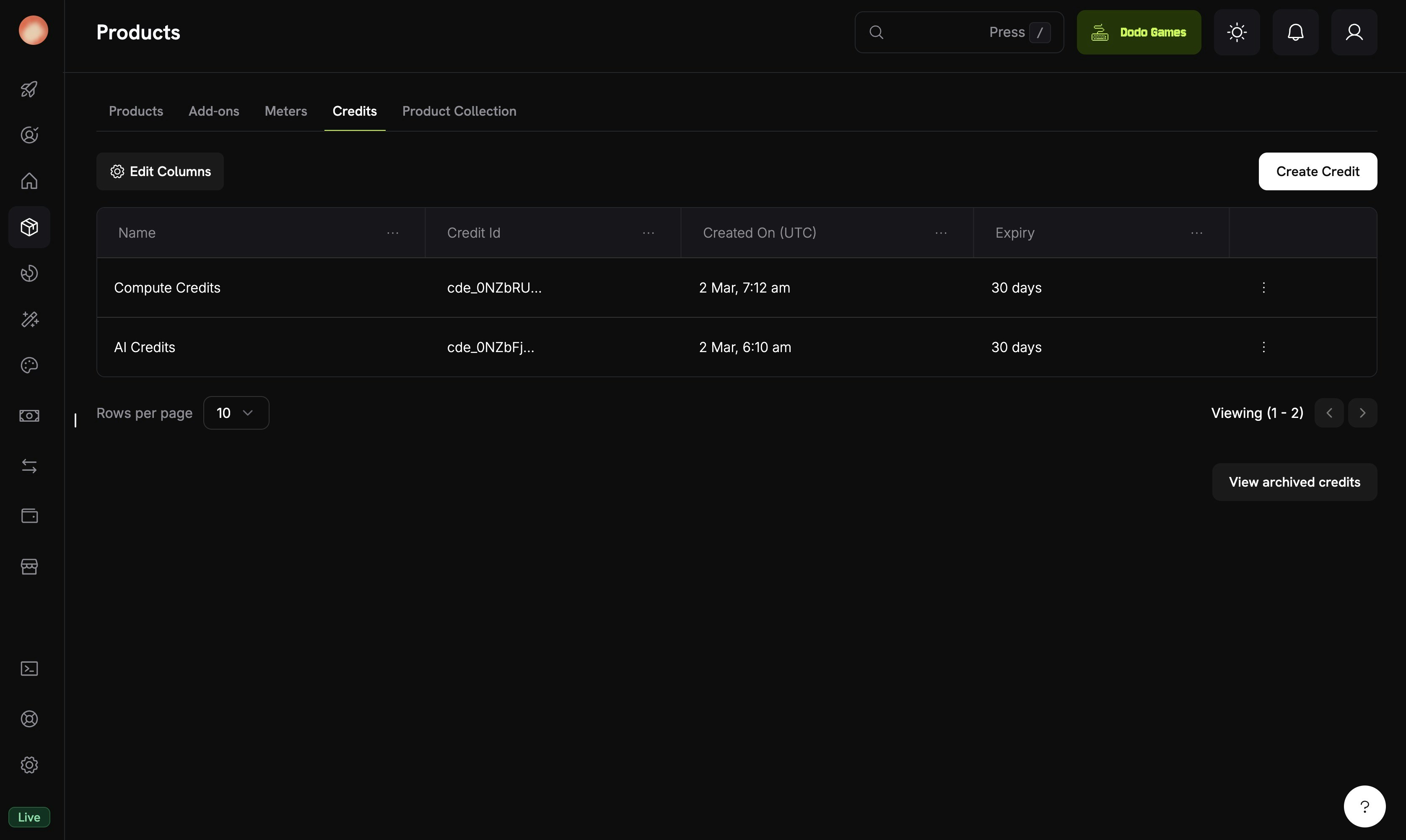
View all your credit entitlements in **Products → Credits**. The table shows credit name, expiry settings, and provides quick actions for editing or archiving.
#### Customer Credit Details
View a specific customer's credit balances and transaction history from **Customers → \[Customer Name] → Credits**.
The customer credit view includes:
* **Credit Selector** - Switch between different credit entitlements
* **Available Balance** - Current balance in large, prominent display
* **Apply Credit/Debit** - Button to manually adjust the customer's balance
* **Recent Transactions** - Full ledger with date, transaction ID, type, amount, and running balance
### Manual Adjustments
You can manually credit or debit a customer's balance directly from the dashboard:
Go to **Customers** and select the customer.
Click the **Credits** tab and select the appropriate credit entitlement from the wallet selector.
Click **Apply Credit/Debit** to open the adjustment interface.
Select **Credit** to add credits or **Debit** to remove credits from the customer's balance.
The number of credits to add or remove.
Optional explanation for the adjustment (e.g., "Service compensation", "Promotional bonus").
Review and apply the adjustment. The change is reflected immediately in the customer's balance and recorded in the credit ledger.
Manual adjustments create a `ManualAdjustment` ledger entry with full audit trail.
### Credit Ledger
Every credit operation is recorded in the credit ledger, providing a complete audit trail:
| Transaction Type | Description |
| ---------------------- | --------------------------------------------------------- |
| **Credit Added** | Credits granted (subscription, one-time, or API) |
| **Credit Deducted** | Credits consumed through usage or manual debit |
| **Credit Expired** | Credits expired without rollover |
| **Credit Rolled Over** | Credits carried forward to the next period |
| **Rollover Forfeited** | Rolled credits forfeited after max rollover count reached |
| **Overage Charged** | Usage beyond credit balance with overage enabled |
| **Auto Top-Up** | Automatic credit replenishment at low balance |
| **Manual Adjustment** | Credit or debit applied manually by merchant |
| **Refund** | Credits refunded |
Each ledger entry records the balance before and after the transaction, overage before and after, a description, and reference to the source (payment, subscription, etc.).
***
## Webhooks
Credit-Based Billing fires webhook events for every credit lifecycle change. Use these to keep your application in sync with credit balances, trigger notifications, or build custom billing workflows.
| Event | Description |
| --------------------------- | ---------------------------------------------- |
| `credit.added` | Credits granted to a customer |
| `credit.deducted` | Credits consumed through usage or manual debit |
| `credit.expired` | Unused credits expired |
| `credit.rolled_over` | Credits carried forward to a new grant |
| `credit.rollover_forfeited` | Credits forfeited at max rollover count |
| `credit.overage_charged` | Overage charges applied |
| `credit.manual_adjustment` | Manual credit/debit adjustment made |
| `credit.balance_low` | Balance dropped below configured threshold |
All ledger events (`credit.added` through `credit.manual_adjustment`) include the full `CreditLedgerEntry` payload with balance before/after, overage before/after, source reference, and the `metadata` of the grant's source subscription or payment (empty for grants created directly via the API). The `credit.balance_low` event includes the threshold configuration and current balance.
View full payload schemas, field descriptions, and integration examples for all credit webhook events.
***
## API Management
Use the API to create credit entitlements programmatically with full control over rollover, overage, and expiration settings.
Create a new credit entitlement with rollover, overage, and expiry configuration.
Retrieve all credit entitlements for your business.
Retrieve, update, or delete credit entitlements. Deleted entitlements can be restored.
Retrieve a specific credit entitlement by ID.
Update rollover, overage, expiry, or other settings.
Soft-delete a credit entitlement.
Restore a previously deleted credit entitlement.
Grant credits directly to a customer's balance without requiring a purchase, or create manual debit entries for billing adjustments.
Credit or debit a customer's balance with full audit trail and idempotency support.
Retrieve a customer's current credit balance, grant history, and full ledger of transactions for any credit entitlement.
List all customer balances for a credit entitlement.
Get a specific customer's balance.
View all credit grants for a customer.
Full transaction history for a customer.
### Integration Example
Initialize the Dodo Payments client:
```typescript theme={null}
import DodoPayments from 'dodopayments';
const client = new DodoPayments({
bearerToken: process.env['DODO_PAYMENTS_API_KEY'],
environment: 'test_mode', // defaults to 'live_mode'
});
```
Attach credits to a subscription product during checkout:
```typescript theme={null}
const session = await client.checkoutSessions.create({
product_cart: [
{
product_id: 'prod_ai_pro_plan',
quantity: 1,
}
],
customer: { email: 'customer@example.com' },
return_url: 'https://yourapp.com/success'
});
```
Send usage events that deduct credits automatically:
```typescript theme={null}
await client.usageEvents.ingest({
events: [{
event_id: `gen_${Date.now()}`,
customer_id: 'cus_abc123',
event_name: 'ai.generation',
timestamp: new Date().toISOString(),
metadata: { model: 'gpt-4', tokens: 1500 }
}]
});
```
***
## Real-World Examples
**Pricing Structure:**
| Plan | Price | Credits/Month | Overage |
| ---------- | -------- | ---------------- | ------------- |
| Starter | \$29/mo | 10,000 tokens | \$0.003/token |
| Pro | \$99/mo | 100,000 tokens | \$0.002/token |
| Enterprise | \$499/mo | 1,000,000 tokens | \$0.001/token |
**Configuration:**
* Credit Type: Custom Unit ("AI Tokens")
* Precision: 0 (whole tokens)
* Rollover: 25% max, 1-month timeframe
* Overage: Enabled, bill overage at billing
* Meter: `ai.generation` with Sum aggregation on `tokens` field
**Pricing Structure:**
| Plan | Price | Credits/Month | Overage |
| --------- | ------- | ------------- | ------------- |
| Free | \$0/mo | 1,000 calls | Blocked |
| Developer | \$19/mo | 50,000 calls | \$0.001/call |
| Business | \$99/mo | 500,000 calls | \$0.0005/call |
**Configuration:**
* Credit Type: Custom Unit ("API Calls")
* Precision: 0 (whole calls)
* Rollover: Disabled
* Overage: Developer+ plans allow overage (forgive at reset), Free plan disables overage
* Meter: `api.request` with Count aggregation
**Pricing Structure:**
| Plan | Price | Credits/Month | Overage |
| -------- | ------- | -------------- | -------------- |
| Personal | \$9/mo | 100 GB-hours | \$0.05/GB-hour |
| Team | \$49/mo | 1,000 GB-hours | \$0.03/GB-hour |
**Configuration:**
* Credit Type: Custom Unit ("GB-hours")
* Precision: 2 (two decimal places)
* Rollover: 50% max, carries over once
* Overage: Enabled with 200% limit
* Meter: `storage.usage` with Sum aggregation
***
## Best Practices
* **Start simple**: Begin with a single credit type and no rollover. Add complexity based on customer feedback and usage patterns.
* **Set clear expectations**: Display credit allocations, remaining balances, and overage pricing prominently in your product pages and customer portal.
* **Use meaningful units**: Name credits after what they represent (e.g., "API Calls", "AI Tokens") rather than generic terms. This helps customers understand value.
* **Configure expiry thoughtfully**: Short expiry windows (7 days) drive urgency but may frustrate customers. Longer windows (30–90 days) are more customer-friendly for most SaaS products.
* **Monitor low balances**: Set low balance thresholds to alert customers before they run out, reducing surprise overage charges.
* **Test in test mode**: Create credits, attach them to test products, and simulate the full purchase → usage → deduction → expiration cycle before going live.
Credit-Based Billing works seamlessly with all other Dodo Payments features - subscriptions with trials, plan changes with proration, and the customer portal. Start with a basic setup and expand as your pricing model evolves.
 ## Core Concepts
### Credit Types
When creating a credit, you choose between two types:
## Core Concepts
### Credit Types
When creating a credit, you choose between two types:

 ### How Meter-Based Credit Deduction Works
1. **Your application sends usage events** - Each event includes a customer ID, event name, and metadata
2. **Meters aggregate events** - Using Count, Sum, Max, or Last aggregation
3. **Credits are deducted automatically** - A background worker processes events every minute, converts meter units to credits using your configured rate, and deducts from the customer's balance using FIFO ordering (oldest grants first)
4. **Overage is tracked** - If the credit balance reaches zero and overage is enabled, the system tracks overage usage for end-of-cycle billing
### Meters Panel
The Usage Billing dashboard includes a **Meters** panel listing all defined meters with their aggregation type:
| Aggregation | Description | Example |
| ----------- | ---------------------- | ----------------------- |
| **Count** | Total number of events | API calls |
| **Sum** | Sum of a value field | Total bytes transferred |
| **Max** | Highest value recorded | Peak concurrent users |
| **Last** | Most recent value | Current storage used |
***
## Customer Experience
### Checkout
When a customer purchases a product with attached credits, the checkout page displays the included credits as part of the product offering.
### How Meter-Based Credit Deduction Works
1. **Your application sends usage events** - Each event includes a customer ID, event name, and metadata
2. **Meters aggregate events** - Using Count, Sum, Max, or Last aggregation
3. **Credits are deducted automatically** - A background worker processes events every minute, converts meter units to credits using your configured rate, and deducts from the customer's balance using FIFO ordering (oldest grants first)
4. **Overage is tracked** - If the credit balance reaches zero and overage is enabled, the system tracks overage usage for end-of-cycle billing
### Meters Panel
The Usage Billing dashboard includes a **Meters** panel listing all defined meters with their aggregation type:
| Aggregation | Description | Example |
| ----------- | ---------------------- | ----------------------- |
| **Count** | Total number of events | API calls |
| **Sum** | Sum of a value field | Total bytes transferred |
| **Max** | Highest value recorded | Peak concurrent users |
| **Last** | Most recent value | Current storage used |
***
## Customer Experience
### Checkout
When a customer purchases a product with attached credits, the checkout page displays the included credits as part of the product offering.
 The portal displays:
* **Available Balance** - Current credit balance displayed prominently
* **Credit Tabs** - Switch between different credit types (e.g., "OpenAI Credits", "Usage Tokens")
* **Recent Transactions** - Full history with date, transaction ID, type, amount, and running balance
Transaction types shown to customers include:
| Type | Description | Amount |
| ----------------------------- | ------------------------------------------------- | --------- |
| **Credits with Subscription** | Credits issued with subscription purchase/renewal | Green (+) |
| **One-Time Credits** | Credits from one-time purchases or manual grants | Green (+) |
| **Usage Deduction** | Credits consumed through service usage | Red (-) |
| **Overage** | Usage beyond credit balance | Red (-) |
### Subscription Details
The subscription detail page shows credit entitlements alongside other plan information.
The portal displays:
* **Available Balance** - Current credit balance displayed prominently
* **Credit Tabs** - Switch between different credit types (e.g., "OpenAI Credits", "Usage Tokens")
* **Recent Transactions** - Full history with date, transaction ID, type, amount, and running balance
Transaction types shown to customers include:
| Type | Description | Amount |
| ----------------------------- | ------------------------------------------------- | --------- |
| **Credits with Subscription** | Credits issued with subscription purchase/renewal | Green (+) |
| **One-Time Credits** | Credits from one-time purchases or manual grants | Green (+) |
| **Usage Deduction** | Credits consumed through service usage | Red (-) |
| **Overage** | Usage beyond credit balance | Red (-) |
### Subscription Details
The subscription detail page shows credit entitlements alongside other plan information.
 Key information displayed:
* **Credit allocation** per billing cycle (e.g., "1000 credits each cycle")
* **Remaining balance** (e.g., "7500 credits remaining")
* **Renewal date** for next credit issuance
* **Usage History** tab with meter-level breakdown showing units consumed, thresholds, unit prices, and total costs
### Transaction Details
Payment transaction pages include an **Entitlements** section showing all entitlements delivered with the payment, including credits.
Key information displayed:
* **Credit allocation** per billing cycle (e.g., "1000 credits each cycle")
* **Remaining balance** (e.g., "7500 credits remaining")
* **Renewal date** for next credit issuance
* **Usage History** tab with meter-level breakdown showing units consumed, thresholds, unit prices, and total costs
### Transaction Details
Payment transaction pages include an **Entitlements** section showing all entitlements delivered with the payment, including credits.
 ***
## Managing Credits
### Dashboard Views
#### Credit Entitlements List
View all your credit entitlements in **Products → Credits**. The table shows credit name, expiry settings, and provides quick actions for editing or archiving.
***
## Managing Credits
### Dashboard Views
#### Credit Entitlements List
View all your credit entitlements in **Products → Credits**. The table shows credit name, expiry settings, and provides quick actions for editing or archiving.
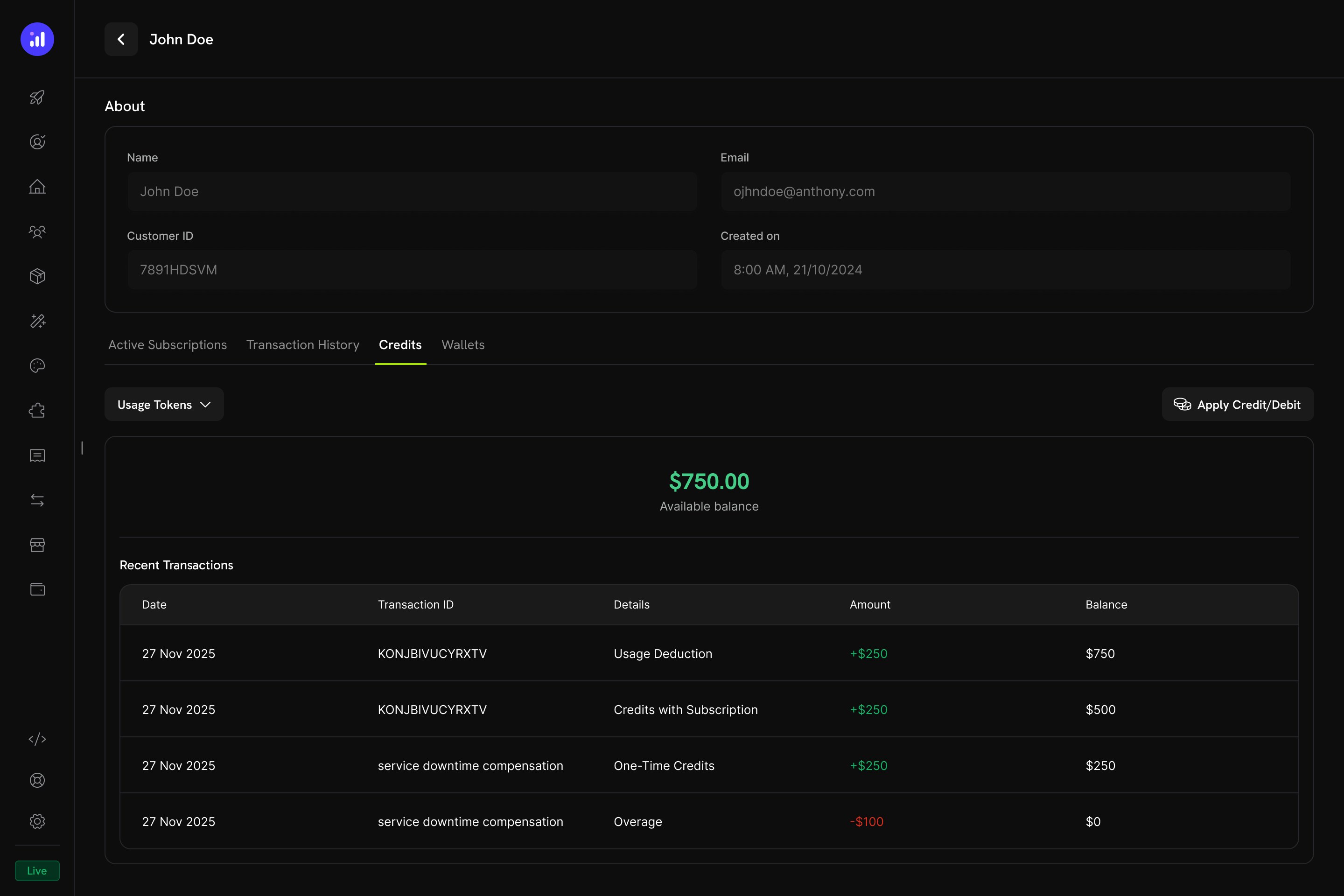 The customer credit view includes:
* **Credit Selector** - Switch between different credit entitlements
* **Available Balance** - Current balance in large, prominent display
* **Apply Credit/Debit** - Button to manually adjust the customer's balance
* **Recent Transactions** - Full ledger with date, transaction ID, type, amount, and running balance
### Manual Adjustments
You can manually credit or debit a customer's balance directly from the dashboard:
The customer credit view includes:
* **Credit Selector** - Switch between different credit entitlements
* **Available Balance** - Current balance in large, prominent display
* **Apply Credit/Debit** - Button to manually adjust the customer's balance
* **Recent Transactions** - Full ledger with date, transaction ID, type, amount, and running balance
### Manual Adjustments
You can manually credit or debit a customer's balance directly from the dashboard: