> ## Documentation Index
> Fetch the complete documentation index at: https://docs.dodopayments.com/llms.txt
> Use this file to discover all available pages before exploring further.
# Charm Pricing
> Round converted prices to clean, psychologically-tuned endings like 49.99 automatically, in every currency, without setting a price per market by hand.
Charm Pricing rounds the converted price to a clean ending, such as **49.99**, on every checkout. You set the rule once. Dodo Payments applies it in each customer's currency.
## What Is Charm Pricing?
[Adaptive Currency](/features/adaptive-currency) converts your base price at live exchange rates. The result is an accurate number, but rarely an attractive one: a \$47.00 product can show as **€43.12** today and **€43.47** tomorrow.
Charm Pricing takes that converted amount and moves it to the nearest clean ending. The customer sees **49.99**, not 43.12. The ending stays stable while exchange rates move.
You do not set a price per market. You choose one rounding rule, and it applies to every currency.
Charm Pricing needs [Adaptive Currency](/features/adaptive-currency). Turn on Adaptive Currency first.
## Key Benefits
* **Clean prices in every currency**: One rule covers all markets. You do not maintain a price list.
* **Stable endings**: The ending does not change when the exchange rate moves a few percent.
* **No conversion artifacts**: Customers never see 43.12 or 1043.87.
* **Automatic for new markets**: A currency you never priced still gets a clean number.
To set an exact price for one market by hand, use [Localized Pricing](/features/localized-pricing) instead. A localized price always wins over Charm Pricing on that product.
## Enable Charm Pricing
Go to **Settings → Business**. In **Business Settings**, turn on **Adaptive Currency**. Charm Pricing does nothing without it.
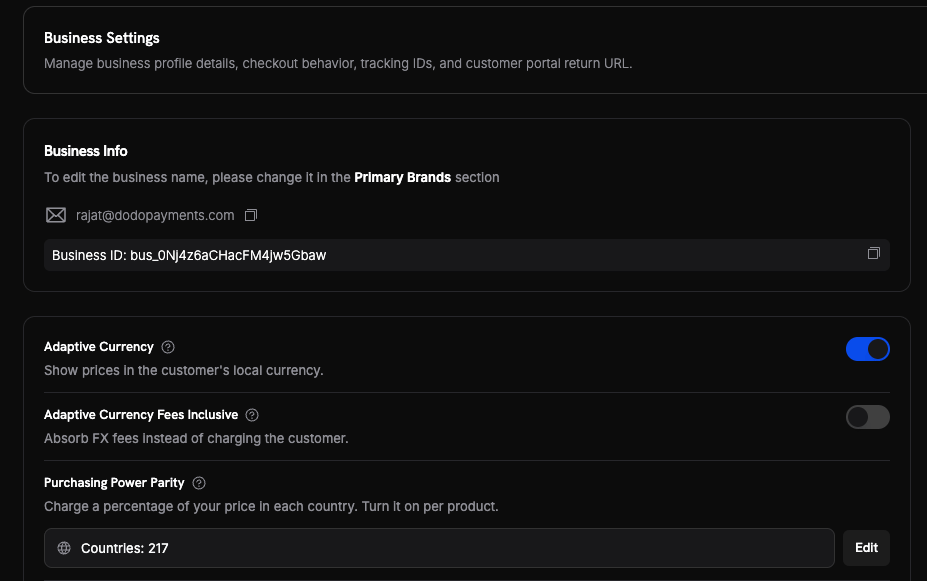 In the same **Business Settings** section, turn on **Charm Pricing** — *Round prices to cleaner, more appealing numbers*. The current rounding type appears below the toggle.
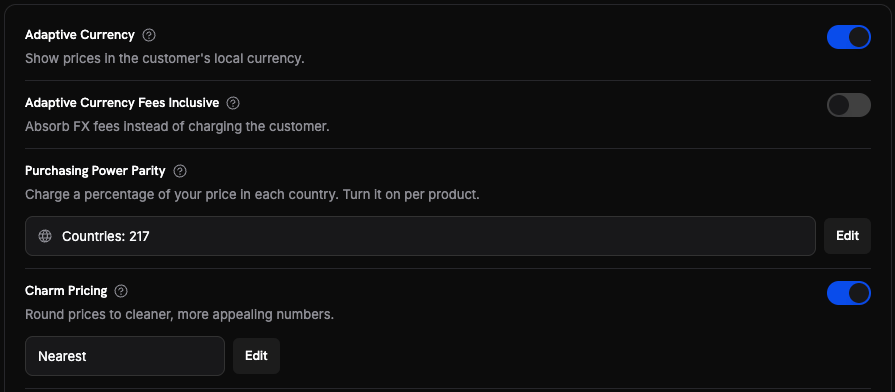 Changes apply only to future transactions. Existing subscriptions keep the rounding rule they started with. See [Subscriptions](#subscriptions).
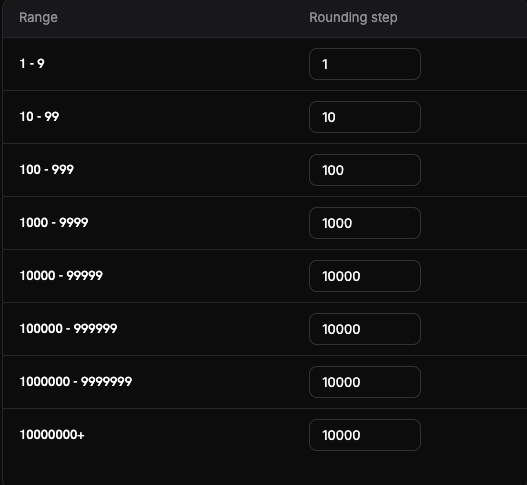
Click **Edit** to open **Set up Charm Pricing**. Choose a **Rounding type**, then adjust the **Rounding step** for any price range. Click **Save Changes**.
Changes apply only to future transactions. Existing subscriptions keep the rounding rule they started with. See [Subscriptions](#subscriptions).
Click **Edit** to open **Set up Charm Pricing**. Choose a **Rounding type**, then adjust the **Rounding step** for any price range. Click **Save Changes**.
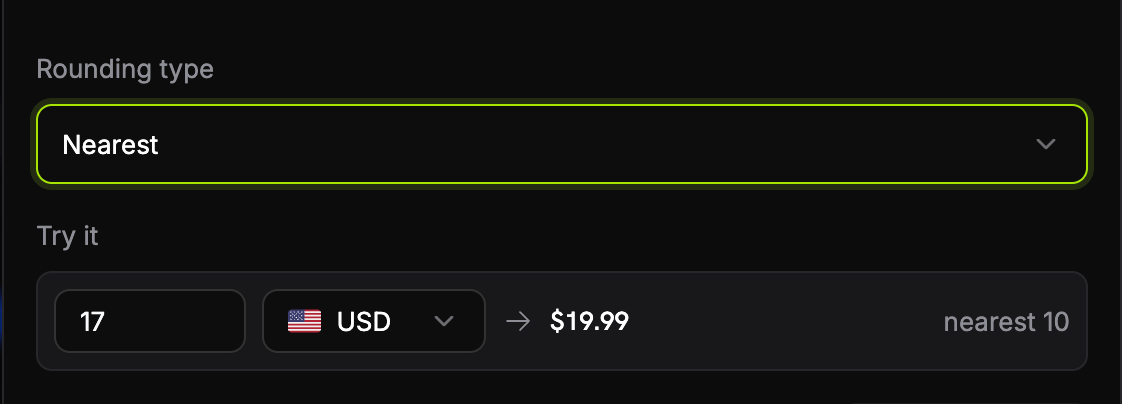 Use **Try it** to check a value before you save. Enter an amount and a currency, and the dialog shows the result and the step it used.
Dodo Payments ships a default step for each range. See [Rounding types](#rounding-types) and [Rounding steps](#rounding-steps).
Use **Try it** to check a value before you save. Enter an amount and a currency, and the dialog shows the result and the step it used.
Dodo Payments ships a default step for each range. See [Rounding types](#rounding-types) and [Rounding steps](#rounding-steps).
 Open a test checkout with a billing country in another currency. Confirm the price shows the ending you expect.
## How the Price Is Calculated
Dodo Payments charms the **per-unit** price, after currency conversion and after any discount, and before tax.
1. **Find the step.** The amount selects a step from the rounding-step table. A \$47 price falls in the 10–99 range, so the step is **10**.
2. **Pick the target.** The step gives two candidates, **40** and **50**. The rounding type picks one. With **Nearest**, 47 is closer to 50.
3. **Shave the ending.** Dodo Payments subtracts one thousandth of the step, so 50 becomes **49.99**. The shave is never less than one minor unit. **Whole** skips this step.
### Rounding types
| Type | What it picks | \$47 becomes |
| :---------- | :----------------------------------------------- | :----------- |
| **Nearest** | The closer of the two candidates. A tie goes up. | \$49.99 |
| **Floor** | Always the candidate below the price. | \$39.99 |
| **Ceiling** | Always the candidate above the price. | \$49.99 |
| **Whole** | The nearest candidate, with no shave. | \$50.00 |
**Floor** can lower a price by almost a full step. A \$47 price becomes \$39.99, a cut of 15%. Check the effect on your price ranges before you choose it.
### Rounding steps
The step depends on the size of the price, in the currency's main unit. These are the defaults. You can change the **Rounding step** for any range. You cannot change the ranges themselves.
| Price range | Step |
| :-------------------- | :----- |
| 1 – 9 | 1 |
| 10 – 99 | 10 |
| 100 – 999 | 100 |
| 1,000 – 9,999 | 1,000 |
| 10,000 – 99,999 | 10,000 |
| 100,000 – 999,999 | 10,000 |
| 1,000,000 – 9,999,999 | 10,000 |
| 10,000,000 and above | 10,000 |
The step stops growing at 10,000. This keeps the change small for large amounts, and it matters for currencies with many units per dollar, such as IDR and VND.
A large step moves a price a long way. With the default step of 1,000, a converted price of **\$1,234** becomes **\$999.00**. Lower the step for that range if the change is too big for your catalogue.
### Worked examples
| Converted price | Currency | Step | Rounding type | Customer pays |
| :-------------- | :------- | :---- | :------------ | :------------ |
| \$47.00 | USD | 10 | Nearest | **\$49.99** |
| \$47.00 | USD | 10 | Whole | **\$50.00** |
| \$47.00 | USD | 10 | Floor | **\$39.99** |
| \$5.00 | USD | 1 | Nearest | **\$4.99** |
| ¥4,700 | JPY | 1,000 | Nearest | **¥4,999** |
| ¥5 | JPY | 1 | Nearest | **¥4** |
Currencies with no decimal places, such as JPY, get a shave of one whole unit. The ending is ¥4,999, not ¥4,999.99.
### When charm does not apply
Dodo Payments keeps the converted price unchanged in these cases:
* The step is wider than the price. The price cannot move by less than one full step.
* The result would be zero or less.
* No step matches the amount.
## How It Applies at Checkout
Charm Pricing is the last step in the price calculation. For a product with no localized price, the order is:
1. **Base price** — the price you set on the product.
2. **[Purchasing Power Parity](/features/purchasing-power-parity)** — if the product opted in, the country percentage applies.
3. **Discounts** — any product discount and [discount code](/features/discount-codes) apply.
4. **[Currency conversion](/features/adaptive-currency)** — the discounted amount converts to the customer's currency at the live rate.
5. **Charm rounding** — the result moves to the clean ending.
6. **Tax** — calculated from the charmed amount. See [Tax-Inclusive Pricing](/features/tax-inclusive-pricing).
Each cart line is calculated on its own. The strikethrough "before discount" price uses the same rounding step as the charged price, so charm never shows as a discount you did not give.
**A charmed line makes the whole transaction fees-inclusive.** The customer pays exactly the ending they saw, so the Adaptive Currency conversion fee cannot be added on top. You absorb that fee. See [Choose who bears the fee](/features/adaptive-currency#choose-who-bears-the-fee).
## Subscriptions
A subscription records its rounding step and rounding type when the customer subscribes. Dodo Payments repeats that same decision at every renewal.
**What is frozen:** the rounding step and the rounding type. If you edit a step, or change the rounding type, an existing subscription is not repriced. The customer keeps the rule they agreed to.
**What can move:** the amount. Each renewal converts the price at the current exchange rate, then applies the frozen rule. A large rate movement can change the renewal amount, even though the rule did not change.
**A plan change removes charm from that subscription.** When a subscriber [changes plan](/features/subscription#subscription-plan-changes), the new plan bills the amount the plan-change quote showed. Dodo Payments does not charm that amount, and it does not charm later renewals of that subscription.
## Important Behaviors
| Behavior | Detail |
| :---------------------------------- | :---------------------------------------------------------------------------------------------------------------------------------- |
| **Needs Adaptive Currency** | Charm Pricing does nothing while Adaptive Currency is off. |
| **Localized prices win** | A product with a matching [Localized Pricing](/features/localized-pricing) rule is never charmed. The exact amount you set applies. |
| **Applied per unit** | The unit price is charmed, then multiplied by the quantity. |
| **After discounts** | A discount applies first, in your base currency. Charm rounds the converted result. |
| **Before tax** | Tax is calculated from the charmed amount, so the totals agree. |
| **Forces fees-inclusive** | You absorb the currency conversion fee on a charmed transaction. |
| **Not for Pay What You Want** | The customer chooses the amount, so it is never charmed. See [Pay What You Want](/features/pay-what-you-want). |
| **Fixed fees only for usage-based** | Metered usage charges are never charmed. |
| **No webhook of its own** | The charmed amount appears on the payment or subscription like any other price. |
## Best Practices
* **Start with Nearest.** It moves the price the least. Use Floor only when you accept the discount it creates.
* **Check your largest and smallest products.** The step changes with the price range, so a \$5 product and a \$1,200 product behave differently.
* **Review the step for high-unit currencies.** IDR, VND, and KRW prices land in the top ranges, where the step is fixed at 10,000.
* **Price your subscriptions before you launch.** Editing a step later does not reprice existing subscribers.
* **Account for the conversion fee.** A charmed line is fees-inclusive, so the fee comes out of your revenue.
## Related
The conversion Charm Pricing rounds. Required for Charm Pricing.
Charge less in price-sensitive countries. Runs before charm rounding.
Set an exact price per country or currency. Overrides Charm Pricing.
Control whether your prices include tax.
Open a test checkout with a billing country in another currency. Confirm the price shows the ending you expect.
## How the Price Is Calculated
Dodo Payments charms the **per-unit** price, after currency conversion and after any discount, and before tax.
1. **Find the step.** The amount selects a step from the rounding-step table. A \$47 price falls in the 10–99 range, so the step is **10**.
2. **Pick the target.** The step gives two candidates, **40** and **50**. The rounding type picks one. With **Nearest**, 47 is closer to 50.
3. **Shave the ending.** Dodo Payments subtracts one thousandth of the step, so 50 becomes **49.99**. The shave is never less than one minor unit. **Whole** skips this step.
### Rounding types
| Type | What it picks | \$47 becomes |
| :---------- | :----------------------------------------------- | :----------- |
| **Nearest** | The closer of the two candidates. A tie goes up. | \$49.99 |
| **Floor** | Always the candidate below the price. | \$39.99 |
| **Ceiling** | Always the candidate above the price. | \$49.99 |
| **Whole** | The nearest candidate, with no shave. | \$50.00 |
**Floor** can lower a price by almost a full step. A \$47 price becomes \$39.99, a cut of 15%. Check the effect on your price ranges before you choose it.
### Rounding steps
The step depends on the size of the price, in the currency's main unit. These are the defaults. You can change the **Rounding step** for any range. You cannot change the ranges themselves.
| Price range | Step |
| :-------------------- | :----- |
| 1 – 9 | 1 |
| 10 – 99 | 10 |
| 100 – 999 | 100 |
| 1,000 – 9,999 | 1,000 |
| 10,000 – 99,999 | 10,000 |
| 100,000 – 999,999 | 10,000 |
| 1,000,000 – 9,999,999 | 10,000 |
| 10,000,000 and above | 10,000 |
The step stops growing at 10,000. This keeps the change small for large amounts, and it matters for currencies with many units per dollar, such as IDR and VND.
A large step moves a price a long way. With the default step of 1,000, a converted price of **\$1,234** becomes **\$999.00**. Lower the step for that range if the change is too big for your catalogue.
### Worked examples
| Converted price | Currency | Step | Rounding type | Customer pays |
| :-------------- | :------- | :---- | :------------ | :------------ |
| \$47.00 | USD | 10 | Nearest | **\$49.99** |
| \$47.00 | USD | 10 | Whole | **\$50.00** |
| \$47.00 | USD | 10 | Floor | **\$39.99** |
| \$5.00 | USD | 1 | Nearest | **\$4.99** |
| ¥4,700 | JPY | 1,000 | Nearest | **¥4,999** |
| ¥5 | JPY | 1 | Nearest | **¥4** |
Currencies with no decimal places, such as JPY, get a shave of one whole unit. The ending is ¥4,999, not ¥4,999.99.
### When charm does not apply
Dodo Payments keeps the converted price unchanged in these cases:
* The step is wider than the price. The price cannot move by less than one full step.
* The result would be zero or less.
* No step matches the amount.
## How It Applies at Checkout
Charm Pricing is the last step in the price calculation. For a product with no localized price, the order is:
1. **Base price** — the price you set on the product.
2. **[Purchasing Power Parity](/features/purchasing-power-parity)** — if the product opted in, the country percentage applies.
3. **Discounts** — any product discount and [discount code](/features/discount-codes) apply.
4. **[Currency conversion](/features/adaptive-currency)** — the discounted amount converts to the customer's currency at the live rate.
5. **Charm rounding** — the result moves to the clean ending.
6. **Tax** — calculated from the charmed amount. See [Tax-Inclusive Pricing](/features/tax-inclusive-pricing).
Each cart line is calculated on its own. The strikethrough "before discount" price uses the same rounding step as the charged price, so charm never shows as a discount you did not give.
**A charmed line makes the whole transaction fees-inclusive.** The customer pays exactly the ending they saw, so the Adaptive Currency conversion fee cannot be added on top. You absorb that fee. See [Choose who bears the fee](/features/adaptive-currency#choose-who-bears-the-fee).
## Subscriptions
A subscription records its rounding step and rounding type when the customer subscribes. Dodo Payments repeats that same decision at every renewal.
**What is frozen:** the rounding step and the rounding type. If you edit a step, or change the rounding type, an existing subscription is not repriced. The customer keeps the rule they agreed to.
**What can move:** the amount. Each renewal converts the price at the current exchange rate, then applies the frozen rule. A large rate movement can change the renewal amount, even though the rule did not change.
**A plan change removes charm from that subscription.** When a subscriber [changes plan](/features/subscription#subscription-plan-changes), the new plan bills the amount the plan-change quote showed. Dodo Payments does not charm that amount, and it does not charm later renewals of that subscription.
## Important Behaviors
| Behavior | Detail |
| :---------------------------------- | :---------------------------------------------------------------------------------------------------------------------------------- |
| **Needs Adaptive Currency** | Charm Pricing does nothing while Adaptive Currency is off. |
| **Localized prices win** | A product with a matching [Localized Pricing](/features/localized-pricing) rule is never charmed. The exact amount you set applies. |
| **Applied per unit** | The unit price is charmed, then multiplied by the quantity. |
| **After discounts** | A discount applies first, in your base currency. Charm rounds the converted result. |
| **Before tax** | Tax is calculated from the charmed amount, so the totals agree. |
| **Forces fees-inclusive** | You absorb the currency conversion fee on a charmed transaction. |
| **Not for Pay What You Want** | The customer chooses the amount, so it is never charmed. See [Pay What You Want](/features/pay-what-you-want). |
| **Fixed fees only for usage-based** | Metered usage charges are never charmed. |
| **No webhook of its own** | The charmed amount appears on the payment or subscription like any other price. |
## Best Practices
* **Start with Nearest.** It moves the price the least. Use Floor only when you accept the discount it creates.
* **Check your largest and smallest products.** The step changes with the price range, so a \$5 product and a \$1,200 product behave differently.
* **Review the step for high-unit currencies.** IDR, VND, and KRW prices land in the top ranges, where the step is fixed at 10,000.
* **Price your subscriptions before you launch.** Editing a step later does not reprice existing subscribers.
* **Account for the conversion fee.** A charmed line is fees-inclusive, so the fee comes out of your revenue.
## Related
The conversion Charm Pricing rounds. Required for Charm Pricing.
Charge less in price-sensitive countries. Runs before charm rounding.
Set an exact price per country or currency. Overrides Charm Pricing.
Control whether your prices include tax.