> ## Documentation Index
> Fetch the complete documentation index at: https://docs.dodopayments.com/llms.txt
> Use this file to discover all available pages before exploring further.
# Dashboard Analytics
> Gain actionable business insights with Dodo Payments' Analytics & Reporting dashboard. Track revenue, customers, retention, and transaction health at both the business and product level.
 ## Introduction
Dodo Payments' **Analytics & Reporting** dashboard empowers you to monitor your business performance, understand customer behavior, and make data-driven decisions. Access real-time metrics, visualize trends, and export detailed reports—all from a single, intuitive interface.
Track aggregate revenue, customers, subscriptions, retention, transaction health, and recovery across your entire business.
Drill into individual product performance—revenue, customers, churn, subscribers, and MRR.
Get at-a-glance summary metrics directly on your products, subscriptions, payments, and other list pages.
Download payments, refunds, payouts, disputes, and more as CSV for custom date ranges.
***
## Business-Level Analytics
The main Analytics dashboard provides comprehensive insights across your entire business. Access it from **Home** in the sidebar.
The dashboard is organized into six tabs, each with its own filters:
Gross/net revenue, payment activity, growth, and top countries.
ARPU, active customers, new vs. returning split, and top customers.
Current MRR, Projected ARR, active subscriptions, and the MRR waterfall.
Customer and revenue churn rates, trends, and cohort retention.
Payment and refund success rates with failure-reason analysis.
Payment retries, dunning, and abandoned cart recovery performance.
### Filtering & Customization
Most tabs support the following filters:
* **Time Period:** Today, Yesterday, This/Last Week, This/Last Month, This/Last Year, All Time, or a **Custom** date range.
* **Product:** Scope analytics to a single product.
* **Product Type:** One-time vs. subscription (Customers and Retention tabs).
* **Payment Method:** Filter the Success Rate tab by payment method.
Use filters to drill down into specific products, time periods, or payment methods for targeted insights.
### Revenue Tab
Track your income and payment activity to understand revenue trends and identify your top-performing markets.
## Introduction
Dodo Payments' **Analytics & Reporting** dashboard empowers you to monitor your business performance, understand customer behavior, and make data-driven decisions. Access real-time metrics, visualize trends, and export detailed reports—all from a single, intuitive interface.
Track aggregate revenue, customers, subscriptions, retention, transaction health, and recovery across your entire business.
Drill into individual product performance—revenue, customers, churn, subscribers, and MRR.
Get at-a-glance summary metrics directly on your products, subscriptions, payments, and other list pages.
Download payments, refunds, payouts, disputes, and more as CSV for custom date ranges.
***
## Business-Level Analytics
The main Analytics dashboard provides comprehensive insights across your entire business. Access it from **Home** in the sidebar.
The dashboard is organized into six tabs, each with its own filters:
Gross/net revenue, payment activity, growth, and top countries.
ARPU, active customers, new vs. returning split, and top customers.
Current MRR, Projected ARR, active subscriptions, and the MRR waterfall.
Customer and revenue churn rates, trends, and cohort retention.
Payment and refund success rates with failure-reason analysis.
Payment retries, dunning, and abandoned cart recovery performance.
### Filtering & Customization
Most tabs support the following filters:
* **Time Period:** Today, Yesterday, This/Last Week, This/Last Month, This/Last Year, All Time, or a **Custom** date range.
* **Product:** Scope analytics to a single product.
* **Product Type:** One-time vs. subscription (Customers and Retention tabs).
* **Payment Method:** Filter the Success Rate tab by payment method.
Use filters to drill down into specific products, time periods, or payment methods for targeted insights.
### Revenue Tab
Track your income and payment activity to understand revenue trends and identify your top-performing markets.
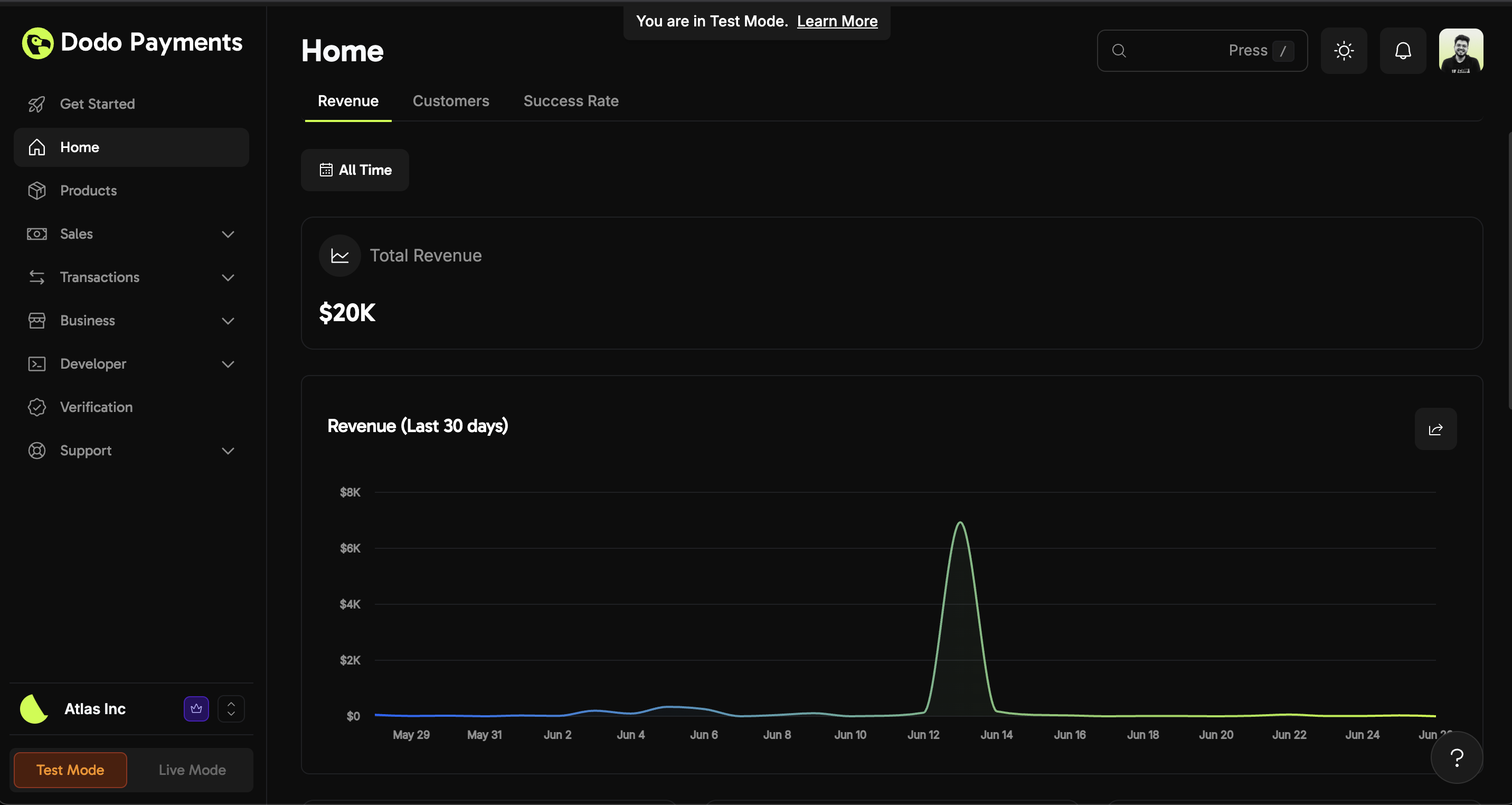 * **Gross / Net Revenue Toggle:** Use the **Gross/Net** dropdown to switch the headline revenue figure, the 30-day chart, the monthly bars, and the top-countries ranking between gross and net values.
* **Gross Revenue:** Total revenue before deductions.
* **Net Revenue:** Actual earnings after refunds and lost or accepted disputes, for a clear picture of true business performance.
* **Revenue (Last 30 Days):** A trend chart that helps you spot spikes or dips in income. Toggle between cumulative and daily views.
* **Payments Count, Total Refunds, Payouts Received:** Supporting activity metrics for the selected period.
* **Gross / Net Revenue Toggle:** Use the **Gross/Net** dropdown to switch the headline revenue figure, the 30-day chart, the monthly bars, and the top-countries ranking between gross and net values.
* **Gross Revenue:** Total revenue before deductions.
* **Net Revenue:** Actual earnings after refunds and lost or accepted disputes, for a clear picture of true business performance.
* **Revenue (Last 30 Days):** A trend chart that helps you spot spikes or dips in income. Toggle between cumulative and daily views.
* **Payments Count, Total Refunds, Payouts Received:** Supporting activity metrics for the selected period.
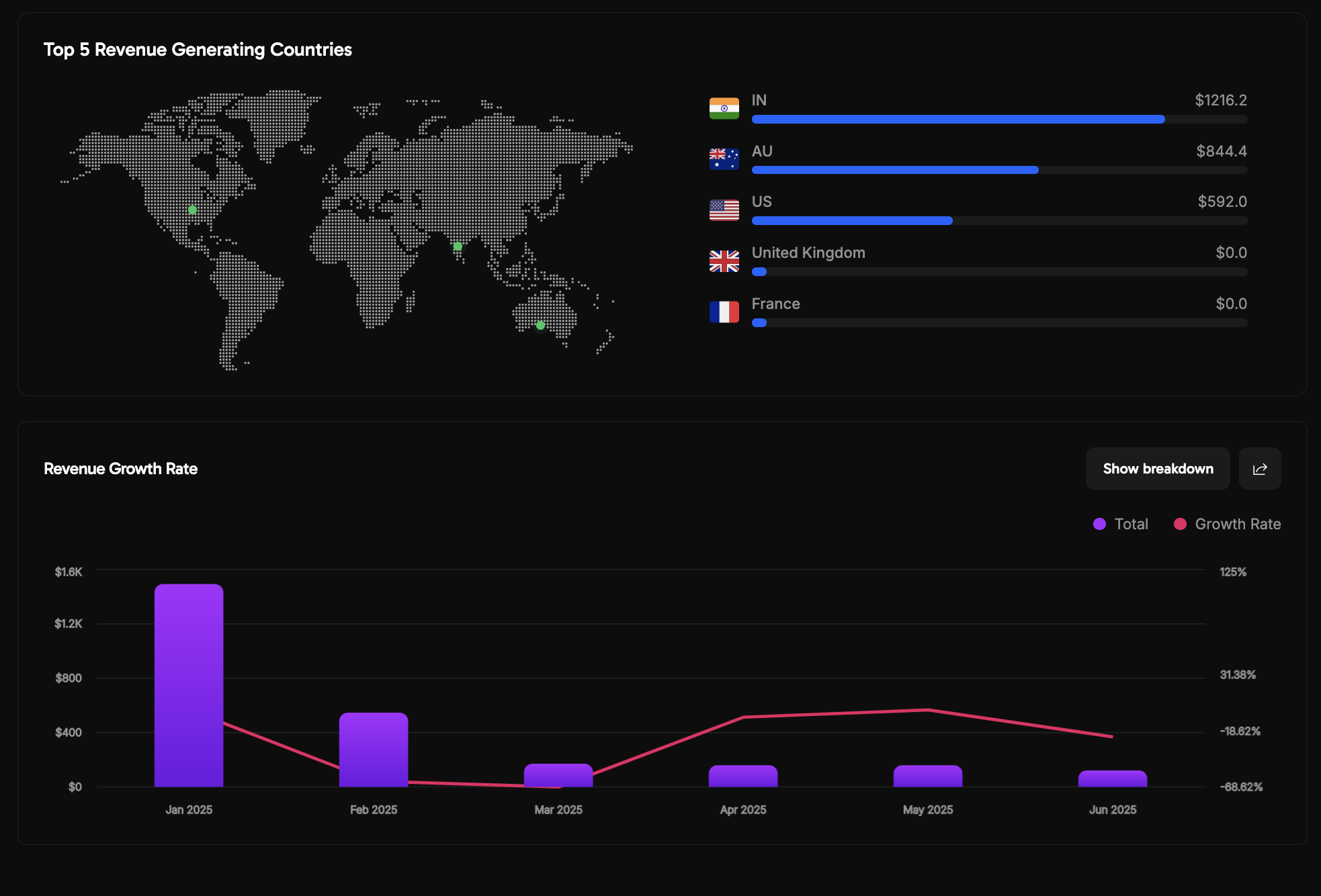 * **Growth Rate:** Track month-over-month revenue growth (subscription, non-subscription, and total) to measure business momentum.
* **Geographic Insights:** Visualize your **top 5 revenue-generating countries**, ranked by gross or net revenue based on the toggle.
Use these insights to focus your marketing and product efforts on high-performing regions and periods of growth.
### Customers Tab
Analyze customer acquisition, retention, and spending patterns to optimize your customer strategy.
* **Growth Rate:** Track month-over-month revenue growth (subscription, non-subscription, and total) to measure business momentum.
* **Geographic Insights:** Visualize your **top 5 revenue-generating countries**, ranked by gross or net revenue based on the toggle.
Use these insights to focus your marketing and product efforts on high-performing regions and periods of growth.
### Customers Tab
Analyze customer acquisition, retention, and spending patterns to optimize your customer strategy.
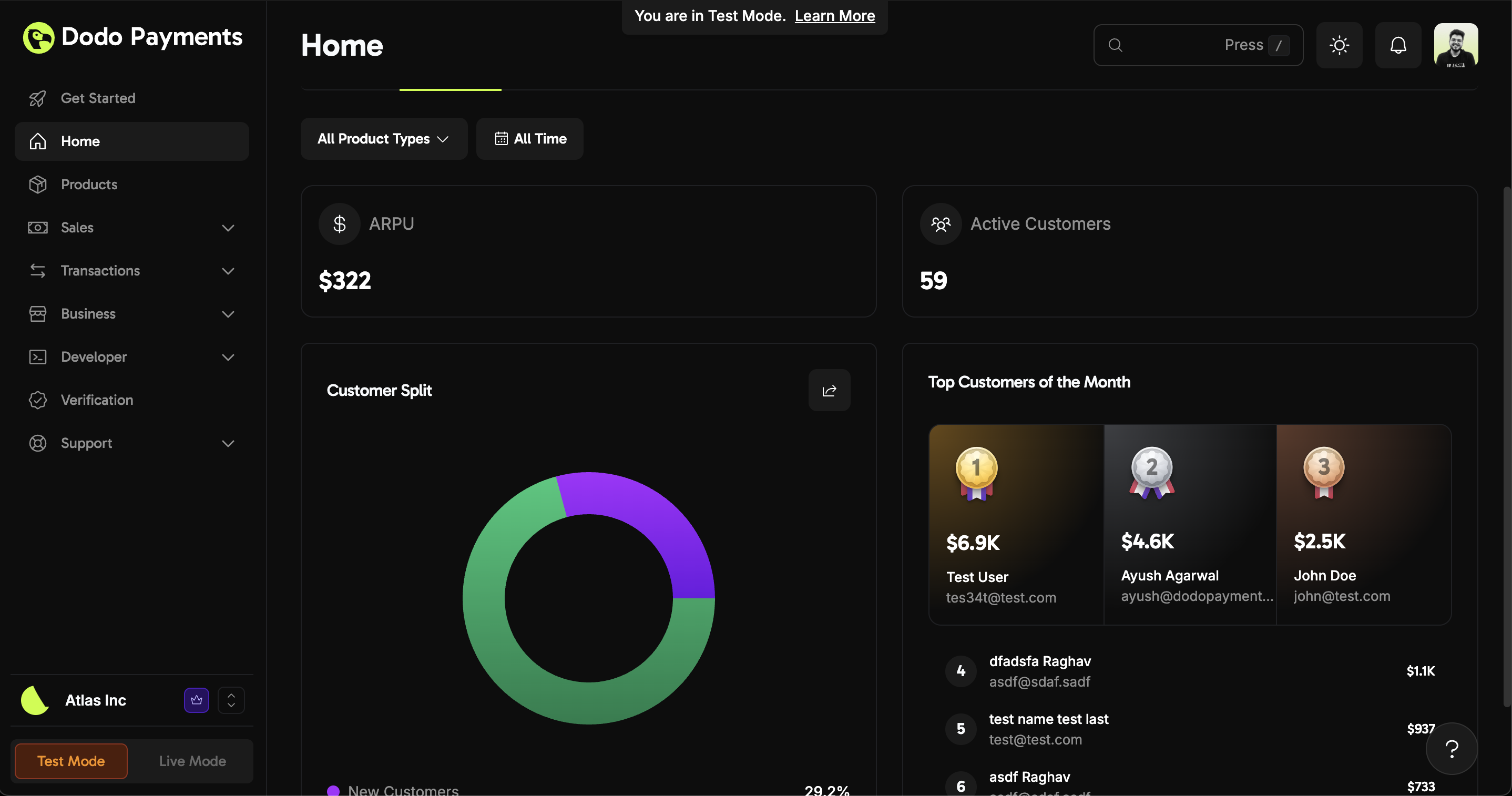 * **Revenue Per User (ARPU):** Understand how much each customer contributes on average. The **Gross/Net** toggle switches between gross and net ARPU.
* **Active Customers:** See how many customers are engaging with your business, including those with active subscriptions.
* **Customer Split:** Instantly view the ratio of **new vs. returning** customers.
* **Top Customers (By Revenue):** Identify your highest spenders for targeted engagement (honors the Gross/Net toggle).
Monitor ARPU and customer split to refine your retention and acquisition strategies.
### Subscriptions Tab
Monitor your recurring revenue and understand how your Monthly Recurring Revenue (MRR) changes over time.
* **Revenue Per User (ARPU):** Understand how much each customer contributes on average. The **Gross/Net** toggle switches between gross and net ARPU.
* **Active Customers:** See how many customers are engaging with your business, including those with active subscriptions.
* **Customer Split:** Instantly view the ratio of **new vs. returning** customers.
* **Top Customers (By Revenue):** Identify your highest spenders for targeted engagement (honors the Gross/Net toggle).
Monitor ARPU and customer split to refine your retention and acquisition strategies.
### Subscriptions Tab
Monitor your recurring revenue and understand how your Monthly Recurring Revenue (MRR) changes over time.
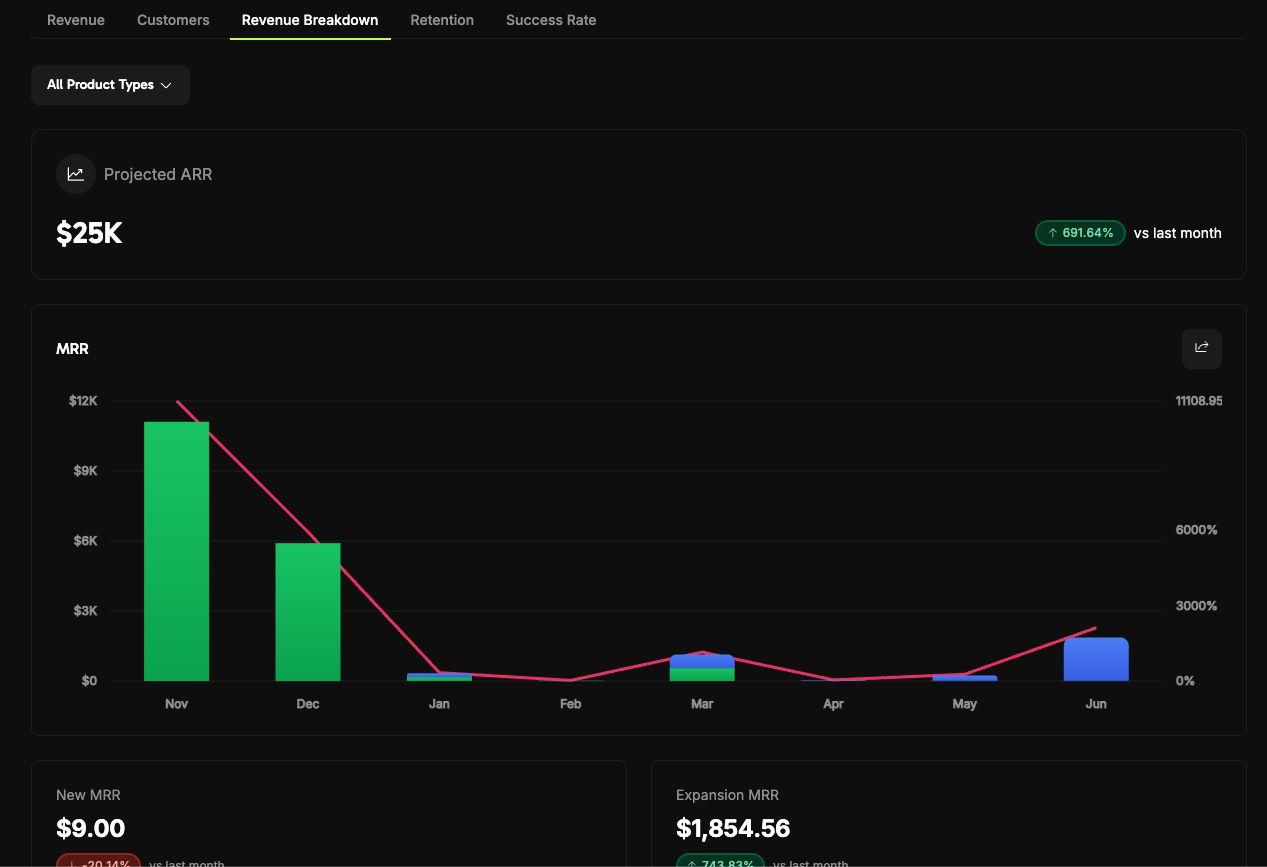 Three headline tiles summarize your subscription business:
* **Current MRR:** Your Monthly Recurring Revenue for the current month.
* **Projected ARR:** Annual Recurring Revenue projection (Current MRR × 12).
* **Active Subscriptions:** The number of subscriptions currently active.
The **MRR chart** visualizes recurring revenue composition month by month, with the following breakdown metrics shown below it:
| Metric | Description |
| ------------------- | ------------------------------------------------------------------------------- |
| **New MRR** | Revenue from new subscriptions acquired this month |
| **Expansion MRR** | Additional revenue from existing subscribers upgrading or adding to their plans |
| **Contraction MRR** | Revenue lost from existing subscribers downgrading (without fully cancelling) |
| **Churned MRR** | Revenue lost from cancelled subscriptions |
| **Net New MRR** | The net result: New MRR + Expansion MRR − Contraction MRR − Churned MRR |
Each breakdown card includes a trend mini-chart and a percentage change compared to the previous month.
MRR calculations account for **concurrent subscriptions** (a customer holding multiple active plans contributes the sum of all of them) and attribute revenue based on the period each subscription has paid through. A subscription that prepays for several months continues to contribute MRR across its paid period.
### Retention Tab
Monitor customer retention and churn patterns.
Three headline tiles summarize your subscription business:
* **Current MRR:** Your Monthly Recurring Revenue for the current month.
* **Projected ARR:** Annual Recurring Revenue projection (Current MRR × 12).
* **Active Subscriptions:** The number of subscriptions currently active.
The **MRR chart** visualizes recurring revenue composition month by month, with the following breakdown metrics shown below it:
| Metric | Description |
| ------------------- | ------------------------------------------------------------------------------- |
| **New MRR** | Revenue from new subscriptions acquired this month |
| **Expansion MRR** | Additional revenue from existing subscribers upgrading or adding to their plans |
| **Contraction MRR** | Revenue lost from existing subscribers downgrading (without fully cancelling) |
| **Churned MRR** | Revenue lost from cancelled subscriptions |
| **Net New MRR** | The net result: New MRR + Expansion MRR − Contraction MRR − Churned MRR |
Each breakdown card includes a trend mini-chart and a percentage change compared to the previous month.
MRR calculations account for **concurrent subscriptions** (a customer holding multiple active plans contributes the sum of all of them) and attribute revenue based on the period each subscription has paid through. A subscription that prepays for several months continues to contribute MRR across its paid period.
### Retention Tab
Monitor customer retention and churn patterns.
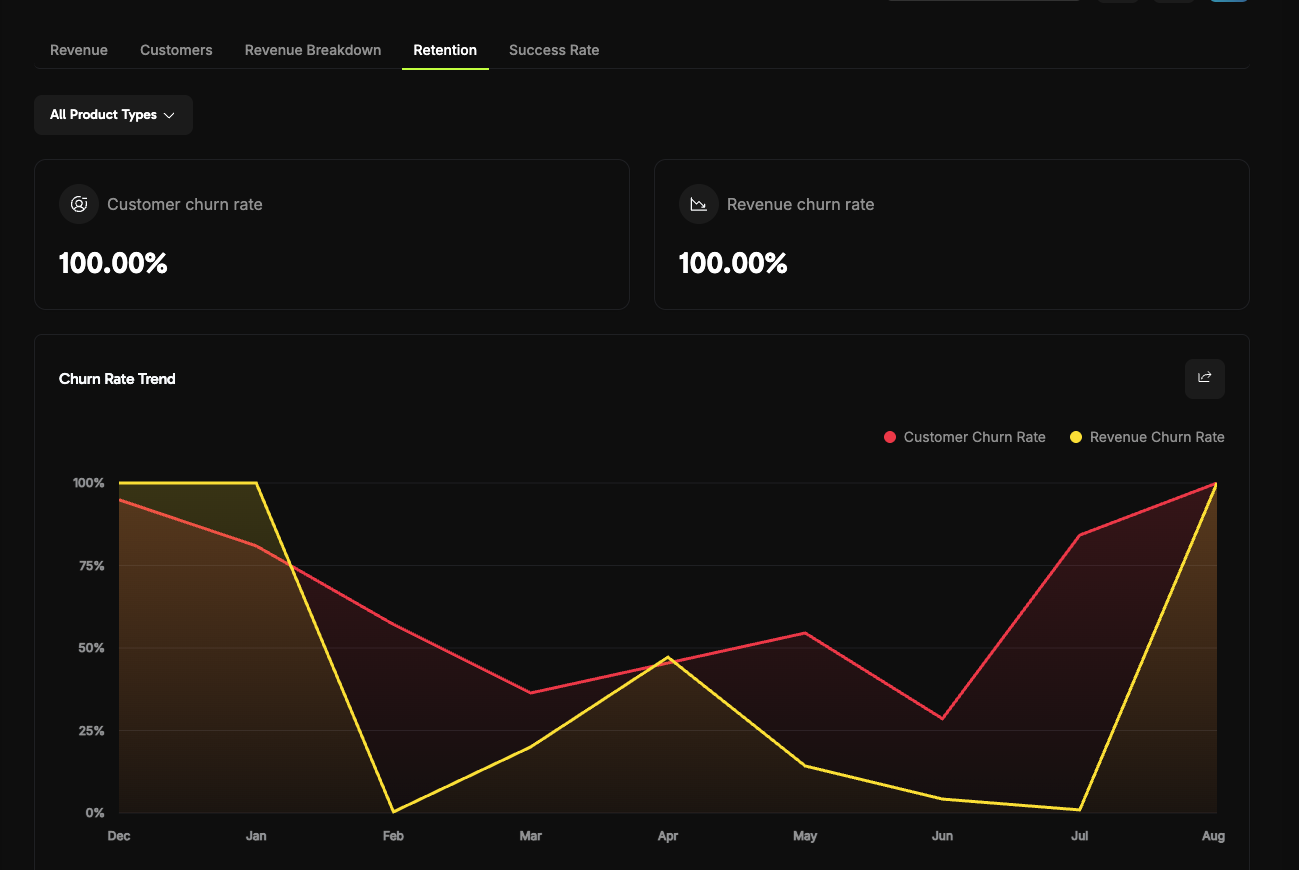 * **Customer Churn Rate:** Percentage of customers who cancel their subscriptions.
* **Revenue Churn Rate:** Percentage of revenue lost from cancellations and downgrades. This now includes **one-time payment revenue** alongside recurring revenue, so customer and revenue churn cover the same population.
* **Churn Rate Trends:** Historical tracking of both customer and revenue churn over time.
* **User Retention Matrix:** Cohort analysis showing customer retention rates across different time periods.
### Success Rate Tab
Monitor payment and refund success rates to identify and resolve transaction issues quickly.
* **Customer Churn Rate:** Percentage of customers who cancel their subscriptions.
* **Revenue Churn Rate:** Percentage of revenue lost from cancellations and downgrades. This now includes **one-time payment revenue** alongside recurring revenue, so customer and revenue churn cover the same population.
* **Churn Rate Trends:** Historical tracking of both customer and revenue churn over time.
* **User Retention Matrix:** Cohort analysis showing customer retention rates across different time periods.
### Success Rate Tab
Monitor payment and refund success rates to identify and resolve transaction issues quickly.
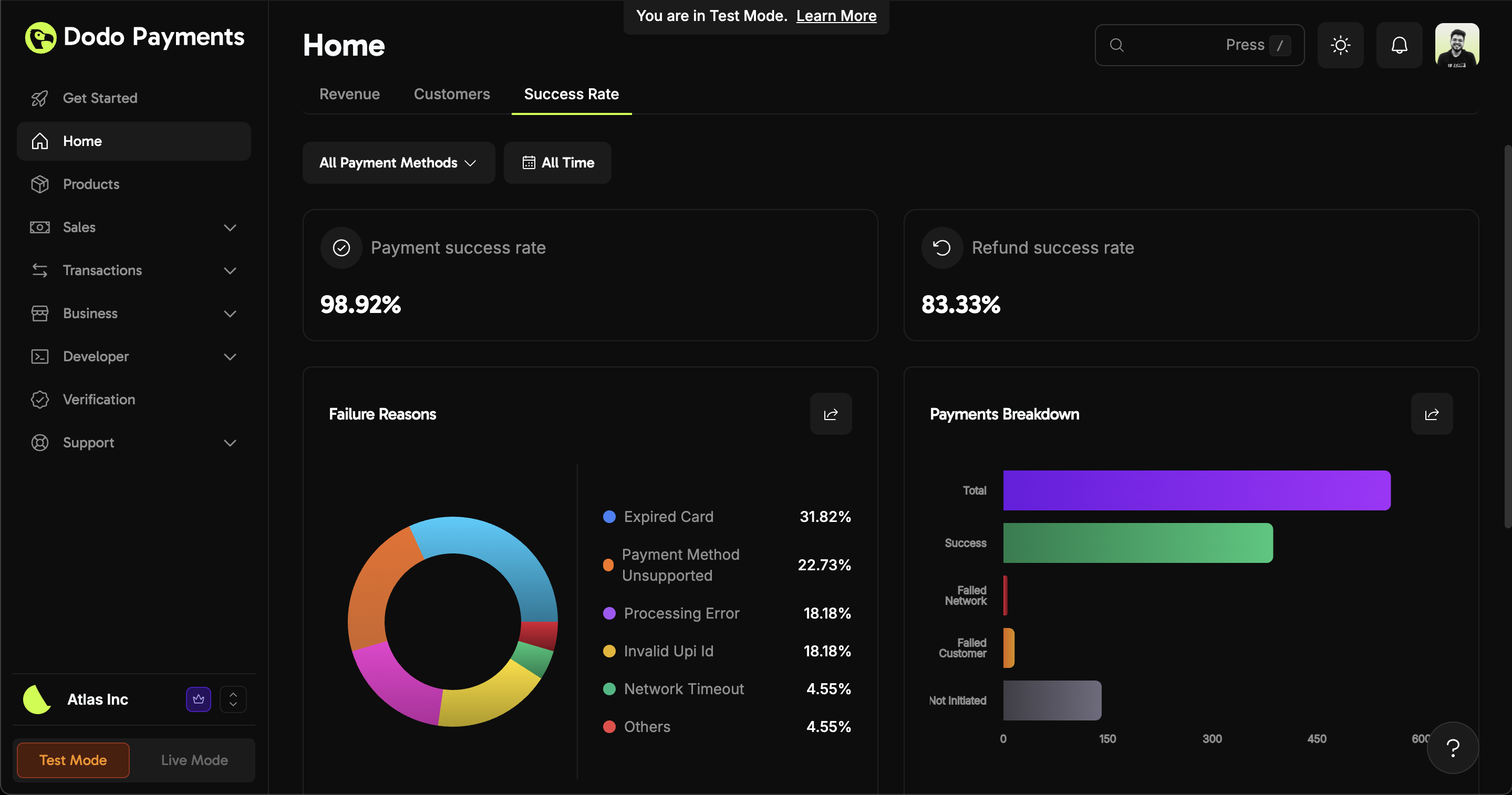 * **Payment Success Rate:** Track the percentage of successful payment attempts.
* **Refund Success Rate:** Monitor how many refunds are processed successfully.
* **Failure Reasons:** Quickly identify common issues (e.g., expired cards, unsupported methods), split by customer-side and network-side errors.
Get all possible transaction failure codes and their reasons.
* **Payments Breakdown:** Visualize the distribution of successful and failed transactions.
If you notice a drop in success rates or a spike in failures, review the failure reasons and address them promptly to minimize revenue loss.
### Recovery Tab
Track how much revenue Dodo Payments recovers on your behalf through automated retries, dunning emails, and abandoned cart recovery.
* **Payment Success Rate:** Track the percentage of successful payment attempts.
* **Refund Success Rate:** Monitor how many refunds are processed successfully.
* **Failure Reasons:** Quickly identify common issues (e.g., expired cards, unsupported methods), split by customer-side and network-side errors.
Get all possible transaction failure codes and their reasons.
* **Payments Breakdown:** Visualize the distribution of successful and failed transactions.
If you notice a drop in success rates or a spike in failures, review the failure reasons and address them promptly to minimize revenue loss.
### Recovery Tab
Track how much revenue Dodo Payments recovers on your behalf through automated retries, dunning emails, and abandoned cart recovery.
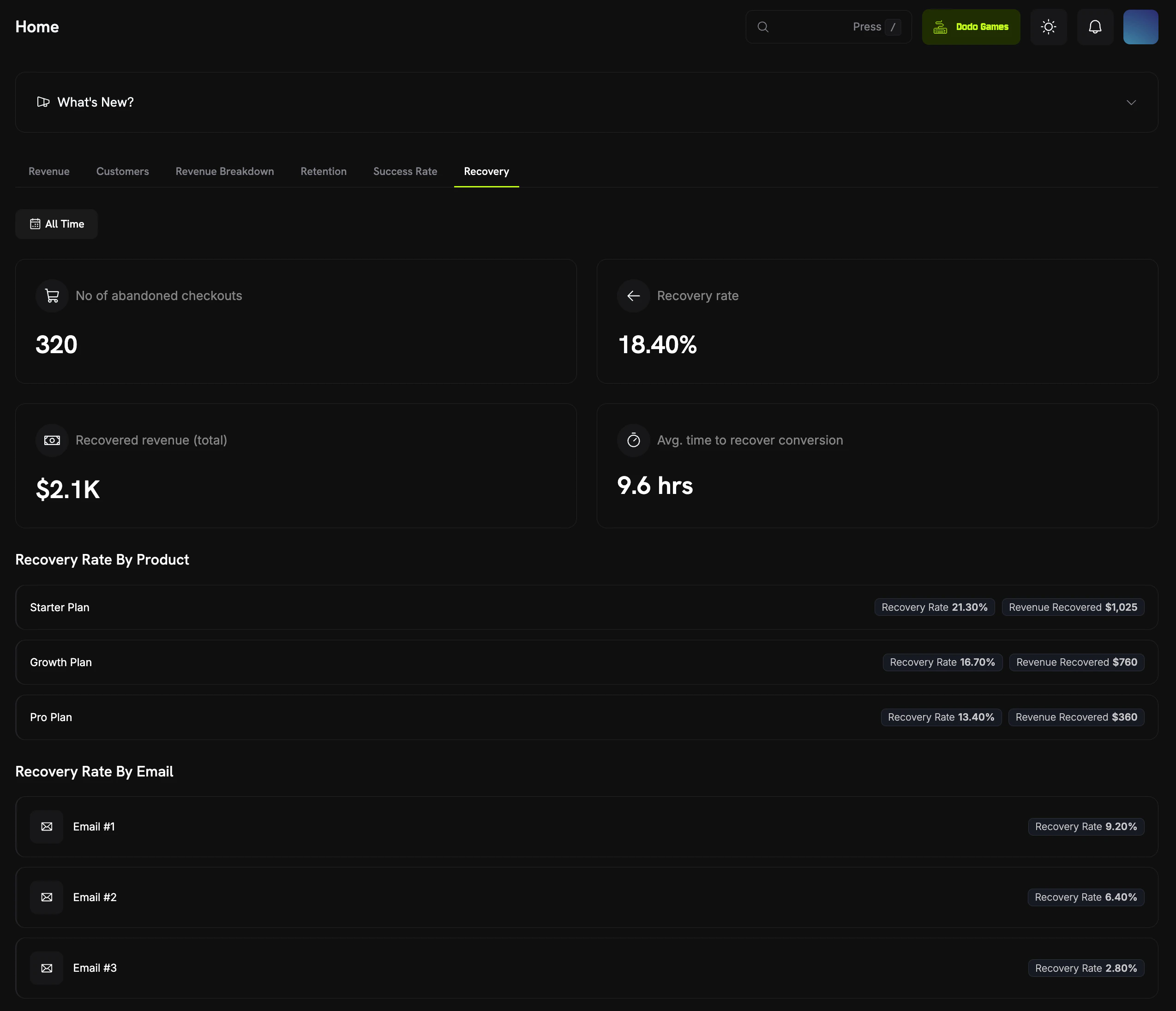 The Recovery tab is organized into three groups:
* **Payment Retries:** Recover failed subscription renewals by automatically retrying the payment. Shows **retry attempts**, **successful retries**, **retry success rate**, **subscriptions saved**, and a "Retries by attempt" chart of attempted vs. succeeded retries.
* **Dunning:** Recover failed subscription payments with a sequence of reminder emails. Shows **dunning entries**, **recovered revenue**, **emails sent**, **average time to recover**, a recovery-rate donut, and recovery rate by email.
* **Abandoned Cart Recovery:** Recover shoppers who left before completing checkout. Shows **abandoned checkouts**, **recovery rate**, **recovered revenue**, **average time to recover**, and recovery rate by product and by email.
Learn more about configuring payment retries, dunning, and abandoned cart recovery.
***
## Product-Level Analytics
Beyond business-wide metrics, you can view detailed analytics for **each individual product**. Navigate to **Products > \[Select a Product]** to access a dedicated analytics dashboard for that product.
The Recovery tab is organized into three groups:
* **Payment Retries:** Recover failed subscription renewals by automatically retrying the payment. Shows **retry attempts**, **successful retries**, **retry success rate**, **subscriptions saved**, and a "Retries by attempt" chart of attempted vs. succeeded retries.
* **Dunning:** Recover failed subscription payments with a sequence of reminder emails. Shows **dunning entries**, **recovered revenue**, **emails sent**, **average time to recover**, a recovery-rate donut, and recovery rate by email.
* **Abandoned Cart Recovery:** Recover shoppers who left before completing checkout. Shows **abandoned checkouts**, **recovery rate**, **recovered revenue**, **average time to recover**, and recovery rate by product and by email.
Learn more about configuring payment retries, dunning, and abandoned cart recovery.
***
## Product-Level Analytics
Beyond business-wide metrics, you can view detailed analytics for **each individual product**. Navigate to **Products > \[Select a Product]** to access a dedicated analytics dashboard for that product.
 The product analytics dashboard is organized into five tabs:
Revenue summary, trend chart, and transaction history.
Top customers ranked by spend with a full breakdown table.
Customer and revenue churn rates with trend analysis.
All subscriptions with status and billing details.
Monthly Recurring Revenue breakdown — new, expansion, churned, and net.
All tabs support a **date filter** (defaults to All Time) so you can focus on any period.
### Overview Tab
The Overview tab provides a high-level snapshot of the product's financial performance.
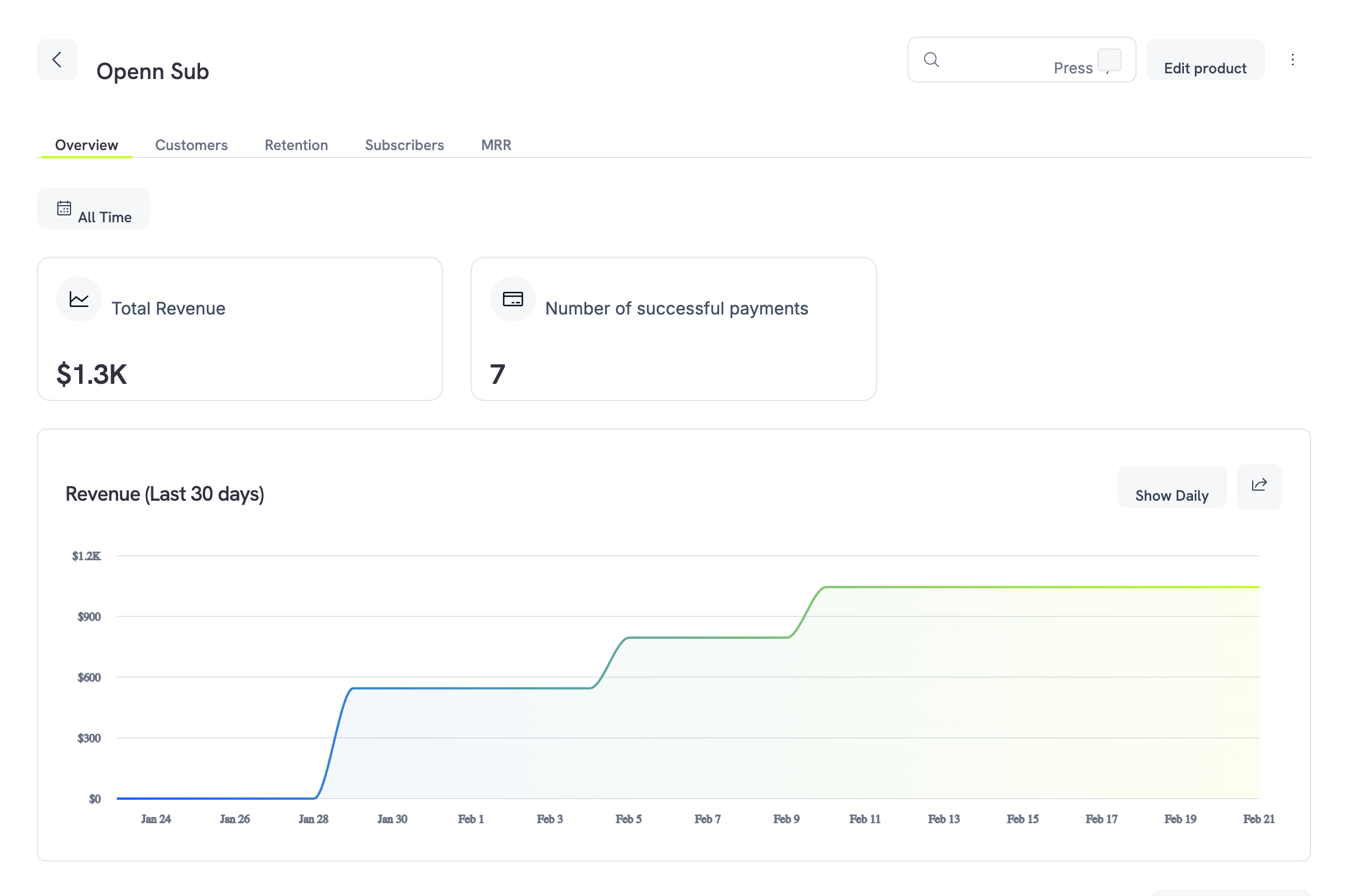
* **Total Revenue**: Cumulative revenue generated by this product.
* **Number of Successful Payments**: Total count of successful transactions.
* **Revenue Trend Chart**: A 30-day line chart showing revenue over time. Toggle between cumulative and daily views using the **Show Daily** button.
Below the chart, a **Transactions** table lists every payment for this product:
| Column | Description |
| -------------- | ------------------------------------- |
| Payment ID | Unique identifier for the transaction |
| Status | `Successful` or `Failed` |
| Amount | Transaction amount with currency |
| Date (UTC) | Timestamp of the transaction |
| Payment Method | Card, UPI, or other method used |
| Refund | Option to initiate a refund |
The product analytics dashboard is organized into five tabs:
Revenue summary, trend chart, and transaction history.
Top customers ranked by spend with a full breakdown table.
Customer and revenue churn rates with trend analysis.
All subscriptions with status and billing details.
Monthly Recurring Revenue breakdown — new, expansion, churned, and net.
All tabs support a **date filter** (defaults to All Time) so you can focus on any period.
### Overview Tab
The Overview tab provides a high-level snapshot of the product's financial performance.
* **Total Revenue**: Cumulative revenue generated by this product.
* **Number of Successful Payments**: Total count of successful transactions.
* **Revenue Trend Chart**: A 30-day line chart showing revenue over time. Toggle between cumulative and daily views using the **Show Daily** button.
Below the chart, a **Transactions** table lists every payment for this product:
| Column | Description |
| -------------- | ------------------------------------- |
| Payment ID | Unique identifier for the transaction |
| Status | `Successful` or `Failed` |
| Amount | Transaction amount with currency |
| Date (UTC) | Timestamp of the transaction |
| Payment Method | Card, UPI, or other method used |
| Refund | Option to initiate a refund |
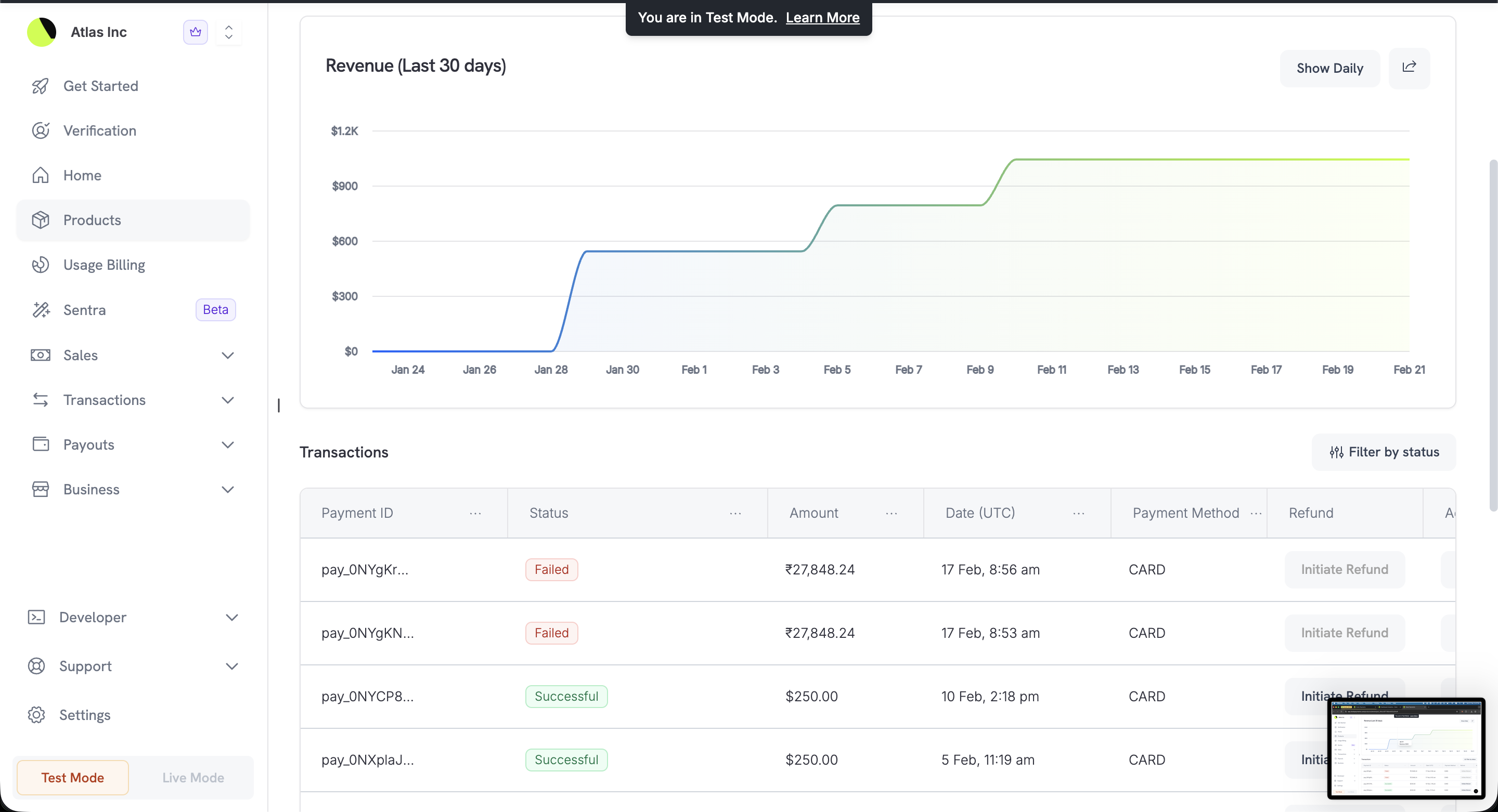 Use the **Filter by status** button to narrow the list to successful or failed transactions.
### Customers Tab
See who is buying this product and how much they're spending.
Use the **Filter by status** button to narrow the list to successful or failed transactions.
### Customers Tab
See who is buying this product and how much they're spending.
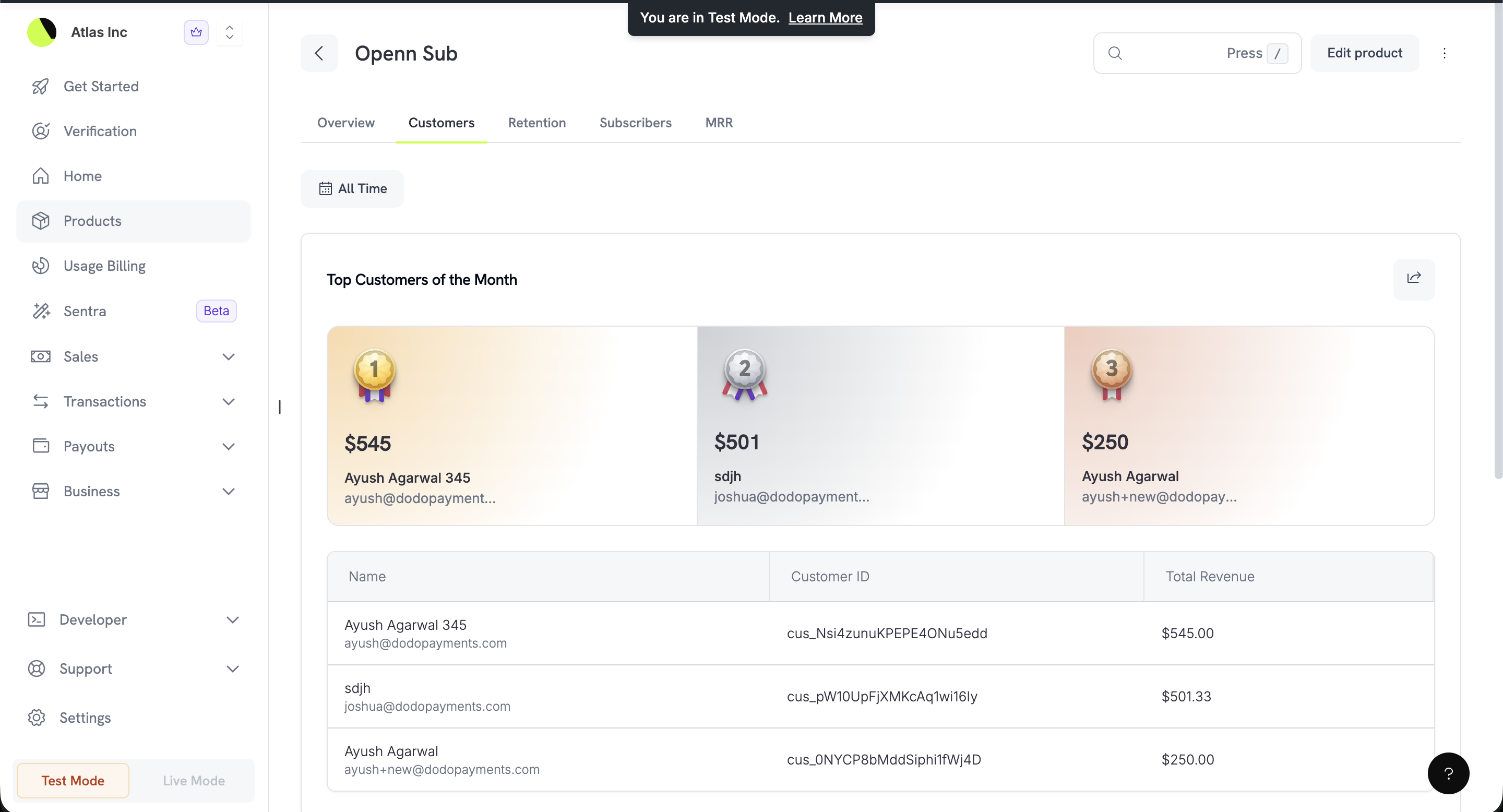 * **Top Customers of the Month**: A visual podium highlights your **top 3 customers** ranked by total spend, showing revenue amount, name, and email.
* **Customer Table**: A detailed breakdown of all customers with their Customer ID and total revenue for this product.
### Retention Tab
Understand how well this product retains its subscribers.
* **Top Customers of the Month**: A visual podium highlights your **top 3 customers** ranked by total spend, showing revenue amount, name, and email.
* **Customer Table**: A detailed breakdown of all customers with their Customer ID and total revenue for this product.
### Retention Tab
Understand how well this product retains its subscribers.
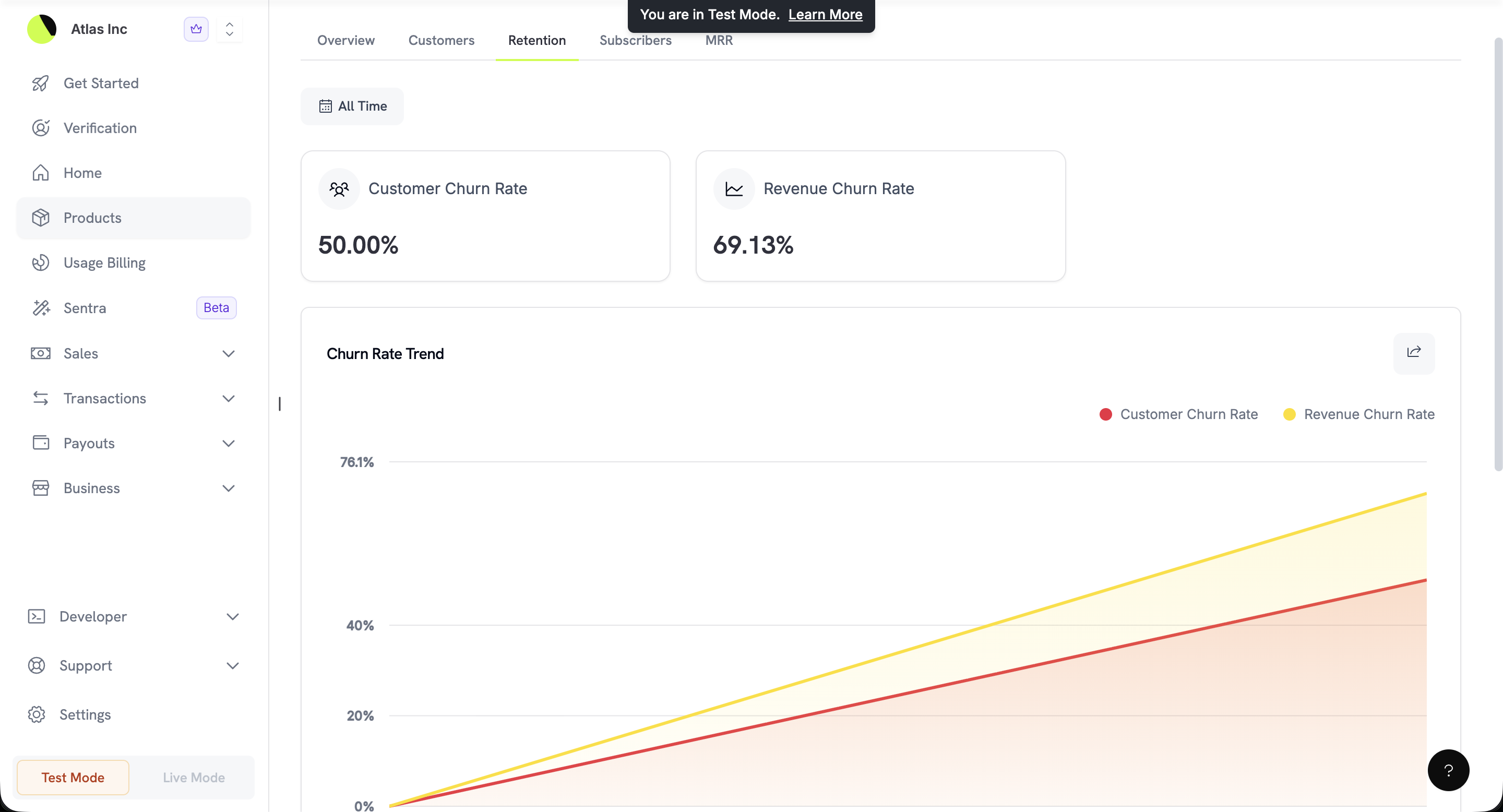 * **Customer Churn Rate**: Percentage of subscribers who have cancelled.
* **Revenue Churn Rate**: Percentage of revenue lost from cancellations and downgrades.
* **Churn Rate Trend**: A dual-line chart tracking both metrics over time to help you spot trends and take corrective action.
### Subscribers Tab
A complete list of all subscriptions associated with this product.
* **Customer Churn Rate**: Percentage of subscribers who have cancelled.
* **Revenue Churn Rate**: Percentage of revenue lost from cancellations and downgrades.
* **Churn Rate Trend**: A dual-line chart tracking both metrics over time to help you spot trends and take corrective action.
### Subscribers Tab
A complete list of all subscriptions associated with this product.
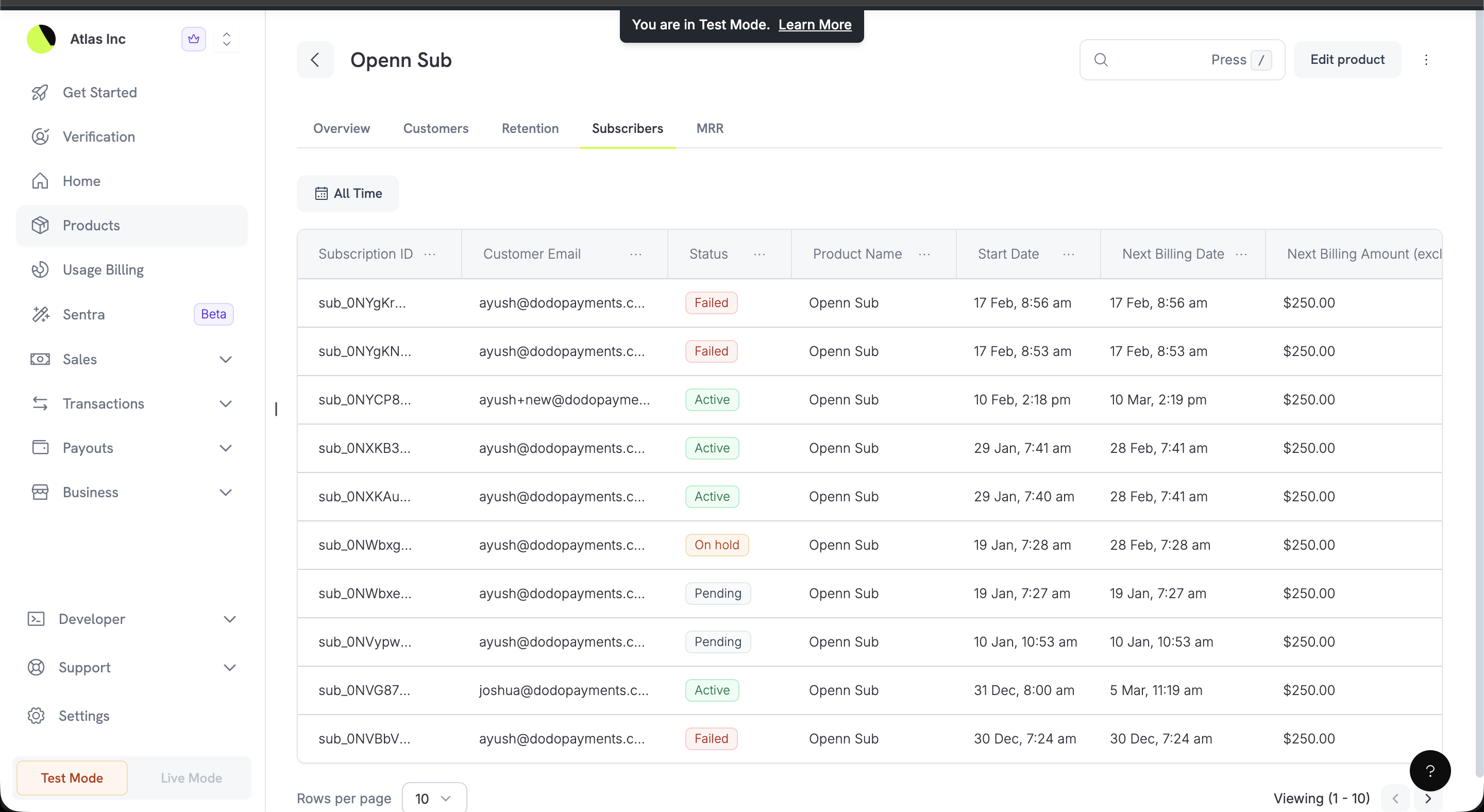 | Column | Description |
| ------------------- | ---------------------------------------------- |
| Subscription ID | Unique identifier for the subscription |
| Customer Email | The subscriber's email address |
| Status | `Active`, `Failed`, `On hold`, or `Pending` |
| Product Name | The product this subscription belongs to |
| Start Date | When the subscription began |
| Next Billing Date | The upcoming renewal date |
| Next Billing Amount | The amount due at next renewal (excluding tax) |
### MRR Tab
A detailed breakdown of your product's Monthly Recurring Revenue.
| Column | Description |
| ------------------- | ---------------------------------------------- |
| Subscription ID | Unique identifier for the subscription |
| Customer Email | The subscriber's email address |
| Status | `Active`, `Failed`, `On hold`, or `Pending` |
| Product Name | The product this subscription belongs to |
| Start Date | When the subscription began |
| Next Billing Date | The upcoming renewal date |
| Next Billing Amount | The amount due at next renewal (excluding tax) |
### MRR Tab
A detailed breakdown of your product's Monthly Recurring Revenue.
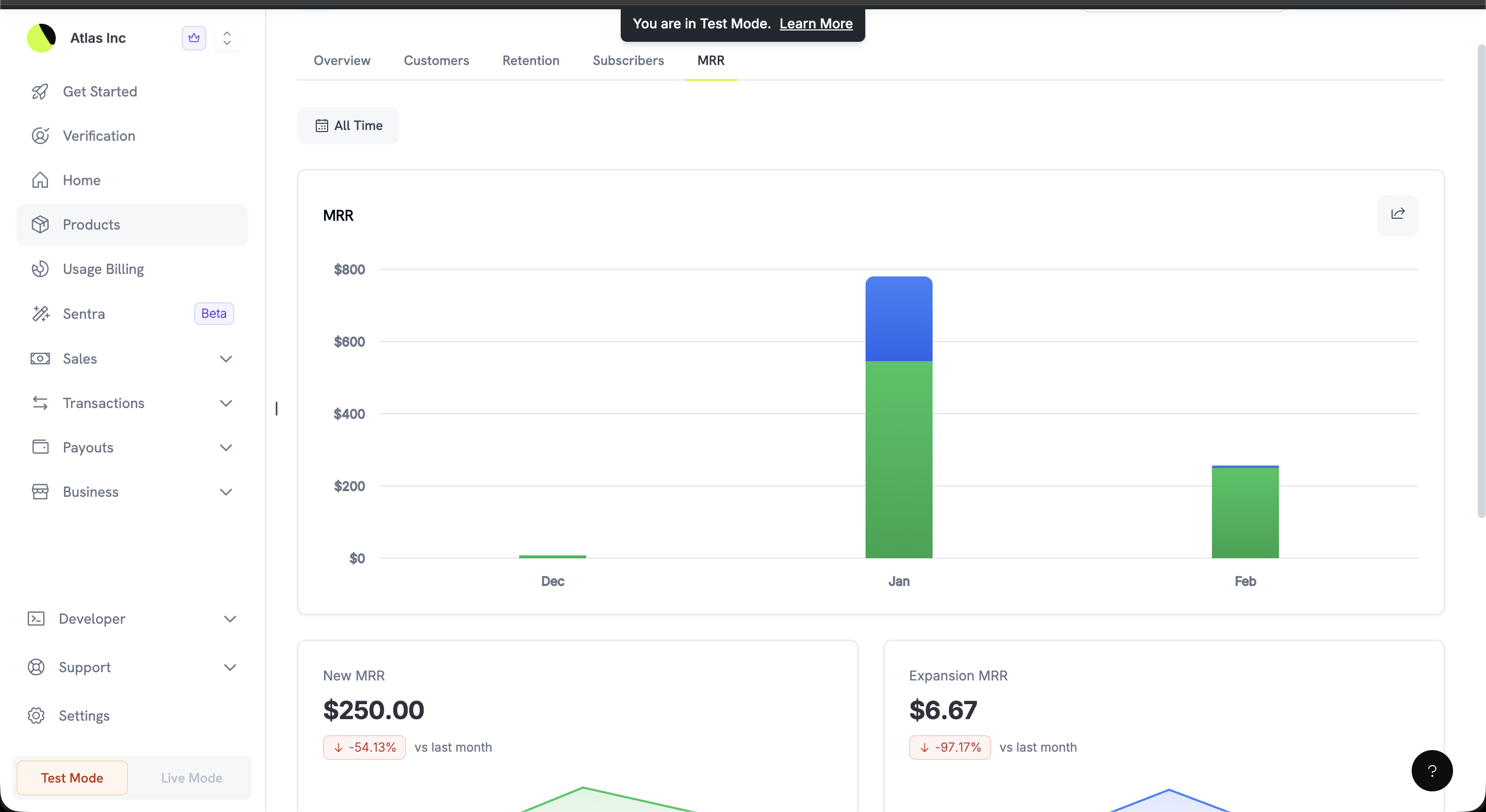 The **MRR chart** visualizes your recurring revenue composition month by month as a stacked bar chart.
Below the chart, metric cards provide detailed insights:
The **MRR chart** visualizes your recurring revenue composition month by month as a stacked bar chart.
Below the chart, metric cards provide detailed insights:
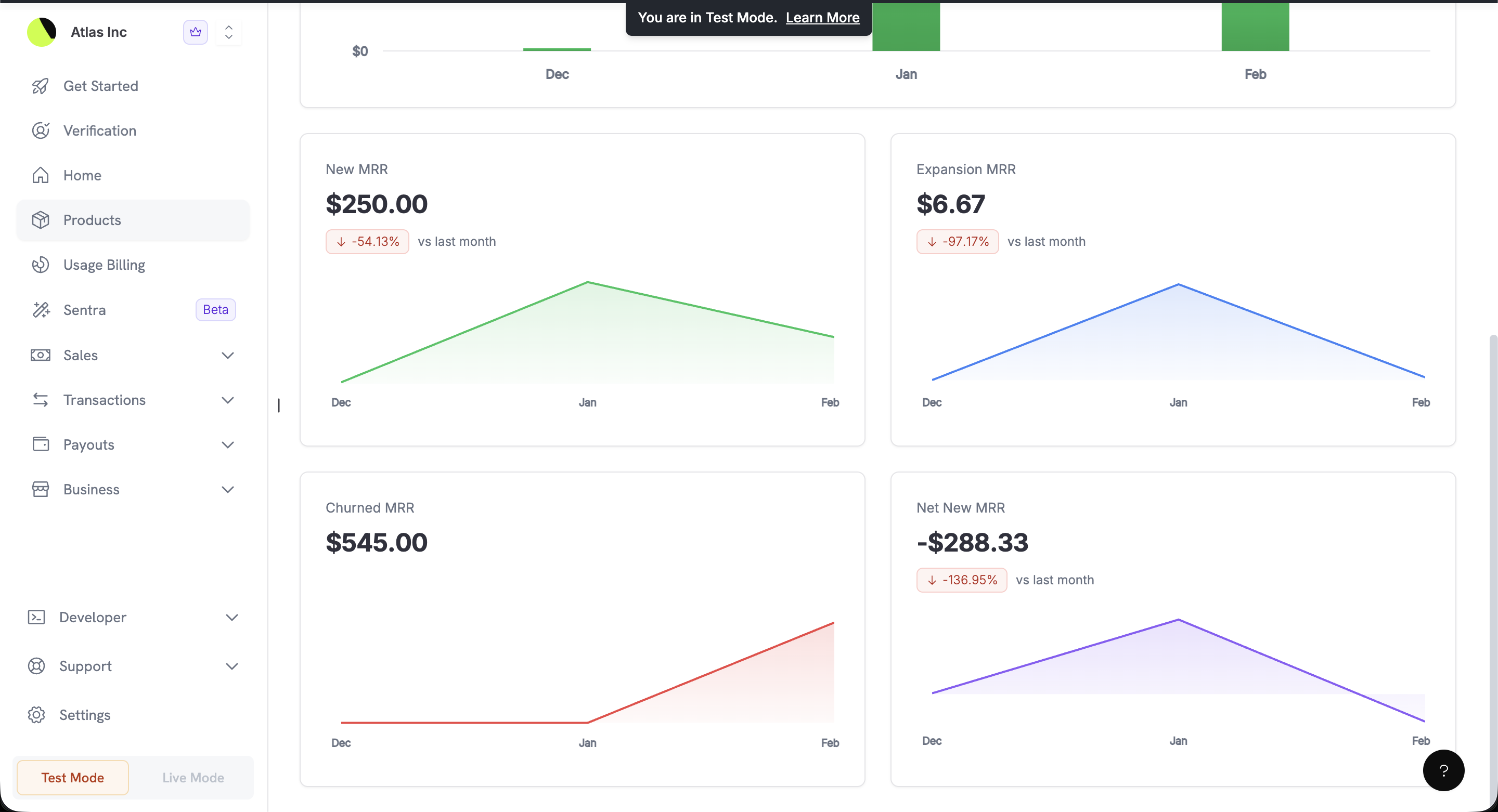 | Metric | Description |
| ------------------- | -------------------------------------------------------------------------------- |
| **New MRR** | Revenue from new subscriptions acquired this month, with month-over-month change |
| **Expansion MRR** | Additional revenue from existing subscribers upgrading or adding to their plans |
| **Contraction MRR** | Revenue lost from existing subscribers downgrading without fully cancelling |
| **Churned MRR** | Revenue lost from cancelled subscriptions |
| **Net New MRR** | The net result: New MRR + Expansion MRR − Contraction MRR − Churned MRR |
Each card includes a trend mini-chart and a percentage change indicator compared to the previous month.
***
## Page Highlight Tiles
Many list pages in your dashboard now display **highlight tiles** at the top, giving you key summary metrics at a glance—without opening the full Analytics dashboard. The tiles respect the page's active filters.
| Page | Highlight Tiles |
| ----------------- | --------------------------------------------------------- |
| **Products** | All Products, Active Products, Archived Products |
| **Add-ons** | All Add-Ons, Active Add-Ons, Linked to Products |
| **Collections** | All Collections, Active Collections, Archived Collections |
| **Subscriptions** | Active Subscriptions, On Hold, Cancelled |
| **Payments** | Successful Payments, Payment Volume, Failed Payments |
| **Refunds** | Successful Refunds, Refund Volume, Failed Refunds |
| **Disputes** | Disputes Created, Won, Accepted, Lost |
"Active" products, add-ons, collections, and meters are those that have participated in at least one successful payment.
***
## Reports
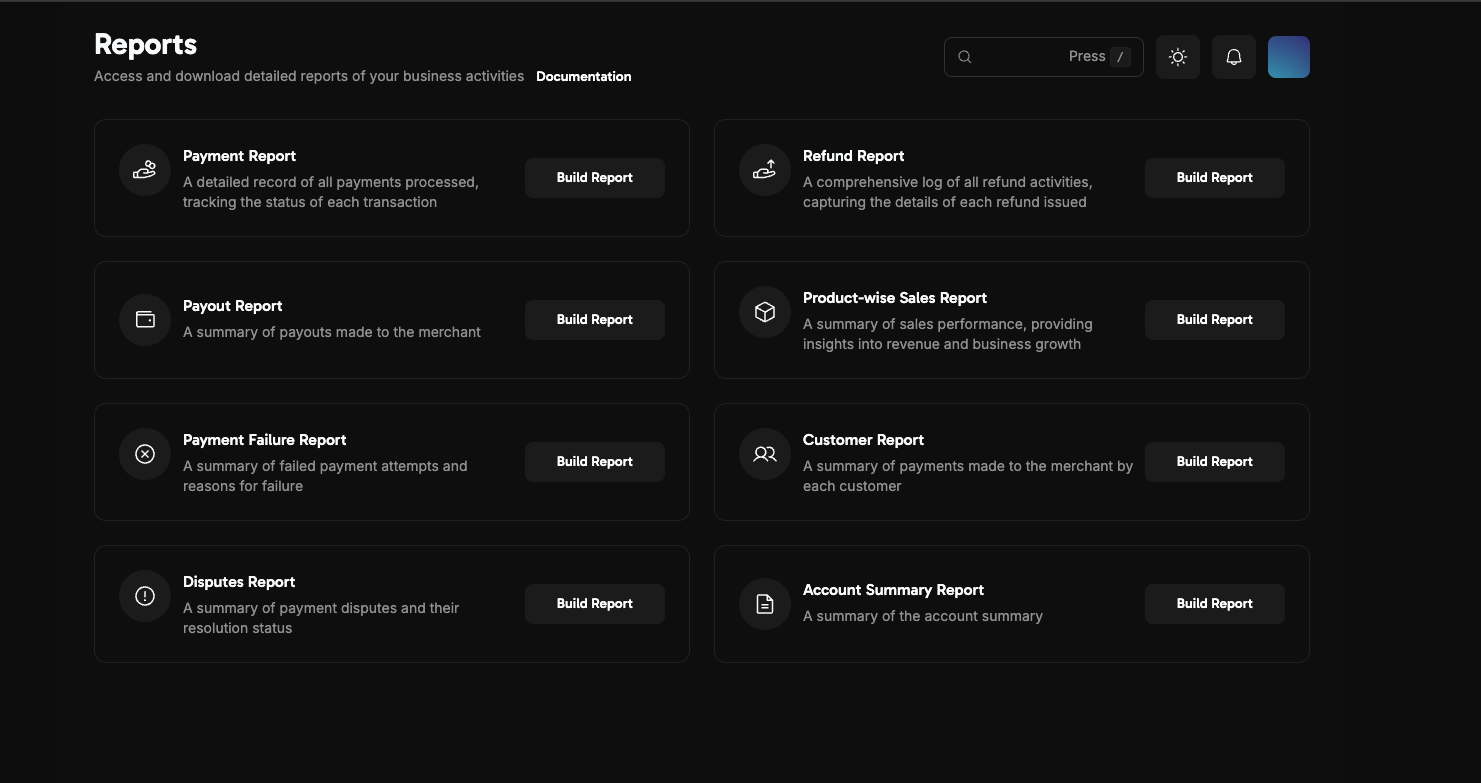
Navigate to the **Reports** section in your dashboard to access the reporting suite. Each report can be filtered (by payment method, status, product type, failure type, dispute status, or currency where applicable) and downloaded as a CSV.
Available reports include:
* **Payment Report**: Detailed record of all processed payments, including billing address, card details, USD-equivalent amounts, settlement details, fees, and failure codes.
* **Refund Report**: Comprehensive log of all refund activities with detailed refund information.
* **Payout Report**: Summary of payouts made to your account, with a breakdown of fees by ledger event.
* **Product-wise Sales Report**: Sales performance per product, with total sales volume and net revenue.
* **Payment Failure Report**: Summary of failed payment attempts with failure reasons (customer-side vs. network-side).
* **Customer Report**: Payment, refund, and dispute summary organized by customer.
* **Disputes Report**: Payment disputes summary with resolution status and evidence details.
* **Ledger Report**: Detailed balance-ledger entries with event type, amount, and references.
| Metric | Description |
| ------------------- | -------------------------------------------------------------------------------- |
| **New MRR** | Revenue from new subscriptions acquired this month, with month-over-month change |
| **Expansion MRR** | Additional revenue from existing subscribers upgrading or adding to their plans |
| **Contraction MRR** | Revenue lost from existing subscribers downgrading without fully cancelling |
| **Churned MRR** | Revenue lost from cancelled subscriptions |
| **Net New MRR** | The net result: New MRR + Expansion MRR − Contraction MRR − Churned MRR |
Each card includes a trend mini-chart and a percentage change indicator compared to the previous month.
***
## Page Highlight Tiles
Many list pages in your dashboard now display **highlight tiles** at the top, giving you key summary metrics at a glance—without opening the full Analytics dashboard. The tiles respect the page's active filters.
| Page | Highlight Tiles |
| ----------------- | --------------------------------------------------------- |
| **Products** | All Products, Active Products, Archived Products |
| **Add-ons** | All Add-Ons, Active Add-Ons, Linked to Products |
| **Collections** | All Collections, Active Collections, Archived Collections |
| **Subscriptions** | Active Subscriptions, On Hold, Cancelled |
| **Payments** | Successful Payments, Payment Volume, Failed Payments |
| **Refunds** | Successful Refunds, Refund Volume, Failed Refunds |
| **Disputes** | Disputes Created, Won, Accepted, Lost |
"Active" products, add-ons, collections, and meters are those that have participated in at least one successful payment.
***
## Reports
Navigate to the **Reports** section in your dashboard to access the reporting suite. Each report can be filtered (by payment method, status, product type, failure type, dispute status, or currency where applicable) and downloaded as a CSV.
Available reports include:
* **Payment Report**: Detailed record of all processed payments, including billing address, card details, USD-equivalent amounts, settlement details, fees, and failure codes.
* **Refund Report**: Comprehensive log of all refund activities with detailed refund information.
* **Payout Report**: Summary of payouts made to your account, with a breakdown of fees by ledger event.
* **Product-wise Sales Report**: Sales performance per product, with total sales volume and net revenue.
* **Payment Failure Report**: Summary of failed payment attempts with failure reasons (customer-side vs. network-side).
* **Customer Report**: Payment, refund, and dispute summary organized by customer.
* **Disputes Report**: Payment disputes summary with resolution status and evidence details.
* **Ledger Report**: Detailed balance-ledger entries with event type, amount, and references.
 ### Payout Reports
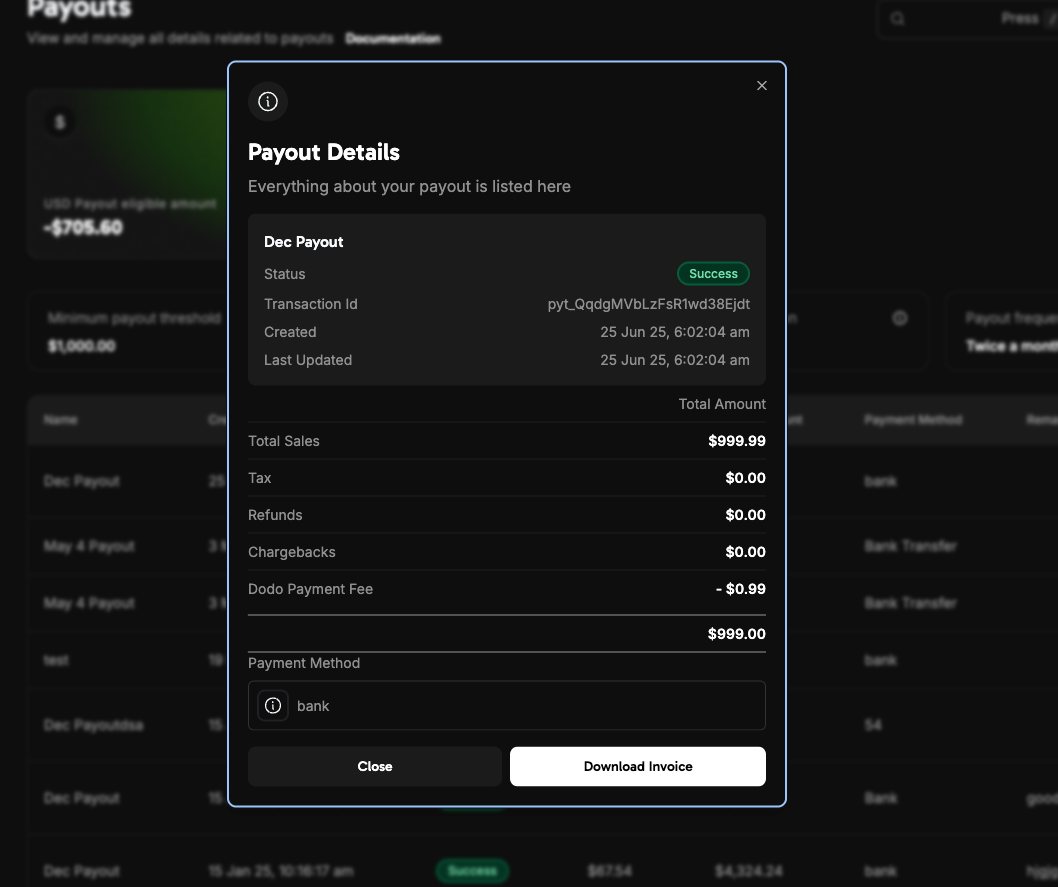
Detailed payout reports provide clear visibility into fees and transaction details for each payout. Access these in **Business > Payouts**.
### Payout Reports
Detailed payout reports provide clear visibility into fees and transaction details for each payout. Access these in **Business > Payouts**.
 ### Downloading Reports
Navigate to the Reports area in your dashboard.
Choose the report you need (Payments, Refunds, Payouts, Disputes, and more), apply any available filters, and specify the date range.
Click Download to export your report in CSV format.
Your report will be saved to your device.
***
## Best Practices
* Regularly review your analytics to spot trends and anomalies early.
* Use filters to compare performance across products, time periods, or geographies.
* Drill into product-level analytics to understand which products drive the most revenue and which have the highest churn.
* If data appears incorrect or missing, check your filters and date range settings first.
If you notice persistent discrepancies or missing data, contact [support@dodopayments.com](mailto:support@dodopayments.com) for assistance.
## Next Steps
Understand your earnings, deductions, and payout cycles.
Create and manage your products.
Track and manage all payment transactions.
Initiate and monitor refunds, and export refund reports.
### Downloading Reports
Navigate to the Reports area in your dashboard.
Choose the report you need (Payments, Refunds, Payouts, Disputes, and more), apply any available filters, and specify the date range.
Click Download to export your report in CSV format.
Your report will be saved to your device.
***
## Best Practices
* Regularly review your analytics to spot trends and anomalies early.
* Use filters to compare performance across products, time periods, or geographies.
* Drill into product-level analytics to understand which products drive the most revenue and which have the highest churn.
* If data appears incorrect or missing, check your filters and date range settings first.
If you notice persistent discrepancies or missing data, contact [support@dodopayments.com](mailto:support@dodopayments.com) for assistance.
## Next Steps
Understand your earnings, deductions, and payout cycles.
Create and manage your products.
Track and manage all payment transactions.
Initiate and monitor refunds, and export refund reports.