> ## Documentation Index
> Fetch the complete documentation index at: https://docs.dodopayments.com/llms.txt
> Use this file to discover all available pages before exploring further.
# Build an AI Image Generator with Usage-Based Billing
> Follow along as we build PixelGen AI - an AI image generation service with pay-per-use billing
In this tutorial, you'll build **PixelGen AI** - a sample AI image generation service that demonstrates usage-based billing. We'll create everything from scratch: the billing meter, product configuration, and sample application code that generates images and tracks usage in real-time.
This tutorial provides sample implementation code for a terminal-based application. You can modify this code for your specific framework (React, Vue, Angular, etc.) and customize the user input method according to your application's needs.
By the end of this tutorial, you'll have a working sample service that:
* Generates images using OpenAI's DALL-E API
* Tracks every image generation for billing
* Charges customers automatically based on usage
* Handles different quality tiers (standard vs HD)
## What We're Building
Let's start by understanding our PixelGen AI service:
* **Service**: AI image generation using OpenAI's DALL-E API
* **Pricing Model**: Pay-per-image (\$0.05 per image)
* **Free Tier**: 10 free images per customer per month
* **Quality Options**: Standard and HD images (same price for simplicity)
Before we start, make sure you have:
* A Dodo Payments account
* Access to OpenAI's API
* Basic familiarity with TypeScript/Node.js
## Step 1: Create Your Usage Meter
We'll start by creating a meter in your Dodo Payments dashboard that will track every image our service generates. Think of this as the "counter" that tracks billable events.
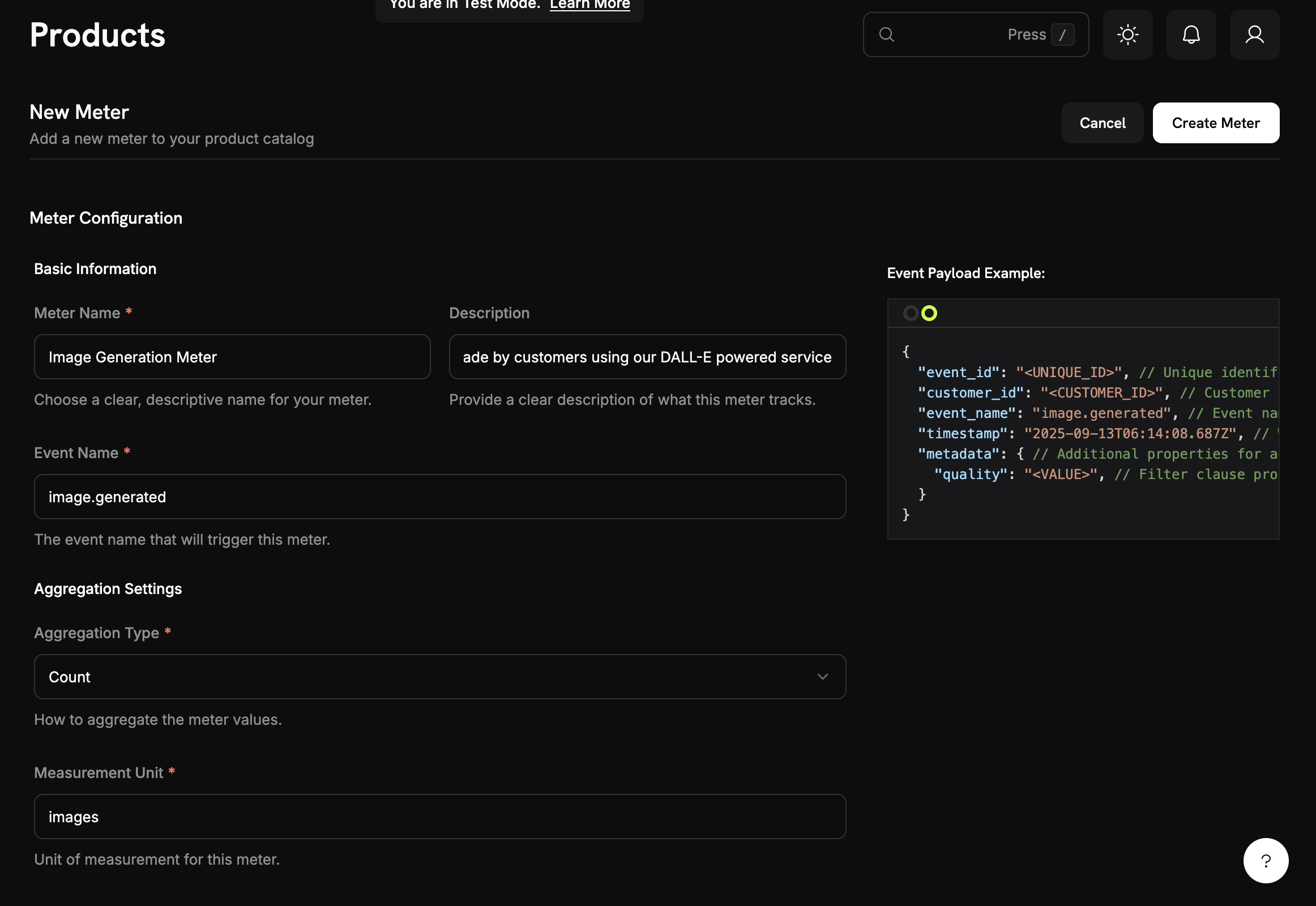 **What we're building**: A meter named "Image Generation Meter" that counts every time someone generates an image using our service.
1. Log into your Dodo Payments dashboard
2. Click on **Meters** in the left sidebar
3. Click the **Create Meter** button
You should see a form where we'll configure our image generation tracking.
Now we'll enter the specific details for our PixelGen AI service:
**Meter Name**: Copy and paste this exactly → `Image Generation Meter`
**Description**: Copy this → `Tracks each AI image generation request made by customers using our DALL-E powered service`
**Event Name**: This is crucial - copy exactly → `image.generated`
The event name `image.generated` must match exactly what we'll send from our application code later. Event names are case-sensitive!
Set up the aggregation (how the meter counts our events):
**Aggregation Type**: Select **Count** from the dropdown
**Measurement Unit**: Type → `images`
We're using "Count" because we want to bill per image generated, not by size or generation time. Each successful image = 1 billable unit.
**What we're building**: A meter named "Image Generation Meter" that counts every time someone generates an image using our service.
1. Log into your Dodo Payments dashboard
2. Click on **Meters** in the left sidebar
3. Click the **Create Meter** button
You should see a form where we'll configure our image generation tracking.
Now we'll enter the specific details for our PixelGen AI service:
**Meter Name**: Copy and paste this exactly → `Image Generation Meter`
**Description**: Copy this → `Tracks each AI image generation request made by customers using our DALL-E powered service`
**Event Name**: This is crucial - copy exactly → `image.generated`
The event name `image.generated` must match exactly what we'll send from our application code later. Event names are case-sensitive!
Set up the aggregation (how the meter counts our events):
**Aggregation Type**: Select **Count** from the dropdown
**Measurement Unit**: Type → `images`
We're using "Count" because we want to bill per image generated, not by size or generation time. Each successful image = 1 billable unit.
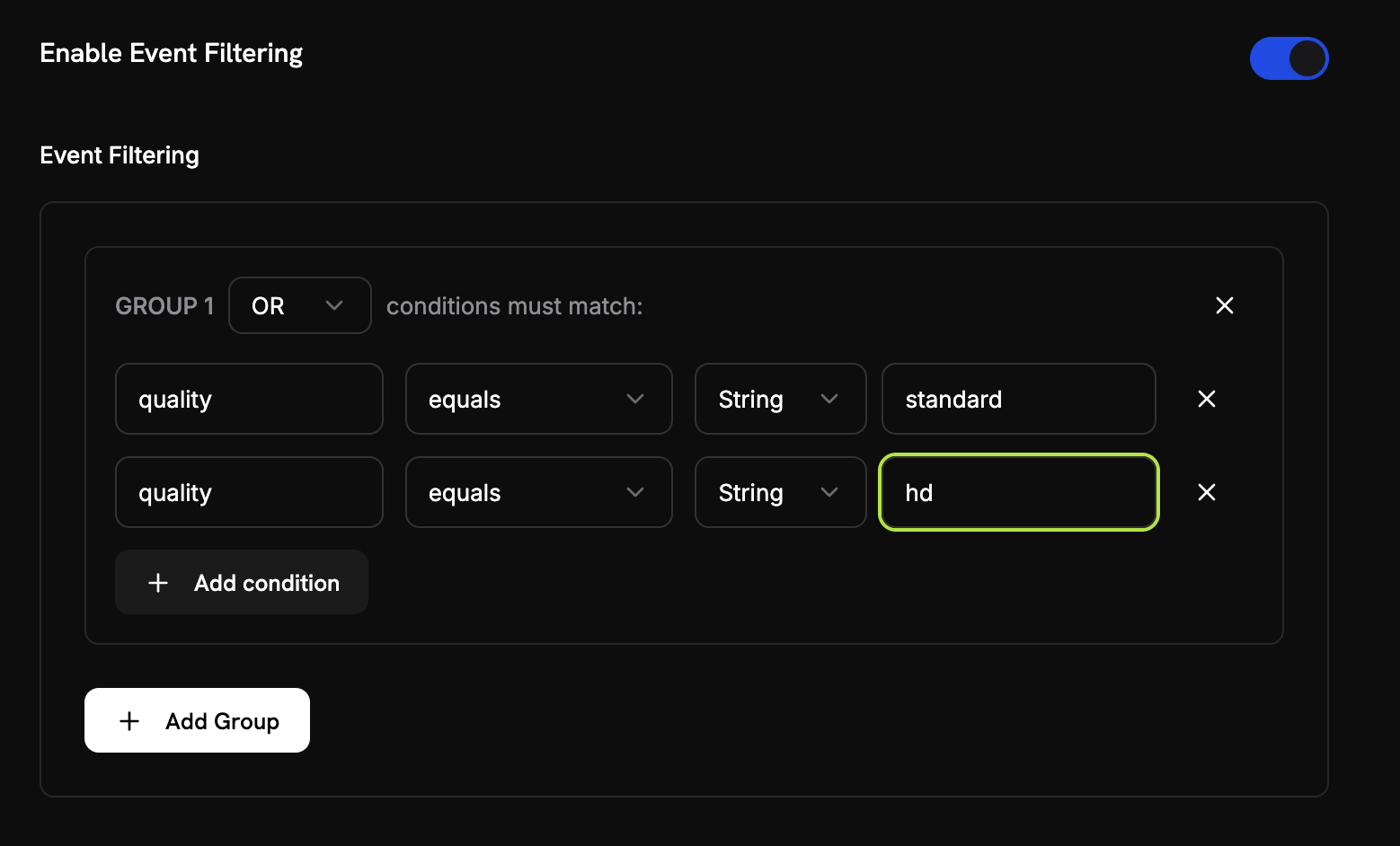 We want to make sure we only count legitimate images (not test runs or failures):
1. **Enable Event Filtering**: Toggle this **ON**
2. **Filter Logic**: Select **OR** (this means "count if ANY of these conditions are true")
3. **Add the first condition**:
* Property Key: `quality`
* Comparator: `equals`
* Value: `standard`
4. **Click "Add Condition"** for the second one:
* Property Key: `quality`
* Comparator: `equals`
* Value: `hd`
This setup means we'll only count events where the quality is either "standard" OR "hd" - filtering out any test events or malformed requests.
1. Double-check all your settings match the values above
2. Click **Create Meter**
**Meter created!** Your "Image Generation Meter" is now ready to start counting image generations. Next, we'll connect it to a billing product.
## Step 2: Create Your Billing Product
Now we need to create a product that defines our pricing (\$0.05 per image with 10 free images). This connects our meter to actual billing.
**What we're building**: A product called "PixelGen AI - Image Generation" that charges \$0.05 per image after the first 10 free images each month.
1. In your Dodo Payments dashboard, click **Products** in the left sidebar
2. Click **Create Product**
3. Select **Usage-Based** as the product type
This tells Dodo Payments that billing will be based on meter usage, not a fixed subscription.
Fill in these exact values for our PixelGen AI service:
**Product Name**: Copy this → `PixelGen AI - Image Generation`
**Description**: Copy this → `AI-powered image generation service with pay-per-use billing`
**Product Image**: Upload a clear, relevant image.
These will appear on customer invoices, so make them clear and professional.
We want to make sure we only count legitimate images (not test runs or failures):
1. **Enable Event Filtering**: Toggle this **ON**
2. **Filter Logic**: Select **OR** (this means "count if ANY of these conditions are true")
3. **Add the first condition**:
* Property Key: `quality`
* Comparator: `equals`
* Value: `standard`
4. **Click "Add Condition"** for the second one:
* Property Key: `quality`
* Comparator: `equals`
* Value: `hd`
This setup means we'll only count events where the quality is either "standard" OR "hd" - filtering out any test events or malformed requests.
1. Double-check all your settings match the values above
2. Click **Create Meter**
**Meter created!** Your "Image Generation Meter" is now ready to start counting image generations. Next, we'll connect it to a billing product.
## Step 2: Create Your Billing Product
Now we need to create a product that defines our pricing (\$0.05 per image with 10 free images). This connects our meter to actual billing.
**What we're building**: A product called "PixelGen AI - Image Generation" that charges \$0.05 per image after the first 10 free images each month.
1. In your Dodo Payments dashboard, click **Products** in the left sidebar
2. Click **Create Product**
3. Select **Usage-Based** as the product type
This tells Dodo Payments that billing will be based on meter usage, not a fixed subscription.
Fill in these exact values for our PixelGen AI service:
**Product Name**: Copy this → `PixelGen AI - Image Generation`
**Description**: Copy this → `AI-powered image generation service with pay-per-use billing`
**Product Image**: Upload a clear, relevant image.
These will appear on customer invoices, so make them clear and professional.
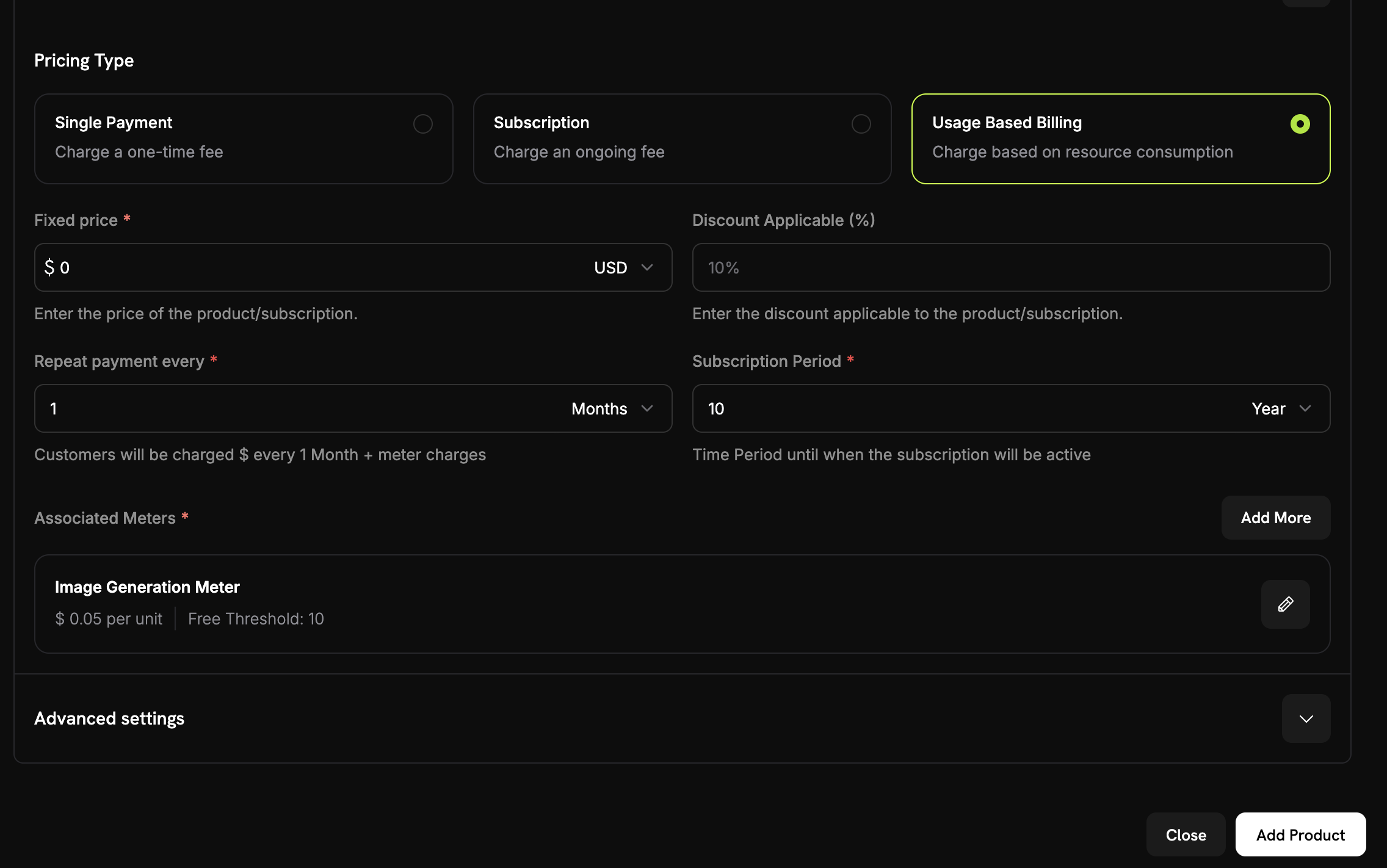 Before connecting your meter, make sure you have selected **Usage Based Billing** as the price type for your product.
Additionally, set the **Fixed Price** to `0` to ensure customers are only charged based on their usage, with no base fee.
Now, link the meter you just created:
1. Scroll down to the **Associated Meter** section
2. Click **Add Meters**
3. From the dropdown, select **"Image Generation Meter"** (the one you created earlier)
4. Confirm that it appears in your product configuration
Your meter is now successfully connected to this product.
Here's where we define our business model:
Before connecting your meter, make sure you have selected **Usage Based Billing** as the price type for your product.
Additionally, set the **Fixed Price** to `0` to ensure customers are only charged based on their usage, with no base fee.
Now, link the meter you just created:
1. Scroll down to the **Associated Meter** section
2. Click **Add Meters**
3. From the dropdown, select **"Image Generation Meter"** (the one you created earlier)
4. Confirm that it appears in your product configuration
Your meter is now successfully connected to this product.
Here's where we define our business model:
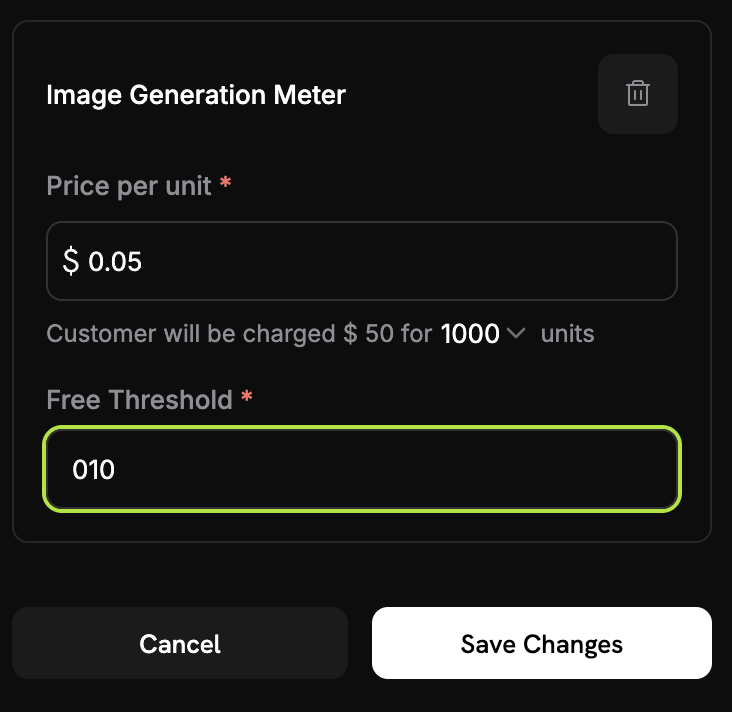 **Price Per Unit**: Enter → `0.05` (this is \$0.05 per image)
**Free Threshold**: Enter → `10` (customers get 10 free images per month)
**How billing works**: If a customer generates 25 images in a month, they'll be charged for 15 images (25 - 10 free) = 15 × $0.05 = $0.75
1. Review all your settings:
* Name: PixelGen AI - Image Generation
* Meter: Image Generation Meter
* Price: \$0.05 per image
* Free tier: 10 images
2. Click **Save Changes**
**Product created!** Your billing is now configured. Customers will automatically be charged based on their image generation usage.
## Step 3: Make a Test Purchase
Before we start ingesting usage events, we need to make a test purchase.
1. In your Dodo Payments dashboard, go to **Products**
2. Find your "PixelGen AI - Image Generation" product
3. Click the **Share** button next to your product
4. Copy the payment link that appears
The payment link will look something like: `https://test.checkout.dodopayments.com/buy/pdt_IgPWlRsfpbPd5jQKezzW1?quantity=1`
1. Open the payment link in a new browser tab
2. Enter test payment details and complete purchase.
After successful payment, you'll have a customer ID that we'll use in our application code.
1. Go back to your Dodo Payments dashboard
2. Navigate to **Sales → Customers** in the sidebar
3. Find the customer you just created (with the test email)
4. Copy the customer ID - it will look like `cus_abc123def456`
Save this customer ID - we'll hardcode it in our sample application code to ensure events are properly tracked.
## Step 4: Build the Sample Application
Now we have our billing setup complete and a test customer created. Let's build the sample PixelGen AI application that generates images and automatically tracks usage for billing.
Create a new directory and initialize the project:
```bash theme={null}
mkdir pixelgen-ai
cd pixelgen-ai
npm init -y
```
Install the packages we need:
```bash theme={null}
npm install openai dotenv
npm install -D typescript @types/node ts-node
```
Create a file called `index.ts` and copy this complete application code:
Here's the complete PixelGen AI application with integrated billing:
```typescript index.ts expandable theme={null}
import 'dotenv/config';
import OpenAI from 'openai';
import * as readline from 'readline';
import { randomUUID } from 'crypto';
// Initialize OpenAI client
const openai = new OpenAI({
apiKey: process.env.OPENAI_API_KEY,
});
// Dodo Payments configuration
const DODO_PAYMENTS_CONFIG = {
apiKey: process.env.DODO_PAYMENTS_API_KEY,
baseUrl: 'https://test.dodopayments.com',
customerId: 'cus_FX5FAB43aShGyiHJGIqjB', // Replace with your actual customer ID from Step 3
};
// DALL-E 3 pricing (as of 2024-2025)
const PRICING = {
'standard': 0.040, // $0.040 per image (1024×1024)
'hd': 0.080, // $0.080 per image (1024×1024, HD quality)
};
interface ImageGenerationOptions {
prompt: string;
model?: 'dall-e-3' | 'dall-e-2';
quality?: 'standard' | 'hd';
size?: '1024x1024' | '1792x1024' | '1024x1792';
style?: 'vivid' | 'natural';
}
interface UsageEvent {
event_id: string;
customer_id: string;
event_name: string;
timestamp: string;
metadata: {
quality: string;
};
}
/**
* Send usage event to Dodo Payments for billing tracking
*/
async function sendUsageEvent(event: UsageEvent): Promise {
try {
console.log('Sending usage event to Dodo Payments...');
console.log(`URL: ${DODO_PAYMENTS_CONFIG.baseUrl}/events/ingest`);
console.log(`API Key present: ${!!DODO_PAYMENTS_CONFIG.apiKey}`);
console.log(`API Key length: ${DODO_PAYMENTS_CONFIG.apiKey?.length || 0}`);
console.log(`Customer ID: ${DODO_PAYMENTS_CONFIG.customerId}`);
const requestBody = {
events: [event]
};
console.log('Request body:', JSON.stringify(requestBody, null, 2));
const headers = {
'Authorization': `Bearer ${DODO_PAYMENTS_CONFIG.apiKey}`,
'Content-Type': 'application/json',
}
console.log('Headers:', headers);
const response = await fetch(`${DODO_PAYMENTS_CONFIG.baseUrl}/events/ingest`, {
method: 'POST',
headers: headers,
body: JSON.stringify(requestBody),
});
console.log(`Response status: ${response.status}`);
console.log(`Response headers:`, Object.fromEntries(response.headers.entries()));
if (!response.ok) {
const errorData = await response.text();
console.log(`Error response body: ${errorData}`);
throw new Error(`HTTP ${response.status}: ${errorData}`);
}
const result = await response.json();
console.log('Usage event sent successfully');
console.log(` • Event ID: ${event.event_id}`);
console.log(` • Customer: ${event.customer_id}`);
console.log(` • Quality: ${event.metadata.quality}`);
} catch (error) {
console.error('Failed to send usage event:', error);
// In production, you might want to queue failed events for retry
throw error;
}
}
async function generateImage(options: ImageGenerationOptions) {
const startTime = Date.now();
const eventId = randomUUID();
try {
console.log('Generating image...');
console.log(`Prompt: "${options.prompt}"`);
console.log(`Quality: ${options.quality || 'standard'}`);
console.log(`Size: ${options.size || '1024x1024'}`);
const response = await openai.images.generate({
model: options.model || 'dall-e-3',
prompt: options.prompt,
n: 1,
size: options.size || '1024x1024',
quality: options.quality || 'standard',
style: options.style || 'vivid',
});
const endTime = Date.now();
const duration = (endTime - startTime) / 1000;
const cost = PRICING[options.quality || 'standard'];
// Create usage event for Dodo Payments
const usageEvent: UsageEvent = {
event_id: eventId,
customer_id: DODO_PAYMENTS_CONFIG.customerId!,
event_name: 'image.generated',
timestamp: new Date().toISOString(),
metadata: {
quality: options.quality || 'standard',
}
};
// Send usage event to Dodo Payments for billing
await sendUsageEvent(usageEvent);
console.log('\nImage generated successfully!');
console.log(`Generation Stats:`);
console.log(` • Duration: ${duration.toFixed(2)} seconds`);
console.log(` • Quality: ${options.quality || 'standard'}`);
console.log(` • Cost: $${cost.toFixed(3)}`);
console.log(` • Image URL: ${response.data?.[0]?.url}`);
if (response.data?.[0]?.revised_prompt) {
console.log(` • Revised prompt: "${response.data[0].revised_prompt}"`);
}
return {
imageUrl: response.data?.[0].url,
revisedPrompt: response.data?.[0].revised_prompt,
cost: cost,
duration: duration,
eventId: eventId,
};
} catch (error) {
console.error('Error generating image:', error);
// Send failure event for monitoring (optional)
try {
const failureEvent: UsageEvent = {
event_id: eventId,
customer_id: DODO_PAYMENTS_CONFIG.customerId!,
event_name: 'image.generation.failed',
timestamp: new Date().toISOString(),
metadata: {
quality: options.quality || 'standard',
}
};
// Note: You might want to create a separate meter for failed attempts
// await sendUsageEvent(failureEvent);
} catch (eventError) {
console.error('Failed to send failure event:', eventError);
}
throw error;
}
}
async function getUserInput(): Promise {
const rl = readline.createInterface({
input: process.stdin,
output: process.stdout
});
return new Promise((resolve) => {
rl.question('Enter your image prompt: ', (answer) => {
rl.close();
resolve(answer);
});
});
}
async function main() {
console.log('PixelGen AI - Image Generator with Usage Billing\n');
// Validate environment variables
const requiredEnvVars = [
'OPENAI_API_KEY',
'DODO_PAYMENTS_API_KEY'
];
for (const envVar of requiredEnvVars) {
if (!process.env[envVar]) {
console.error(`Error: ${envVar} environment variable is not set.`);
console.log('Please set all required environment variables:');
console.log('export OPENAI_API_KEY="your-openai-key"');
console.log('export DODO_PAYMENTS_API_KEY="your-dodo-api-key"');
console.log('Note: Customer ID is hardcoded in the application');
process.exit(1);
}
}
try {
const prompt = await getUserInput();
if (!prompt.trim()) {
console.log('No prompt provided. Exiting...');
return;
}
const result = await generateImage({
prompt: prompt.trim(),
quality: 'standard', // Change to 'hd' for higher quality (costs more)
size: '1024x1024',
style: 'vivid'
});
console.log('\nProcess completed successfully!');
console.log(`Billing Information:`);
console.log(` • Total cost: $${result.cost.toFixed(3)}`);
console.log(` • Event ID: ${result.eventId}`);
console.log(` • Billing will be processed automatically via Dodo Payments`);
} catch (error) {
console.error('Application error:', error);
process.exit(1);
}
}
// Run the application
if (require.main === module) {
main().catch(console.error);
}
```
```bash .env theme={null}
# Create .env file with your API keys
OPENAI_API_KEY=your_openai_api_key_here
DODO_PAYMENTS_API_KEY=your_DODO_PAYMENTS_payments_api_key_here
# Note: Customer ID is hardcoded in the application code
```
```typescript package.json theme={null}
{
"name": "pixelgen-ai",
"version": "1.0.0",
"description": "AI Image Generation with Usage-Based Billing",
"main": "index.js",
"scripts": {
"start": "ts-node index.ts",
"build": "tsc",
"dev": "ts-node --watch index.ts"
},
"dependencies": {
"openai": "^4.0.0",
"dotenv": "^16.0.0"
},
"devDependencies": {
"@types/node": "^20.0.0",
"typescript": "^5.0.0",
"ts-node": "^10.0.0"
}
}
```
## Step 5: Test Your Sample Application
Time to test our sample PixelGen AI service and see the billing in action! Let's make sure everything works end-to-end.
**What we're testing**: We'll generate some images, verify the events reach Dodo Payments, and confirm billing calculations are correct.
First, make sure you have everything configured:
1. Create a `.env` file in your `pixelgen-ai` directory
2. Add your actual API keys:
```bash theme={null}
OPENAI_API_KEY=sk-your-actual-openai-key
DODO_PAYMENTS_API_KEY=your-actual-dodo-api-key
# Customer ID is hardcoded in the application
```
3. Install dependencies and run the app:
```bash theme={null}
npm install
npm start
```
Make sure to use real API keys and update the hardcoded customer ID in the code with your actual customer ID from Step 3!
When the app starts, you'll see:
```
PixelGen AI - Image Generator with Usage Billing
Enter your image prompt:
```
Try this prompt: **"A cute robot painting a landscape"**
You should see output like this:
```
Generating image...
Prompt: "A cute robot painting a landscape"
Quality: standard
Size: 1024x1024
Sending usage event to Dodo Payments...
Usage event sent successfully
• Event ID: 550e8400-e29b-41d4-a716-446655440000
• Customer: cus_atXa1lklCRRzMicTqfiw2
• Quality: standard
Image generated successfully!
Generation Stats:
• Duration: 8.45 seconds
• Quality: standard
• Cost: $0.040
• Image URL: https://oaidalleapi...
```
If you see "Usage event sent successfully", your billing integration is working!
Let's generate 2-3 more images to test multiple events. Try these prompts:
1. **"A sunset over mountains with purple clouds"**
2. **"A steampunk coffee machine in a Victorian kitchen"**
3. **"A friendly dragon reading a book in a library"**
Each time, watch for the "Usage event sent successfully" message.
Now let's verify the events are being received:
1. Open your Dodo Payments dashboard
2. Go to *Usage Billing* → \***Meters** → **Image Generation Meter**
3. Click on the **Events** tab
4. You should see your image generation events listed
**What to look for**:
* Event names: `image.generated`
* Customer ID: Your test customer ID
You should see one event for each image you generated!
Let's check if the usage counting is working:
**Price Per Unit**: Enter → `0.05` (this is \$0.05 per image)
**Free Threshold**: Enter → `10` (customers get 10 free images per month)
**How billing works**: If a customer generates 25 images in a month, they'll be charged for 15 images (25 - 10 free) = 15 × $0.05 = $0.75
1. Review all your settings:
* Name: PixelGen AI - Image Generation
* Meter: Image Generation Meter
* Price: \$0.05 per image
* Free tier: 10 images
2. Click **Save Changes**
**Product created!** Your billing is now configured. Customers will automatically be charged based on their image generation usage.
## Step 3: Make a Test Purchase
Before we start ingesting usage events, we need to make a test purchase.
1. In your Dodo Payments dashboard, go to **Products**
2. Find your "PixelGen AI - Image Generation" product
3. Click the **Share** button next to your product
4. Copy the payment link that appears
The payment link will look something like: `https://test.checkout.dodopayments.com/buy/pdt_IgPWlRsfpbPd5jQKezzW1?quantity=1`
1. Open the payment link in a new browser tab
2. Enter test payment details and complete purchase.
After successful payment, you'll have a customer ID that we'll use in our application code.
1. Go back to your Dodo Payments dashboard
2. Navigate to **Sales → Customers** in the sidebar
3. Find the customer you just created (with the test email)
4. Copy the customer ID - it will look like `cus_abc123def456`
Save this customer ID - we'll hardcode it in our sample application code to ensure events are properly tracked.
## Step 4: Build the Sample Application
Now we have our billing setup complete and a test customer created. Let's build the sample PixelGen AI application that generates images and automatically tracks usage for billing.
Create a new directory and initialize the project:
```bash theme={null}
mkdir pixelgen-ai
cd pixelgen-ai
npm init -y
```
Install the packages we need:
```bash theme={null}
npm install openai dotenv
npm install -D typescript @types/node ts-node
```
Create a file called `index.ts` and copy this complete application code:
Here's the complete PixelGen AI application with integrated billing:
```typescript index.ts expandable theme={null}
import 'dotenv/config';
import OpenAI from 'openai';
import * as readline from 'readline';
import { randomUUID } from 'crypto';
// Initialize OpenAI client
const openai = new OpenAI({
apiKey: process.env.OPENAI_API_KEY,
});
// Dodo Payments configuration
const DODO_PAYMENTS_CONFIG = {
apiKey: process.env.DODO_PAYMENTS_API_KEY,
baseUrl: 'https://test.dodopayments.com',
customerId: 'cus_FX5FAB43aShGyiHJGIqjB', // Replace with your actual customer ID from Step 3
};
// DALL-E 3 pricing (as of 2024-2025)
const PRICING = {
'standard': 0.040, // $0.040 per image (1024×1024)
'hd': 0.080, // $0.080 per image (1024×1024, HD quality)
};
interface ImageGenerationOptions {
prompt: string;
model?: 'dall-e-3' | 'dall-e-2';
quality?: 'standard' | 'hd';
size?: '1024x1024' | '1792x1024' | '1024x1792';
style?: 'vivid' | 'natural';
}
interface UsageEvent {
event_id: string;
customer_id: string;
event_name: string;
timestamp: string;
metadata: {
quality: string;
};
}
/**
* Send usage event to Dodo Payments for billing tracking
*/
async function sendUsageEvent(event: UsageEvent): Promise {
try {
console.log('Sending usage event to Dodo Payments...');
console.log(`URL: ${DODO_PAYMENTS_CONFIG.baseUrl}/events/ingest`);
console.log(`API Key present: ${!!DODO_PAYMENTS_CONFIG.apiKey}`);
console.log(`API Key length: ${DODO_PAYMENTS_CONFIG.apiKey?.length || 0}`);
console.log(`Customer ID: ${DODO_PAYMENTS_CONFIG.customerId}`);
const requestBody = {
events: [event]
};
console.log('Request body:', JSON.stringify(requestBody, null, 2));
const headers = {
'Authorization': `Bearer ${DODO_PAYMENTS_CONFIG.apiKey}`,
'Content-Type': 'application/json',
}
console.log('Headers:', headers);
const response = await fetch(`${DODO_PAYMENTS_CONFIG.baseUrl}/events/ingest`, {
method: 'POST',
headers: headers,
body: JSON.stringify(requestBody),
});
console.log(`Response status: ${response.status}`);
console.log(`Response headers:`, Object.fromEntries(response.headers.entries()));
if (!response.ok) {
const errorData = await response.text();
console.log(`Error response body: ${errorData}`);
throw new Error(`HTTP ${response.status}: ${errorData}`);
}
const result = await response.json();
console.log('Usage event sent successfully');
console.log(` • Event ID: ${event.event_id}`);
console.log(` • Customer: ${event.customer_id}`);
console.log(` • Quality: ${event.metadata.quality}`);
} catch (error) {
console.error('Failed to send usage event:', error);
// In production, you might want to queue failed events for retry
throw error;
}
}
async function generateImage(options: ImageGenerationOptions) {
const startTime = Date.now();
const eventId = randomUUID();
try {
console.log('Generating image...');
console.log(`Prompt: "${options.prompt}"`);
console.log(`Quality: ${options.quality || 'standard'}`);
console.log(`Size: ${options.size || '1024x1024'}`);
const response = await openai.images.generate({
model: options.model || 'dall-e-3',
prompt: options.prompt,
n: 1,
size: options.size || '1024x1024',
quality: options.quality || 'standard',
style: options.style || 'vivid',
});
const endTime = Date.now();
const duration = (endTime - startTime) / 1000;
const cost = PRICING[options.quality || 'standard'];
// Create usage event for Dodo Payments
const usageEvent: UsageEvent = {
event_id: eventId,
customer_id: DODO_PAYMENTS_CONFIG.customerId!,
event_name: 'image.generated',
timestamp: new Date().toISOString(),
metadata: {
quality: options.quality || 'standard',
}
};
// Send usage event to Dodo Payments for billing
await sendUsageEvent(usageEvent);
console.log('\nImage generated successfully!');
console.log(`Generation Stats:`);
console.log(` • Duration: ${duration.toFixed(2)} seconds`);
console.log(` • Quality: ${options.quality || 'standard'}`);
console.log(` • Cost: $${cost.toFixed(3)}`);
console.log(` • Image URL: ${response.data?.[0]?.url}`);
if (response.data?.[0]?.revised_prompt) {
console.log(` • Revised prompt: "${response.data[0].revised_prompt}"`);
}
return {
imageUrl: response.data?.[0].url,
revisedPrompt: response.data?.[0].revised_prompt,
cost: cost,
duration: duration,
eventId: eventId,
};
} catch (error) {
console.error('Error generating image:', error);
// Send failure event for monitoring (optional)
try {
const failureEvent: UsageEvent = {
event_id: eventId,
customer_id: DODO_PAYMENTS_CONFIG.customerId!,
event_name: 'image.generation.failed',
timestamp: new Date().toISOString(),
metadata: {
quality: options.quality || 'standard',
}
};
// Note: You might want to create a separate meter for failed attempts
// await sendUsageEvent(failureEvent);
} catch (eventError) {
console.error('Failed to send failure event:', eventError);
}
throw error;
}
}
async function getUserInput(): Promise {
const rl = readline.createInterface({
input: process.stdin,
output: process.stdout
});
return new Promise((resolve) => {
rl.question('Enter your image prompt: ', (answer) => {
rl.close();
resolve(answer);
});
});
}
async function main() {
console.log('PixelGen AI - Image Generator with Usage Billing\n');
// Validate environment variables
const requiredEnvVars = [
'OPENAI_API_KEY',
'DODO_PAYMENTS_API_KEY'
];
for (const envVar of requiredEnvVars) {
if (!process.env[envVar]) {
console.error(`Error: ${envVar} environment variable is not set.`);
console.log('Please set all required environment variables:');
console.log('export OPENAI_API_KEY="your-openai-key"');
console.log('export DODO_PAYMENTS_API_KEY="your-dodo-api-key"');
console.log('Note: Customer ID is hardcoded in the application');
process.exit(1);
}
}
try {
const prompt = await getUserInput();
if (!prompt.trim()) {
console.log('No prompt provided. Exiting...');
return;
}
const result = await generateImage({
prompt: prompt.trim(),
quality: 'standard', // Change to 'hd' for higher quality (costs more)
size: '1024x1024',
style: 'vivid'
});
console.log('\nProcess completed successfully!');
console.log(`Billing Information:`);
console.log(` • Total cost: $${result.cost.toFixed(3)}`);
console.log(` • Event ID: ${result.eventId}`);
console.log(` • Billing will be processed automatically via Dodo Payments`);
} catch (error) {
console.error('Application error:', error);
process.exit(1);
}
}
// Run the application
if (require.main === module) {
main().catch(console.error);
}
```
```bash .env theme={null}
# Create .env file with your API keys
OPENAI_API_KEY=your_openai_api_key_here
DODO_PAYMENTS_API_KEY=your_DODO_PAYMENTS_payments_api_key_here
# Note: Customer ID is hardcoded in the application code
```
```typescript package.json theme={null}
{
"name": "pixelgen-ai",
"version": "1.0.0",
"description": "AI Image Generation with Usage-Based Billing",
"main": "index.js",
"scripts": {
"start": "ts-node index.ts",
"build": "tsc",
"dev": "ts-node --watch index.ts"
},
"dependencies": {
"openai": "^4.0.0",
"dotenv": "^16.0.0"
},
"devDependencies": {
"@types/node": "^20.0.0",
"typescript": "^5.0.0",
"ts-node": "^10.0.0"
}
}
```
## Step 5: Test Your Sample Application
Time to test our sample PixelGen AI service and see the billing in action! Let's make sure everything works end-to-end.
**What we're testing**: We'll generate some images, verify the events reach Dodo Payments, and confirm billing calculations are correct.
First, make sure you have everything configured:
1. Create a `.env` file in your `pixelgen-ai` directory
2. Add your actual API keys:
```bash theme={null}
OPENAI_API_KEY=sk-your-actual-openai-key
DODO_PAYMENTS_API_KEY=your-actual-dodo-api-key
# Customer ID is hardcoded in the application
```
3. Install dependencies and run the app:
```bash theme={null}
npm install
npm start
```
Make sure to use real API keys and update the hardcoded customer ID in the code with your actual customer ID from Step 3!
When the app starts, you'll see:
```
PixelGen AI - Image Generator with Usage Billing
Enter your image prompt:
```
Try this prompt: **"A cute robot painting a landscape"**
You should see output like this:
```
Generating image...
Prompt: "A cute robot painting a landscape"
Quality: standard
Size: 1024x1024
Sending usage event to Dodo Payments...
Usage event sent successfully
• Event ID: 550e8400-e29b-41d4-a716-446655440000
• Customer: cus_atXa1lklCRRzMicTqfiw2
• Quality: standard
Image generated successfully!
Generation Stats:
• Duration: 8.45 seconds
• Quality: standard
• Cost: $0.040
• Image URL: https://oaidalleapi...
```
If you see "Usage event sent successfully", your billing integration is working!
Let's generate 2-3 more images to test multiple events. Try these prompts:
1. **"A sunset over mountains with purple clouds"**
2. **"A steampunk coffee machine in a Victorian kitchen"**
3. **"A friendly dragon reading a book in a library"**
Each time, watch for the "Usage event sent successfully" message.
Now let's verify the events are being received:
1. Open your Dodo Payments dashboard
2. Go to *Usage Billing* → \***Meters** → **Image Generation Meter**
3. Click on the **Events** tab
4. You should see your image generation events listed
**What to look for**:
* Event names: `image.generated`
* Customer ID: Your test customer ID
You should see one event for each image you generated!
Let's check if the usage counting is working:
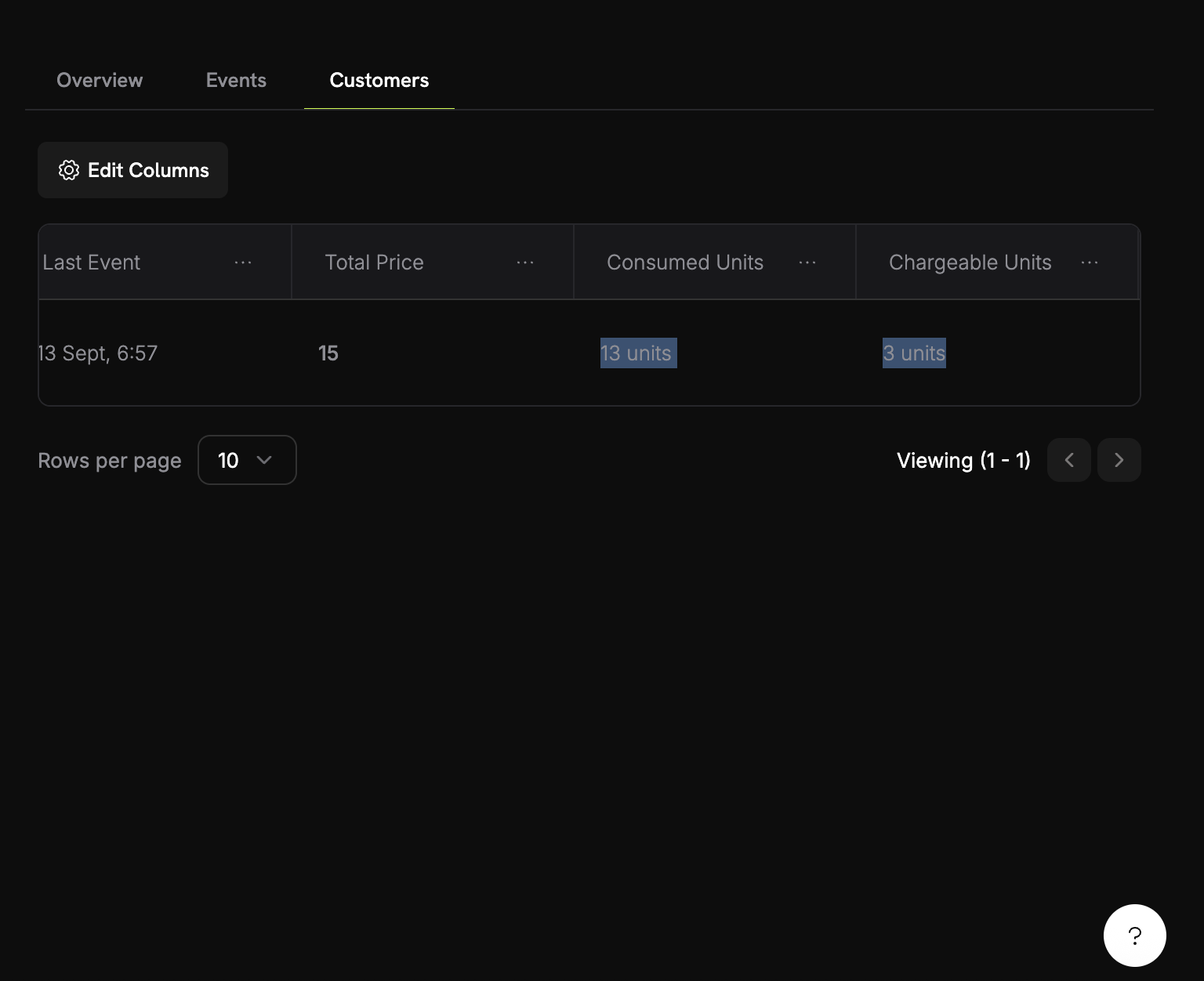 1. In your meter, go to the **Customers** tab
2. Find your test customer
3. Check the "Consumed Units" column
Let's exceed the free tier to see billing in action:
1. Generate 8 more images (to reach 12 total)
2. Check your meter dashboard again
3. You should now see:
* Consumed units: 12
* Billable units: 2 (12 - 10 free)
* Billing amount: \$0.10
**Success!** Your usage-based billing is working perfectly. Customers will be automatically charged based on their actual image generation usage.
## Troubleshooting
Common issues and their solutions:
**Possible causes:**
* Event name doesn't match meter configuration exactly
* Customer ID doesn't exist in your account
* API key is invalid or expired
* Network connectivity issues
**Solutions:**
1. Verify event name matches meter configuration exactly (case-sensitive)
2. Check that customer ID exists in Dodo Payments
3. Test API key with a simple API call
4. Check network connectivity and firewall settings
## Congratulations! You Built PixelGen AI
You've successfully created a snippet for AI image generation with usage-based billing! Here's what you accomplished:
Created "Image Generation Meter" that tracks every image generation event
Configured pricing at \$0.05 per image with 10 free images per month
Built a working TypeScript app that generates images using OpenAI's DALL-E
Integrated real-time event tracking that automatically bills customers
1. In your meter, go to the **Customers** tab
2. Find your test customer
3. Check the "Consumed Units" column
Let's exceed the free tier to see billing in action:
1. Generate 8 more images (to reach 12 total)
2. Check your meter dashboard again
3. You should now see:
* Consumed units: 12
* Billable units: 2 (12 - 10 free)
* Billing amount: \$0.10
**Success!** Your usage-based billing is working perfectly. Customers will be automatically charged based on their actual image generation usage.
## Troubleshooting
Common issues and their solutions:
**Possible causes:**
* Event name doesn't match meter configuration exactly
* Customer ID doesn't exist in your account
* API key is invalid or expired
* Network connectivity issues
**Solutions:**
1. Verify event name matches meter configuration exactly (case-sensitive)
2. Check that customer ID exists in Dodo Payments
3. Test API key with a simple API call
4. Check network connectivity and firewall settings
## Congratulations! You Built PixelGen AI
You've successfully created a snippet for AI image generation with usage-based billing! Here's what you accomplished:
Created "Image Generation Meter" that tracks every image generation event
Configured pricing at \$0.05 per image with 10 free images per month
Built a working TypeScript app that generates images using OpenAI's DALL-E
Integrated real-time event tracking that automatically bills customers