> ## Documentation Index
> Fetch the complete documentation index at: https://docs.dodopayments.com/llms.txt
> Use this file to discover all available pages before exploring further.
# Sentra
> Install the Sentra extension for VS Code, Cursor, or Windsurf to integrate billing and payments into your app using AI-powered assistance.
## Overview
Sentra adds intelligence and execution on top of Dodo Payments' core stacks. It's an AI agent that integrates, analyzes, and acts on billing and payments. Sentra connects SDKs, APIs, and adapters across your stack (Auth, DB, CRM, etc.), surfaces revenue insights like growth drivers, and executes customer actions such as refunds, upgrades, and credits.
Sentra is currently in Beta. Features, APIs, and integrations may change rapidly. We welcome feedback and bug reports as we iterate!
## Install
Sentra is available as an extension for VS Code, Cursor, and Windsurf. Choose your IDE below:
1. Open VS Code.
2. Click the Extensions icon in the sidebar (or press `Cmd+Shift+X` on macOS / `Ctrl+Shift+X` on Windows/Linux).
3. Search for "Sentra by Dodo Payments" in the marketplace.
1. Click on "Sentra by Dodo Payments" from the search results.
2. Click the **Install** button.
3. Wait for the installation to complete.
After installation, restart VS Code to activate the extension.
If the extension doesn't appear after installation, restarting the editor will resolve the issue in most cases.
1. Open Cursor.
2. Click the Extensions icon in the sidebar (or press `Cmd+Shift+X` on macOS / `Ctrl+Shift+X` on Windows/Linux).
3. Search for "Sentra by Dodo Payments" in the marketplace.
1. Click on "Sentra by Dodo Payments" from the search results.
2. Click the **Install** button.
3. Wait for the installation to complete.
After installation, restart Cursor to activate the extension.
If the extension doesn't appear after installation, restarting the editor will resolve the issue in most cases.
1. Open Windsurf.
2. Click the Extensions icon in the sidebar (or press `Cmd+Shift+X` on macOS / `Ctrl+Shift+X` on Windows/Linux).
3. Search for "Sentra by Dodo Payments" in the marketplace.
1. Click on "Sentra by Dodo Payments" from the search results.
2. Click the **Install** button.
3. Wait for the installation to complete.
After installation, restart Windsurf to activate the extension.
If the extension doesn't appear after installation, restarting the editor will resolve the issue in most cases.
## Setup
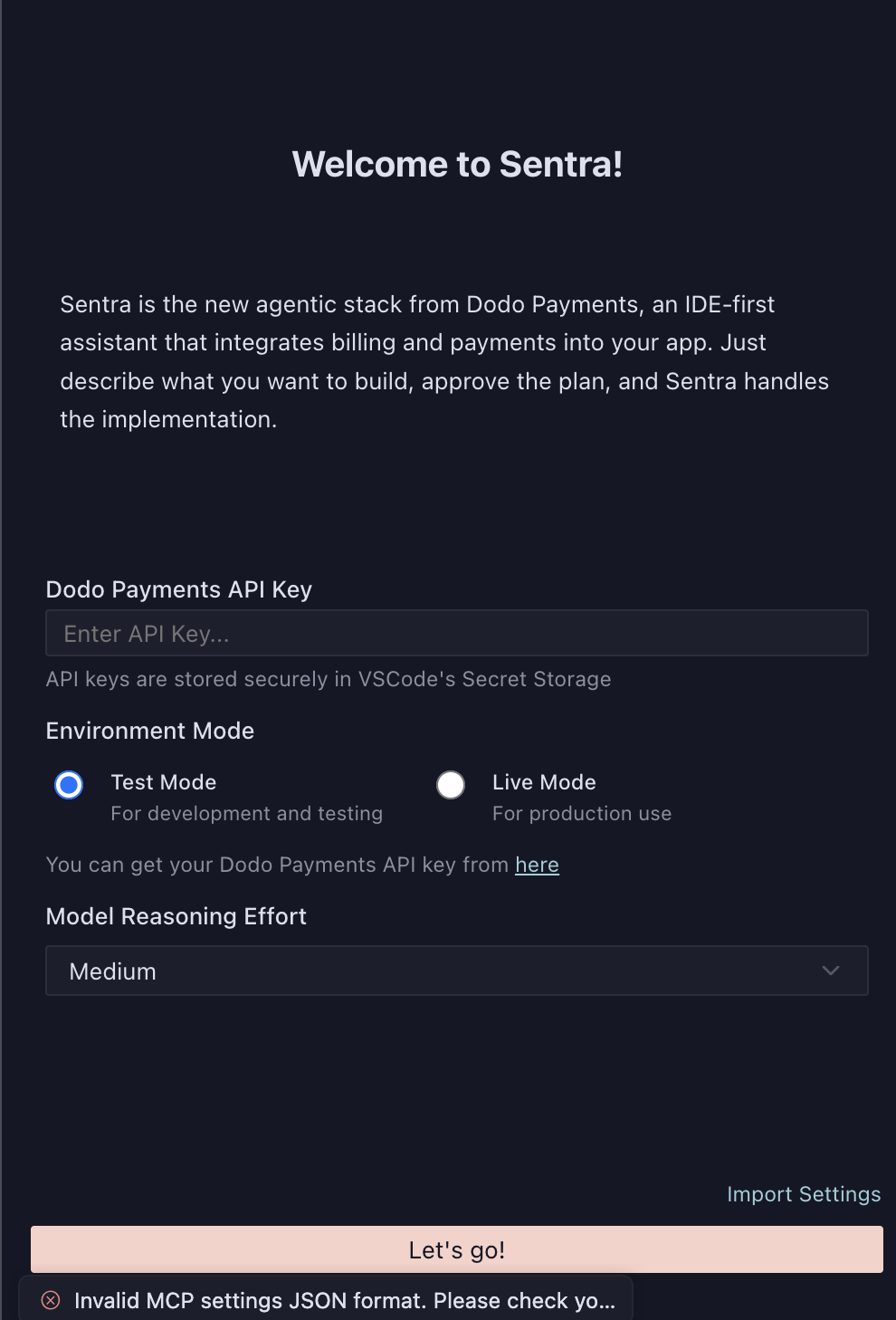
Once installed, you need to configure Sentra with your Dodo Payments API key and environment settings.
1. Log in to your [Dodo Payments dashboard](https://app.dodopayments.com).
2. Navigate to **Developer** › **API Keys**.
3. Copy your API key.
1. Open your IDE (VS Code, Cursor, or Windsurf).
2. Open the Command Palette (`Cmd+Shift+P` on macOS / `Ctrl+Shift+P` on Windows/Linux).
3. Type "Sentra: Configure" and select it.
4. Enter your Dodo Payments API key when prompted.
Choose your environment mode:
* **Test Mode**: For development and testing
* **Live Mode**: For production use
Start with Test mode to validate your setup before switching to Live mode for production data.
Select your preferred model reasoning effort level:
* **Low**: Faster responses, suitable for simple tasks
* **Medium**: Balanced performance (recommended)
* **High**: More thorough analysis, suitable for complex integrations
Click **Let's go!** to complete the setup and start using Sentra.
Your API keys are stored securely in your IDE's Secret Storage and never exposed in your code.
## How It Works
Sentra follows a simple four-step process from prompt to production:
Type what you want to build. For example: "Add usage-based billing with a free trial for my Pro plan."
Sentra generates the changes (SDK hooks, objects, config) and presents a plan for your review.
Review the generated plan and confirm the changes you want Sentra to implement.
Sentra applies the changes, tests them, and confirms success.
## Using Sentra
### Modes
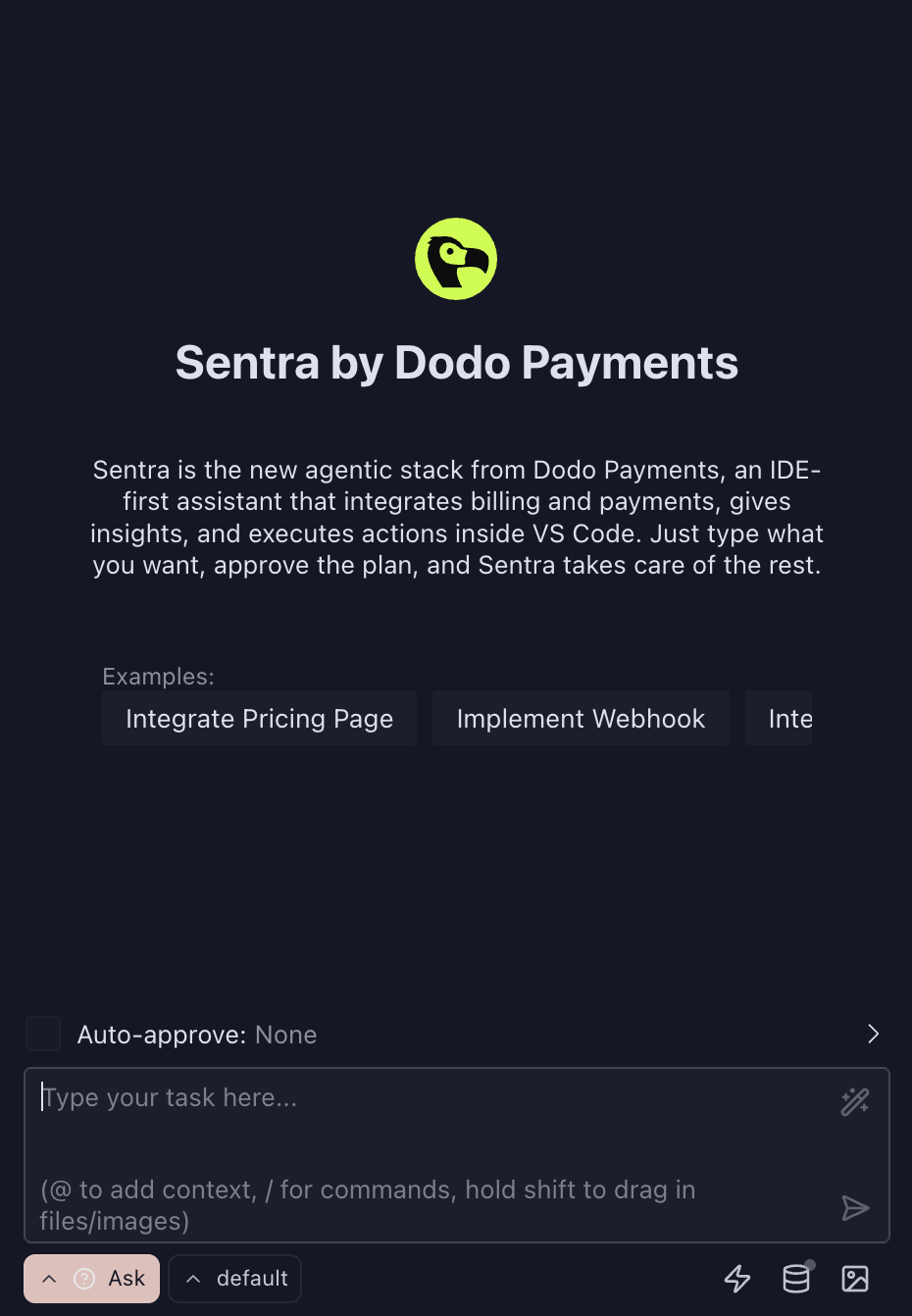
Sentra offers three interaction modes accessible from the interface:
* **Ask**: Ask questions about Dodo Payments, billing models, API usage, and best practices
* **Build**: Integrate billing and UI into your application with guided assistance
* **Plan**: Design scalable billing architectures with architectural guidance
### Example Tasks
Here are some common tasks you can accomplish with Sentra:
* **Integrate Pricing Page**: Set up a complete pricing page with product listings and checkout
* **Implement Webhook**: Configure webhook handlers for payment events
* **Add Subscription Flow**: Create subscription management with upgrade/downgrade capabilities
* **Set Up Usage-Based Billing**: Configure meters and event ingestion for usage tracking
* **Create Customer Portal**: Build a customer self-service portal for billing management
### Auto-Approval Settings
You can configure auto-approval settings to streamline your workflow:
* **None**: Review and approve all changes manually (recommended for production)
* **Low Risk**: Auto-approve simple, low-risk changes
* **All**: Auto-approve all changes (use with caution)
## Supported Billing Models
Sentra supports all Dodo Payments billing models:
* **One-time Payments**: Single purchase transactions
* **Subscriptions**: Recurring billing with multiple intervals
* **Usage-Based Billing**: Metered billing based on consumption
* **Outcome-Based Billing**: Pay-per-result pricing models
## Who Is It For
Sentra bridges engineering and business, so every team can ship monetization without friction:
* **Developers**: Ship monetization faster inside your IDE
* **Founders & PMs**: Prototype billing models without deep infra work
* **RevOps & Finance**: Use guardrailed actions without needing engineers
* **Support & Success**: Solve billing cases safely, with approvals where needed
## Troubleshooting
If Sentra doesn't appear in your IDE after installation, try the following:
1. **Restart your editor**: Close and reopen VS Code, Cursor, or Windsurf completely
2. **Check installation**: Verify the extension is installed by going to Extensions and searching for "Sentra"
3. **Reload window**: Use the Command Palette (`Cmd+Shift+P` / `Ctrl+Shift+P`) and run "Developer: Reload Window"
Restarting the editor resolves the issue in most cases.
* Verify your API key is correct and active in the Dodo Payments dashboard
* Ensure you're using the correct environment mode (Test vs Live) that matches your API key
* Check that your API key has the necessary permissions
* Try regenerating your API key if the issue persists
* Ensure you've completed all required fields in the configuration screen
* Check that your IDE has permission to access Secret Storage
* Try reconfiguring Sentra through the Command Palette
* Verify your API key is valid and has access to the required resources
* Check your internet connection
* Ensure you're using a supported billing model
* Try rephrasing your prompt with more specific details
* Review the generated plan carefully before approval
* Check that your project structure matches Sentra's expectations
* Verify all dependencies are installed
* Check the IDE's output panel for detailed error messages
If you continue to experience issues after restarting your editor, contact support with details about your IDE version and the specific error messages you're seeing.
## Additional Resources
Learn more about Dodo Payments features and capabilities.
Explore the complete Dodo Payments API reference.
Understand how to configure webhooks for payment events.
Visit the Sentra website to learn more and get beta access.