> ## Documentation Index
> Fetch the complete documentation index at: https://docs.dodopayments.com/llms.txt
> Use this file to discover all available pages before exploring further.
# Manual License Key Fulfillment Integration Guide
> Build an end-to-end system that sells a product and lets you supply your own license keys on demand: create the product and entitlement, detect pending grants, and deliver the key to the customer.
This guide walks through building a **manual license key fulfillment** system end to end. Instead of Dodo Payments auto-generating a key on payment, each purchase creates a `pending` grant and waits for *you* to supply the key value from your own system, a third-party vendor, or a finite pool of codes.
By the end you will have:
* A product with a License Key entitlement set to `manual` fulfillment.
* A webhook listener that detects when a customer is waiting for a key.
* A fulfillment call that delivers the key and notifies the customer automatically.
The full license key lifecycle and the `fulfillment_mode` setting.
API reference for the endpoint you call to deliver a key.
## How It Works
```mermaid theme={null}
sequenceDiagram
participant C as Customer
participant D as Dodo Payments
participant M as Your Backend
C->>D: Purchase (manual-mode License Key product)
D->>D: Create grant (status: pending, no key)
D->>M: entitlement_grant.created (integration_type: license_key, status: pending)
M->>M: Obtain key from own system / vendor
M->>D: POST /grants/{grant_id}/license-key { key }
D->>C: Deliver license key to customer
D->>M: entitlement_grant.delivered
```
Manual fulfillment changes only the **issuance** step. Activation, validation, deactivation, expiry, and revocation behave exactly like an auto-generated key once delivered.
## Prerequisites
To follow this guide you'll need:
* A Dodo Payments merchant account.
* Your API key (`DODO_PAYMENTS_API_KEY`) and webhook secret key from the dashboard. See the [API key generation guide](/api-reference/introduction#api-key-generation).
* A backend endpoint that can receive webhooks.
Use `https://test.dodopayments.com` and test-mode credentials while building. Switch to `https://live.dodopayments.com` and live keys when you go to production.
## Step 1 — Create a License Key Entitlement in Manual Mode
An **entitlement** is a reusable definition of what you deliver. Create a License Key entitlement and set its `fulfillment_mode` to `manual`.
Go to **Entitlements** in your dashboard and click **+** to create a new entitlement.
Select **License Key** as the integration and give it a **Name**. The form exposes these fields:
* **Fulfillment Mode** — `Automatic` by default. This is the setting that enables manual fulfillment; you change it in the next step.
* **License Length** — how long each issued key stays valid, or **No expiration**.
* **Activations Limit** — maximum activations per key, or **Unlimited**.
* **Activation Message** — optional customer-facing message shown when they activate the key.
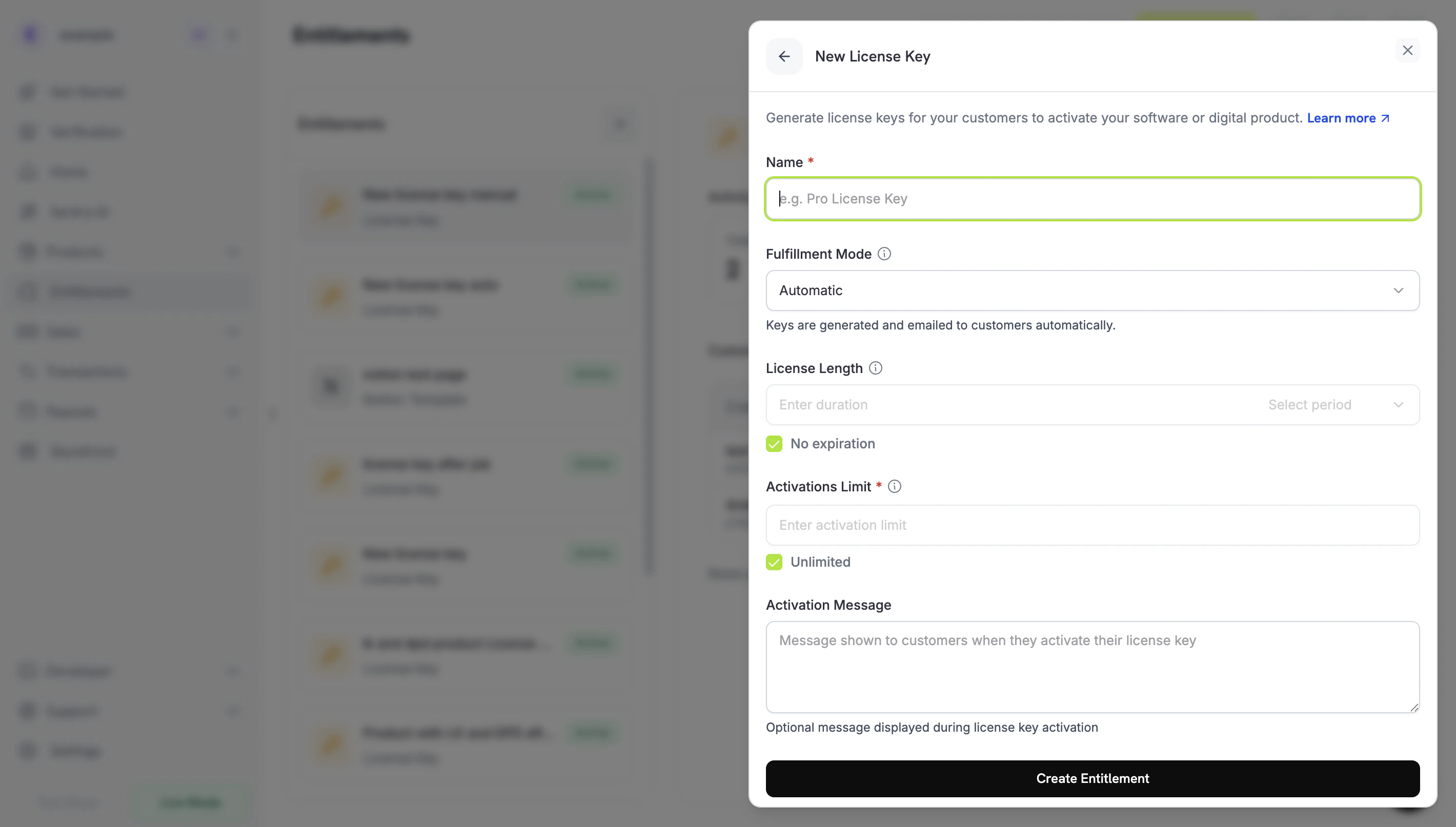 Open the **Fulfillment Mode** dropdown and change it from **Automatic** to **Manual**. This is the setting that drives this entire guide — without it, keys are generated and emailed automatically and no pending grant is created. With **Manual** selected, each purchase creates a `pending` grant for you to fulfill. Click **Create Entitlement** to save.
Create the entitlement with `integration_config.fulfillment_mode` set to `manual`.
```typescript Node.js theme={null} theme={null}
import DodoPayments from 'dodopayments';
const client = new DodoPayments({
bearerToken: process.env.DODO_PAYMENTS_API_KEY,
environment: 'test_mode', // defaults to 'live_mode'
});
const entitlement = await client.entitlements.create({
name: 'Pro License (Manual)',
integration_type: 'license_key',
integration_config: {
fulfillment_mode: 'manual',
activations_limit: 5,
duration_count: 1,
duration_interval: 'Year',
},
});
console.log(entitlement.id); // ent_...
```
```python Python theme={null} theme={null}
import os
from dodopayments import DodoPayments
client = DodoPayments(
bearer_token=os.environ.get("DODO_PAYMENTS_API_KEY"),
environment="test_mode", # defaults to "live_mode"
)
entitlement = client.entitlements.create(
name="Pro License (Manual)",
integration_type="license_key",
integration_config={
"fulfillment_mode": "manual",
"activations_limit": 5,
"duration_count": 1,
"duration_interval": "Year",
},
)
print(entitlement.id)
```
```bash cURL theme={null} theme={null}
curl -X POST https://test.dodopayments.com/entitlements \
-H "Authorization: Bearer $DODO_PAYMENTS_API_KEY" \
-H "Content-Type: application/json" \
-d '{
"name": "Pro License (Manual)",
"integration_type": "license_key",
"integration_config": {
"fulfillment_mode": "manual",
"activations_limit": 5,
"duration_count": 1,
"duration_interval": "Year"
}
}'
```
`fulfillment_mode` defaults to `auto`. Omitting it, or leaving an existing entitlement unchanged, keeps the automatic behavior. Only entitlements explicitly set to `manual` create pending grants.
## Step 2 — Attach the Entitlement to a Product
Open the product you want to sell, expand **Advanced Settings → Entitlements & Credits**, and select the **License Key entitlement you set to Manual** in Step 1. A single product can deliver this license key alongside other entitlements on the same purchase.
Open the **Fulfillment Mode** dropdown and change it from **Automatic** to **Manual**. This is the setting that drives this entire guide — without it, keys are generated and emailed automatically and no pending grant is created. With **Manual** selected, each purchase creates a `pending` grant for you to fulfill. Click **Create Entitlement** to save.
Create the entitlement with `integration_config.fulfillment_mode` set to `manual`.
```typescript Node.js theme={null} theme={null}
import DodoPayments from 'dodopayments';
const client = new DodoPayments({
bearerToken: process.env.DODO_PAYMENTS_API_KEY,
environment: 'test_mode', // defaults to 'live_mode'
});
const entitlement = await client.entitlements.create({
name: 'Pro License (Manual)',
integration_type: 'license_key',
integration_config: {
fulfillment_mode: 'manual',
activations_limit: 5,
duration_count: 1,
duration_interval: 'Year',
},
});
console.log(entitlement.id); // ent_...
```
```python Python theme={null} theme={null}
import os
from dodopayments import DodoPayments
client = DodoPayments(
bearer_token=os.environ.get("DODO_PAYMENTS_API_KEY"),
environment="test_mode", # defaults to "live_mode"
)
entitlement = client.entitlements.create(
name="Pro License (Manual)",
integration_type="license_key",
integration_config={
"fulfillment_mode": "manual",
"activations_limit": 5,
"duration_count": 1,
"duration_interval": "Year",
},
)
print(entitlement.id)
```
```bash cURL theme={null} theme={null}
curl -X POST https://test.dodopayments.com/entitlements \
-H "Authorization: Bearer $DODO_PAYMENTS_API_KEY" \
-H "Content-Type: application/json" \
-d '{
"name": "Pro License (Manual)",
"integration_type": "license_key",
"integration_config": {
"fulfillment_mode": "manual",
"activations_limit": 5,
"duration_count": 1,
"duration_interval": "Year"
}
}'
```
`fulfillment_mode` defaults to `auto`. Omitting it, or leaving an existing entitlement unchanged, keeps the automatic behavior. Only entitlements explicitly set to `manual` create pending grants.
## Step 2 — Attach the Entitlement to a Product
Open the product you want to sell, expand **Advanced Settings → Entitlements & Credits**, and select the **License Key entitlement you set to Manual** in Step 1. A single product can deliver this license key alongside other entitlements on the same purchase.
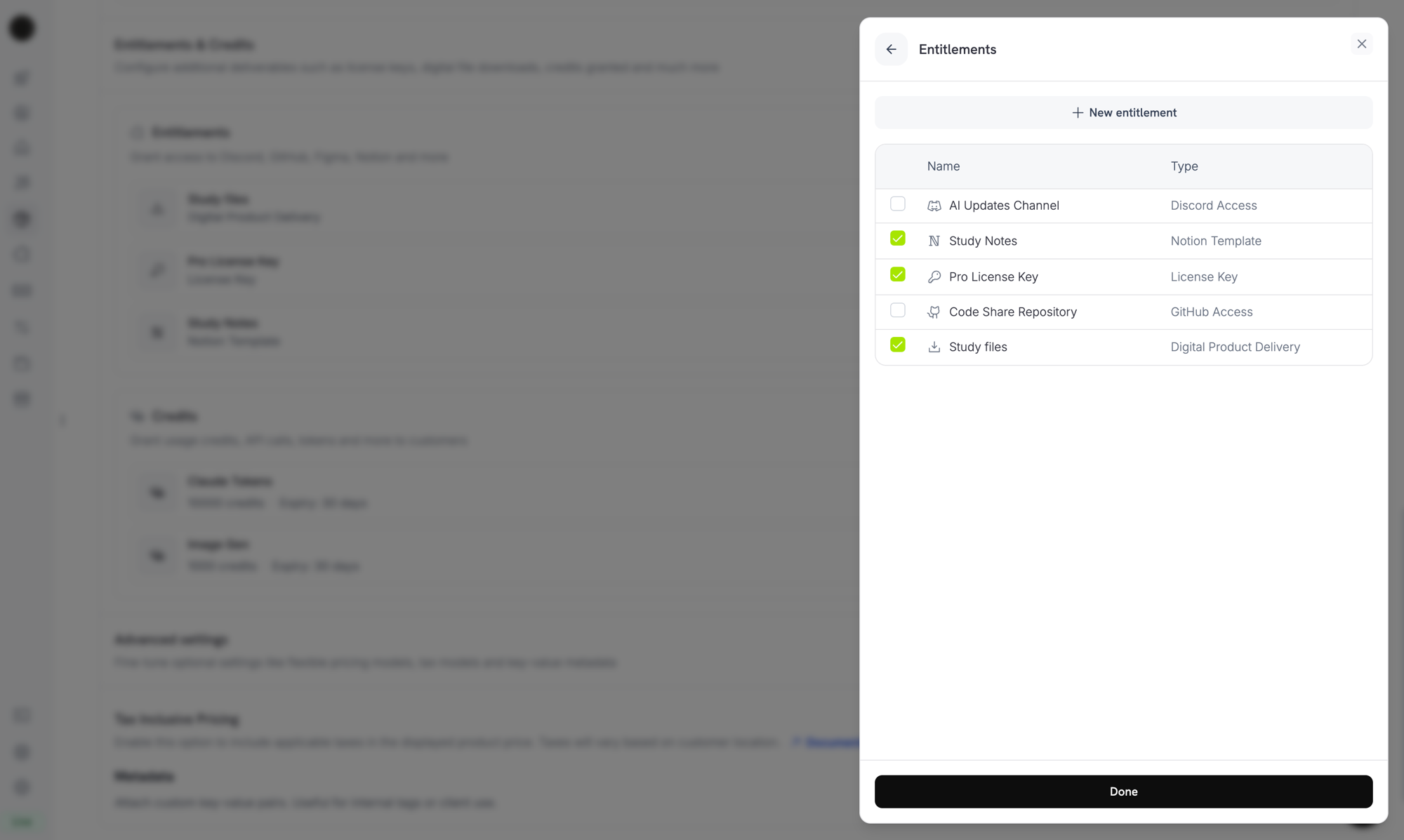 Fulfillment mode is a property of the **entitlement**, not the product. Because you set it to **Manual** in Step 1, every product this entitlement is attached to creates `pending` license-key grants on purchase — there is nothing extra to configure here.
If you don't have a product yet, create one first (one-time or subscription). See the [One-time Payments Integration Guide](/developer-resources/integration-guide) for selling the product through checkout.
## Step 3 — Detect Pending Grants
When a customer buys the product, Dodo Payments creates a grant in `pending` status with **no key attached** and fires an `entitlement_grant.created` webhook. This is your signal that a customer is waiting for a key.
### Listen for the webhook
Set up a webhook endpoint (Developer → Webhooks in the dashboard) and act on pending license-key grants. The implementation follows the [Standard Webhooks](https://standardwebhooks.com/) specification.
```typescript theme={null} theme={null}
import { Webhook } from 'standardwebhooks';
const webhook = new Webhook(process.env.DODO_WEBHOOK_KEY!);
export async function POST(request: Request) {
const rawBody = await request.text();
const headers = {
'webhook-id': request.headers.get('webhook-id') || '',
'webhook-signature': request.headers.get('webhook-signature') || '',
'webhook-timestamp': request.headers.get('webhook-timestamp') || '',
};
await webhook.verify(rawBody, headers);
const event = JSON.parse(rawBody);
// A customer bought a manual-mode license key and is waiting for it.
if (
event.type === 'entitlement_grant.created' &&
event.data.integration_type === 'license_key' &&
event.data.status === 'pending'
) {
await queueLicenseKeyFulfillment({
grantId: event.data.id,
customerId: event.data.customer_id,
});
}
return new Response('ok');
}
```
The grant payload carries `integration_type: "license_key"`, so you can recognize a license-key grant without an extra lookup. See the [Entitlement Grant webhook reference](/developer-resources/webhooks/intents/entitlement-grant) for the full payload.
### Or poll the List Grants API
If you'd rather not rely on webhooks, list grants for the entitlement and filter by `integration_type` and `status`:
```typescript Node.js theme={null} theme={null}
const pending = await client.entitlements.grants.list('ent_license_key_id', {
integration_type: 'license_key',
status: 'pending',
});
for (const grant of pending.items) {
console.log(`Grant ${grant.id} for customer ${grant.customer_id} needs a key`);
}
```
```bash cURL theme={null} theme={null}
curl -G https://test.dodopayments.com/entitlements/ent_license_key_id/grants \
-H "Authorization: Bearer $DODO_PAYMENTS_API_KEY" \
--data-urlencode "integration_type=license_key" \
--data-urlencode "status=pending"
```
## Step 4 — Deliver the Key
Obtain the key value from your own system, then submit it with the [Fulfill License Key Grant](/api-reference/entitlements/fulfill-license-key) endpoint. This requires your secret API key (Editor permission); it is **not** one of the public license endpoints.
```typescript Node.js theme={null} theme={null}
async function fulfill(grantId: string, key: string) {
const res = await fetch(
`https://test.dodopayments.com/grants/${grantId}/license-key`,
{
method: 'POST',
headers: {
'Content-Type': 'application/json',
Authorization: `Bearer ${process.env.DODO_PAYMENTS_API_KEY}`,
},
body: JSON.stringify({
key,
// Optional — fall back to the entitlement config when omitted
activations_limit: 5,
expires_at: '2027-05-01T00:00:00Z',
}),
},
);
if (!res.ok) {
// See the status code table below for handling
throw new Error(`Fulfillment failed: ${res.status}`);
}
return res.json(); // updated grant, now status: "delivered"
}
```
```bash cURL theme={null} theme={null}
curl -X POST https://test.dodopayments.com/grants/grant_8VbC6JDZ/license-key \
-H "Authorization: Bearer $DODO_PAYMENTS_API_KEY" \
-H "Content-Type: application/json" \
-d '{
"key": "PRO-AAAA-BBBB-CCCC-DDDD",
"activations_limit": 5,
"expires_at": "2027-05-01T00:00:00Z"
}'
```
### Request fields
The license key string to deliver to the customer. Whitespace is trimmed; an empty or whitespace-only value is rejected.
Per-key activation limit. Falls back to the entitlement config when omitted.
Per-key expiry (ISO 8601). Falls back to the entitlement config's duration when omitted. For subscription-issued grants, validity remains tied to the subscription regardless.
On success the grant moves to `delivered`, the customer is sent the key automatically (the same email they'd receive under auto fulfillment), and `entitlement_grant.delivered` fires.
The customer receives an email with the license key, the product, activation limit, expiry, and your activation instructions:
Fulfillment mode is a property of the **entitlement**, not the product. Because you set it to **Manual** in Step 1, every product this entitlement is attached to creates `pending` license-key grants on purchase — there is nothing extra to configure here.
If you don't have a product yet, create one first (one-time or subscription). See the [One-time Payments Integration Guide](/developer-resources/integration-guide) for selling the product through checkout.
## Step 3 — Detect Pending Grants
When a customer buys the product, Dodo Payments creates a grant in `pending` status with **no key attached** and fires an `entitlement_grant.created` webhook. This is your signal that a customer is waiting for a key.
### Listen for the webhook
Set up a webhook endpoint (Developer → Webhooks in the dashboard) and act on pending license-key grants. The implementation follows the [Standard Webhooks](https://standardwebhooks.com/) specification.
```typescript theme={null} theme={null}
import { Webhook } from 'standardwebhooks';
const webhook = new Webhook(process.env.DODO_WEBHOOK_KEY!);
export async function POST(request: Request) {
const rawBody = await request.text();
const headers = {
'webhook-id': request.headers.get('webhook-id') || '',
'webhook-signature': request.headers.get('webhook-signature') || '',
'webhook-timestamp': request.headers.get('webhook-timestamp') || '',
};
await webhook.verify(rawBody, headers);
const event = JSON.parse(rawBody);
// A customer bought a manual-mode license key and is waiting for it.
if (
event.type === 'entitlement_grant.created' &&
event.data.integration_type === 'license_key' &&
event.data.status === 'pending'
) {
await queueLicenseKeyFulfillment({
grantId: event.data.id,
customerId: event.data.customer_id,
});
}
return new Response('ok');
}
```
The grant payload carries `integration_type: "license_key"`, so you can recognize a license-key grant without an extra lookup. See the [Entitlement Grant webhook reference](/developer-resources/webhooks/intents/entitlement-grant) for the full payload.
### Or poll the List Grants API
If you'd rather not rely on webhooks, list grants for the entitlement and filter by `integration_type` and `status`:
```typescript Node.js theme={null} theme={null}
const pending = await client.entitlements.grants.list('ent_license_key_id', {
integration_type: 'license_key',
status: 'pending',
});
for (const grant of pending.items) {
console.log(`Grant ${grant.id} for customer ${grant.customer_id} needs a key`);
}
```
```bash cURL theme={null} theme={null}
curl -G https://test.dodopayments.com/entitlements/ent_license_key_id/grants \
-H "Authorization: Bearer $DODO_PAYMENTS_API_KEY" \
--data-urlencode "integration_type=license_key" \
--data-urlencode "status=pending"
```
## Step 4 — Deliver the Key
Obtain the key value from your own system, then submit it with the [Fulfill License Key Grant](/api-reference/entitlements/fulfill-license-key) endpoint. This requires your secret API key (Editor permission); it is **not** one of the public license endpoints.
```typescript Node.js theme={null} theme={null}
async function fulfill(grantId: string, key: string) {
const res = await fetch(
`https://test.dodopayments.com/grants/${grantId}/license-key`,
{
method: 'POST',
headers: {
'Content-Type': 'application/json',
Authorization: `Bearer ${process.env.DODO_PAYMENTS_API_KEY}`,
},
body: JSON.stringify({
key,
// Optional — fall back to the entitlement config when omitted
activations_limit: 5,
expires_at: '2027-05-01T00:00:00Z',
}),
},
);
if (!res.ok) {
// See the status code table below for handling
throw new Error(`Fulfillment failed: ${res.status}`);
}
return res.json(); // updated grant, now status: "delivered"
}
```
```bash cURL theme={null} theme={null}
curl -X POST https://test.dodopayments.com/grants/grant_8VbC6JDZ/license-key \
-H "Authorization: Bearer $DODO_PAYMENTS_API_KEY" \
-H "Content-Type: application/json" \
-d '{
"key": "PRO-AAAA-BBBB-CCCC-DDDD",
"activations_limit": 5,
"expires_at": "2027-05-01T00:00:00Z"
}'
```
### Request fields
The license key string to deliver to the customer. Whitespace is trimmed; an empty or whitespace-only value is rejected.
Per-key activation limit. Falls back to the entitlement config when omitted.
Per-key expiry (ISO 8601). Falls back to the entitlement config's duration when omitted. For subscription-issued grants, validity remains tied to the subscription regardless.
On success the grant moves to `delivered`, the customer is sent the key automatically (the same email they'd receive under auto fulfillment), and `entitlement_grant.delivered` fires.
The customer receives an email with the license key, the product, activation limit, expiry, and your activation instructions:
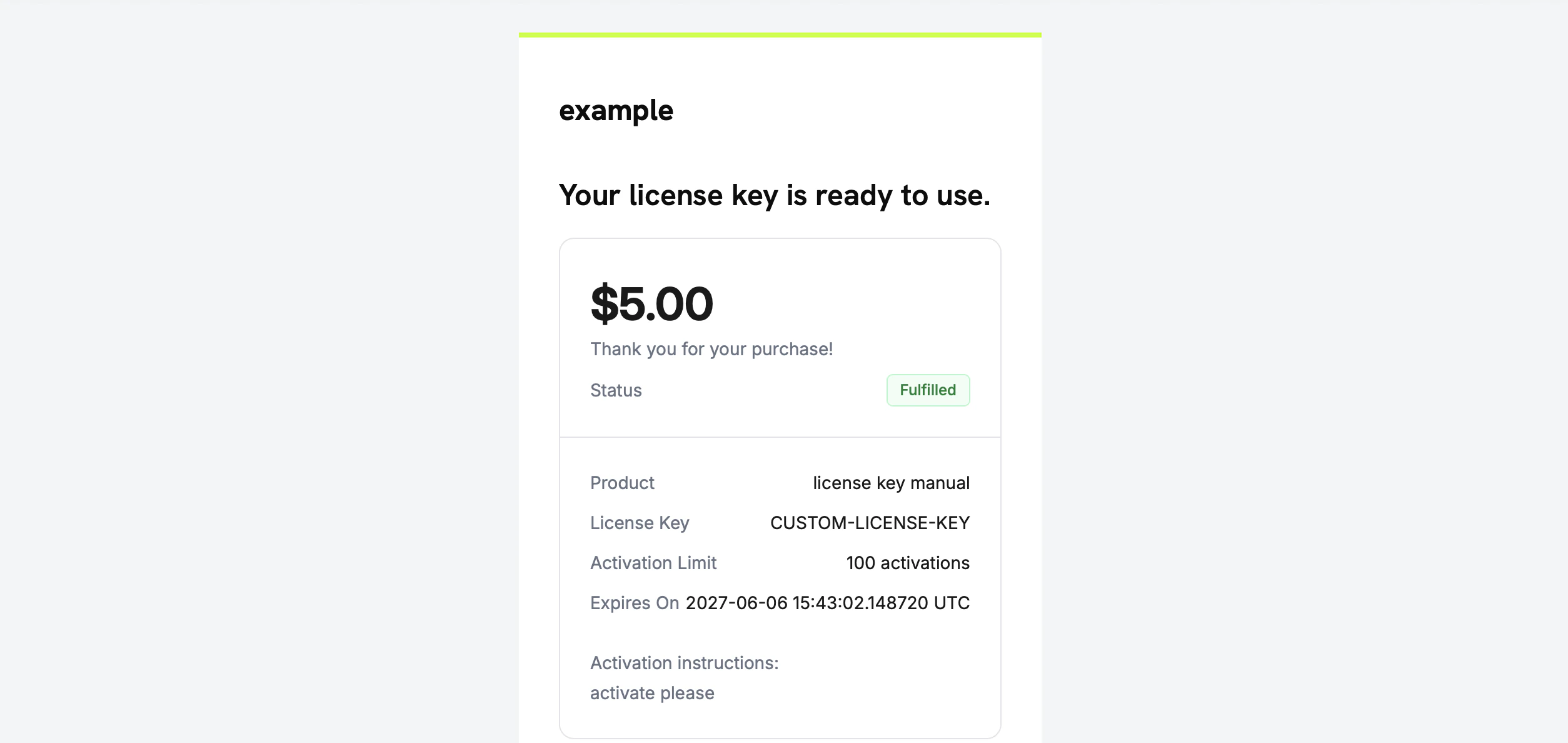 You do not need to email the key yourself — delivery happens automatically when the grant is fulfilled.
## Step 5 — Handle Errors and Retries
The endpoint validates the grant before delivering anything. Handle these responses:
| Status | Meaning | What to do |
| ------ | ------------------------------------------------------------------------------------------------------------- | ----------------------------------------------------------------------------------- |
| `200` | Key delivered, grant is now `delivered`. | Done. |
| `400` | Not a license-key grant, or the key is empty/whitespace. | Fix the request; do not retry as-is. |
| `404` | No grant with that ID for your business. | Verify the `grant_id`. |
| `409` | Grant not awaiting fulfillment (already delivered or already has a key), **or** the key value already exists. | If already delivered, treat as success. If a duplicate key, supply a different key. |
| `422` | Request body failed validation (e.g. `activations_limit < 1`). | Correct the field and retry. |
Fulfillment is safe to retry on transient errors (timeouts, `5xx`). Each grant can be fulfilled only once, so a retry after a successful-but-unacknowledged call returns `409` rather than issuing a second key or sending a duplicate email. Use the grant `id` as your idempotency key.
## Verify the Flow
1. Buy the product in test mode (see the [checkout guides](/developer-resources/integration-guide)).
2. Confirm your webhook received `entitlement_grant.created` with `status: "pending"` and `integration_type: "license_key"`, or that the grant appears in the List Grants response with those filters.
3. Call the fulfill endpoint with a test key.
4. Confirm the response shows `status: "delivered"` with a populated `license_key`, the customer receives the key email, and `entitlement_grant.delivered` fires.
Once delivered, the customer can [activate and validate](/features/license-keys#activation-validation-deactivation) the key against the public license endpoints exactly like an auto-generated key.
## Related API Reference
Create the License Key entitlement with `fulfillment_mode: manual`.
Filter by `integration_type` and `status` to find pending grants.
Deliver the key value and transition the grant to delivered.
The `entitlement_grant.*` events that signal pending and delivered grants.
You do not need to email the key yourself — delivery happens automatically when the grant is fulfilled.
## Step 5 — Handle Errors and Retries
The endpoint validates the grant before delivering anything. Handle these responses:
| Status | Meaning | What to do |
| ------ | ------------------------------------------------------------------------------------------------------------- | ----------------------------------------------------------------------------------- |
| `200` | Key delivered, grant is now `delivered`. | Done. |
| `400` | Not a license-key grant, or the key is empty/whitespace. | Fix the request; do not retry as-is. |
| `404` | No grant with that ID for your business. | Verify the `grant_id`. |
| `409` | Grant not awaiting fulfillment (already delivered or already has a key), **or** the key value already exists. | If already delivered, treat as success. If a duplicate key, supply a different key. |
| `422` | Request body failed validation (e.g. `activations_limit < 1`). | Correct the field and retry. |
Fulfillment is safe to retry on transient errors (timeouts, `5xx`). Each grant can be fulfilled only once, so a retry after a successful-but-unacknowledged call returns `409` rather than issuing a second key or sending a duplicate email. Use the grant `id` as your idempotency key.
## Verify the Flow
1. Buy the product in test mode (see the [checkout guides](/developer-resources/integration-guide)).
2. Confirm your webhook received `entitlement_grant.created` with `status: "pending"` and `integration_type: "license_key"`, or that the grant appears in the List Grants response with those filters.
3. Call the fulfill endpoint with a test key.
4. Confirm the response shows `status: "delivered"` with a populated `license_key`, the customer receives the key email, and `entitlement_grant.delivered` fires.
Once delivered, the customer can [activate and validate](/features/license-keys#activation-validation-deactivation) the key against the public license endpoints exactly like an auto-generated key.
## Related API Reference
Create the License Key entitlement with `fulfillment_mode: manual`.
Filter by `integration_type` and `status` to find pending grants.
Deliver the key value and transition the grant to delivered.
The `entitlement_grant.*` events that signal pending and delivered grants.