> ## Documentation Index
> Fetch the complete documentation index at: https://docs.dodopayments.com/llms.txt
> Use this file to discover all available pages before exploring further.

# Build an AI Chat App with AI SDK & LLM Blueprint

> Follow along as we build an AI chat app with automatic token tracking and usage-based billing

<Tip>
  <strong>Let Sentra write your integration code for you.</strong><br />
  Use our AI assistant in VS Code, Cursor, or Windsurf to generate SDK/API code, LLM Blueprint integration code, webhooks, and more - just by describing what you want.

  <a href="https://dodopayments.com/sentra" target="_blank" rel="noopener noreferrer">
    Try Sentra: AI-Powered Integration →
  </a>
</Tip>

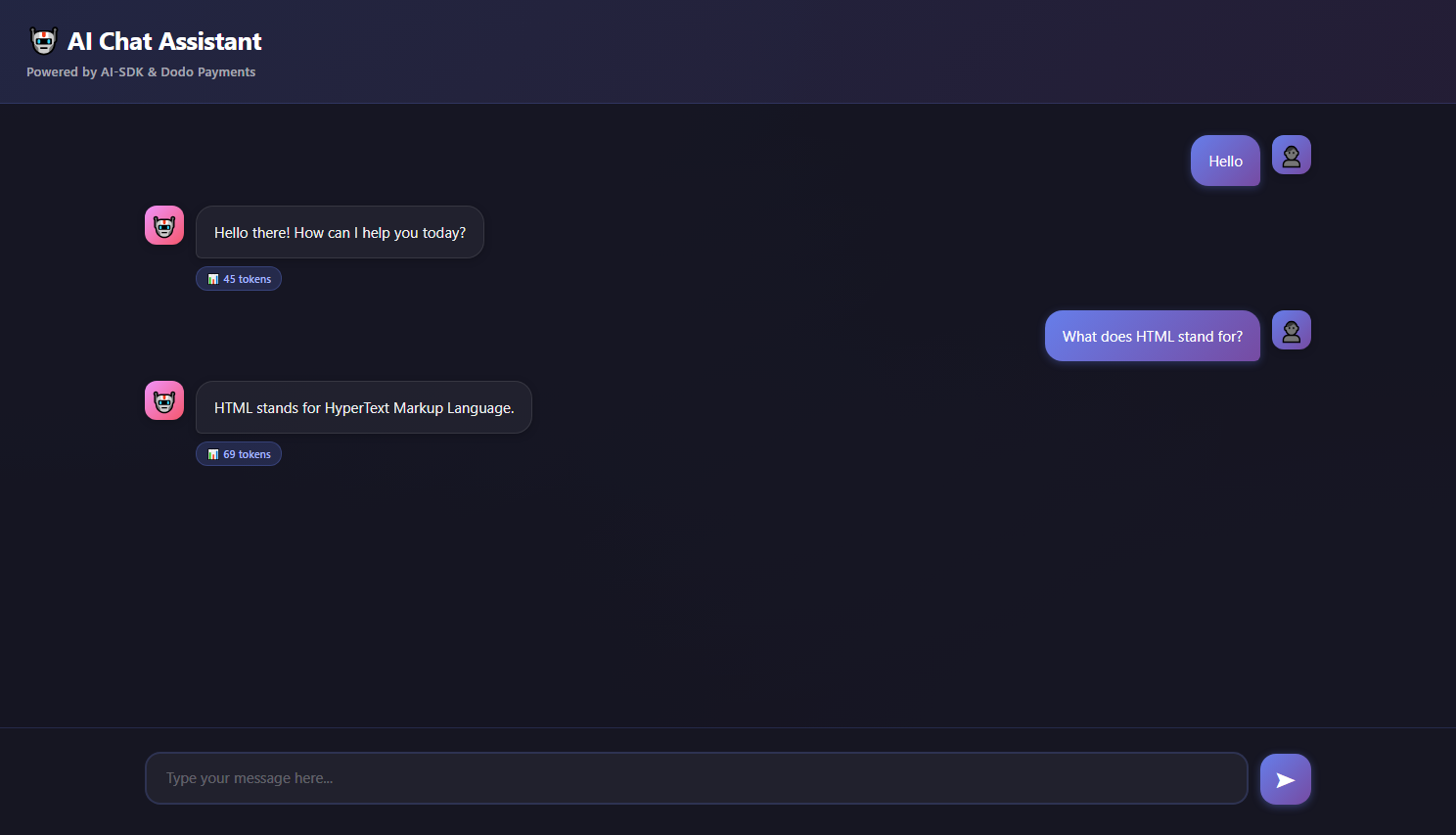
In this tutorial, you'll build an **AI chat application** with automatic usage-based billing. We'll create everything from scratch: the billing meter, product configuration, and application code that powers conversations and tracks token usage in real-time.

<Note>
  This tutorial provides a complete working application with both backend and frontend. The chat app uses Google's Gemini AI and automatically tracks token usage without any manual counting required.
</Note>

By the end of this tutorial, you'll have a working chat application that:

* Powers AI conversations using Google Gemini (AI SDK)
* Automatically tracks token usage (no manual code)
* Charges customers based on actual token consumption
* Includes a beautiful chat interface

<Frame>
  <img src="https://mintcdn.com/dodopayments/oig3NPG69DDpua_S/images/cookbooks/ai-chat-app/ai-chat-demo.png?fit=max&auto=format&n=oig3NPG69DDpua_S&q=85&s=9d9932fb528b64632cfbedaad98c09f3" alt="AI Chat Demo" style={{ maxHeight: '500px', width: 'auto' }} width="1488" height="853" data-path="images/cookbooks/ai-chat-app/ai-chat-demo.png" />
</Frame>

## What We're Building

Let's start by understanding our AI chat service:

* **Service**: AI-powered chat using Google Gemini (AI SDK)
* **Pricing Model**: Pay-per-token (\$0.01 per 1,000 tokens)
* **Free Tier**: 10,000 free tokens per customer per month
* **Features**: Conversation history, automatic token tracking

<Info>
  Before we start, make sure you have:

  * A Dodo Payments account
  * A Google AI API key ([Get one from aistudio](https://aistudio.google.com/api-keys))
  * Node.js v16+ installed
</Info>

***

## Step 1: Create Your Usage Meter

We'll start by creating a meter in your Dodo Payments dashboard that will track AI token usage.

<Tip>
  **What we're building**: A meter named "AI Token Usage Meter" that sums up all tokens consumed in chat conversations.
</Tip>

<Steps>
  <Step title="Open the Meters section">
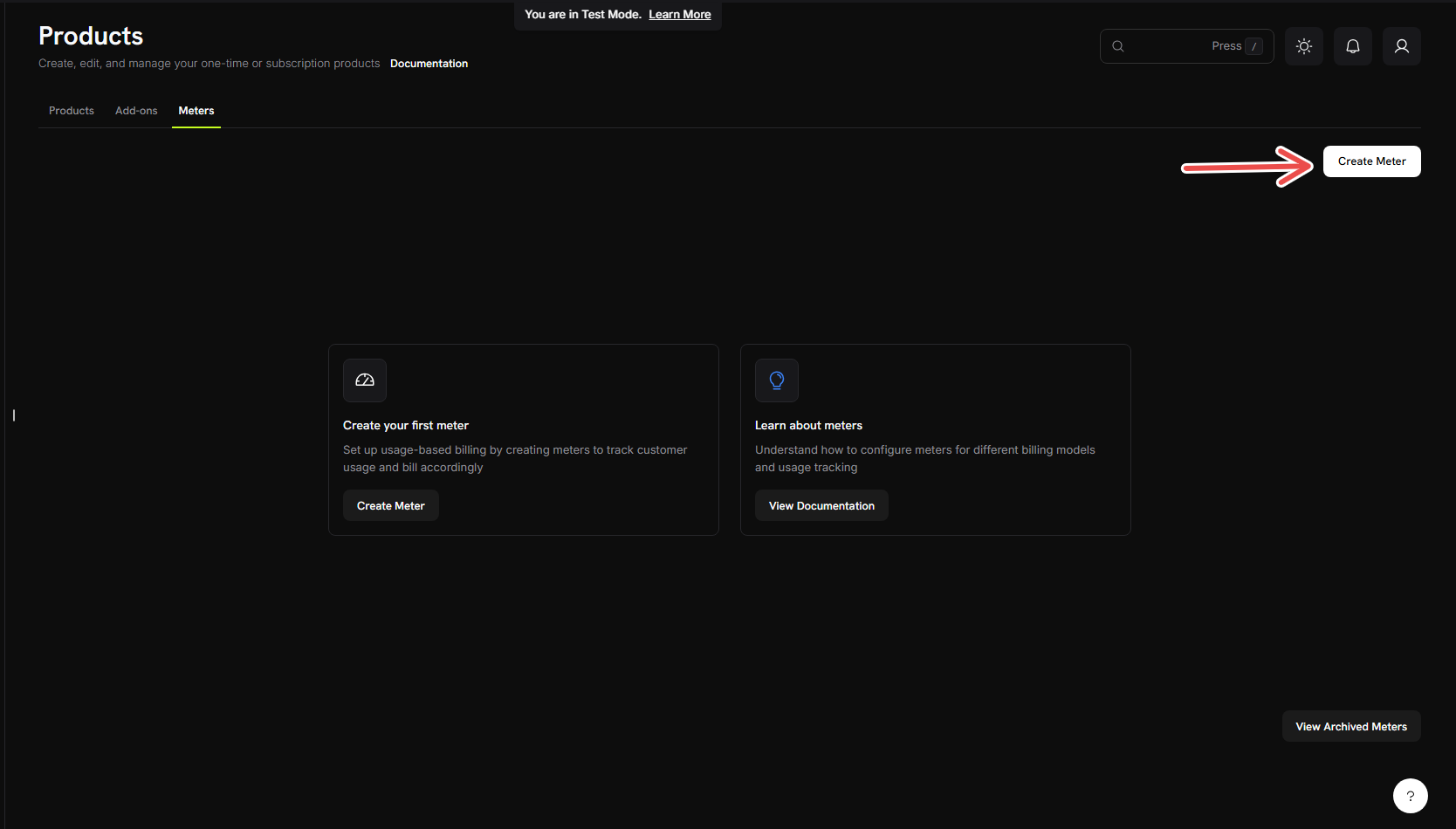
    1. Log into your Dodo Payments dashboard
    2. Click on Products in the left sidebar
    3. Click on **Meters**
    4. Click the **Create Meter** button

    <Frame>
      <img src="https://mintcdn.com/dodopayments/oig3NPG69DDpua_S/images/cookbooks/ai-chat-app/create-meter.png?fit=max&auto=format&n=oig3NPG69DDpua_S&q=85&s=e5aa342d55a4a9c7323cf68015f737e4" alt="Create Meter" style={{ maxHeight: '500px', width: 'auto' }} width="1668" height="950" data-path="images/cookbooks/ai-chat-app/create-meter.png" />
    </Frame>

    You should see a form where we'll configure our token tracking.
  </Step>

  <Step title="Fill in the basic meter information">
    Now we'll enter the specific details for our AI chat service:

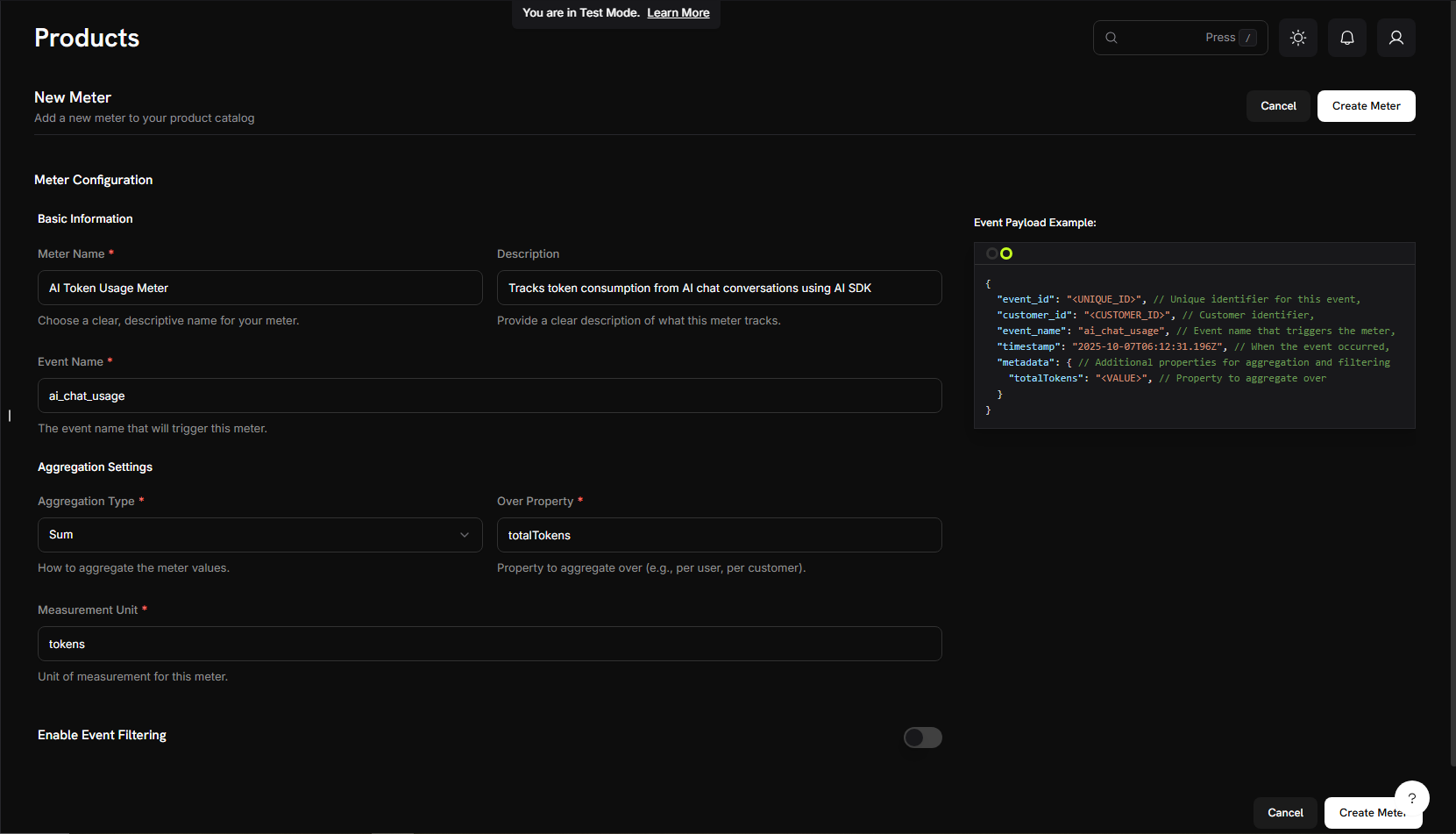
    **Meter Name** → `AI Token Usage Meter`

    **Description** → `Tracks token consumption from AI chat conversations using AI SDK`

    **Event Name** → `ai_chat_usage`

    <Warning>
      The event name `ai_chat_usage` must match exactly what we'll send from our application code later. Event names are case-sensitive!
    </Warning>
  </Step>

  <Step title="Configure how we count tokens">
    Set up the aggregation (how the meter counts our events):

    **Aggregation Type**: Select **Sum** from the dropdown

    **Aggregate Over**: Type → `totalTokens`

    **Measurement Unit**: Type → `tokens`

    <Info>
      We're using "Sum" because we want to add up all tokens consumed across multiple chat messages. The SDK automatically sends `totalTokens` in each event.
    </Info>
  </Step>

  <Step title="Create your meter">
    1. Double-check all your settings match the values above
    2. Click **Create Meter**

    <Frame>
      <img src="https://mintcdn.com/dodopayments/4L3_sb2jJa5trJWD/images/cookbooks/ai-chat-app/meter-configuration.png?fit=max&auto=format&n=4L3_sb2jJa5trJWD&q=85&s=c5b4f56326b6825847c9fc7666056102" alt="Meter Configuration" style={{ maxHeight: '500px', width: 'auto' }} width="1661" height="951" data-path="images/cookbooks/ai-chat-app/meter-configuration.png" />
    </Frame>

    <Check>
      **Meter created!** Your "AI Token Usage Meter" is now ready to start counting tokens. Next, we'll connect it to a billing product.
    </Check>
  </Step>
</Steps>

## Step 2: Get Your API Keys

Before we build the app, let's gather the API keys we'll need.

<Steps>
  <Step title="Get Dodo Payments API Key">
    1. In your Dodo Payments dashboard, go to **Developers** → **API Keys**
    2. Click **Create API Key**
    3. Copy the API key - it will look like `test_abc123...`

    <Note>
      Save this API key - we'll add it to our `.env` file later.
    </Note>
  </Step>

  <Step title="Get Google AI API Key">
    1. Visit [aistudio.google.com](https://aistudio.google.com/api-keys)
    2. Click **Get API Key**
    3. Create a new API key or use an existing one
    4. Copy the key

    <Note>
      Keep this key safe - we'll also add it to our `.env` file.
    </Note>
  </Step>
</Steps>

***

## Step 3: Create Your Billing Product

Now we need to create a product that defines our pricing (\$0.01 per 1,000 tokens with 10,000 free tokens). This connects our meter to actual billing.

<Tip>
  **What we're building**: A product called "AI Chat Service" that charges based on token consumption with a generous free tier.
</Tip>

<Steps>
  <Step title="Navigate to Products">
    1. In your Dodo Payments dashboard, click **Products** in the left sidebar
    2. Click **Create Product**
    3. Select **Usage-Based** as the product type

    This tells Dodo Payments that billing will be based on meter usage, not a fixed subscription.
  </Step>

  <Step title="Enter product details">
    Fill in the required details:

    **Product Name**: → `AI Chat Service`

    **Description**: → `AI-powered chat service with automatic token-based billing`

    **Product Image**: Upload a relevant image

    <Info>
      These will appear on customer invoices, so make them clear and professional.
    </Info>
  </Step>

  <Step title="Connect your meter">
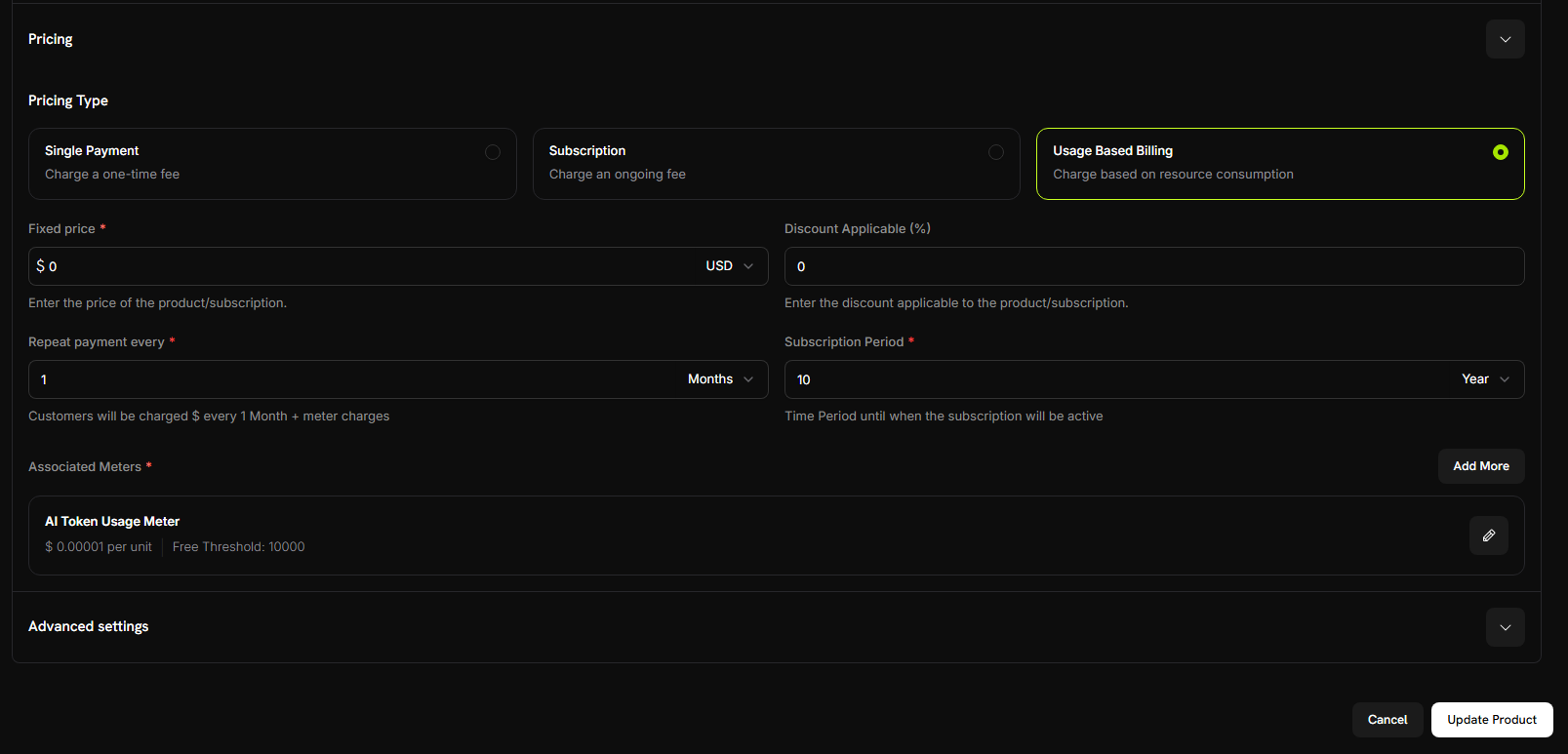
    Before connecting your meter, make sure you have selected **Usage Based Billing** as the price type for your product.

    Additionally, set the **Fixed Price** to `0` to ensure customers are only charged based on their usage, with no base fee.

    Now, link the meter you just created:

    1. Scroll down to the **Associated Meter** section
    2. Click **Add Meters**
    3. From the dropdown, select **"AI Token Usage Meter"** (the one you created earlier)
    4. Confirm that it appears in your product configuration

    <Check>
      Your meter is now successfully connected to this product.
    </Check>
  </Step>

  <Step title="Set your pricing">
    Here's where we define our business model:

    **Price Per Unit**: Enter → `0.00001` (this is $0.01 per 1,000 tokens or $0.00001 per token)

    **Free Threshold**: Enter → `10000` (customers get 10,000 free tokens per month)

    <Frame>
      <img src="https://mintcdn.com/dodopayments/4L3_sb2jJa5trJWD/images/cookbooks/ai-chat-app/product-pricing.png?fit=max&auto=format&n=4L3_sb2jJa5trJWD&q=85&s=e92dcb98316e970c1b921e0572f10b43" alt="Product Pricing" style={{ maxHeight: '500px', width: 'auto' }} width="1607" height="773" data-path="images/cookbooks/ai-chat-app/product-pricing.png" />
    </Frame>

    <Tip>
      **How billing works**: If a customer uses 25,000 tokens in a month, they'll be charged for 15,000 tokens (25,000 - 10,000 free) = 15,000 × $0.00001 = $0.15
    </Tip>
  </Step>

  <Step title="Save your product">
    1. Review all your settings:
       * Name: AI Chat Service
       * Meter: AI Token Usage Meter
       * Price: \$0.01 per 1,000 tokens
       * Free tier: 10,000 tokens
    2. Click **Save Changes**

    <Check>
      **Product created!** Your billing is now configured. Customers will automatically be charged based on their token usage.
    </Check>
  </Step>
</Steps>

## Step 4: Make a Test Purchase

Before we start building the app, let's create a test customer by making a purchase.

<Steps>
  <Step title="Get your payment link">
    1. In your Dodo Payments dashboard, go to **Products**
    2. Find your "AI Chat Service" product
    3. Click the **Share** button next to your product
    4. Copy the payment link that appears
  </Step>

  <Step title="Complete a test purchase">
    1. Open the payment link in a new browser tab
    2. Enter test payment details and complete purchase

    <Check>
      After successful payment, you'll have a customer ID that we'll use in our application code.
    </Check>
  </Step>

  <Step title="Find your customer ID">
    1. Go back to your Dodo Payments dashboard
    2. Navigate to **Sales** -> **Customers** in the left sidebar
    3. Find the customer you just created (with the test email)
    4. Copy the customer ID - it will look like `cus_123`

    <Note>
      Save this customer ID - we'll use it when testing our chat application.
    </Note>
  </Step>
</Steps>

## Step 5: Build the Chat Application

Now we have our billing setup complete and a test customer created. Let's build the AI chat application with automatic token tracking.

<Steps>
  <Step title="Set up your project">
    Create a new directory and initialize the project:

    ```bash theme={null}
    mkdir ai-chat-app
    cd ai-chat-app
    npm init -y
    ```
  </Step>

  <Step title="Install dependencies">
    Install the packages we need:

    ```bash theme={null}
    npm install express ai @ai-sdk/google @dodopayments/ingestion-blueprints dotenv
    npm install --save-dev typescript @types/express @types/node tsx
    ```
  </Step>

  <Step title="Configure TypeScript">
    Create `tsconfig.json`:

    ```json tsconfig.json theme={null}
    {
      "compilerOptions": {
        "target": "ES2020",
        "module": "ESNext",
        "moduleResolution": "node",
        "esModuleInterop": true,
        "strict": true,
        "skipLibCheck": true,
        "outDir": "./dist",
        "rootDir": "./src"
      },
      "include": ["src/**/*"],
      "exclude": ["node_modules"]
    }
    ```

    Update `package.json` to add the module type and scripts:

    ```json package.json theme={null}
    {
      "type": "module",
      "scripts": {
        "dev": "tsx src/server.ts",
        "build": "tsc",
        "start": "node dist/server.js"
      }
    }
    ```
  </Step>

  <Step title="Create project structure">
    Create the folders and files:

    ```bash theme={null}
    mkdir src public
    ```
  </Step>

  <Step title="Set up environment variables">
    Create a `.env` file in your project root:

    ```bash .env theme={null}
    DODO_PAYMENTS_API_KEY=your_dodo_api_key_here
    DODO_ENVIRONMENT=test_mode
    GOOGLE_GENERATIVE_AI_API_KEY=your_google_api_key_here
    PORT=3000
    ```

    Replace the placeholder values with your actual API keys from Step 2.
  </Step>

  <Step title="Create the backend server">
    Create `src/server.ts` and copy this complete server code:
  </Step>
</Steps>

Here's the complete AI chat server with integrated billing:

<CodeGroup>
  ```typescript src/server.ts expandable theme={null}
  import express, { Request, Response } from 'express';
  import { generateText } from 'ai';
  import { google } from '@ai-sdk/google';
  import { createLLMTracker } from '@dodopayments/ingestion-blueprints';
  import 'dotenv/config';

  const app = express();
  app.use(express.json());
  app.use(express.static('public'));

  // Replace with your test customer ID
  const CUSTOMER_ID = 'cus_123';

  // Create tracker once with your meter event name
  const llmTracker = createLLMTracker({
    apiKey: process.env.DODO_PAYMENTS_API_KEY!,
    environment: process.env.DODO_ENVIRONMENT as 'test_mode' | 'live_mode',
    eventName: 'ai_chat_usage', // Must match your meter configuration
  });

  // Chat endpoint with conversation support
  app.post('/chat', async (req: Request, res: Response) => {
    try {
      const { messages } = req.body;

      if (!messages || !Array.isArray(messages)) {
        return res.status(400).json({ 
          error: 'Missing required field: messages (array)' 
        });
      }

      // Wrap AI SDK with automatic token tracking
      const trackedClient = llmTracker.wrap({
        client: { generateText },
        customerId: CUSTOMER_ID
      });

      // Generate AI response - tokens are automatically tracked!
      const response = await trackedClient.generateText({
        model: google('gemini-2.5-flash'),
        messages: messages
      });

      res.json({
        message: response.text,
        usage: {
          totalTokens: response.usage.totalTokens
        }
      });

    } catch (error: any) {
      console.error('Chat error:', error);
      res.status(500).json({ 
        error: 'Failed to process chat',
        details: error.message 
      });
    }
  });

  const PORT = process.env.PORT || 3000;
  app.listen(PORT, () => {
    console.log(`🚀 Server running at http://localhost:${PORT}`);
    console.log(`📊 Tracking event: ai_chat_usage`);
    console.log(`👤 Customer ID: ${CUSTOMER_ID}`);
    console.log(`🔧 Environment: ${process.env.DODO_ENVIRONMENT}`);
  });
  ```

  ```bash .env theme={null}
  # Add your API keys here
  DODO_PAYMENTS_API_KEY=your_dodo_api_key_here
  DODO_ENVIRONMENT=test_mode
  GOOGLE_GENERATIVE_AI_API_KEY=your_google_api_key_here
  PORT=3000
  ```

  ```json package.json expandable theme={null}
  {
    "name": "ai-chat-app",
    "version": "1.0.0",
    "type": "module",
    "scripts": {
      "dev": "tsx src/server.ts",
      "build": "tsc",
      "start": "node dist/server.js"
    },
    "dependencies": {
      "express": "^4.18.2",
      "ai": "^3.0.0",
      "@ai-sdk/google": "^0.0.15",
      "@dodopayments/ingestion-blueprints": "latest",
      "dotenv": "^16.0.3"
    },
    "devDependencies": {
      "typescript": "^5.0.0",
      "@types/express": "^4.17.17",
      "@types/node": "^20.0.0",
      "tsx": "^3.12.7"
    }
  }
  ```
</CodeGroup>

***

## Step 6: Add the Chat Interface

Now let's add a beautiful chat interface with full conversation history! Create `public/index.html`:

```html public/index.html expandable theme={null}
<!DOCTYPE html>
<html lang="en">
  <head>
    <meta charset="UTF-8" />
    <meta name="viewport" content="width=device-width, initial-scale=1.0" />
    <title>AI Chat with Usage Billing</title>
    <style>
      * {
        margin: 0;
        padding: 0;
        box-sizing: border-box;
      }

      body {
        font-family: "Inter", -apple-system, BlinkMacSystemFont, "Segoe UI",
          Roboto, sans-serif;
        background: #0f0f1e;
        background-image: radial-gradient(
            at 0% 0%,
            rgba(102, 126, 234, 0.15) 0px,
            transparent 50%
          ),
          radial-gradient(
            at 100% 100%,
            rgba(118, 75, 162, 0.15) 0px,
            transparent 50%
          ),
          radial-gradient(
            at 50% 50%,
            rgba(102, 126, 234, 0.05) 0px,
            transparent 50%
          );
        height: 100vh;
        display: flex;
        justify-content: center;
        align-items: center;
        padding: 0;
        position: relative;
        overflow: hidden;
        margin: 0;
      }

      .chat-container {
        background: rgba(22, 22, 35, 0.95);
        border: 1px solid rgba(102, 126, 234, 0.2);
        border-radius: 0;
        box-shadow: 0 10px 40px rgba(0, 0, 0, 0.5);
        width: 100%;
        max-width: 100%;
        height: 100vh;
        display: flex;
        flex-direction: column;
        overflow: hidden;
        position: relative;
        z-index: 1;
      }

      .chat-header {
        background: linear-gradient(
          135deg,
          rgba(102, 126, 234, 0.15) 0%,
          rgba(118, 75, 162, 0.15) 100%
        );
        border-bottom: 1px solid rgba(102, 126, 234, 0.2);
        color: white;
        padding: 24px 28px;
        position: relative;
        overflow: hidden;
      }

      .chat-header h1 {
        font-size: 26px;
        margin-bottom: 6px;
        font-weight: 700;
        letter-spacing: -0.5px;
        color: #fff;
      }

      .chat-header p {
        font-size: 13px;
        opacity: 0.6;
        font-weight: 500;
        letter-spacing: 0.3px;
      }

      .chat-messages {
        flex: 1;
        overflow-y: auto;
        padding: 32px 10%;
        background: transparent;
        will-change: scroll-position;
        scroll-behavior: smooth;
      }

      .chat-messages::-webkit-scrollbar {
        width: 6px;
      }

      .chat-messages::-webkit-scrollbar-track {
        background: rgba(255, 255, 255, 0.05);
      }

      .chat-messages::-webkit-scrollbar-thumb {
        background: rgba(102, 126, 234, 0.3);
        border-radius: 3px;
      }

      .chat-messages::-webkit-scrollbar-thumb:hover {
        background: rgba(102, 126, 234, 0.5);
      }

      .message {
        margin-bottom: 20px;
        display: flex;
        gap: 12px;
        animation: slideIn 0.2s ease-out;
      }

      @keyframes slideIn {
        from {
          opacity: 0;
          transform: translateY(10px);
        }

        to {
          opacity: 1;
          transform: translateY(0);
        }
      }

      .message.user {
        flex-direction: row-reverse;
      }

      .message-avatar {
        width: 40px;
        height: 40px;
        border-radius: 12px;
        display: flex;
        align-items: center;
        justify-content: center;
        font-size: 20px;
        flex-shrink: 0;
        box-shadow: 0 2px 8px rgba(0, 0, 0, 0.2);
      }

      .message.user .message-avatar {
        background: linear-gradient(135deg, #667eea 0%, #764ba2 100%);
      }

      .message.assistant .message-avatar {
        background: linear-gradient(135deg, #f093fb 0%, #f5576c 100%);
      }

      .message-content {
        max-width: 65%;
      }

      .message-bubble {
        padding: 14px 18px;
        border-radius: 18px;
        line-height: 1.6;
        word-wrap: break-word;
        font-size: 15px;
        position: relative;
      }

      .message.user .message-bubble {
        background: linear-gradient(135deg, #667eea 0%, #764ba2 100%);
        color: white;
        border-bottom-right-radius: 6px;
        box-shadow: 0 2px 8px rgba(102, 126, 234, 0.3);
      }

      .message.assistant .message-bubble {
        background: rgba(255, 255, 255, 0.05);
        color: rgba(255, 255, 255, 0.95);
        border: 1px solid rgba(255, 255, 255, 0.1);
        border-bottom-left-radius: 6px;
        box-shadow: 0 2px 8px rgba(0, 0, 0, 0.2);
      }

      .message-meta {
        display: flex;
        gap: 10px;
        margin-top: 8px;
        font-size: 11px;
        color: rgba(255, 255, 255, 0.4);
        font-weight: 500;
      }

      .message.user .message-meta {
        justify-content: flex-end;
      }

      .token-badge {
        background: rgba(102, 126, 234, 0.2);
        color: #a8b9ff;
        padding: 4px 10px;
        border-radius: 12px;
        font-weight: 600;
        border: 1px solid rgba(102, 126, 234, 0.3);
      }

      .chat-input-area {
        padding: 24px 10% 32px;
        background: rgba(22, 22, 35, 0.95);
        border-top: 1px solid rgba(102, 126, 234, 0.2);
      }

      .input-wrapper {
        display: flex;
        gap: 12px;
        align-items: flex-end;
      }

      #messageInput {
        flex: 1;
        background: rgba(255, 255, 255, 0.05);
        border: 2px solid rgba(102, 126, 234, 0.2);
        border-radius: 16px;
        padding: 14px 20px;
        font-size: 15px;
        font-family: inherit;
        resize: none;
        max-height: 120px;
        transition: border-color 0.2s ease, background 0.2s ease;
        color: white;
        will-change: border-color;
        overflow: hidden;
        scrollbar-width: none;
        /* Firefox */
      }

      #messageInput::-webkit-scrollbar {
        display: none;
      }

      #messageInput::placeholder {
        color: rgba(255, 255, 255, 0.3);
      }

      #messageInput:focus {
        outline: none;
        border-color: #667eea;
        background: rgba(255, 255, 255, 0.08);
      }

      #sendBtn {
        background: linear-gradient(135deg, #667eea 0%, #764ba2 100%);
        color: white;
        border: none;
        width: 52px;
        height: 52px;
        border-radius: 16px;
        cursor: pointer;
        display: flex;
        align-items: center;
        justify-content: center;
        font-size: 22px;
        transition: transform 0.1s ease, box-shadow 0.1s ease;
        flex-shrink: 0;
        box-shadow: 0 2px 8px rgba(102, 126, 234, 0.4);
        position: relative;
      }

      #sendBtn:hover:not(:disabled) {
        transform: translateY(-1px);
        box-shadow: 0 4px 12px rgba(102, 126, 234, 0.5);
      }

      #sendBtn:active:not(:disabled) {
        transform: translateY(0);
      }

      #sendBtn:disabled {
        opacity: 0.4;
        cursor: not-allowed;
        box-shadow: none;
      }

      .typing-indicator {
        display: none;
        padding: 14px 18px;
        background: rgba(255, 255, 255, 0.05);
        border: 1px solid rgba(255, 255, 255, 0.1);
        border-radius: 18px;
        border-bottom-left-radius: 6px;
        box-shadow: 0 2px 8px rgba(0, 0, 0, 0.2);
        width: fit-content;
      }

      .typing-indicator.show {
        display: block;
      }

      .typing-dots {
        display: flex;
        gap: 6px;
      }

      .typing-dots span {
        width: 10px;
        height: 10px;
        border-radius: 50%;
        background: #667eea;
        animation: typing 1.4s infinite ease-in-out;
        will-change: transform, opacity;
      }

      .typing-dots span:nth-child(2) {
        animation-delay: 0.2s;
      }

      .typing-dots span:nth-child(3) {
        animation-delay: 0.4s;
      }

      @keyframes typing {
        0%,
        60%,
        100% {
          transform: translateY(0) scale(1);
          opacity: 0.6;
        }

        30% {
          transform: translateY(-12px) scale(1.1);
          opacity: 1;
        }
      }

      .error-message {
        background: rgba(239, 68, 68, 0.15);
        color: #fca5a5;
        padding: 14px 18px;
        border-radius: 12px;
        margin-bottom: 12px;
        display: none;
        border: 1px solid rgba(239, 68, 68, 0.3);
        font-size: 14px;
        font-weight: 500;
      }

      .error-message.show {
        display: block;
        animation: slideIn 0.3s ease;
      }

      .empty-state {
        text-align: center;
        padding: 80px 20px;
        color: rgba(255, 255, 255, 0.5);
      }

      .empty-state-icon {
        font-size: 72px;
        margin-bottom: 20px;
        animation: float 3s ease-in-out infinite;
      }

      @keyframes float {
        0%,
        100% {
          transform: translateY(0px);
        }

        50% {
          transform: translateY(-10px);
        }
      }

      .empty-state h2 {
        font-size: 24px;
        margin-bottom: 10px;
        color: rgba(255, 255, 255, 0.9);
        font-weight: 700;
        letter-spacing: -0.5px;
      }

      .empty-state p {
        font-size: 15px;
        color: rgba(255, 255, 255, 0.4);
        font-weight: 500;
      }
    </style>
  </head>

  <body>
    <div class="chat-container">
      <div class="chat-header">
        <h1>🤖 AI Chat Assistant</h1>
        <p>Powered by AI-SDK & Dodo Payments</p>
      </div>

      <div class="chat-messages" id="chatMessages">
        <div class="empty-state" id="emptyState">
          <div class="empty-state-icon">💬</div>
          <h2>Start a Conversation</h2>
          <p>Ask me anything! Your token usage is automatically tracked.</p>
        </div>
      </div>

      <div class="chat-input-area">
        <div class="error-message" id="errorMessage"></div>
        <div class="input-wrapper">
          <textarea
            id="messageInput"
            placeholder="Type your message here..."
            rows="1"
          ></textarea>
          <button id="sendBtn" onclick="sendMessage()">➤</button>
        </div>
      </div>
    </div>

    <script>
      let conversationHistory = [];

      const messageInput = document.getElementById("messageInput");
      let resizeTimeout;
      messageInput.addEventListener("input", function () {
        clearTimeout(resizeTimeout);
        resizeTimeout = setTimeout(() => {
          this.style.height = "auto";
          this.style.height = Math.min(this.scrollHeight, 120) + "px";
        }, 10);
      });

      // Send message on Enter (Shift+Enter for new line)
      messageInput.addEventListener("keydown", function (e) {
        if (e.key === "Enter" && !e.shiftKey) {
          e.preventDefault();
          sendMessage();
        }
      });

      async function sendMessage() {
        const input = document.getElementById("messageInput");
        const message = input.value.trim();

        if (!message) return;

        // Hide empty state
        document.getElementById("emptyState").style.display = "none";

        // Hide error
        document.getElementById("errorMessage").classList.remove("show");

        // Add user message to UI
        addMessage("user", message);

        // Add to conversation history
        conversationHistory.push({
          role: "user",
          content: message,
        });

        // Clear input
        input.value = "";
        input.style.height = "auto";

        // Show typing indicator
        showTypingIndicator();

        // Disable send button
        const sendBtn = document.getElementById("sendBtn");
        sendBtn.disabled = true;

        try {
          const response = await fetch("/chat", {
            method: "POST",
            headers: {
              "Content-Type": "application/json",
            },
            body: JSON.stringify({
              messages: conversationHistory,
            }),
          });

          const data = await response.json();

          if (!response.ok) {
            throw new Error(data.error || "Failed to get response");
          }

          // Hide typing indicator
          hideTypingIndicator();

          // Add assistant response to UI
          addMessage("assistant", data.message, data.usage);

          // Add to conversation history
          conversationHistory.push({
            role: "assistant",
            content: data.message,
          });
        } catch (error) {
          hideTypingIndicator();
          showError(error.message);
          // Remove the last user message from history since it failed
          conversationHistory.pop();
        } finally {
          sendBtn.disabled = false;
        }
      }

      function addMessage(role, content, usage = null) {
        const messagesDiv = document.getElementById("chatMessages");

        const messageDiv = document.createElement("div");
        messageDiv.className = `message ${role}`;

        const avatar = role === "user" ? "👤" : "🤖";

        let metaHTML = "";
        if (usage) {
          metaHTML = `
                    <div class="message-meta">
                        <span class="token-badge">📊 ${usage.totalTokens} tokens</span>
                    </div>
                `;
        }

        messageDiv.innerHTML = `
                <div class="message-avatar">${avatar}</div>
                <div class="message-content">
                    <div class="message-bubble">${escapeHtml(content)}</div>
                    ${metaHTML}
                </div>
            `;

        messagesDiv.appendChild(messageDiv);
        requestAnimationFrame(() => {
          messagesDiv.scrollTop = messagesDiv.scrollHeight;
        });
      }

      function showTypingIndicator() {
        const messagesDiv = document.getElementById("chatMessages");

        const typingDiv = document.createElement("div");
        typingDiv.className = "message assistant";
        typingDiv.id = "typingIndicator";
        typingDiv.innerHTML = `
                <div class="message-avatar">🤖</div>
                <div class="typing-indicator show">
                    <div class="typing-dots">
                        <span></span>
                        <span></span>
                        <span></span>
                    </div>
                </div>
            `;

        messagesDiv.appendChild(typingDiv);
        requestAnimationFrame(() => {
          messagesDiv.scrollTop = messagesDiv.scrollHeight;
        });
      }

      function hideTypingIndicator() {
        const typingIndicator = document.getElementById("typingIndicator");
        if (typingIndicator) {
          typingIndicator.remove();
        }
      }

      function showError(message) {
        const errorDiv = document.getElementById("errorMessage");
        errorDiv.textContent = "❌ " + message;
        errorDiv.classList.add("show");
      }

      function escapeHtml(text) {
        const div = document.createElement("div");
        div.textContent = text;
        return div.innerHTML.replace(/\n/g, "<br>");
      }
    </script>
  </body>
</html>
```

***

## Step 7: Test Your Chat Application

Time to test our AI chat app and see the billing in action! Let's make sure everything works end-to-end.

<Tip>
  **What we're testing**: We'll have some conversations with the AI, verify the token events reach Dodo Payments, and confirm billing calculations are correct.
</Tip>

<Steps>
  <Step title="Start the server">
    First, make sure everything is set up:

    1. Verify your `.env` file has all the API keys from Step 2
    2. Start the development server:

    ```bash theme={null}
    npm run dev
    ```

    You should see:

    ```
    🚀 Server running at http://localhost:3000
    📊 Tracking event: ai_chat_usage
    👤 Customer ID: {YOUR CUSTOMER_ID}
    🔧 Environment: test_mode
    ```

    <Check>
      Server is running! Time to chat.
    </Check>
  </Step>

  <Step title="Open the chat interface">
    1. Open your browser
    2. Navigate to `http://localhost:3000`
    3. You should see the beautiful chat interface

    <Note>
      Make sure you update the `CUSTOMER_ID` in `server.ts` with your actual test customer ID from Step 4.
    </Note>
  </Step>

  <Step title="Have your first conversation">
    Let's test it out! Try these messages:

    1. **"What is artificial intelligence?"**
    2. **"How does machine learning work?"**
    3. **"Can you explain neural networks?"**

    Watch the token usage display update after each response!

    <Check>
      If you see the AI responding and token counts appearing, your app is working!
    </Check>
  </Step>

  <Step title="Check your Dodo Payments dashboard">
    Now let's verify the events are being received:

    1. Open your Dodo Payments dashboard
    2. Go to **Usage Billing** → **AI Token Usage Meter**
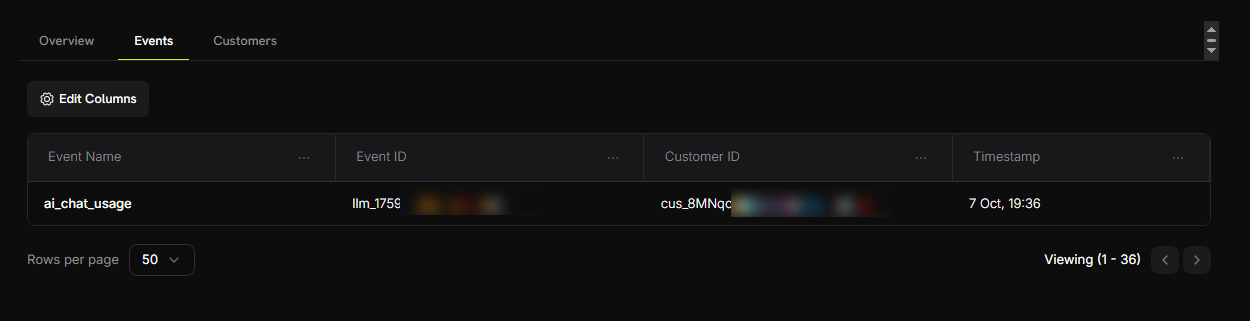
    3. Click on the **Events** tab
    4. You should see your chat events listed

    **What to look for:**

    * Event names: `ai_chat_usage`
    * Customer ID: Your test customer id

    <Frame>
      <img src="https://mintcdn.com/dodopayments/4L3_sb2jJa5trJWD/images/cookbooks/ai-chat-app/meter-event.png?fit=max&auto=format&n=4L3_sb2jJa5trJWD&q=85&s=041f2bd60ce174a0e67f051e206d25b0" alt="Meter Events" style={{ maxHeight: '500px', width: 'auto' }} width="1250" height="321" data-path="images/cookbooks/ai-chat-app/meter-event.png" />
    </Frame>

    <Check>
      You should see one event for each message you sent!
    </Check>
  </Step>

  <Step title="Verify token counting">
    Let's send some more messages and check if the token aggregation is working:

    1. In your meter, go to the **Customers** tab
    2. Find your test customer
    3. Check the "Consumed Units" column - it should show the total tokens used

    <Frame>
      <img src="https://mintcdn.com/dodopayments/oig3NPG69DDpua_S/images/cookbooks/ai-chat-app/aggregation.png?fit=max&auto=format&n=oig3NPG69DDpua_S&q=85&s=58fa883c91fae2d4e7d59e266ca8913b" alt="Meter Customer Tokens" style={{ maxHeight: '500px', width: 'auto' }} width="871" height="352" data-path="images/cookbooks/ai-chat-app/aggregation.png" />
    </Frame>

    <Info>
      The meter is summing up all `totalTokens` values automatically!
    </Info>
  </Step>

  <Step title="Test the free tier">
    Let's use enough tokens to exceed the free tier:

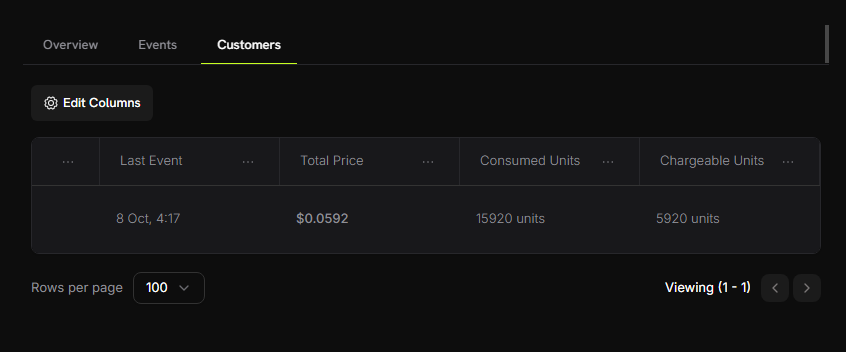
    1. Have several more conversations (aim for \~15,000+ total tokens)
    2. Check your **Customers** tab in meter dashboard again
    3. You should now see:
       * Consumed Units: 15,000+ tokens
       * Chargeable Units: 5,000 (10,000 free tokens applied)
       * Total Price: \~\$0.05

    <Frame>
      <img src="https://mintcdn.com/dodopayments/oig3NPG69DDpua_S/images/cookbooks/ai-chat-app/free-tier-test.png?fit=max&auto=format&n=oig3NPG69DDpua_S&q=85&s=5ffc1f234acfbaaa2ab0c34805812785" alt="Free Tier Test" style={{ maxHeight: '500px', width: 'auto' }} width="846" height="352" data-path="images/cookbooks/ai-chat-app/free-tier-test.png" />
    </Frame>

    <Check>
      **Success!** Your usage-based billing is working perfectly. Customers will be automatically charged based on their actual token consumption.
    </Check>
  </Step>
</Steps>

***

## Troubleshooting

Common issues and their solutions:

<AccordionGroup>
  <Accordion title="Events not appearing in dashboard">
    **Possible causes:**

    * Event name doesn't match meter configuration exactly
    * Customer ID doesn't exist in your account
    * API key is invalid or expired
    * Network connectivity issues

    **Solutions:**

    1. Verify event name matches meter configuration exactly (case-sensitive: `ai_chat_usage`)
    2. Check that customer ID exists in Dodo Payments dashboard
    3. Test API key with a simple API call
    4. Check server logs for error messages
  </Accordion>

  <Accordion title="Token counts showing zero">
    **Possible causes:**

    * Model not returning usage information
    * Incorrect SDK version

    **Solutions:**

    1. Test if model returns usage:

    ```typescript theme={null}
    const response = await generateText({...});
    console.log('Usage:', response.usage);
    ```

    2. Update to latest Blueprints SDK: `npm install @dodopayments/ingestion-blueprints@latest`
  </Accordion>

  <Accordion title="API key invalid error">
    **Possible causes:**

    * Wrong API key for environment
    * Extra spaces or quotes in `.env` file

    **Solutions:**

    * Ensure test key starts with `test_`, live key starts with `live_`
    * Remove any quotes around keys in `.env` file
    * Generate a new key if needed
  </Accordion>
</AccordionGroup>

Need help?

* [Discord Community](https://discord.gg/bYqAp4ayYh)
* [support@dodopayments.com](mailto:support@dodopayments.com)

***

## Congratulations! You Built an AI Chat App

You now have a fully functional AI chat application with automatic token usage tracking and billing powered by Dodo Payments. 🎉

### Learn More

<CardGroup cols={2}>
  <Card title="LLM Blueprint" icon="robot" href="/developer-resources/ingestion-blueprints/llm">
    Learn more about LLM Ingestion Blueprint
  </Card>

  <Card title="Ingestion Blueprints SDK" icon="github" href="https://github.com/dodopayments/ingestion-blueprints">
    Check out the GitHub repository for more examples
  </Card>

  <Card title="Join Community" icon="discord" href="https://discord.gg/bYqAp4ayYh">
    Get help and share your projects on Discord
  </Card>
</CardGroup>