> ## Documentation Index
> Fetch the complete documentation index at: https://docs.dodopayments.com/llms.txt
> Use this file to discover all available pages before exploring further.
# Microsoft Teams
> Senden Sie Dodo Payments-Benachrichtigungen an Microsoft Teams-Kanäle mit reichhaltigen Adaptive Cards.
## Einführung
Halten Sie Ihr Geschäftsteam mit Echtzeit-Zahlungsbenachrichtigungen in Microsoft Teams auf dem Laufenden. Die Integration liefert Zahlungsereignisse als reichhaltige Adaptive Cards – perfekt für Unternehmensumgebungen, in denen Teams das primäre Kollaborationstool ist.
Diese Anleitung setzt voraus, dass Sie Administratorrechte haben, um Webhooks in Ihrem Microsoft Teams-Arbeitsbereich zu erstellen.
## Erste Schritte
Gehen Sie in Ihrem Dodo Payments-Dashboard zu Webhooks → + Endpoint hinzufügen und erweitern Sie das Integrations-Dropdown.
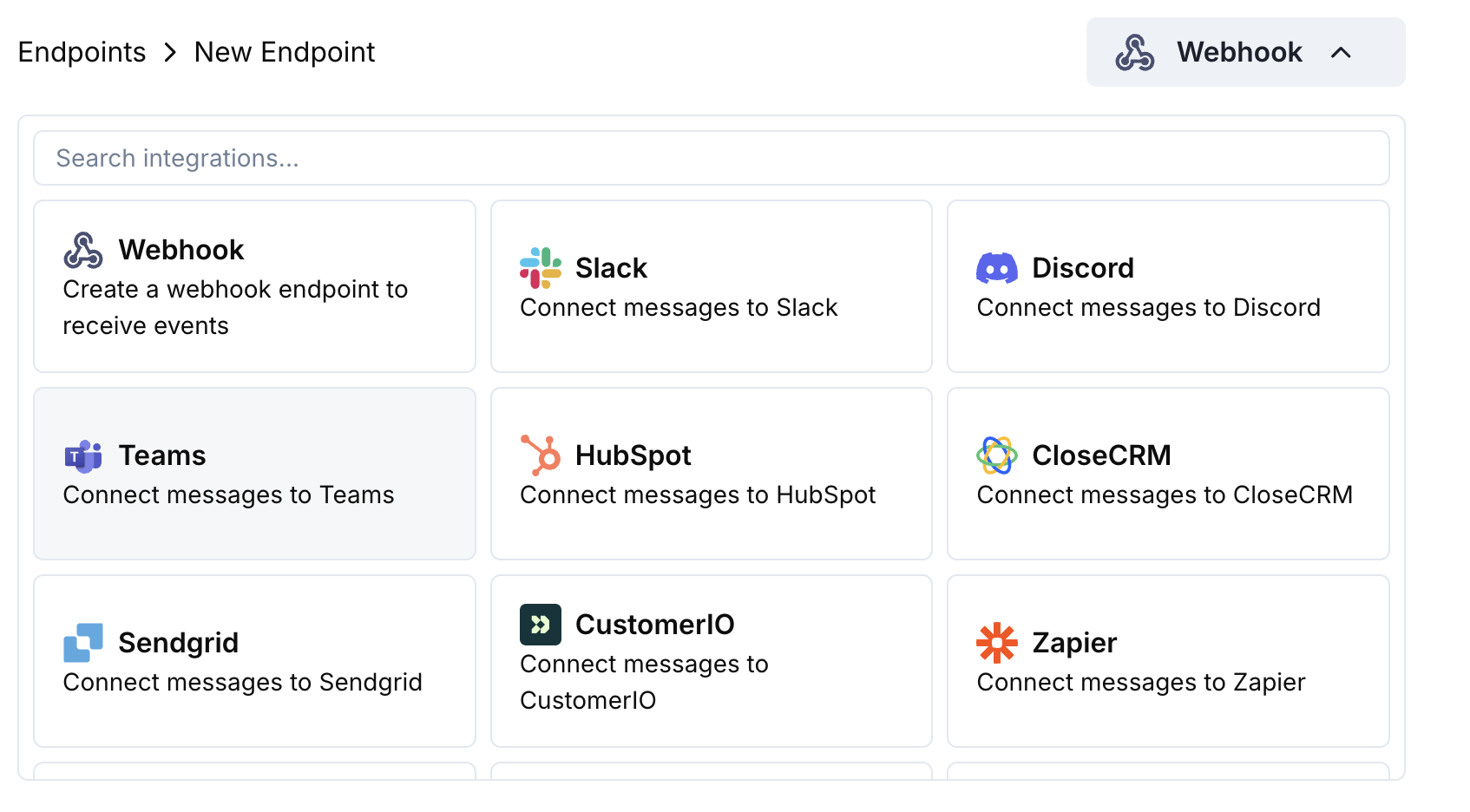 Wählen Sie die Integrationskarte Microsoft Teams aus.
Navigieren Sie in Teams zu Ihrem Kanal → ⋯ → Connectors → Incoming Webhook → Configure. Kopieren Sie die Webhook-URL.
Fügen Sie die Teams-Webhook-URL in die Endpunktkonfiguration ein.
Bearbeiten Sie den Transformationscode, um Nachrichten als Adaptive Cards für Teams zu formatieren.
Testen Sie mit Beispiel-Payloads und klicken Sie auf Create, um zu aktivieren.
🎉 Ihr Teams-Kanal erhält nun Dodo Payments-Updates als Adaptive Cards.
## Transformationscode-Beispiele
### Grundlegende Zahlungskarte
```javascript payment_card.js icon="js" expandable theme={null}
function handler(webhook) {
if (webhook.eventType === "payment.succeeded") {
const p = webhook.payload.data;
webhook.payload = {
type: "message",
attachments: [{
contentType: "application/vnd.microsoft.card.adaptive",
content: {
type: "AdaptiveCard",
body: [
{
type: "TextBlock",
text: "✅ Payment Successful",
weight: "Bolder",
size: "Medium"
},
{
type: "FactSet",
facts: [
{ title: "Amount", value: `$${(p.total_amount / 100).toFixed(2)}` },
{ title: "Customer", value: p.customer.email },
{ title: "Payment ID", value: p.payment_id }
]
}
]
}
}]
};
}
return webhook;
}
```
### Abonnementverwaltung
```javascript subscription_card.js icon="js" expandable theme={null}
function handler(webhook) {
const s = webhook.payload.data;
switch (webhook.eventType) {
case "subscription.active":
webhook.payload = {
type: "message",
attachments: [{
contentType: "application/vnd.microsoft.card.adaptive",
content: {
type: "AdaptiveCard",
body: [
{
type: "TextBlock",
text: "📄 Subscription Activated",
weight: "Bolder",
color: "Good"
},
{
type: "FactSet",
facts: [
{ title: "Customer", value: s.customer.email },
{ title: "Product", value: s.product_id },
{ title: "Amount", value: `$${(s.recurring_pre_tax_amount / 100).toFixed(2)}/${s.payment_frequency_interval}` },
{ title: "Next Billing", value: new Date(s.next_billing_date).toLocaleDateString() }
]
}
]
}
}]
};
break;
case "subscription.cancelled":
webhook.payload = {
type: "message",
attachments: [{
contentType: "application/vnd.microsoft.card.adaptive",
content: {
type: "AdaptiveCard",
body: [
{
type: "TextBlock",
text: "⚠️ Subscription Cancelled",
weight: "Bolder",
color: "Warning"
},
{
type: "FactSet",
facts: [
{ title: "Customer", value: s.customer.email },
{ title: "Product", value: s.product_id },
{ title: "Cancelled At", value: new Date(s.cancelled_at).toLocaleDateString() }
]
}
]
}
}]
};
break;
}
return webhook;
}
```
### Streitfallbenachrichtigungen
```javascript dispute_card.js icon="js" expandable theme={null}
function handler(webhook) {
if (webhook.eventType.startsWith("dispute.")) {
const d = webhook.payload.data;
const color = d.dispute_status === "won" ? "Good" : d.dispute_status === "lost" ? "Attention" : "Warning";
const title = d.dispute_status === "won" ? "🏆 Dispute Won" : d.dispute_status === "lost" ? "❌ Dispute Lost" : "🚨 Dispute Update";
webhook.payload = {
type: "message",
attachments: [{
contentType: "application/vnd.microsoft.card.adaptive",
content: {
type: "AdaptiveCard",
body: [
{
type: "TextBlock",
text: title,
weight: "Bolder",
color: color
},
{
type: "FactSet",
facts: [
{ title: "Payment ID", value: d.payment_id },
{ title: "Amount", value: `$${(d.amount / 100).toFixed(2)}` },
{ title: "Status", value: d.dispute_status },
{ title: "Stage", value: d.dispute_stage }
]
}
]
}
}]
};
}
return webhook;
}
```
## Tipps
* Verwenden Sie Adaptive Cards für reichhaltige, interaktive Formatierung
* Wählen Sie geeignete Farben: Gut (grün), Warnung (gelb), Aufmerksamkeit (rot)
* Halten Sie Faktensätze prägnant und lesbar
* Testen Sie mit dem Teams-Webhooks-Tester, bevor Sie bereitstellen
## Fehlersuche
* Überprüfen Sie, ob die Webhook-URL korrekt und aktiv ist
* Stellen Sie sicher, dass die Transformation gültiges Adaptive Card JSON zurückgibt
* Vergewissern Sie sich, dass der Webhook die Berechtigung hat, im Kanal zu posten
* Validieren Sie das Adaptive Card-Schema im Teams Webhook Tester
* Überprüfen Sie, ob alle erforderlichen Felder vorhanden sind
* Stellen Sie sicher, dass die Farbwerte gültig sind (Good, Warning, Attention, Default)
Wählen Sie die Integrationskarte Microsoft Teams aus.
Navigieren Sie in Teams zu Ihrem Kanal → ⋯ → Connectors → Incoming Webhook → Configure. Kopieren Sie die Webhook-URL.
Fügen Sie die Teams-Webhook-URL in die Endpunktkonfiguration ein.
Bearbeiten Sie den Transformationscode, um Nachrichten als Adaptive Cards für Teams zu formatieren.
Testen Sie mit Beispiel-Payloads und klicken Sie auf Create, um zu aktivieren.
🎉 Ihr Teams-Kanal erhält nun Dodo Payments-Updates als Adaptive Cards.
## Transformationscode-Beispiele
### Grundlegende Zahlungskarte
```javascript payment_card.js icon="js" expandable theme={null}
function handler(webhook) {
if (webhook.eventType === "payment.succeeded") {
const p = webhook.payload.data;
webhook.payload = {
type: "message",
attachments: [{
contentType: "application/vnd.microsoft.card.adaptive",
content: {
type: "AdaptiveCard",
body: [
{
type: "TextBlock",
text: "✅ Payment Successful",
weight: "Bolder",
size: "Medium"
},
{
type: "FactSet",
facts: [
{ title: "Amount", value: `$${(p.total_amount / 100).toFixed(2)}` },
{ title: "Customer", value: p.customer.email },
{ title: "Payment ID", value: p.payment_id }
]
}
]
}
}]
};
}
return webhook;
}
```
### Abonnementverwaltung
```javascript subscription_card.js icon="js" expandable theme={null}
function handler(webhook) {
const s = webhook.payload.data;
switch (webhook.eventType) {
case "subscription.active":
webhook.payload = {
type: "message",
attachments: [{
contentType: "application/vnd.microsoft.card.adaptive",
content: {
type: "AdaptiveCard",
body: [
{
type: "TextBlock",
text: "📄 Subscription Activated",
weight: "Bolder",
color: "Good"
},
{
type: "FactSet",
facts: [
{ title: "Customer", value: s.customer.email },
{ title: "Product", value: s.product_id },
{ title: "Amount", value: `$${(s.recurring_pre_tax_amount / 100).toFixed(2)}/${s.payment_frequency_interval}` },
{ title: "Next Billing", value: new Date(s.next_billing_date).toLocaleDateString() }
]
}
]
}
}]
};
break;
case "subscription.cancelled":
webhook.payload = {
type: "message",
attachments: [{
contentType: "application/vnd.microsoft.card.adaptive",
content: {
type: "AdaptiveCard",
body: [
{
type: "TextBlock",
text: "⚠️ Subscription Cancelled",
weight: "Bolder",
color: "Warning"
},
{
type: "FactSet",
facts: [
{ title: "Customer", value: s.customer.email },
{ title: "Product", value: s.product_id },
{ title: "Cancelled At", value: new Date(s.cancelled_at).toLocaleDateString() }
]
}
]
}
}]
};
break;
}
return webhook;
}
```
### Streitfallbenachrichtigungen
```javascript dispute_card.js icon="js" expandable theme={null}
function handler(webhook) {
if (webhook.eventType.startsWith("dispute.")) {
const d = webhook.payload.data;
const color = d.dispute_status === "won" ? "Good" : d.dispute_status === "lost" ? "Attention" : "Warning";
const title = d.dispute_status === "won" ? "🏆 Dispute Won" : d.dispute_status === "lost" ? "❌ Dispute Lost" : "🚨 Dispute Update";
webhook.payload = {
type: "message",
attachments: [{
contentType: "application/vnd.microsoft.card.adaptive",
content: {
type: "AdaptiveCard",
body: [
{
type: "TextBlock",
text: title,
weight: "Bolder",
color: color
},
{
type: "FactSet",
facts: [
{ title: "Payment ID", value: d.payment_id },
{ title: "Amount", value: `$${(d.amount / 100).toFixed(2)}` },
{ title: "Status", value: d.dispute_status },
{ title: "Stage", value: d.dispute_stage }
]
}
]
}
}]
};
}
return webhook;
}
```
## Tipps
* Verwenden Sie Adaptive Cards für reichhaltige, interaktive Formatierung
* Wählen Sie geeignete Farben: Gut (grün), Warnung (gelb), Aufmerksamkeit (rot)
* Halten Sie Faktensätze prägnant und lesbar
* Testen Sie mit dem Teams-Webhooks-Tester, bevor Sie bereitstellen
## Fehlersuche
* Überprüfen Sie, ob die Webhook-URL korrekt und aktiv ist
* Stellen Sie sicher, dass die Transformation gültiges Adaptive Card JSON zurückgibt
* Vergewissern Sie sich, dass der Webhook die Berechtigung hat, im Kanal zu posten
* Validieren Sie das Adaptive Card-Schema im Teams Webhook Tester
* Überprüfen Sie, ob alle erforderlichen Felder vorhanden sind
* Stellen Sie sicher, dass die Farbwerte gültig sind (Good, Warning, Attention, Default)