> ## Documentation Index
> Fetch the complete documentation index at: https://docs.dodopayments.com/llms.txt
> Use this file to discover all available pages before exploring further.
# v1.37.0 (2nd July 2025)
> Enhanced Analytics Dashboard with comprehensive revenue and retention insights, Reports 2.0 with detailed business reporting capabilities, and improved subscription management features for better business intelligence and operational efficiency.
## New Features 🚀
### Enhanced Analytics Dashboard
We've expanded the analytics dashboard with comprehensive revenue and retention insights to help you better understand your business performance.
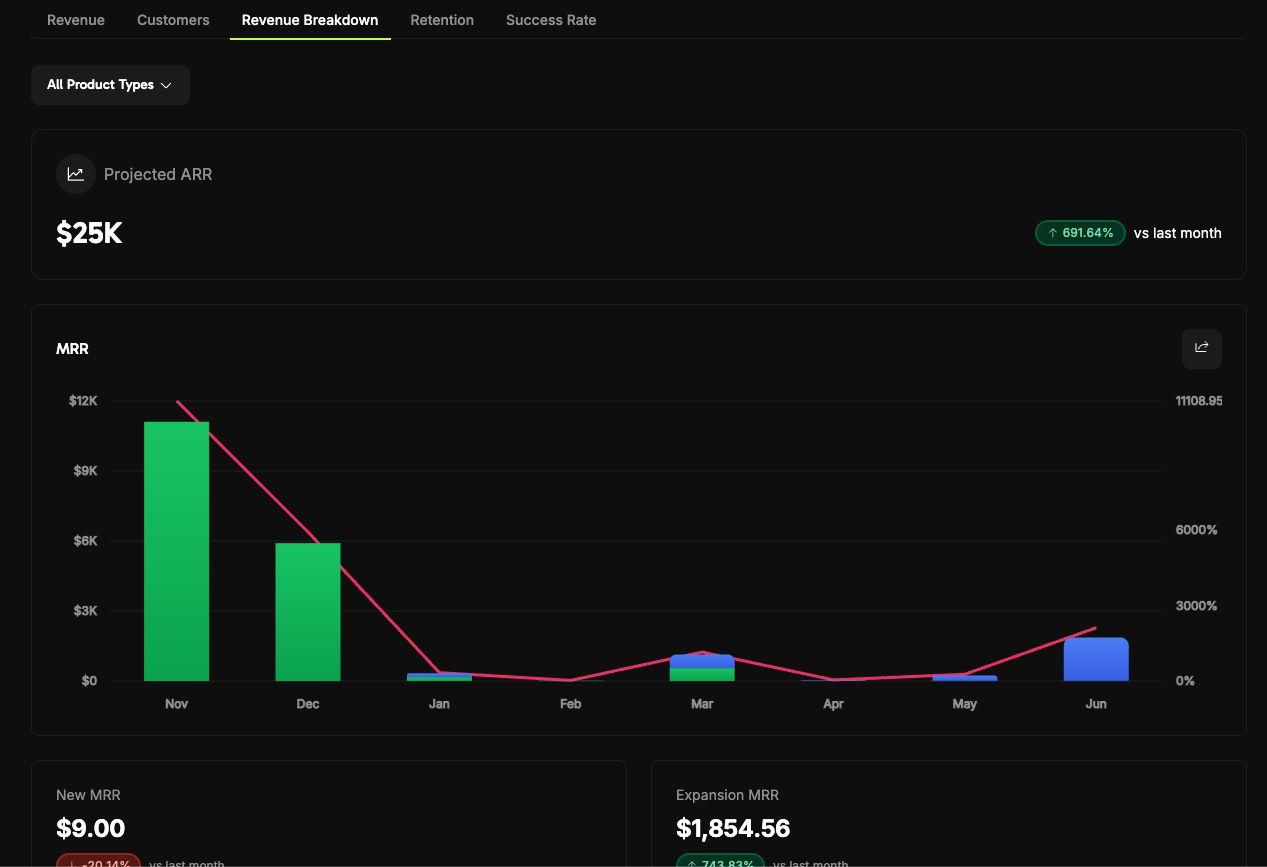
#### Revenue Breakdown Analytics
Track your recurring revenue metrics with detailed breakdowns:
* **Projected ARR**: Annual Recurring Revenue projections with trend analysis
* **MRR Breakdown and Growth Rate**: Monthly Recurring Revenue analysis with month-over-month growth metrics
* **New MRR Chart**: Visual representation of new customer revenue acquisition
* **Expansion MRR Chart**: Tracking revenue growth from existing customer upgrades and expansions
* **Churn MRR Chart**: Monitoring revenue lost from customer cancellations and downgrades
* **Net New MRR Chart**: Net revenue impact combining new, expansion, and churn MRR
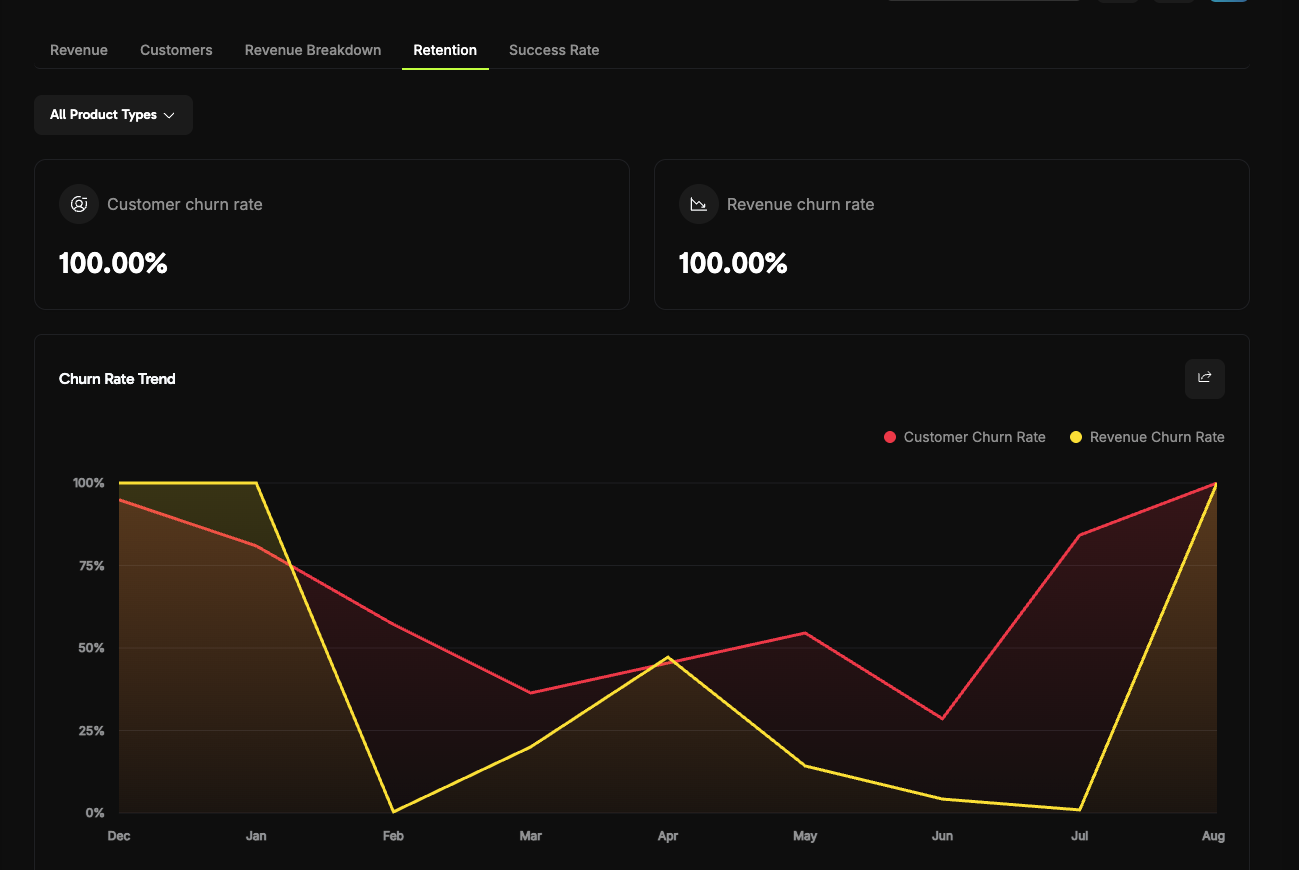
#### Retention Analytics
Monitor customer retention and churn patterns:
* **Customer Churn Rate**: Percentage of customers who cancel their subscriptions
* **Revenue Churn Rate**: Percentage of revenue lost from cancellations and downgrades
* **Churn Rate Trends**: Historical tracking of both customer and revenue churn patterns over time
* **User Retention Matrix**: Cohort analysis showing customer retention rates across different time periods
### Reports 2.0
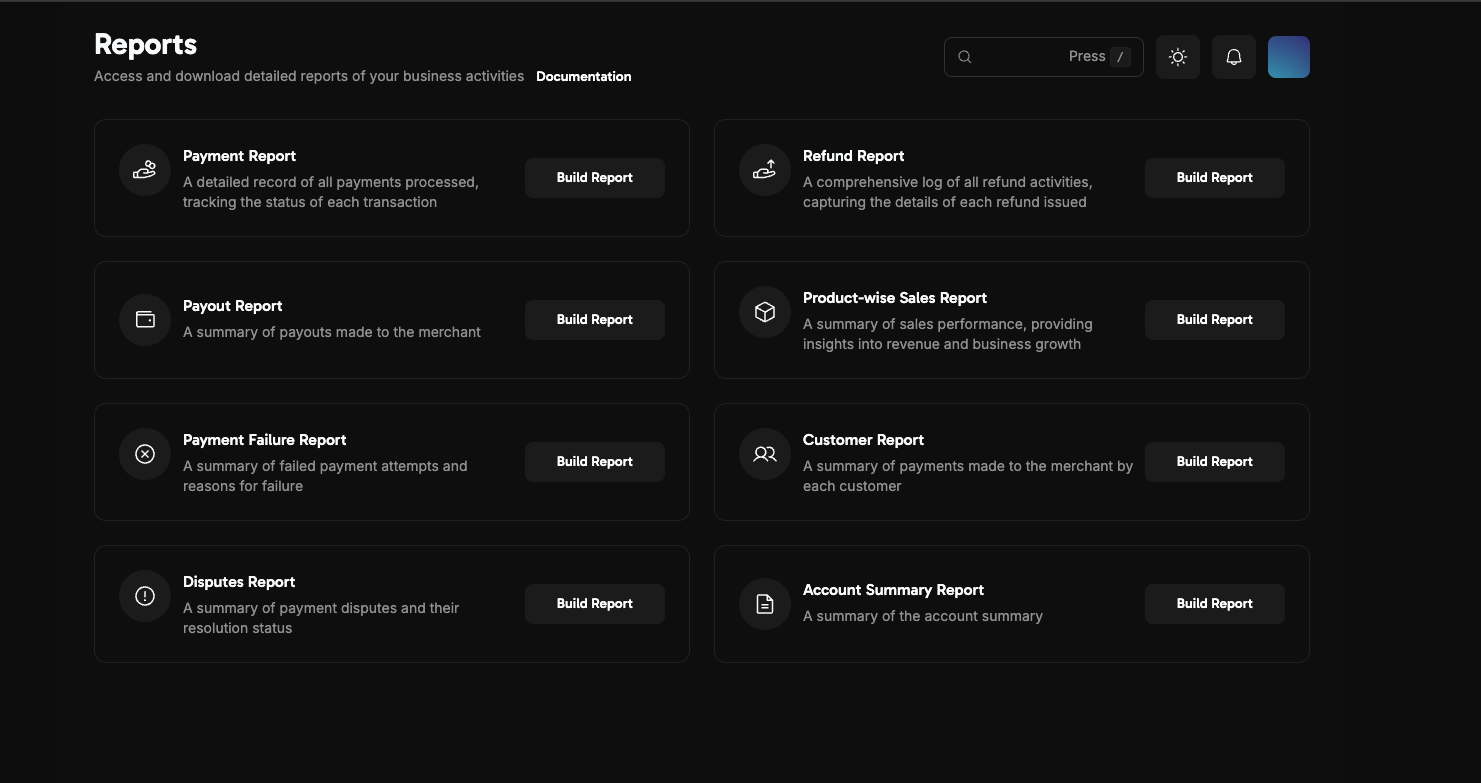
We've completely revamped the reports section with more comprehensive and detailed reporting capabilities. Navigate to **Business > Reports** to access the new reporting suite.
Available reports include:
* **Payment Report**: Detailed record of all processed payments with transaction status tracking
* **Refund Report**: Comprehensive log of all refund activities with detailed refund information
* **Payout Report**: Summary of payouts made to your account
* **Product-wise Sales Report**: Sales performance insights with revenue and business growth metrics
* **Payment Failure Report**: Summary of failed payment attempts with failure reasons
* **Customer Report**: Payment summary organized by customer
* **Disputes Report**: Payment disputes summary with resolution status
* **Account Summary Report**: Complete account overview and summary
### Enhanced Payout Reporting
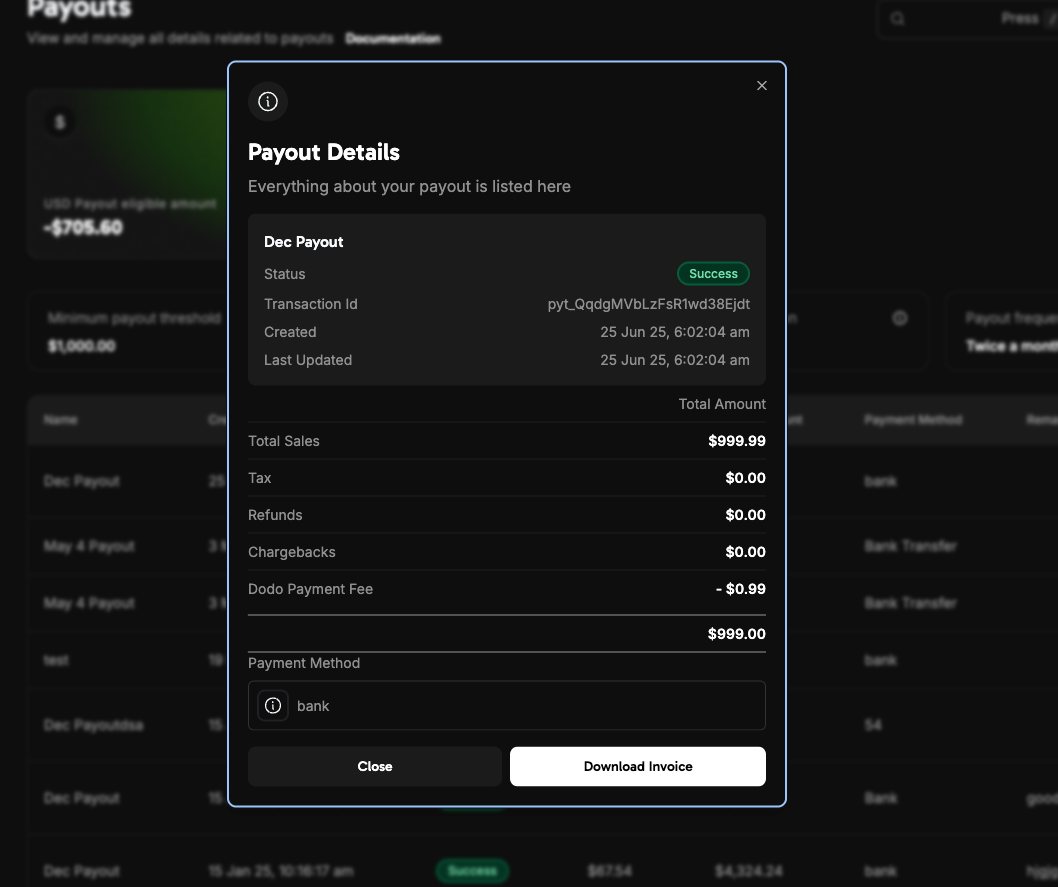
We've added detailed payout reports that provide clear visibility into fees and transaction details for each payout you receive from Dodo Payments. Access these enhanced reports in **Business > Payouts**.
### Dodo Payments Remote MCP Server
You can now use the hosted Remote MCP Server at [https://mcp.dodopayments.com](https://mcp.dodopayments.com) for instant MCP integration—no local setup required.
This is the fastest way to get started with Dodo Payments' MCP integration. No server installation or maintenance needed.
Visit [https://mcp.dodopayments.com](https://mcp.dodopayments.com) in your browser.
On the site, copy the MCP JSON configuration provided for your client.
Paste the configuration into your application's MCP settings (for example, Cursor or Claude).
For Cursor, your configuration should look like this:
```json theme={null}
{
"mcpServers": {
"dodopayments_api": {
"command": "npx",
"args": ["-y", "mcp-remote@latest", "https://mcp.dodopayments.com/sse"]
}
}
}
```
After adding the JSON configuration, a pop-up will prompt you to:
* Enter your Dodo Payments API key
* Select the environment (test or live)
* Select your MCP Client under Configuration Options
* Click the Login and Approve button
Once setup is complete, you'll see a success screen.
You're now ready to use the Dodo Payments MCP server!
### Additional Improvements
* Various minor improvements and bug fixes for enhanced stability and performance
 #### Retention Analytics
Monitor customer retention and churn patterns:
* **Customer Churn Rate**: Percentage of customers who cancel their subscriptions
* **Revenue Churn Rate**: Percentage of revenue lost from cancellations and downgrades
* **Churn Rate Trends**: Historical tracking of both customer and revenue churn patterns over time
* **User Retention Matrix**: Cohort analysis showing customer retention rates across different time periods
#### Retention Analytics
Monitor customer retention and churn patterns:
* **Customer Churn Rate**: Percentage of customers who cancel their subscriptions
* **Revenue Churn Rate**: Percentage of revenue lost from cancellations and downgrades
* **Churn Rate Trends**: Historical tracking of both customer and revenue churn patterns over time
* **User Retention Matrix**: Cohort analysis showing customer retention rates across different time periods
 ### Reports 2.0
We've completely revamped the reports section with more comprehensive and detailed reporting capabilities. Navigate to **Business > Reports** to access the new reporting suite.
Available reports include:
* **Payment Report**: Detailed record of all processed payments with transaction status tracking
* **Refund Report**: Comprehensive log of all refund activities with detailed refund information
* **Payout Report**: Summary of payouts made to your account
* **Product-wise Sales Report**: Sales performance insights with revenue and business growth metrics
* **Payment Failure Report**: Summary of failed payment attempts with failure reasons
* **Customer Report**: Payment summary organized by customer
* **Disputes Report**: Payment disputes summary with resolution status
* **Account Summary Report**: Complete account overview and summary
### Reports 2.0
We've completely revamped the reports section with more comprehensive and detailed reporting capabilities. Navigate to **Business > Reports** to access the new reporting suite.
Available reports include:
* **Payment Report**: Detailed record of all processed payments with transaction status tracking
* **Refund Report**: Comprehensive log of all refund activities with detailed refund information
* **Payout Report**: Summary of payouts made to your account
* **Product-wise Sales Report**: Sales performance insights with revenue and business growth metrics
* **Payment Failure Report**: Summary of failed payment attempts with failure reasons
* **Customer Report**: Payment summary organized by customer
* **Disputes Report**: Payment disputes summary with resolution status
* **Account Summary Report**: Complete account overview and summary
 ### Enhanced Payout Reporting
We've added detailed payout reports that provide clear visibility into fees and transaction details for each payout you receive from Dodo Payments. Access these enhanced reports in **Business > Payouts**.
### Enhanced Payout Reporting
We've added detailed payout reports that provide clear visibility into fees and transaction details for each payout you receive from Dodo Payments. Access these enhanced reports in **Business > Payouts**.
 ### Dodo Payments Remote MCP Server
You can now use the hosted Remote MCP Server at [https://mcp.dodopayments.com](https://mcp.dodopayments.com) for instant MCP integration—no local setup required.
### Dodo Payments Remote MCP Server
You can now use the hosted Remote MCP Server at [https://mcp.dodopayments.com](https://mcp.dodopayments.com) for instant MCP integration—no local setup required.